Table of Contents for
Mastering phpMyAdmin 3.4 for Effective MySQL Management
 Mastering phpMyAdmin 3.4 for Effective MySQL Management
Published by
Packt Publishing, 2012
Mastering phpMyAdmin 3.4 for Effective MySQL Management
Published by
Packt Publishing, 2012
- Cover
- Mastering phpMyAdmin 3.4 for Effective MySQL Management
- Mastering phpMyAdmin 3.4 for Effective MySQL Management
- Credits
- About the Author
- About the Reviewers
- www.PacktPub.com
- Preface
- What you need for this book
- Who this book is for
- Conventions
- Reader feedback
- Customer support
- 1. Getting Started with phpMyAdmin
- What is phpMyAdmin?
- Installing phpMyAdmin
- Configuring phpMyAdmin
- Installing phpMyAdmin configuration storage
- Upgrading phpMyAdmin
- Summary
- 2. Configuring Authentication and Security
- Securing phpMyAdmin
- Summary
- 3. Over Viewing the Interface
- Customizing general settings
- Character sets and collations
- Navigation panel
- Main panel
- User preferences
- Query window
- Summary
- 4. Creating and Browsing Tables
- Creating our first table
- Inserting data manually
- Browse mode
- Profiling queries
- Creating an additional table
- Summary
- 5. Changing Data and Structure
- Changing table structure
- Summary
- 6. Exporting Structure and Data (Backup)
- Exporting a database
- Exporting a table
- Exporting selectively
- Exporting multiple databases
- Saving the export file on the server
- Memory limits
- Summary
- 7. Importing Structure and Data
- Importing SQL files
- Importing CSV files
- Importing other formats
- Reading files from a web server upload directory
- Displaying an upload progress bar
- Summary
- 8. Searching Data
- Performing a complete database search
- Stopping an errant query
- Summary
- 9. Performing Table and Database Operations
- Changing table attributes
- Emptying or deleting a table
- Renaming, moving, and copying tables
- Performing other table operations
- Multi-table operations
- Database operations
- Summary
- 10. Benefiting from the Relational System
- Defining relations with the relation view
- Defining relations with the Designer
- Benefiting from the defined relations
- Column commenting
- Summary
- 11. Entering SQL Statements
- The Query window
- Multi-statement queries
- Pretty printing (syntax highlighting)
- The SQL Validator
- Summary
- 12. Generating Multi-table Queries
- Exploring column criteria
- Generating automatic joins (internal relations)
- Executing the query
- The visual builder
- Summary
- 13. Synchronizing Data and Supporting Replication
- Supporting MySQL replication
- Summary
- 14. Using Query Bookmarks
- Creating bookmarks
- Recalling bookmarks from the bookmarks list
- Passing a parameter to a bookmark
- Summary
- 15. Documenting the System
- Generating relational schemas
- Summary
- 16. Transforming Data using MIME
- Enabling transformations
- Examples of transformations
- Summary
- 17. Supporting Features Added in MySQL 5
- Supporting routines—stored procedures and functions
- Executing code with triggers
- Using information_schema
- Partitioning
- Exploring the event scheduler
- Summary
- 18. Tracking Changes
- Prerequisites
- Principles
- Initiating tracking for one table
- Testing the tracking mechanism
- Determining tracking status
- Structure snapshot
- Exporting a version
- Creating a new version
- Deleting tracking information
- Summary
- 19. Administrating the MySQL Server
- Database information
- Server information
- Summary
- A. Troubleshooting and Support
- Seeking support
- Contributing to the project
Data is not static, it changes often. This chapter focuses on editing and deleting data and its supporting structures—tables and databases.
The chapter is divided into two main parts. The first part covers all aspects of changing data. First we examine how to edit data, that is, how to enter the edit mode, how to edit more than one row at once, and how to benefit from inline editing. Next we see how to delete rows of data and how to delete tables and databases.
The second part explains how to modify the structure of tables. We examine how to add a column to a table; we then explore various column types such as TEXT, BLOB, ENUM, DATE, and BIT column types. Finally, we examine the management of indexes.
In this section, we cover the various ways of editing and deleting data.
When we browse a table or view results from a search on any single-table query, small icons and links appear on the left or right of each table row as shown in the following screenshot:
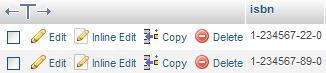
The row can be edited with one of the pencil-shaped icons (Edit) and deleted with the red icon (Delete). The exact form and location of these controls are governed by:
$cfg['PropertiesIconic'] = 'both';
$cfg['ModifyDeleteAtLeft'] = true;
$cfg['ModifyDeleteAtRight'] = false;
We can decide whether to display them on the left side, the right side, or on both sides. The $cfg['PropertiesIconic'] parameter can have the values TRUE, FALSE, or both. TRUE displays icons only, FALSE displays Edit, Inline Edit, Copy, and Delete (or their translated equivalent) as links, and both displays the icon and the text, as seen in the preceding screenshot.
The small checkbox beside each row is explained in the Multi-row editing and the Deleting multiple rows sections later in this chapter.
Clicking on the Edit icon or link brings the following panel, which is similar to the data entry panel (except for the lower part):
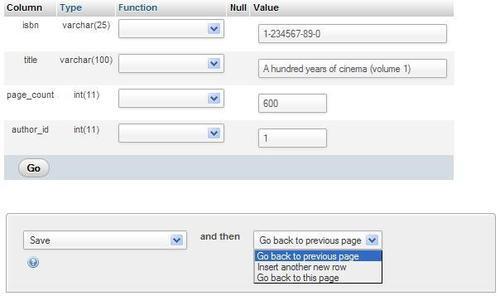
In this panel, we can change data by typing directly (or by cutting and pasting via the normal operating system mechanisms). We can also revert to the original contents using the Reset button.
By default, the lower drop-down menus are set to Save (so that we make changes to this row) and Go back to previous page (so that we can continue editing another row on the previous results page). We might want to stay on the current page after clicking on Go —in order to save and then continue editing—we can choose Go back to this page. If we want to insert yet another new row after saving the current row, we just have to choose Insert another new row before saving. The Insert as new row choice (below the Save choice) is explained in the Duplicating rows of data section later in this chapter.
People who prefer to use the keyboard can use the Tab key to go to the next field. Normally, the cursor goes from left to right and from top to bottom, so it would travel into the fields in the Function column (more on this in a moment). However, to ease data navigation in phpMyAdmin, the normal order of navigation has been altered. The Tab key first goes through each field in the Value column, and then through each one in the Function column.
Another way of moving between fields is with the Ctrl + arrow keys. This method might be easier than using the Tab key when many fields are on screen. For this to work, the $cfg['CtrlArrowsMoving'] parameter must be set to true, which is the default value.
If the table's structure permits a NULL value inside a column, a small checkbox appears in the column's Null column. Selecting this puts a NULL value in the column. Whenever data is typed into this column's Value, the Null checkbox is cleared automatically. (This is possible in JavaScript-enabled browsers.)
In the following screenshot, we have modified the structure of the phone column in the author table, to permit a NULL value (refer to the Editing column attribute section in this chapter). The Null checkbox is not selected here:
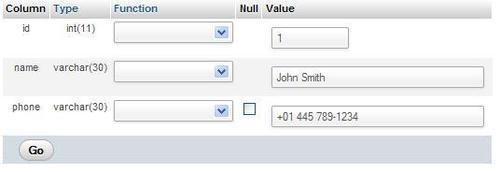
The corresponding data is erased after selecting the Null box.
MySQL language offers some functions that we may apply to data before saving. Some of these functions appear in a drop-down menu beside each column, if $cfg['ShowFunctionFields'] is set to TRUE.
The function list is defined in the $cfg['Functions'] array. As usual, the default values for these arrays are located in libraries/config.default.php. We may change them by copying the needed section into config.inc.php. If we do so, as these values can change from version to version, we should take care of merging our changes with the values of the new version. The most commonly used functions for a certain data type are displayed first in the list. Some restrictions are defined in the $cfg['RestrictColumnTypes'] and $cfg['RestrictFunctions'] arrays.
As depicted in the following screenshot, we could apply the UPPER function to the title column when saving this row, which would convert the title to uppercase characters:
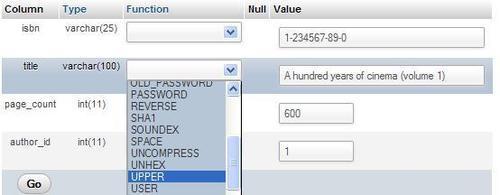
To gain some screen space, this feature may be disabled by setting $cfg['ShowFunctionFields'] to FALSE. Moreover, the Function column header is clickable, so we can disable this feature on the fly.
When the feature is disabled—either by clicking or via the configuration parameter—a Show : Function link appears in order to display this Function column with a single click as shown in the following screenshot:

A similar feature is available for the Type column header, either by clicking on it or by configuring $cfg['ShowFieldTypesInDataEditView'].
During the course of data maintenance (for permanent duplication or for test purposes), we often have to generate a copy of a row. If this is done in the same table, we must respect the rules of key uniqueness.
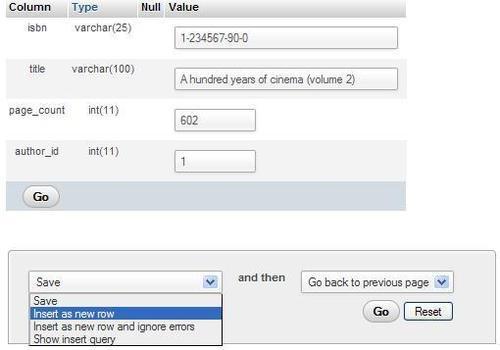
Here is an example of row duplication. Our author has written volume 2 of his book about cinema. Hence, the columns that need a slight change are the ISBN, title, and page count. We bring the existing row on screen, change these three columns, and choose Insert as new row, as shown in the following screenshot:
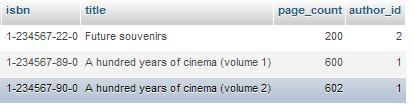
When we click on Go, another row is created with the modified information, leaving the original row unchanged, shown as follows:
A shortcut link exists to achieve the same operation. When browsing the table, clicking on Copy for a specific row brings the edit panel for this row and selects Insert as new row instead of Save.
The multi-row edit feature enables us to use checkboxes on the rows we want to edit, and use the Change link (or the pencil-shaped icon) in the With selected menu. The Check All / Uncheck All links can also be used to quickly check or uncheck all the boxes. We can also click anywhere on the row's data to activate the corresponding checkbox. To select a range of checkboxes, we can click the first checkbox of the range, and then Shift + Click on the last checkbox of the range.
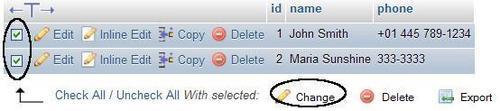
Upon clicking on Change, an edit panel containing all the chosen rows appears. The editing process may continue while the data from these rows is seen, compared, and changed. When we mark some rows with the checkboxes, we can also perform two other actions on them—Delete (refer to the Deleting multiple rows section in this chapter) and Export (refer to Chapter 6).
Sequential editing is possible on tables that have a primary key on an integer column. Our author table meets the criteria. Let us see what happens when we start editing the row having the id value 1:
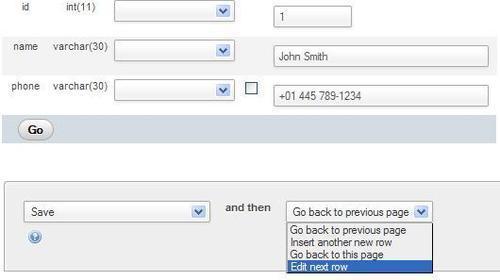
The editing panel appears, and we can edit author number 1. However, in the drop-down menu, the Edit next row choice is available. If chosen, the next author—the first one whose primary key value is greater than the current primary key value—will be available for edit.
Version 3.4 introduces inline row editing, that is, keeping in view the other rows of the results set while editing. This feature is available if $cfg['AjaxEnable'] is set to true, via either config.inc.php or the user preferences. Clicking on Inline Edit for a row shows the following dialog:
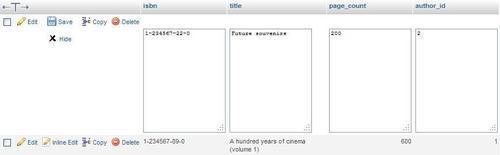
After editing the columns that need changes, we click on Save. Aborting the changes is also possible by using the Hide link.
phpMyAdmin's interface enables us to delete the following data:
- Single rows of data
- Multiple rows of a table
- All the rows in a table
- All the rows in multiple tables
We can use the red Delete icon beside each row to delete the row. If the value of $cfg['Confirm'] is set to TRUE, every MySQL DELETE statement has to be confirmed before execution. This is the default, as it might not be prudent to allow a row to be deleted with just one click!
The form of the confirmation varies depending on the browser's ability to execute JavaScript. A JavaScript-based confirmation pop up would resemble the following screenshot:
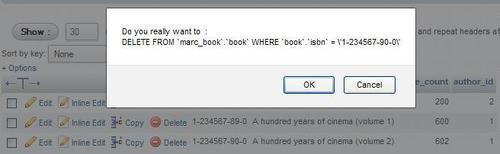
If JavaScript has been disabled in our browser, a distinct panel appears.
The actual DELETE statement will use whatever information is needed to ensure the deletion of only the intended row. In our case, a primary key had been defined and was used in the WHERE clause. In the absence of a primary key, a longer WHERE clause will be generated based on the value of each column. The generated WHERE clause might even prevent the correct execution of the DELETE operation, especially if there are TEXT or BLOB column types. This is because the HTTP transaction, used to send the query to the web server, may be limited in length by the browser or the server. This is another reason why defining a primary key is strongly recommended.
Let us say we examine a page of rows and decide that some rows have to be destroyed. Instead of deleting them one-by-one with the Delete link or icon and as sometimes the decision to delete must be made while examining a group of rows, there are checkboxes beside rows in Table view mode as shown in the following screenshot:

These are used with the Delete icon in the With selected menu. A confirmation screen appears listing all the rows that are about to be deleted.
To completely erase all the rows in a table (leaving its structure intact), we first display the database Structure page by selecting the related database from the navigation panel. We then use the Empty icon or link located on the same line as the table we want to empty, shown as follows:
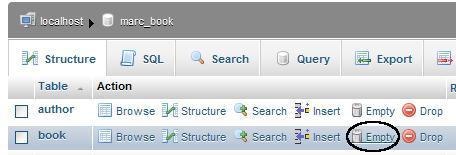
We get a message confirming the TRUNCATE statement (the MySQL statement used to quickly empty a table). For our exercise, we won't delete this precious data!
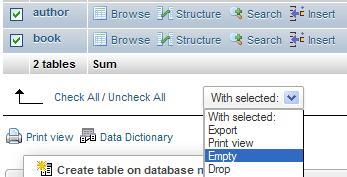
Deleting a table erases the data and the table's structure. In the Database view, we can delete a specific table by using the red Drop icon for that table. The same mechanism also exists for deleting more than one table (with the drop-down menu and the Drop action).
We can delete an entire database (including all its tables) by going to the Databases page in Server view, selecting the checkbox beside the unwanted database and clicking on the Drop link:
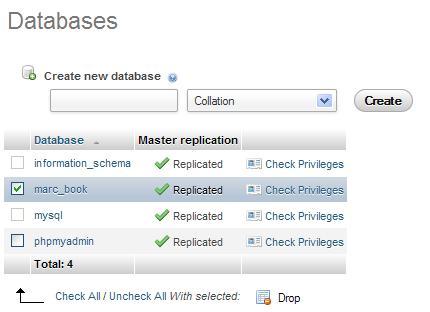
By default, $cfg['AllowUserDropDatabase'] is set to FALSE. So, this panel does not permit unprivileged users to drop a database until this setting is manually changed to TRUE.
To help us think twice, a special message—You are about to DESTROY a complete database!—appears before a database is deleted.