Table of Contents for
Mastering phpMyAdmin 3.4 for Effective MySQL Management
 Mastering phpMyAdmin 3.4 for Effective MySQL Management
Published by
Packt Publishing, 2012
Mastering phpMyAdmin 3.4 for Effective MySQL Management
Published by
Packt Publishing, 2012
- Cover
- Mastering phpMyAdmin 3.4 for Effective MySQL Management
- Mastering phpMyAdmin 3.4 for Effective MySQL Management
- Credits
- About the Author
- About the Reviewers
- www.PacktPub.com
- Preface
- What you need for this book
- Who this book is for
- Conventions
- Reader feedback
- Customer support
- 1. Getting Started with phpMyAdmin
- What is phpMyAdmin?
- Installing phpMyAdmin
- Configuring phpMyAdmin
- Installing phpMyAdmin configuration storage
- Upgrading phpMyAdmin
- Summary
- 2. Configuring Authentication and Security
- Securing phpMyAdmin
- Summary
- 3. Over Viewing the Interface
- Customizing general settings
- Character sets and collations
- Navigation panel
- Main panel
- User preferences
- Query window
- Summary
- 4. Creating and Browsing Tables
- Creating our first table
- Inserting data manually
- Browse mode
- Profiling queries
- Creating an additional table
- Summary
- 5. Changing Data and Structure
- Changing table structure
- Summary
- 6. Exporting Structure and Data (Backup)
- Exporting a database
- Exporting a table
- Exporting selectively
- Exporting multiple databases
- Saving the export file on the server
- Memory limits
- Summary
- 7. Importing Structure and Data
- Importing SQL files
- Importing CSV files
- Importing other formats
- Reading files from a web server upload directory
- Displaying an upload progress bar
- Summary
- 8. Searching Data
- Performing a complete database search
- Stopping an errant query
- Summary
- 9. Performing Table and Database Operations
- Changing table attributes
- Emptying or deleting a table
- Renaming, moving, and copying tables
- Performing other table operations
- Multi-table operations
- Database operations
- Summary
- 10. Benefiting from the Relational System
- Defining relations with the relation view
- Defining relations with the Designer
- Benefiting from the defined relations
- Column commenting
- Summary
- 11. Entering SQL Statements
- The Query window
- Multi-statement queries
- Pretty printing (syntax highlighting)
- The SQL Validator
- Summary
- 12. Generating Multi-table Queries
- Exploring column criteria
- Generating automatic joins (internal relations)
- Executing the query
- The visual builder
- Summary
- 13. Synchronizing Data and Supporting Replication
- Supporting MySQL replication
- Summary
- 14. Using Query Bookmarks
- Creating bookmarks
- Recalling bookmarks from the bookmarks list
- Passing a parameter to a bookmark
- Summary
- 15. Documenting the System
- Generating relational schemas
- Summary
- 16. Transforming Data using MIME
- Enabling transformations
- Examples of transformations
- Summary
- 17. Supporting Features Added in MySQL 5
- Supporting routines—stored procedures and functions
- Executing code with triggers
- Using information_schema
- Partitioning
- Exploring the event scheduler
- Summary
- 18. Tracking Changes
- Prerequisites
- Principles
- Initiating tracking for one table
- Testing the tracking mechanism
- Determining tracking status
- Structure snapshot
- Exporting a version
- Creating a new version
- Deleting tracking information
- Summary
- 19. Administrating the MySQL Server
- Database information
- Server information
- Summary
- A. Troubleshooting and Support
- Seeking support
- Contributing to the project
In this chapter, we present mechanisms that can be used to find the data we are looking for, instead of just browsing tables page-by-page and sorting them. In Search mode, application developers can look for data in ways not expected by the interface they are building—adjusting and sometimes repairing data. This chapter covers single-table searches and entire database searches. Chapter 12 is a complement to this chapter and presents examples of searches involving multiple tables at once.
This section describes the Search page where a single-table search is available. Searching in just one table is effective only in the situation where a single table regroups all the data on which we want to search. If the data is scattered in many tables, a database search should be launched instead, and this is covered later in the chapter.
The Search page can be accessed by clicking on the Search link in the Table view. This has been done here for the book table:
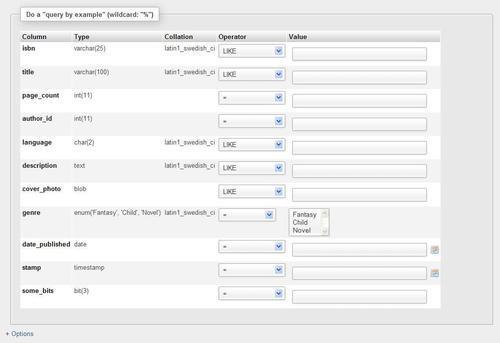
The most commonly used section of the Search interface (query by example) is the one immediately displayed, whereas other dialogs are hidden in a slider that can be activated by the Options link (more on these dialogs later in this chapter).
The main use of the Search panel is to enter criteria for some columns so as to retrieve only the data we are interested in. This is called query by example because we give an example of what we are looking for. Our first retrieval will concern finding the book with ISBN 1-234567-89-0. We simply enter this value in the isbn box and set the Operator field to =.

Clicking on Go gives these results (shown partially in the following screenshot):

This is a standard results page. If the results ran in pages, we could navigate through them, and edit and delete data for the subset we have chosen during the process. Another feature of phpMyAdmin is that the columns used as the criteria are highlighted by changing the border color of the columns to better reflect their importance on the results page.
It isn't necessary to specify that the isbn column be displayed even though this is the column in which we search. We could have selected only the title column for display (refer to the Selecting the columns to be displayed section) and chosen the isbn column as a criterion.
Two handy operators are present in the operator's list when the column has a character type such as CHAR, VARCHAR, or TEXT:
= ''!= ''
Those are the ones to use when you want to search for an empty (= '') or not empty (!= '') value in some column. Normally, typing nothing in a column's Value field means that this column does not participate in the search process. However, with one of these operators, this column is included in the generated search query.
Note
Please do not confuse this method with searching for a NULL value, which is quite different. Indeed, a NULL value (refer to http://en.wikipedia.org/wiki/Null_(SQL) for a more complete explanation) is a special value that conveys that some information is missing in this column.
We see the Print view and Print view (with full texts) links on the results page. These links produce a more formal report of the results (without the navigation interface) directly to the printer. In our case, using Print view would produce the following:
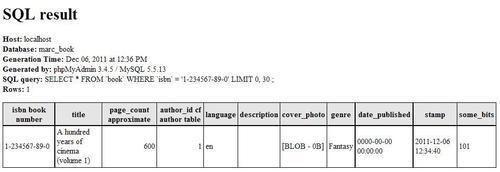
This report contains information about the server, database, time of generation, version of phpMyAdmin, version of MySQL, and generated SQL query. The other link, Print view (with full texts), would print the contents of the TEXT columns in their entirety.
Let us assume we are looking for something less precise—all books with "cinema" in their title. First, we go back to the search page. For this type of search, we will use SQL's LIKE operator. This operator accepts wildcard characters—the % character (which matches any number of characters) and the underscore (_) character (which matches a single character). Thus we can use %cinema% to let phpMyAdmin find any substring that matches the word "cinema". If we left out both wildcard characters, we would get exact matches with only that single word.
This substring matching is easier to access, being part of the Operator drop-down list. We only have to enter the word cinema and use the operator LIKE %...% to perform that match. We should avoid using this form of the LIKE operator on big tables (comprising of thousands of rows), as MySQL does not use an index for data retrieval in this case, leading to wait times that depend on the server hardware and its current load. This is why this operator is not the default one in the drop-down list, even though this method of search is commonly used on smaller tables.
The following screenshot shows how we ask for a search on cinema with the LIKE %...% operator:

Note
The LIKE operator can be used for other types of wildcard searches, for example History%, which would search for this word at the beginning of a title. As the expression does not start with a wildcard character, MySQL will try to use an index if it finds one that speeds up data retrieval. For more details about MySQL's use of indexes, please refer to http://dev.mysql.com/doc/refman/5.1/en/mysql-indexes.html.
Using either of these methods of performing the query produces the following results:

The % and _ wildcard characters may be repeated in a search expression; for example, histo__ (two underscores) would match history whereas histo% would match history and historian. The MySQL manual gives more examples at http://dev.mysql.com/doc/refman/5.1/en/string-comparison-functions.html.
In the previous example, we could have replaced "cinema" with "CINEMA" and achieved similar results. The reason is that the collation of the title column is latin1_swedish_ci. This collation comes from the collation set, by default, at database creation unless the server's default collation has been changed (refer to http://dev.mysql.com/doc/refman/5.1/en/charset-mysql.html). Here, ci means that comparisons are done in a case-insensitive way. Please refer to http://dev.mysql.com/doc/refman/5.1/en/case-sensitivity.html for more details.
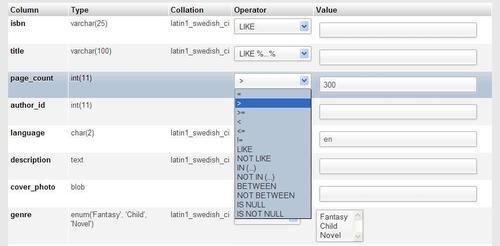
We can use multiple criteria for the same query (for example, to find all the English books of more than 300 pages). There are more comparative choices in Operator because the page_count column is numeric, as shown in the following screenshot:
The Options slider reveals additional panels to further refine the search process.
In the Options slider, a Select columns panel facilitates selection of the columns to be displayed in the results. All columns are selected by default, but we can Ctrl + Click on other columns to make the necessary selections. Mac users would use Command + Click to select/unselect the columns.
Following are the columns of interest in this example:
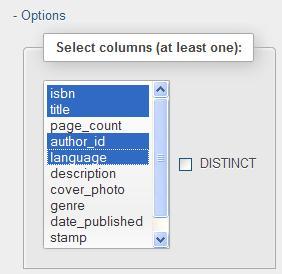
We can also specify the number of rows per page in the textbox next to the column selection. The Add search conditions box will be explained in the Applying a WHERE clause section, which will follow shortly.
The Display order dialog permits the specification of an initial sorting order for the results to come. In this dialog, a drop-down menu contains all the table's columns; it's up to us to select the one on which we want to sort. By default, the sorting will be in Ascending order, but a choice of Descending order is also available.
It should be noted that on the results page, we can change the sort order using the techniques explained in Chapter 4.
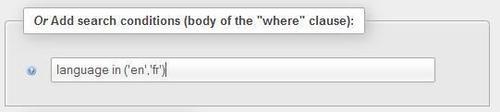
Sometimes, we may want to enter a search condition that is not offered in the Function list of the query by example section. The list cannot contain every possible variation in the language. Let us say we want to find all the English or French books using the IN clause. To do this, we can use the Add search conditions section.
Note
The complete search expression is generated by combining the search conditions and other criteria (entered in the query by example lines) with a logical AND operator.
We could have a more complex list of search conditions that would be entered in the same textbox, possibly with brackets and operators such as AND or OR.
A Documentation link points to the MySQL manual where we can see a huge choice of available functions. (Each function is applicable to a specific column type.)
The normal behavior of the SELECT statement is to fetch all entries corresponding to the criteria, even if some entries are repeated. Sometimes, we may want to avoid getting the same results more than once. For example, if we want to know in which cities we have clients, displaying each city name once would be enough. Here, we want to know in which languages our books are written. In the Select columns dialog, we choose just the language column, and we check DISTINCT, as shown in the following screenshot:
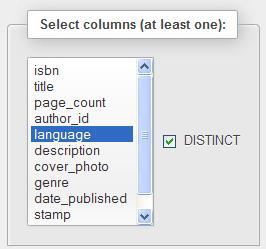
Clicking on Go produces a results page where we see en just once; without the DISTINCT option, the row containing en would have appeared three times.
If we select more than one column (for example author_id and language) and mark the DISTINCT option, we will now see two lines in the results as there are two books in English (but from different authors). Results are still not repeated.