Table of Contents for
Responsive Web Design with HTML5 and CSS3 - Second Edition
 Responsive Web Design with HTML5 and CSS3 - Second Edition
Published by
Packt Publishing, 2015
Responsive Web Design with HTML5 and CSS3 - Second Edition
Published by
Packt Publishing, 2015
- Cover
- Table of Contents
- Responsive Web Design with HTML5 and CSS3 Second Edition
- Responsive Web Design with HTML5 and CSS3 Second Edition
- Credits
- About the Author
- About the Reviewers
- www.PacktPub.com
- Preface
- What you need for this book
- Who this book is for
- Conventions
- Reader feedback
- Customer support
- 1. The Essentials of Responsive Web Design
- Defining responsive web design
- Setting browser support levels
- Our first responsive example
- The shortcomings of our example
- Summary
- 2. Media Queries – Supporting Differing Viewports
- Media query syntax
- Combining media queries
- Using media queries to alter a design
- Considerations for organizing and authoring media queries
- Combine media queries or write them where it suits?
- The viewport meta tag
- Media Queries Level 4
- Summary
- 3. Fluid Layouts and Responsive Images
- Introducing Flexbox
- Getting Flexy
- Responsive images
- Summary
- 4. HTML5 for Responsive Web Designs
- Starting an HTML5 page the right way
- Easy-going HTML5
- New semantic elements in HTML5
- HTML5 text-level semantics
- Obsolete HTML features
- Putting HTML5 elements to use
- WCAG and WAI-ARIA for more accessible web applications
- Embedding media in HTML5
- Responsive HTML5 video and iFrames
- A note about 'offline first'
- Summary
- 5. CSS3 – Selectors, Typography, Color Modes, and New Features
- Anatomy of a CSS rule
- Quick and useful CSS tricks
- Word wrapping
- Facilitating feature forks in CSS
- New CSS3 selectors and how to use them
- CSS3 structural pseudo-classes
- CSS custom properties and variables
- CSS calc
- CSS Level 4 selectors
- Web typography
- New CSS3 color formats and alpha transparency
- Summary
- 6. Stunning Aesthetics with CSS3
- Box shadows
- Background gradients
- Repeating gradients
- Background gradient patterns
- Multiple background images
- High-resolution background images
- CSS filters
- A warning on CSS performance
- Summary
- 7. Using SVGs for Resolution Independence
- The graphic that is a document
- Creating SVGs with popular image editing packages and services
- Inserting SVGs into your web pages
- Inserting an SVG inline
- What you can do with each SVG insertion method (inline, object, background-image, and img)
- Extra SVG capabilities and oddities
- Animating SVG with JavaScript
- Optimising SVGs
- Using SVGs as filters
- A note on media queries inside SVGs
- Summary
- 8. Transitions, Transformations, and Animations
- CSS3 2D transforms
- CSS3 3D transformations
- Animating with CSS3
- Summary
- 9. Conquer Forms with HTML5 and CSS3
- Understanding the component parts of HTML5 forms
- HTML5 input types
- How to polyfill non-supporting browsers
- Styling HTML5 forms with CSS3
- Summary
- 10. Approaching a Responsive Web Design
- View and use the design on real devices
- Embracing progressive enhancement
- Defining a browser support matrix
- Tiering the user experience
- Linking CSS breakpoints to JavaScript
- Avoid CSS frameworks in production
- Coding pragmatic solutions
- Use the simplest code possible
- Hiding, showing, and loading content across viewports
- Validators and linting tools
- Performance
- The next big things
- Summary
- Index
With an SVG inserted into the page via an object tag or inline, it's possible to manipulate the SVG directly or indirectly with JavaScript.
By indirectly, I mean it's possible with JavaScript to change a class on or above the SVG that would cause an CSS animation to start. For example:
svg {
    /* no animation */
}

.added-with-js svg {
    /* animation */
}
However, it's also possible to animate an SVG via JavaScript directly.
If animating just one or two things independently, it's probable things would be lighter, code wise, by writing the JavaScript by hand. However, if you need to animate lots of elements or synchronize the animation of elements as if on a timeline, JavaScript libraries can really help. Ultimately, you will need to judge whether the weight of including the library in your page can be justified for the goal you are trying to achieve.
My recommendation for animating SVGs via JavaScript is the GreenSock animation platform (http://greensock.com), Velocity.js (http://julian.com/research/velocity/), or Snap.svg (http://snapsvg.io/). For the next example, we'll cover a very simple example using GreenSock.
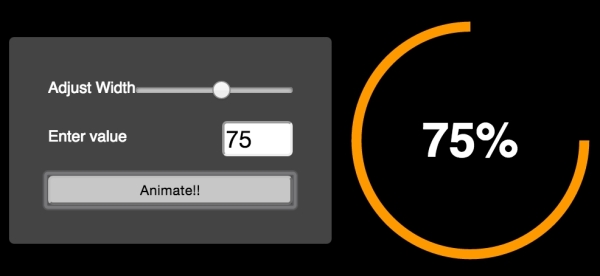
Suppose we want to make an interface dial, that animates around when we click a button from zero to whatever value we input. We want not only the stroke of the dial to animate in both length and color, but also the number from zero to the value we input. You can view the completed implementation in example_07-08.
So, if we entered a value of 75, and clicked animate, it would fill around to look like this:
Instead of listing out the entire JavaScript file (which is heavily commented so should make some sense to read in isolation), for brevity's sake, we'll just consider the key points.
The basic idea is that we have made a circle as an SVG <path> (rather than a <circle> element). As it's a path it means we can animate the path as if it were being drawn using the stroke-dashoffset technique. There's more info on this technique in the boxed out section below but briefly, we use JavaScript to measure the length of the path and then use the stroke-dasharray attribute to specify the length of the rendered part of the line and the length of the gap. Then we use stroke-dashoffset to change where that dasharray starts. This means you can effectively start the stroke 'off' the path and animate it in. This gives the illusion that the path is being drawn.
If the value to animate the dasharray to was a static, known value, this effect would be relatively simple to achieve with a CSS animation and a little trial and error (more on CSS animations in the next chapter).
However, besides a dynamic value, at the same time as we are 'drawing' the line we want to fade in the stroke color from one value to another and visually count up to the input value in the text node. This is an animation equivalent of patting our heads, rubbing our tummy, and counting backwards from 10,000. GreenSock makes those things trivially easy (the animation part; it won't rub your tummy or pat your head, although it can count back from 10,000 should you need to). Here are the lines of JavaScript needed to make GreenSock do all three:
// Animate the drawing of the line and color change
TweenLite.to(circlePath, 1.5, {'stroke-dashoffset': "-"+amount, stroke: strokeEndColour});
// Set a counter to zero and animate to the input value
var counter = { var: 0 };
TweenLite.to(counter, 1.5, {
    var: inputValue,
    onUpdate: function () {
        text.textContent = Math.ceil(counter.var) + "%";
    },
    ease:Circ.easeOut
});
In essence, with the TweenLite.to() function you pass in the thing you want to animate, the time over which the animation should occur, and then the values you want to change (and what you want them to change to).
The GreenSock site has excellent documentation and support forums so if you find yourself needing to synchronize a number of animations at once, be sure to clear a day from your diary and familiarize yourself with GreenSock.
Tip
In case you haven't come across the SVG 'line drawing' technique before it was popularized by Polygon magazine when Vox Media animated a couple of line drawings of the Xbox One and Playstation 4 games consoles. You can read the original post at http://product.voxmedia.com/2013/11/25/5426880/polygon-feature-design-svg-animations-for-fun-and-profit
There's also an excellent and more thorough explanation of the technique by Jake Archibald at http://jakearchibald.com/2013/animated-line-drawing-svg/.