Table of Contents for
Responsive Web Design with HTML5 and CSS3 - Second Edition
 Responsive Web Design with HTML5 and CSS3 - Second Edition
Published by
Packt Publishing, 2015
Responsive Web Design with HTML5 and CSS3 - Second Edition
Published by
Packt Publishing, 2015
- Cover
- Table of Contents
- Responsive Web Design with HTML5 and CSS3 Second Edition
- Responsive Web Design with HTML5 and CSS3 Second Edition
- Credits
- About the Author
- About the Reviewers
- www.PacktPub.com
- Preface
- What you need for this book
- Who this book is for
- Conventions
- Reader feedback
- Customer support
- 1. The Essentials of Responsive Web Design
- Defining responsive web design
- Setting browser support levels
- Our first responsive example
- The shortcomings of our example
- Summary
- 2. Media Queries – Supporting Differing Viewports
- Media query syntax
- Combining media queries
- Using media queries to alter a design
- Considerations for organizing and authoring media queries
- Combine media queries or write them where it suits?
- The viewport meta tag
- Media Queries Level 4
- Summary
- 3. Fluid Layouts and Responsive Images
- Introducing Flexbox
- Getting Flexy
- Responsive images
- Summary
- 4. HTML5 for Responsive Web Designs
- Starting an HTML5 page the right way
- Easy-going HTML5
- New semantic elements in HTML5
- HTML5 text-level semantics
- Obsolete HTML features
- Putting HTML5 elements to use
- WCAG and WAI-ARIA for more accessible web applications
- Embedding media in HTML5
- Responsive HTML5 video and iFrames
- A note about 'offline first'
- Summary
- 5. CSS3 – Selectors, Typography, Color Modes, and New Features
- Anatomy of a CSS rule
- Quick and useful CSS tricks
- Word wrapping
- Facilitating feature forks in CSS
- New CSS3 selectors and how to use them
- CSS3 structural pseudo-classes
- CSS custom properties and variables
- CSS calc
- CSS Level 4 selectors
- Web typography
- New CSS3 color formats and alpha transparency
- Summary
- 6. Stunning Aesthetics with CSS3
- Box shadows
- Background gradients
- Repeating gradients
- Background gradient patterns
- Multiple background images
- High-resolution background images
- CSS filters
- A warning on CSS performance
- Summary
- 7. Using SVGs for Resolution Independence
- The graphic that is a document
- Creating SVGs with popular image editing packages and services
- Inserting SVGs into your web pages
- Inserting an SVG inline
- What you can do with each SVG insertion method (inline, object, background-image, and img)
- Extra SVG capabilities and oddities
- Animating SVG with JavaScript
- Optimising SVGs
- Using SVGs as filters
- A note on media queries inside SVGs
- Summary
- 8. Transitions, Transformations, and Animations
- CSS3 2D transforms
- CSS3 3D transformations
- Animating with CSS3
- Summary
- 9. Conquer Forms with HTML5 and CSS3
- Understanding the component parts of HTML5 forms
- HTML5 input types
- How to polyfill non-supporting browsers
- Styling HTML5 forms with CSS3
- Summary
- 10. Approaching a Responsive Web Design
- View and use the design on real devices
- Embracing progressive enhancement
- Defining a browser support matrix
- Tiering the user experience
- Linking CSS breakpoints to JavaScript
- Avoid CSS frameworks in production
- Coding pragmatic solutions
- Use the simplest code possible
- Hiding, showing, and loading content across viewports
- Validators and linting tools
- Performance
- The next big things
- Summary
- Index
While SVGs can be opened, edited, and written in a text editor, there are plenty of applications offering a graphical user interface (GUI) that make authoring complex SVG graphics easier if you come from a graphics editing background. Perhaps the most obvious choice is Adobe's Illustrator (PC/Mac). However, it is expensive for casual users so my own preference is Bohemian Coding's Sketch (Mac only: http://bohemiancoding.com/sketch/). That itself isn't cheap (currently at $99), but it's still the option I would recommend if you use a Mac.
If you use Windows/Linux or are looking for a cheaper option, consider the free and open-source, Inkscape (https://inkscape.org/en/). It's by no means the prettiest tool to work with but it is very capable (if you want any proof, view the Inkscape gallery at https://inkscape.org/en/community/gallery/).
Finally, there are a few online editors. Google has SVG-edit (http://svg-edit.googlecode.com/svn/branches/stable/editor/svg-editor.html). There is also Draw SVG (http://www.drawsvg.org), and Method Draw, an arguably better looking fork of SVG-edit (http://editor.method.ac/).
The aforementioned applications all give you the capability to create SVG graphics from scratch. However, if it's icons you're after, you can probably save a lot of time (and for me, get better results) by downloading SVG versions of icons from an online icon service. My personal favorite is http://icomoon.io/ is also great.
To quickly illustrate the benefits of an online icon service, loading the icomoon.io application gives you a searchable library of icons (some free, some paid):
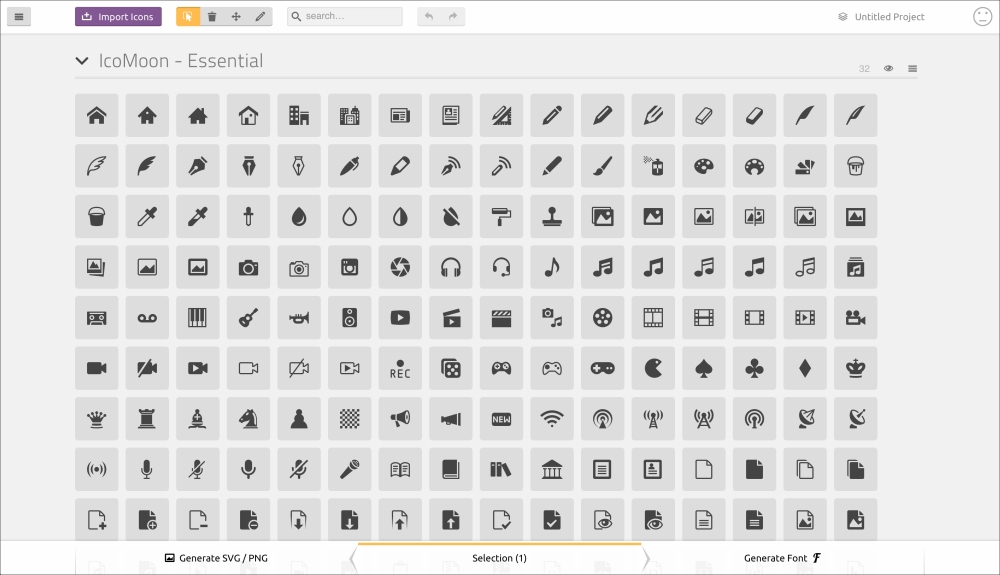
You select the ones you want and then click download. The resultant file contains the icons as SVGs, PNGs, and also SVG symbols for placement in the defs element (remember the defs element is a container element for referenced elements).
To see for yourself, open example_07-02 and you can see the resultant download files after I'd chosen five icons from http://icomoon.io/.