Table of Contents for
Graphics and Multimedia for the Web with Adobe Creative Cloud: Navigating the Adobe Software Landscape

Version ebook / Retour

Cover image for bash Cookbook, 2nd Edition Graphics and Multimedia for the Web with Adobe Creative Cloud: Navigating the Adobe Software Landscape by Jennifer Harder Published by Apress, 2018
  1. Navigation
  2. Cover
  3. Front Matter
  4. Part I. Welcome to the Adobe Creative Cloud. Where Should You Begin?
  5. 1. Entering the Software Maze or Labyrinth
  6. Part II. Working with Photoshop to Create Web Graphics and Animations
  7. 2. Getting Started
  8. 3. Color Choices: CMYK, RGB, Grayscale, and Index
  9. 4. Saving or Exporting Your Files for the Web
  10. 5. Actions to Speed up File Conversion and Slicing Tools
  11. 6. Tools for Animation
  12. 7. Tools for Video
  13. 8. Other Miscellaneous Items in Photoshop That You Can Use for Web Design
  14. 9. Putting It into Practice with Photoshop CC
  15. Part III. Working with Illustrator to Create Web Graphics
  16. 10. Getting Started with Illustrator CC
  17. 11. Color Choices: CMYK, RGB, and Grayscale
  18. 12. Saving or Exporting Your Files for the Web
  19. 13. Actions to Speed up File Conversion and Slicing Tools
  20. 14. Tools for Animation and Video
  21. 15. Other Miscellaneous Items in Illustrator That You Can Use for Web Design
  22. 16. Putting It into Practice with Illustrator CC
  23. Part IV. Working with Animate to Create Animations, Movies, and HTML5 Canvas
  24. 17. Getting Started with Animate CC
  25. 18. Color Choices: RGB
  26. 19. Importing Your Artwork
  27. 20. Import Your Audio and Video
  28. 21. Working with the Timeline Panel
  29. 22. Exporting Your Files to the Web
  30. 23. Other Miscellaneous Items in Animate that You Can Use for Web Design
  31. 24. Putting It into Practice with Animate CC
  32. Part V. Working with Media Encoder to Create Audio and Video Files
  33. 25. Getting Started with Media Encoder
  34. 26. Working with Your RAW Video Files (AVI and MOV)
  35. 27. Working with Your RAW Video Files and Converting Them to Audio
  36. 28. Working with Your RAW Video Files and Converting Them to an Image Sequence
  37. 29. Putting It into Practice with Media Encoder CC
  38. Part VI. Working with Dreamweaver: Adding Images, Animations, and Multimedia to HTML5 Pages
  39. 30. Getting Started with Dreamweaver CC
  40. 31. Working with Images and Tags
  41. 32. Working with CSS
  42. 33. Working with Images for Mobile Web Design
  43. 34. What Is JavaScript?
  44. 35. Working with Bootstrap, Templates, Library Items, and the Assets Panel
  45. 36. Working with Video, Audio, and Animations
  46. 37. Additional Options to Apply Images in Dreamweaver
  47. 38. Final Testing, Getting Ready to Upload Your Site
  48. 39. Putting It into Practice with Dreamweaver CC
  49. Part VII. Further Dreamweaver Integration with Other Adobe Products for Websites
  50. 40. What Other Programs That Are Part of Adobe Creative Cloud Can I Use to Display My Graphics or Multimedia Online?
  51. Back Matter
© Jennifer Harder 2018
Jennifer HarderGraphics and Multimedia for the Web with Adobe Creative Cloudhttps://doi.org/10.1007/978-1-4842-3823-3_8

8. Other Miscellaneous Items in Photoshop That You Can Use for Web Design

Jennifer Harder1 
(1)
Delta, BC, Canada
 

This chapter focuses on a few of the lesser-known panels and menu features that you can use as part of building image files for your multimedia website or web design workflow.

Note

This chapter does not have any actual projects; however, you can use the files in the Chapter 8 folder to practice opening and viewing for this lesson. They are at https://github.com/Apress/graphics-multimedia-web-adobe-creative-cloud .

Libraries CC
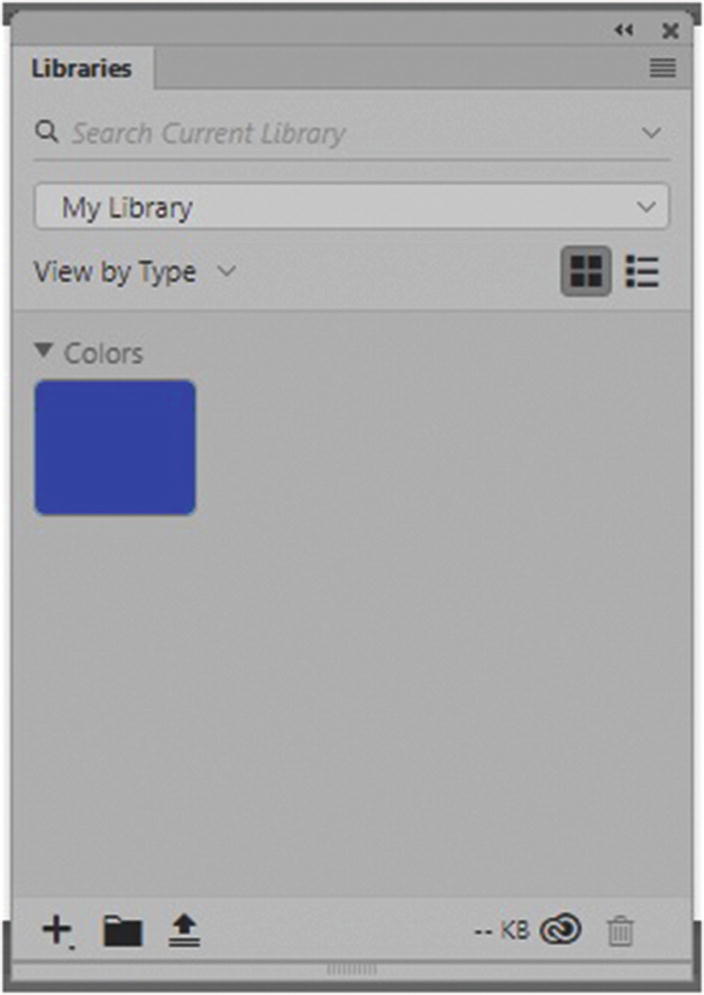
The Libraries panel was introduced with Creative Cloud. In Photoshop CC, you can store colors and images that you use in projects in a library. You can then move over to a program like Dreamweaver CC, and the colors will appear there so that you can refer to them during your project, as seen in Figure 8-1.
../images/466782_1_En_8_Chapter/466782_1_En_8_Fig1_HTML.jpg
Figure 8-1

Use the Libraries panel to move color and images to the Libraries panel in another Adobe program

Extraction of Code from Layers

In the Layers panel, layers in your files might have CSS information or SVG data that you can later use when designing your website or when placing items. Right-clicking a layer allows you to use the Copy CSS and Copy SVG options, as seen in Figure 8-2.
../images/466782_1_En_8_Chapter/466782_1_En_8_Fig2_HTML.jpg
Figure 8-2

Extract CSS or SVG information from your layers

You can then open a text-editing program like Notepad++, paste the information into it, and examine the contents before copying the data that you need into a CSS file in Dreamweaver CC.

There is another option. When you save the file as a PSD, you can use Dreamweaver CC’s Extract panel and the Creative Cloud to get important data out of the file to work with Dreamweaver.

Web Fonts and SVG Fonts
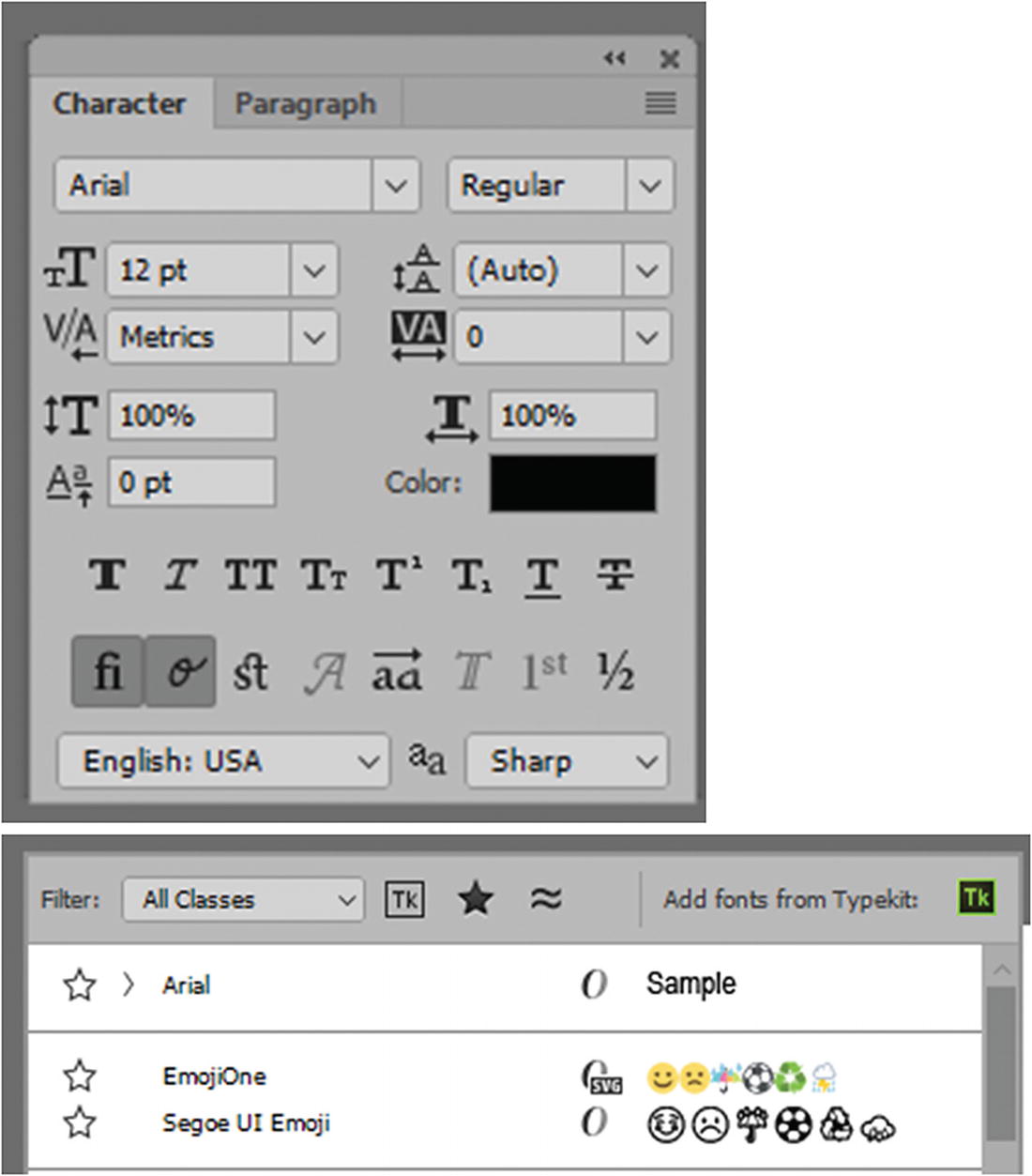
Many of the web fonts that Adobe supplies are in the Character panel’s Type tool (see Figure 8-3).
../images/466782_1_En_8_Chapter/466782_1_En_8_Fig3_HTML.jpg
Figure 8-3

Access Adobe Fonts or Typekit via the Character panel or Control panel when the Type tool is selected

You can use colorful SVG fonts, like EmojiOne, from the Options panel.
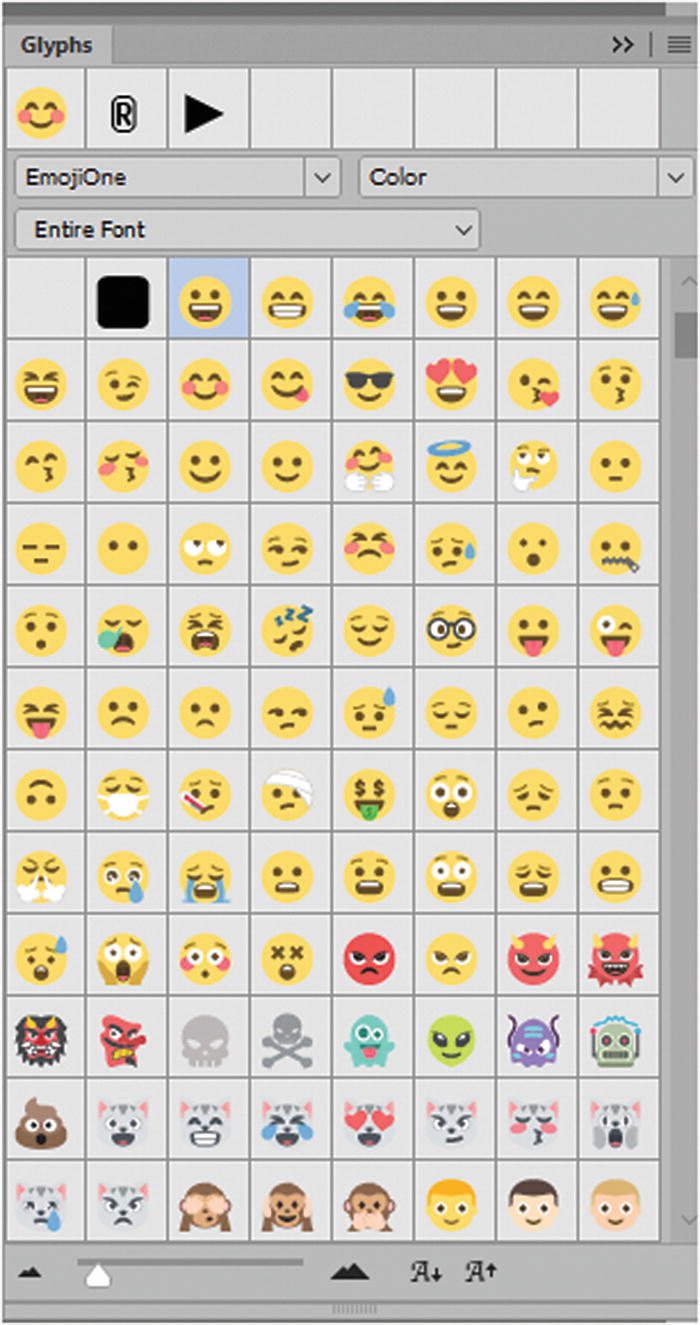
You can view all the options and varieties in the Glyphs panel as well, as seen in Figure 8-4.
../images/466782_1_En_8_Chapter/466782_1_En_8_Fig4_HTML.jpg
Figure 8-4

SVG fonts

It’s like having free clip art! For more information , visit https://helpx.adobe.com/photoshop/using/svg-fonts.html and https://helpx.adobe.com/typekit/using/ot-svg-color-fonts.html .

Filter for Repeating Backgrounds
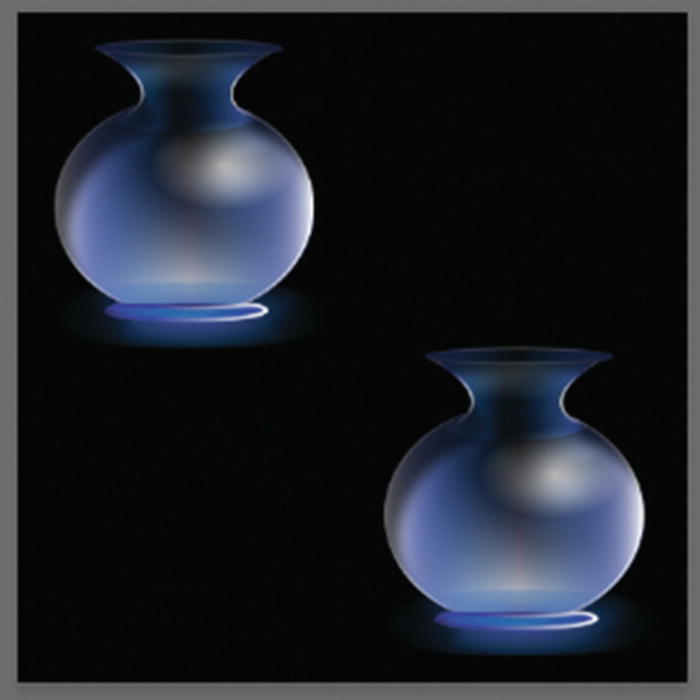
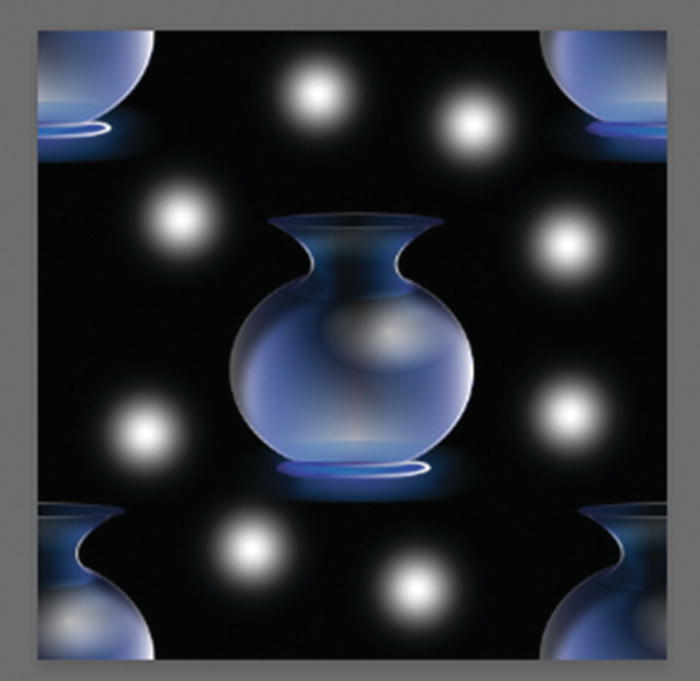
Photoshop has many filters; however, my favorite is at Filter ➤ Other ➤ Offset. I use this often for repeating backgrounds. To start, create a square image, then place all the foreground items on a flattened layer that you want to repeat. Refer to Figure 8-5.
../images/466782_1_En_8_Chapter/466782_1_En_8_Fig5_HTML.jpg
Figure 8-5

Create a repeating background with shapes
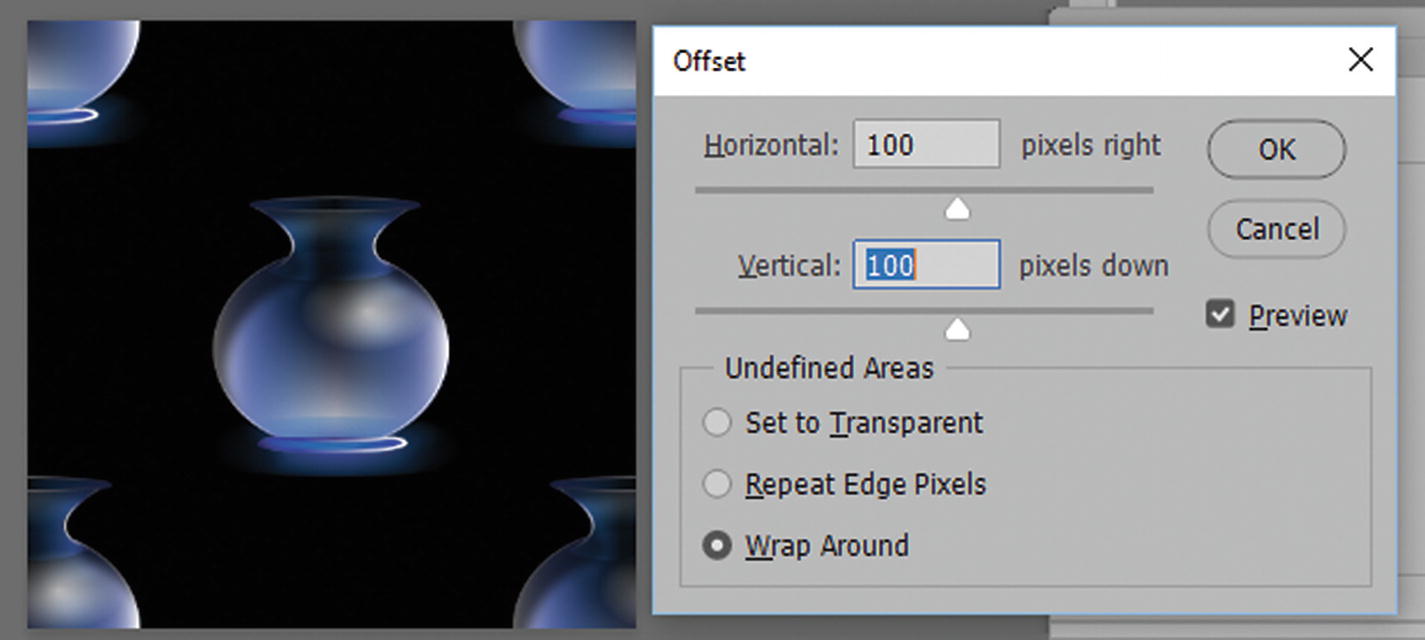
Then use the Offset filter to adjust the horizontal and vertical pixel settings. For undefined areas, wrap around and preview the results. This ensures that the background tiles correctly, as seen in Figure 8-6.
../images/466782_1_En_8_Chapter/466782_1_En_8_Fig6_HTML.jpg
Figure 8-6

Alter using the Offset filter

Then, click OK. Later you can add images or shapes to any blank gaps, or use the Stamp tool to correct seams that are running down the center of the image, as seen in Figure 8-7. Refer to the repeating background image PSD in the Chapter 8 folder. You can then use one of the options from Chapter 4 to export the file in your desired format.
../images/466782_1_En_8_Chapter/466782_1_En_8_Fig7_HTML.jpg
Figure 8-7

The final pattern

You can use this with CSS in Dreamweaver to create a repeating background for webpages.

New to Photoshop CC 2018 Paint Symmetry

Another way to repeat patterns is to use the Paint Symmetry option, which is by default in an off state for the brush, pencil, and eraser in the Tools panel. Refer to Figure 8-8.
../images/466782_1_En_8_Chapter/466782_1_En_8_Fig8_HTML.jpg
Figure 8-8

The Tools panel brush and eraser tools
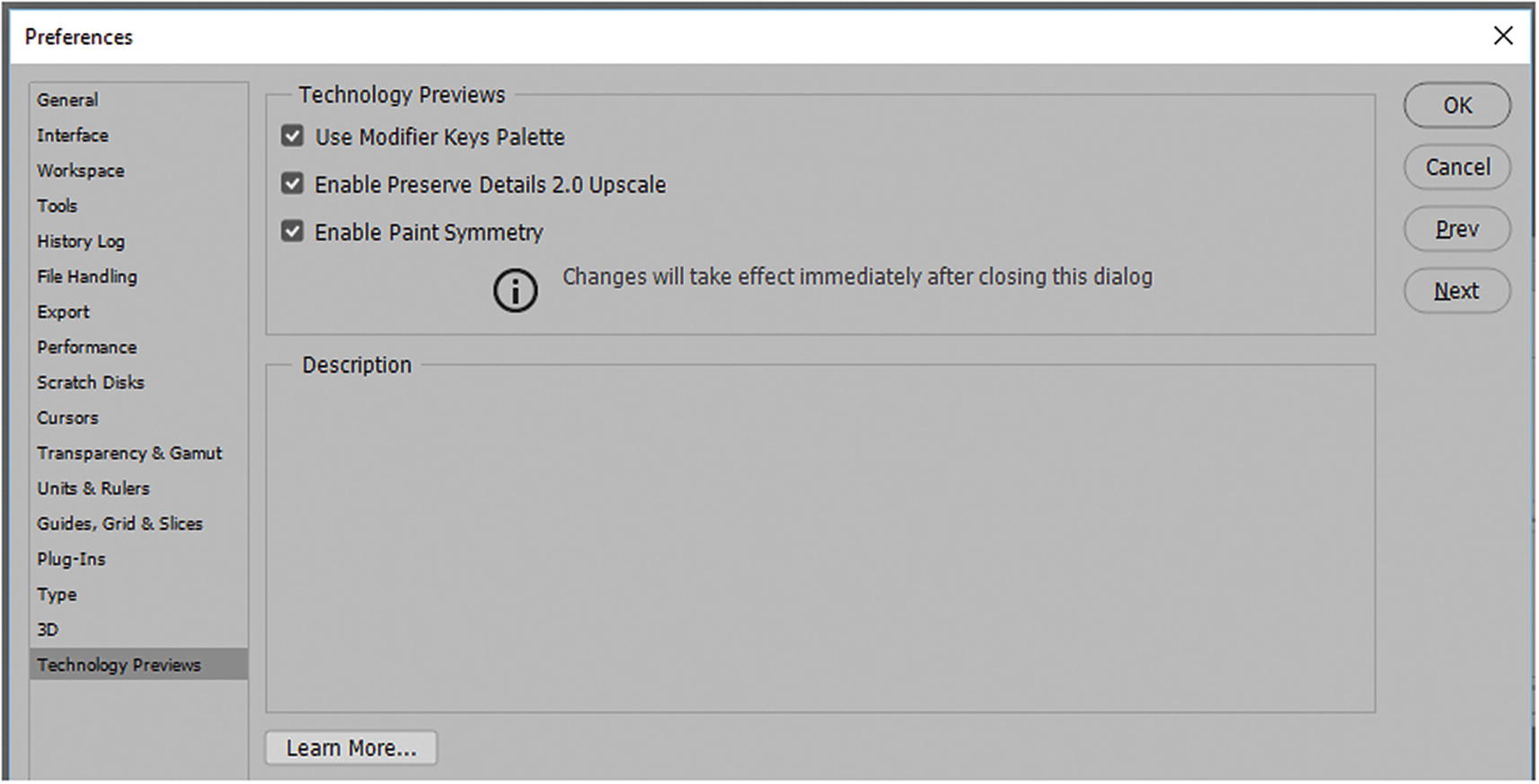
If you cannot locate this option, go to Edit ➤ Preferences ➤ Technology Previews, and select Enable Paint Symmetry (see Figure 8-9). Note this is the path for version CC 2018. However in CC 2019 this link has been removed from the preferences and by default part of the brush and eraser tool control panel as in Figure 8-10.
../images/466782_1_En_8_Chapter/466782_1_En_8_Fig9_HTML.jpg
Figure 8-9

Enable Paint Symmetry option in Preferences
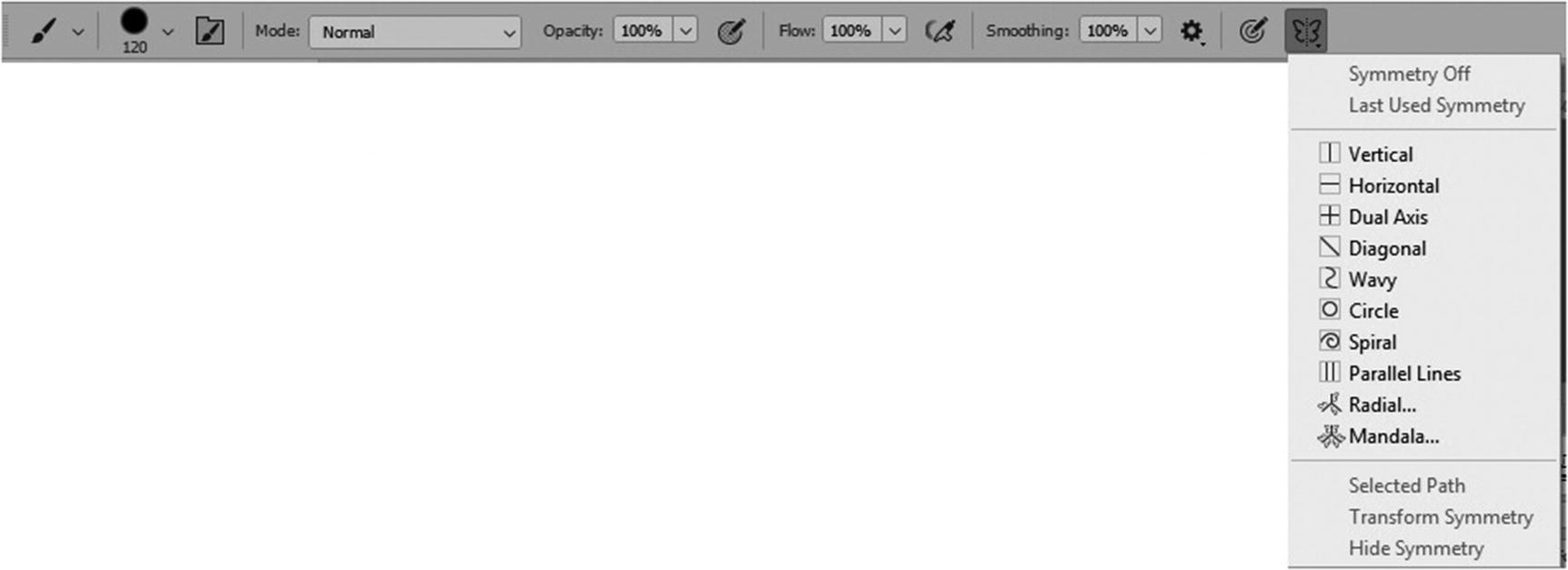
Select and click OK to exit the preferences. This adds a new option to your Options panel. It looks like a butterfly, as seen in Figure 8-10.
../images/466782_1_En_8_Chapter/466782_1_En_8_Fig10_HTML.jpg
Figure 8-10

Paint Symmetry tool options allow you to reflect pattern
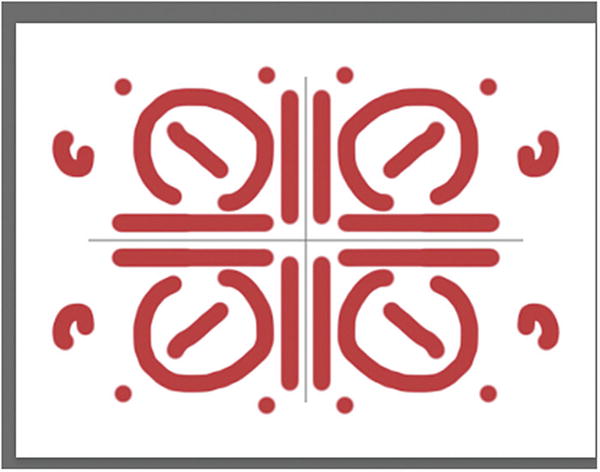
By choosing from various symmetry paths, you can create all types of interesting repeating shapes, as seen in Figure 8-11.
../images/466782_1_En_8_Chapter/466782_1_En_8_Fig11_HTML.jpg
Figure 8-11

A pattern created with the Paint Symmetry New Dual Axis option

Just make sure to turn off the Symmetry option while you are doing your regular painting.

Web Styles
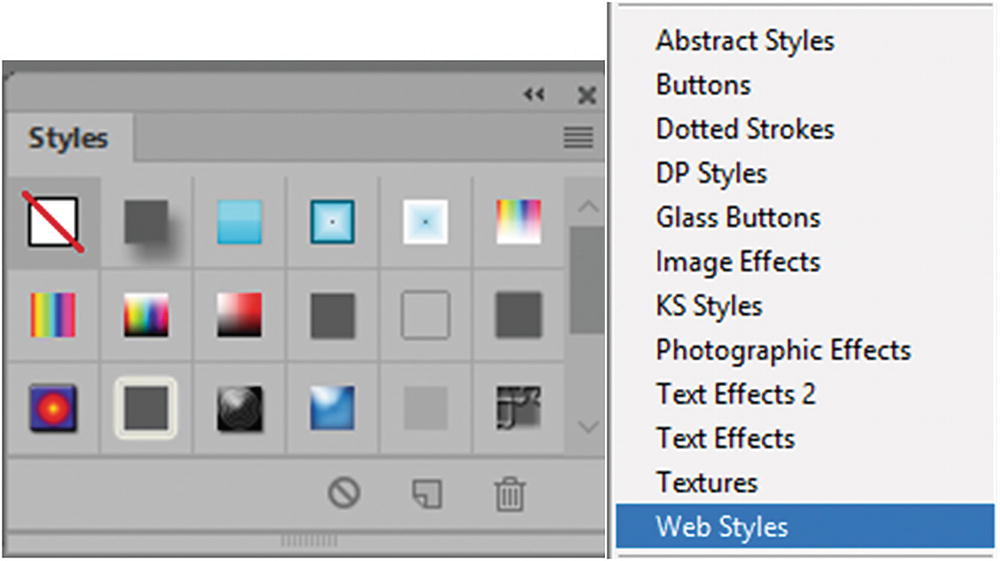
The Styles panel (see Figure 8-12) offers web-friendly styles that you can add to your graphic buttons.
../images/466782_1_En_8_Chapter/466782_1_En_8_Fig12_HTML.jpg
Figure 8-12

Web Styles you can add to your buttons
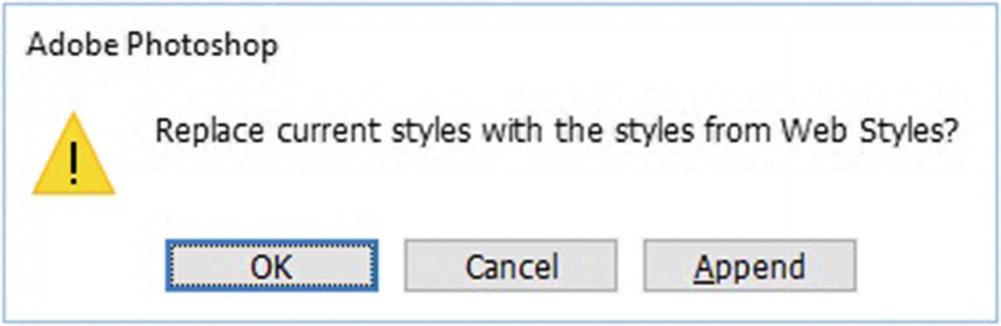
If you have not already added these styles to your list, Photoshop may ask (see Figure 8-13) if you want to replace or append these styles and add them to the current list.
../images/466782_1_En_8_Chapter/466782_1_En_8_Fig13_HTML.jpg
Figure 8-13

Append or replace current styles

Once added, they can be applied to a vector shape layer to create a button, as seen in Figure 8-14.
../images/466782_1_En_8_Chapter/466782_1_En_8_Fig14_HTML.jpg
Figure 8-14

Applying a style to a shape to create a glass-like button graphic

Note

As with the Swatches panel, you can reset the Styles panel; but any unsaved custom styles will be lost if not saved.

Color Blindness Proofs
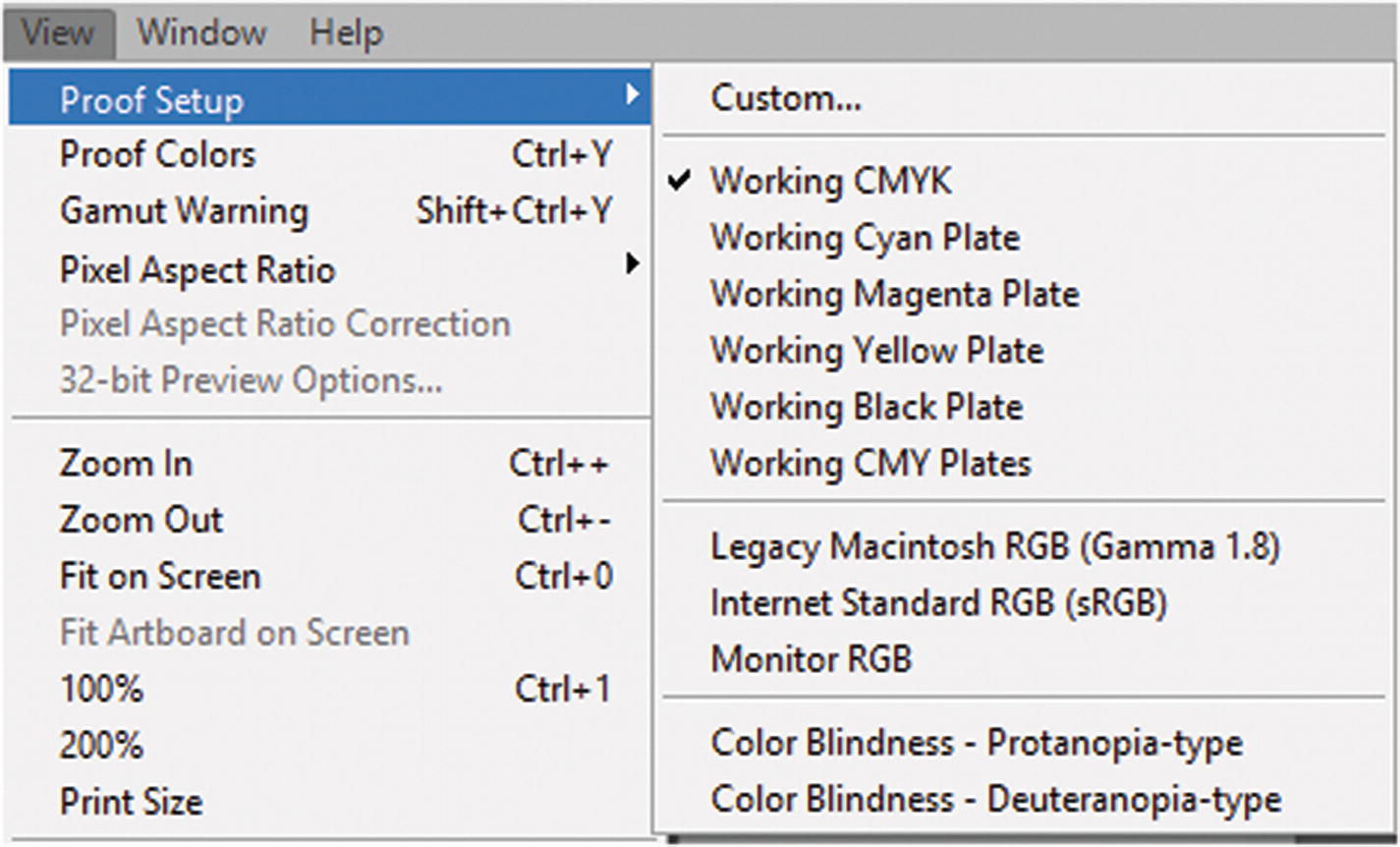
Color Blindness Proofs is a feature that most Photoshop users likely do not know exists, but it’s been around for several versions. While only eight percent of the world is color blind, it important to recognize that we all see color differently and not everyone can tell the difference between red, green, and blue, and some people can only see shades of black and white. You can preview your images to see how a person with protanopia (red loss) and deuteranopia (green loss) might see your images. Go to View ➤ Proof Setup. Refer to Figure 8-15.
../images/466782_1_En_8_Chapter/466782_1_En_8_Fig15_HTML.jpg
Figure 8-15

Color Blindness Proofs settings

To return to normal settlings, choose View ➤ Proof Colors.

Note

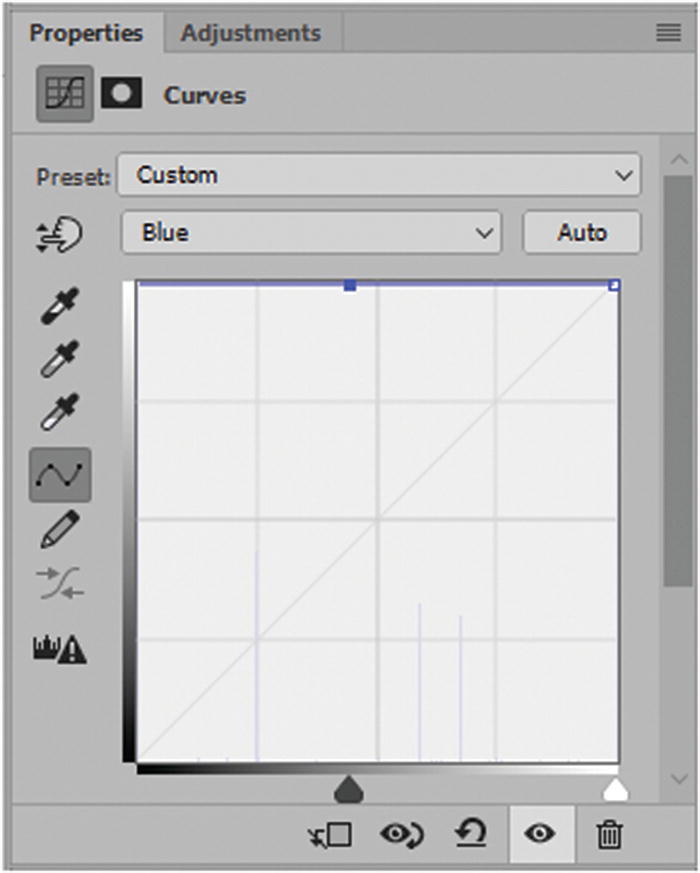
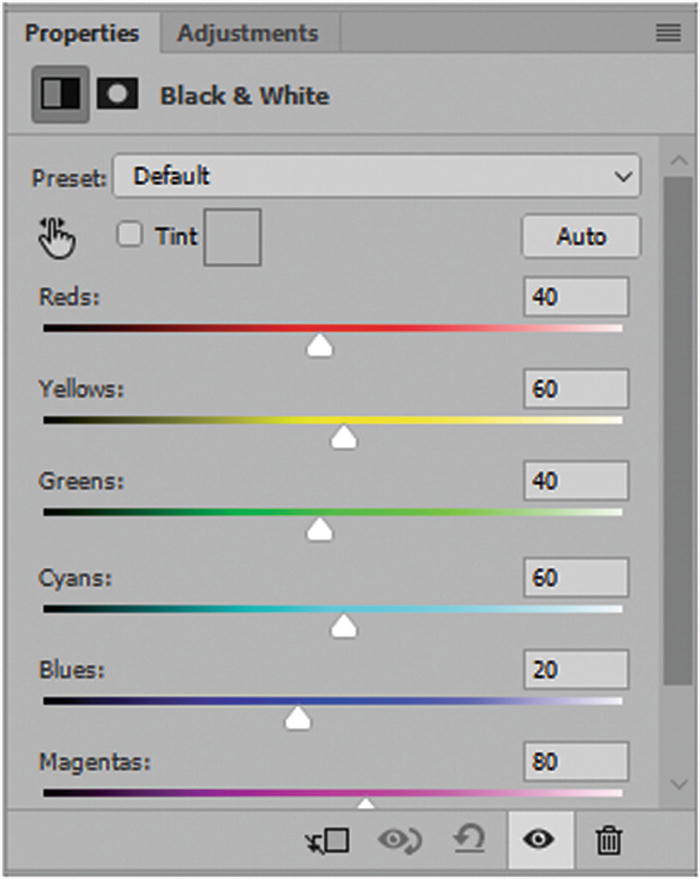
Tritanopia (blue loss) and monochromacy (all color loss) are not very common, so there isn’t a proof for those types of color blindness. However, you could use a curves adjustment layer (see Figure 8-16) to alter the amount of blue in the blue channel, or use the black and white adjustment layer for grayscale (see Figure 8-17).
../images/466782_1_En_8_Chapter/466782_1_En_8_Fig16_HTML.jpg
Figure 8-16

Use the curve properties to remove blue from an image to see how things might look for a person with tritanopia
../images/466782_1_En_8_Chapter/466782_1_En_8_Fig17_HTML.jpg
Figure 8-17

Use Black & White properties to remove all color from an image to see how this might look for a person with monochromacy

While you can’t compensate for all color issues on your website, if you want to reach a wide audience, it’s important to see how people with color blindness view your website in areas where color is a part of searching, choosing information (e.g., clothing), or doing an important task (e.g., filling out a form).

To learn more about color blindness, visit https://en.wikipedia.org/wiki/Color_blindness .

Summary

This chapter explored some tools that you might not have been aware of, which you can use to build your website. In the next chapter, you work on a few images and video files that will be part of the final project in the Dreamweaver multimedia website.