
Where Should You Begin?
Adobe Creative Cloud is an amazing collection of software that allows you to render your thoughts in a digital or physical form. Whether the artist has been in the graphics industry for one year or fifty, and whether creating a layout for a book, designing a painting for a gallery, creating an animated video, editing sound, or creating a three-dimensional form—all of this is possible.

A representation of a maze or labyrinth that some designers in a company have encountered
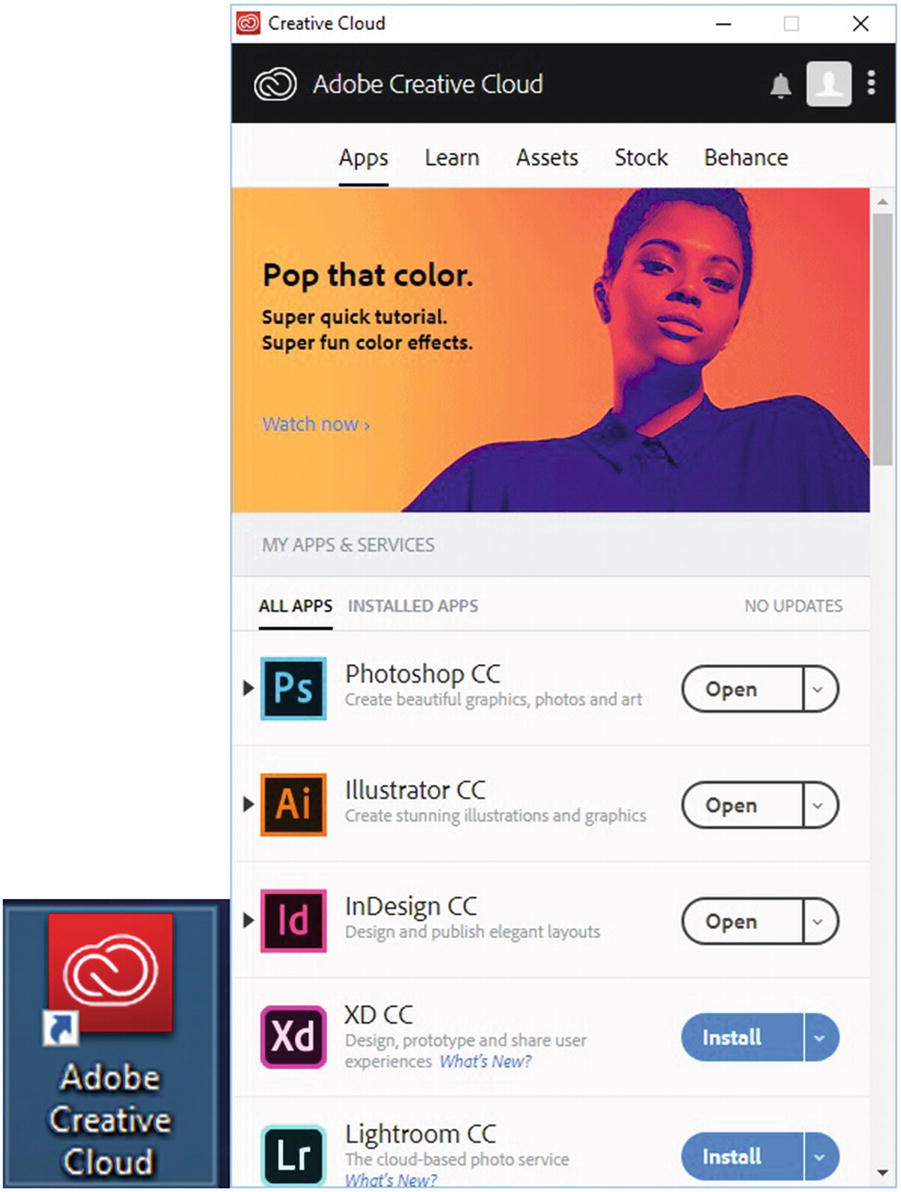
A view of the Adobe Creative Cloud icon (left) and some of the software found in the Adobe Creative Cloud console that you can download to your computer or work with in the Creative Cloud
Take the time to scroll through the list in the Apps tab and see all the software that is available. The amount of software can appear overwhelming to a first-time Adobe user.
Note
While this chapter does not contain any assignments, it assumes that you have Adobe Creative Cloud installed on your computer, and that the icon is on your desktop or in the top menu bar. You can double-click the icon to open the application console and see the software available for download. The screenshots in this book are from a Windows 10 computer, so they may appear slightly different from those on a macOS.
How Will You Get to Your Destination?
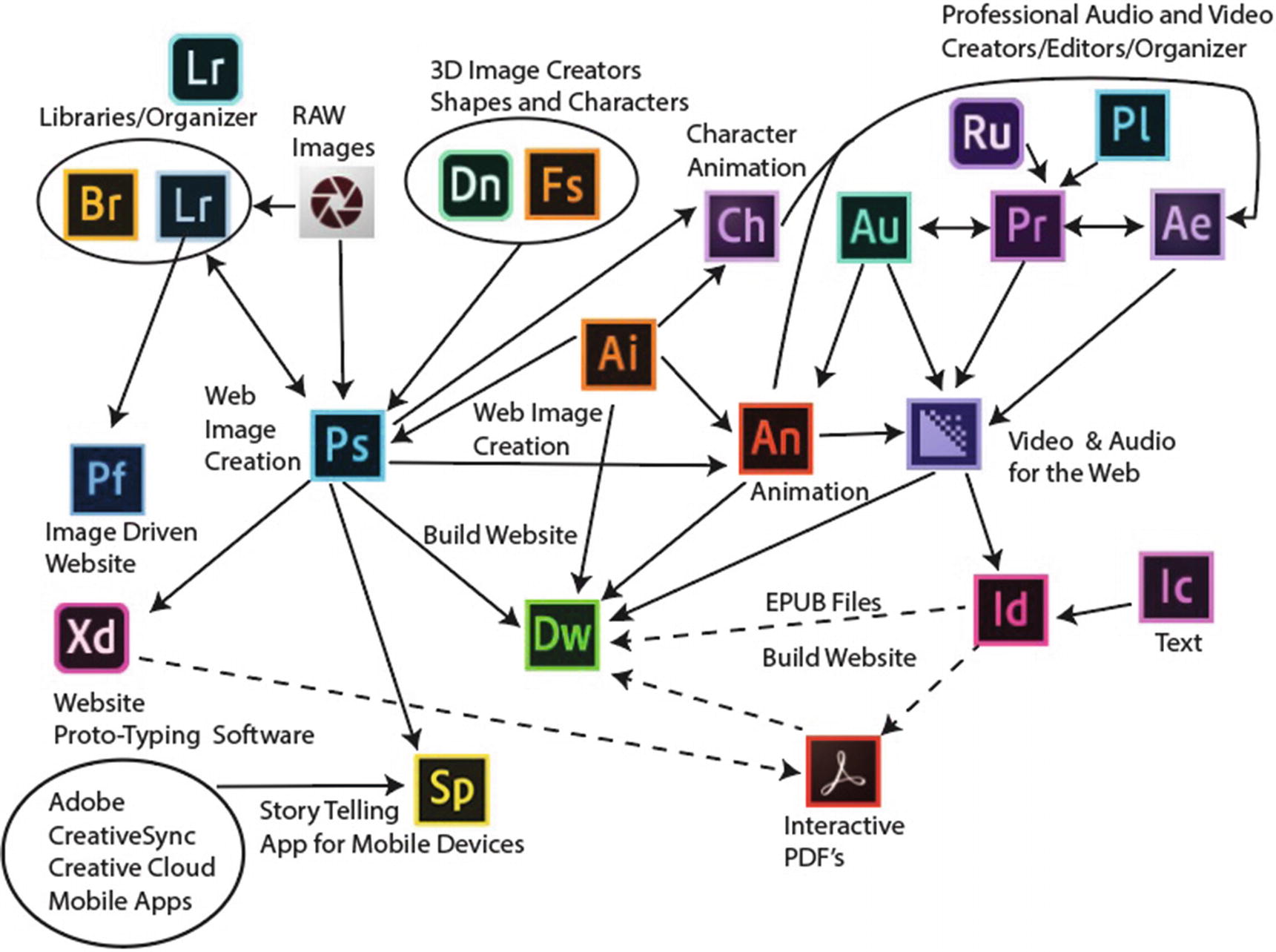
A diagram describing how a company with many employees with a variety of skills might use all the Adobe Creative Cloud software to build a website
A Visual Map of How the Creative Cloud Software Works
Let’s look at the diagram in Figure 1-3. If these are the operations for creating a website in Adobe Creative Cloud CC 2019 software, you can see there is a lot going on. However, in smaller companies, or if you are a student, you may be more familiar with one program than another. I’ll guess that even some veteran Adobe designers have never seen some of these software icons before. If some of the software is unfamiliar to you, take a moment to click the What’s New link in your Creative Cloud console and read up on what the software is used for. Refer to Figure 1-3 to compare icons.
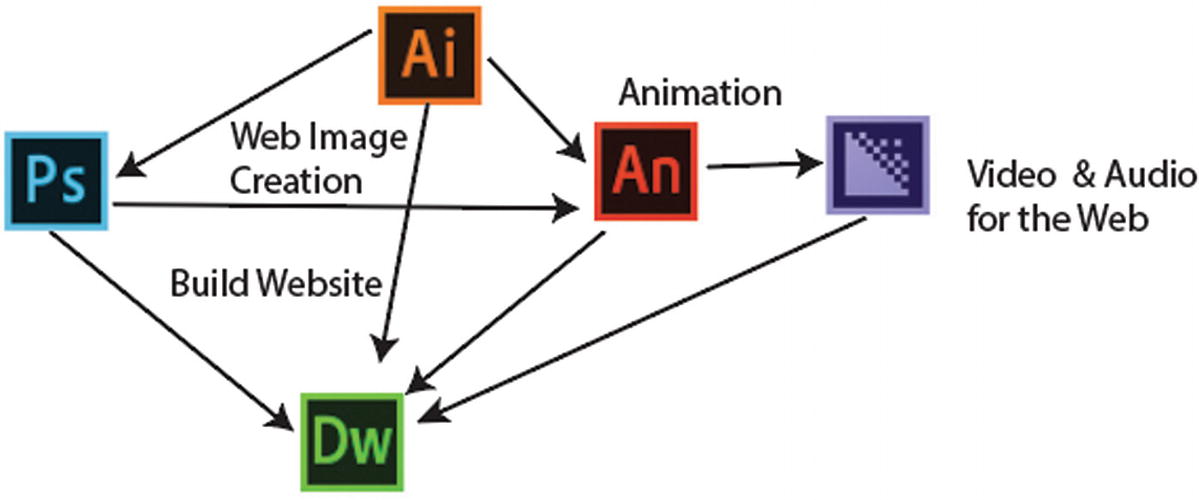
A diagram of the five core programs: Photoshop CC, Illustrator CC, Animate CC, Media Encoder CC, and Dreamweaver CC
Choosing the Smallest Number of Adobe Software Programs to Accomplish Your Goals
Photoshop CC (Ps) : Used for creating and editing still images from a camera, scanning or drawing from your imagination, creating simple animations and videos.
Illustrator CC (Ai) : Used for drawing images using vector (scalable) shapes for stills or animation frames.
Animate CC and Mobile Device Packaging (An) (formerly known as Flash): Used for creation of HTML5 animation and movies with or without audio.
Media Encoder CC : Used for formatting and basic movie creation to the correct web video or audio format. For more advanced editing of video clips, a program like Premiere Pro CC (Pr) or After Effects CC (Ae) is used before formatting in Media Encoder. For audio, use Audition CC (Au).
Dreamweaver CC (Dw) : Used for creating a website with pages that include text, images, and other types of multimedia. ( I will not focus on Muse CC(Mu) for this book, because while you can use it to initially build simple websites, once it is brought into Dreamweaver CC for a more complex task, you cannot return to Muse. If you attempt this, it may corrupt or render the files useless. Also Muse is no longer part of the Creative Cloud package.)
Note
If you are skilled in any of the software shown in Figure 1-3, feel free to use it along with the projects discussed in later chapters. If you have used Project Felix (Fe), please note that it was rebranded as Dimension CC (Dn) for the 2018 version (see Figure 1-5).

Project Felix (Fe) is now Dimensions (Dn)
Part 2: Photoshop
Part 3: Illustrator
Part 4: Animate
Part 5: Media Encoder
Part 6: Dreamweaver
Part 7: Looks briefly at software that you can use to further enhance your web design experience, such as InDesign’s EPUB files and interactive PDFs. The versions of software I used were CC 2018 and 2019.
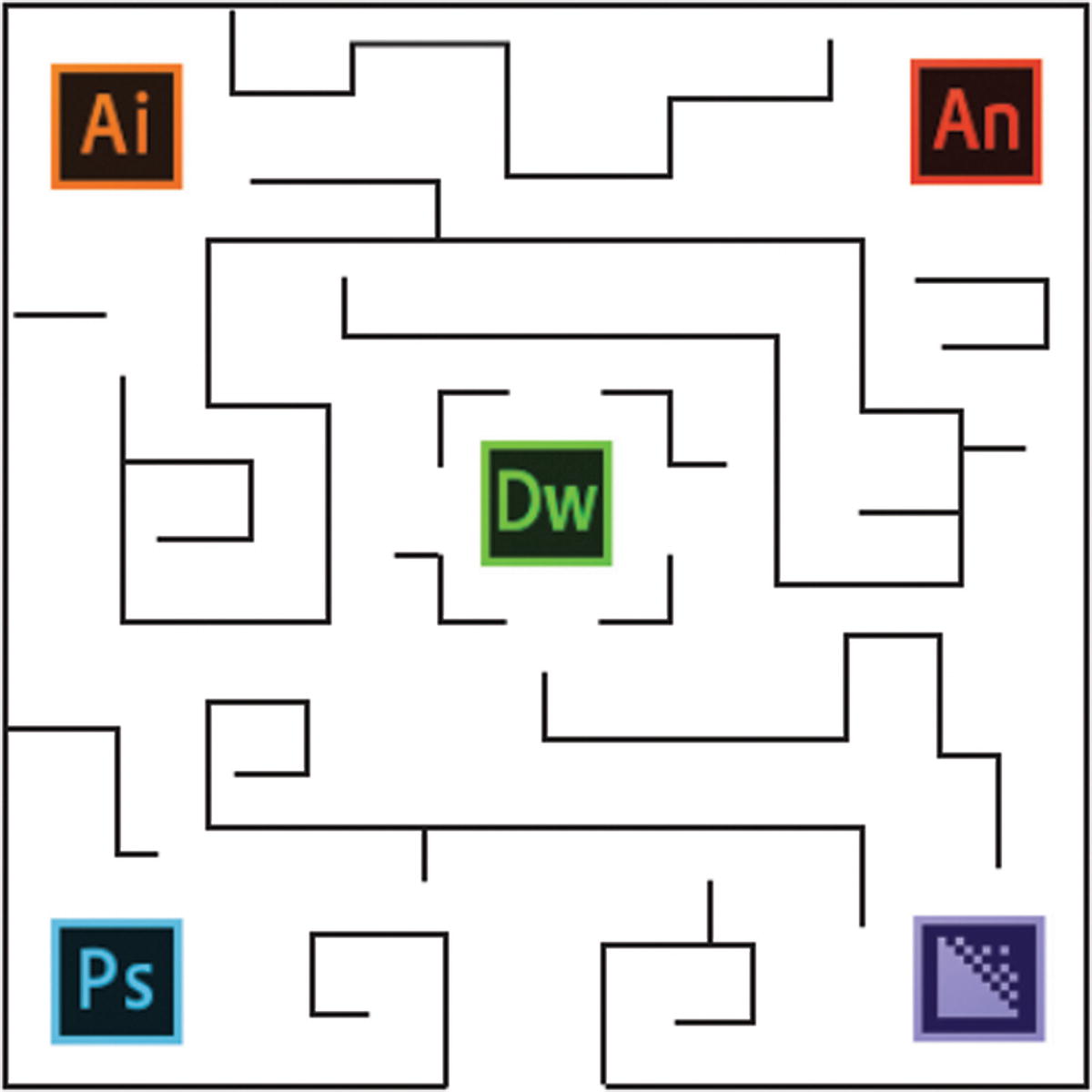
A simplified maze with a less complicated layout
You can see your destination or goal in the center of the maze: Dreamweaver. However, the path still takes several twists and turns. Why?
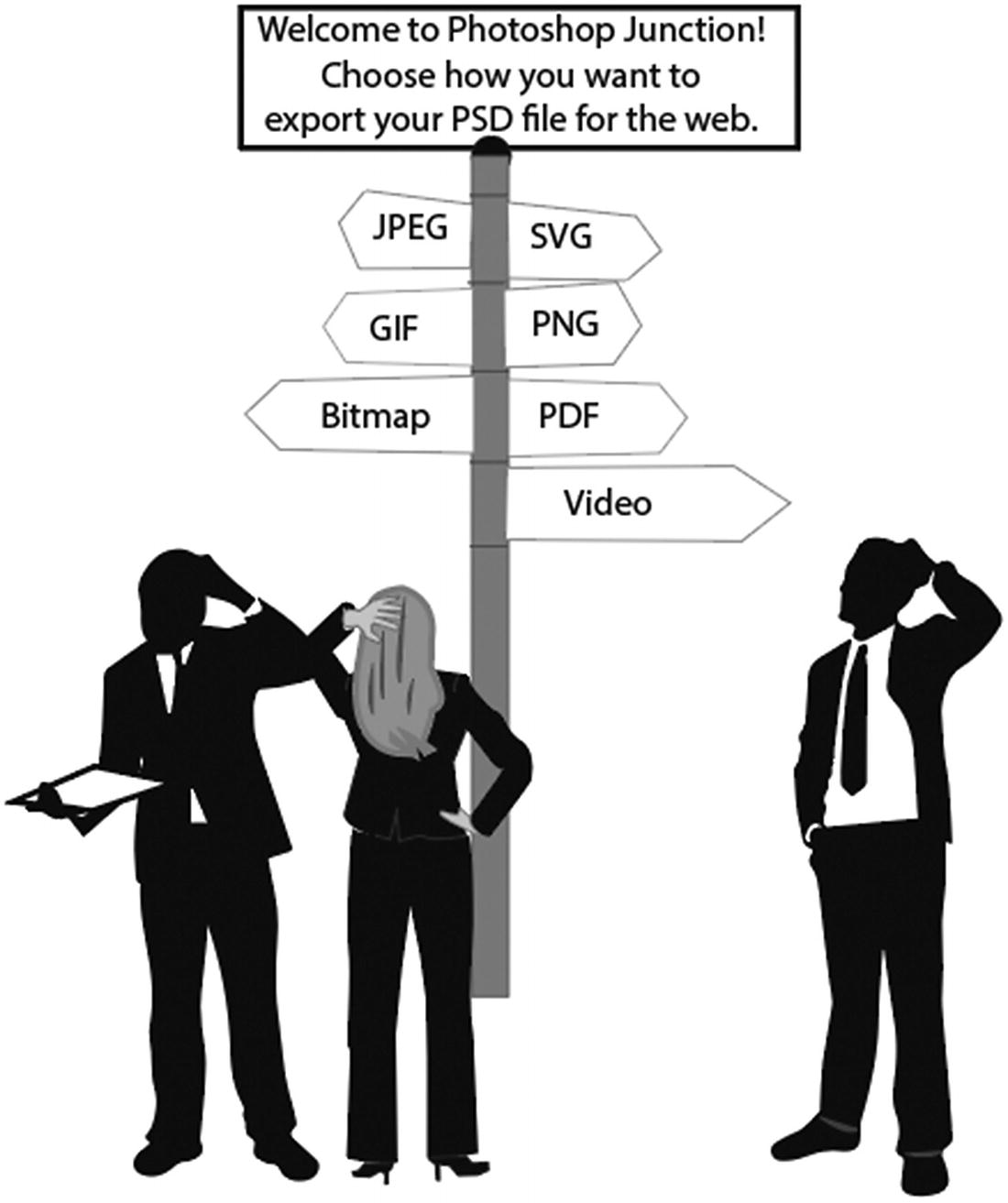
Workers in a company trying to decide what file format choices to use while in the “software maze”
You can choose any of the following file formats or paths that this software offers. However, if you don’t understand why you are using a format, you may be making a poor or uninformed choice.
Basic Web File Formats for Images and Multimedia
Bitmap (.bmp) : A bitmap file can be used for web or print. You often see this format when you scan a file with a copier or scanner. However, due to its large file size, it is not generally used on the Internet.
JPEG, or Joint Photographic Experts Group (.jpg) : Supports 24-bit color. A file format with a compression algorithm that reduces the file sizes of bit-mapped images using a “lossy” compression method. The quality of a JPEG degrades with each successive save of a “copy.” Logos that contain type can appear grainy. Since it can support a wide range of colors, this file type is ideal as pictures on the web or those sent as email attachments. They do not support transparency, but you can add a matte color to the file if you have a solid background of a similar color on your site.
PNG, or Portable Network Graphics (.png) : A bit-mapped image format that employs lossless data compression. It is sometimes used instead of GIF files. It can support a wider range of colors like a JPEG. However, unlike a JPEG, it can also support transparency, and its compression for the web is sometimes cleaner than a JPEG. It cannot be used for animation unless combined with additional CSS or JavaScript coding in an HTML file. PNG has lately been found more often on the web than in the past. It comes in two types: 8-bit (supports full transparency or full opaque) and 24-bit (multilevel transparency or semi-transparency). If you are not sure if your browser will support PNG, choose the GIF file format.
GIF, or Graphic Interchange Format ( static and animated) (. gif) : A bit-mapped file format that is found on the web. It displays a maximum of 256 colors (Index mode), which is ideal for websites and solid-colored logos and can have transparency or a solid color added. However, unlike JPEG and PNG files it is not ideal for reproducing photos or some gradients which may appear grainy. It can also be used to create simple animations for banners or backgrounds.
SVG, or Scalable Vector Graphics (.svg) : This is based on the XML coding vector image format for two-dimensional graphics, with support for interactivity and animation. It is also used to create new color-based web fonts, as you will see in later chapters. Vector images can be scaled to any size and keep their basic form without losing quality, whereas JPEGs, GIFs, and PNGs appear pixilated when scaled up.
Canvas : While this is not an actual file format, it can be combined within an HTML5 file as a <canvas> tag or element to create a still image or animation. It can appear slightly bitmapped if scaled incorrectly.
PDF, or Portable Document Format (.pdf) : Developed by Adobe Systems and read by Adobe Acrobat Reader. This file has become the standard used by most print houses and websites. It’s able to have text, color, vector and bitmap images, and contain multiple pages. It can be viewed independently from the original layout program (e.g., Microsoft Word and InDesign). Its file size is relatively low. If you have Adobe Acrobat Distiller, you can convert most files to a PDF. Visually, you cannot see the file unless you download it so that it can be viewed in your browser or in Acrobat Reader.
Video files (.mp4, .webm, .ogg/.ogv) : There are three video files that are recognized for use on the Internet; however, MP4 is recognized by most current browsers.
Audio files (.mp3, .wav, .ogg) : There are three audio files that are for use on the Internet; however, MP3 and WAV are recognized by most current browsers.
Interactive PDF (.pdf) and EPUB (.epub) : While the PDF is typically a static document, you can use a program like Adobe InDesign or Adobe Acrobat to make it interactive, such as a slideshow or a form. EPUBs can be created using Adobe InDesign; however, you need a specific reader on your computer or smartphone to view the file. EPUBs cannot be viewed in Adobe Acrobat Reader or previewed without a specific extension in the browser. An EPUB format is a package or mini website in the way that a ZIP file contains a collection of compressed files. I briefly discuss these types of files in Part 7 of the book; they are not created with the five Adobe programs that you use in this book.
In addition to file types that you can export, you will look at various color spaces in each chapter. When working on the web, it is important that you use images that are in RGB (red, green, blue) mode or Index mode, but not CMYK (cyan magenta, yellow, black) mode for our web project. For example, a JPEG image can be saved as RGB or CMYK; however, if the JPEG is not converted and saved as RGB, its colors may not appear correctly when viewed in a browser, and its file size may be larger than expected. Each Adobe software program looks at how to convert a file to the correct color spaces.
Summary
In this chapter, you looked briefly at the several types of graphic software for developing a website available in the Creative Cloud suite. At first glance, the choices appear overwhelming—until you narrow it down to five core software choices: Photoshop, Illustrator, Animate, Media Encoder, and Dreamweaver. Once you choose a program, however, you need to choose which type of file format to export your multimedia to the web.
In Chapter 2, the first stop in the software labyrinth is Adobe Photoshop CC, where you discover how to create graphics and video for a website.