
Table of Contents for
Graphics and Multimedia for the Web with Adobe Creative Cloud: Navigating the Adobe Software Landscape

Version ebook / Retour

Cover image for bash Cookbook, 2nd Edition Graphics and Multimedia for the Web with Adobe Creative Cloud: Navigating the Adobe Software Landscape by Jennifer Harder Published by Apress, 2018
  1. Navigation
  2. Cover
  3. Front Matter
  4. Part I. Welcome to the Adobe Creative Cloud. Where Should You Begin?
  5. 1. Entering the Software Maze or Labyrinth
  6. Part II. Working with Photoshop to Create Web Graphics and Animations
  7. 2. Getting Started
  8. 3. Color Choices: CMYK, RGB, Grayscale, and Index
  9. 4. Saving or Exporting Your Files for the Web
  10. 5. Actions to Speed up File Conversion and Slicing Tools
  11. 6. Tools for Animation
  12. 7. Tools for Video
  13. 8. Other Miscellaneous Items in Photoshop That You Can Use for Web Design
  14. 9. Putting It into Practice with Photoshop CC
  15. Part III. Working with Illustrator to Create Web Graphics
  16. 10. Getting Started with Illustrator CC
  17. 11. Color Choices: CMYK, RGB, and Grayscale
  18. 12. Saving or Exporting Your Files for the Web
  19. 13. Actions to Speed up File Conversion and Slicing Tools
  20. 14. Tools for Animation and Video
  21. 15. Other Miscellaneous Items in Illustrator That You Can Use for Web Design
  22. 16. Putting It into Practice with Illustrator CC
  23. Part IV. Working with Animate to Create Animations, Movies, and HTML5 Canvas
  24. 17. Getting Started with Animate CC
  25. 18. Color Choices: RGB
  26. 19. Importing Your Artwork
  27. 20. Import Your Audio and Video
  28. 21. Working with the Timeline Panel
  29. 22. Exporting Your Files to the Web
  30. 23. Other Miscellaneous Items in Animate that You Can Use for Web Design
  31. 24. Putting It into Practice with Animate CC
  32. Part V. Working with Media Encoder to Create Audio and Video Files
  33. 25. Getting Started with Media Encoder
  34. 26. Working with Your RAW Video Files (AVI and MOV)
  35. 27. Working with Your RAW Video Files and Converting Them to Audio
  36. 28. Working with Your RAW Video Files and Converting Them to an Image Sequence
  37. 29. Putting It into Practice with Media Encoder CC
  38. Part VI. Working with Dreamweaver: Adding Images, Animations, and Multimedia to HTML5 Pages
  39. 30. Getting Started with Dreamweaver CC
  40. 31. Working with Images and Tags
  41. 32. Working with CSS
  42. 33. Working with Images for Mobile Web Design
  43. 34. What Is JavaScript?
  44. 35. Working with Bootstrap, Templates, Library Items, and the Assets Panel
  45. 36. Working with Video, Audio, and Animations
  46. 37. Additional Options to Apply Images in Dreamweaver
  47. 38. Final Testing, Getting Ready to Upload Your Site
  48. 39. Putting It into Practice with Dreamweaver CC
  49. Part VII. Further Dreamweaver Integration with Other Adobe Products for Websites
  50. 40. What Other Programs That Are Part of Adobe Creative Cloud Can I Use to Display My Graphics or Multimedia Online?
  51. Back Matter
© Jennifer Harder 2018
Jennifer HarderGraphics and Multimedia for the Web with Adobe Creative Cloudhttps://doi.org/10.1007/978-1-4842-3823-3_2

2. Getting Started

Jennifer Harder1 
(1)
Delta, BC, Canada
 

In Part 2, you are going to start with a review of some Adobe Photoshop CC basics. Along the way, you are going to look at the variety of menu options within the program that you can use to export images and GIF animations, and render video for your website. In this chapter, you will set up your workspace.

Note

This chapter does not have any actual projects; however, you can use the files in the Chapter 2 folder to practice opening and viewing for this lesson. They are at https://github.com/Apress/graphics-multimedia-web-adobe-creative-cloud .
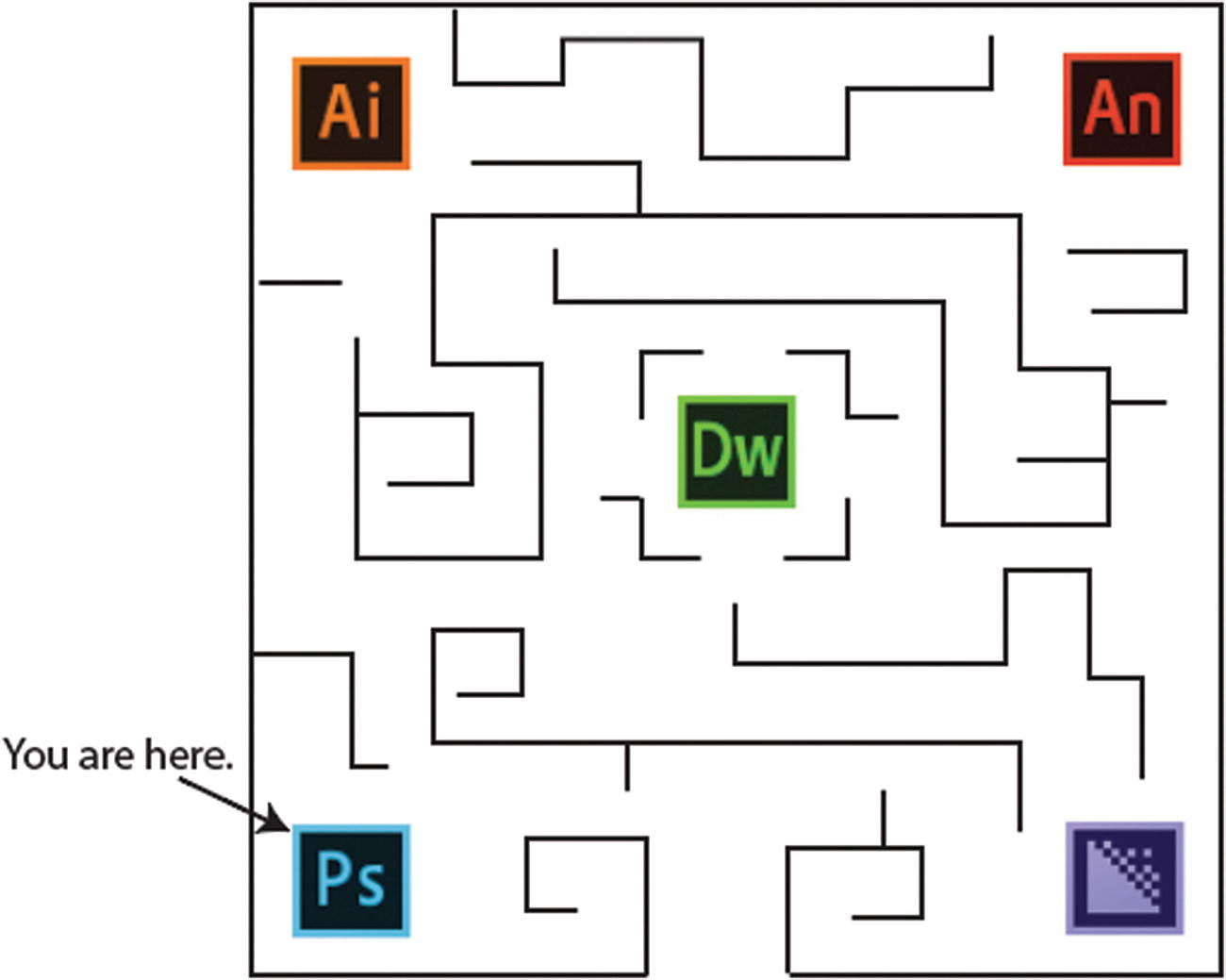
Symbolically, entering the maze is like starting a project. If you’re planning on having a website rich with images, likely your first destination will be Photoshop CC (see Figure 2-1).
../images/466782_1_En_2_Chapter/466782_1_En_2_Fig1_HTML.jpg
Figure 2-1

This is a representation of where you currently are in the software maze
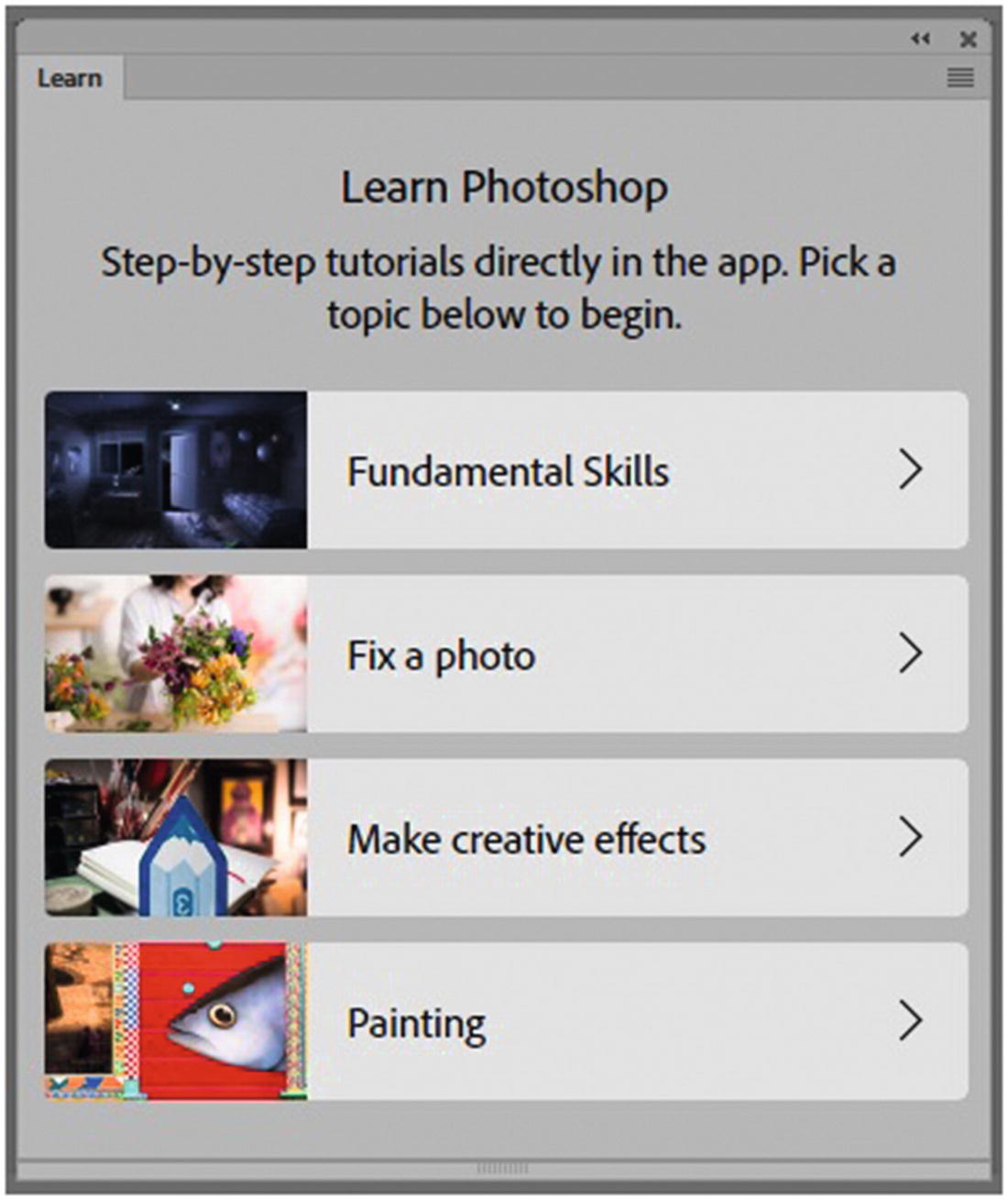
If you have never used Photoshop before on a project, or you are a beginner, I recommend reading a book like Photoshop CC Classroom in a Book by Andrew Faulkner (Adobe Press, 2018) where you get a basic overview of the program and many of its tools. You can also check out Photoshop’s Learn panel, which has step-by-step tutorials on various projects, as shown in Figure 2-2.
../images/466782_1_En_2_Chapter/466782_1_En_2_Fig2_HTML.jpg
Figure 2-2

The learn panel has easy step-by-step tutorials for the beginner Photoshop user

In this book, you will work with some graphics that are already created, and then save them to the web.
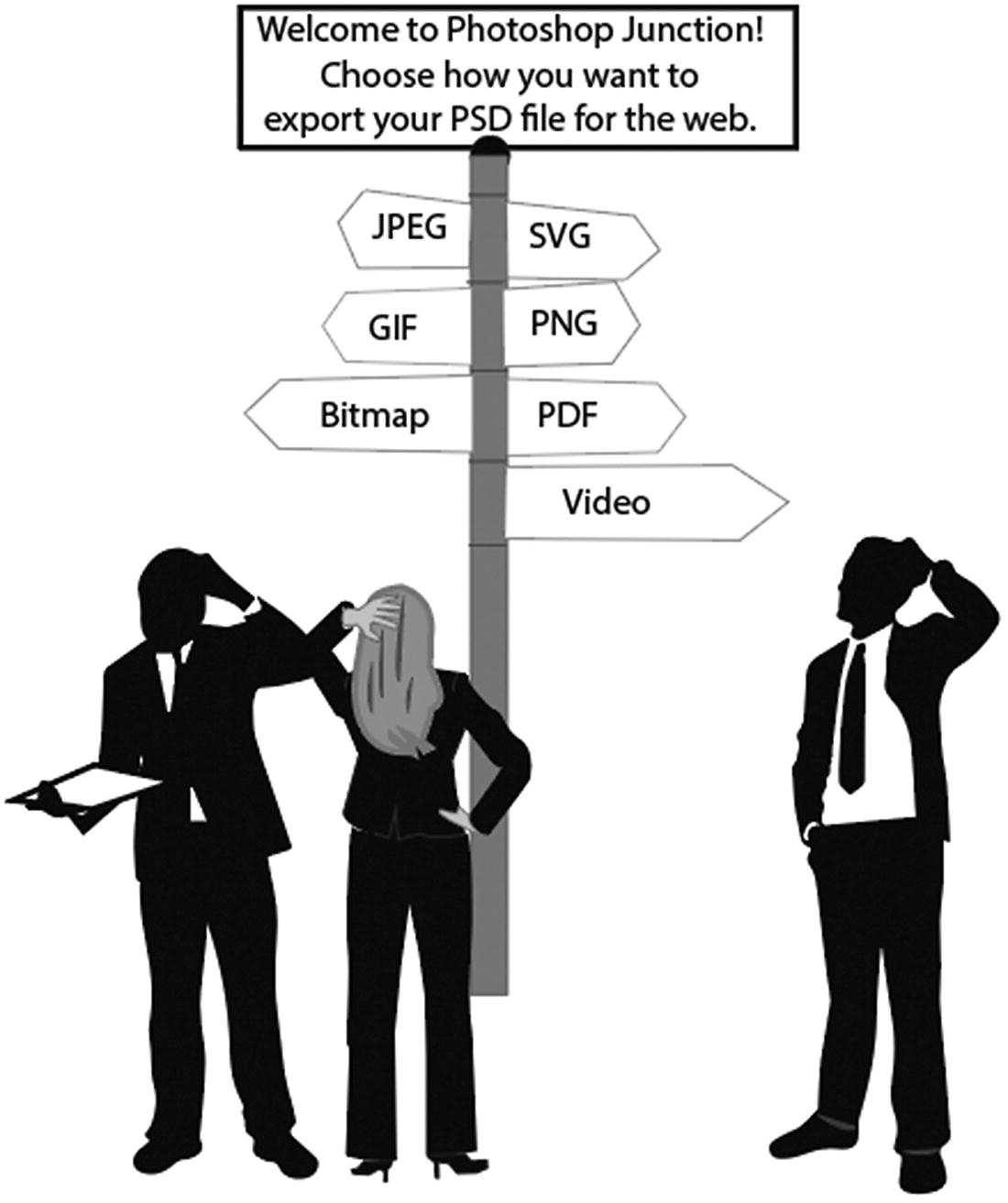
As you can see in Figure 2-3, we will be looking at several image formatting choices.
../images/466782_1_En_2_Chapter/466782_1_En_2_Fig3_HTML.jpg
Figure 2-3

Here you see a junction or point of decision within Photoshop. What is the correct type of file format to use for a specific project?

Working with Your RAW and Layered Files
Let’s begin by opening Photoshop CC. I am working with the CC 2019 version. If you do not have Photoshop on your computer, but you do have the Creative Cloud application, click the Install button beside the Photoshop icon (see Figure 2-4), and follow the instructions on how to install the program.
../images/466782_1_En_2_Chapter/466782_1_En_2_Fig4_HTML.jpg
Figure 2-4

The Install button that is found beside the Creative Cloud software on the Creative Cloud console

Note

Before you install any Adobe program, make sure that your computer meets the system requirements; otherwise, the install may fail. For more information on Photoshop requirements check https://helpx.adobe.com/photoshop/system-requirements.html .

If you already have Photoshop CC installed on your computer, double-click on the icon. Or, in the Creative Cloud application, click Open to launch the program, as shown in Figure 2-5.
../images/466782_1_En_2_Chapter/466782_1_En_2_Fig5_HTML.jpg
Figure 2-5

You can open Photoshop CC from the Creative Cloud application by clicking the Open button

Once Photoshop opens, set up your workspace so that yours is the same as mine.
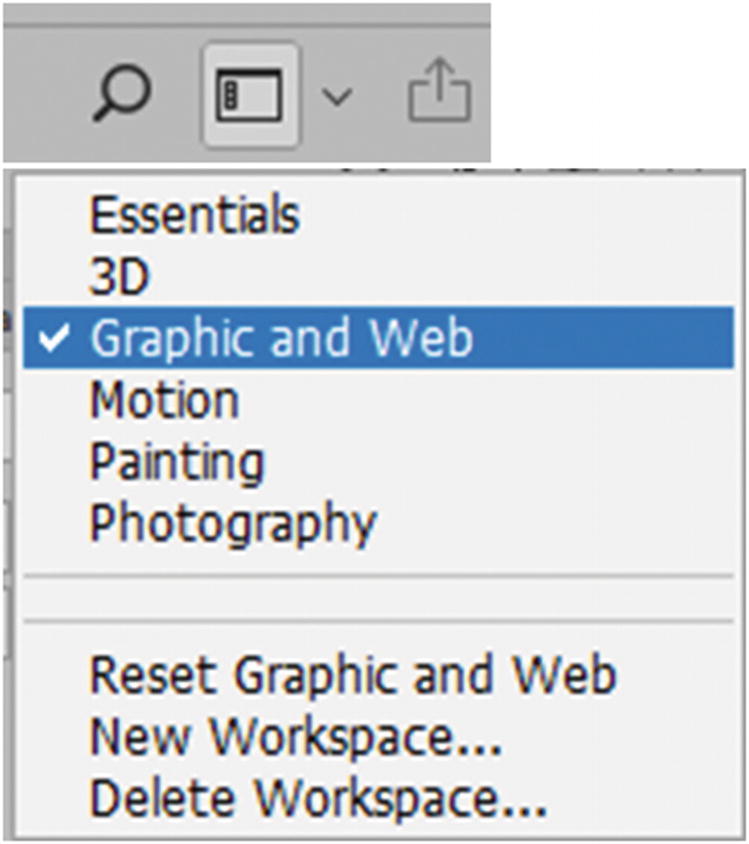
I chose Graphic and Web in the Workspace icon (in the upper right), as seen in Figure 2-6.
../images/466782_1_En_2_Chapter/466782_1_En_2_Fig6_HTML.jpg
Figure 2-6

Choose the Graphic and Web workspace from the Workspace drop-down menu

If you have already used the Graphic and Web workspace, you can choose Reset Graphic and Web from the menu to return the workspace to its default settings.
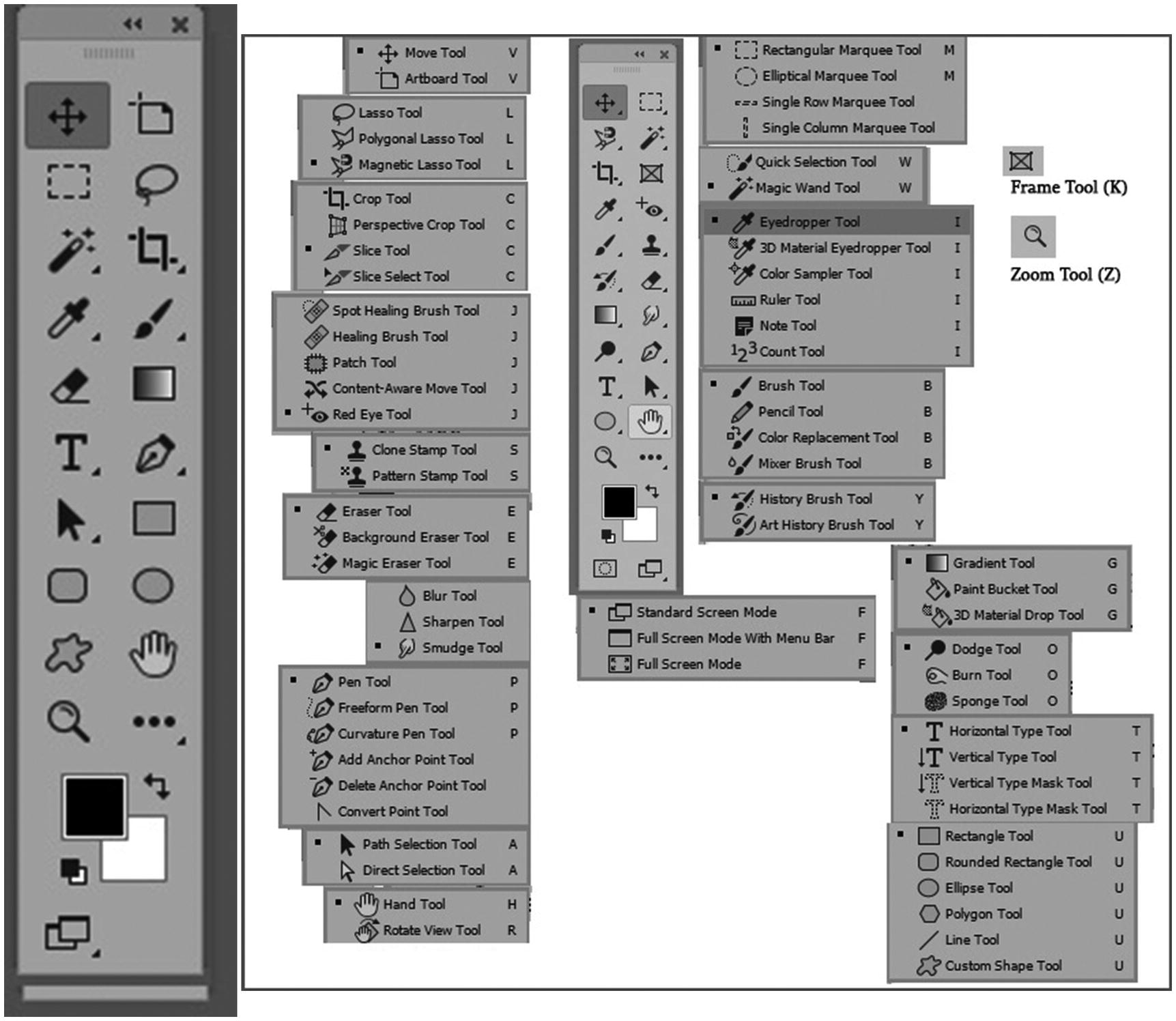
Or, if you prefer, you could work with the Essentials workspace since it offers the full range of tools in the Tools panel, as seen in Figure 2-7.
../images/466782_1_En_2_Chapter/466782_1_En_2_Fig7_HTML.jpg
Figure 2-7

Comparison of the Tools panel in in the Graphic and Web workspace vs. the Essentials workspace, which has more tool options available.

Note

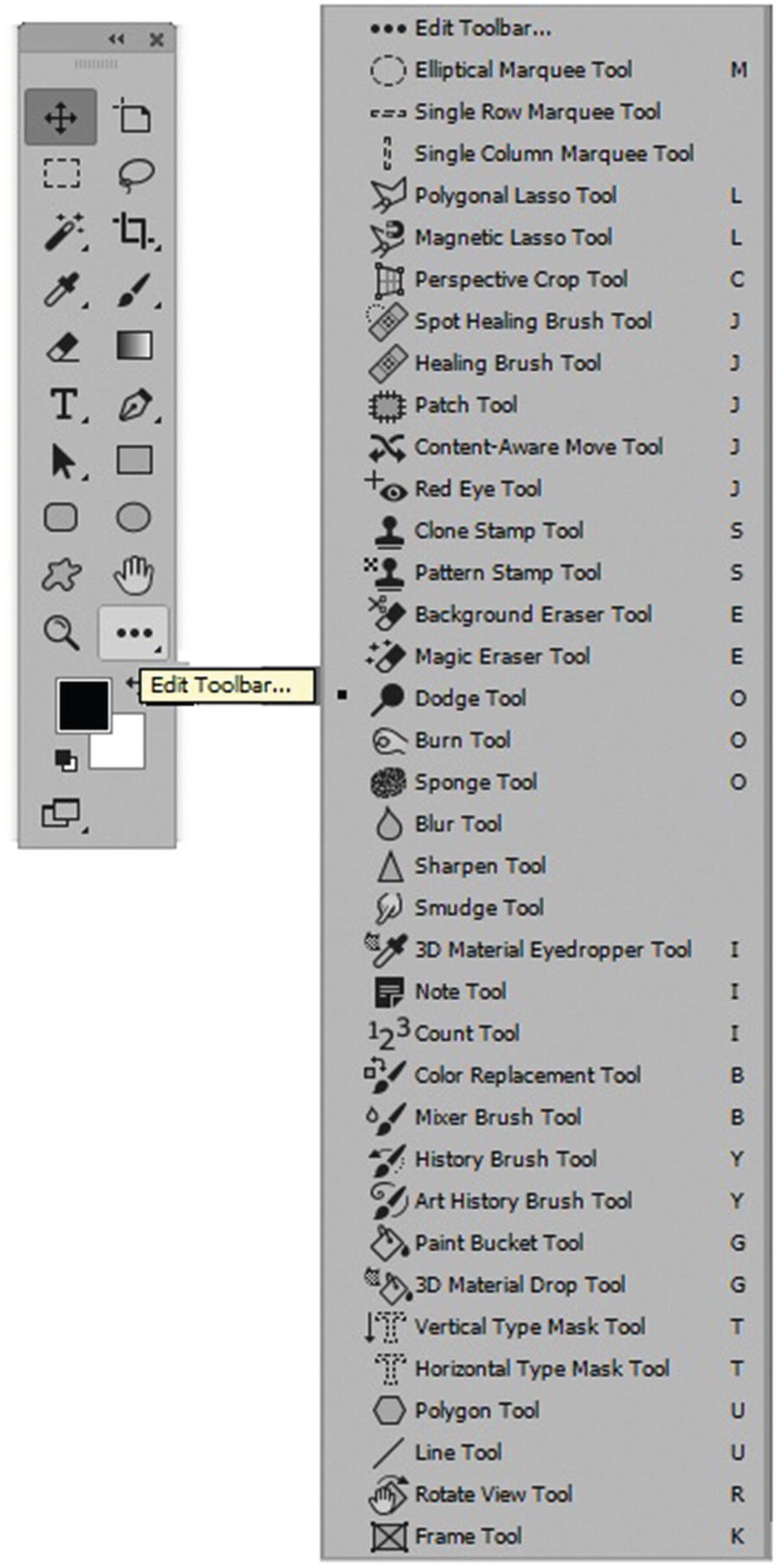
If you notice that your toolbar does not have all the tools you require, you can click the Edit Toolbar icon. This will allow you to add more or all tools back onto the tool panel, as seen in Figure 2-8 and Figure 2-9.
../images/466782_1_En_2_Chapter/466782_1_En_2_Fig8_HTML.jpg
Figure 2-8

By clicking the Edit Toolbar icon, you can add tools to customize your tool selection
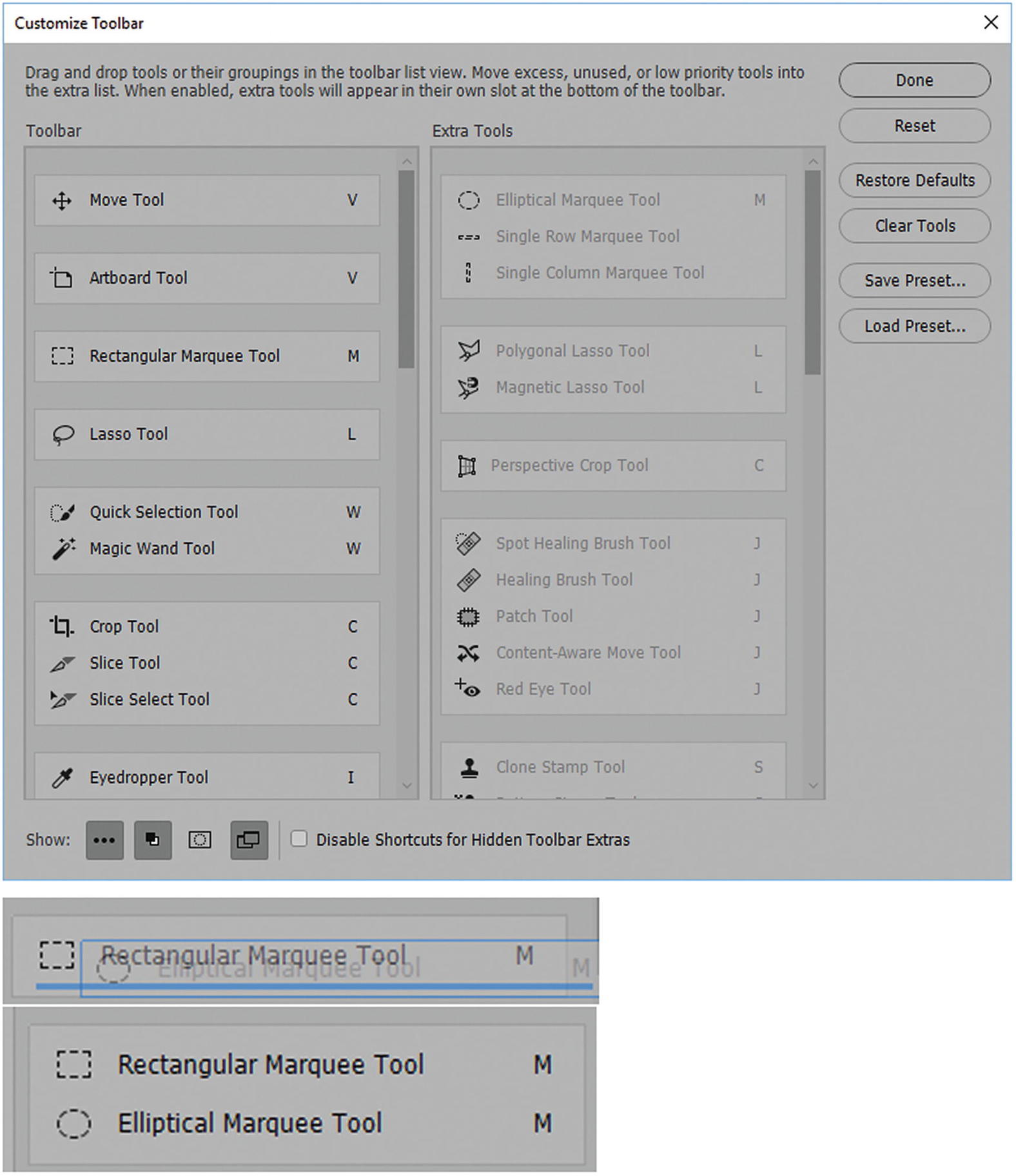
Clicking the Edit Toolbar icon opens the Customize Toolbar dialog box so that you can drag tools from Extra Tools on the right to the left into the toolbar; as you do so, the toolbar updates. You can also group tools together by hovering an extra tool over a current tool in the toolbar when a blue line appears under the other tool, as seen in Figure 2-9.
../images/466782_1_En_2_Chapter/466782_1_En_2_Fig9_HTML.jpg
Figure 2-9

The Customize Toolbar dialog box allows you to add or remove tools from your tools panel and preview it at the same time

You can also remove tools by dragging them back to the Extra Tools side. Or you can choose restore defaults to add all tools, or clear tools to remove all tools. Likewise, you can load presets that others created or save your own presets. When you have added the tools you require, click Done, or Cancel to exit without making any changes.
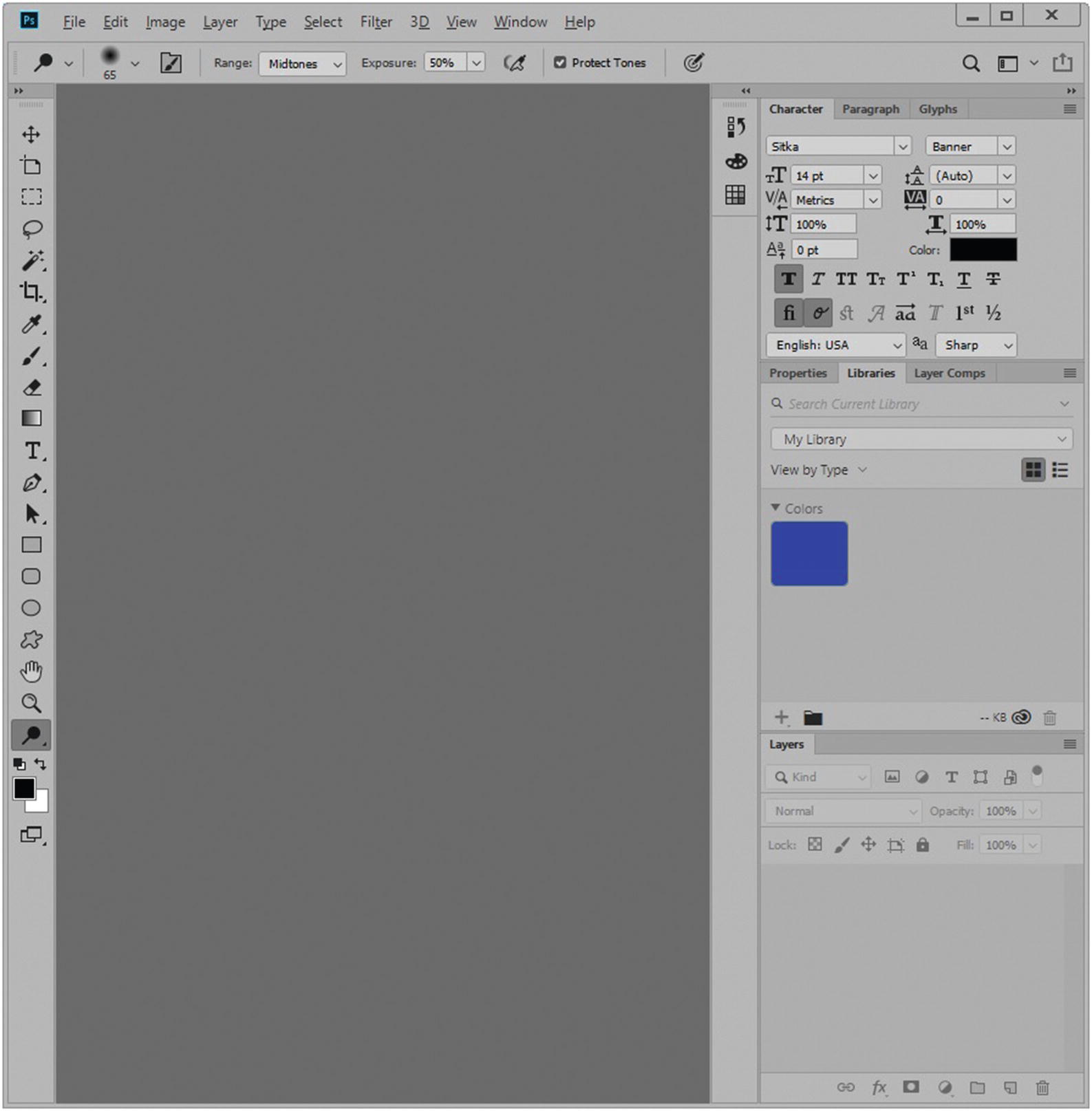
Your layout should now look something like Figure 2-10.
../images/466782_1_En_2_Chapter/466782_1_En_2_Fig10_HTML.jpg
Figure 2-10

The Graphics and Web workspace layout

If you prefer another workspace for your web design, you can always choose a different one or create your own custom workspace (New Workspace) as seen in Figure 2-6.

Creating a New File
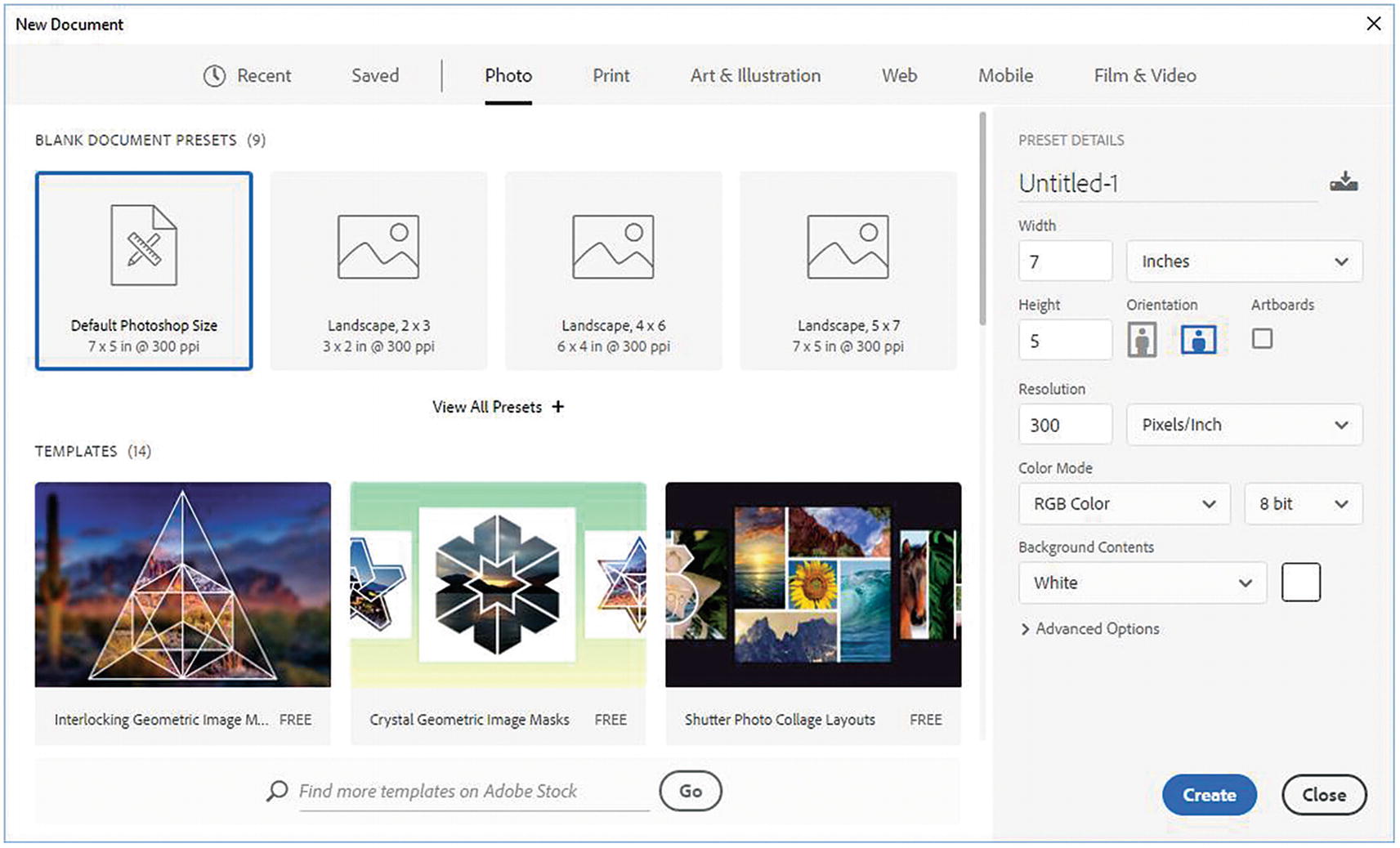
If you want to create a new file, choose File ➤ New, as seen in Figure 2-11.
../images/466782_1_En_2_Chapter/466782_1_En_2_Fig11_HTML.jpg
Figure 2-11

The New Document dialog box with the Photo tab options selected
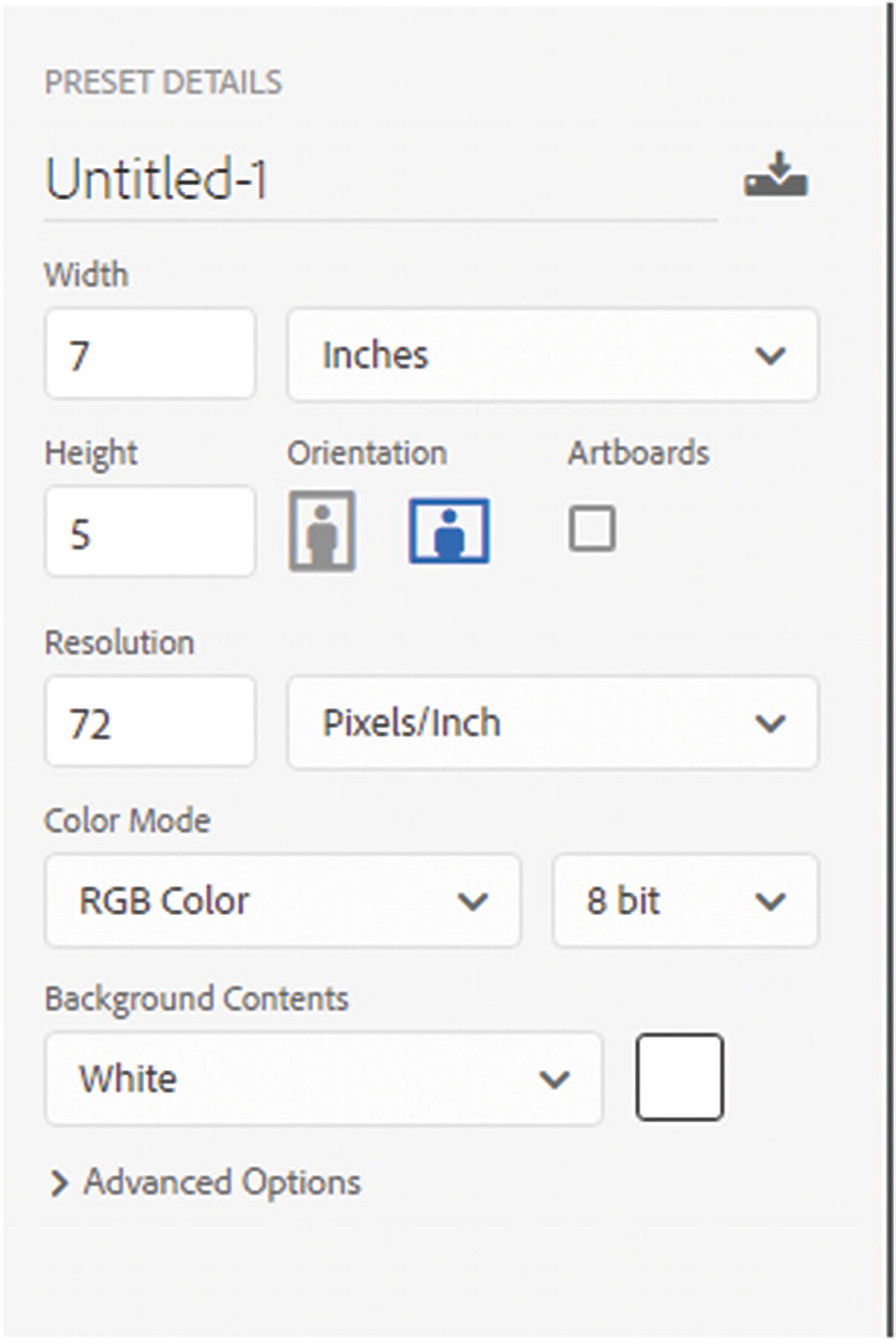
Photoshop CC has organized many of its standard layouts as tabs so that you can easily choose a layout for your project, whether for photos, print, web, mobile or film and video. You can create your own custom sizes. You can use an artboard, where you have two or more layered layouts display (see the Layers panel when a file is open) within one .psd file. However, when you begin creating a file that you are planning to use for the web, make sure that the color mode is set to RGB Color, as seen in Figure 2-12. You’ll learn more about color in Chapter 3.
../images/466782_1_En_2_Chapter/466782_1_En_2_Fig12_HTML.jpg
Figure 2-12

The New Document dialog box preset details with the color mode set to RGB 8-bit color

Note

If you are not sure of the exact dimensions the images that you are planning to create for the web, you can always keep your file at 300 pixels/inch so that your original graphic has the highest resolution. You can always scale down to a low-res copy later when you export your image. It is more difficult to scale a file back up to high-res due to loss of image quality. However, if you know the exact size, set the resolution to 72 pixels/inch, which is generally the accepted resolution for most images on the web.

When you have the correct settings, click the Create button on the bottom right of the New Documents dialog box, as seen in Figure 2-13. Your new file will open.
../images/466782_1_En_2_Chapter/466782_1_En_2_Fig13_HTML.jpg
Figure 2-13

Click the Create button so that Photoshop can create your new file with your preferred settings. The Close button will close the dialog box and no new file will open.
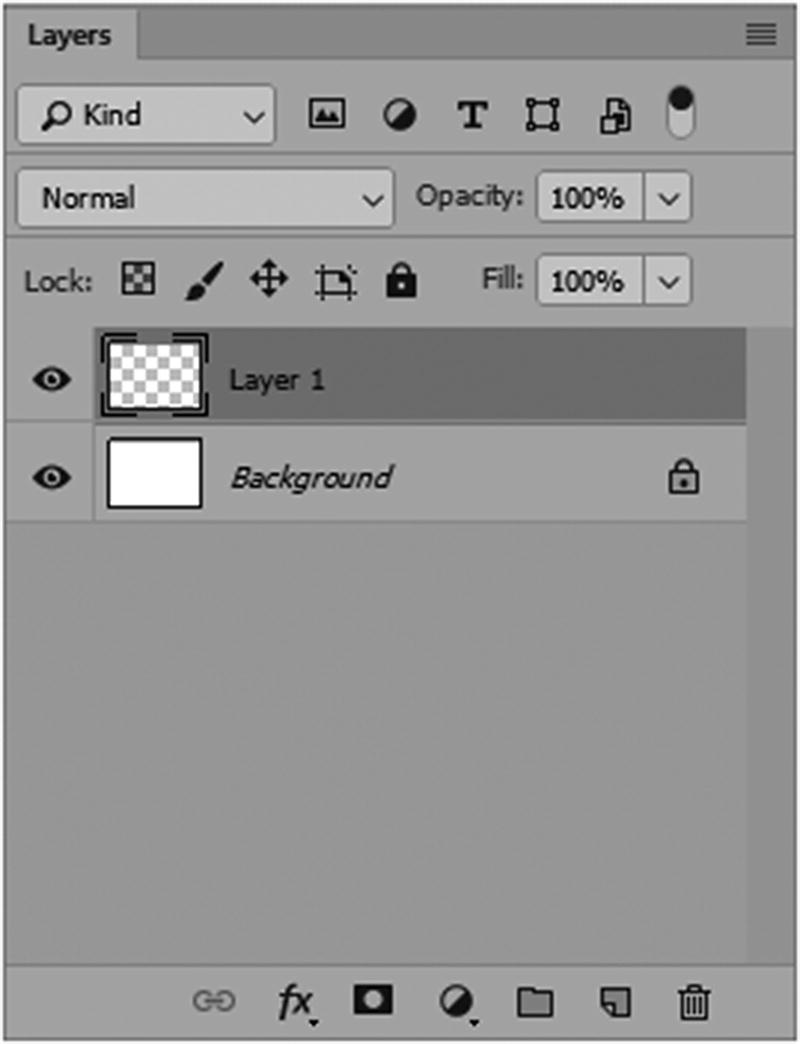
At this point, you begin to add Layers via the Layers panel, as seen in Figure 2-14, and design your artwork using one or more of the tools in the Tools panel.
../images/466782_1_En_2_Chapter/466782_1_En_2_Fig14_HTML.jpg
Figure 2-14

A background default layer and now a new layer has been added to the newly created Photoshop file by clicking the New Layer icon on the bottom right near the Trash icon

While you can always create your files directly in Photoshop CC, you may have collected or acquired your original images in other file formats. Here I have listed some of the ones you will likely encounter. In the main menu, go to File ➤ Open.
  • Bitmap (.bmp): This file is often created when you scan a file with your office scanner. It is common in Windows-compatible computers. While it can be used on the web, the file size is often quite large, so it’s better to save a copy in a file format suited for the web.

  • TIFF (.tif,.tiff): Often, graphic artists will save a final single layered piece of artwork as a TIFF file. These files are considered images that do not lose quality (lossless) as copies are saved from them. They retain their original size; no compression of data occurs.

  • Photoshop PSD (.psd, .pdd, .pstd): While creating your graphics, you may save your files with multiple layers. Photoshop PSD files allow you to retain these layers, effects, and masks. After you save and close the file, you can always come back another day and continue to edit it until you are ready to export a flattened copy to the web.

  • Large document format (.psb): Sometimes the file size of a layered file can become very large such as over 2GB. Layered files over this size are often saved as a .psb known as a Photoshop Big to preserve the file quality.

  • Camera RAW or digital negative (.dng): A camera raw image file is in a camera-specific proprietary format that is essentially a “digital negative,” with no filtering, white balance adjustments, or other in-camera processing. You need the Camera Raw program plugin to install with Photoshop CC to view these files. Refer to Figure 2-15.

../images/466782_1_En_2_Chapter/466782_1_En_2_Fig15_HTML.jpg
Figure 2-15

This is how the Camera Raw CC program should appear in your Creative Cloud console so that you know it is operating correctly

This is not to be confused with a Photoshop RAW (.raw) file for transferring images between applications and computer platforms. While they can be a larger file size, they only contain one layer.
  • JPEG files from a camera (.jpg, .jpeg, .jpe): Some cameras only create JPEGs. Since it comes directly from the camera, it is the original and has not lost quality yet. If it is altered or subsequent JPEG images are saved from it, they will be of lower quality.

While these are all good file formats for your original files (except for the bitmap and JPEG files), you cannot display the other formats in most browsers.
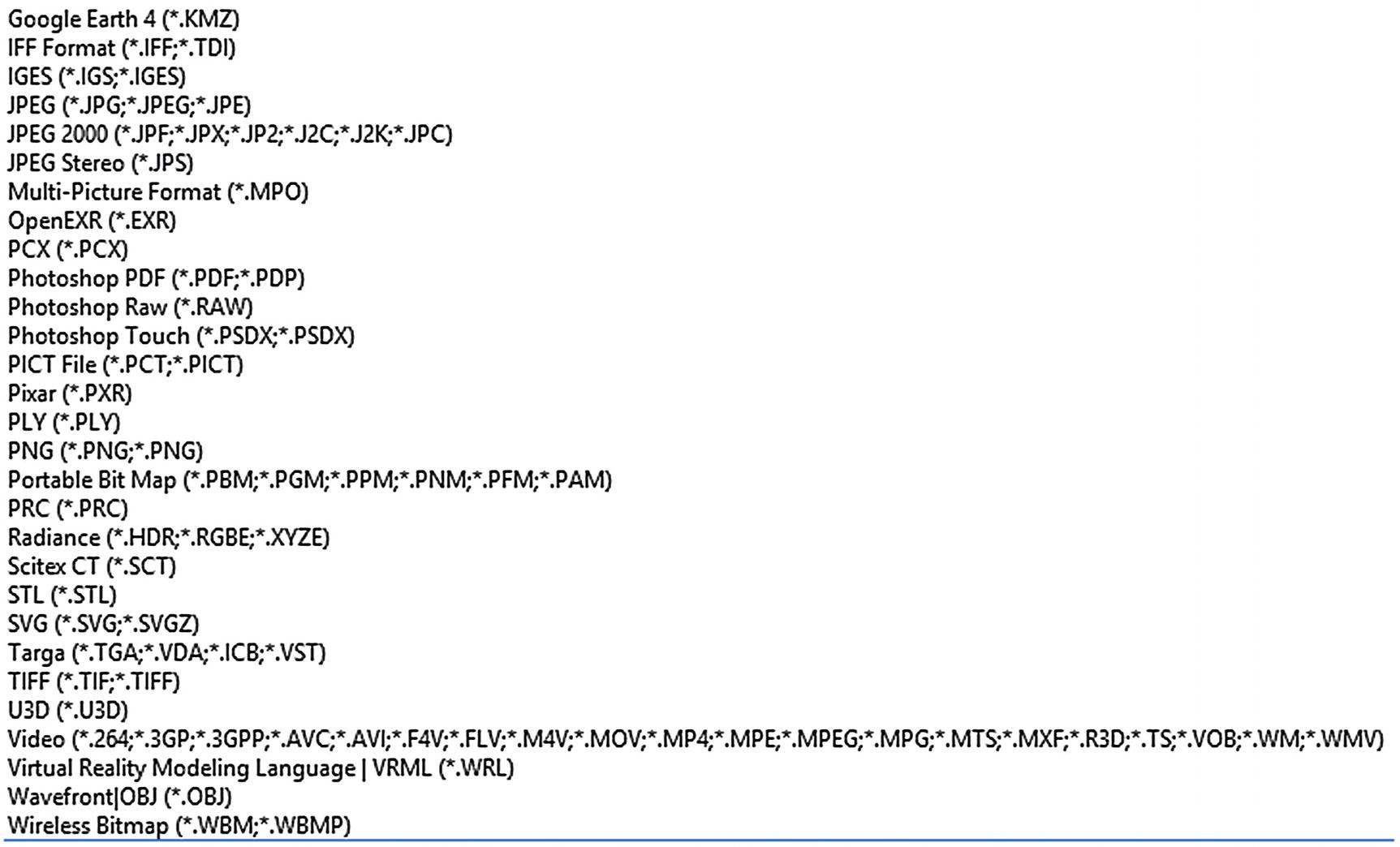
Note that Photoshop can open many other file formats, including video (see Figure 2-16).
../images/466782_1_En_2_Chapter/466782_1_En_2_Fig16_HTML.jpg
Figure 2-16

File format options found when choosing File ➤ Open
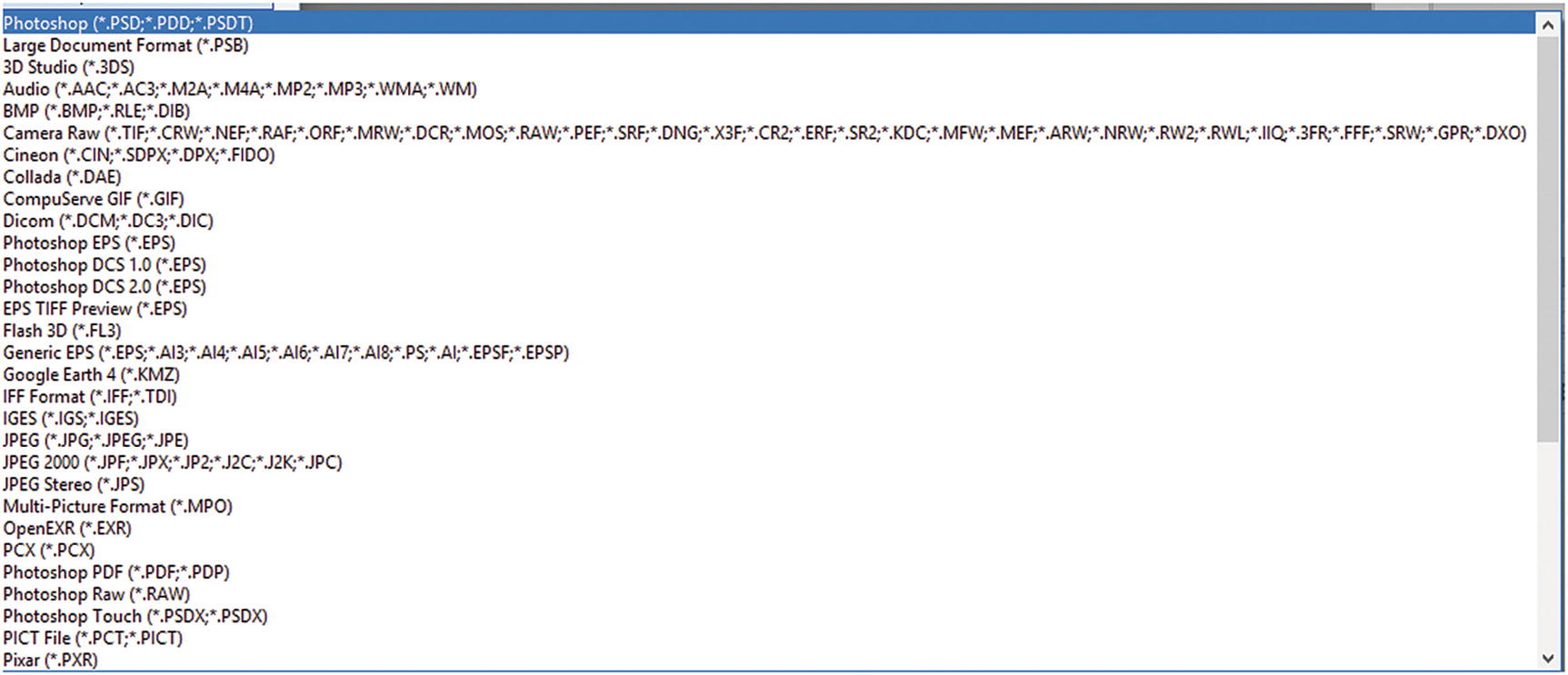
Or if you choose File ➤ Open As, you will see the Camera Raw option for opening the files shown in Figure 2-17.
../images/466782_1_En_2_Chapter/466782_1_En_2_Fig17_HTML.jpg
Figure 2-17

File format options found when choosing File ➤ Open As

For more information on other formats, visit https://helpx.adobe.com/photoshop/using/file-formats.html .

Image Files from Other Adobe Programs

Your image files might originally come from Adobe programs like Illustrator CC (.ai and .eps files), Lightroom CC (Camera Raw), Dimension CC to create 3D shapes (.png or .psd), Fuse CC to create 3D characters as (.obj and .png) files, and Adobe Acrobat PDFs. All of these files can be opened and saved as pixeled raster images within Photoshop.
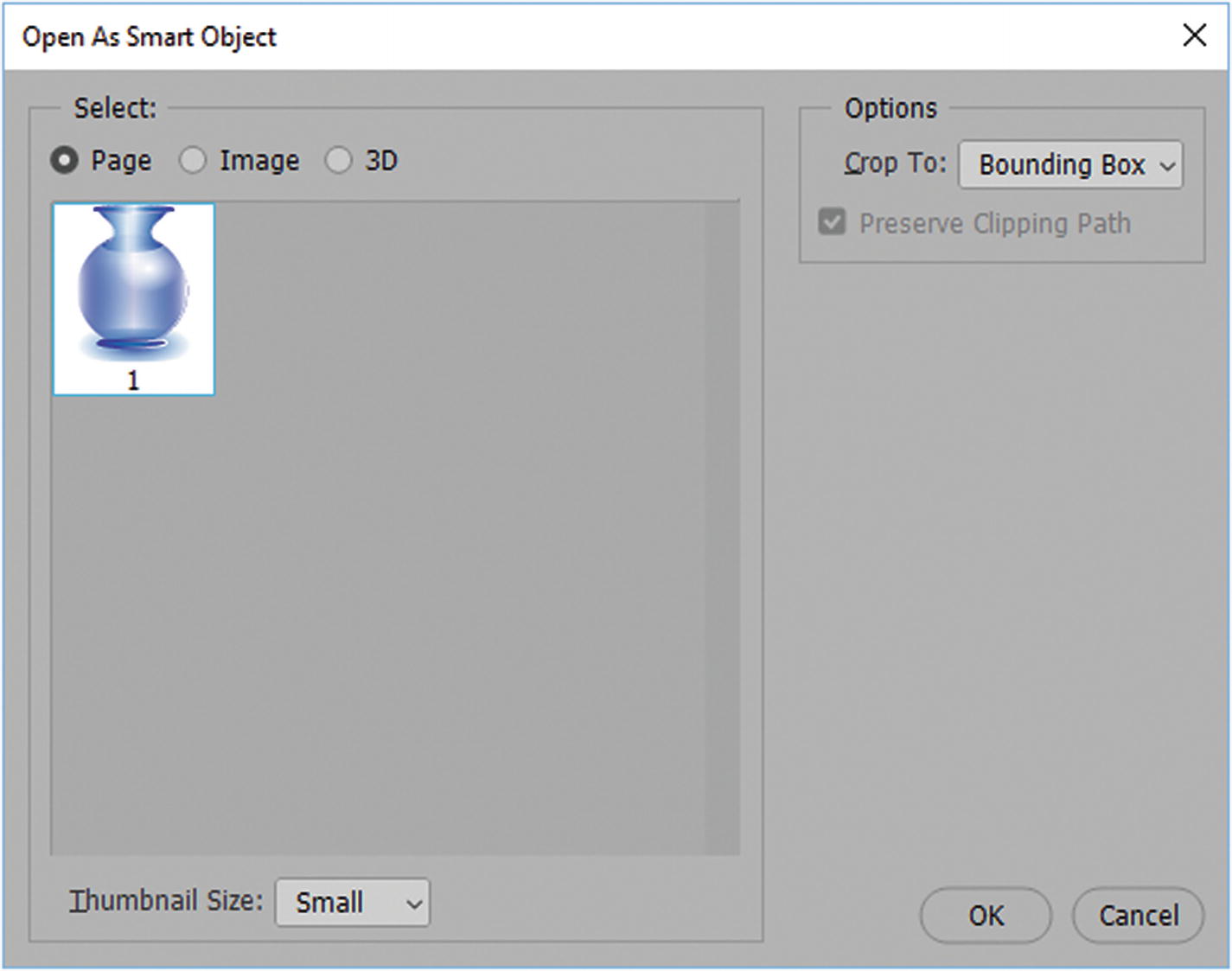
For example, in Illustrator CC, you can File ➤ Open and save a copy as a pixilated image or as a smart object that can be in a layer and later scaled. You can choose File ➤ Open As Smart Object. Find an Illustrator (.ai) file in your open dialog box and click Open to see the dialog box, as seen in Figure 2-18.
../images/466782_1_En_2_Chapter/466782_1_En_2_Fig18_HTML.jpg
Figure 2-18

File formatting options found when choosing File ➤ Open As Smart Object
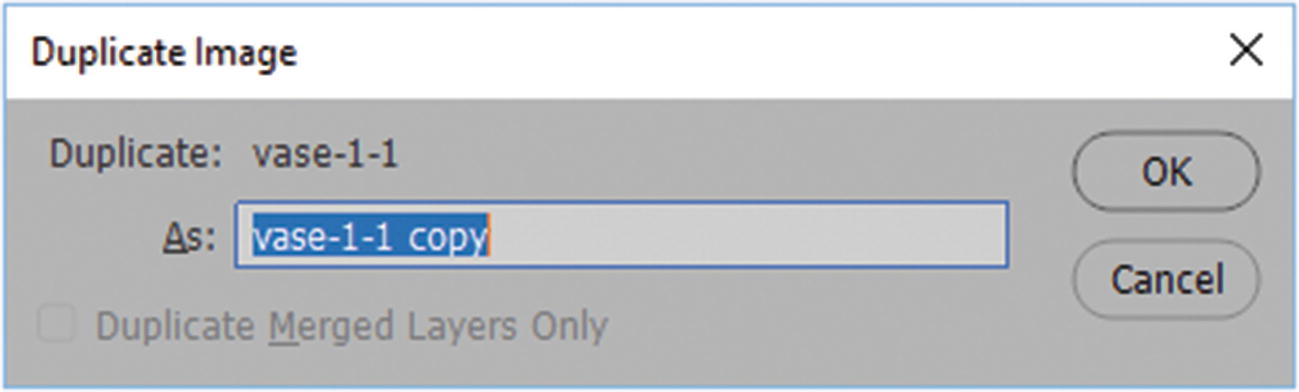
Click OK and then choose Duplicate Image to create a copy, as seen in Figure 2-19.
../images/466782_1_En_2_Chapter/466782_1_En_2_Fig19_HTML.jpg
Figure 2-19

Create a duplicate copy of the Smart Object from the Illustrator file
../images/466782_1_En_2_Chapter/466782_1_En_2_Fig20_HTML.jpg
Figure 2-20

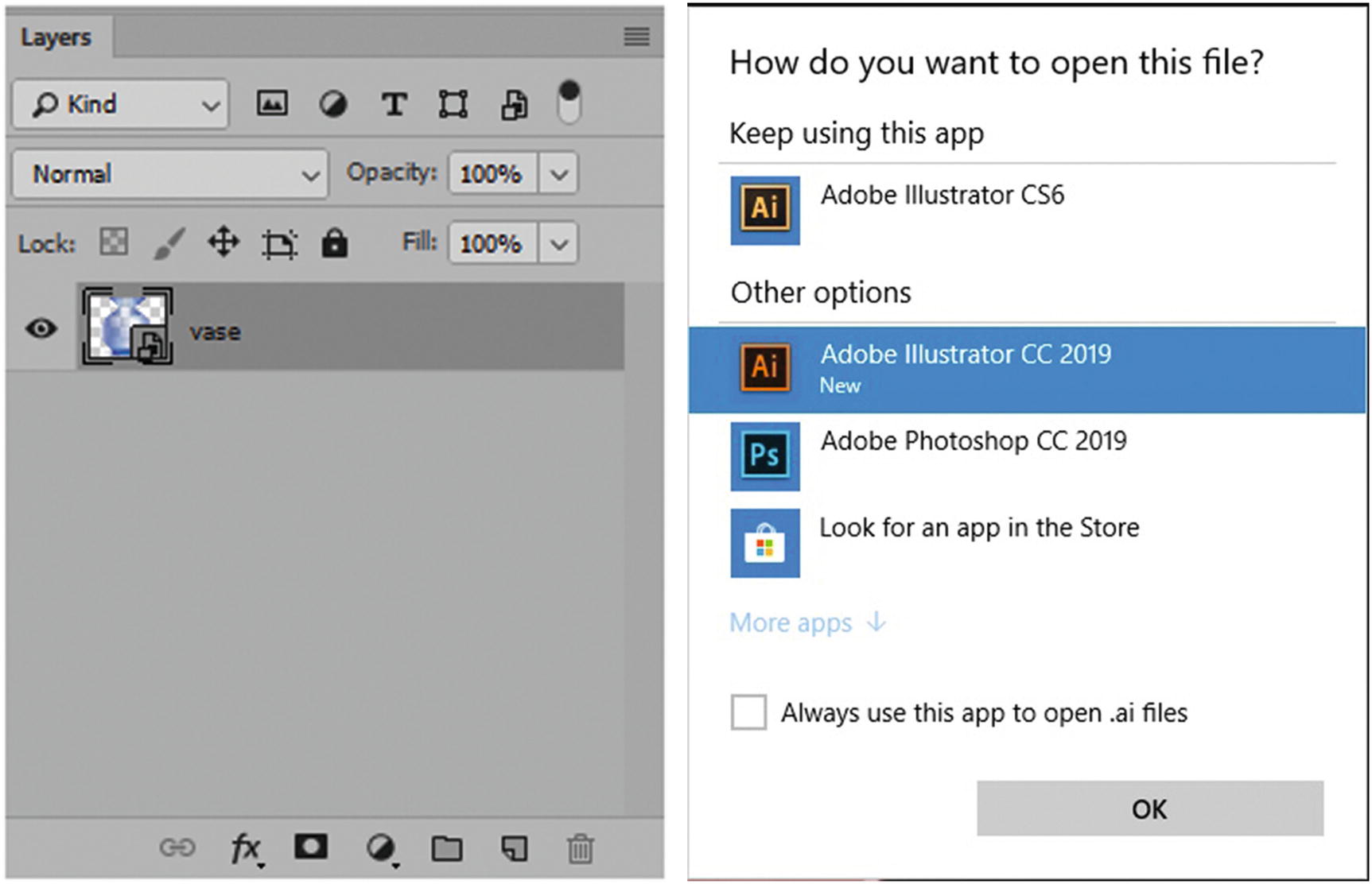
The Smart Object is displayed in the Layers panel. If you by mistake, double-clicking the Illustrator layer may give the following warning

Then save the new file as a PSD, or select the smart object layer and then drag it into your new file. Be careful not to edit the original smart object by double-clicking on the layer, which will open the smart object layer in a new window or in the Illustrator CC. Refer to Figure 2-20.

If you get a warning message from Illustrator CC, just click Cancel to prevent the file from opening, and return to Photoshop CC.
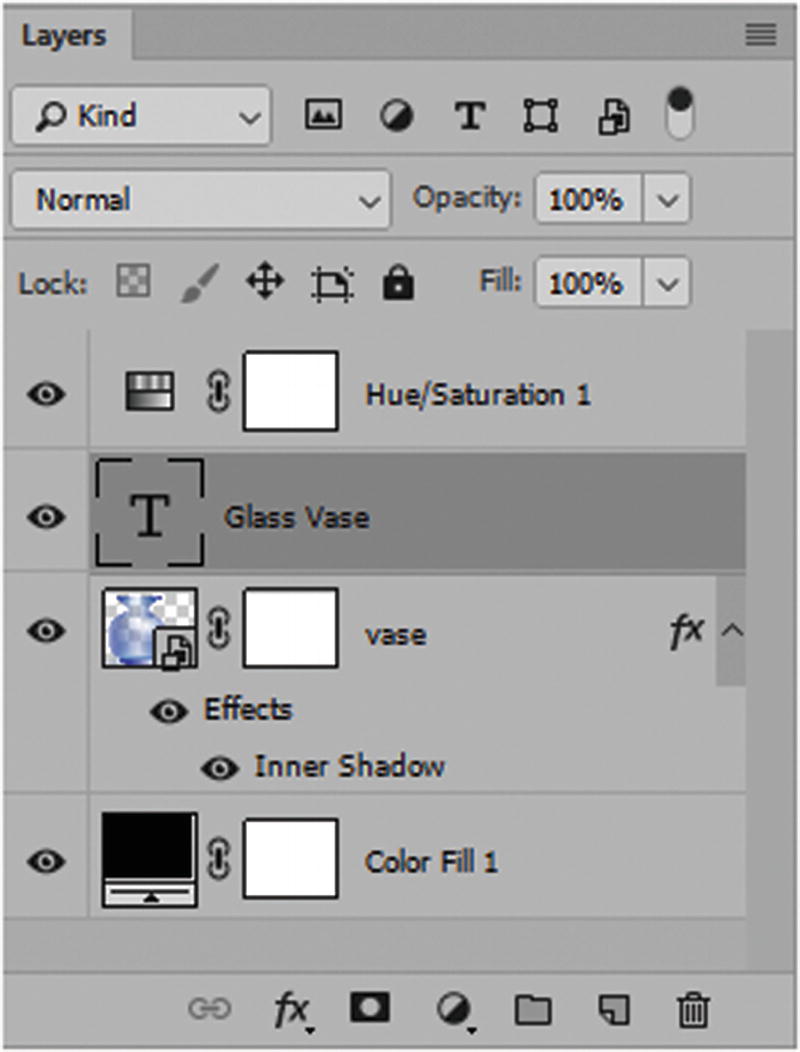
In Photoshop, you can make further outward adjustments to the Smart Object by using masks, layers, effects, blending modes, or tools to alter color and shape. You can also Edit ➤ Transform to resize the image without it losing quality because it is a Smart Object. As seen in Figure 2-21.
../images/466782_1_En_2_Chapter/466782_1_En_2_Fig21_HTML.jpg
Figure 2-21

The smart object layer is displayed in the Layers panel with additional masks, outward effects, and layers applied

When you are done, you can save any open file by selecting File ➤ Save, and then File ➤ Exit exit to Photoshop CC or keep Photoshop open for the next chapter.

Summary

In this chapter, you looked at how to set up a workspace in Photoshop. You also looked at some of the different image file formats that you can open within the Photoshop program. You can either create your own files with Photoshop or work with images that come from another source, such as another Adobe program like Illustrator, or from a camera, scanner, or another client. In the next chapter, we explore the correct color choices for your web design projects.