Table of Contents for
Graphics and Multimedia for the Web with Adobe Creative Cloud: Navigating the Adobe Software Landscape

Version ebook / Retour

Cover image for bash Cookbook, 2nd Edition Graphics and Multimedia for the Web with Adobe Creative Cloud: Navigating the Adobe Software Landscape by Jennifer Harder Published by Apress, 2018
  1. Navigation
  2. Cover
  3. Front Matter
  4. Part I. Welcome to the Adobe Creative Cloud. Where Should You Begin?
  5. 1. Entering the Software Maze or Labyrinth
  6. Part II. Working with Photoshop to Create Web Graphics and Animations
  7. 2. Getting Started
  8. 3. Color Choices: CMYK, RGB, Grayscale, and Index
  9. 4. Saving or Exporting Your Files for the Web
  10. 5. Actions to Speed up File Conversion and Slicing Tools
  11. 6. Tools for Animation
  12. 7. Tools for Video
  13. 8. Other Miscellaneous Items in Photoshop That You Can Use for Web Design
  14. 9. Putting It into Practice with Photoshop CC
  15. Part III. Working with Illustrator to Create Web Graphics
  16. 10. Getting Started with Illustrator CC
  17. 11. Color Choices: CMYK, RGB, and Grayscale
  18. 12. Saving or Exporting Your Files for the Web
  19. 13. Actions to Speed up File Conversion and Slicing Tools
  20. 14. Tools for Animation and Video
  21. 15. Other Miscellaneous Items in Illustrator That You Can Use for Web Design
  22. 16. Putting It into Practice with Illustrator CC
  23. Part IV. Working with Animate to Create Animations, Movies, and HTML5 Canvas
  24. 17. Getting Started with Animate CC
  25. 18. Color Choices: RGB
  26. 19. Importing Your Artwork
  27. 20. Import Your Audio and Video
  28. 21. Working with the Timeline Panel
  29. 22. Exporting Your Files to the Web
  30. 23. Other Miscellaneous Items in Animate that You Can Use for Web Design
  31. 24. Putting It into Practice with Animate CC
  32. Part V. Working with Media Encoder to Create Audio and Video Files
  33. 25. Getting Started with Media Encoder
  34. 26. Working with Your RAW Video Files (AVI and MOV)
  35. 27. Working with Your RAW Video Files and Converting Them to Audio
  36. 28. Working with Your RAW Video Files and Converting Them to an Image Sequence
  37. 29. Putting It into Practice with Media Encoder CC
  38. Part VI. Working with Dreamweaver: Adding Images, Animations, and Multimedia to HTML5 Pages
  39. 30. Getting Started with Dreamweaver CC
  40. 31. Working with Images and Tags
  41. 32. Working with CSS
  42. 33. Working with Images for Mobile Web Design
  43. 34. What Is JavaScript?
  44. 35. Working with Bootstrap, Templates, Library Items, and the Assets Panel
  45. 36. Working with Video, Audio, and Animations
  46. 37. Additional Options to Apply Images in Dreamweaver
  47. 38. Final Testing, Getting Ready to Upload Your Site
  48. 39. Putting It into Practice with Dreamweaver CC
  49. Part VII. Further Dreamweaver Integration with Other Adobe Products for Websites
  50. 40. What Other Programs That Are Part of Adobe Creative Cloud Can I Use to Display My Graphics or Multimedia Online?
  51. Back Matter
© Jennifer Harder 2018
Jennifer HarderGraphics and Multimedia for the Web with Adobe Creative Cloudhttps://doi.org/10.1007/978-1-4842-3823-3_27

27. Working with Your RAW Video Files and Converting Them to Audio

Jennifer Harder1 
(1)
Delta, BC, Canada
 

In this chapter, you look at how to convert your video’s audio to a sound file (.mp3 and .wav) for your website. You also look at the other web format (.ogg), as well as how to convert a specific audio file (.3ga) that is not accepted in Media Encoder.

Note

This chapter does not have any actual projects; however, you can use the files in the Chapter 27 folder to practice opening and viewing for this lesson. They are at https://github.com/Apress/graphics-multimedia-web-adobe-creative-cloud .

Convert Audio to (Export Settings)
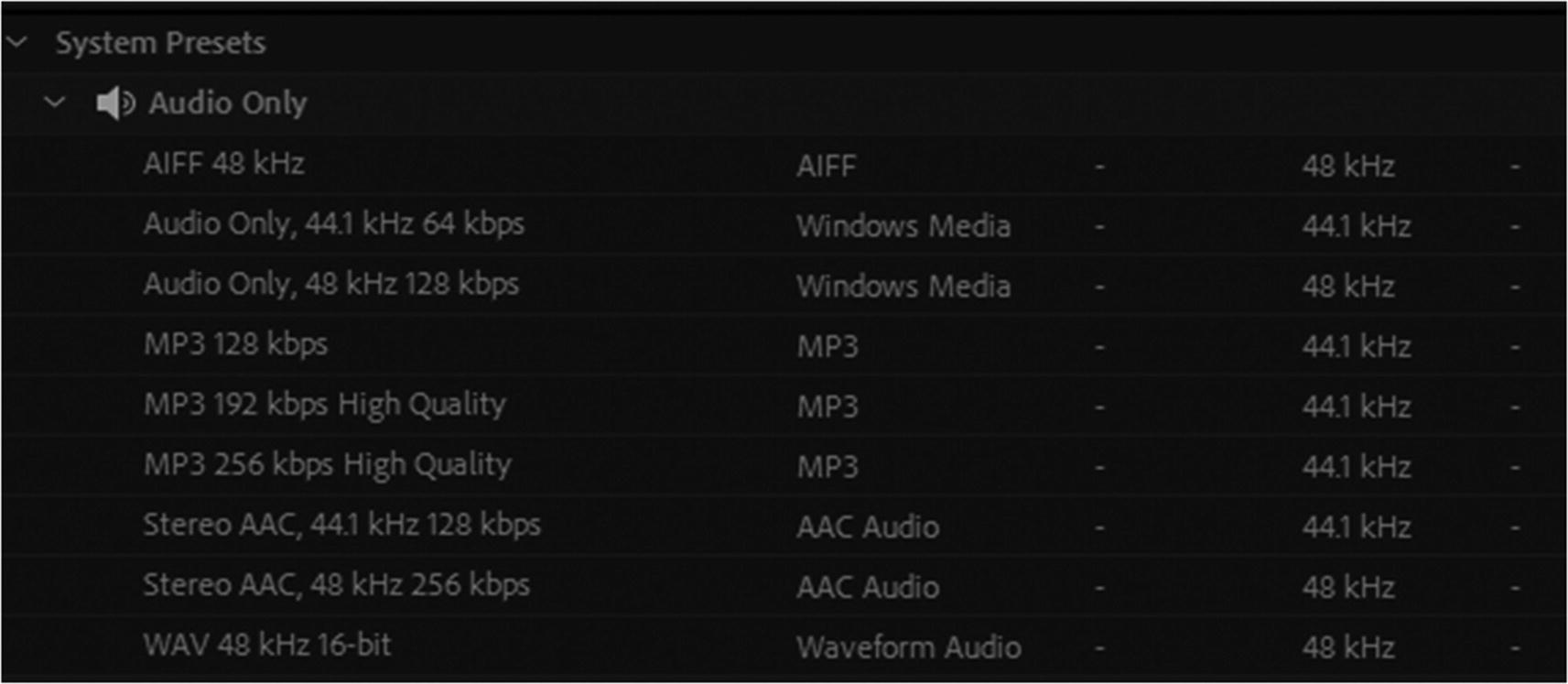
As with the MP4 file that you created, you can extract only the audio from a video file for use on a website. Once you have imported your video file, it is time to export it to the correct audio formats. There are three main audio formats that most desktop and mobile browsers recognize for the web: MP3, WAV, and Ogg. You can use Media Encoder to extract your audio in at least two of these formats. You can view them in the Preset panel ➤ System Presets ➤ Audio Only. Refer to Figure 27-1.
../images/466782_1_En_27_Chapter/466782_1_En_27_Fig1_HTML.jpg
Figure 27-1

Audio Only drop-down tab in the Preset panel

MP3
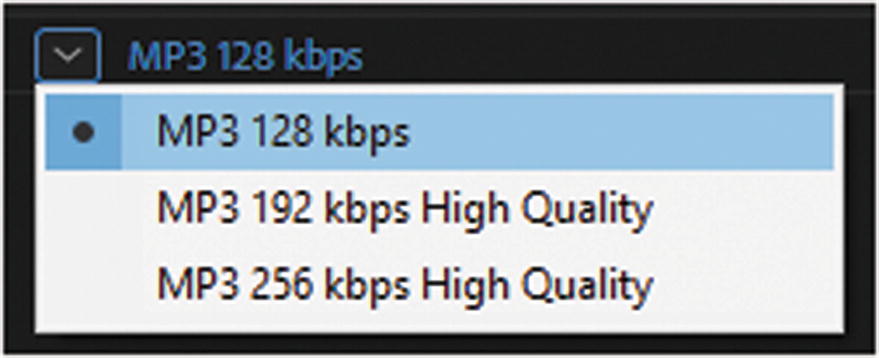
MP3, or MPEG-3, has three different presets available in Media Encoder that run at different kilobytes per second (kbps); generally, the default is 128, but this depends upon the original source of the video file or original audio within the file. Refer to Figure 27-2.
../images/466782_1_En_27_Chapter/466782_1_En_27_Fig2_HTML.jpg
Figure 27-2

Preset options for MP3 in the Queue panel

Export Settings Dialog Box

When you enter the Export setting dialog box as you did with the MP4 file, this time, only Export Audio is enabled, and export video will be disabled as in Figure 27-3.
../images/466782_1_En_27_Chapter/466782_1_En_27_Fig3_HTML.jpg
Figure 27-3

Only Export Audio can be accessed in the Export setting dialog box

Preview Settings
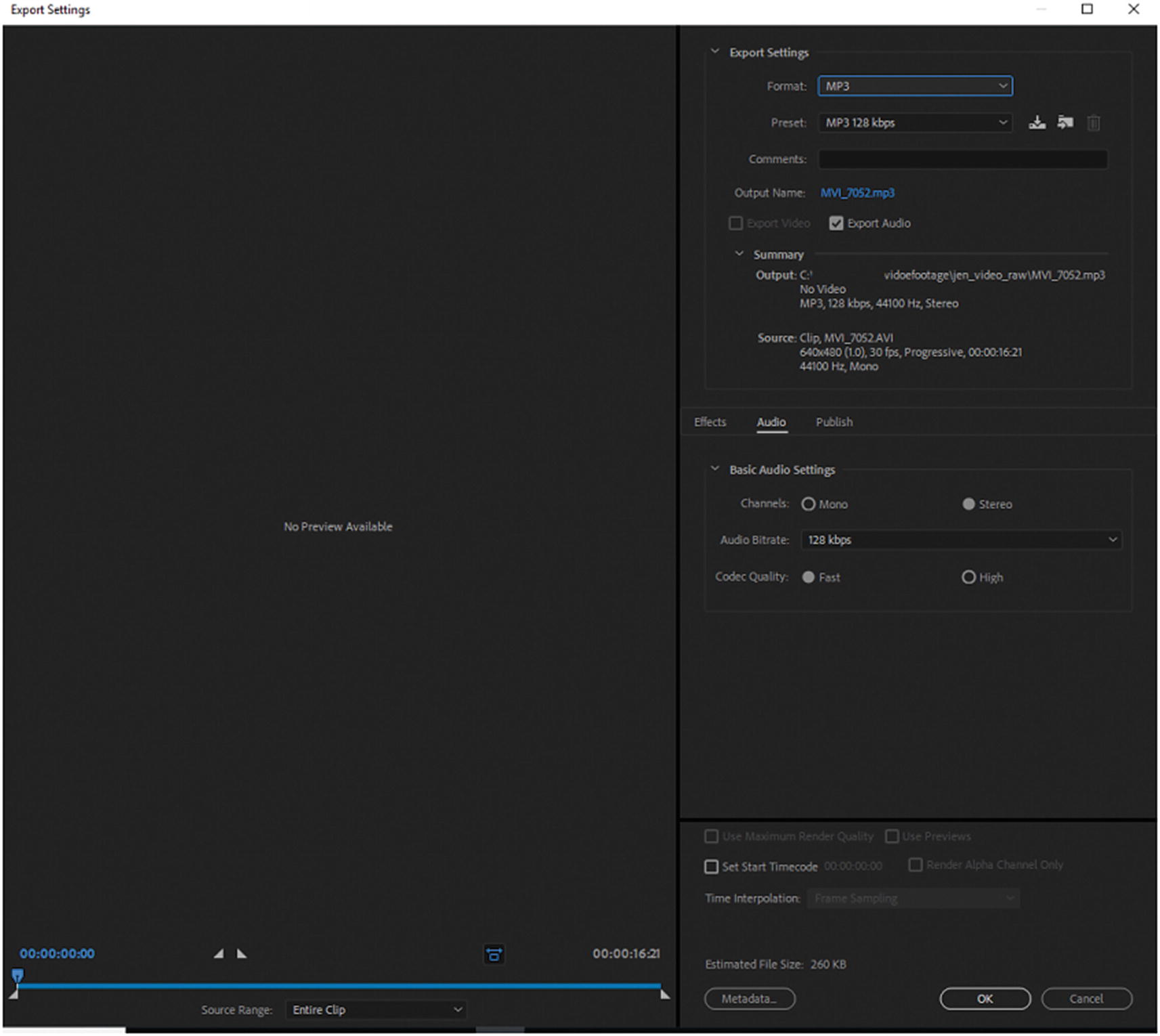
The preview is blank because no video is occurring, as seen in Figure 27-4.
../images/466782_1_En_27_Chapter/466782_1_En_27_Fig4_HTML.jpg
Figure 27-4

No video preview is available for audio only files

Note that Media Encoder does not preview the audio. So, you need to use your computer’s media player initially to know at what point the sound occurs. However, once you know this, use the lower timeline in the Export Setting dialog box (hours: minutes: seconds: frames); you can then drag the lower triangles into position in Media Encoder and clip the area of audio to the few seconds or minutes that you require. Refer to Figure 27-5.
../images/466782_1_En_27_Chapter/466782_1_En_27_Fig5_HTML.jpg
Figure 27-5

Audio preview of the entire clip in Export settings. Drag the triangles inward if you want to clip the audio.

Likewise, in Photoshop, you can trim your audio further, as seen in Chapters 7 and 9.

Export and Summary Settings
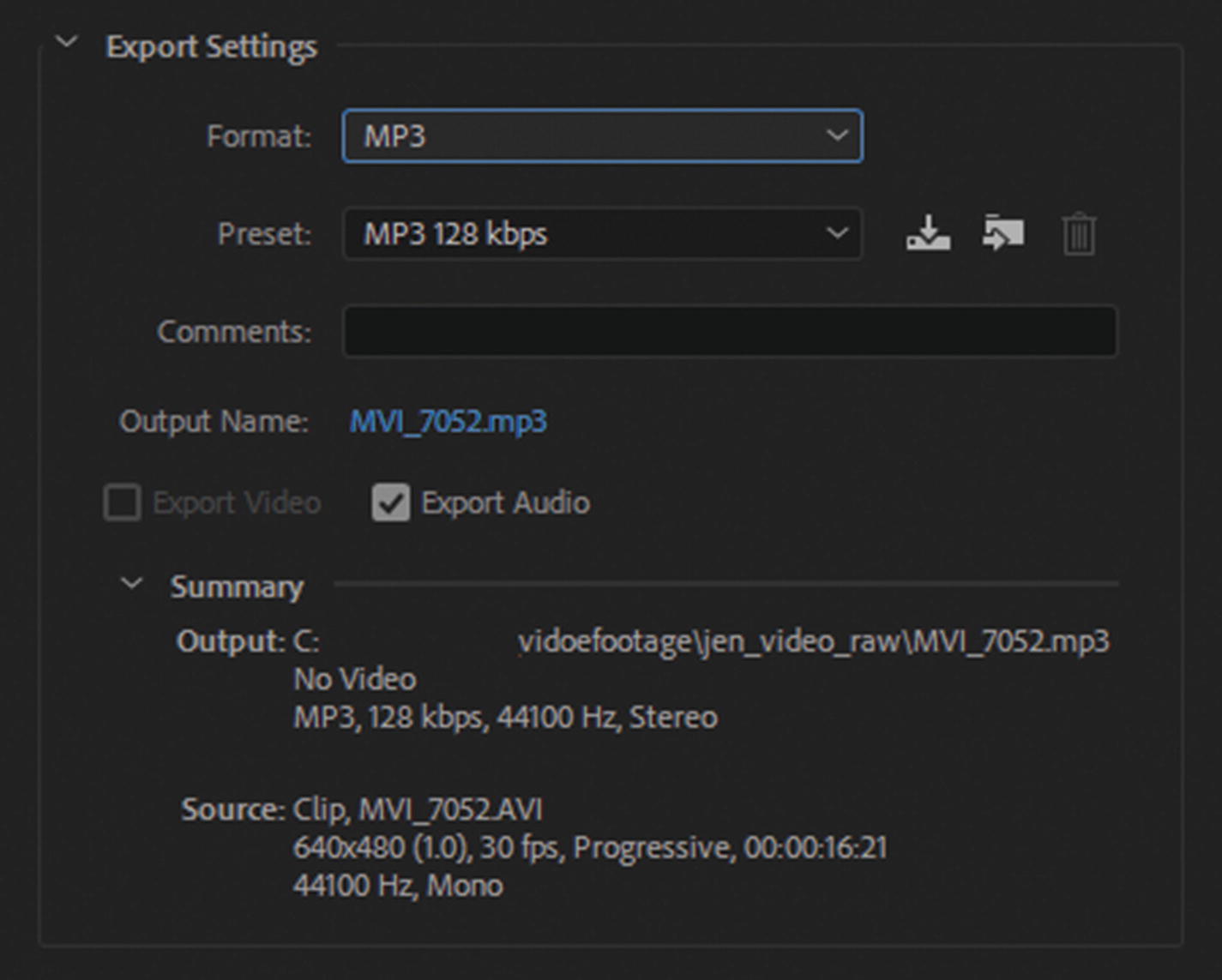
Many of the export settings and summary are like the MP4, as you saw in Chapter 26. You can adjust your preset import and export, trash a preset, add comments, change the output file name, change the export location, and review the summary before export. Refer to Figure 27-6.
../images/466782_1_En_27_Chapter/466782_1_En_27_Fig6_HTML.jpg
Figure 27-6

Export and Summary settings in the Export settings dialog box
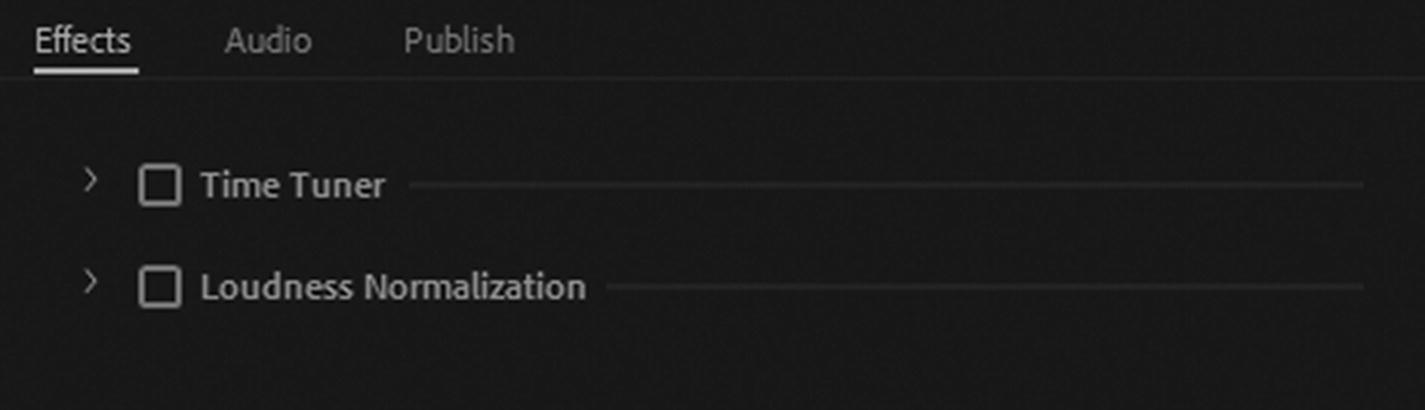
However, with MP3, you are limited to the Effects, Audio, and Publish tabs. Refer to Figure 27-7.
../images/466782_1_En_27_Chapter/466782_1_En_27_Fig7_HTML.jpg
Figure 27-7

Effects tab in the Export settings dialog box

Effects Tab

The Effects tab allows you to control two areas: Time Tuner and Loudness Normalization.

These can only be adjusted when their check boxes are enabled; by default, they are unchecked.

Time Tuner

As with MP4, the Time Tuner feature sets the current and target duration, and shows the duration change as a percentage. (See Chapter 26 for more information).

Skip slates refers to a series of still images with a combined duration longer than 10 seconds. Checking this should prevent the time tuner from being applied to them; however, if there are no images visible in an audio clip, it may have no effect.
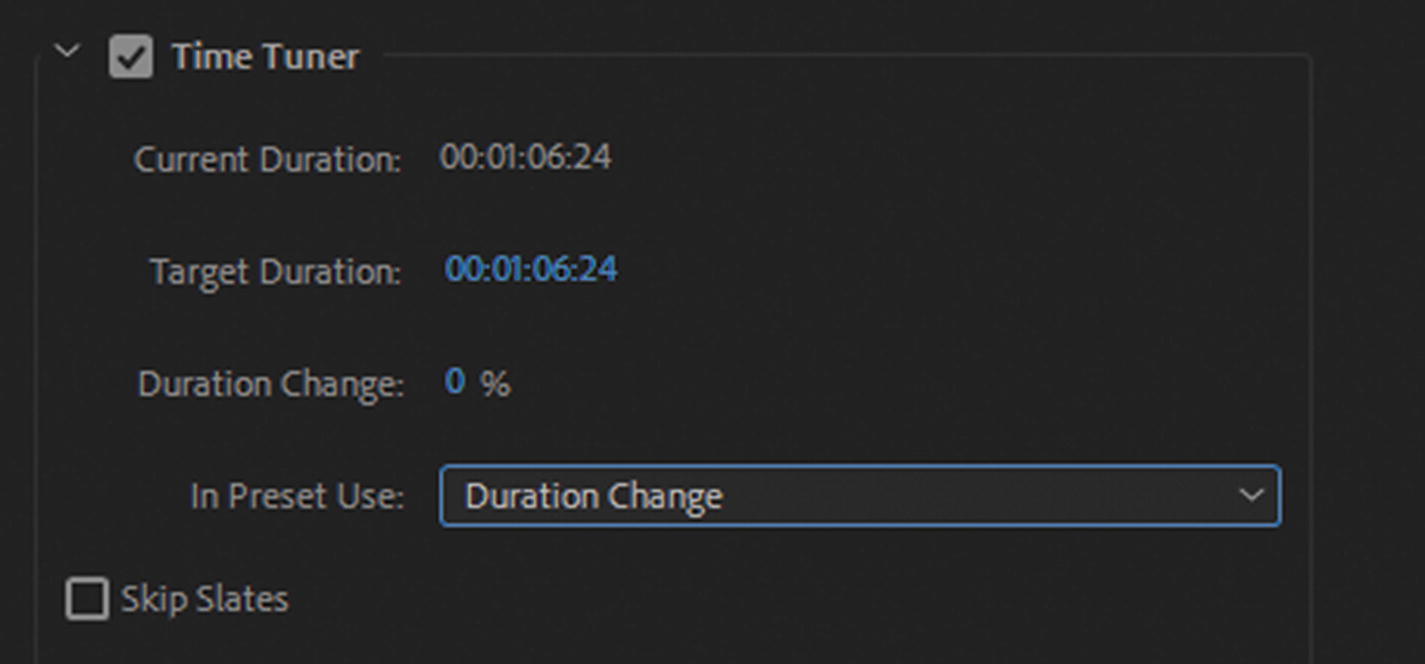
Be aware that the time tuner may cause part of the audio to drop or drag, which may not be what you want; so make sure to experiment with this setting if you plan to use it. Refer to Figure 27-8.
../images/466782_1_En_27_Chapter/466782_1_En_27_Fig8_HTML.jpg
Figure 27-8

Effects tab in the Time Tuner settings

Loudness Normalization
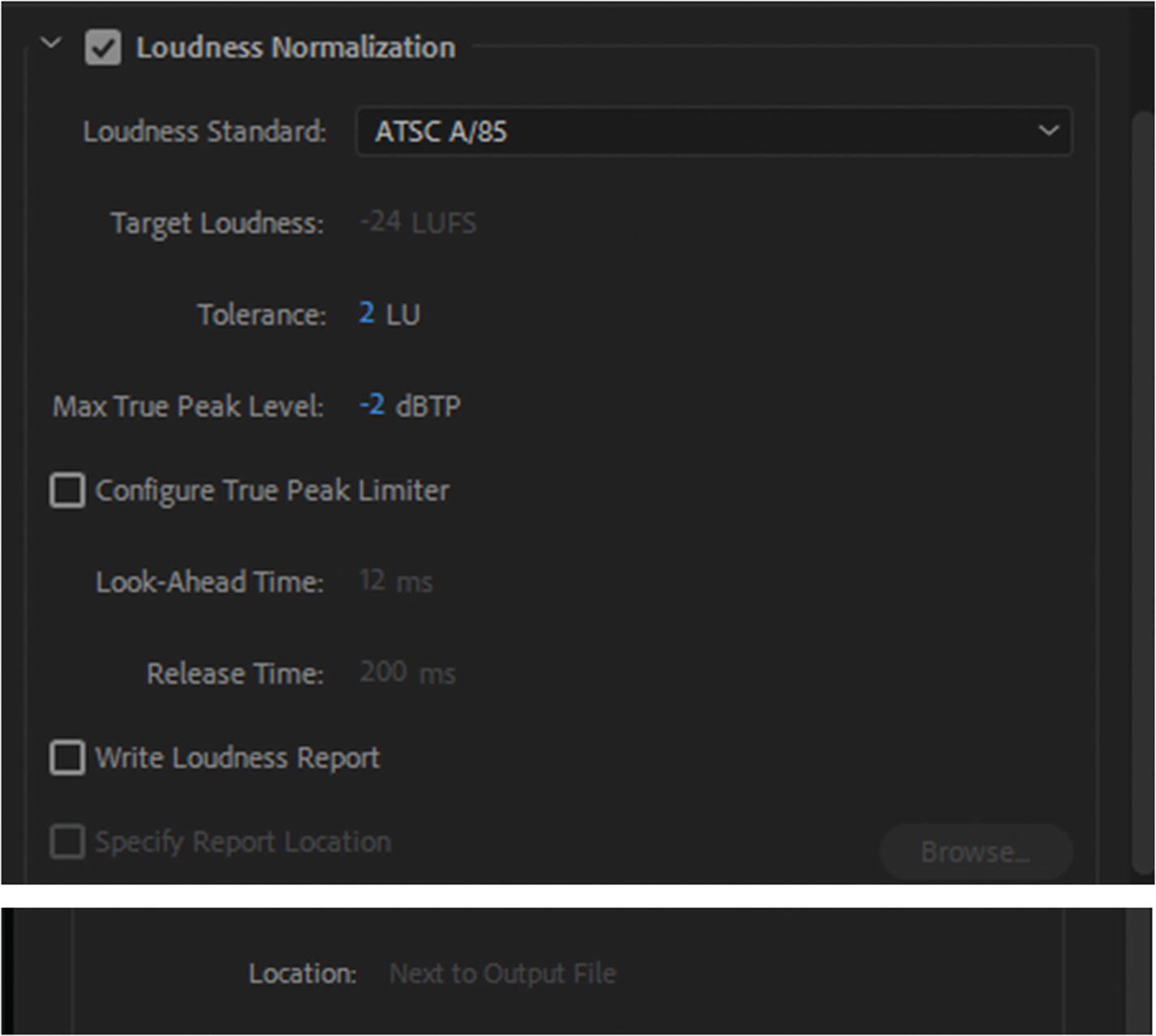
As with MP4 files, loudness can be adjusted. There are at least three loudness standards to choose from; for more information, refer to the MP4 settings in Chapter 26. Like MP4, the MP3 setting allows you to save a loudness report. This area assists you in making sure your audio does not reach excessive levels and meets the required broadcast specs. Refer to Figure 27-9.
../images/466782_1_En_27_Chapter/466782_1_En_27_Fig9_HTML.jpg
Figure 27-9

Effects tab in the Loudness Normalization settings

Audio Tab
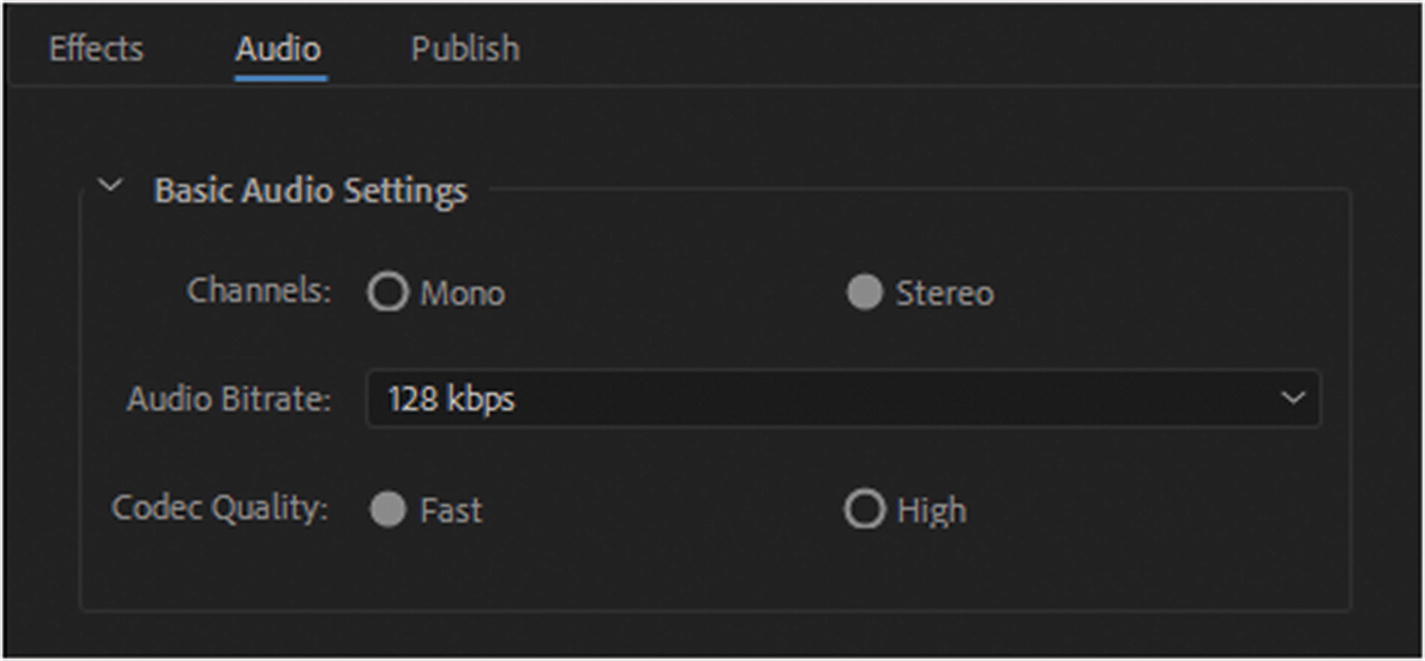
Audio lets you adjust the Basic Audio Settings, such as whether the channels are mono or stereo; the audio bit rate, which may be a setting that is not one of the three main presets; and the codec quality (fast or high). Refer to Figure 27-10.
../images/466782_1_En_27_Chapter/466782_1_En_27_Fig10_HTML.jpg
Figure 27-10

Audio tab in the Basic Audio Settings

Publish Tab
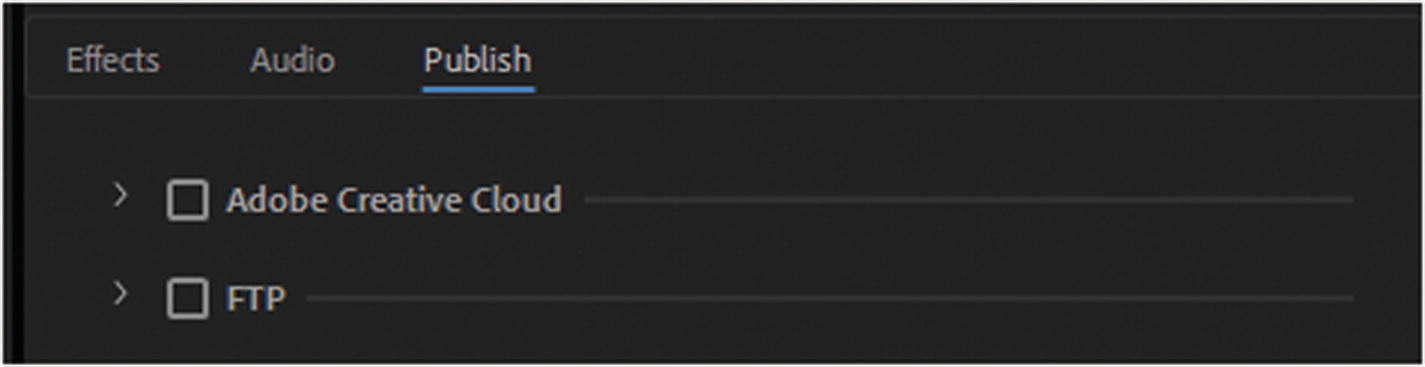
An audio MP3 file can be published either on your hard drive, external drive, to Adobe Creative Cloud, or directly to your website via FTP. Refer to Figure 27-11.
../images/466782_1_En_27_Chapter/466782_1_En_27_Fig11_HTML.jpg
Figure 27-11

Publish tab in Adobe Creative Cloud and FTP settings

You cannot publish directly to other social media sites, such as Facebook, Twitter, or YouTube. Refer to Figure 27-11. This is likely because these social media sites are more video driven. If you’re planning an audio file with no action, a better option to use in these platforms would be is to create a video file in Photoshop or Premiere Pro and add a single image to the background while the music plays, and then use Media Encoder to export the file as an MP4.

You can see more tips on this tab in Chapter 26.

Time Code Settings
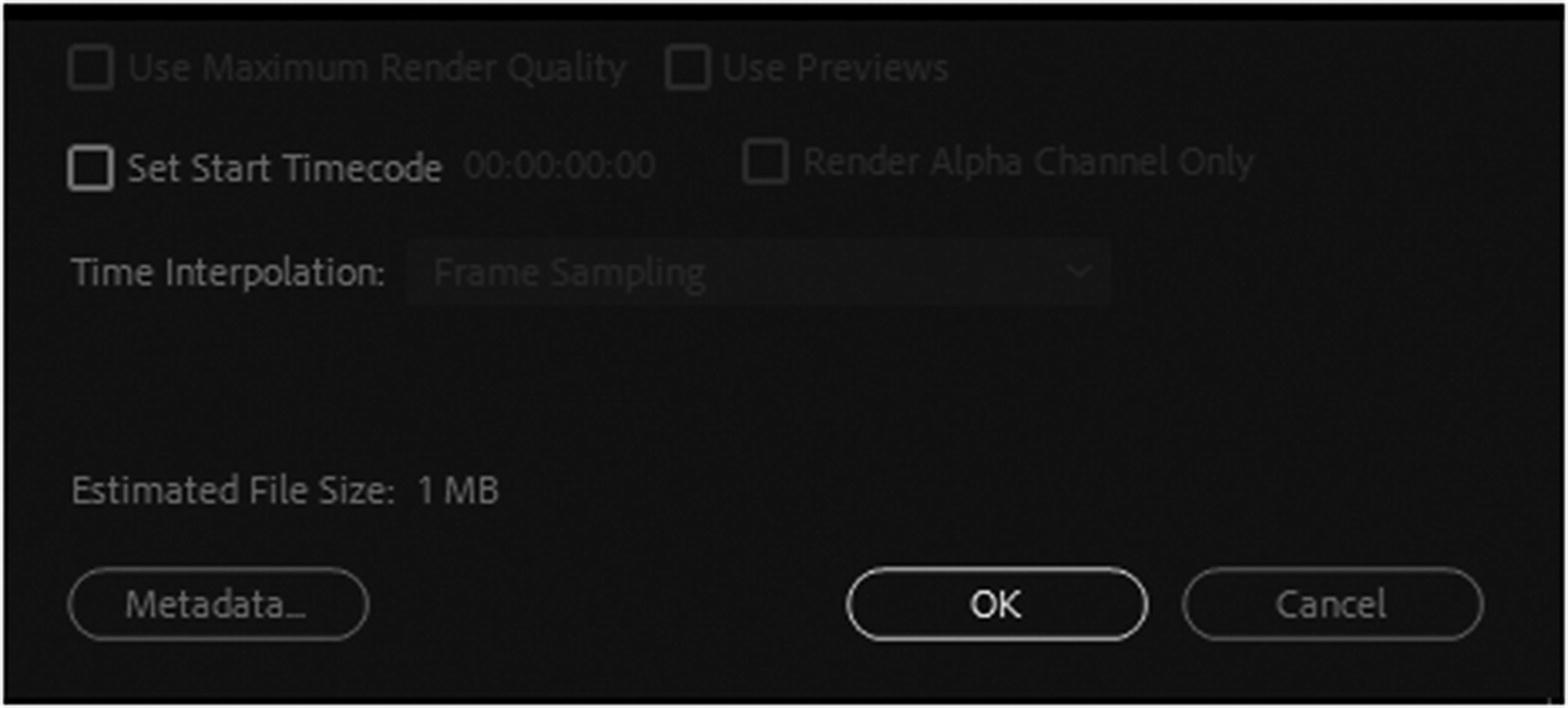
As with MP4, the lower right area of the Time Code settings are the same, though some areas are unavailable since you are only working with audio. You can still set the start time code, view the estimated file size, and set the metadata. Refer to Figure 27-12.
../images/466782_1_En_27_Chapter/466782_1_En_27_Fig12_HTML.jpg
Figure 27-12

Time code settings in the Export setting dialog box

When done, click OK to exit the setting, or cancel if you don’t want to apply changes to your MP3 output file.

Waveform Audio (.wav)

Waveform or WAV is the other audio file for the web. It is a Microsoft and IBM audio file format that is standard for storing audio bitstream on PC computers. It only has one preset (WAV 48 kHz 16 bit) in Media Encoder, and has many settings similar to the MP4 video and MP3 audio. Refer to Figure 27-13.
../images/466782_1_En_27_Chapter/466782_1_En_27_Fig13_HTML.jpg
Figure 27-13

Format Preset settings in the Queue panel

Note

Only export audio is available in the Export setting dialog box because you are only dealing with sound as in Figure 27-14.
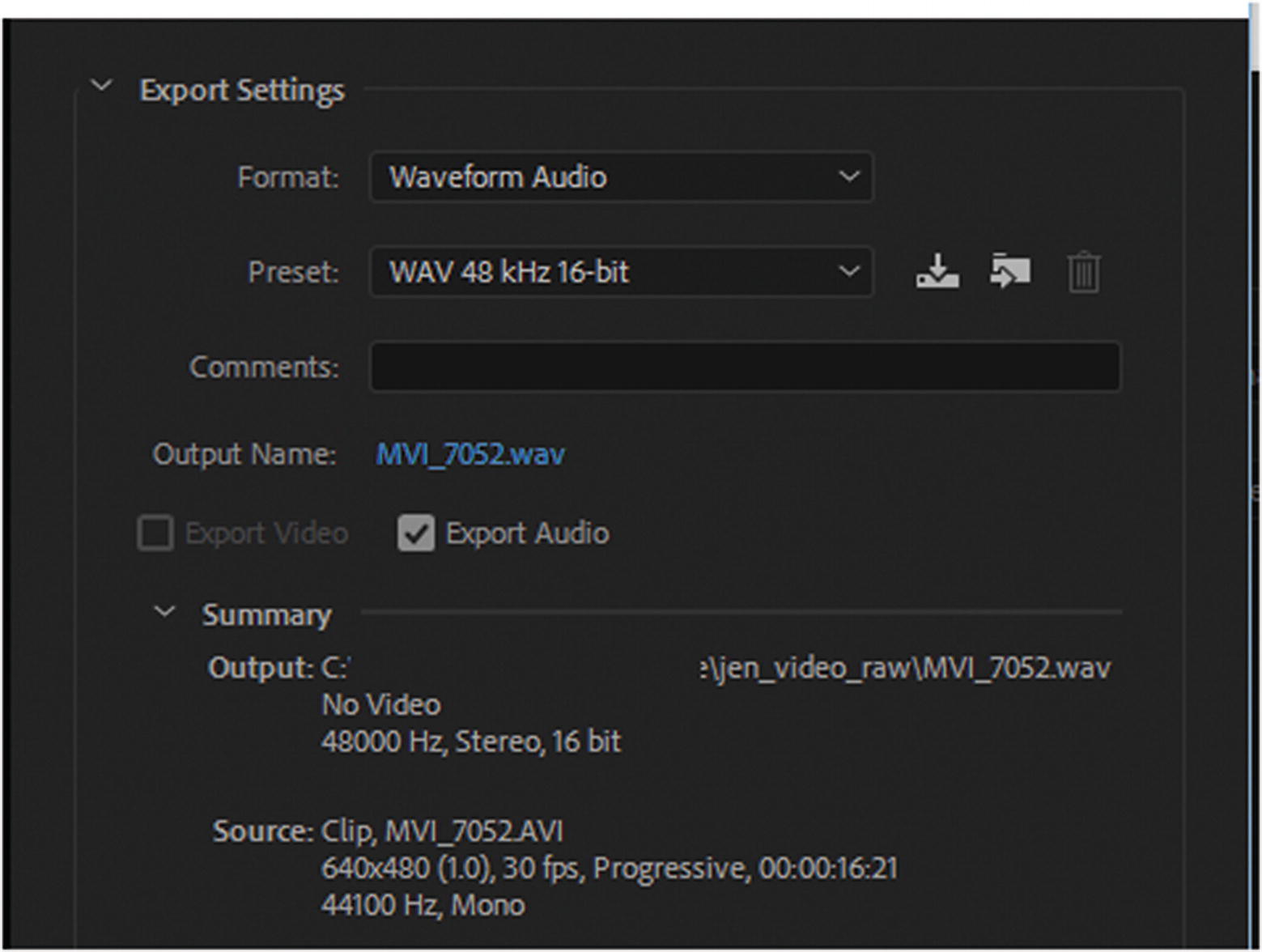
../images/466782_1_En_27_Chapter/466782_1_En_27_Fig14_HTML.jpg
Figure 27-14

Export Settings dialog box for WAV format

Export and Summary Settings

As you can see, like MP3, the WAV Export Settings and Summary Settings are basically the same; only the Preset setting is different. Refer to Figure 27-14.

Effects Tab
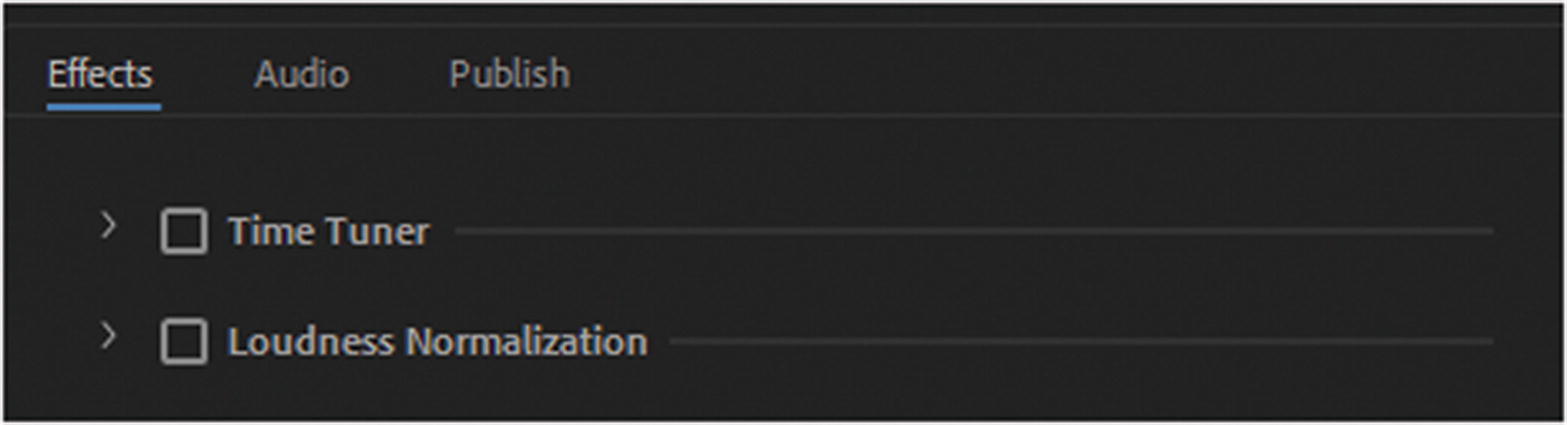
As with MP3, the WAV file is limited to two effects: time tuner and loudness normalization. The settings can be activated and edited when the check boxes are enabled. Refer to the MP3 Effects tab section and Figure 27-15.
../images/466782_1_En_27_Chapter/466782_1_En_27_Fig15_HTML.jpg
Figure 27-15

Export settings Effects tab

Audio Tab
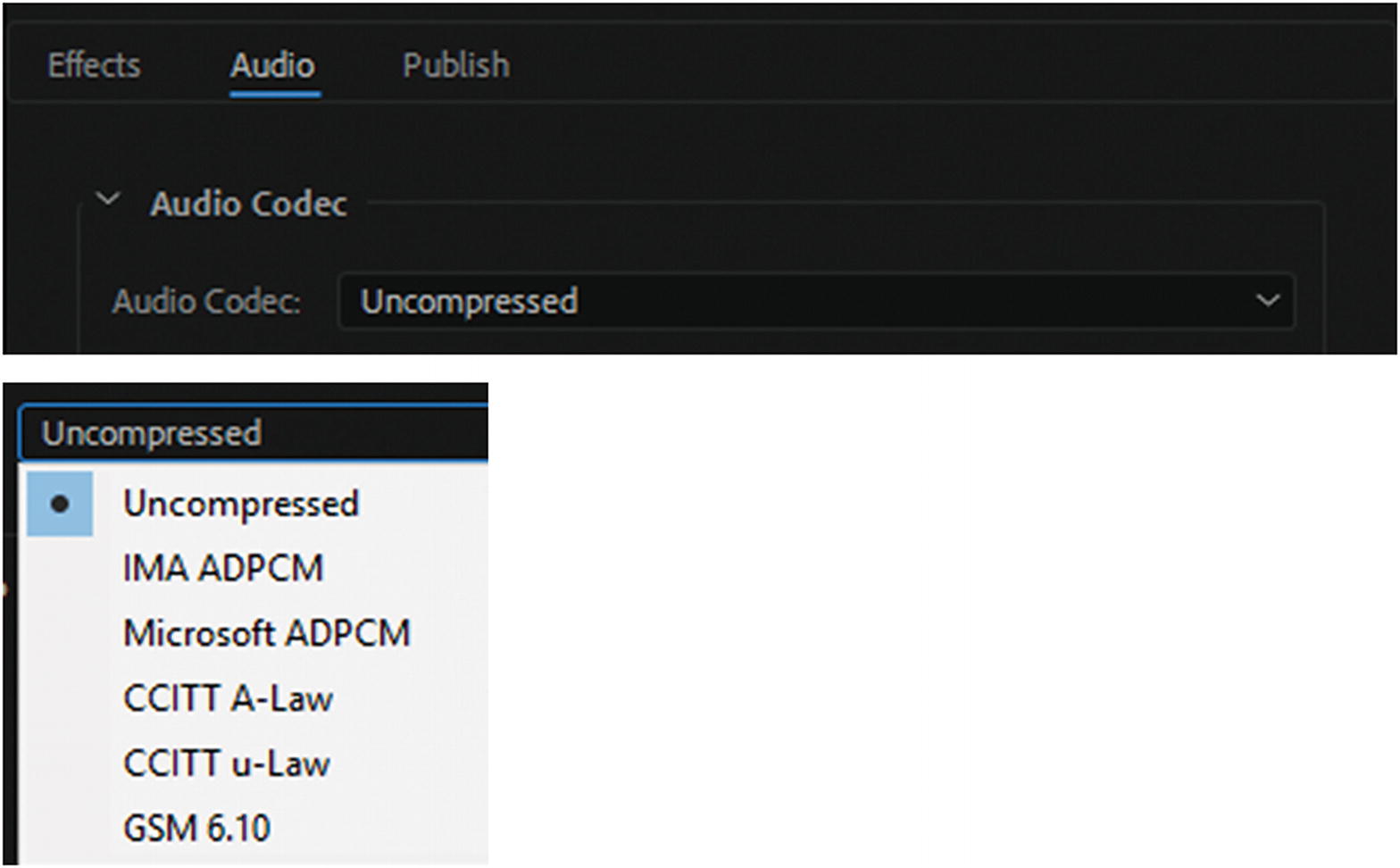
In the Audio tab, you can set the Audio Codec setting to Uncompressed or several different compression states that encode the audio bitstream. Refer to Figure 27-16.
../images/466782_1_En_27_Chapter/466782_1_En_27_Fig16_HTML.jpg
Figure 27-16

Audio tab Audio Codec setting

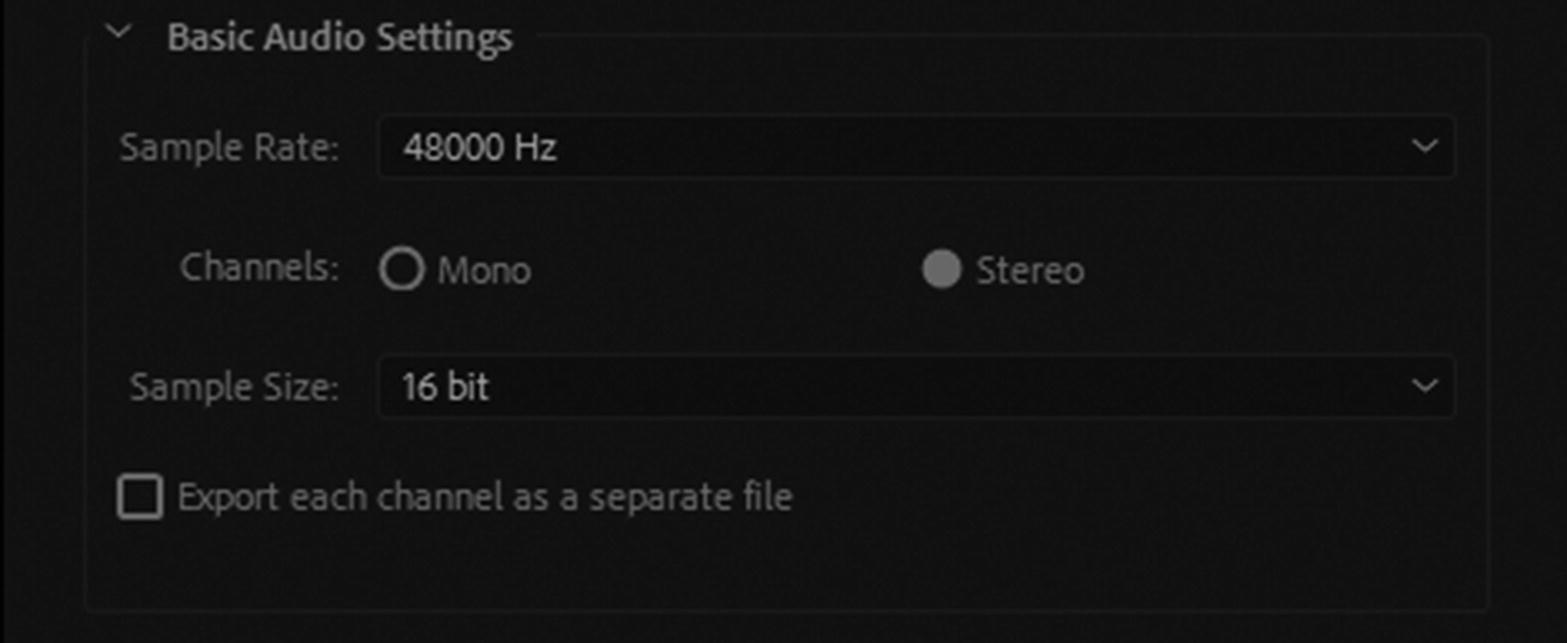
In the Basic Audio Settings, as with MP3, this area adjusts the sample rate in Hz, the channels (mono or stereo), and the sample size in bit-depth amount. Refer to Figure 27-17.
../images/466782_1_En_27_Chapter/466782_1_En_27_Fig17_HTML.jpg
Figure 27-17

Audio tab for Basic Audio Settings

In addition, you can export each channel as a separate file.

Publish Tab
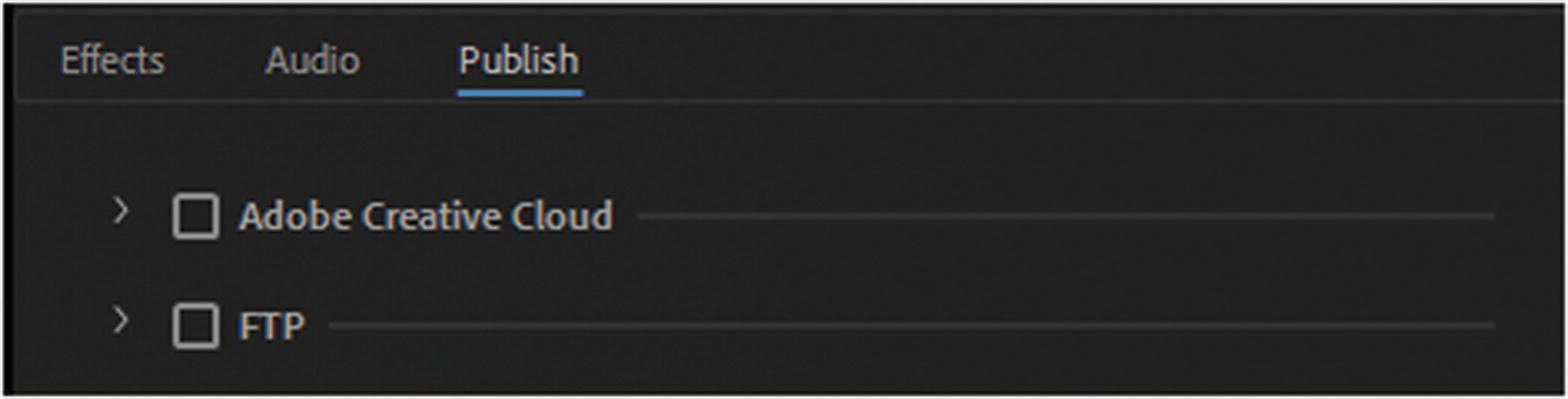
As with MP3, files WAV files can be published on your hard drive, external drive, to Adobe Creative Cloud, or directly to your website via FTP. With the default settings, you cannot publish directly to other social media sites like Facebook, Twitter, or YouTube. I mention why this is and some tips for how to deal with this in the Publish tab earlier in this chapter and in Chapter 26. Refer to Figure 27-18.
../images/466782_1_En_27_Chapter/466782_1_En_27_Fig18_HTML.jpg
Figure 27-18

Publish tab for Adobe Creative Cloud and FTP

However, for your work in this book, you want to leave the audio files you export either in the .mp3 or .wav format without any images.

Time Code Settings
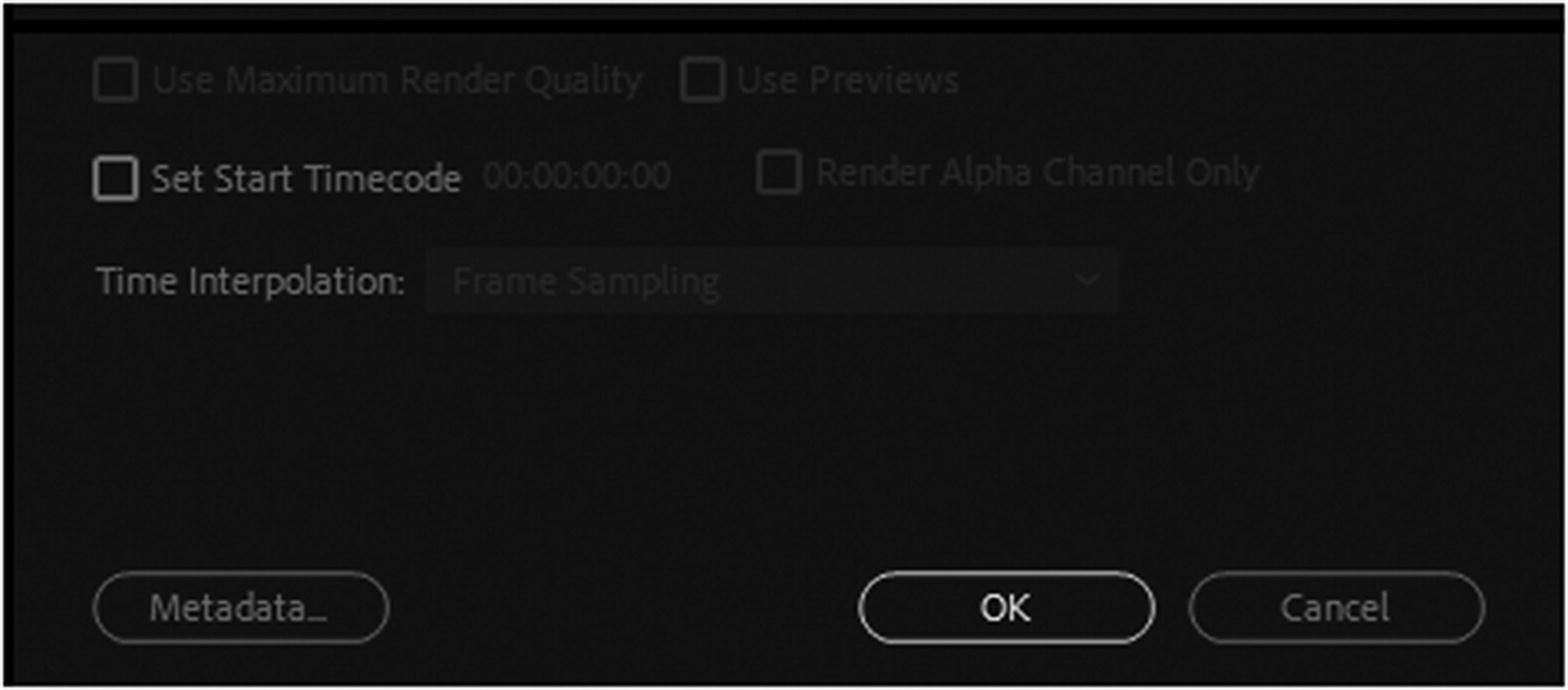
As with MP3 files, the WAV files can have the Set Start Timecode and the Metadata settings adjusted. Refer to Figure 27-19.
../images/466782_1_En_27_Chapter/466782_1_En_27_Fig19_HTML.jpg
Figure 27-19

Time Code settings in the Export Setting dialog box

When done, you can click OK to confirm the settings, or cancel if you don’t want to apply changes and return to the Queue panel.

Note

As you saw in Chapter 26, you can stitch audio files together using Media Encoder. Refer to that section in the Chapter 26 if you need to know how to do this. Just remember to use an audio format for the stitched clips.

Theora Ogg (.ogg)

Theora Ogg is the third audio format used for the web. To convert a video to this format, I recommend using the third-party programs that Adobe recommends on its forums, or Miro Video Converter. Since WAV and MP3 are heard on most browsers, these may be the only file formats that you need for your audio. However, if you are worried about browser compatibility, Ogg is an important backup source file, as you will see in Part 6.

For information on other professional audio editing programs, refer to Adobe Audition CC and the Ogg export area at https://helpx.adobe.com/audition/using/saving-exporting-files1.html .

Working with Audio Files That Are Audio 3GA

While working on this chapter, I decided that I wanted to record some audio for the projects with my voice to give a dialog of what is going on in the Hot Glass Tango video. After writing a short script, I decided to use my smartphone to record the audio, and then I emailed the audio to myself so that I could convert the formats to MP3 or WAV in Media Encoder. However, at this point, I ran into a bit of a roadblock.

The file format for these audio files was 3GA, and Adobe Media Encoder and Photoshop do not allow you to import this format. I could not even play the audio in my computer’s media player. So, knowing I was on a deadline and I needed the audio, I decided what to do.
After doing some research on the web, I discovered that 3GA files are basically the same type of multimedia container as 3GP. In Chapter 26, I mention 3GP and MPEG4 for video. 3GP contains audio and video, but 3GA only has audio. By simply making a copy of the 3GA file in your computer and changing the new file’s format extension to 3GP, you can import the file into Media Encoder and convert it to an MP3 or WAV file, which you can then import into other projects. Refer to Figure 27-20.
../images/466782_1_En_27_Chapter/466782_1_En_27_Fig20_HTML.jpg
Figure 27-20

You can import a 3GP file into the Queue panel and convert it to another audio format

Summary

In this chapter, you looked how to work with video files like AVI and MOV, and extract audio from the files. You then reviewed various export settings for each audio format: MP3 and WAV. You then looked at options on how to create an Ogg audio file. Finally, you discovered a way to convert an audio file that was not accepted by Media Encoder into a format that it recognized for import.

In the next chapter, you look at how to extract images in a sequence from Media Encoder.