
Table of Contents for
Graphics and Multimedia for the Web with Adobe Creative Cloud: Navigating the Adobe Software Landscape

Version ebook / Retour

Cover image for bash Cookbook, 2nd Edition Graphics and Multimedia for the Web with Adobe Creative Cloud: Navigating the Adobe Software Landscape by Jennifer Harder Published by Apress, 2018
  1. Navigation
  2. Cover
  3. Front Matter
  4. Part I. Welcome to the Adobe Creative Cloud. Where Should You Begin?
  5. 1. Entering the Software Maze or Labyrinth
  6. Part II. Working with Photoshop to Create Web Graphics and Animations
  7. 2. Getting Started
  8. 3. Color Choices: CMYK, RGB, Grayscale, and Index
  9. 4. Saving or Exporting Your Files for the Web
  10. 5. Actions to Speed up File Conversion and Slicing Tools
  11. 6. Tools for Animation
  12. 7. Tools for Video
  13. 8. Other Miscellaneous Items in Photoshop That You Can Use for Web Design
  14. 9. Putting It into Practice with Photoshop CC
  15. Part III. Working with Illustrator to Create Web Graphics
  16. 10. Getting Started with Illustrator CC
  17. 11. Color Choices: CMYK, RGB, and Grayscale
  18. 12. Saving or Exporting Your Files for the Web
  19. 13. Actions to Speed up File Conversion and Slicing Tools
  20. 14. Tools for Animation and Video
  21. 15. Other Miscellaneous Items in Illustrator That You Can Use for Web Design
  22. 16. Putting It into Practice with Illustrator CC
  23. Part IV. Working with Animate to Create Animations, Movies, and HTML5 Canvas
  24. 17. Getting Started with Animate CC
  25. 18. Color Choices: RGB
  26. 19. Importing Your Artwork
  27. 20. Import Your Audio and Video
  28. 21. Working with the Timeline Panel
  29. 22. Exporting Your Files to the Web
  30. 23. Other Miscellaneous Items in Animate that You Can Use for Web Design
  31. 24. Putting It into Practice with Animate CC
  32. Part V. Working with Media Encoder to Create Audio and Video Files
  33. 25. Getting Started with Media Encoder
  34. 26. Working with Your RAW Video Files (AVI and MOV)
  35. 27. Working with Your RAW Video Files and Converting Them to Audio
  36. 28. Working with Your RAW Video Files and Converting Them to an Image Sequence
  37. 29. Putting It into Practice with Media Encoder CC
  38. Part VI. Working with Dreamweaver: Adding Images, Animations, and Multimedia to HTML5 Pages
  39. 30. Getting Started with Dreamweaver CC
  40. 31. Working with Images and Tags
  41. 32. Working with CSS
  42. 33. Working with Images for Mobile Web Design
  43. 34. What Is JavaScript?
  44. 35. Working with Bootstrap, Templates, Library Items, and the Assets Panel
  45. 36. Working with Video, Audio, and Animations
  46. 37. Additional Options to Apply Images in Dreamweaver
  47. 38. Final Testing, Getting Ready to Upload Your Site
  48. 39. Putting It into Practice with Dreamweaver CC
  49. Part VII. Further Dreamweaver Integration with Other Adobe Products for Websites
  50. 40. What Other Programs That Are Part of Adobe Creative Cloud Can I Use to Display My Graphics or Multimedia Online?
  51. Back Matter
© Jennifer Harder 2018
Jennifer HarderGraphics and Multimedia for the Web with Adobe Creative Cloudhttps://doi.org/10.1007/978-1-4842-3823-3_18

18. Color Choices: RGB

Jennifer Harder1 
(1)
Delta, BC, Canada
 

In this chapter, you look at the color options available in Animate CC, and the tools and panels to assist you when working with color.

Note

This chapter does not have any actual projects; however, you can use the files in the Chapter 18 folder to practice opening and viewing for this lesson. They are at https://github.com/Apress/graphics-multimedia-web-adobe-creative-cloud .

In Photoshop CC and Illustrator CC, you have a variety of color modes, including CMYK, RGB, and Grayscale. Because Animate animations are specifically for the web, the only color mode that is available is RGB. CMYK is for print, and its color gamut or range is slightly different from what you see on your screen in RGB. While Animate CC can convert CMYK images to RGB during the import of files to the Library panel, for a more accurate conversion, it is better to have your files already in the RGB mode when they are created in Illustrator and Photoshop.

In Adobe programs, you can edit the color in your graphics by using the settings discussed in Chapter 3 and Chapter 11. Once in RGB mode, your color range will look similar across the devices in which you plan to view the animation.

Adding Color to the Stage
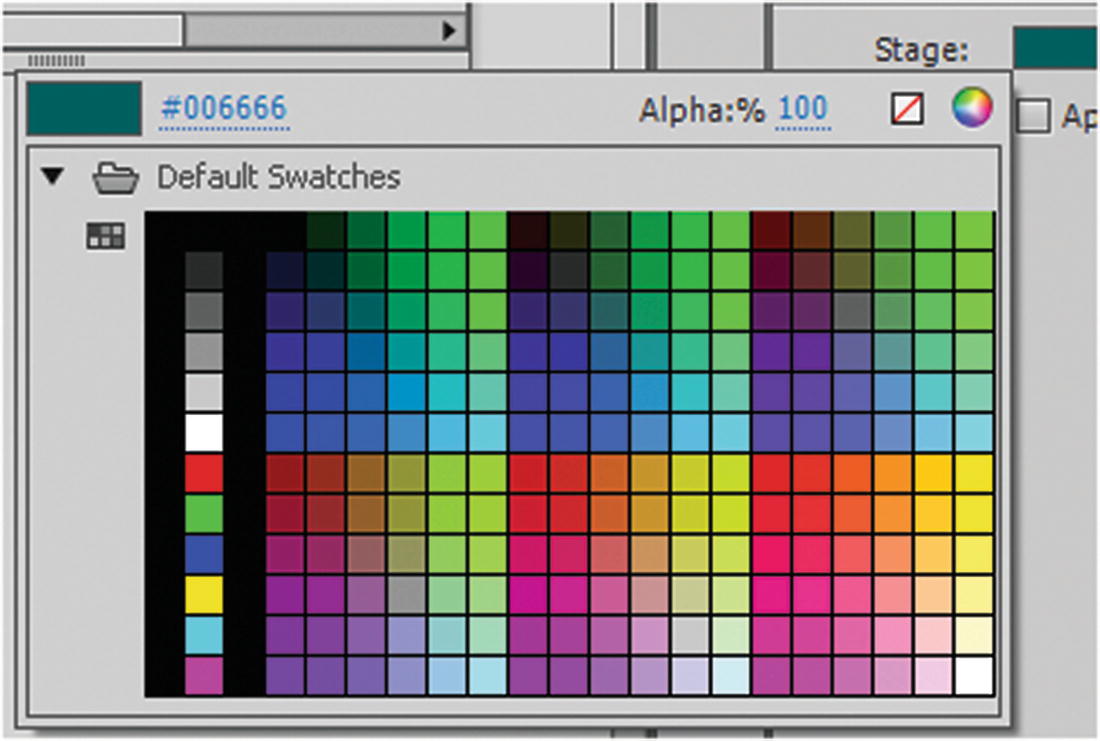
As you saw in Chapter 17, you can change the color of your stage by using the Properties panel. There are many web-safe RGB colors that you can choose from. Refer to Figure 18-1.
../images/466782_1_En_18_Chapter/466782_1_En_18_Fig1_HTML.jpg
Figure 18-1

Choose a color for the stage using the Properties panel
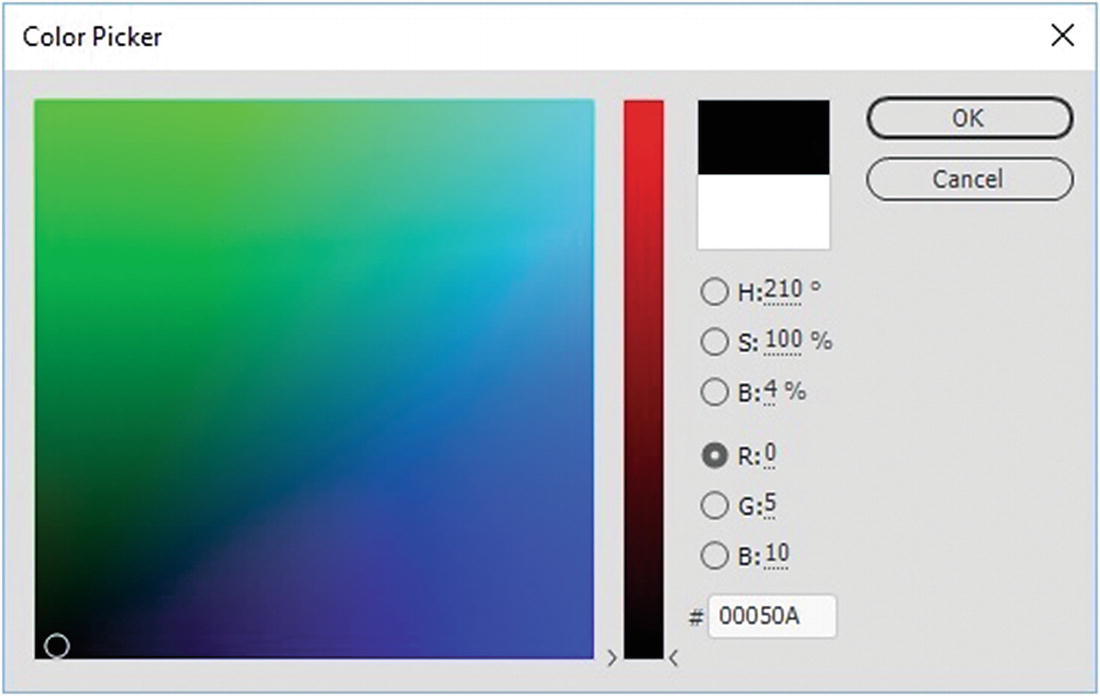
You can choose a transparency or alpha setting, set to none (red slash on a white icon), or select the Color Picker icon in the upper right to open the dialog box. Refer to Figure 18-2.
../images/466782_1_En_18_Chapter/466782_1_En_18_Fig2_HTML.jpg
Figure 18-2

The Color Picker dialog box

The Color Picker dialog box should be familiar to you by now because you saw it in Photoshop and Illustrator. Note that in Animate, however, it offers fewer options, but you can still view color by HSB, RGB, and web hexadecimal color. After choosing a color, click OK. This will be the new color for the stage.

The Tools Panel Stroke and Fill
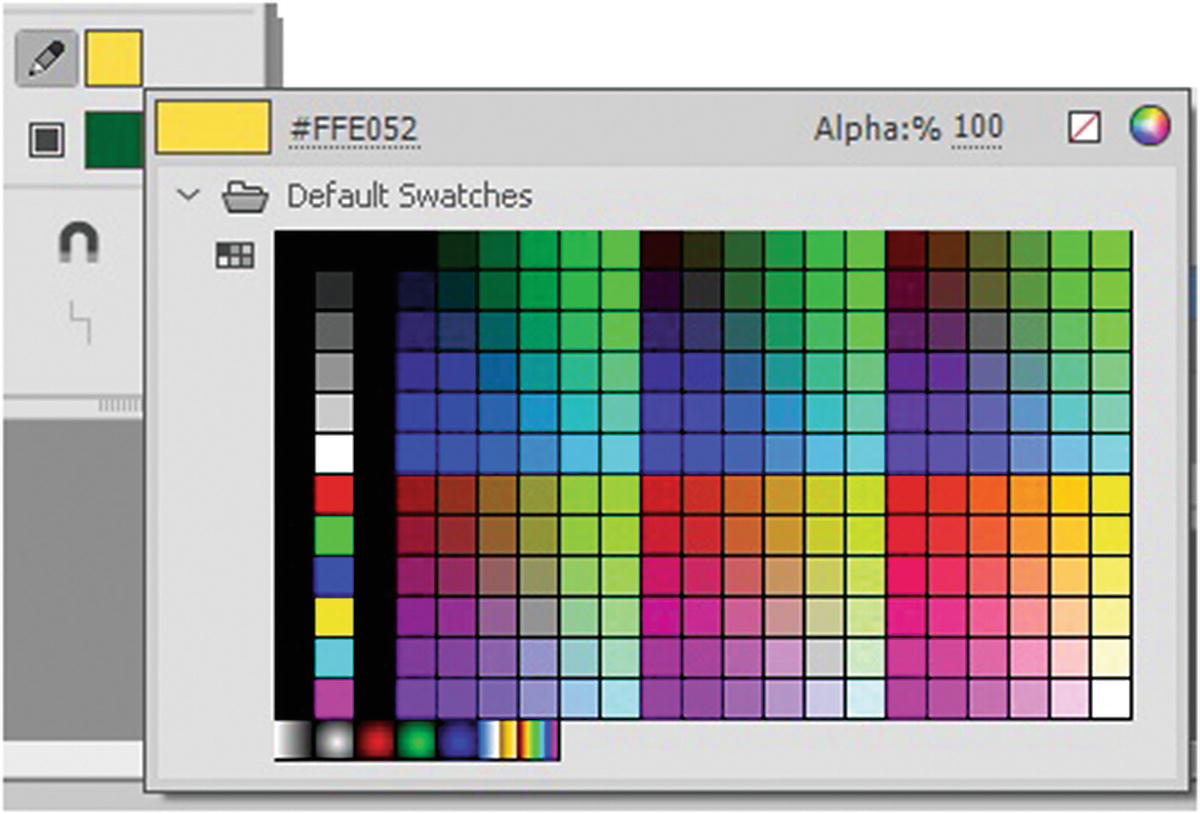
In the Tools panel, as in Illustrator, you can set the stroke and a fill color for your shape before you draw it on the stage, as seen in Figure 18-3.
../images/466782_1_En_18_Chapter/466782_1_En_18_Fig3_HTML.jpg
Figure 18-3

Stroke (pencil icon) and Fill (square icon) color options can be changed and set to web-safe colors

In this area, you have access to alpha (transparency), no fill, the color picker, and gradients and any imported bitmap patterned image that you want to use as a fill or stroke.

Note

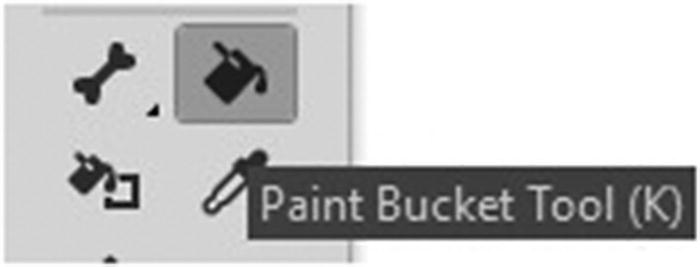
The Paint Bucket tool (K) allows you to add a fill color to a shape. The Ink Bottle tool (S) in the Tools panel allows you to add a stroke to a shape. Refer to Figure 18-4.
../images/466782_1_En_18_Chapter/466782_1_En_18_Fig4_HTML.jpg
Figure 18-4

The Paint Bucket tool (upper right) and the Ink Bottle tool (lower left) can add or alter the color of a shape’s fill or stroke

Properties Panel
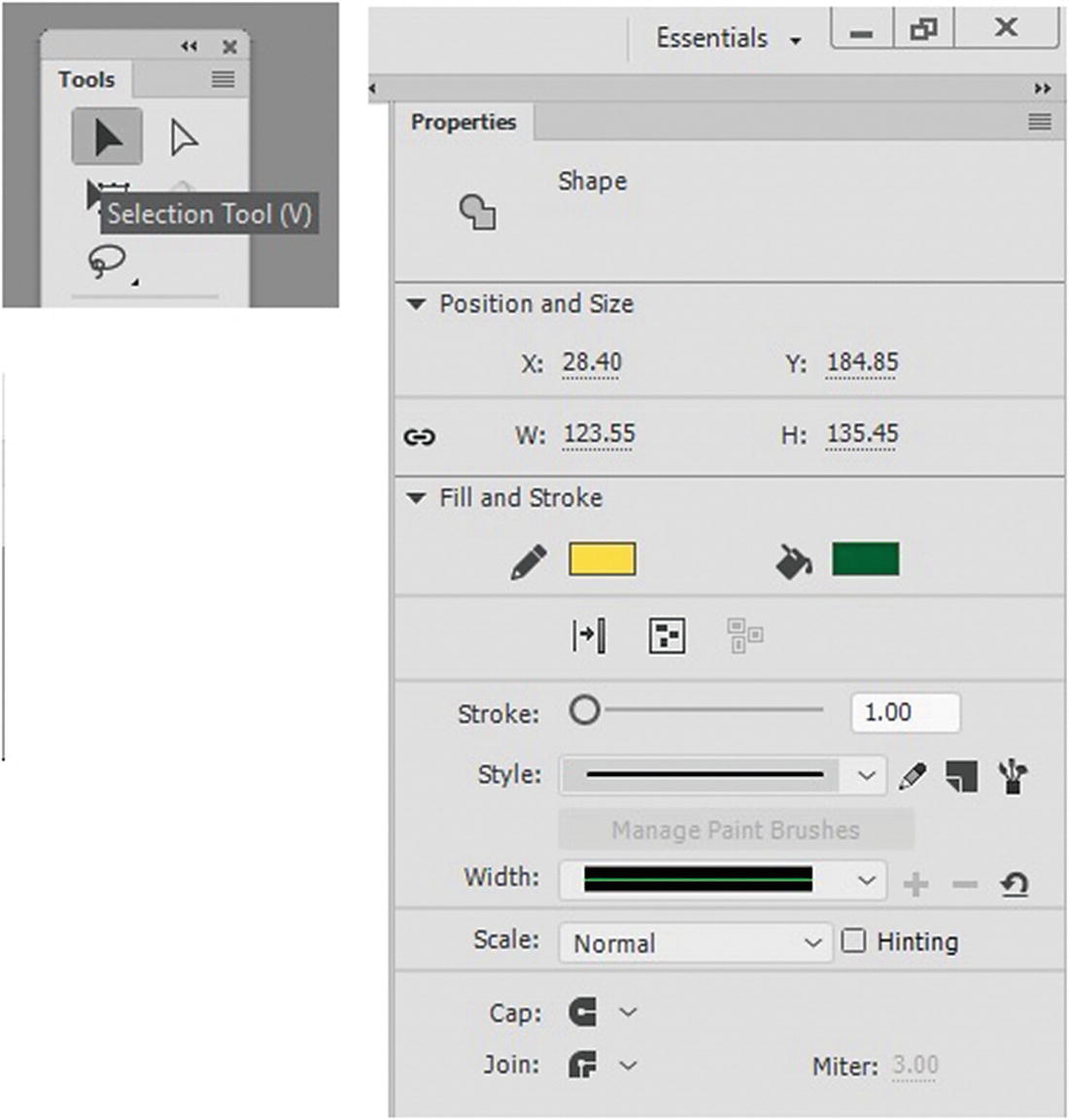
When you select the entire shape with the Selection (V) or Subselection tool (A), you have the option to change the stoke or fill color in the Properties panel in the Fill and Stroke tab, as seen in Figure 18-5.
../images/466782_1_En_18_Chapter/466782_1_En_18_Fig5_HTML.jpg
Figure 18-5

Fill and stroke options in the Properties panel for a shape when selected with one of the selection tools in the tools panel

Here you can also adjust the width and style of the stroke and alter the cap and join of a shape. You look at shapes and their properties in more detail throughout Part 4. For now, you will focus on color.

Animate has two other panels for working with color. Open the canvas_color.fla file.

Color Panel
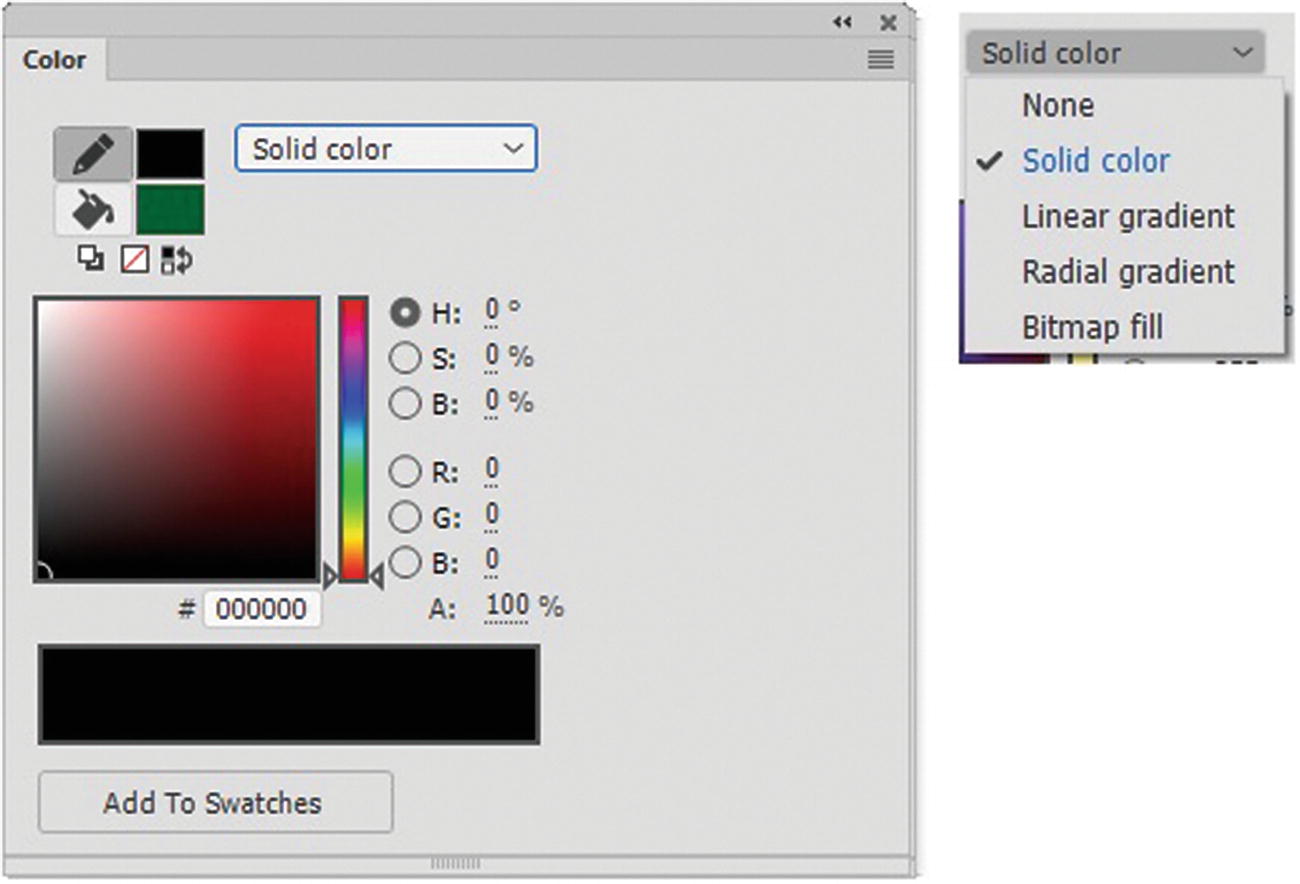
The Color panel offers none (no color) solid color, gradient (linear and radial), and bitmap fill. Refer to Figure 18-6.
../images/466782_1_En_18_Chapter/466782_1_En_18_Fig6_HTML.jpg
Figure 18-6

All types of color settings are in the Color panel

You can also use it to add new colors to your pallet and reverse or change the colors of the stroke and fill within the panel. Refer to Figure 18-7.
../images/466782_1_En_18_Chapter/466782_1_En_18_Fig7_HTML.jpg
Figure 18-7

Reverse the stroke and fill colors of a shape

Gradient Fills
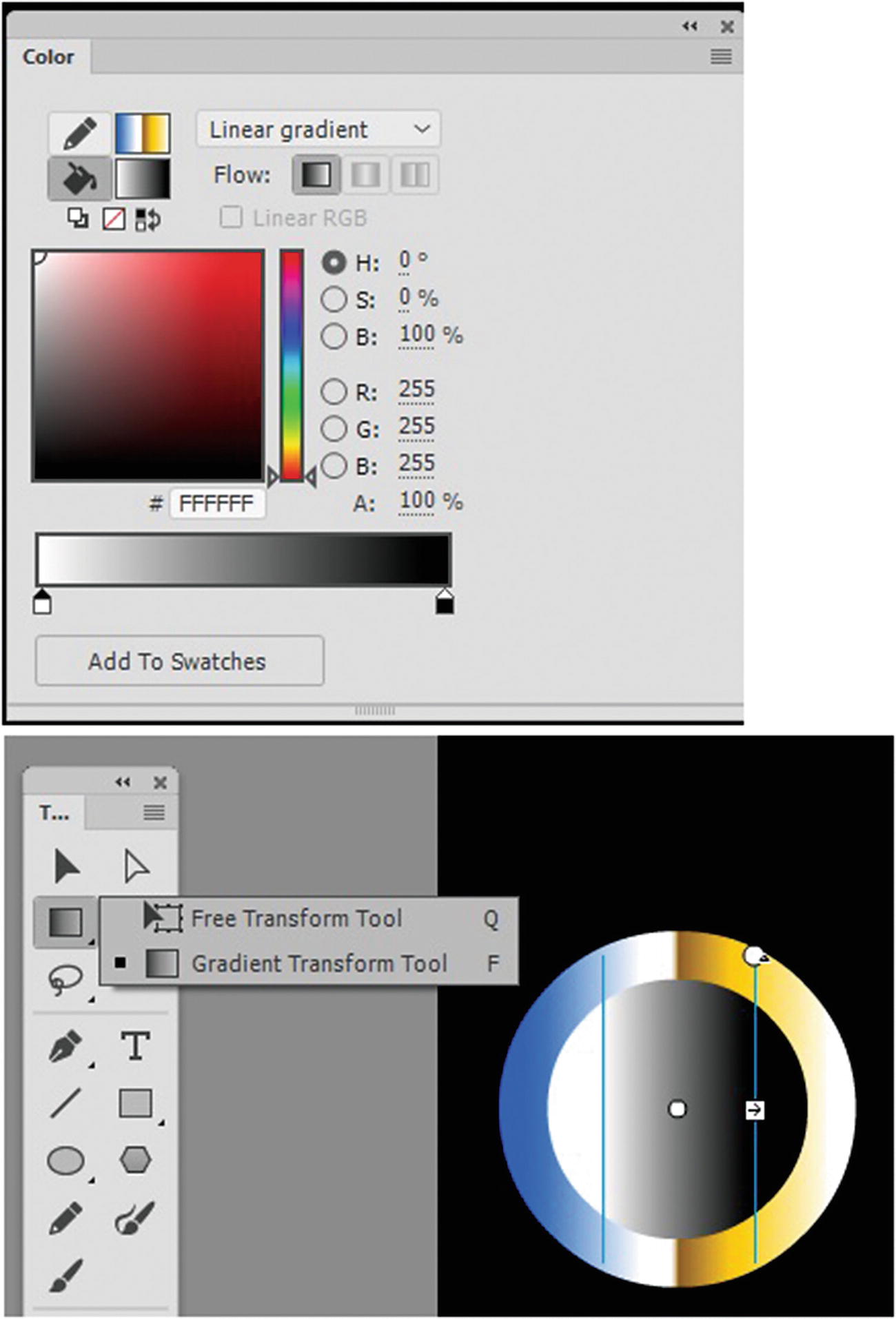
As you saw in Chapter 11, when you want to work with gradients, you need to use the Gradient panel and the Gradient tool in the Tools panel. In Animate, you first select whether you want to alter the stroke or the fill of an object, and then select a linear or radial gradient from the drop-down menu. Using the Gradient Transform tool (F), you can alter the gradient of the shape by dragging or rotating the gradient, as you did in Illustrator. Refer to Figure 18-8.
../images/466782_1_En_18_Chapter/466782_1_En_18_Fig8_HTML.jpg
Figure 18-8

Alter the gradient further with the Color panel and Free Transform tool

Linear gradients produce a blend of colors that move on a linear path. Radial gradients are a blend of colors moving outward from the center point of a shape in a circular path.

Note

You must work in an ActionScript3.0 FLA file to have access to certain gradient options, like reflect color, repeat color, and linear RGB, which creates an SVG-compliant gradient. With HTML5 Canvas, you can reflect or repeat a gradient, but you have to do that by hand—adding, adjusting, or dragging away color stops in the gradient area. Refer to Figure 18-9.

../images/466782_1_En_18_Chapter/466782_1_En_18_Fig9_HTML.jpg
Figure 18-9

Alter the gradient further by adding more color stops

You can also set the alpha transparency for each stop when you select it, and then change the (A:) setting of the color stop.

Bitmap Fills

A bitmap fill is a bitmap file used as a patterned background that tiles or repeats. A bitmap file opens the Import to Library dialog box and allows you to use such file formats as PSD, JPEG, GIF, PNG, bitmap, and DIB (device-independent bitmap).
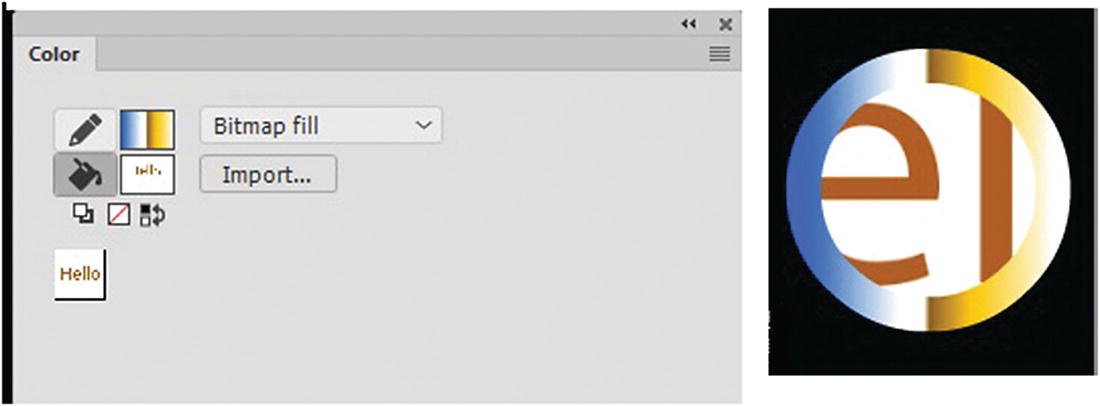
To add a bitmap to your Color panel, you must first choose Bitmap fill from the drop-down menu. Using the Import to Library dialog box, locate a low-res pattern and then click Open. This adds the fill to your Library panel and Color panel. Then, you can use either the fill or stroke to add it to your shape. Refer to Figure 18-10.
../images/466782_1_En_18_Chapter/466782_1_En_18_Fig10_HTML.jpg
Figure 18-10

A bitmap fill is added to the fill of the shape

If you want to add any new swatches (solid color or gradient) to the Swatches panel, from the Color panel, click the Add to Swatches button, as seen in Figure 18-8.

Note

You only see the bitmap fill with the other swatches when you directly access it from the Fill or Stroke tools while in the Colors panel; if you go directly to the Swatch panel, it is not available to apply. Also, if your shape lacks a fill or stroke, first apply a solid color using either the Paint Bucket tool or the Ink Bottle tool, and then use the Color panel to apply the bitmap fill.

Swatches Panel
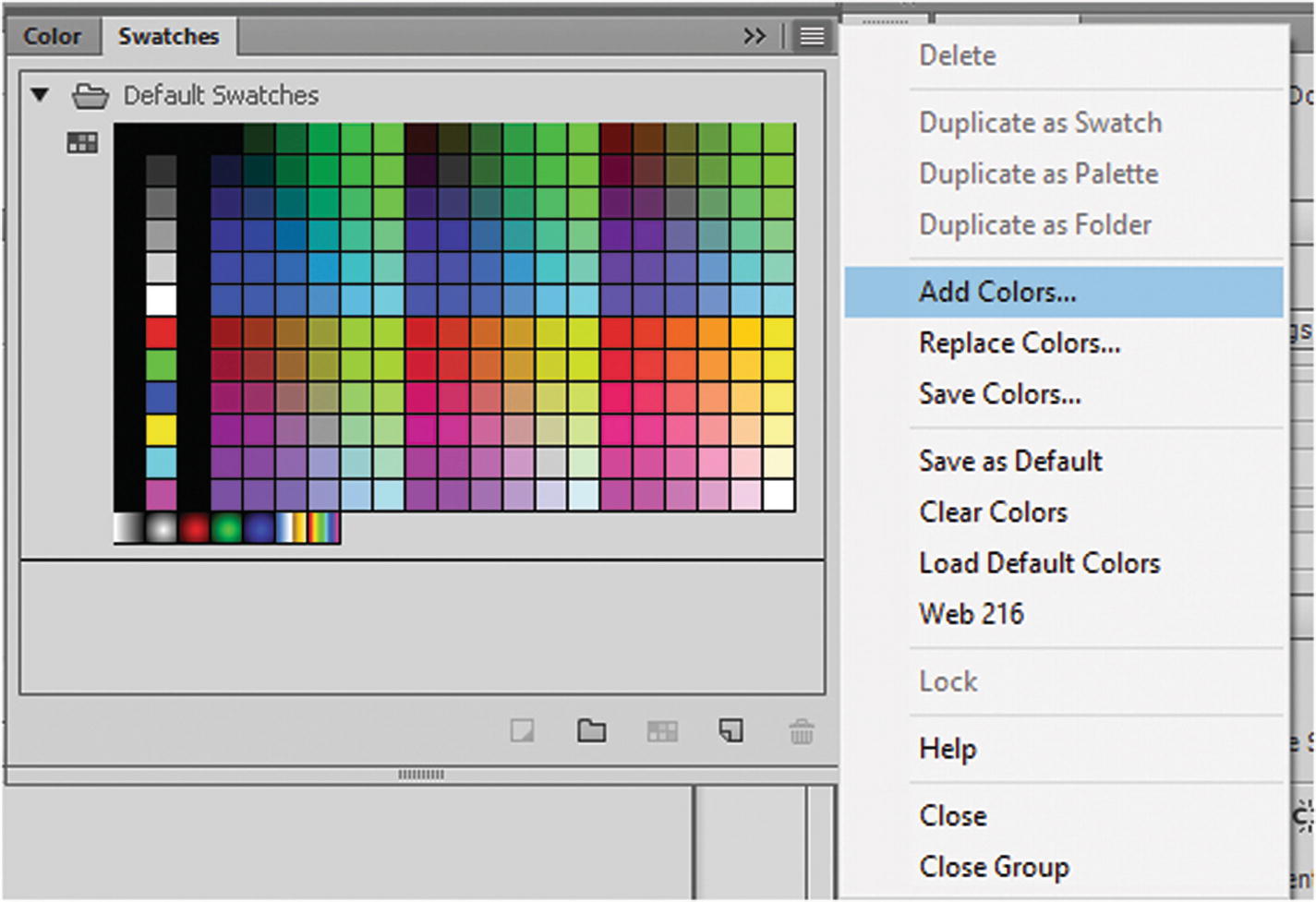
The Swatches panel is often docked with the Color panel. It is similar to the Swatches panels in Photoshop and Illustrator. When a panel opens for new file, it comes with default swatches, but you can also tag swatches, create your own set using the Empty Folder icon, and then add colors swatches (Create a New Swatch icon) or a new pallet within an empty folder. You can also delete swatches (Trash icon). Then you can save your new set using the panel’s menu for another project, or add (load) more colors. These colors can be reused for other projects. Refer to Figure 18-11.
../images/466782_1_En_18_Chapter/466782_1_En_18_Fig11_HTML.jpg
Figure 18-11

The Swatches panel allows you to add or remove swatches from the current project

You can acquire colors from an Animate color set (.clr), a color table (.act), or even a GIF file (.gif).

You cannot set the alpha transparency for a swatch to do that; use the Color panel when applying an alpha setting to a shape.

Info Panel
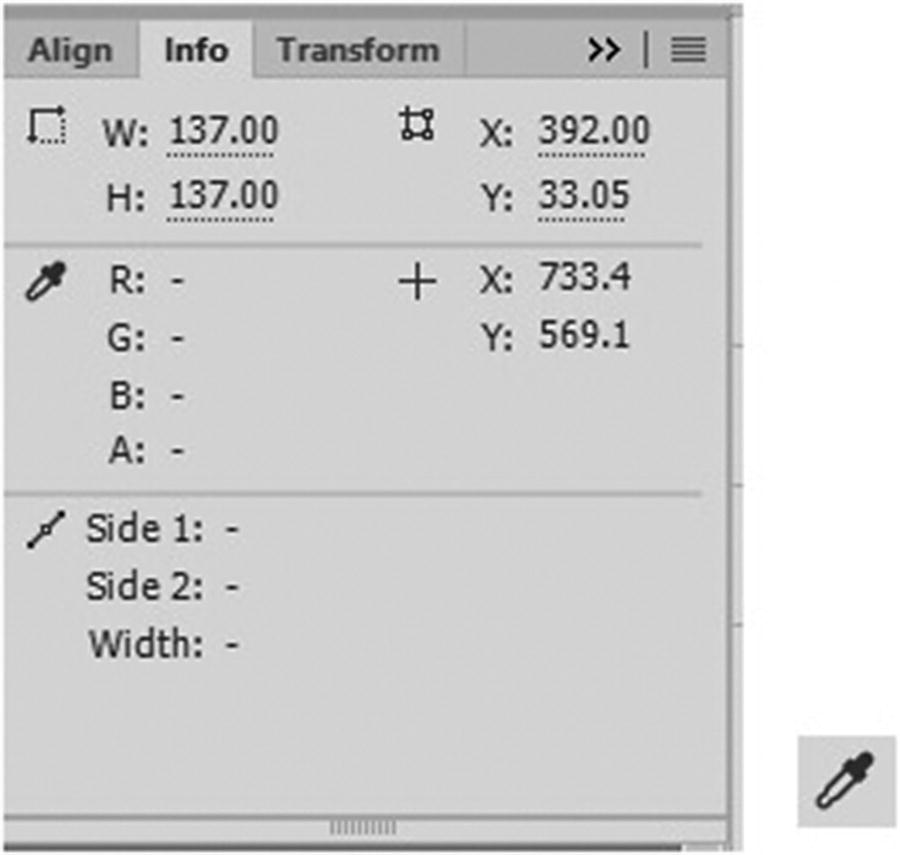
If you are unsure of which color is on the stage, use the Info panel. Using the Eyedropper (I) tool from the Tools panel, you can hover over a shape on the stage to determine the current color. Refer to Figure 18-12.
../images/466782_1_En_18_Chapter/466782_1_En_18_Fig12_HTML.jpg
Figure 18-12

You can find the RGB settings for a fill or stroke using the Info panel and the Eyedropper tool

Summary

In this chapter, you looked at the color options in Animate CC, as well as tools and panels for working with solid colors, gradients and bitmap fills. In the next chapter, you discover how to import artwork from Adobe programs, such as Photoshop and Illustrator, into the Animate canvas.