Table of Contents for
Graphics and Multimedia for the Web with Adobe Creative Cloud: Navigating the Adobe Software Landscape

Version ebook / Retour

Cover image for bash Cookbook, 2nd Edition Graphics and Multimedia for the Web with Adobe Creative Cloud: Navigating the Adobe Software Landscape by Jennifer Harder Published by Apress, 2018
  1. Navigation
  2. Cover
  3. Front Matter
  4. Part I. Welcome to the Adobe Creative Cloud. Where Should You Begin?
  5. 1. Entering the Software Maze or Labyrinth
  6. Part II. Working with Photoshop to Create Web Graphics and Animations
  7. 2. Getting Started
  8. 3. Color Choices: CMYK, RGB, Grayscale, and Index
  9. 4. Saving or Exporting Your Files for the Web
  10. 5. Actions to Speed up File Conversion and Slicing Tools
  11. 6. Tools for Animation
  12. 7. Tools for Video
  13. 8. Other Miscellaneous Items in Photoshop That You Can Use for Web Design
  14. 9. Putting It into Practice with Photoshop CC
  15. Part III. Working with Illustrator to Create Web Graphics
  16. 10. Getting Started with Illustrator CC
  17. 11. Color Choices: CMYK, RGB, and Grayscale
  18. 12. Saving or Exporting Your Files for the Web
  19. 13. Actions to Speed up File Conversion and Slicing Tools
  20. 14. Tools for Animation and Video
  21. 15. Other Miscellaneous Items in Illustrator That You Can Use for Web Design
  22. 16. Putting It into Practice with Illustrator CC
  23. Part IV. Working with Animate to Create Animations, Movies, and HTML5 Canvas
  24. 17. Getting Started with Animate CC
  25. 18. Color Choices: RGB
  26. 19. Importing Your Artwork
  27. 20. Import Your Audio and Video
  28. 21. Working with the Timeline Panel
  29. 22. Exporting Your Files to the Web
  30. 23. Other Miscellaneous Items in Animate that You Can Use for Web Design
  31. 24. Putting It into Practice with Animate CC
  32. Part V. Working with Media Encoder to Create Audio and Video Files
  33. 25. Getting Started with Media Encoder
  34. 26. Working with Your RAW Video Files (AVI and MOV)
  35. 27. Working with Your RAW Video Files and Converting Them to Audio
  36. 28. Working with Your RAW Video Files and Converting Them to an Image Sequence
  37. 29. Putting It into Practice with Media Encoder CC
  38. Part VI. Working with Dreamweaver: Adding Images, Animations, and Multimedia to HTML5 Pages
  39. 30. Getting Started with Dreamweaver CC
  40. 31. Working with Images and Tags
  41. 32. Working with CSS
  42. 33. Working with Images for Mobile Web Design
  43. 34. What Is JavaScript?
  44. 35. Working with Bootstrap, Templates, Library Items, and the Assets Panel
  45. 36. Working with Video, Audio, and Animations
  46. 37. Additional Options to Apply Images in Dreamweaver
  47. 38. Final Testing, Getting Ready to Upload Your Site
  48. 39. Putting It into Practice with Dreamweaver CC
  49. Part VII. Further Dreamweaver Integration with Other Adobe Products for Websites
  50. 40. What Other Programs That Are Part of Adobe Creative Cloud Can I Use to Display My Graphics or Multimedia Online?
  51. Back Matter
© Jennifer Harder 2018
Jennifer HarderGraphics and Multimedia for the Web with Adobe Creative Cloudhttps://doi.org/10.1007/978-1-4842-3823-3_23

23. Other Miscellaneous Items in Animate that You Can Use for Web Design

Jennifer Harder1 
(1)
Delta, BC, Canada
 

In this chapter, you look at a few final tools that you can use to enhance your designs in Animate.

Note

This chapter does not have any actual projects; however, you can use the files in the Chapter 23 folder to practice opening and viewing for this lesson. They are at https://github.com/Apress/graphics-multimedia-web-adobe-creative-cloud .

Edit ➤ Preferences

Although you do not design any actual JavaScript in the Actions panel, which you will look in a moment, make sure to look at the code editor if you plan to work with JavaScript within Animate.
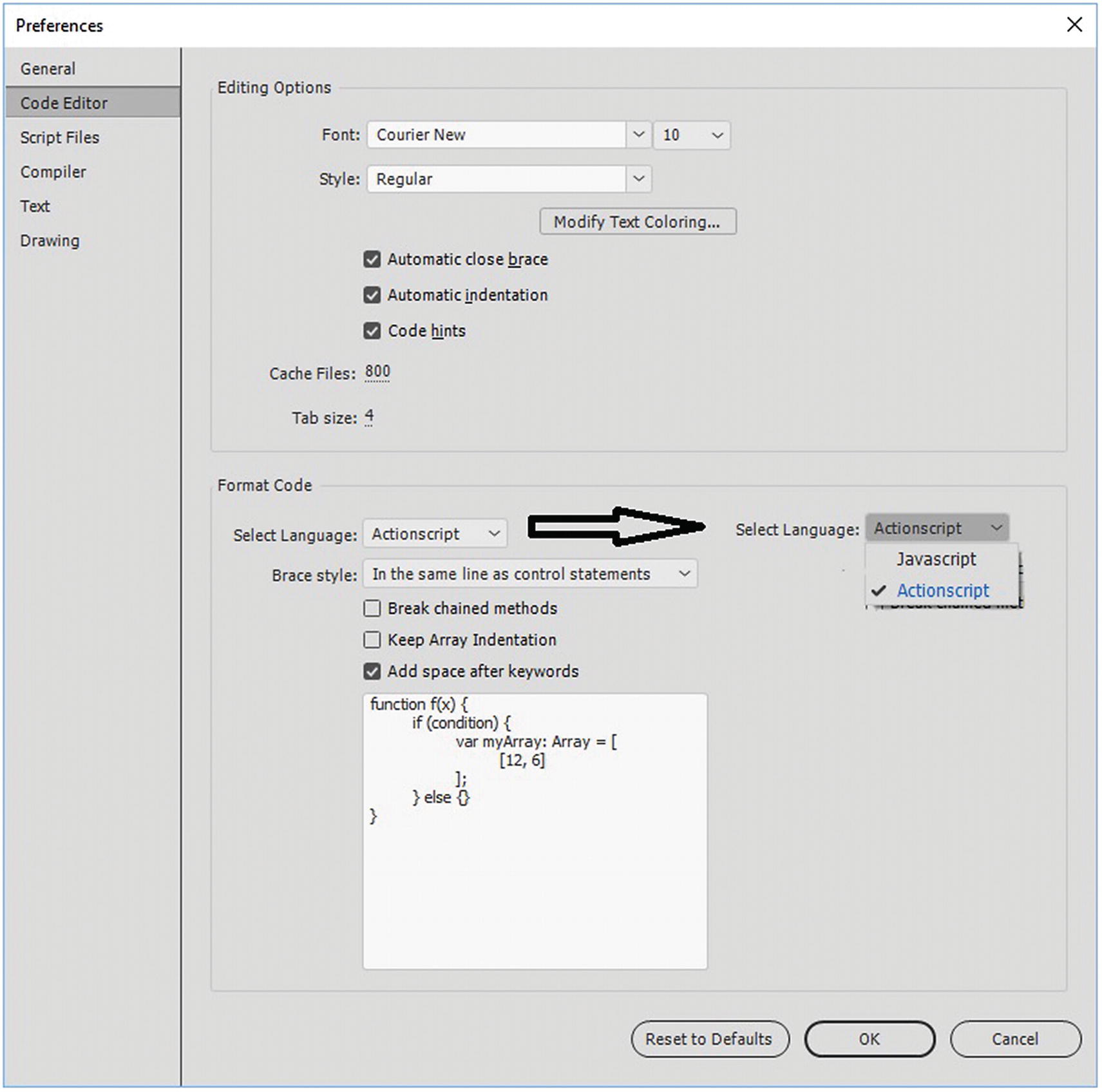
You can leave most settings in Edit ➤ Preferences in Animate CC at the default; however, if you are planning to use the Actions panel to add JavaScript, you can change formatting in the code editor to Format Code ➤ Select Language JavaScript then you can edit the preferences further. Refer to Figure 23-1.
../images/466782_1_En_23_Chapter/466782_1_En_23_Fig1_HTML.jpg
Figure 23-1

The Preferences panel allows you to change from ActionScript to JavaScript settings

Click OK to set changes, or you can reset to defaults if you need the original settings; however, in most cases, it is assumed that you are using JavaScript in an HTML5 Canvas, so you do not have to alter anything this area.

Actions, Code Snippets, and History Panels

As you have seen, Photoshop CC and Illustrator CC both have what is known as the Actions panel.

Actions Panel
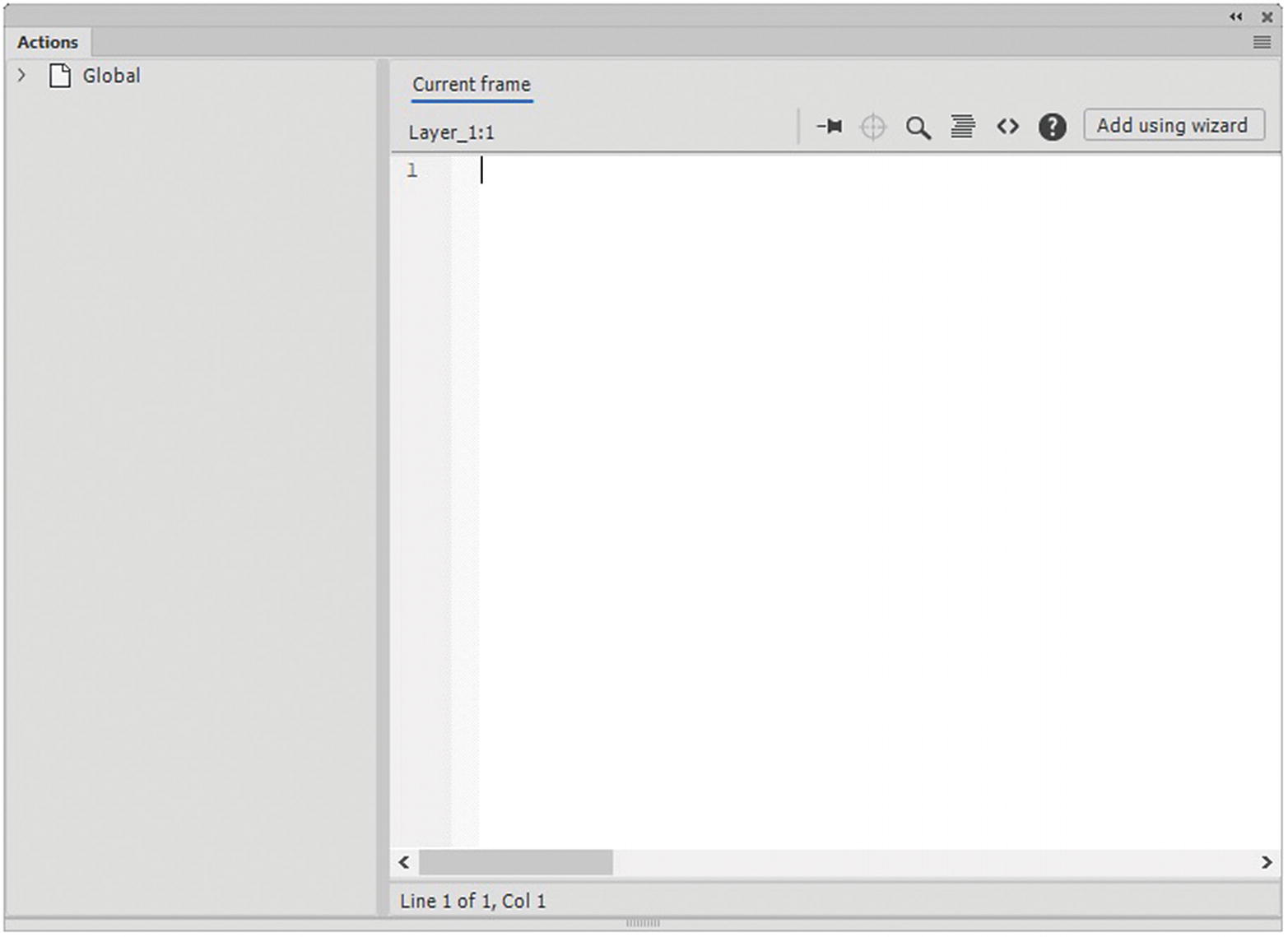
In Animate CC, the Actions panel is very different from what you saw previously. In this case, it refers to the actions that are applied to the symbols on the stage for the HTML5 Canvas. From this panel, you can customize your code to alter the actions of your symbols on the stage. Movie clip and button symbols can have actions that are composed of JavaScript; however, in most basic animations, when you publish an HTML5 Canvas, the actions are automatically created as the file being exported, so you don’t have to do a lot of programing work; however, if you want to make such things as responsive buttons that make an object move when clicked or cause an action to happen to a movie clip symbol within a game, then you need to use the Actions panel to make this happen. Refer to Figure 23-2.
../images/466782_1_En_23_Chapter/466782_1_En_23_Fig2_HTML.jpg
Figure 23-2

When no symbol is selected in a current frame, the Action panel is blank

This panel is where you can globally add your custom JavaScript to frames or symbols.

The Actions panel (in the upper right) allows you to pin code, search for keywords, find/replace, and format your code.

You can also access code snippets from there with the <> icon. Refer to Figure 23-3.
../images/466782_1_En_23_Chapter/466782_1_En_23_Fig3_HTML.jpg
Figure 23-3

The Actions panel tools

Code Snippets Panel
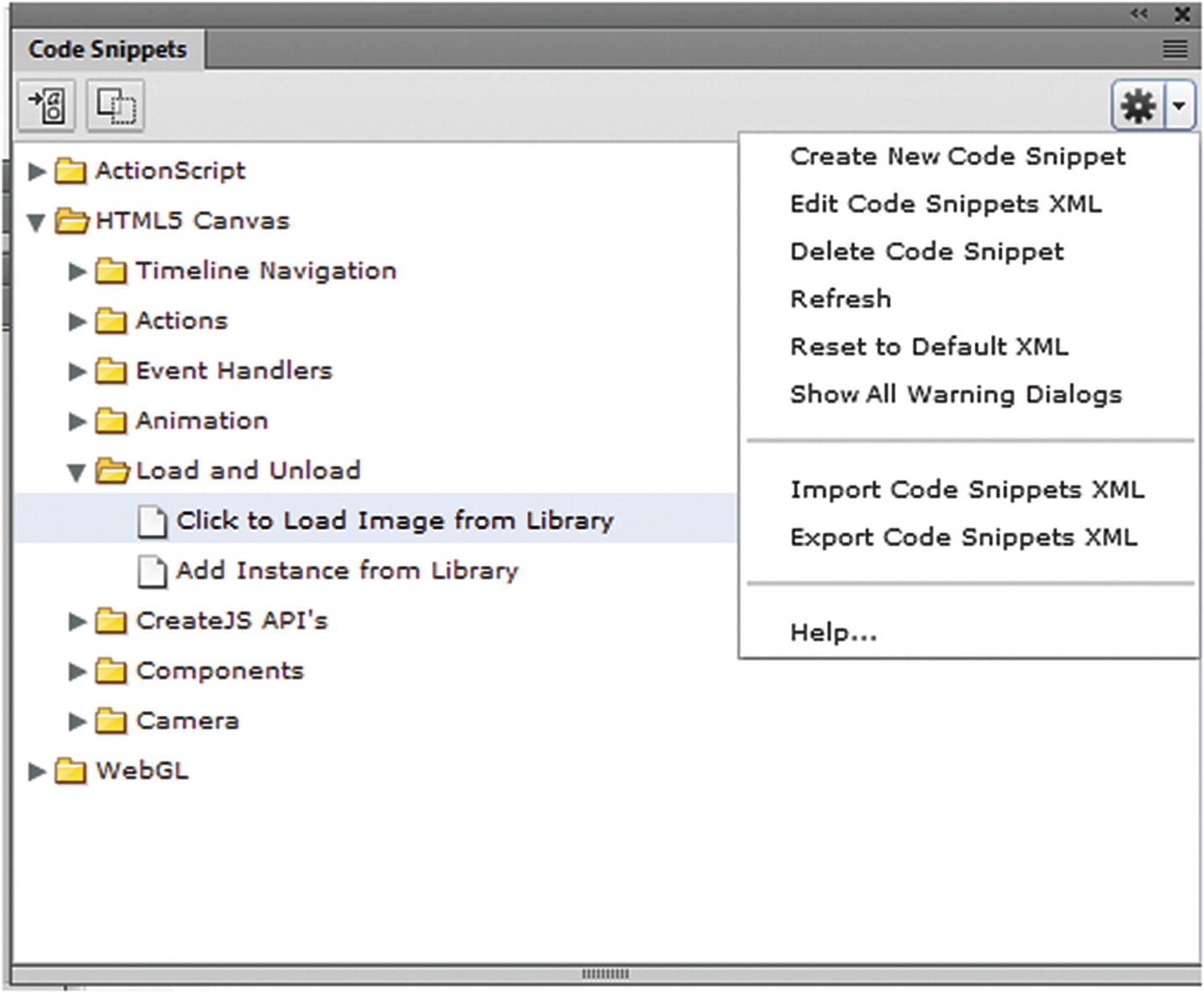
When you create a code action that you want to use again for a symbol, you can store it or access it in the Code Snippet panel, which is found in the HTML5 Canvas folder. Refer to Figure 23-4.
../images/466782_1_En_23_Chapter/466782_1_En_23_Fig4_HTML.jpg
Figure 23-4

The Code Snippets panel

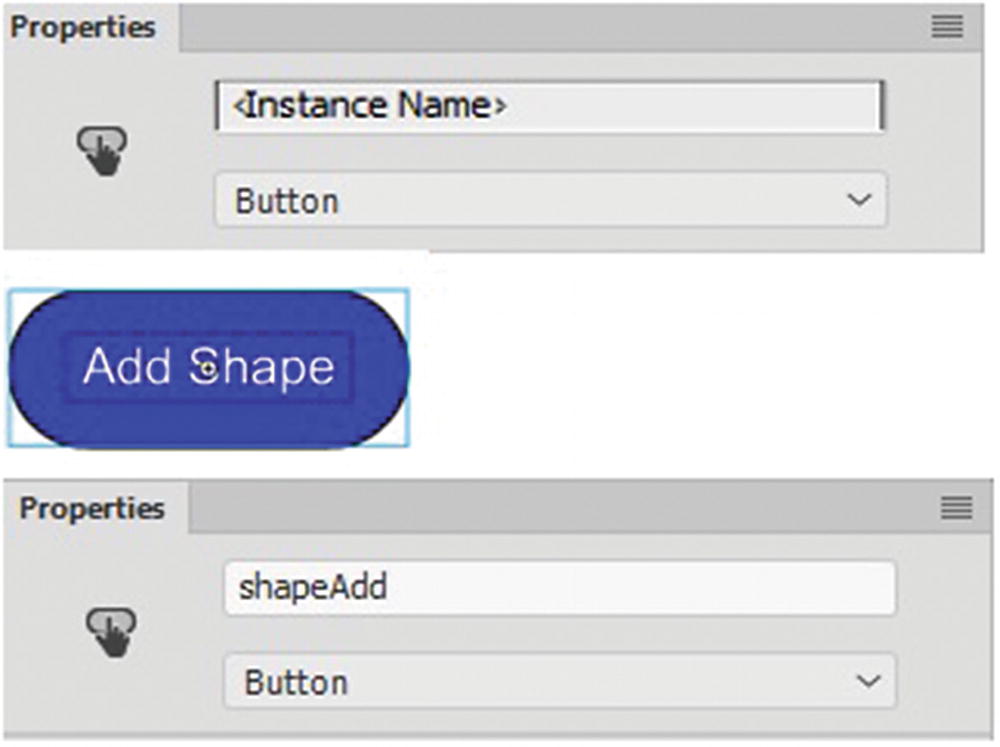
Animate has prebuilt code snippets that you can use on buttons, or you can create your own. These code snippets are a good starting point for non-programmers who want to easily learn JavaScript. Symbols that are used with the Actions panel require instance names that you set when you select the symbol and give it a name in the Properties panel. Refer to Figure 23-5.
../images/466782_1_En_23_Chapter/466782_1_En_23_Fig5_HTML.jpg
Figure 23-5

The Properties panel: giving a button an instance name
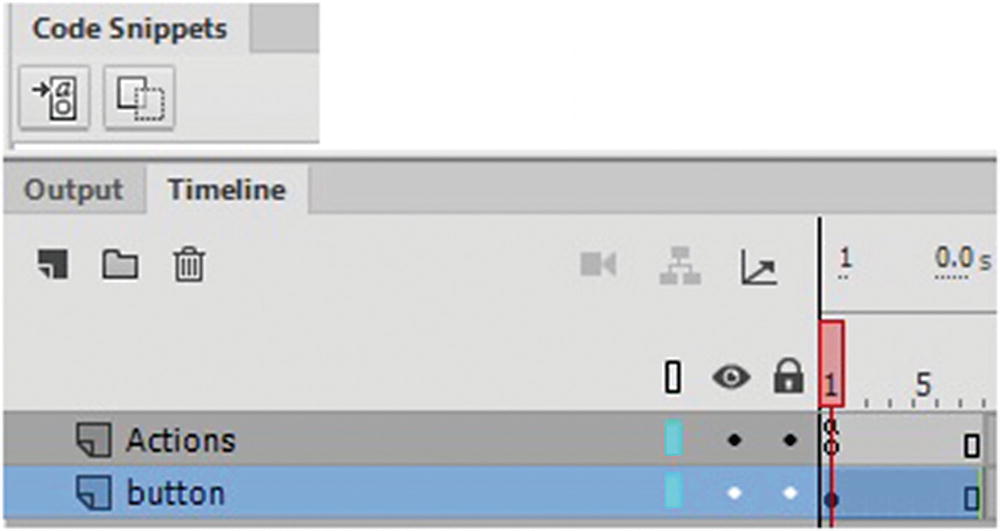
With the button symbol selected, when you add a code snippet to the current frame in the timeline, Animate creates its own actions layer (“a”), and then you fill in the data in the Actions panel, if required, to match the action with the symbol. Refer to Figure 23-6.
../images/466782_1_En_23_Chapter/466782_1_En_23_Fig6_HTML.jpg
Figure 23-6

An action layer is added to the Timeline
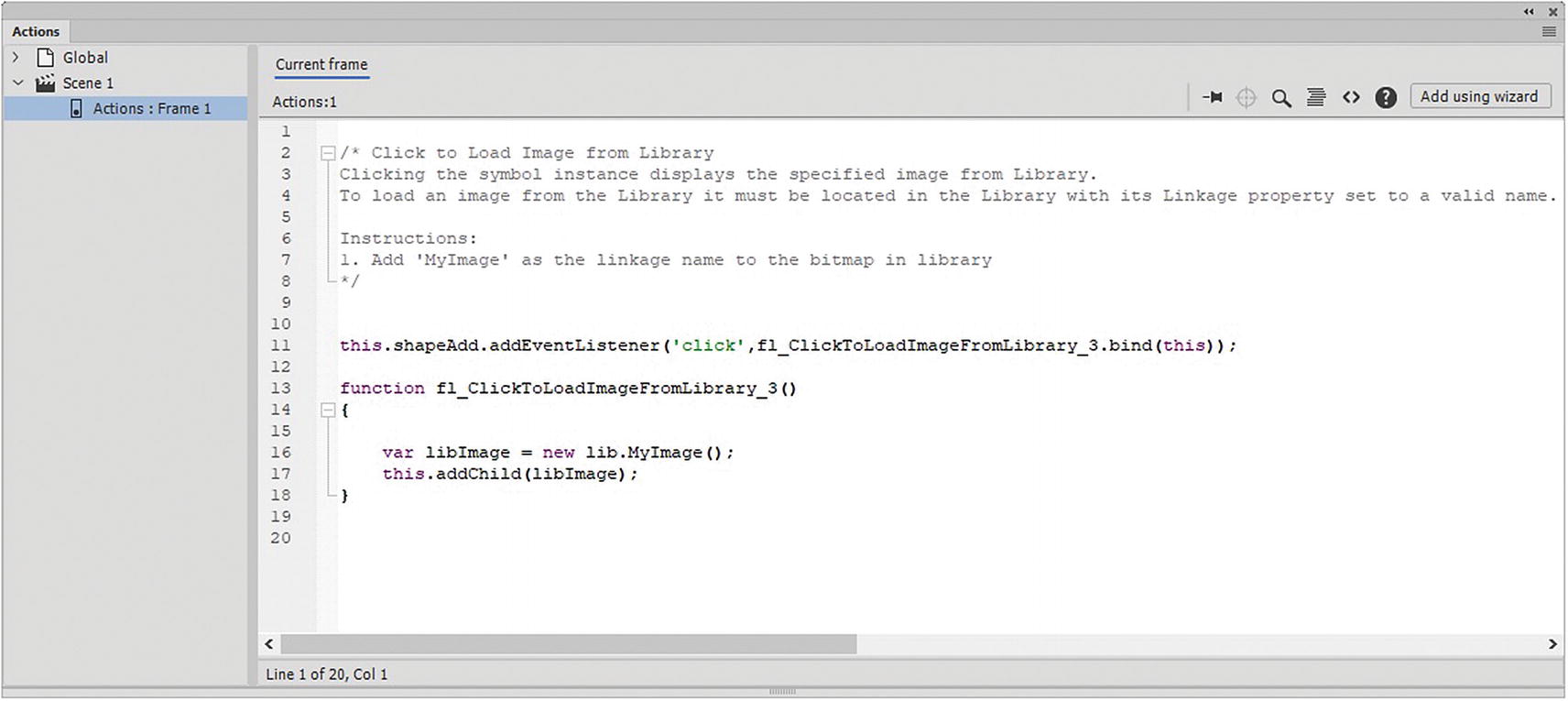
In this case, I used the snippet example, HTML5 Canvas ➤ Load and Unload ➤ Click to Load Image from Library, as seen in Figure 23-7.
../images/466782_1_En_23_Chapter/466782_1_En_23_Fig7_HTML.jpg
Figure 23-7

Code is automatically added to the Actions panel for the button action
The following is the code.
* Click to Load Image from Library
Clicking the symbol instance displays the specified image from Library.
To load an image from the Library it must be located in the Library with its Linkage property set to a valid name.
Instructions:
1. Add 'MyImage' as the linkage name to the bitmap in library
*/
this.shapeAdd.addEventListener('click',fl_ClickToLoadImageFromLibrary_3.bind(this));
function fl_ClickToLoadImageFromLibrary_3()
{
        var libImage = new lib.MyImage();
        this.addChild(libImage);
}
Your code may have slightly different in numbering, but the key instruction to watch for is this:
Add 'MyImage' as the linkage name to the bitmap in library
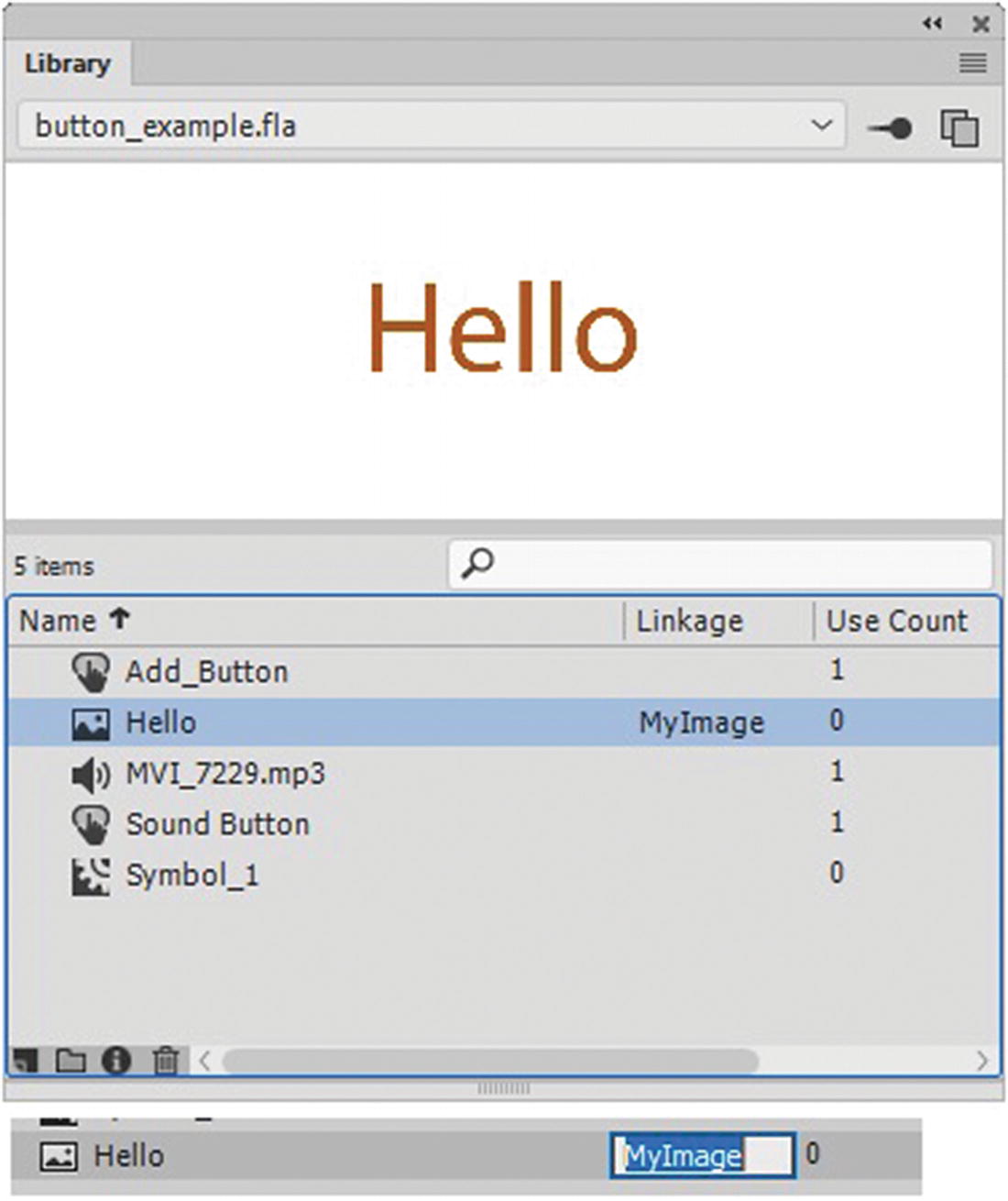
This means that before you publish your HTML5 Canvas file, you need to go back to the Library panel and locate the bitmap file, and in the linkage column, enter MyImage. Refer to Figure 23-8.
../images/466782_1_En_23_Chapter/466782_1_En_23_Fig8_HTML.jpg
Figure 23-8

Add the name MyImage to the linkage area of the image

It may not appear as though there is a spot to enter under Linkage, but it when you double-click in this area, a white text area will appear.

If you do not add this linkage, the code will not work.

In this case, I have already completed the example for you in the button_example.fla file. You can see the result in the published button_example.html file.

You see the Code Snippets panel again in Part 6. In the meantime, try a few actions in your HTML5 Canvas file, but make sure to carefully follow the instructions regarding linkage to avoid errors.

Note

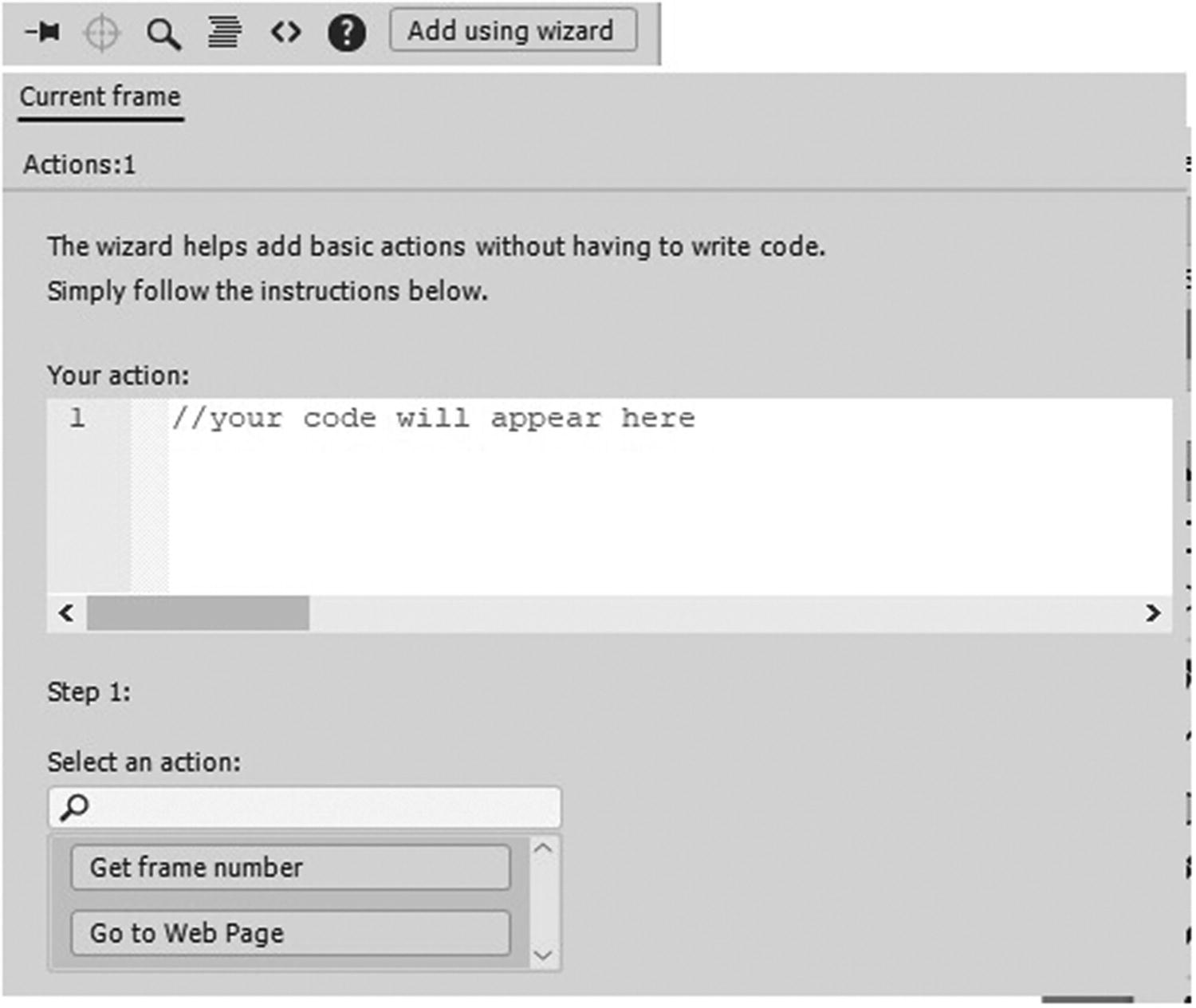
For more code help for your own project, click the Add Using Wizard button. Refer to Figure 23-9.
../images/466782_1_En_23_Chapter/466782_1_En_23_Fig9_HTML.jpg
Figure 23-9

The wizard can help you write basic code in Animate

The wizard gives you step-by-step help by choosing from a list for writing basic code.

Click Next to continue to the next step until you reach Finish and Add; or click Cancel to get out of the wizard area of the Actions panel.

So now that you know a bit more about what the Actions panel does in Animate, how can you create “actions” or recorded steps in Animate like you did in Photoshop or Illustrator that you can save for other projects?

History Panel
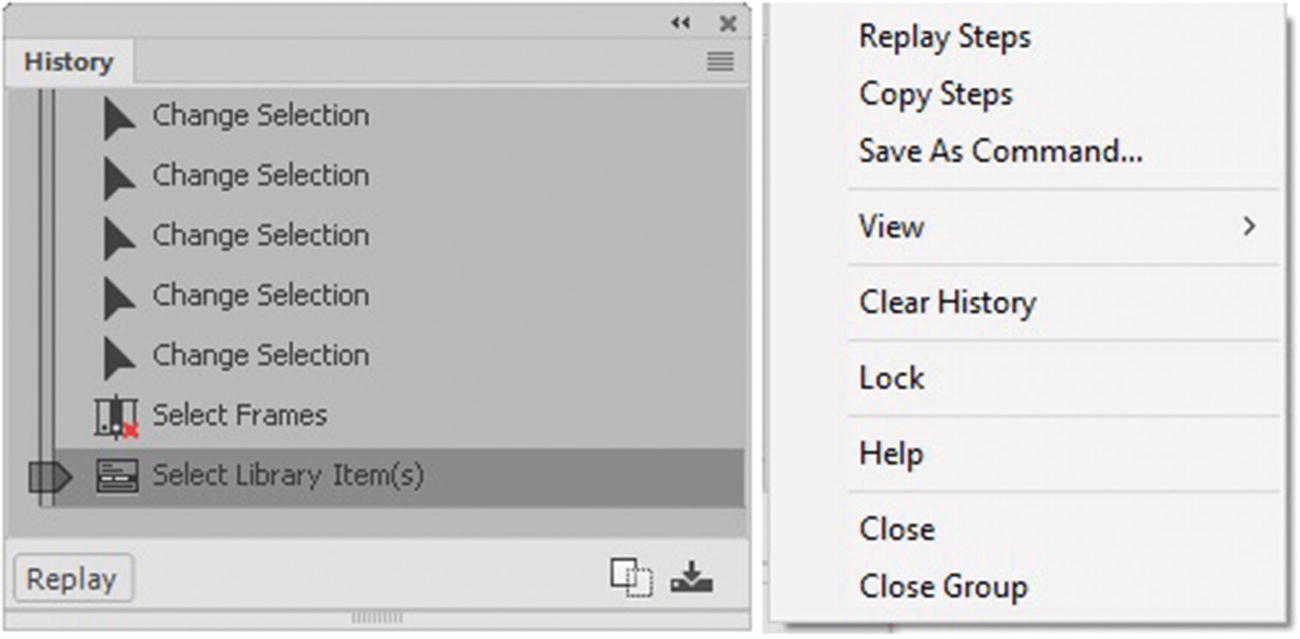
Animate CC uses a different panel to create recorded steps: the History panel. Refer to Figure 23-10.
../images/466782_1_En_23_Chapter/466782_1_En_23_Fig10_HTML.jpg
Figure 23-10

The History panel can be used to create some basic commands
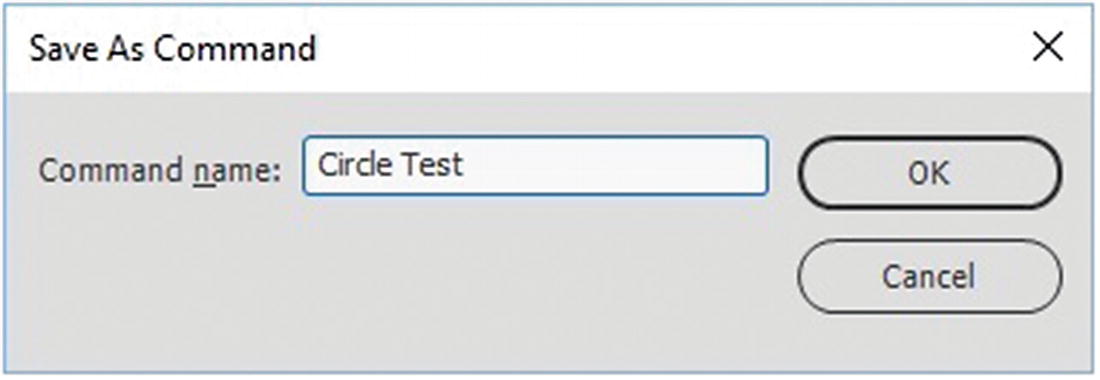
The History panel looks like the one in Photoshop and shows the list of steps that have occurred since you opened the file. Using the slider on the left, you can go back or forward in your steps if you make a mistake. By default, Animate supports 100 levels of undo in the History panel. You can increase the amount under Edit ➤ Preferences ➤ General tab. If you record steps, you might draw a circle and then convert it to a symbol, and as you do, this each step is recorded. You can replay steps, copy steps to the clipboard, or save them as a command. Refer to Figure 23-11.
../images/466782_1_En_23_Chapter/466782_1_En_23_Fig11_HTML.jpg
Figure 23-11

Save As a Command dialog box

A command is basically the same as an action in Photoshop or Illustrator.

Enter a command name and then click OK.
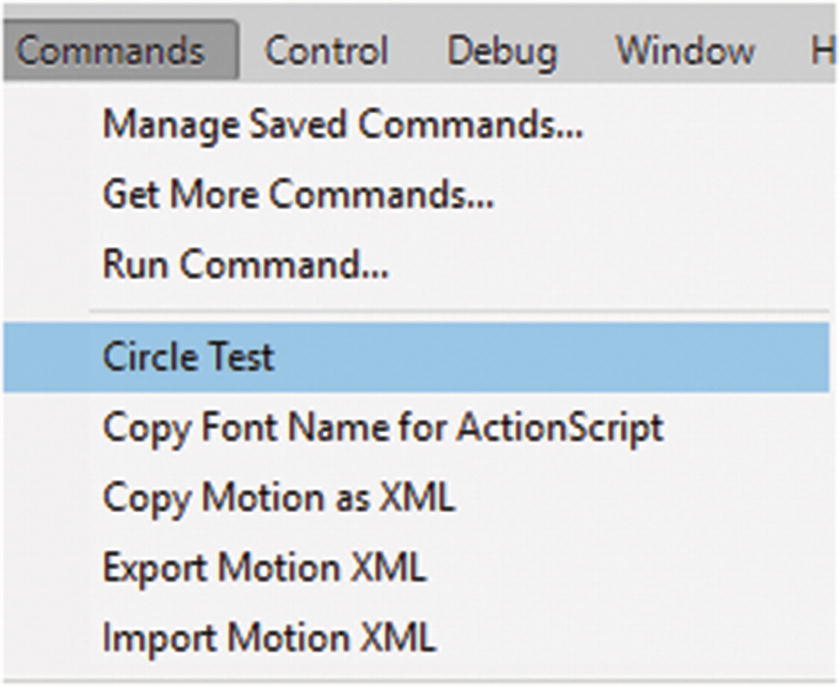
These steps can be replayed and then saved as commands in the Commands menu. You will find some commands already saved in the main menu. Refer to Figure 23-12.
../images/466782_1_En_23_Chapter/466782_1_En_23_Fig12_HTML.jpg
Figure 23-12

Commands are added to the list

Commands can be managed (renamed or removed), acquired, and run. Copying the steps to a clipboard and into a program like Notepad allows you to view things like coordinates and the size of a shape in relation to its placement on the stage.
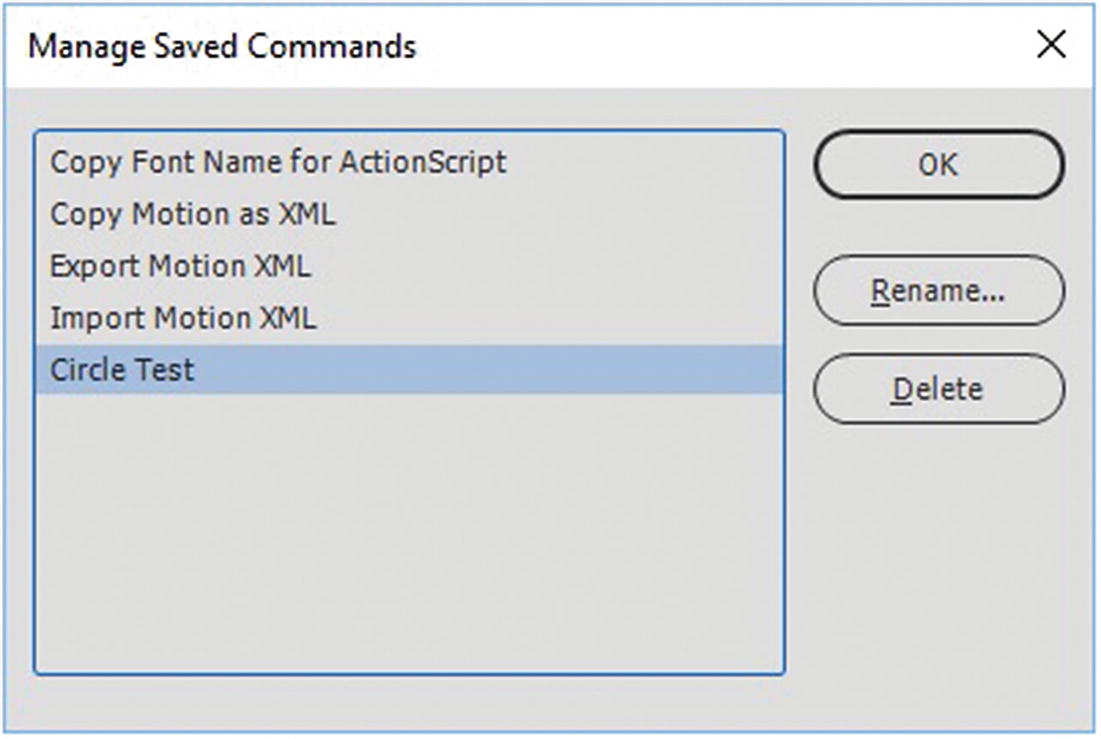
If you plan to remove commands, in Manage Saved Commands, be aware of which ones come with Animate and should remain, so that you do not accidentally remove the wrong ones. Refer to Figure 23-13.
../images/466782_1_En_23_Chapter/466782_1_En_23_Fig13_HTML.jpg
Figure 23-13

Manage Saved Commands: remove ones that you created or rename them here

CC Libraries
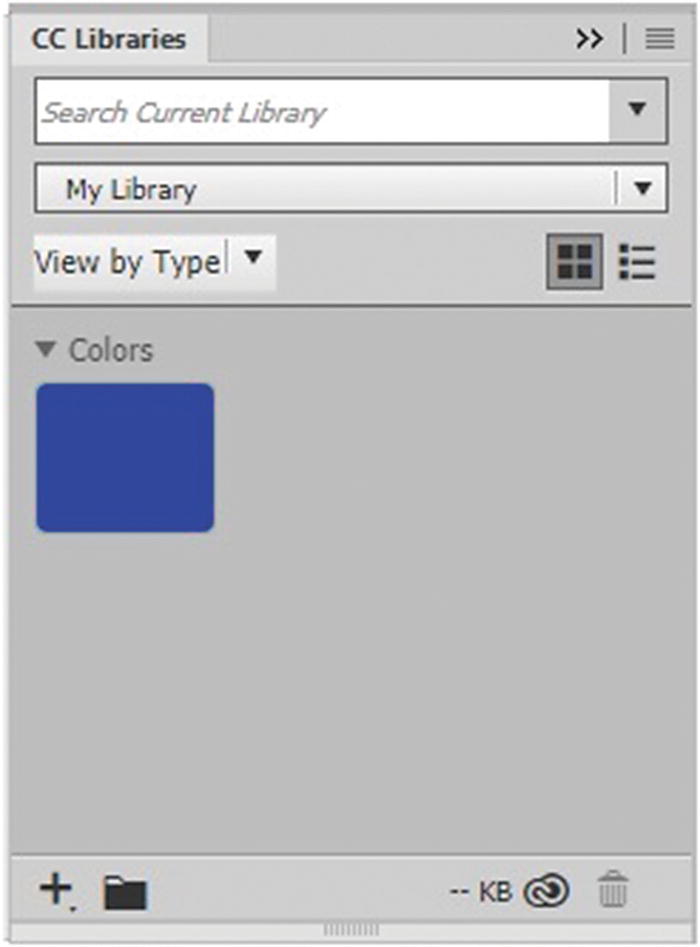
The CC Libraries panel is shown in Figure 23-14.
../images/466782_1_En_23_Chapter/466782_1_En_23_Fig14_HTML.jpg
Figure 23-14

The Libraries panel

It was introduced with the Creative Cloud. With Animate CC Libraries, you can store colors and save media assets that you create to use in projects. You can then move over to a program like Dreamweaver, and the colors are stored there so that you can refer to them during your project. Notice that CC Libraries is the same as the Library panel in Photoshop, Illustrator, and Dreamweaver. The reason for the slight name change is that Animate already has a Library panel that it uses to store your project’s symbols in. This can be a bit confusing when working between programs; however, use this panel if you want to move objects to the Creative Cloud and share between other Adobe programs.

Patterns for Paint Brush and Pen Tools
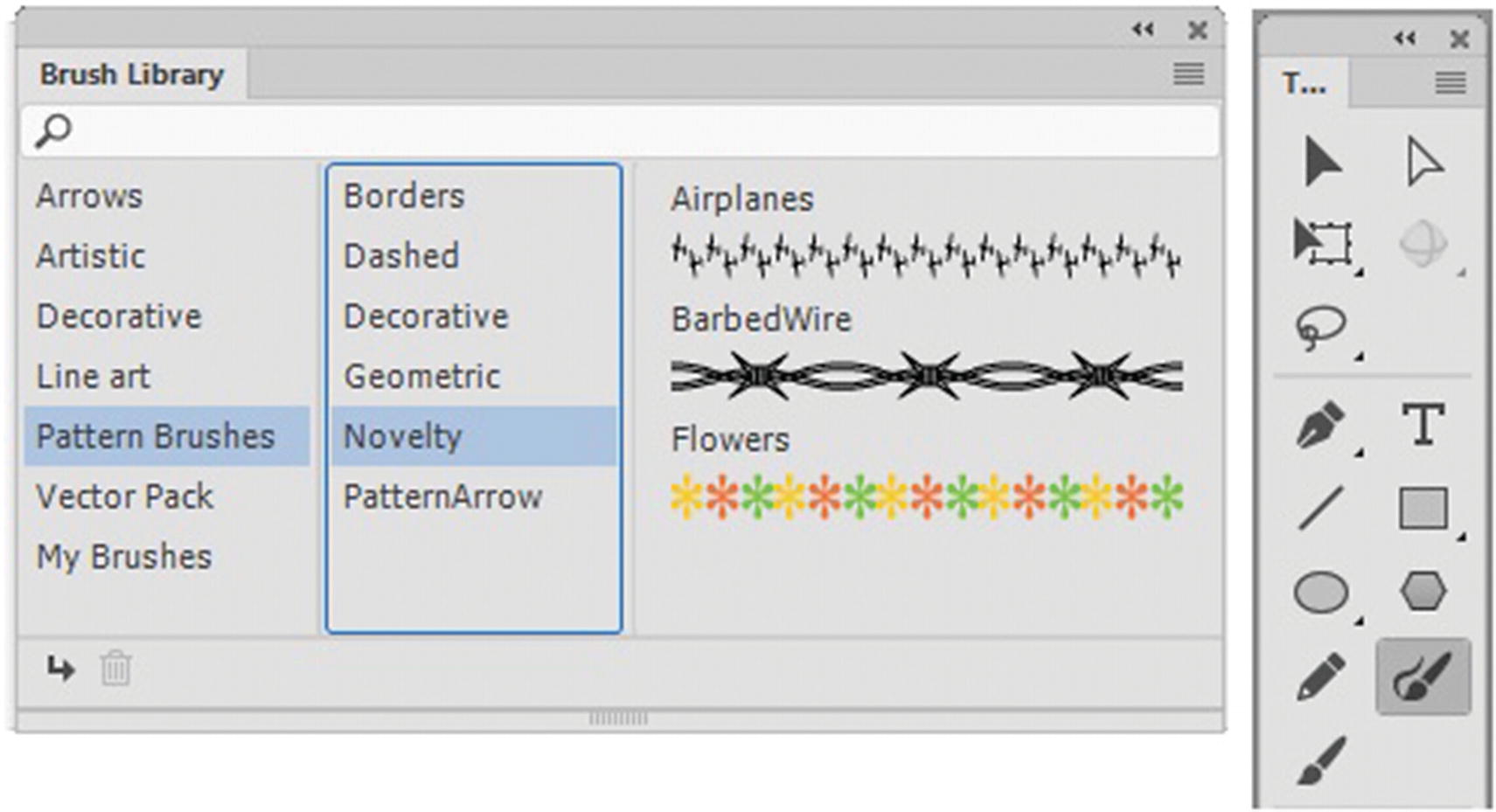
While Animate CC does not have any specific tool for creating patterns, many default presets of patterned brushes are available in the Brush Library panel when you use the Pen (P)or Paint Brush (Y) tools in the Tools panel. Editing or importing these pattern brushes allows you more flexibility in your animation, as seen in Figure 23-15.
../images/466782_1_En_23_Chapter/466782_1_En_23_Fig15_HTML.jpg
Figure 23-15

The Brush Library panel and the Tools panel
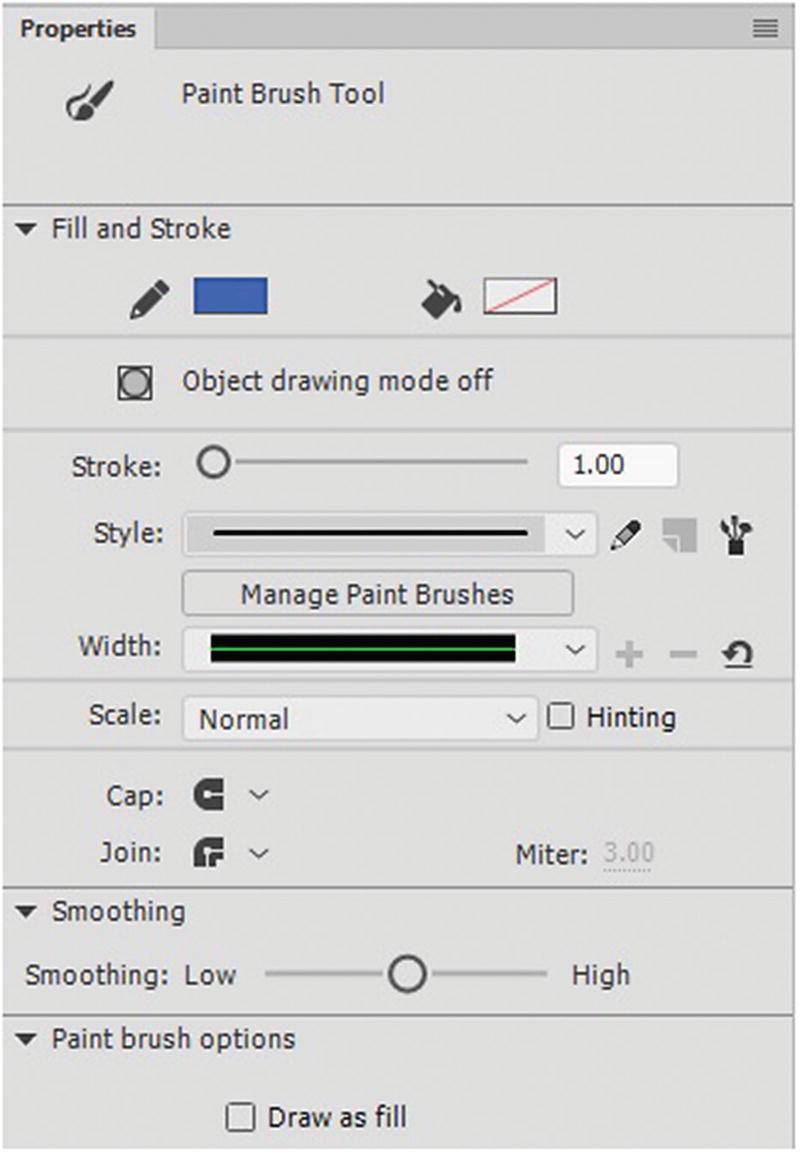
You can also access this area in the Properties panel when using the Paint Brush tool by clicking the Brush Library icon. Refer to Figure 23-16.
../images/466782_1_En_23_Chapter/466782_1_En_23_Fig16_HTML.jpg
Figure 23-16

The Properties panel when accessing the Paint Brush tool

Note

These types of brushes do not work for the Pencil (Shift+Y), Brush tool (B) or Eraser tool (E) in the Tools panel and properties. For these, you have to use the generic brushes that come in the Tools panel or Properties panel. Refer to Figures 23-17, 23-18, and 23-19.
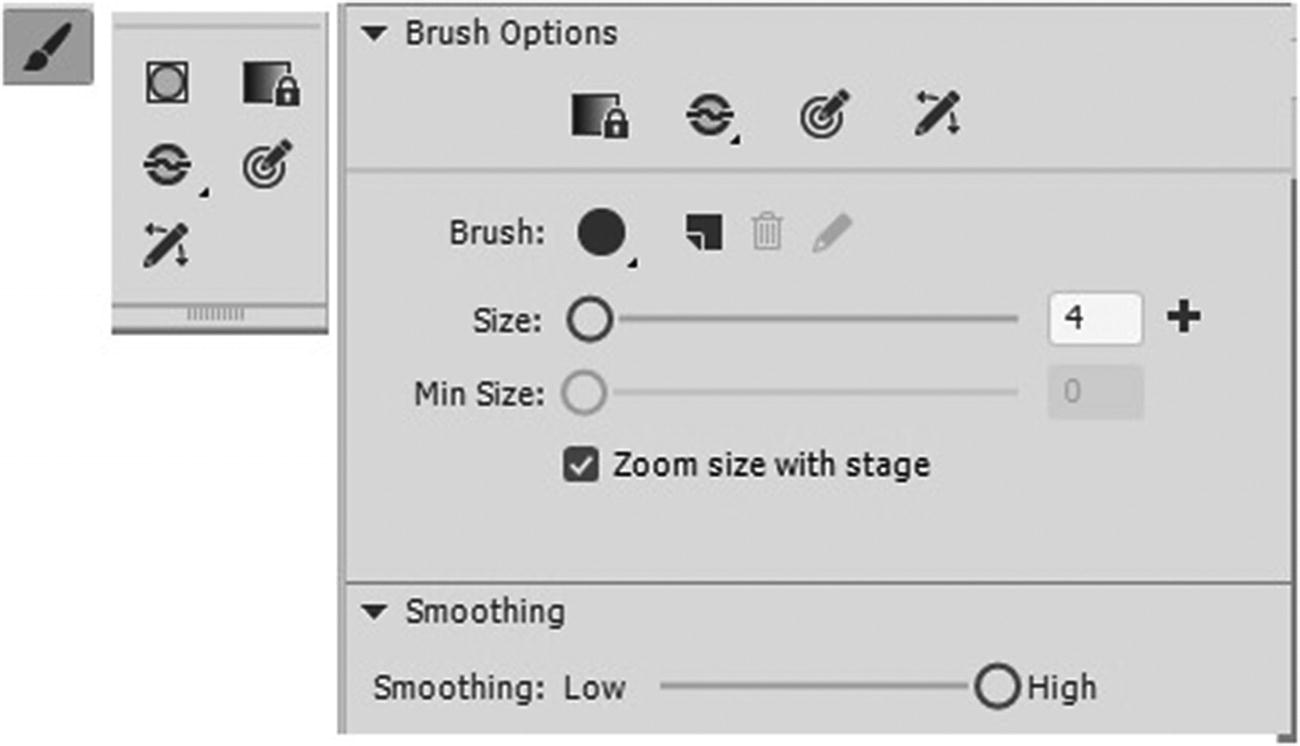
../images/466782_1_En_23_Chapter/466782_1_En_23_Fig17_HTML.jpg
Figure 23-17

The Brush tool and its options in the lower part of the Tools panel and Properties panel
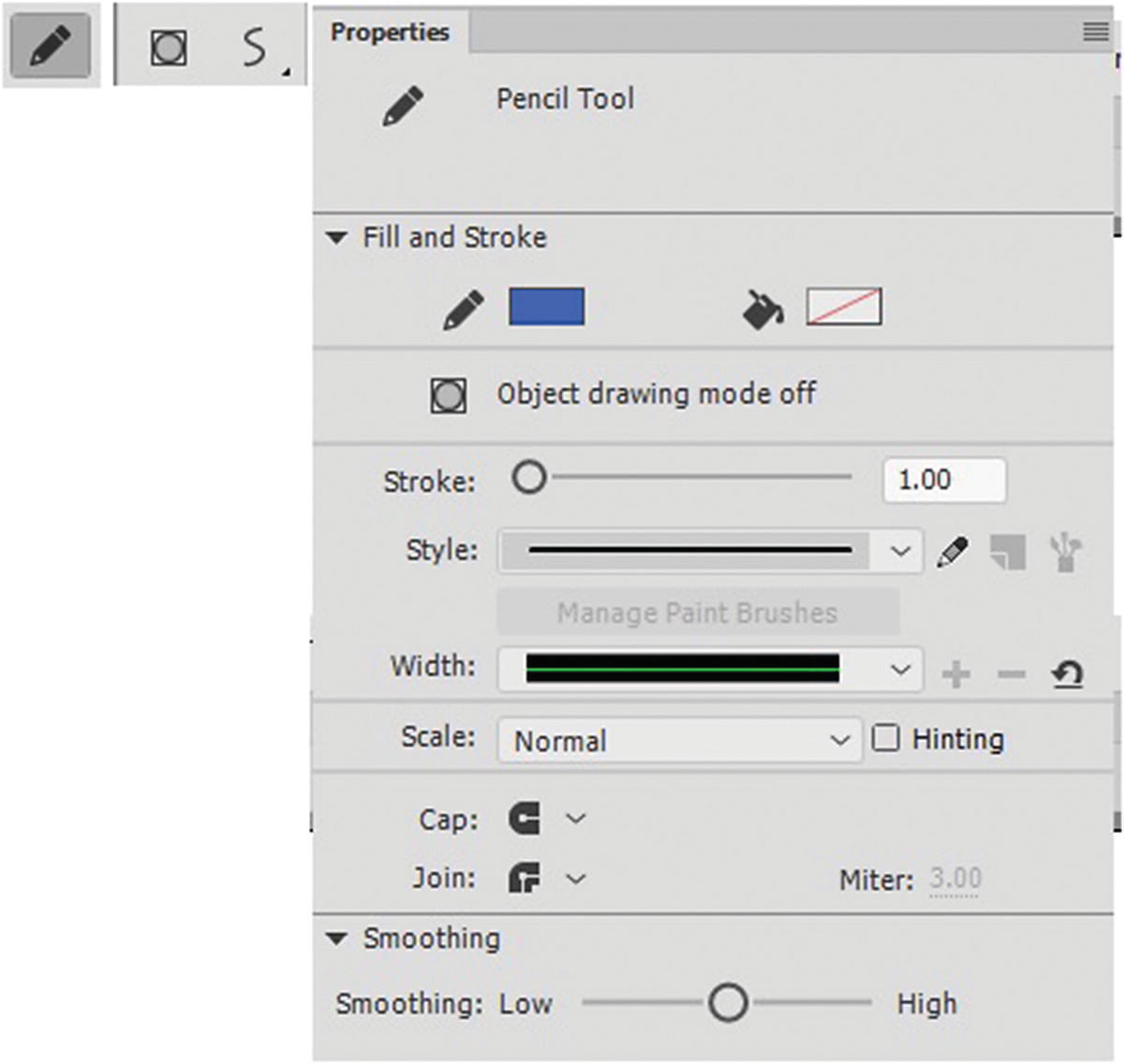
../images/466782_1_En_23_Chapter/466782_1_En_23_Fig18_HTML.jpg
Figure 23-18

The Pencil tool and its options in the lower part of the Tools panel and Properties panel
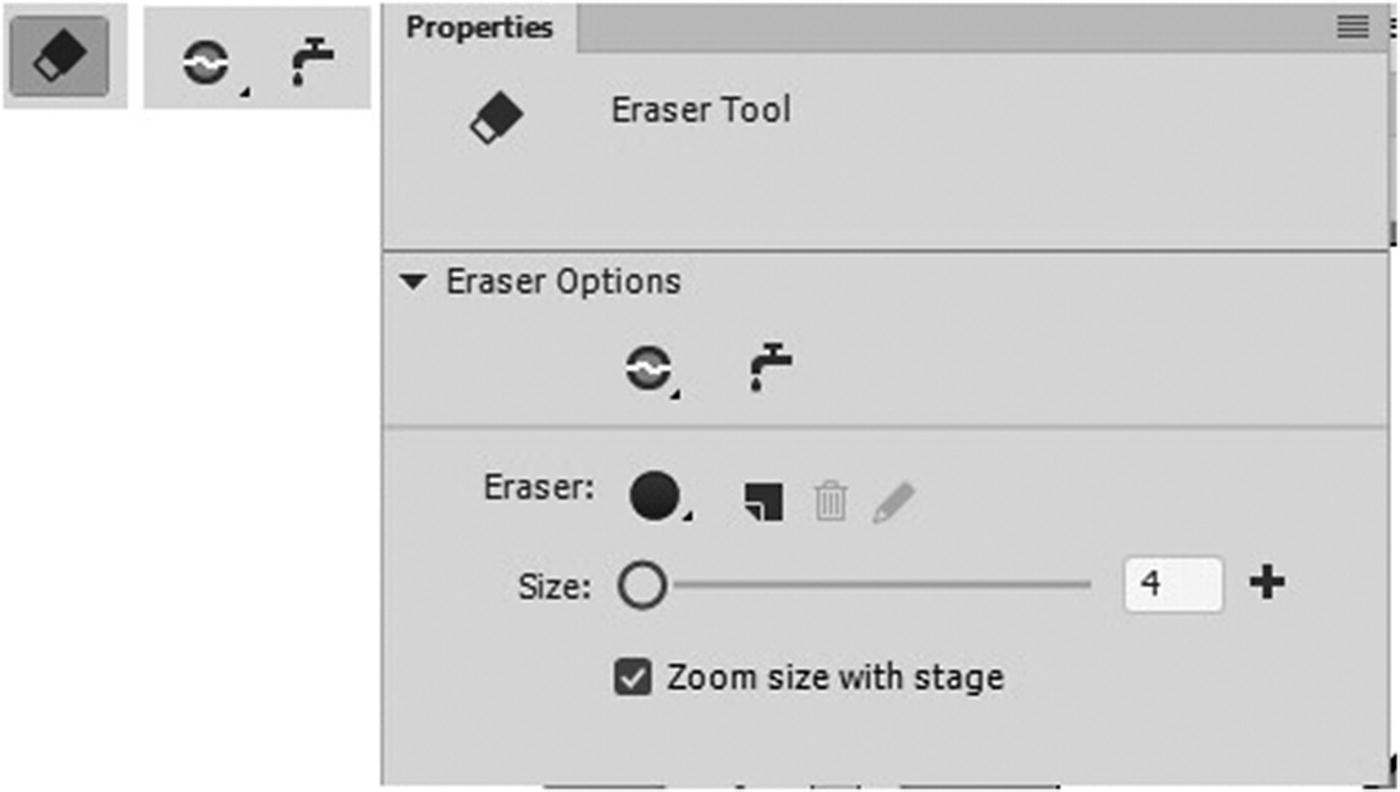
../images/466782_1_En_23_Chapter/466782_1_En_23_Fig19_HTML.jpg
Figure 23-19

The Eraser tool and its options in the lower part of the Tools panel, and the Properties panel settings
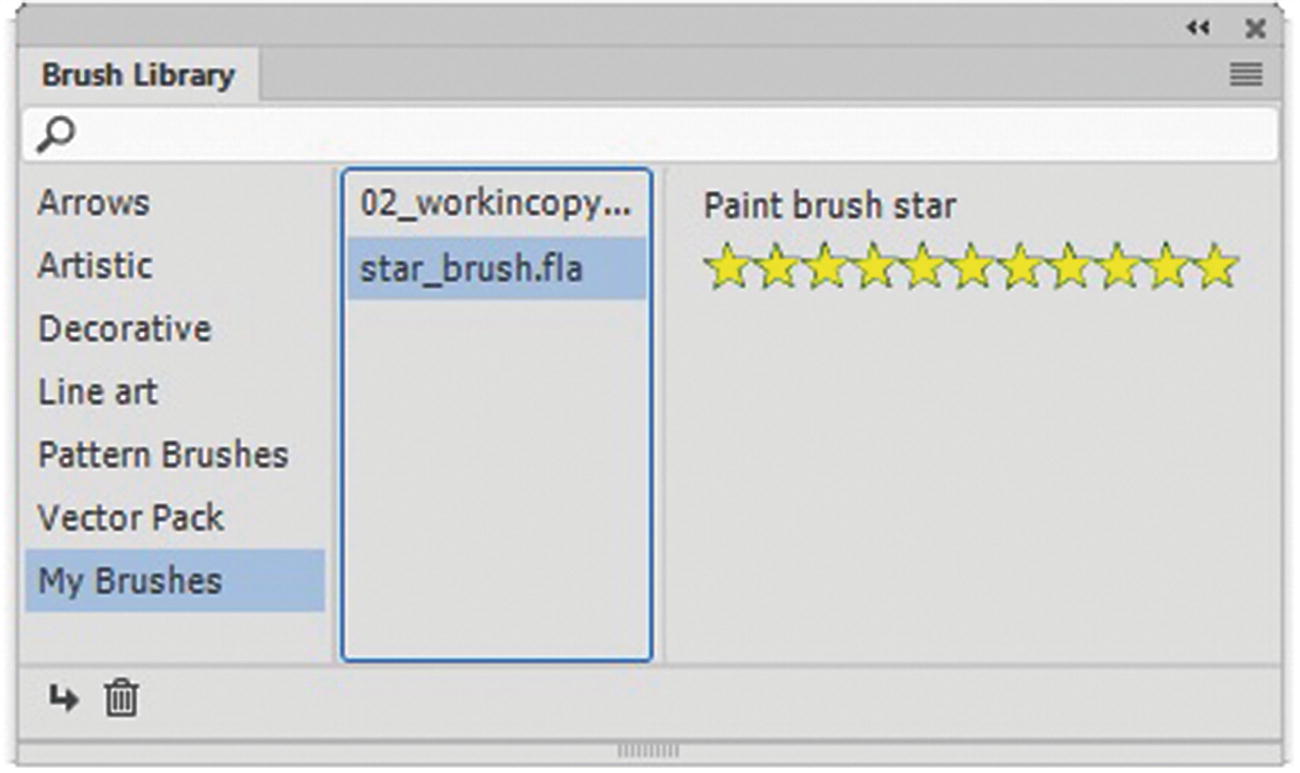
You can also create your own brushes and store them in the My Brushes sections. Refer to Figure 23-20.
../images/466782_1_En_23_Chapter/466782_1_En_23_Fig20_HTML.jpg
Figure 23-20

The My Brushes is where you can store your personal brushes in the Brush Library panel
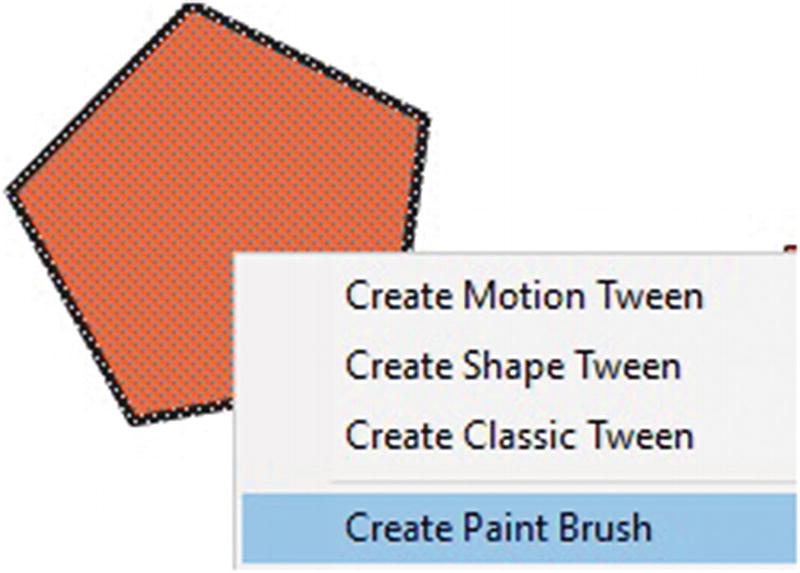
You can create your own by selecting a shape (not a symbol), right-clicking it, and choosing Create Paint Brush. Refer to Figure 23-21.
../images/466782_1_En_23_Chapter/466782_1_En_23_Fig21_HTML.jpg
Figure 23-21

Create your own paint brush

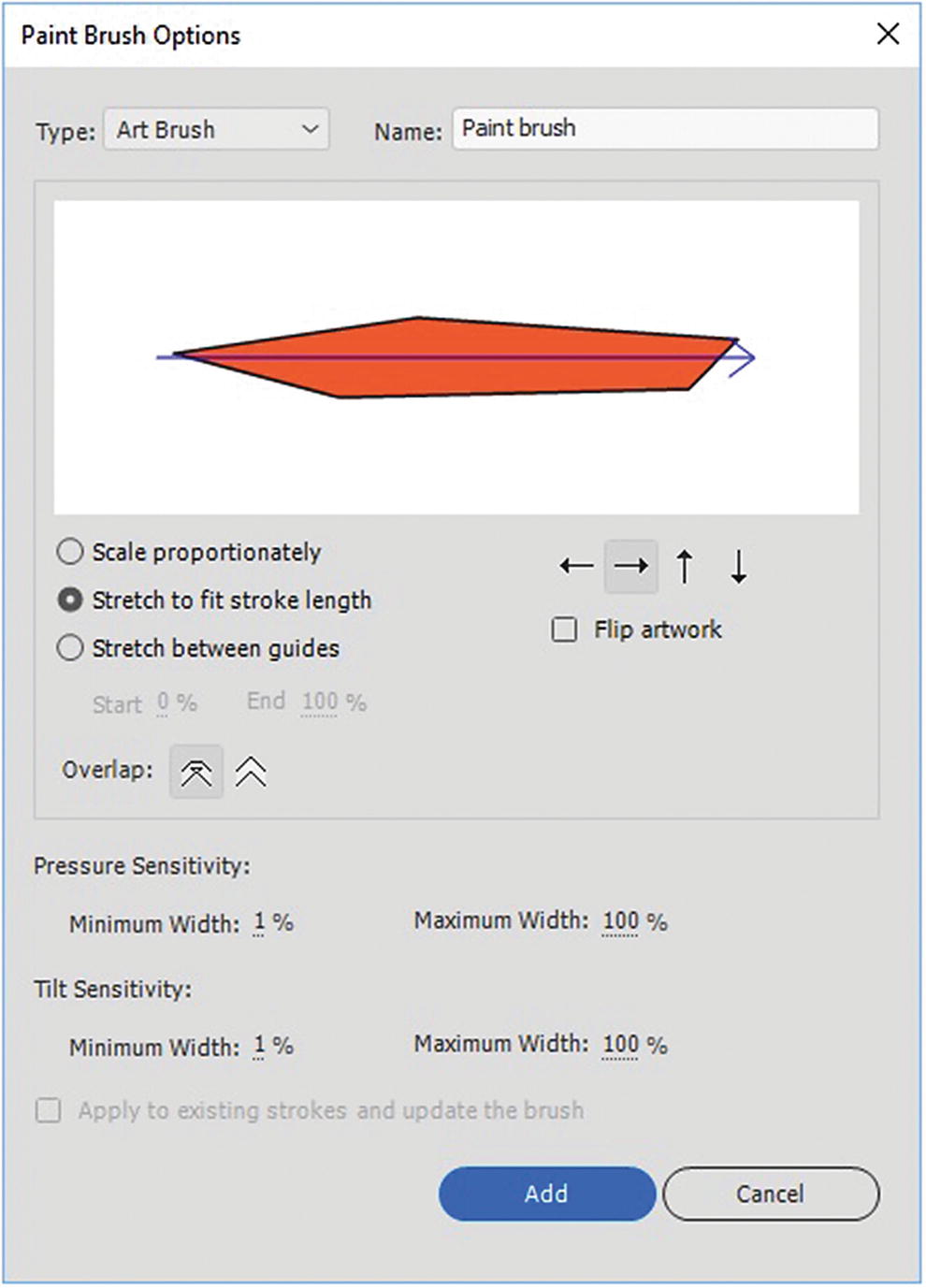
This brings you to the Paint Brush Options dialog box, where you can create art brushes or patterned brushes. Refer to Figure 23-22.
../images/466782_1_En_23_Chapter/466782_1_En_23_Fig22_HTML.jpg
Figure 23-22

The Paint Brush Options dialog box

  • Art brush allows you to scale proportionately or stretch (fit stroke length or between guides) one solid shape along a path. Flip the artwork using the arrows or Flip Artwork check box. Overlap parts of the shape. Adjust pressure and tilt sensitivity is useful if you are using a stylus rather than a mouse.

  • Pattern brush repeats a pattern over the length of the stroke. You can scale, adjust spacing, and flip artwork. In addition, you can alter how the artwork appears at corners from the At Corners drop-down menu. Refer to Figure 23-23.
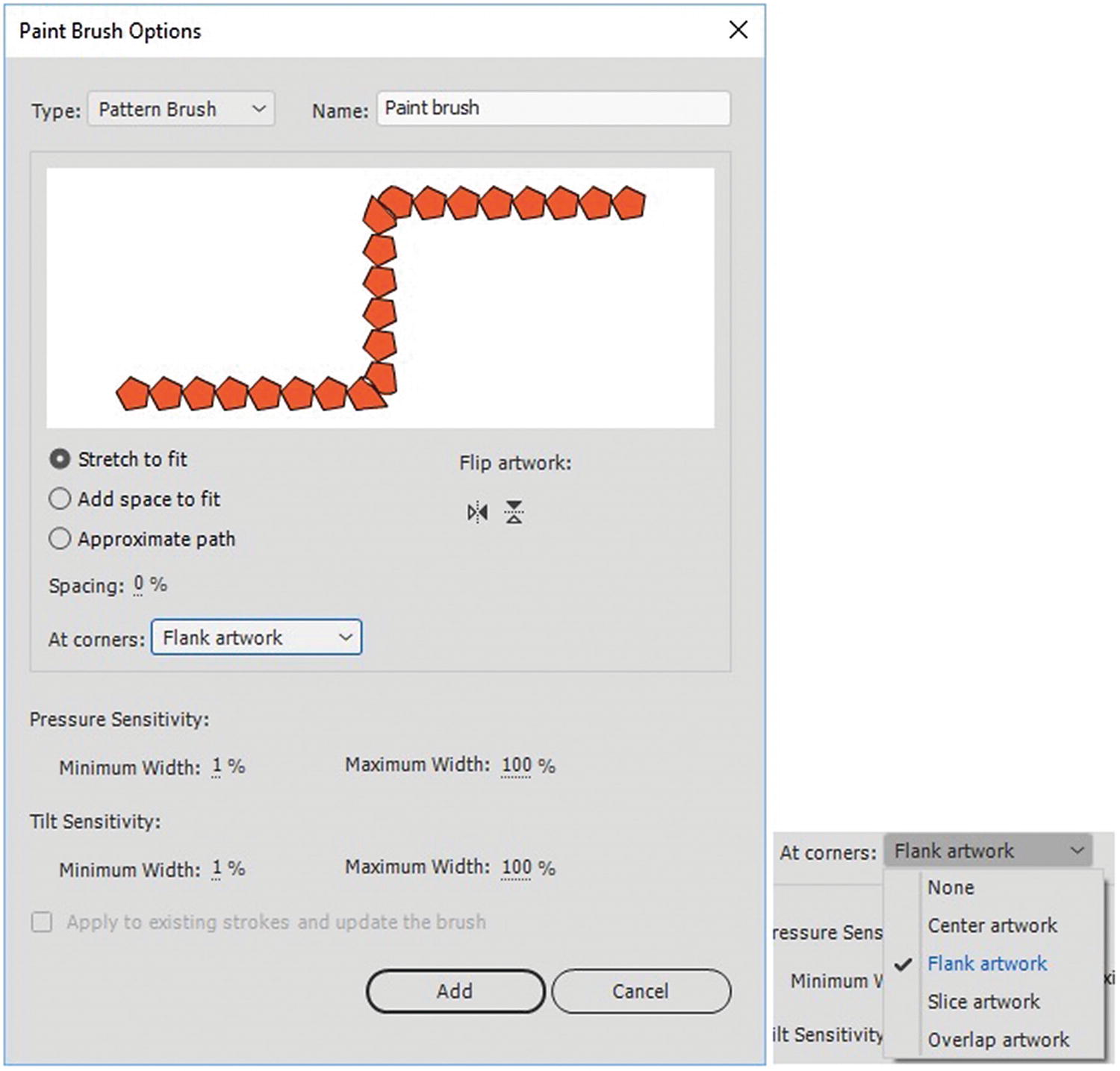
../images/466782_1_En_23_Chapter/466782_1_En_23_Fig23_HTML.jpg
Figure 23-23

Adjust the corners of your brush with the None, Center, Flank, Slice, or Overlap settings

Pressure and tilt sensitivity is also available, as it was for the art brush.

Note that the “Apply to existing stokes and update the brush” option is not be available until you add the brush to your set.
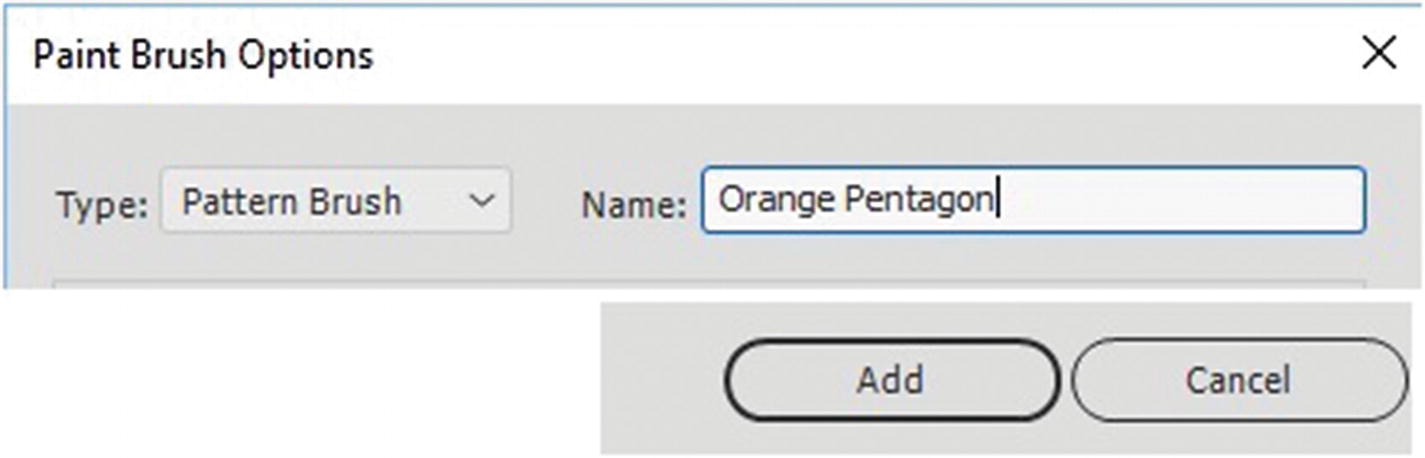
To add to My Brushes, set the name of the brush and then click the add button on the lower right of the Paint Brush Options dialog box. Refer to Figure 23-24.
../images/466782_1_En_23_Chapter/466782_1_En_23_Fig24_HTML.jpg
Figure 23-24

Add your Brush to the set in your file
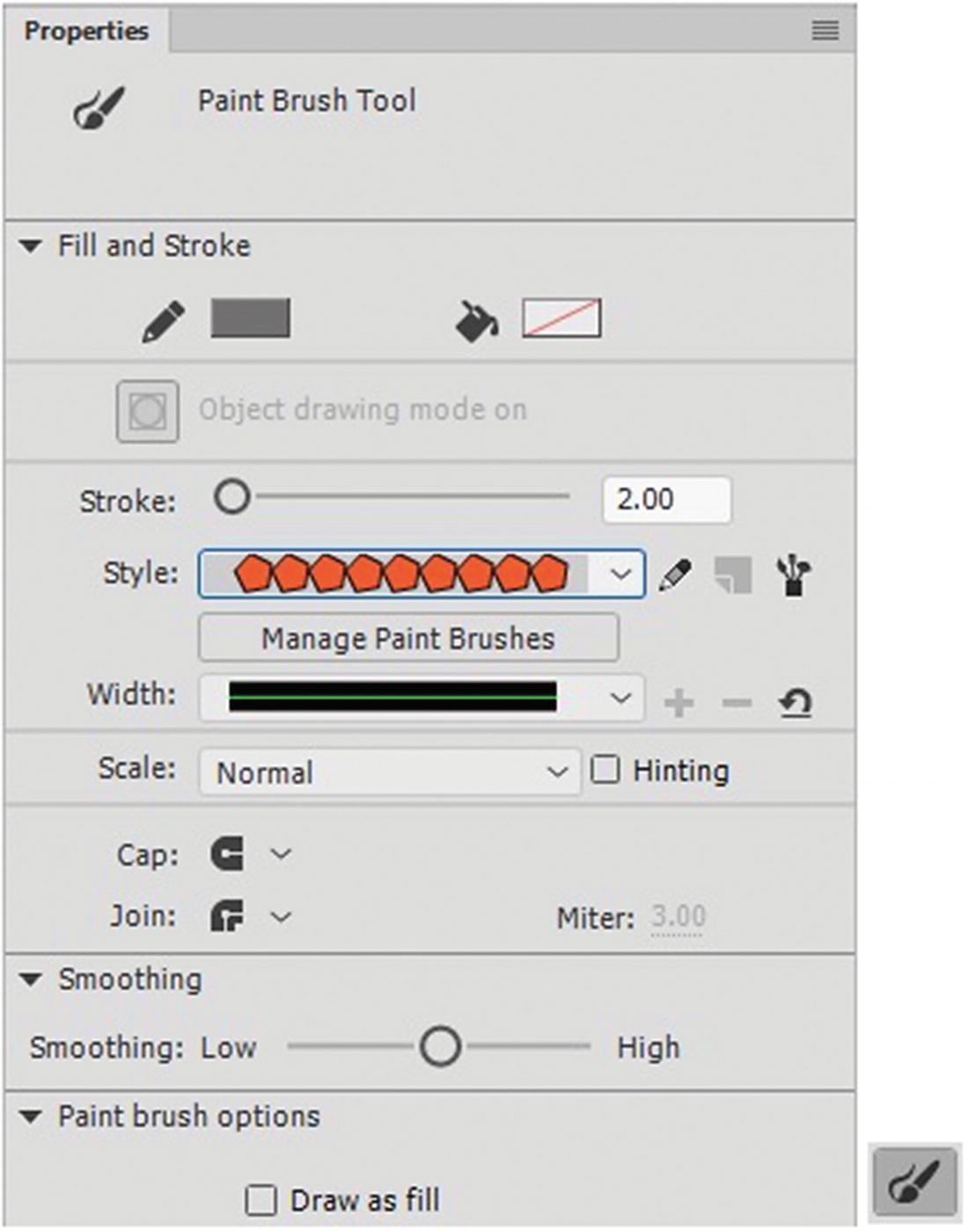
While not as detailed as the pattern brush option in Illustrator CC, you can add some interesting brush designs to your brush library. Refer to Figure 23-25 and the Properties panel.
../images/466782_1_En_23_Chapter/466782_1_En_23_Fig25_HTML.jpg
Figure 23-25

The brush appears in the Properties panel

Give your file a name, such as paint_brush.fla.
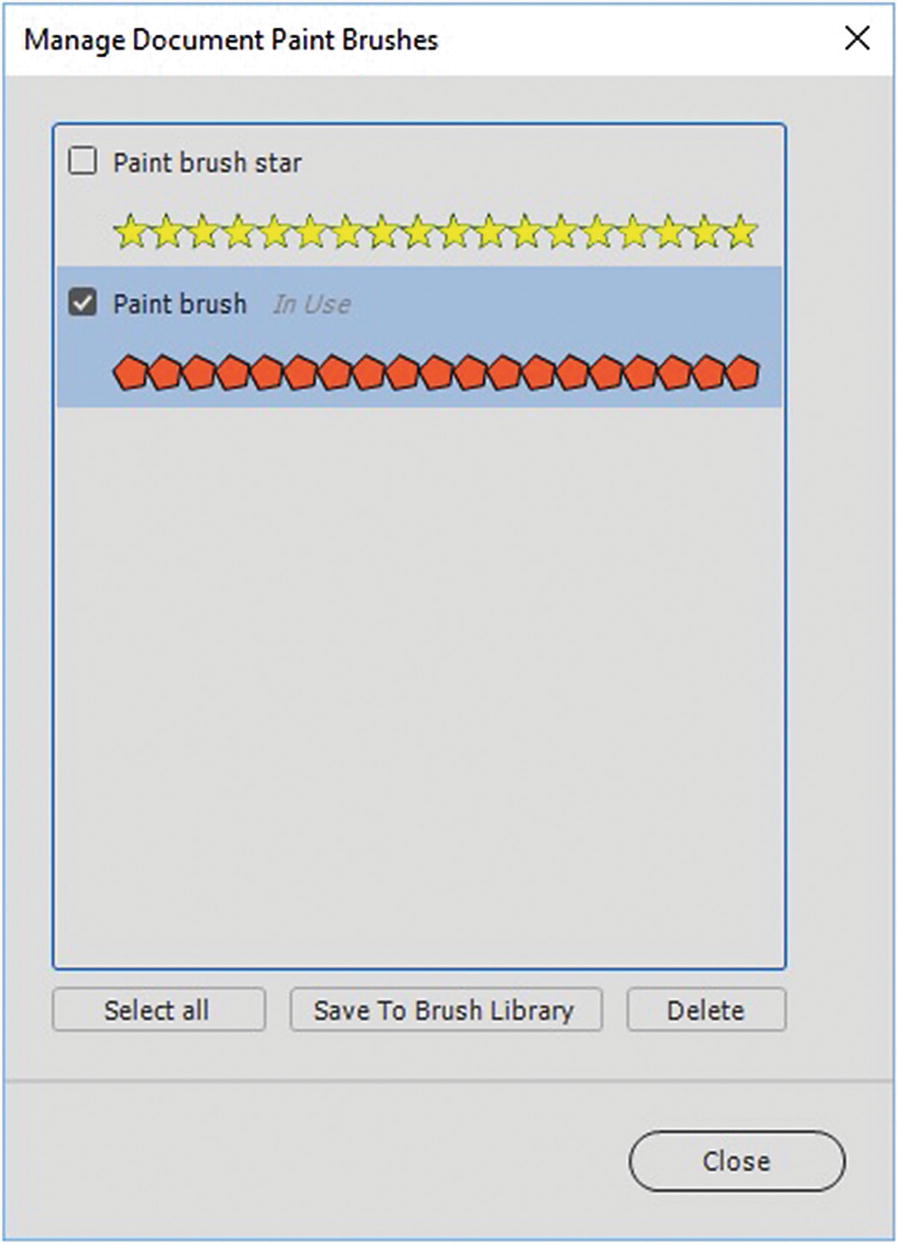
Now you need to do one more crucial step to complete the process of adding the paint brush to the Brush Library panel. If you do not, it will only be available for this file. Using the paint brush tool under the Manage Brushes button, you can choose if you want to save the pattern to the Brush Library. Refer to Figure 23-26.
../images/466782_1_En_23_Chapter/466782_1_En_23_Fig26_HTML.jpg
Figure 23-26

Add your brush to the brush library

Select your newly created brush in the dialog box, choose Save to Brush Library, and click the Close button.
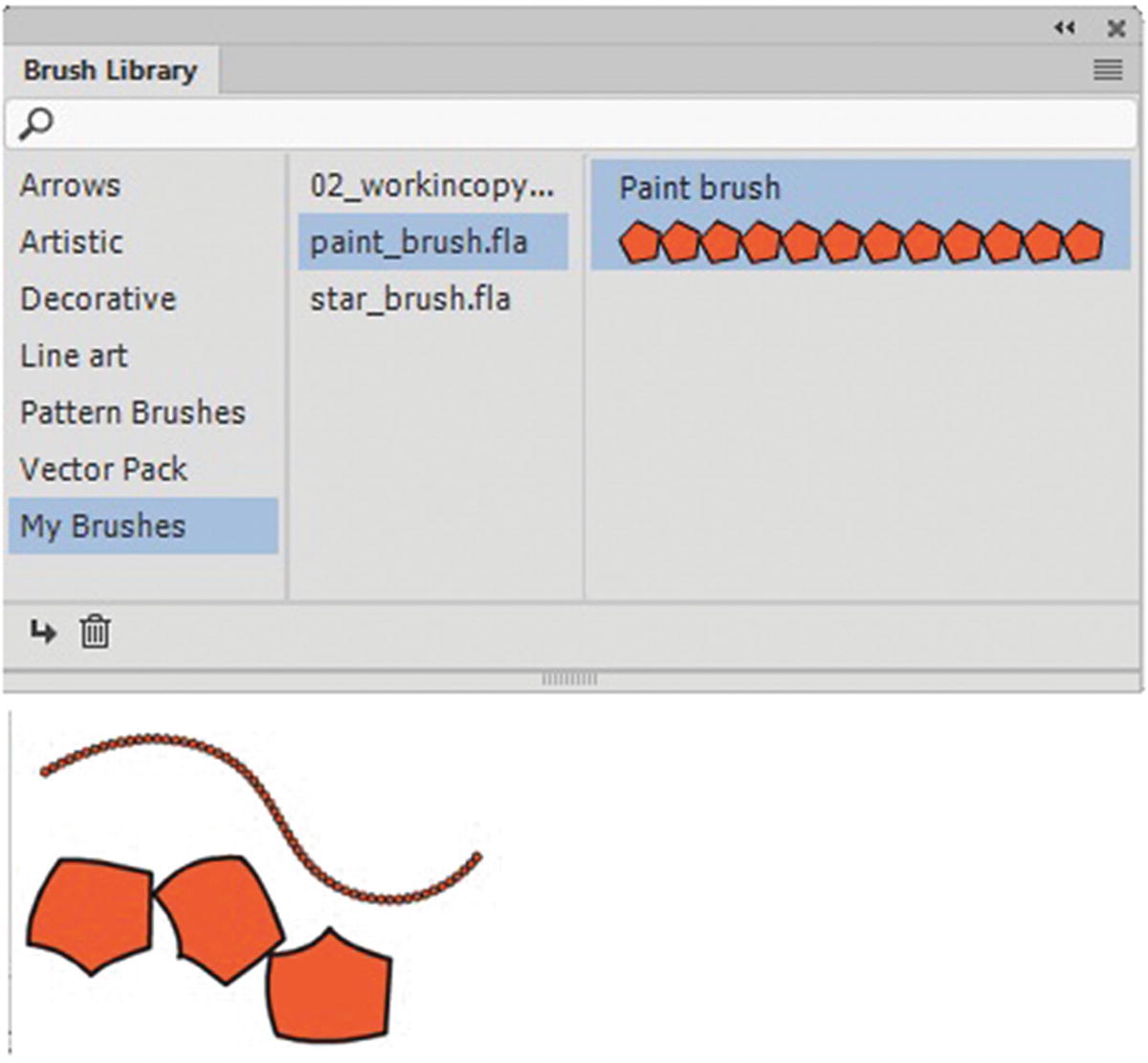
In Figure 23-27, the new brush is saved in the Brush Library panel.
../images/466782_1_En_23_Chapter/466782_1_En_23_Fig27_HTML.jpg
Figure 23-27

The brush is added to the Library panel and you can use it on the stage

You can now paint with it on the stage in various stroke sizes. If you need to delete a brush, click the Trash icon. If you need to edit the brush in the document, click the Pencil tool (see Figure 23-24) in the Properties panel to make alterations to the brush, and then check the “Apply to existing strokes and update the brush” box. The Add button changes to update and then you can click it to adjust the changes to your stroke on a shape. Refer to Figure 23-28.
../images/466782_1_En_23_Chapter/466782_1_En_23_Fig28_HTML.jpg
Figure 23-28

Update the changes you made to the brush

For more information on brushes, visit https://helpx.adobe.com/animate/using/working-with-paint-brush.html and https://helpx.adobe.com/ca/animate/using/creating-paint-brushes.html . Note: that in the new CC 2019 version you can now use the new Asset warp tool (W) pin in the tools panel to alter your brush pattern designs further on a shape. It operates in a similar manner to the Puppet warp tools in Photoshop and Illustrator as see in Chapter 14.

3D in Animations
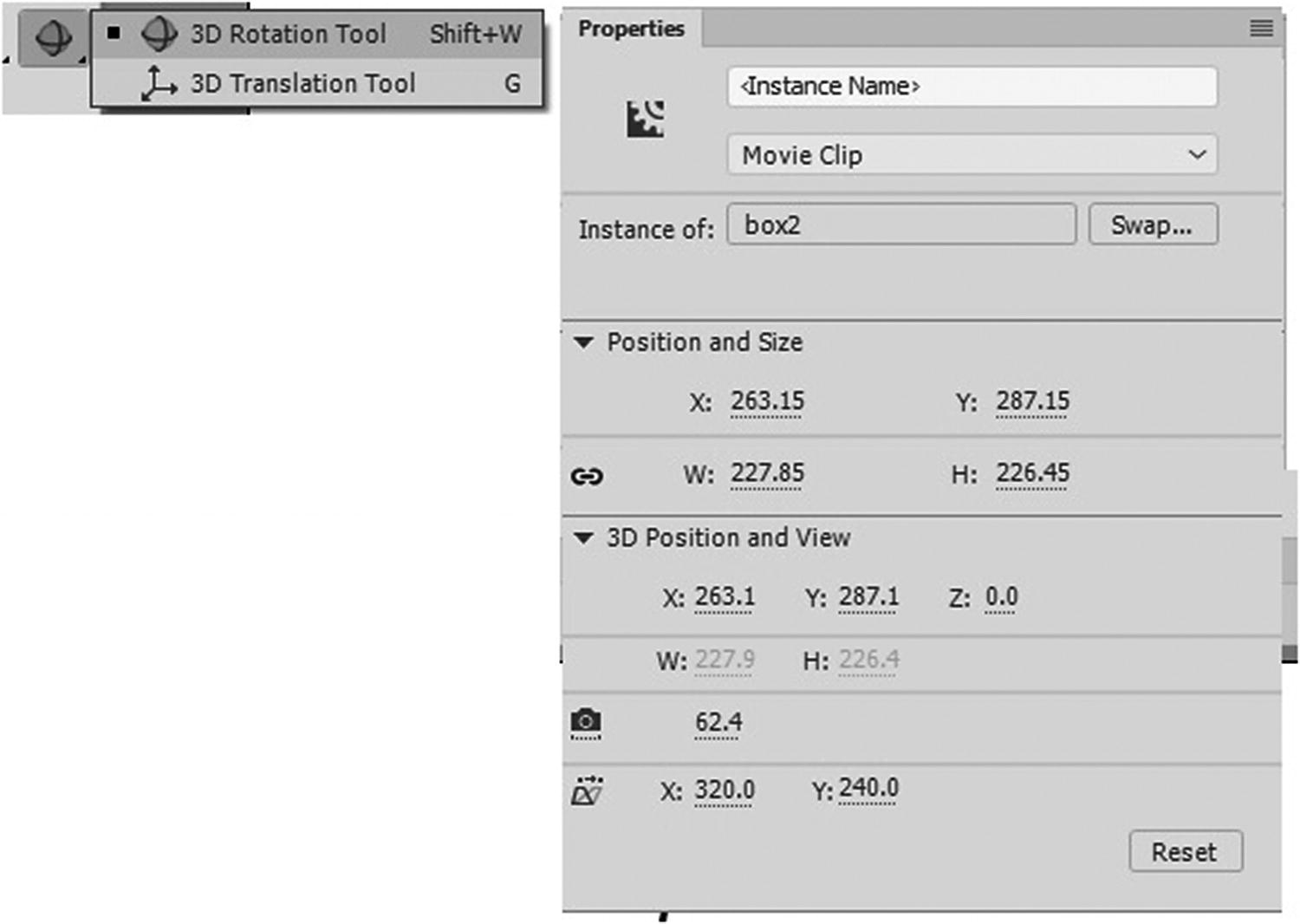
Only ActionScript 3.0 FLA files allow you to use the 3D tools ; so if you are planning to create a video with some symbols that contain 3D, make sure to use this format and not the HTML5 Canvas FLA. Refer to Figure 23-29.
../images/466782_1_En_23_Chapter/466782_1_En_23_Fig29_HTML.jpg
Figure 23-29

The properties of a Movie Clip when using 3D tools

Text must be in a symbol to work with the tool if you want a 3D scaling effect. Refer to 3DText.fla and Figure 23-30.
../images/466782_1_En_23_Chapter/466782_1_En_23_Fig30_HTML.jpg
Figure 23-30

Text symbol scaled in 3D using tools

Having said that, you can trick the 3D to work with text in HTML5 Canvas. If you create the text in an ActionScript 3.0 file, make the 3D modifications to the movie-clip symbol and then right-click Convert to bitmap (F8). Copy and paste into the HTML5 Canvas file and resave as a symbol. The only drawback is that you cannot edit the text. You can export as a JPEG or publish as part of the animation.

Web Fonts
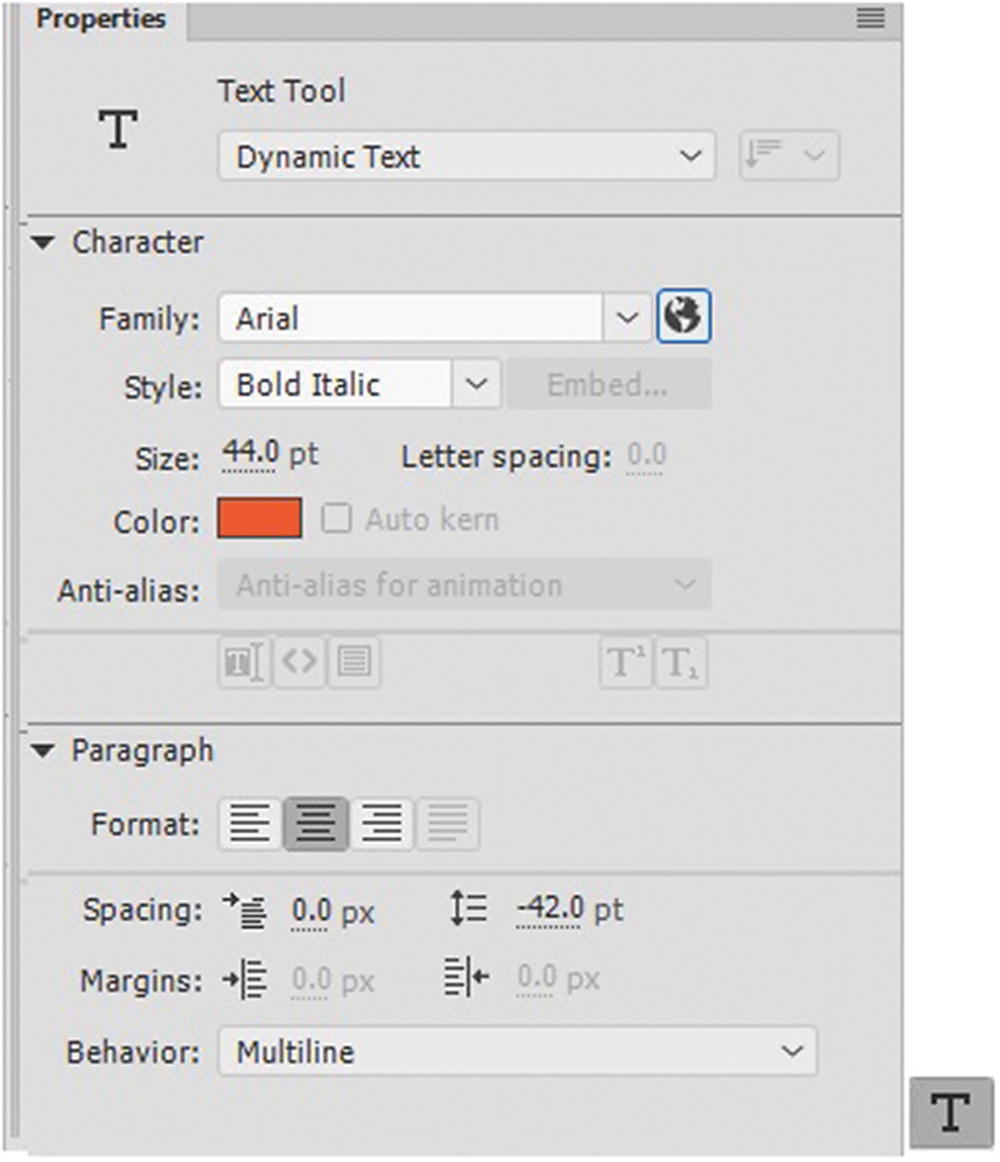
As with Photoshop and Illustrator, you can use web fonts in Animate. They are in the Properties panel when you use the Text tool (T). Refer to Figure 23-31.
../images/466782_1_En_23_Chapter/466782_1_En_23_Fig31_HTML.jpg
Figure 23-31

The text tool has access to web fonts
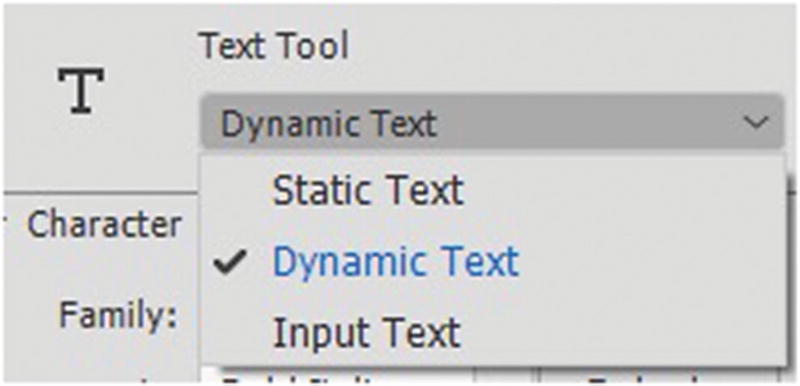
Static fonts are on your computer. They are not universal to all computers. In the Static setting, the font cannot update dynamically. So a viewer on the Internet who does not have your font, views the text in a font that their computer chooses as a replacement. For example, Arial might be replaced by Helvetica. Refer to Figure 23-32.
../images/466782_1_En_23_Chapter/466782_1_En_23_Fig32_HTML.jpg
Figure 23-32

Choosing the type of text to use in your HTML5 Canvas file

While at first this may not see like a deal breaker, each font has different spacing and sizing, which may cause the parts of the font to appear the wrong size or to be chopped off in the animation.
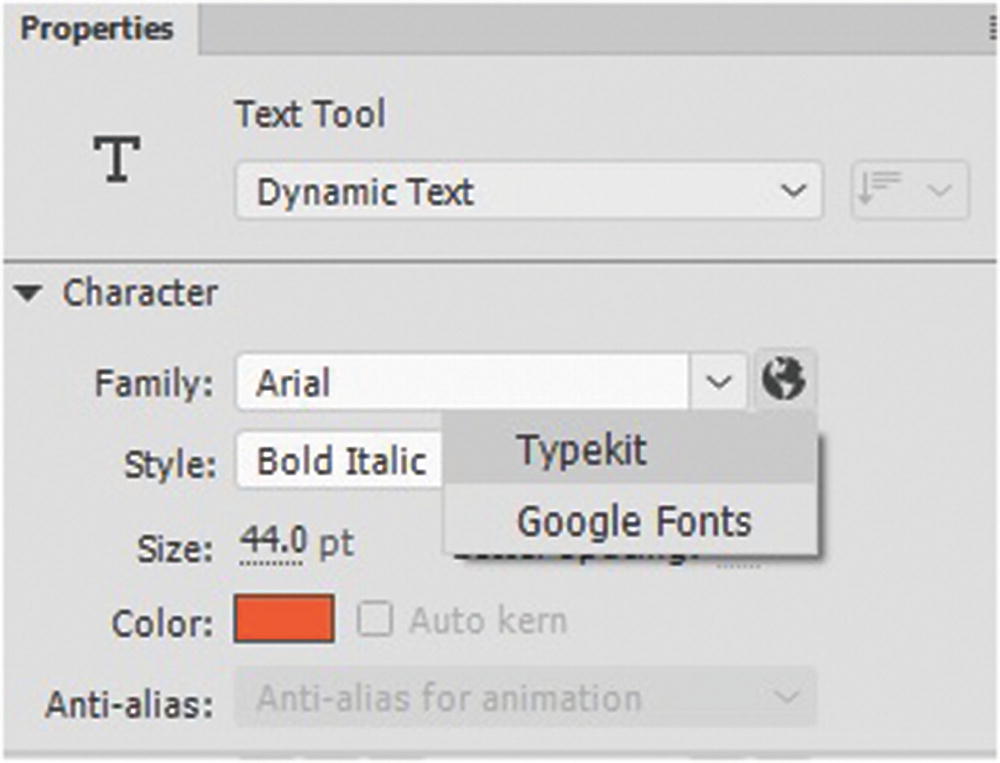
For video, the font is rendered as it appears on your computer, and does not alter when viewed online. Using fonts from your computer is OK for when you are creating a HTML5 Canvas file that is viewed only on your computer; however, viewers with different fonts will notice styling changes if they see the HTML5 Canvas online. So you need to turn the font into a graphic or a dynamic web font, which is in the Properties panel under the Globe symbol. When you use the Type Tool Dynamic Fonts are also known as web fonts and are part of Adobe Fonts Typekit. Refer to Figure 23-33.
../images/466782_1_En_23_Chapter/466782_1_En_23_Fig33_HTML.jpg
Figure 23-33

Choose the type of web font you want to use

You must be signed into a Creative Cloud account to use Adobe Fonts Typekit.

If you do not have it, you get the following error message when trying to select the font: “No user is signed in. Web fonts cannot be used.”
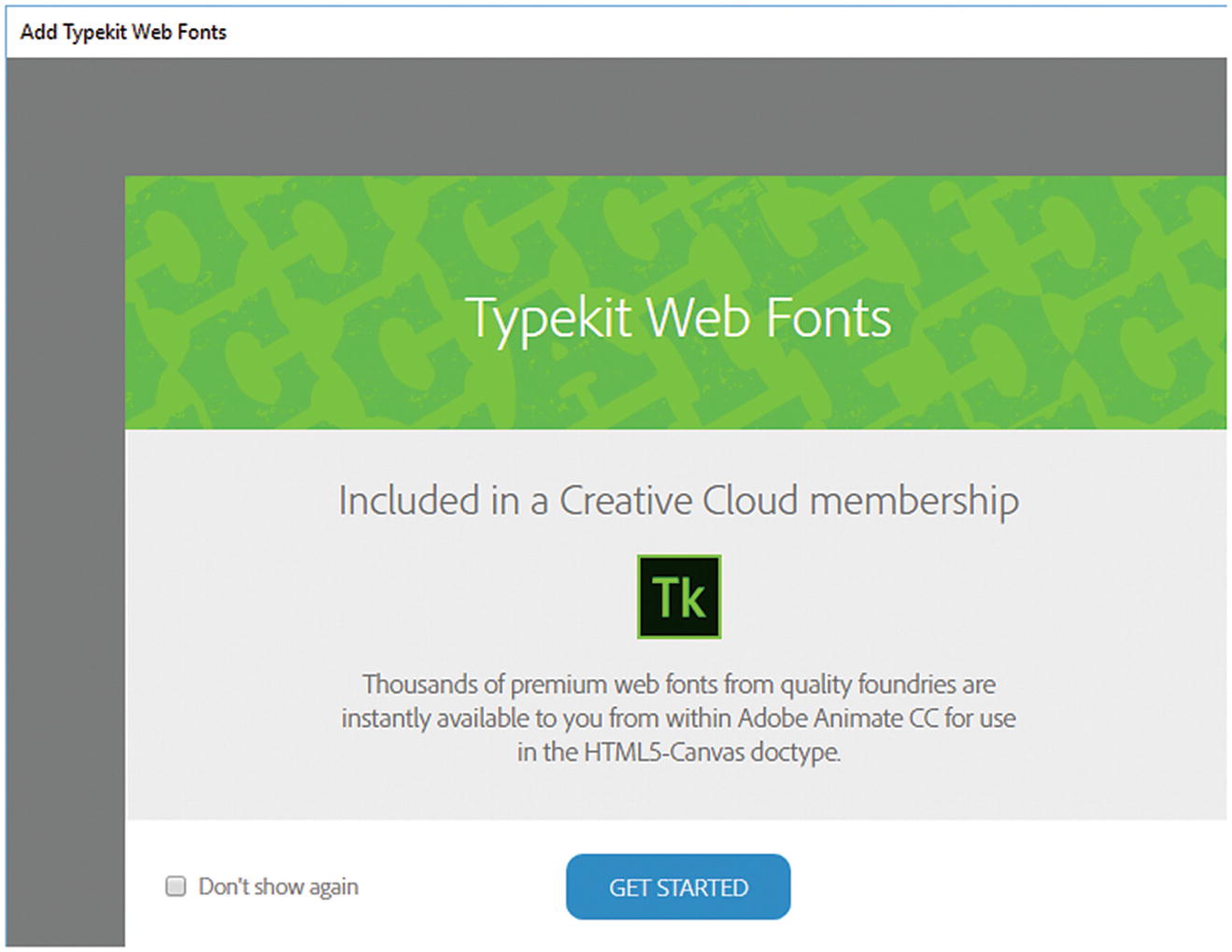
If you are logged in, a Adobe Fonts Typekit font appears like what’s shown in Figure 23-34.
../images/466782_1_En_23_Chapter/466782_1_En_23_Fig34_HTML.jpg
Figure 23-34

Set up for Adobe Fonts Typekit web fonts

Click Get Started to start viewing fonts.

The HTML/JavaScript Content is linked to your Adobe Fonts Typekit Account. As you saw in Chapter 22, with the Publish Settings dialog box, you can link your domain’s URL in the Web Fonts tab. Adobe Fonts Typekit is also used in Dreamweaver CC.

You can link and unlink fonts as you require them. For help on how to do this, refer to https://helpx.adobe.com/animate/using/typekit-web-fonts.html .
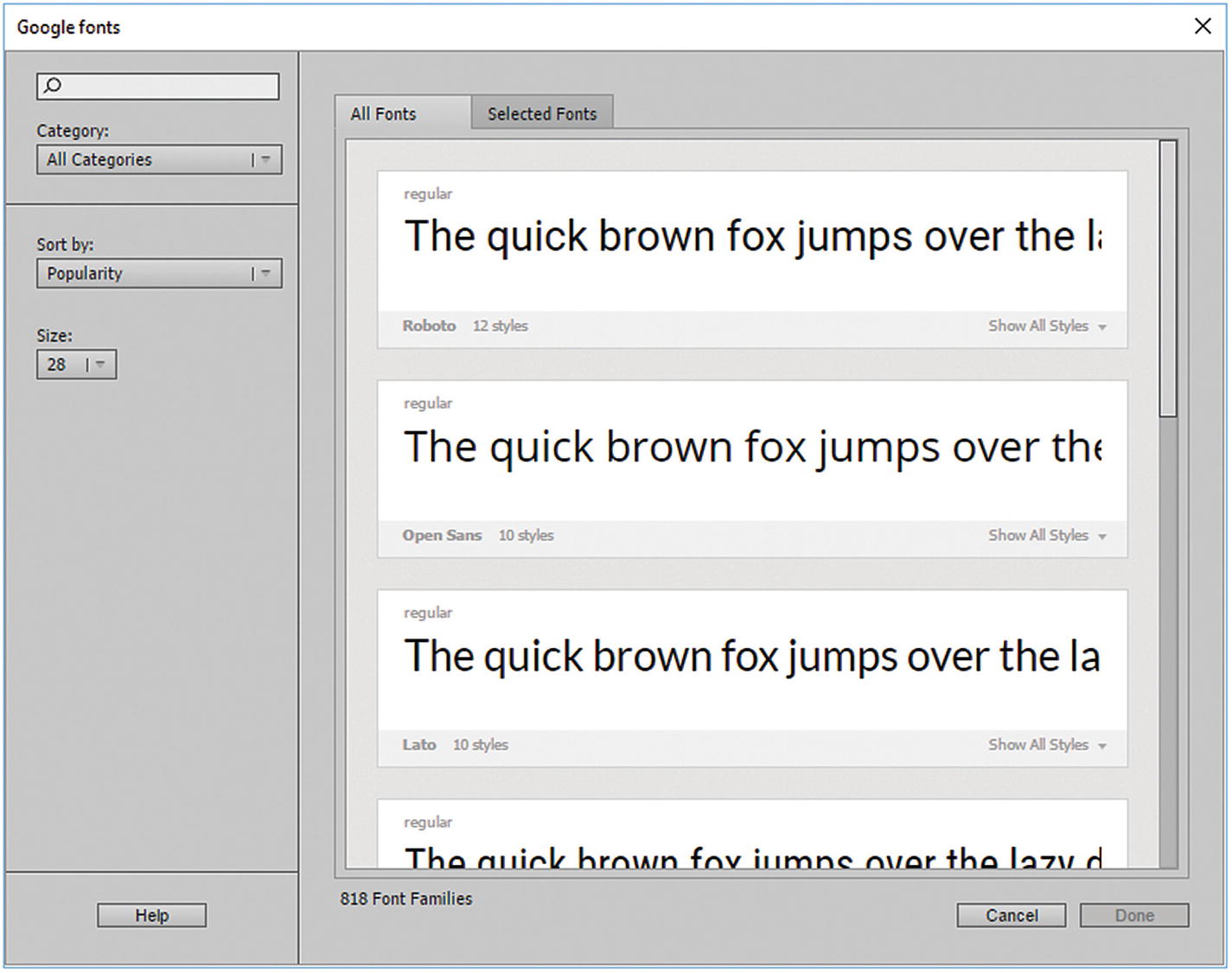
Google Fonts are another dynamic option. Like Adobe Fonts Typekit, you can link or unlink fonts as required. Refer to Figure 23-35.
../images/466782_1_En_23_Chapter/466782_1_En_23_Fig35_HTML.jpg
Figure 23-35

Google font options

For more information on Google fonts, visit https://helpx.adobe.com/animate/using/google-fonts.html .

The Dangers of Flashing Graphics

Animate CC, unfortunately, does not have a section on color blindness to view proofs of your animation. Alternatively, you could bring screenshots of selected frames into Photoshop CC to check how people with color blindness will interpret your animation.

There is another important mater that you need to consider when you are creating animations with frames and moving items: the dangers of flashing graphics . An animated graphic that pulsates on the screen can affect the vision and brain of the viewer. Some people have photosensitive epilepsy (PSE), which causes them to have seizures that are triggered by visual stimuli that form patterns in time or space, such as flashing lights and bold or regular fast pulsating moving patterns.

So as a web designer, you should be aware of this and avoid adding large areas of an animation that flash more than three times in any one second. For more information and the latest criteria, visit https://en.wikipedia.org/wiki/Photosensitive_epilepsy .

Summary

In this chapter, you looked at a few miscellaneous tools, such as brushes, 3D, and web fonts that you can use within Animate for your animation projects. Also, you saw how to create a basic action and where to find commands. You discovered that not everyone sees or experiences graphics the same way as you do, and as a designer, it is your responsibility to make your animations an enjoyable experience to watch.

In the last chapter of Part 4, you are going to put the knowledge that you learned in Animate into practice and create three projects that will be part of the Hot Glass Tango website.