Table of Contents for
Graphics and Multimedia for the Web with Adobe Creative Cloud: Navigating the Adobe Software Landscape

Version ebook / Retour

Cover image for bash Cookbook, 2nd Edition Graphics and Multimedia for the Web with Adobe Creative Cloud: Navigating the Adobe Software Landscape by Jennifer Harder Published by Apress, 2018
  1. Navigation
  2. Cover
  3. Front Matter
  4. Part I. Welcome to the Adobe Creative Cloud. Where Should You Begin?
  5. 1. Entering the Software Maze or Labyrinth
  6. Part II. Working with Photoshop to Create Web Graphics and Animations
  7. 2. Getting Started
  8. 3. Color Choices: CMYK, RGB, Grayscale, and Index
  9. 4. Saving or Exporting Your Files for the Web
  10. 5. Actions to Speed up File Conversion and Slicing Tools
  11. 6. Tools for Animation
  12. 7. Tools for Video
  13. 8. Other Miscellaneous Items in Photoshop That You Can Use for Web Design
  14. 9. Putting It into Practice with Photoshop CC
  15. Part III. Working with Illustrator to Create Web Graphics
  16. 10. Getting Started with Illustrator CC
  17. 11. Color Choices: CMYK, RGB, and Grayscale
  18. 12. Saving or Exporting Your Files for the Web
  19. 13. Actions to Speed up File Conversion and Slicing Tools
  20. 14. Tools for Animation and Video
  21. 15. Other Miscellaneous Items in Illustrator That You Can Use for Web Design
  22. 16. Putting It into Practice with Illustrator CC
  23. Part IV. Working with Animate to Create Animations, Movies, and HTML5 Canvas
  24. 17. Getting Started with Animate CC
  25. 18. Color Choices: RGB
  26. 19. Importing Your Artwork
  27. 20. Import Your Audio and Video
  28. 21. Working with the Timeline Panel
  29. 22. Exporting Your Files to the Web
  30. 23. Other Miscellaneous Items in Animate that You Can Use for Web Design
  31. 24. Putting It into Practice with Animate CC
  32. Part V. Working with Media Encoder to Create Audio and Video Files
  33. 25. Getting Started with Media Encoder
  34. 26. Working with Your RAW Video Files (AVI and MOV)
  35. 27. Working with Your RAW Video Files and Converting Them to Audio
  36. 28. Working with Your RAW Video Files and Converting Them to an Image Sequence
  37. 29. Putting It into Practice with Media Encoder CC
  38. Part VI. Working with Dreamweaver: Adding Images, Animations, and Multimedia to HTML5 Pages
  39. 30. Getting Started with Dreamweaver CC
  40. 31. Working with Images and Tags
  41. 32. Working with CSS
  42. 33. Working with Images for Mobile Web Design
  43. 34. What Is JavaScript?
  44. 35. Working with Bootstrap, Templates, Library Items, and the Assets Panel
  45. 36. Working with Video, Audio, and Animations
  46. 37. Additional Options to Apply Images in Dreamweaver
  47. 38. Final Testing, Getting Ready to Upload Your Site
  48. 39. Putting It into Practice with Dreamweaver CC
  49. Part VII. Further Dreamweaver Integration with Other Adobe Products for Websites
  50. 40. What Other Programs That Are Part of Adobe Creative Cloud Can I Use to Display My Graphics or Multimedia Online?
  51. Back Matter
© Jennifer Harder 2018
Jennifer HarderGraphics and Multimedia for the Web with Adobe Creative Cloudhttps://doi.org/10.1007/978-1-4842-3823-3_31

31. Working with Images and Tags

Jennifer Harder1 
(1)
Delta, BC, Canada
 

In this chapter, you look at how to add images on a page and how to tag elements. You then discover how to add a logo to your browser’s tab and how to use HTML5 resources in the Snippets panel.

Note

This chapter does not have any actual projects; however, you can use the files in the Part 6 folder to practice opening and viewing for this lesson. They are at https://github.com/Apress/graphics-multimedia-web-adobe-creative-cloud .

Now that you have saved your first HTML5 file, let’s look at where you can insert images and how to interact with them on the page.

When you first create a new site in Dreamweaver CC, you need to make sure that you have a local site root folder into which you put all of your HTML pages. Along with pages, it is important to store all of your images within the root folder or root directory along with the index.html file.
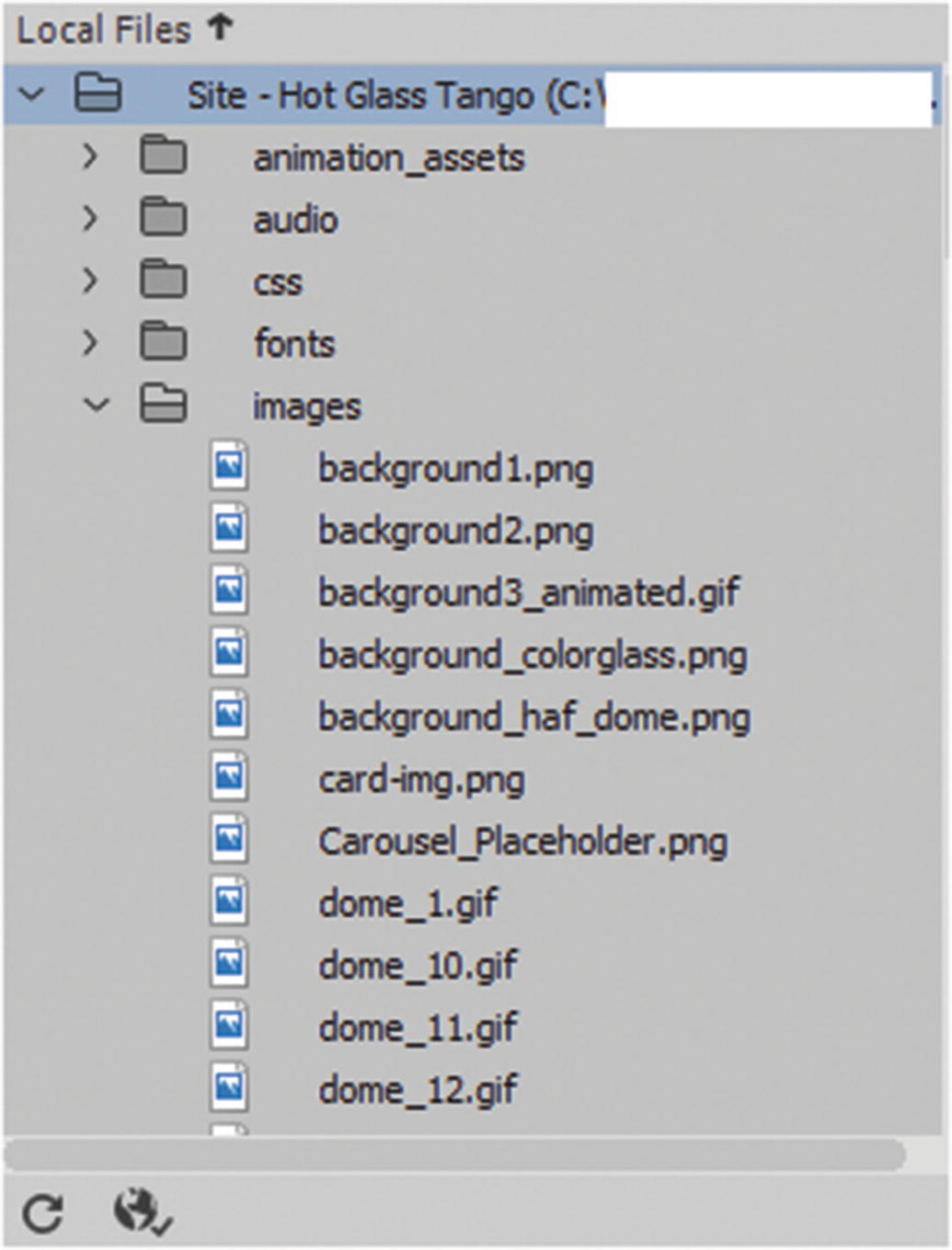
Within the Hot Glass Tango root folder, you find a folder called images, which stores all the images that you have collected for the site. Refer to Figure 31-1.
../images/466782_1_En_31_Chapter/466782_1_En_31_Fig1_HTML.jpg
Figure 31-1

Images for the site are stored in the images folder

The following are the formats that you can include in this folder:
  • Bitmap (.bmp)

  • JPEG (.jpg)

  • PNG (.png)

  • GIF (static and animated) (.gif)

  • SVG (vector) (.svg)

You could also include PDF files in the images folder if you want to; however, if you have any, I recommend saving them in their own folder (e.g., pdf_documents). Either way, make sure to keep the folder name lowercase because some servers do not like the folders to have uppercase letters.
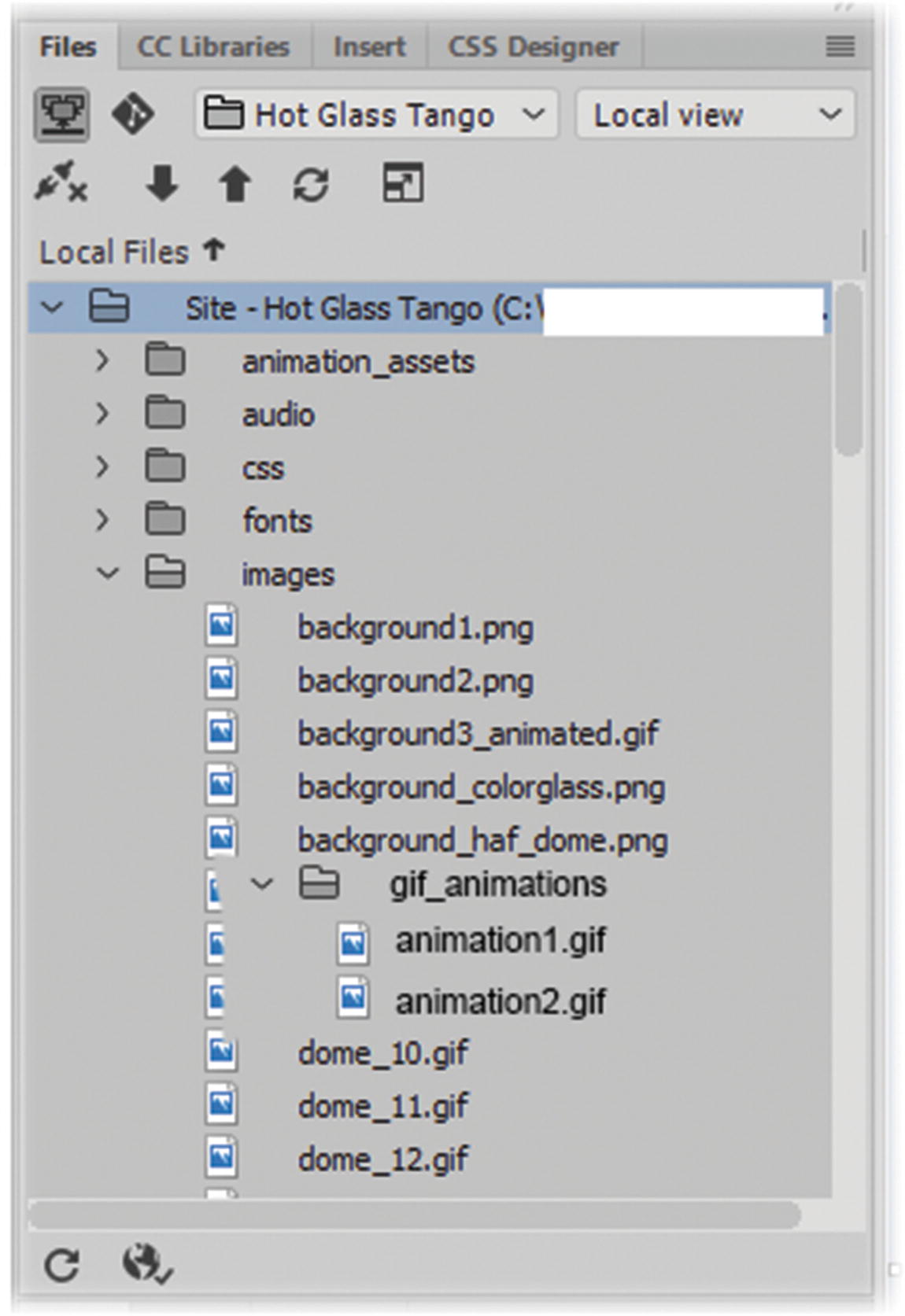
If you have quite a few GIF animations, you may want to create a subfolder called gif_animations, just to keep things organized. Figure 31-2 shows how that might look in the files panel.
../images/466782_1_En_31_Chapter/466782_1_En_31_Fig2_HTML.jpg
Figure 31-2

You can create subfolders within your images folder to keep files separate and organized
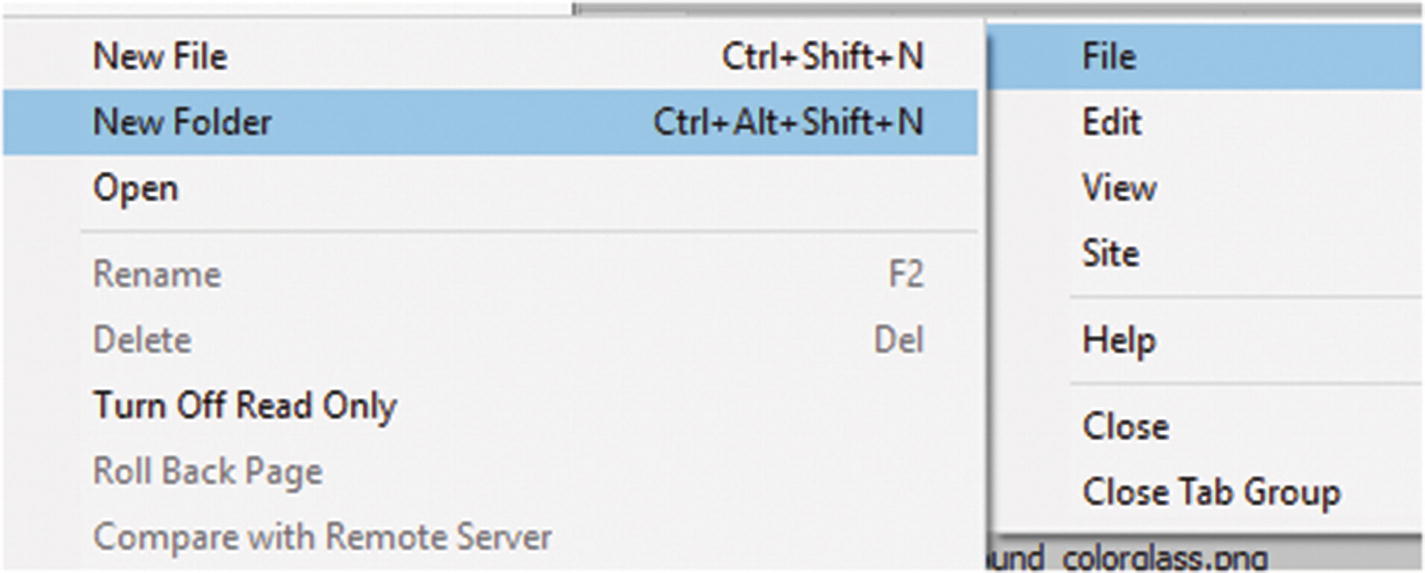
For your own project, if you have not already added an images folder to your root directory, you can do so by making sure that your site folder is selected in the Files panel, and then in its menu on the upper right, choose File ➤ New Folder, as seen in Figure 31-3.
../images/466782_1_En_31_Chapter/466782_1_En_31_Fig3_HTML.jpg
Figure 31-3

You can create subfolders within your images folder to keep files separate and organized

This creates a new folder that you can rename. You can select the images folder and choose File ➤ New folder to create a subfolder, like gif_animations or any name you choose.

Note

When you create a folder or an HTML webpage for your site, you must follow certain naming conventions. Always name the folder or file with lowercase letters and without spaces. Start with a letter. Do not use special characters. You can use numbers, hyphens, underscores, and periods. For instance, you can use an underscore (_) if you require a space for the words. Finally, keep the file names short. Many operating systems are case sensitive. If you have a file called AboutMe.html and another called aboutme.html, the server might become confused about which to display. So proper naming conventions are important. The same is true for image links. There are some folders that Dreamweaver CC creates and allows to be capitalized, which you look at when you review templates and library items in Chapter 35. The names of those folders should not have lowercase letters because corruption of the folder and other files linked to them can occur. If Dreamweaver names or creates the folder, it’s probably best to leave it as it is.

Adding More Images to the Folder
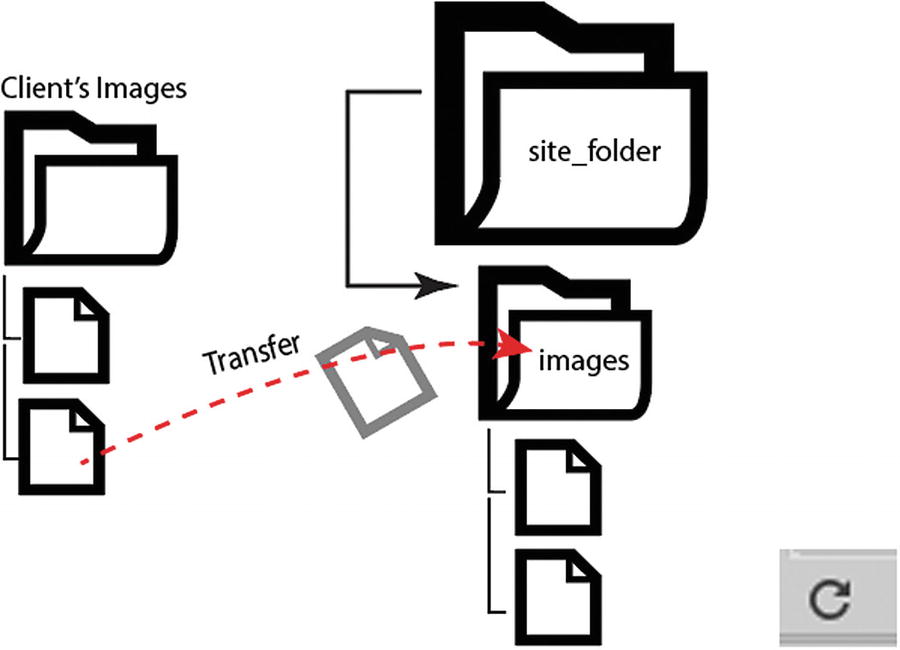
At this point in the Hot Glass Tango project, all the images are already in the images folder. If you want to add more images, use your computer’s File Explorer feature to locate the images. Copy and paste these images into the site’s images folder or subfolders, and then return to Dreamweaver. Click the lower Refresh icon in the Files panel so that you can see that they were added to images folder. Refer to Figure 31-4.
../images/466782_1_En_31_Chapter/466782_1_En_31_Fig4_HTML.jpg
Figure 31-4

Add images to your site, then use the refresh icon at the bottom on the files panel so that you can see them
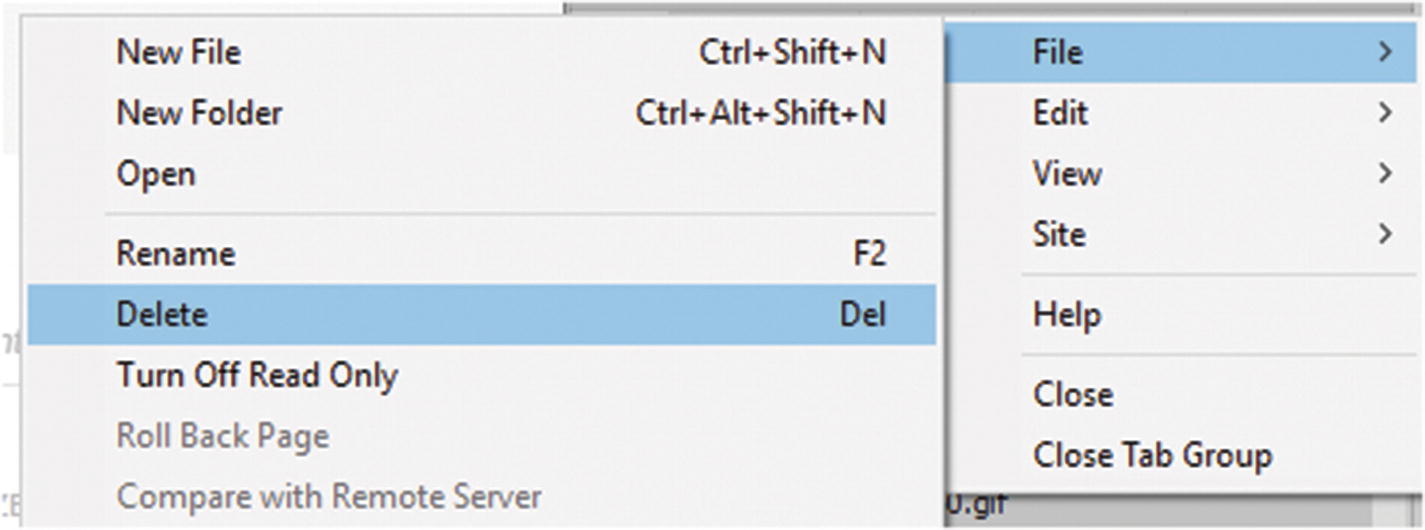
You can use the Files panel to move your images from one subfolder to the next. What you move or delete in the Files panel directly affects your files and their hierarchy, so when you delete an image file (File ➤ Delete), make sure that you have a backup in case you need to add that file again. Refer to Figure 31-5.
../images/466782_1_En_31_Chapter/466782_1_En_31_Fig5_HTML.jpg
Figure 31-5

The Files panel has options for editing and deleting files

When you are creating a new site, your first HTML page or homepage, is index.html, which is a common name for sites on servers. This is known as your default page and all sites should have one. When a user types in www.​mysite.​com, this automatically takes them to the index.html page. Users do not have to type www.​mysite.​com/​index.​html.

This is because the browser knows that if it locates the index.html page, it is the website’s homepage and that is the starting point. If you were to call your default page home.html instead of index.html, your browser would become confused and would not be able to locate the main page when www.​mysite.​com is typed in. The user might receive a message like “Cannot locate this page…”, which is not what you want. The only way to access this page is to type www.​mysite.​com/​home.​html,; this just adds length to an already long name. The point is, whatever the first page of your site represents, it should be called index.html to avoid browser confusion. Having said that, any HTML page you create can contain images.

The pages in Hot Glass Tango use a template that I modified with a Bootstrap layout, which uses viewports and makes the site mobile-friendly. If you would like to know more about templates, I discuss them in more detail in Chapter 35. For now, you’ll just focus on the blank page you created in Chapter 30. You can also read Adobe Dreamweaver CC Classroom in a Book by James J. Maivald for a more in-depth review of templates.

Inserting Images on an HTML Page
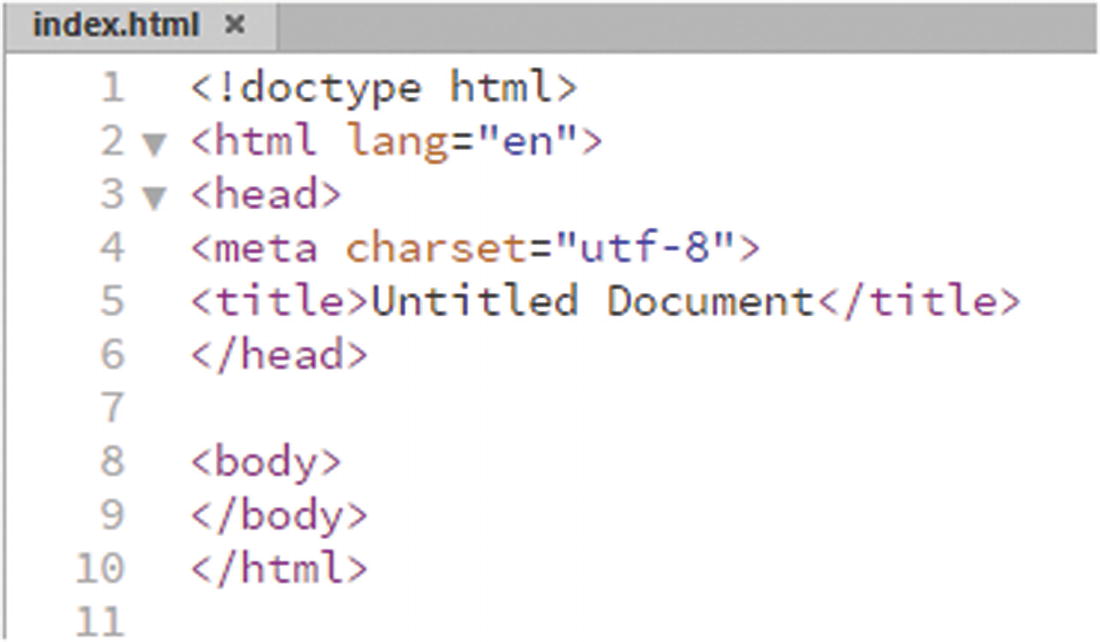
Figure 31-6 shows a new blank HTML5 webpage in Code view.
../images/466782_1_En_31_Chapter/466782_1_En_31_Fig6_HTML.jpg
Figure 31-6

The HTML5 blank document

In Dreamweaver’s Design view, you see what is going on in the <body> </body> tags. Currently, there is no content between the <body> tags, so no content displays on your webpage; the page is white. The Hot Glass Tango about.html page has at least three images within various <div> tags.

To add images to a blank area on a page, you can point your cursor between the body tags (<body> </body>) or <div> tags in Code view, or click the cursor on a blank area of the page in Design view. Either way gets the same result.

Insert Panel
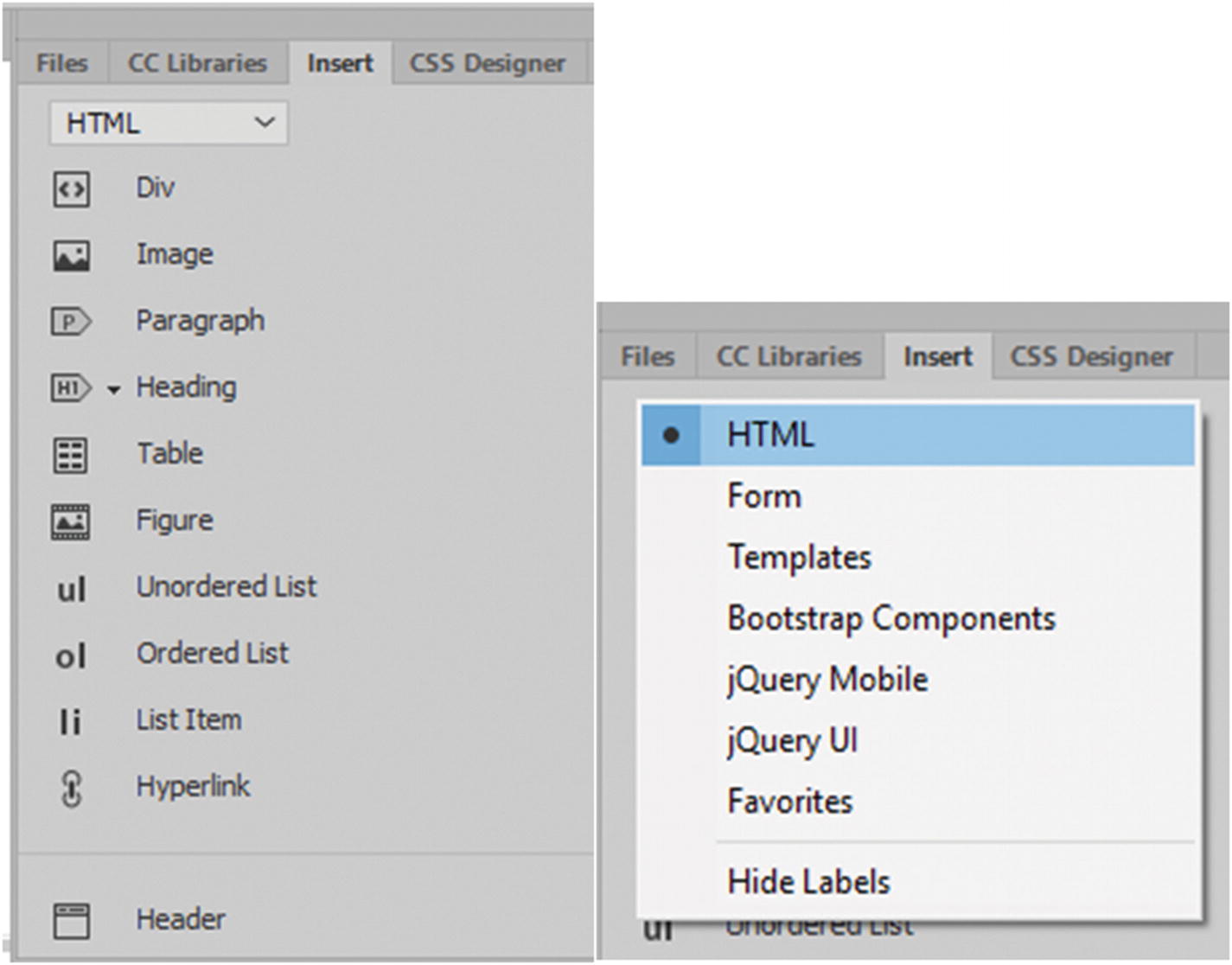
Now locate the Insert panel . Make sure that you’re in the HTML tab in the upper left. Refer to Figure 31-7.
../images/466782_1_En_31_Chapter/466782_1_En_31_Fig7_HTML.jpg
Figure 31-7

The Insert panel with its tab to display various options
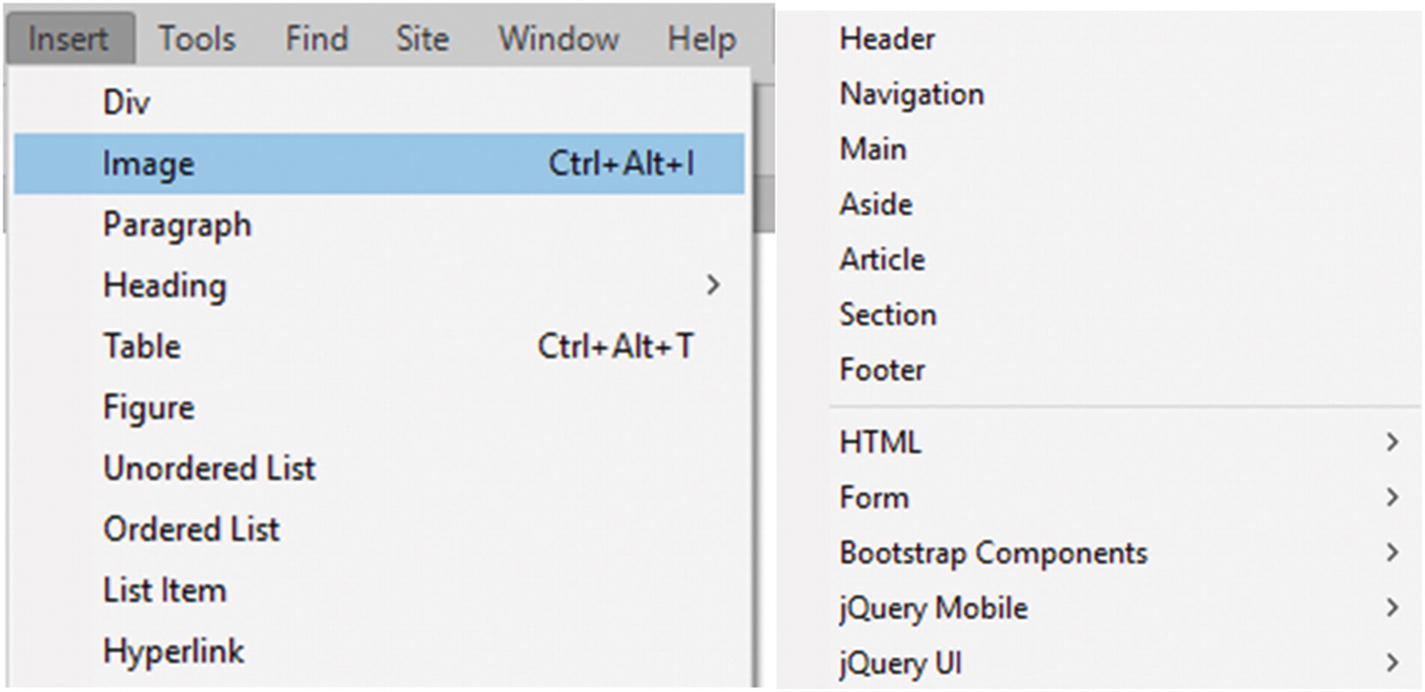
The Insert panel is very much like the Tools panel in other Adobe programs in that houses many of the HTML tags and widgets that you require for designing your website. You can quickly insert short code for images or tables into your pages. Because there are so many, they have been organized in various tabs so that they are easier to locate. In this panel, you can create your own custom favorites to make the search easier. You can also find them in the main menu in the Insert area, should you prefer that workflow method instead. Many of the commonly used ones are at the top of the list. Refer to Figure 31-8.
../images/466782_1_En_31_Chapter/466782_1_En_31_Fig8_HTML.jpg
Figure 31-8

All the items in the Insert panel are also in the main menu Insert drop-down

You choose how to access your images for insertion.
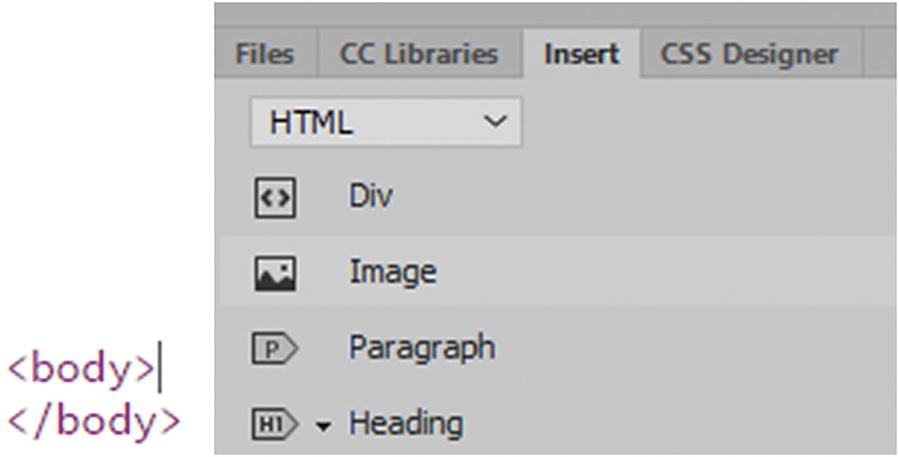
Back at the Insert panel, with your cursor still blinking on the page within the tag, click the Image icon. Refer to Figure 31-9.
../images/466782_1_En_31_Chapter/466782_1_En_31_Fig9_HTML.jpg
Figure 31-9

Insert an image using the Insert panel

This automatically brings up the Select Image Source dialog box, where you can locate and insert files. Refer to Figure 31-10.
../images/466782_1_En_31_Chapter/466782_1_En_31_Fig10_HTML.jpg
Figure 31-10

Locate the image file that you want to insert

The following files can be inserted:
  • JPEG (.jpg, jpeg)

  • PNG (.png)

  • GIF (static and animated) (.gif)

  • SVG (scalable vector graphic) (.svg) can be created and edited within Dreamweaver (File ➤ New SVG document).

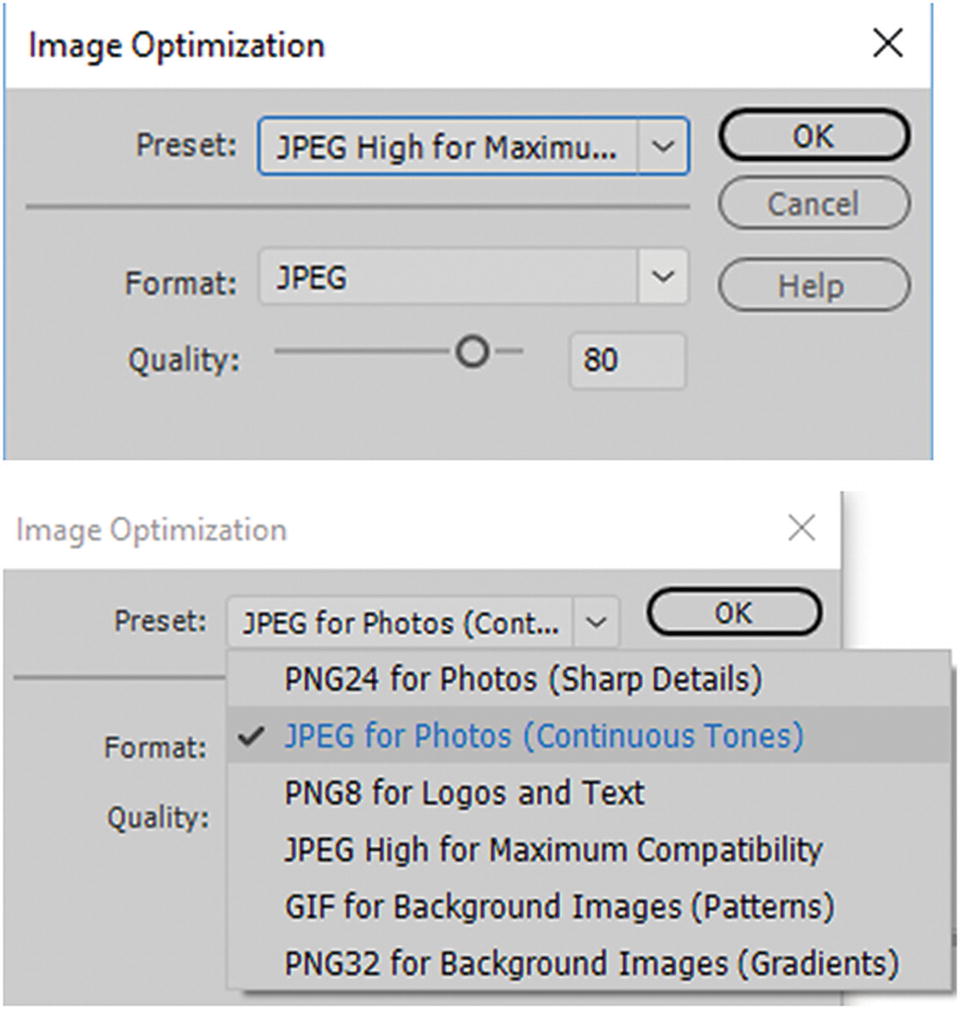
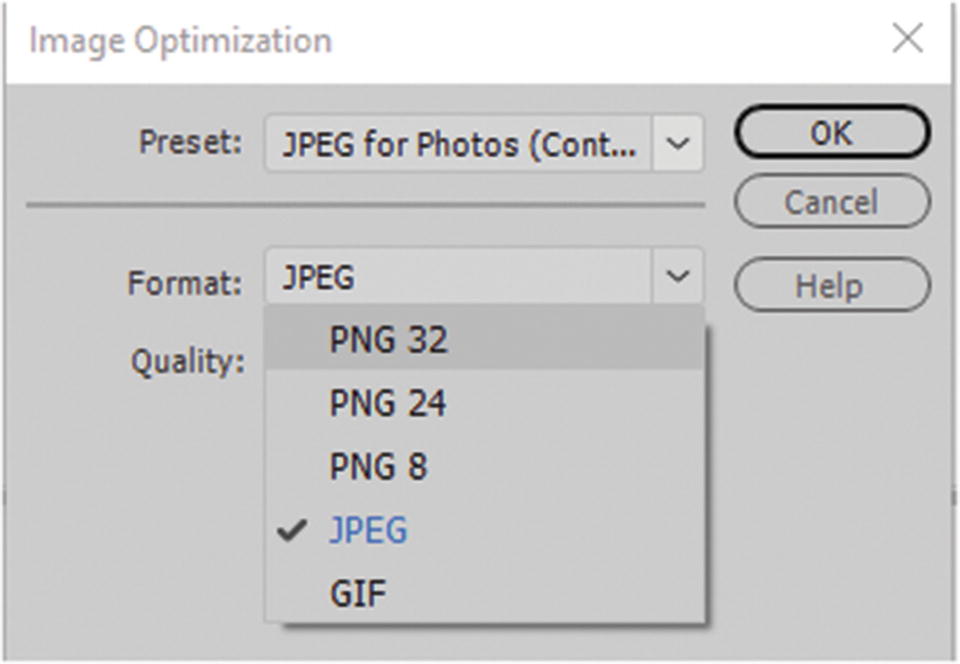
  • PSD (Photoshop Document) (.psd) is used for extraction purposes. When you use this method of inserting, it automatically chooses the import option of JPEG, GIF, or PNG 8, 24, 32; any preset in the preset list; or any format from the format drop-down menu. Refer to Figure 31-11 and Figure 31-12.
../images/466782_1_En_31_Chapter/466782_1_En_31_Fig11_HTML.jpg
Figure 31-11

Image Optimization preset options for a JPEG file that was originally a PSD
../images/466782_1_En_31_Chapter/466782_1_En_31_Fig12_HTML.jpg
Figure 31-12

Image Optimization Format options for an image file that was a PSD

This is a wonderful way to quickly import a graphic without reverting to Photoshop; however, in most cases, it is better to work in your native program. To get the ideal setting and decrease load time for your image assets, use your export settings, like Save For Web in Photoshop, Illustrator, Animate, or Media Encoder. Many of these settings are referenced in Chapters 4, 12, 22, and 28.
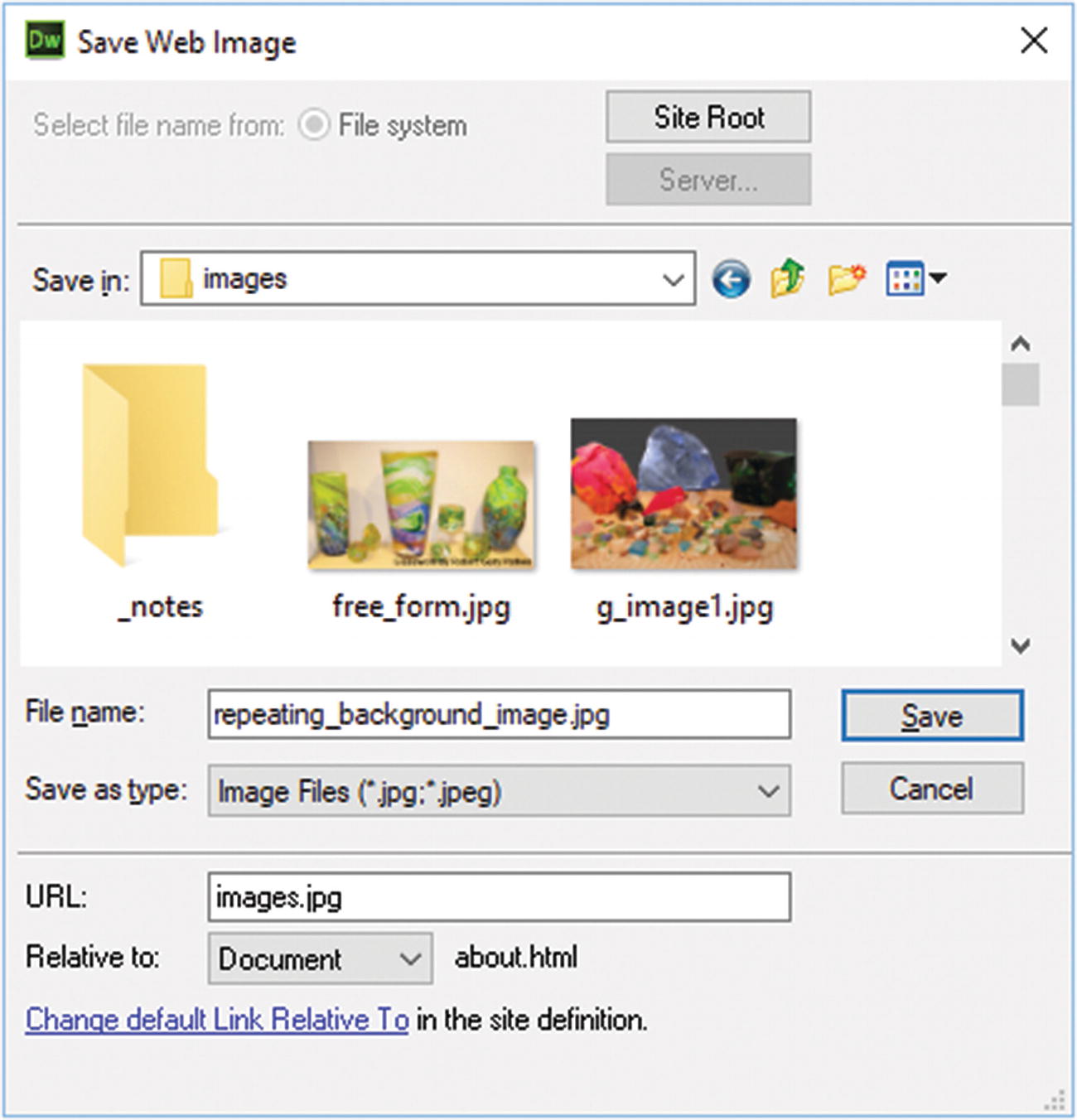
Once you click OK to a PSD file, you can locate the images folder and save in that location. Refer to Figure 31-13.
../images/466782_1_En_31_Chapter/466782_1_En_31_Fig13_HTML.jpg
Figure 31-13

The newly created JPEG image is saved in the images folder

This image is added as a Sync image. If changes are made, Dreamweaver detects them.

Note

The bitmap or (.bmp) is not included here as an insert option. The bitmap file is quite large, and it is better to use one of the other formats for your project. However, if you want to include this file, select All Files from the drop-down list so that it is viewable in your image search. Width and height are not recorded; you have to enter them manually in Code view or use the Properties panel. And you do not have access to certain image editing features that are available to other formats.

Once you have selected an image from your image folder, click OK to insert it onto the page. Refer to Figure 31-14.
../images/466782_1_En_31_Chapter/466782_1_En_31_Fig14_HTML.jpg
Figure 31-14

Click OK when you have selected the image you want to insert into the webpage
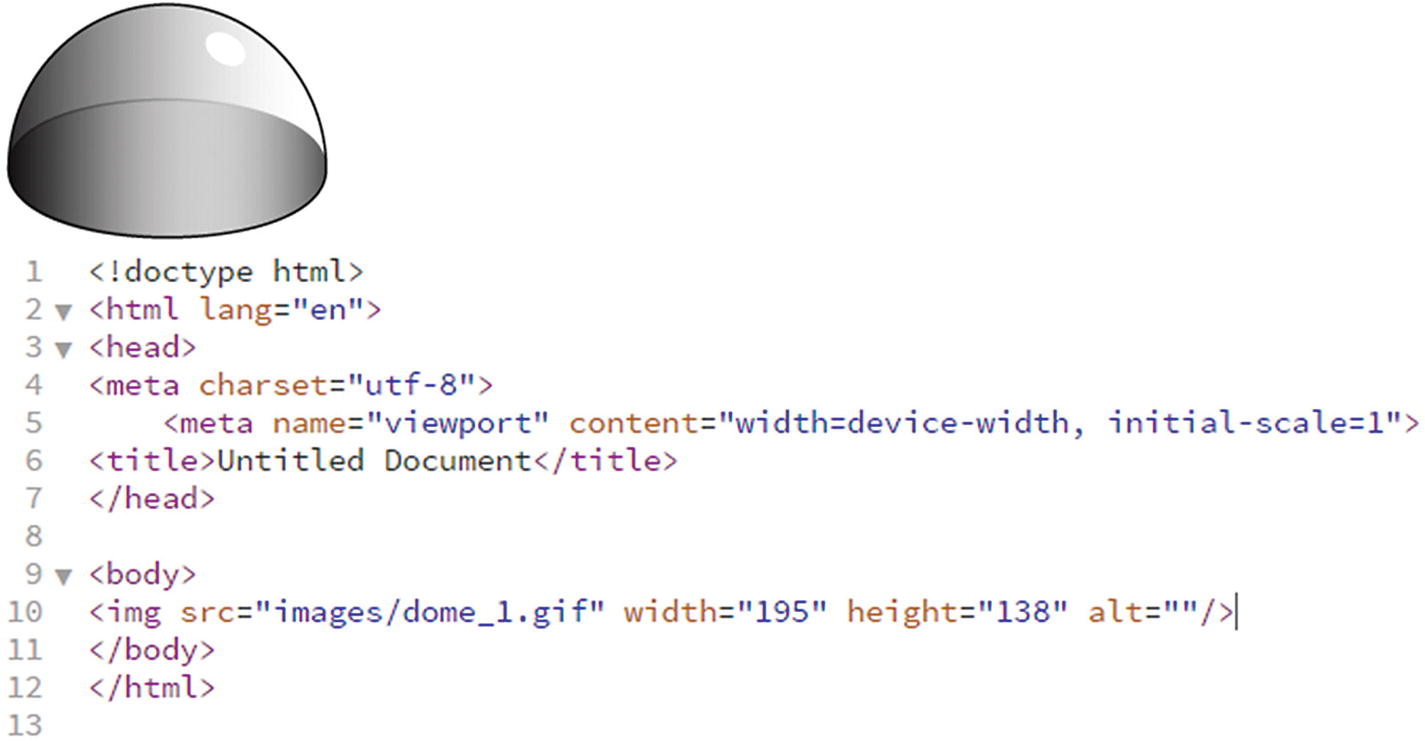
If you review the file in Split view, you see that the image tag <img/> is added to the page. Refer to Figure 31-15.
../images/466782_1_En_31_Chapter/466782_1_En_31_Fig15_HTML.jpg
Figure 31-15

The image in Design view and the resulting code in Code view

<img src="images/dome_1.gif" width="195" height="138" alt=""/>
The image tag has no opening or closing tags; instead, it is self-closing or contained. When inserting an image, no matter what image type is chosen, there are generally four important attributes within the tag.
  • src: The source link to the image in the images folder.

  • width: The width of the image in pixels.

  • height: The height of the image in pixels.

  • alt: The alternate text. If the image does not load or people with visual disabilities need to read with a screen reader, this has the text that describes the image.

Example: <img src="images/dome_1.gif" width="195" height="138" alt="A clear glass dome paperweight."/>

If you don’t want to add any text, leave this attribute empty. However, do not delete or remove the alt attribute from your image tag or else you get a warning when you validate your page, as you see later. A good practice is to always have alt attributes for your images. Missing alts can affect your site’s rank and make it difficult for search engines to locate keywords that would bring more viewers. You can do the same with a PNG or JPEG.

Working with SVG Images

When you insert SVG files, you do not see a width or height attribute because scalable vector graphics are meant to size to whatever area they are placed into without losing quality. If you have used the setting of responsive within the SVG, then your image is able to scale up or down to fill an area on your page. You cannot simply insert an <svg> tag on a page and expect it to display.

You could insert an SVG as an image, but it can only be viewed in Live view; otherwise, it appears as a broken image.
<img src="images/sale_asset_1.svg" alt=""/>
Refer to Figure 31-16.
../images/466782_1_En_31_Chapter/466782_1_En_31_Fig16_HTML.jpg
Figure 31-16

An SVG appear as a broken image in Design view on a webpage

A better way to work with an SVG is to insert it into a <div> tag so that you can scale the width and height of the <div> with CSS, or to wrap it within an <object> tag, as you can see on the contact.html page in Live view.
<object id="EdgeID2" type="text/html" width="500" height="500" data-dw-widget="Edge" data="images/sale_asset_1.svg">
              </object>

The object tag allows you to keep the interactivity of the SVG. You can apply CSS to adjust scaling. Adding width and height constrains how much the object can scale.

Note

You use the object tag again when you insert an OAM (animated composition) in an HTML5 Canvas file in Chapter 36.

Two other tag methods you could try are <embed>, which creates a container for external applications or plug-in content, and <iframes>, which creates an inline frame. Both of these allow you to keep your interactivity of your SVG; however, the iframe may require CSS to make it responsive. You can see the code here:
<embed src="images/sale_asset_1.svg ">
<iframe src="images/sale_asset_1.svg "></iframe>

Properties Panel

For the moment, let’s focus on GIF, JPEG, and PNG image formats while working with the Properties panel.

You can alter or add settings to your image tag in the Properties panel. Refer to Figure 31-17.
../images/466782_1_En_31_Chapter/466782_1_En_31_Fig17_HTML.jpg
Figure 31-17

The Properties panel when an image is selected in Design view

The Properties panel shows a preview of the image and its file size. (SVG and bitmap do not show a preview image here).
  • ID attribute: Useful for formatting with CSS and JavaScript, which you’ll look at in Chapter 34.

  • src: Browse for a new source file to replace the old one using the Folder icon or point to it by dragging the target to a file located in the Folder panel. If you are not careful, you could point to the wrong file. I personally like to browse via folder to save time.

  • Link: Adds a URL to the current file; it can be internal, external, or even an email.

  • Class: Allows you to format the image further with CSS classes, as you look at in Chapter 32.

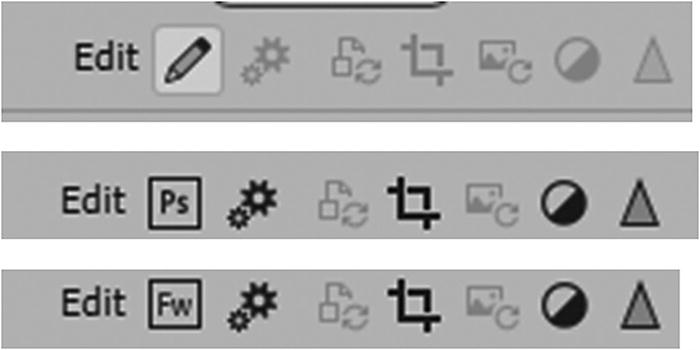
  • Edit: Allows you to edit the image in the program of your choice or do some basic edits using one of six tools. Be aware that not all tools are available to all images. You are editing the actual file and not a copy of it, so any changes made are permanent to that file. It is better to make changes to a copy or go back to the original RAW image (PSD, AI, EPS), and then save a new copy in the same format. That way, if you want to revert, you have not destroyed the original image. Refer to Figure 31-18.
../images/466782_1_En_31_Chapter/466782_1_En_31_Fig18_HTML.jpg
Figure 31-18

The Properties panel Quick Edit icons for various images

Some quick area tools include going back to the native program to work on the file. When you do this, make sure to keep your files in the correct folder; the editing program will show a warning if it can’t locate the original file because the link was altered.
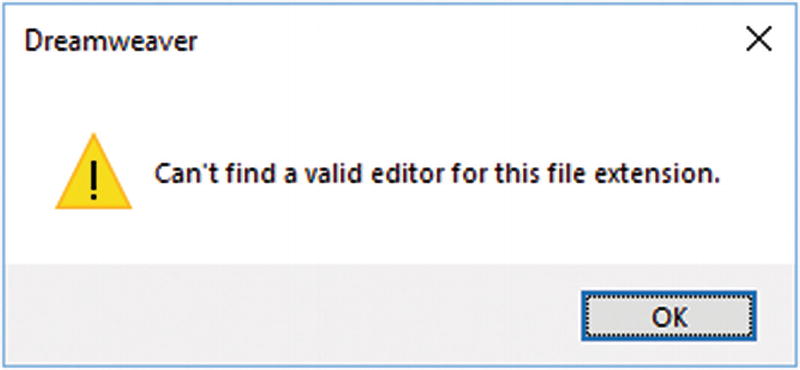
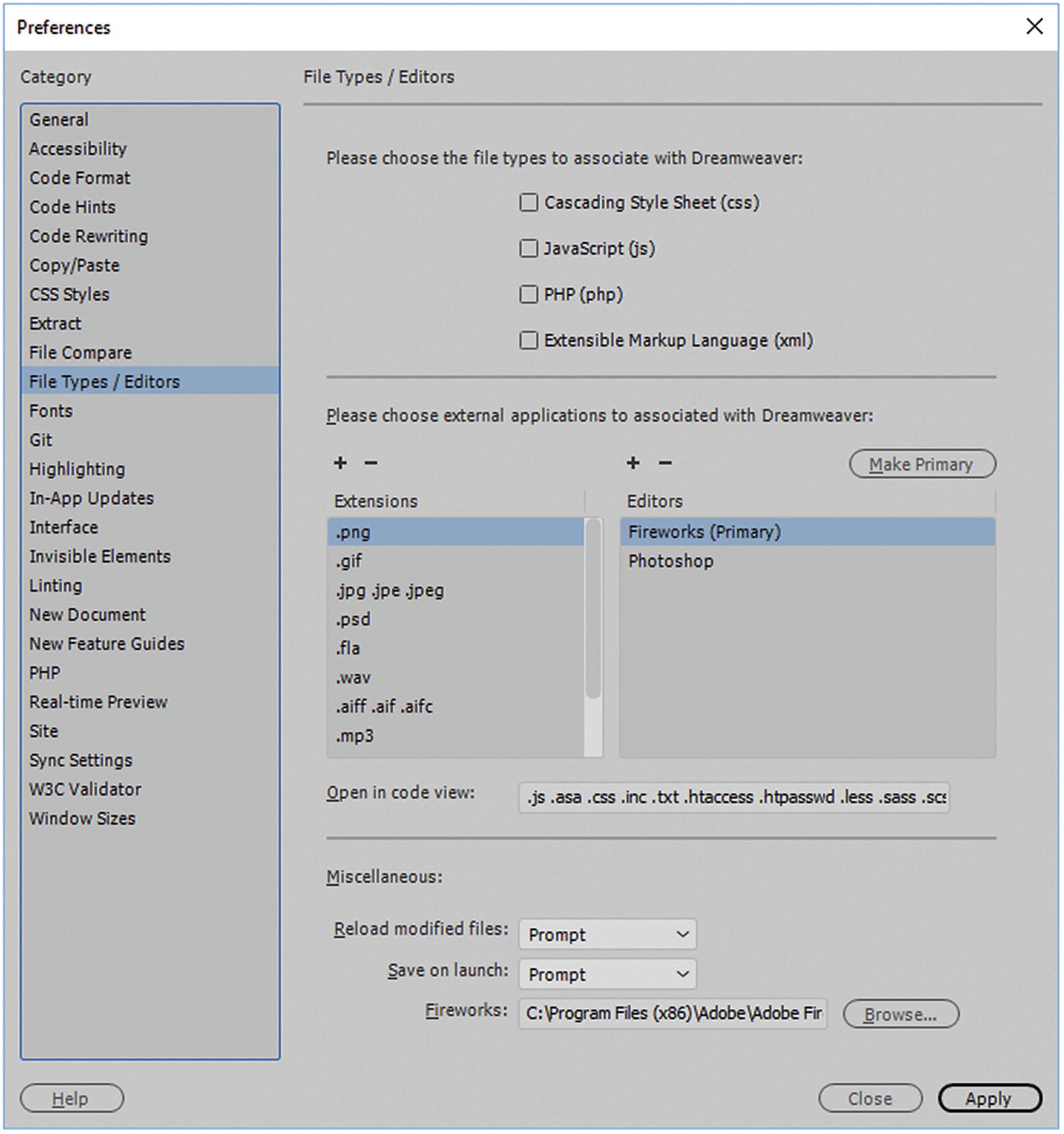
If Dreamweaver does not know which program to edit the file in, it shows a Pencil icon. If you want to set a program that Dreamweaver automatically opens, click the Pencil icon; this shows an alert that you can click OK to and then enter Edit ➤ Preferences ➤ File Types and Editors. Refer to Figure 31-19 and Figure 31-20.
../images/466782_1_En_31_Chapter/466782_1_En_31_Fig19_HTML.jpg
Figure 31-19

A warning appears when you search for a valid editor and the file extension is not known by Dreamweaver
../images/466782_1_En_31_Chapter/466782_1_En_31_Fig20_HTML.jpg
Figure 31-20

The Preferences allow you to add a new extension and editor to the list or decide what should be the primary editor

You can add extensions that are not listed in this area (using the plus icon) and set your editor for the file format by setting one in the list to Make Primary (editor) or adding a new editor using the plus symbol once done click Apply and then close. With GIFs or JPEGs, Photoshop is your primary editor. However, if you have an older version of Fireworks on your computer, a PNG file might show up instead. You can resolve this in Preferences by making Photoshop the primary editor. If there is no editor for an SVG file, you could add one.

You also have access to some Quick Edit options (rather than entering the original program). Refer to Figure 31-21.
../images/466782_1_En_31_Chapter/466782_1_En_31_Fig21_HTML.jpg
Figure 31-21

Quick Edit options in the Properties panel

Remember that Quick Edits alter your images permanently; make sure you have a backup of these images in another folder, should you need to revert to an original state.

Image Optimization
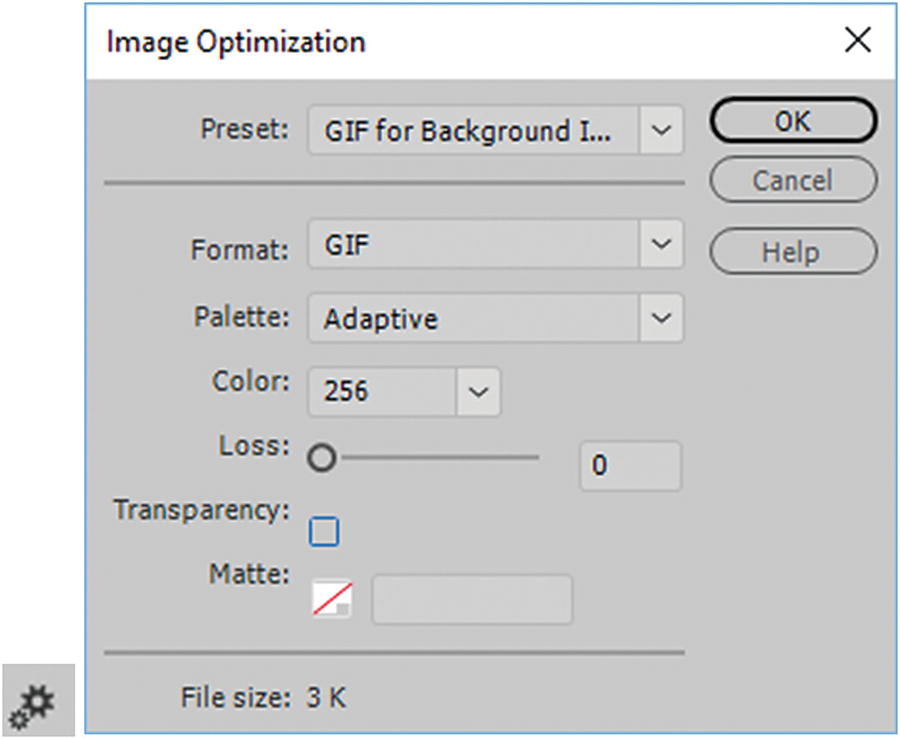
Here you can alter the image optimization settings to the current (.gif) image or change it to another format. Doing so may degrade the quality of the image. Refer to Figure 31-22.
../images/466782_1_En_31_Chapter/466782_1_En_31_Fig22_HTML.jpg
Figure 31-22

Image Optimization dialog box appears for the selected image from the Properties panel icon

Update From Original

When the image on the Dreamweaver page is out of sync with the original Photoshop file, Dreamweaver detects that the original file has been updated. The application displays one of the Smart Object icon’s arrows in red. When you select the web image in Design view and click the Update from Original button in the Property Inspector, the image updates automatically. The updated image reflects the changes that you made to the original Photoshop file. Note that if your image was not synced with Photoshop, then this option is not available. You need to update the file manually by going back to the original image in Photoshop and relinking the updated image to the source. Refer to Figure 31-23.
../images/466782_1_En_31_Chapter/466782_1_En_31_Fig23_HTML.jpg
Figure 31-23

Image Sync icon

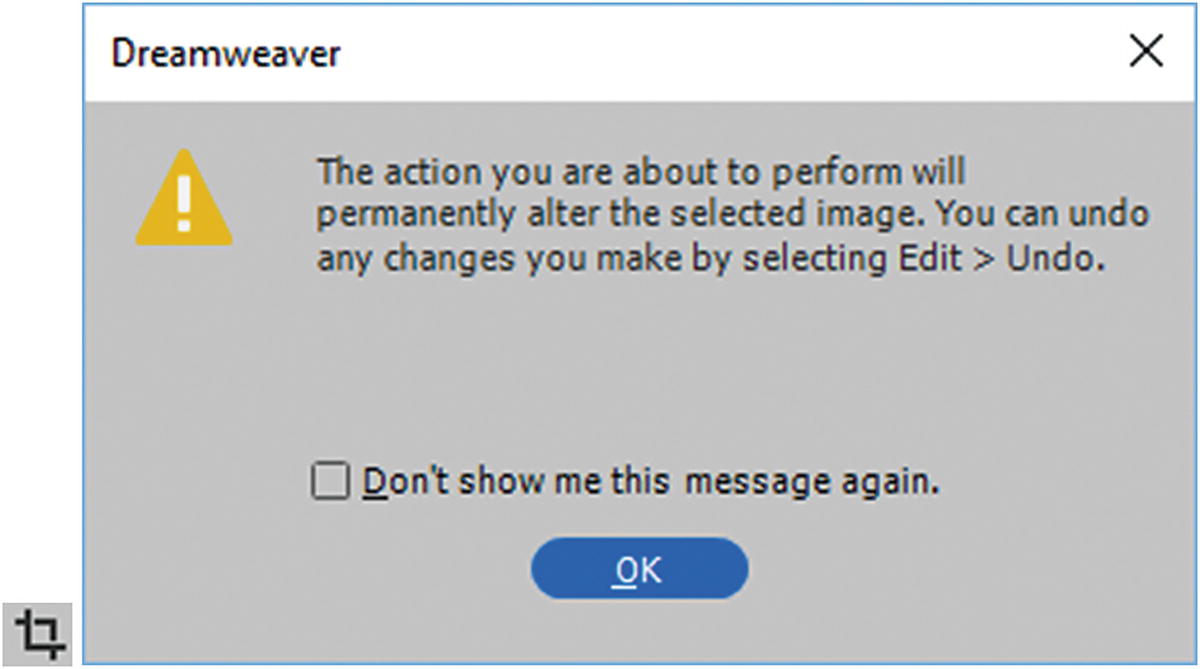
Crop

Crop edits images by reducing the area of the image. You can use crop or remove unwanted aspects surrounding the center of interest. This can make the image stand out better, but it alters the dimensions of the image permanently, which you may not want. Refer to Figure 31-24.
../images/466782_1_En_31_Chapter/466782_1_En_31_Fig24_HTML.jpg
Figure 31-24

When Crop from the Quick Edits is clicked, a warning appears
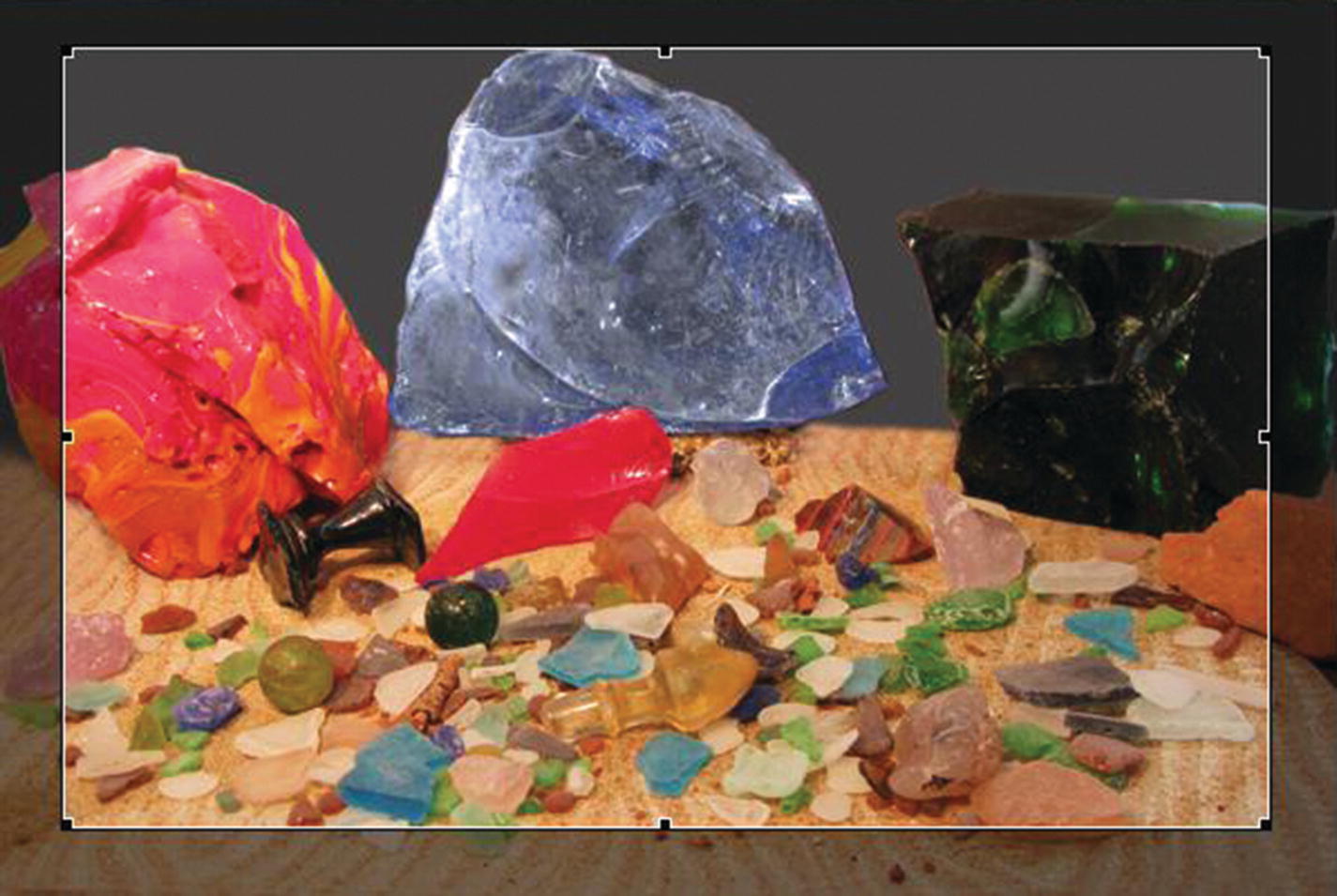
This draws a crop area around the image. In Design view, you can move the crop box around and then hit the Crop Mark icon in the Properties panel to confirm. If you realize you made a mistake, choose Edit ➤ Undo right way to undo your crop and restore and revert the image. Refer to Figure 31-25.
../images/466782_1_En_31_Chapter/466782_1_En_31_Fig25_HTML.jpg
Figure 31-25

The Crop preview, to revert you must choose Edit ➤ Undo right away

Resample

This setting adds or subtracts pixels from resized JPEG and GIF image files to match the appearance of the original image as closely as possible. Resampling an image reduces its file size and improves download performance, but not quality.

When you resize an image in Dreamweaver, you can resample it to accommodate its new dimensions. When a raster object is resampled, pixels are added to or removed from the image to make it larger or smaller. Resampling an image to a higher resolution typically causes a little loss of quality. Resampling to a lower resolution, however, always causes data loss and usually a drop in quality. When you select an image in Design view and move its handle to a smaller or larger size, it alters the width and height and makes the Resample icon available. Refer to Figure 31-26.
../images/466782_1_En_31_Chapter/466782_1_En_31_Fig26_HTML.jpg
Figure 31-26

Resample an image

Clicking the Resample icon confirms the resample and sets the new setting. As with cropping, if you realize you made a mistake after you click OK, choose Edit ➤ Undo to restore and revert the image. Be aware that if you scale an image smaller, and then change your mind and make it larger again, the file is degraded, and you likely need to start a new copy of the original.

Brightness/Contrast
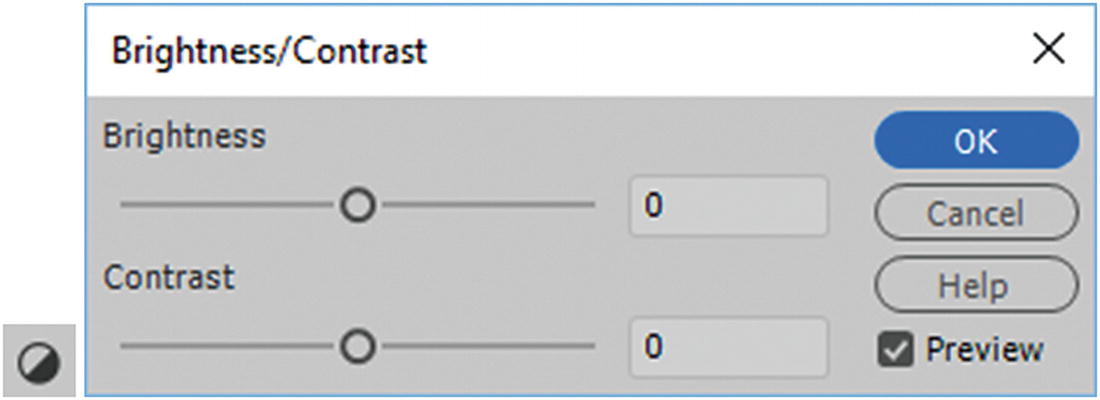
Modifies the contrast or brightness of pixels in an image. Brightness and contrast affect the highlights, shadows, and midtones of an image. You typically use the Brightness/Contrast option when correcting images that are too dark or too light. If you realize you made a mistake after you click OK, choose Edit ➤ Undo to restore and revert the image. Refer to Figure 31-27.
../images/466782_1_En_31_Chapter/466782_1_En_31_Fig27_HTML.jpg
Figure 31-27

Adjust the brightness and contrast of an image

Sharpen

Adjusts the focus of an image by increasing the contrast of edges found within the image. When you scan an image or take a digital photo, the default action of most image capturing software is to soften the edges of the objects in the image. If softened too much, the image appears blurry. Ideally, the scanning prevents extremely minute details from becoming lost in the pixels from which digital images are composed.

To bring out the details in digital image files, it is often necessary to sharpen the image. The Sharpen option increases the edge contrast, making the image appear sharper. that too much sharpening can make your image appear overly pixilated which may not be what you want. For ideal images, always start your project with high-quality photos from the client.
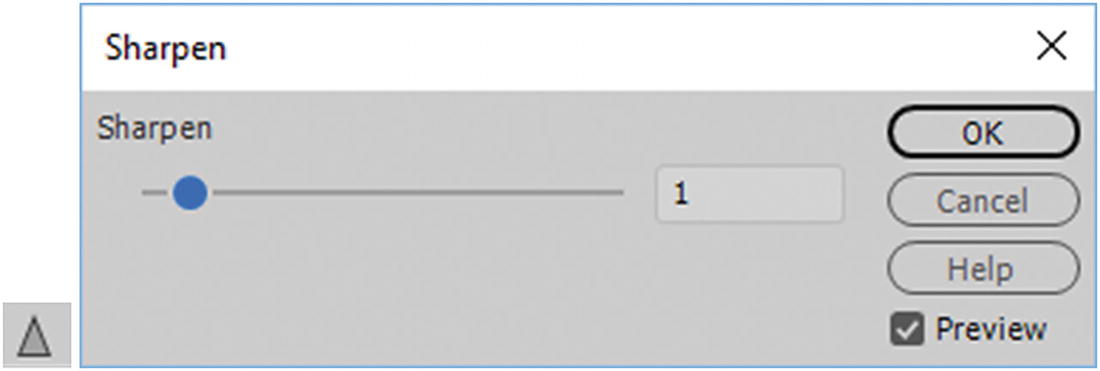
If you realize you made a mistake after you click OK, choose Edit ➤ Undo to restore and revert the image. Refer to Figure 31-28.
../images/466782_1_En_31_Chapter/466782_1_En_31_Fig28_HTML.jpg
Figure 31-28

Sharpen an image

Width and Height

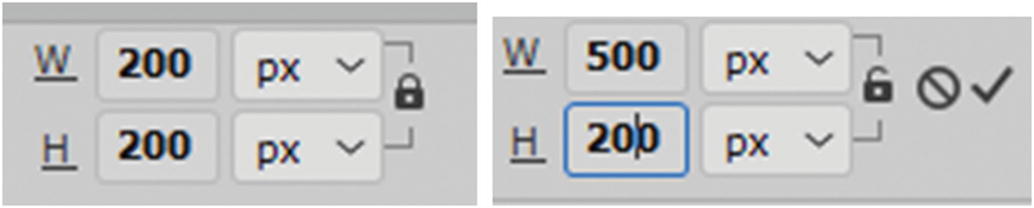
This displays the current width and height of the image in pixels by default, but you can switch to percentage (%), which may be better for working with a mobile site via the drop-down menus. You can type in a new width and height which be scaled proportionately if the lock symbol remains in the lock state. If you do not click the check box to confirm this change, it does not affect the original image. You can revert by clicking the Reset To Original Size icon to restore the original width and height settings. Refer to Figure 31-29.
../images/466782_1_En_31_Chapter/466782_1_En_31_Fig29_HTML.jpg
Figure 31-29

Adjust the width and height of the image and then either revert back to the original size or click the check to confirm the changes

In Part 6, you see how to use CSS to scale an image proportionally to various sizes and make it responsive for different devices in the browser without loss of quality.

Alternate Text

You can add alt image text and a title with this option. Alt (alternate text) adds context if your images for screen readers or if the images link is broken and does not appear. The title attribute acts in the same way. Some browsers prefer the title attribute over the alt attribute, so it is best practice add both. However, unlike the alt tag, the title may not appear if the image does not display. Figure 31-30.
../images/466782_1_En_31_Chapter/466782_1_En_31_Fig30_HTML.jpg
Figure 31-30

Add alt and title attributes for your images

The last area in the Properties panel deals with image maps, which you look at in a moment. This is like a URL link that is added over the top of an area in a photograph. This area in the Properties panel only displays when in Design view and the image that you plan to add the map to is selected. You looked at image maps briefly in Chapter 13. Refer to Figure 31-31.
../images/466782_1_En_31_Chapter/466782_1_En_31_Fig31_HTML.jpg
Figure 31-31

Image map icons

Before you look at that tag in detail, you need to continue exploring other tags that you can add your images to.

Adding Images Inside Various Tags
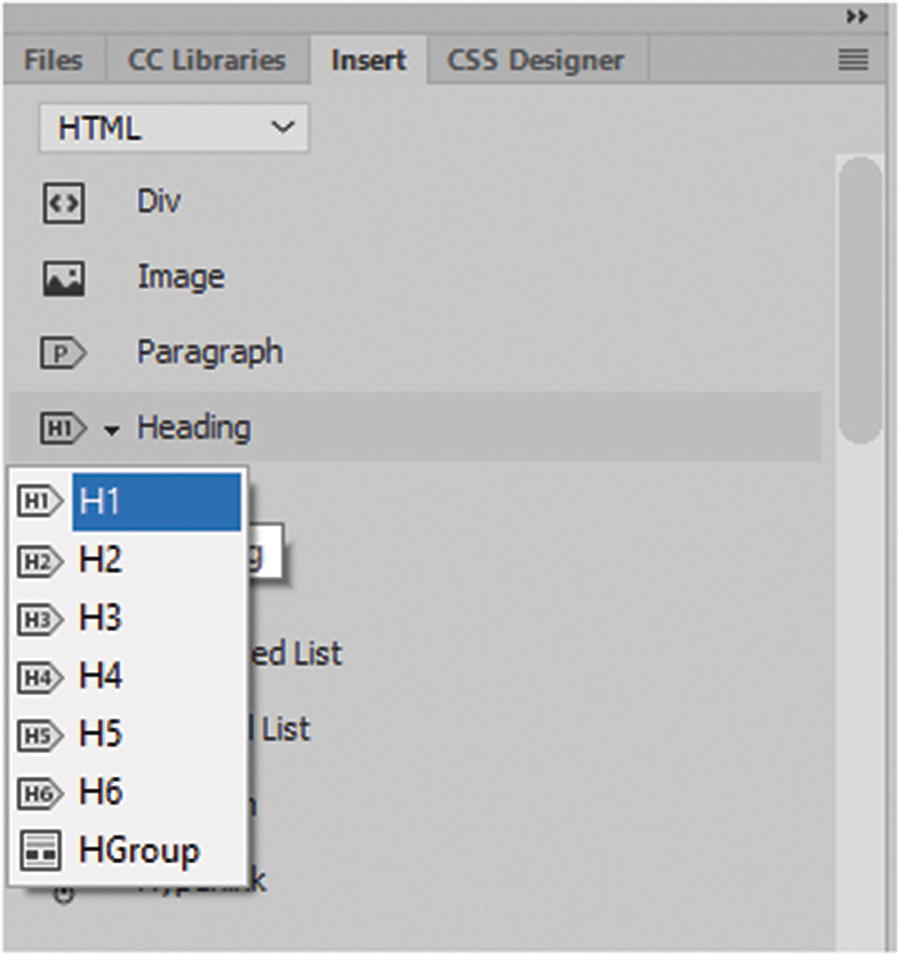
Within the <body> tags, you can add text (<h1><h2><h3><h4><h5><h6><p>) and images (<img/>) as many times as you want. Refer to Figure 31-32.
../images/466782_1_En_31_Chapter/466782_1_En_31_Fig32_HTML.jpg
Figure 31-32

The Insert panel had text and image tags

You can do this manually by typing in Code view, or by placing your cursor somewhere on the page in Design view or Split view and using the Insert panel to add the tags. For information on whether to use an <hgroup> tag, refer to https://developer.mozilla.org/en-US/docs/Web/HTML/Element/hgroup .

Without basic structures to format where your images are placed, your images move freely and the website has no form. Even from a mobile design point of view, you need to be able to set a point of transition from one size to the next. There must be some way of controlling these points of the website’s transition for various browsers as it expands and contracts. A human body needs bones, or just like the website, it flops around randomly.

In addition to older tags, HTML5 has tags. If you need to review older tags and examples, check out www.w3schools.com/tags/default.asp .

A Bit of HTML History

In the 1990s, when websites were first built, designers used <table> tags to create areas where content and images would go. You could put tables within tables or the other table’s cells, which made the design more complex. At that time, most designers were creating sites for desktop computers only. You would use spacers or transparent GIF images to create space within the table. Most computer monitors were roughly the same size or ratio, and so flexibility was not crucial. When designers thought of mobile, it was a cellphone that was often large and bulky and had a small low-resolution screen that showed who was calling or paging you, and perhaps with some very basic text and ultralow resolution graphics. At that point, most work was done on desktop computers.

The problem with tables is they aren’t flexible when it comes to varying monitor widths. To keep the basic content and structure looking the same, you have to create different webpages to conform to each monitor size.

Fast-forward to the 2000s, where the first modern tablets and smartphones arrived on the market. Instead or carrying a large laptop around, users wanted to see websites and information on smaller devices and be able to go to meetings and show their company’s products on these devices. Tables increasingly became a problem, because websites were too small and barley readable, and their layouts did not format or sit like they should on the page. A solution had to be found. More flexible tags had to be created.

There are now various layout tags that you can add your images to and place the image <img/> tag within.

<div> Tags
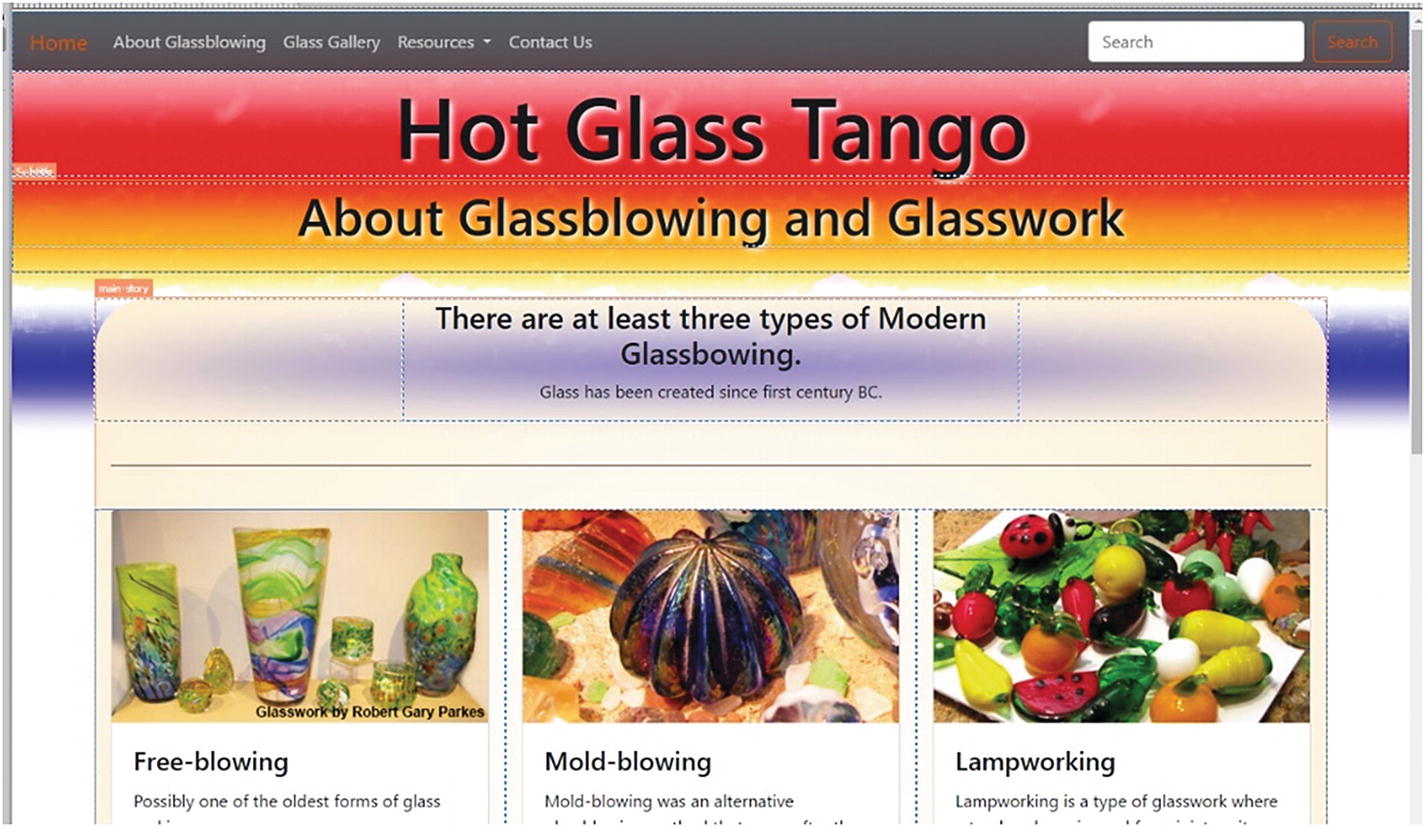
The first element or tag that was used to replace the <table> for web layout was known as the <div> tag . div stand for division, an element that divides a section of a website. Like tables, you can place divs inside of divs to create more sections. And you can look that them in Live view. Refer to Figure 31-33.
../images/466782_1_En_31_Chapter/466782_1_En_31_Fig33_HTML.jpg
Figure 31-33

To create a structure, you can place divs inside of divs
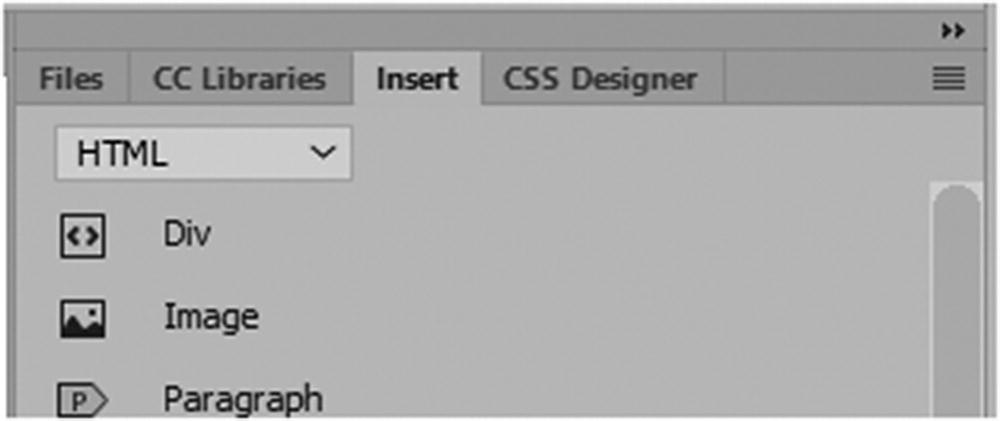
It is more flexible than tables. Divs can be more accurately scaled, moved and removed using CSS and its responsive media queries which you look at when get to Bootstrap in Chapter 35. Divs are used with CSS and are called upon using the tag’s name, a unique ID, or classes to layout a webpage, which you’ll look at in Chapter 32. They perform certain tasks when incorporated with JavaScript. Using the Insert panel, you can insert a <div> tag on an HTML page and then insert an image within. Refer to Figure 31-34.
../images/466782_1_En_31_Chapter/466782_1_En_31_Fig34_HTML.jpg
Figure 31-34

Add a <div> tag using the Insert panel
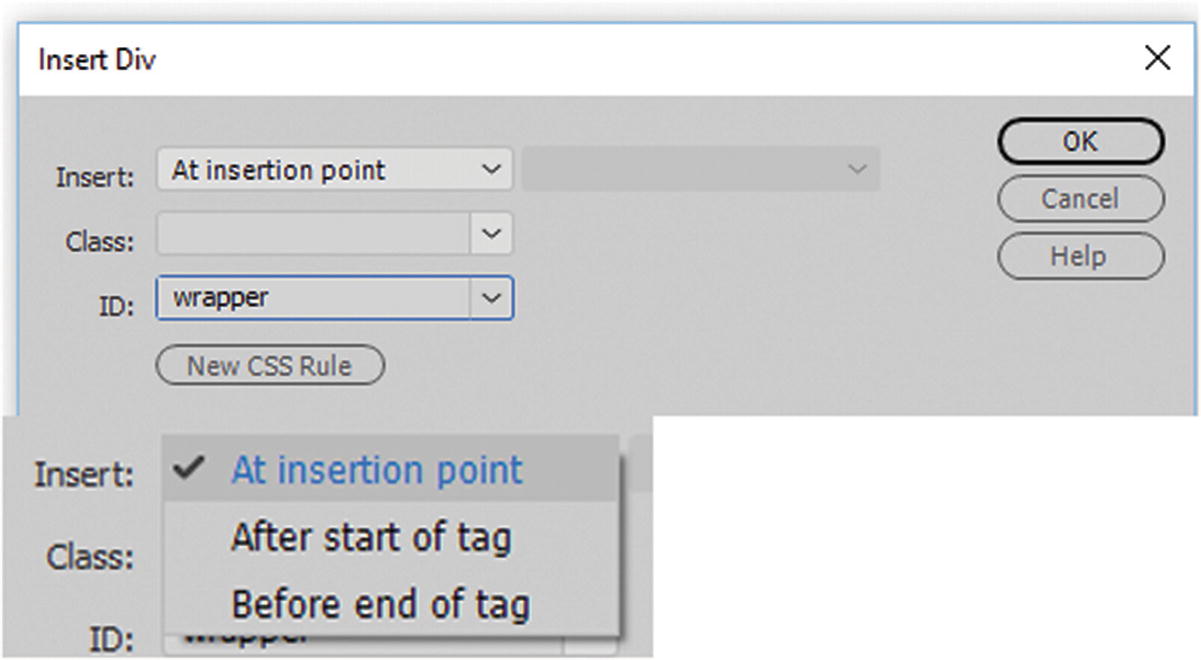
When you insert a div, you are asked to choose a point to insert the it in the dialog box. The default is an insertion point, which is where you place the cursor; however, you can choose either after or before the start of the tag. Then you can give it a class, ID, or both. Refer to Figure 31-35.
../images/466782_1_En_31_Chapter/466782_1_En_31_Fig35_HTML.jpg
Figure 31-35

Insert a div and add an ID using the insert div dialog box
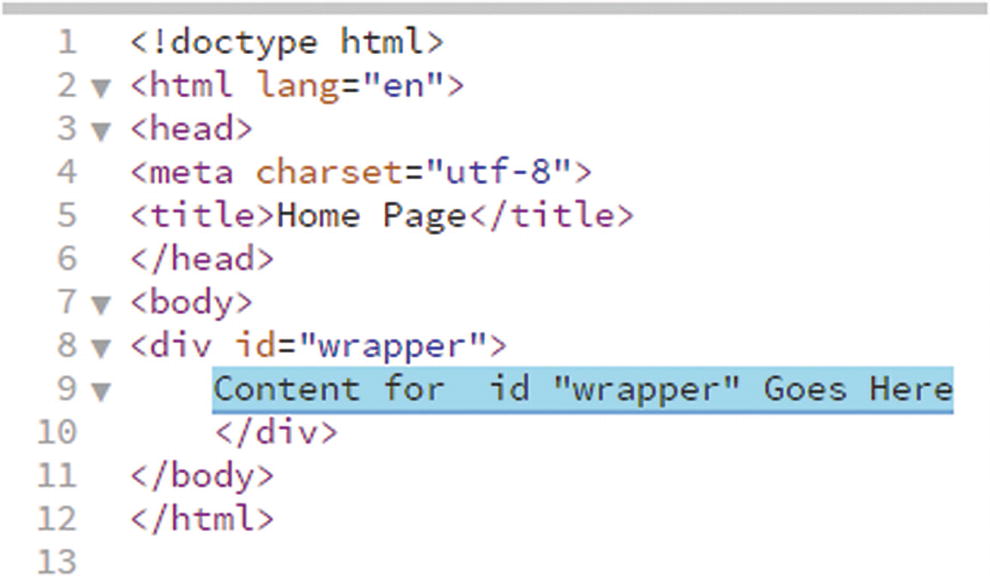
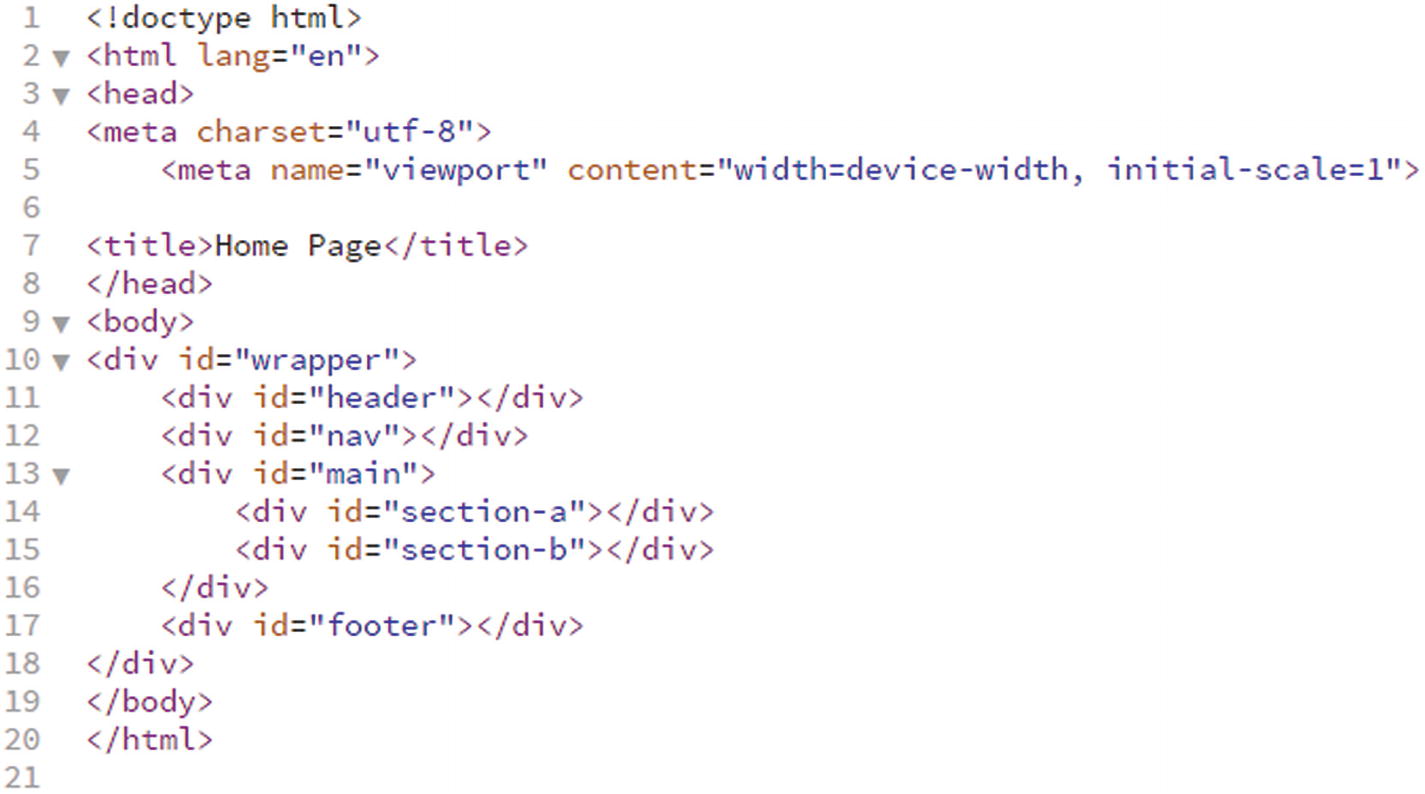
Then click OK to confirm the <div> tag in the code. A whole website could be built just using <div> tags. However, the most common <div> tag that goes around a website structure is given the unique ID of wrapper. Refer to Figure 31-36.
../images/466782_1_En_31_Chapter/466782_1_En_31_Fig36_HTML.jpg
Figure 31-36

A div is inserted into Code view

Note

There is no rule that you must use a wrapper. You can call the ID whatever you want or only wrap certain areas that you want to contain within the wrapper. However, giving it this name is an effective way to remember what the tag or element does.

Dreamweaver places filler text between the <div> tags (dotted lines in Design view) that you can highlight and delete, leaving just the cursor blinking. And, you can add an image from the Insert panel. Refer to Figure 31-37.
../images/466782_1_En_31_Chapter/466782_1_En_31_Fig37_HTML.jpg
Figure 31-37

A div in Design view

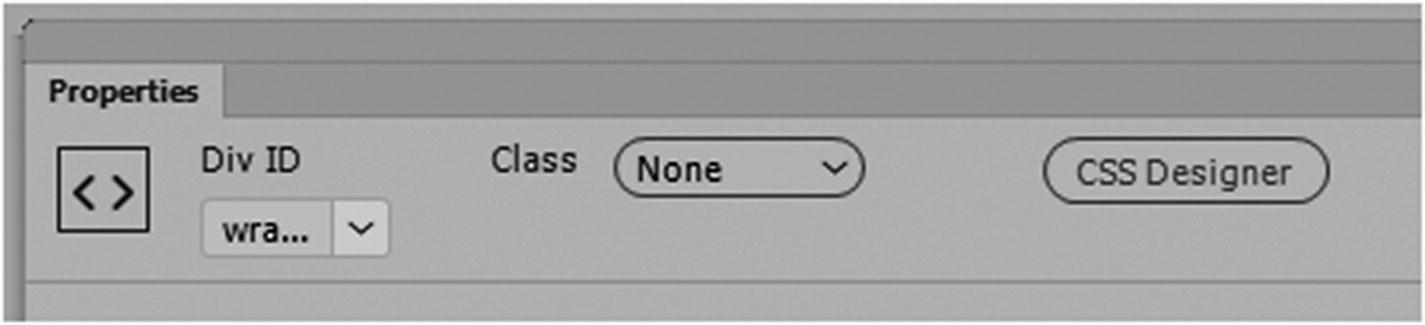
In the Properties panel, the tag appears with an icon, the div type and ID, and the option to add a class or create a class for the <div> tag (you look at this in Chapter 32). Refer to Figure 31-38.
../images/466782_1_En_31_Chapter/466782_1_En_31_Fig38_HTML.jpg
Figure 31-38

The Properties panel when a div is selected

You can locate the image in the images folder and click OK to insert. Refer to Figure 31-39.
../images/466782_1_En_31_Chapter/466782_1_En_31_Fig39_HTML.jpg
Figure 31-39

Insert an image into the div using the Insert panel

Later, you look at how CSS is used to structure the size and placement any <div> tag.
<div id="wrapper"><img src="images/dome_1.gif" width="195" height="138" alt=""/></div>

Sematic Elements

When HTML4 began, most designers inserted one div inside another to create a structure for the website. And in combination with CSS, giving each div a unique ID or class, a site that was for desktop and mobile devices could be built. This structure and the viewport continued into HTML5. Refer to Figure 31-40.
../images/466782_1_En_31_Chapter/466782_1_En_31_Fig40_HTML.jpg
Figure 31-40

How a beginning structure of a basic website could look; note a viewport was added

If there are a lot of divs on a page, it becomes confusing as to where one starts or stops, especially if they are nested many times, because the closing tags are all the same.

Also, web designers are not always consistent with the names they give their IDs in the structure; some might be id=foot or id=footer, or id=base, and so on. This makes it difficult for people with visual impairments to navigate a site with their screen readers. The web is for everyone, and this is what accessibility is all about. There has to be some sort of consistency. So, HTML5 tags called semantic elements were created.
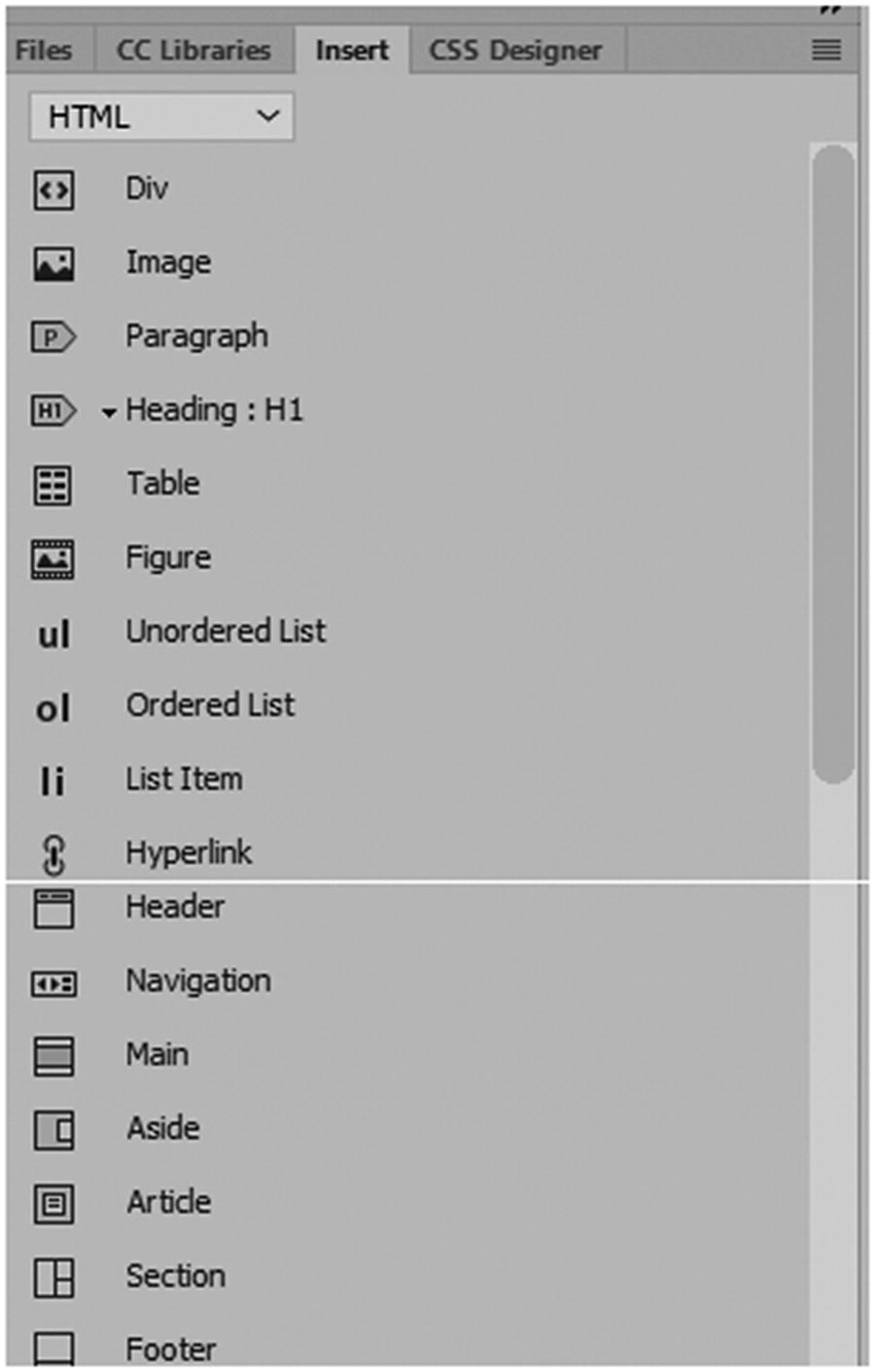
Semantic elements are scaled and create structure for a site. Unlike divs, their order has meaning to a screen reader. The <div> or <span> is non-semantic and has no meaning to the average viewer. But words like <table>, <form>, or <article> do have meaning to a user and are therefore semantic. Also, their placement is very important when a site is validated, so you cannot use them in any combination you want. You can find these elements in the Insert panel if you scroll within the HTML tab. Refer to Figure 31-41.
../images/466782_1_En_31_Chapter/466782_1_En_31_Fig41_HTML.jpg
Figure 31-41

Many of the new semantic elements appear in the Insert panel in the HTML tab

Any of these can have an <img> tag placed inside of it. I briefly describe them next.

Figure and Figure Caption
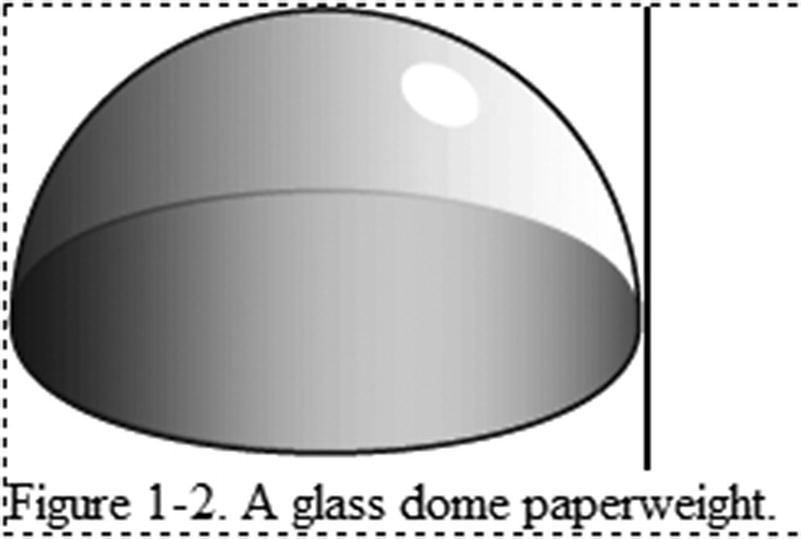
The <figure> and <figcaption> tags are inserted at the same time. An image <img> can be placed within the figure. The nested figcaption is used to describe the figure. It is like the descriptive figure captions that are found below each of the images in this book.
<figure><img src="images/dome_1.gif" width="195" height="138" alt="A glass dome paperweight"/>
<figcaption>Figure 1-2. A glass dome paperweight.</figcaption></figure>
The images could be illustrations, diagrams, photos, or code listings. The figure and its figcaption could be found nested within a <div> tag or some other semantic element. Refer to Figure 31-42.
../images/466782_1_En_31_Chapter/466782_1_En_31_Fig42_HTML.jpg
Figure 31-42

Adding a figure and figure captions around the image

The <figcaption> can only be inside of a figure. Its text does not have to have any heading or paragraph tag within it, but like heading text, it is styled using CSS, which you look at later. The Properties panel does allow you to add an ID, CSS, and several types of formatting to the tags as required. Refer to Figure 31-43.
../images/466782_1_En_31_Chapter/466782_1_En_31_Fig43_HTML.jpg
Figure 31-43

The Properties panel when figcaption text is selected

Header
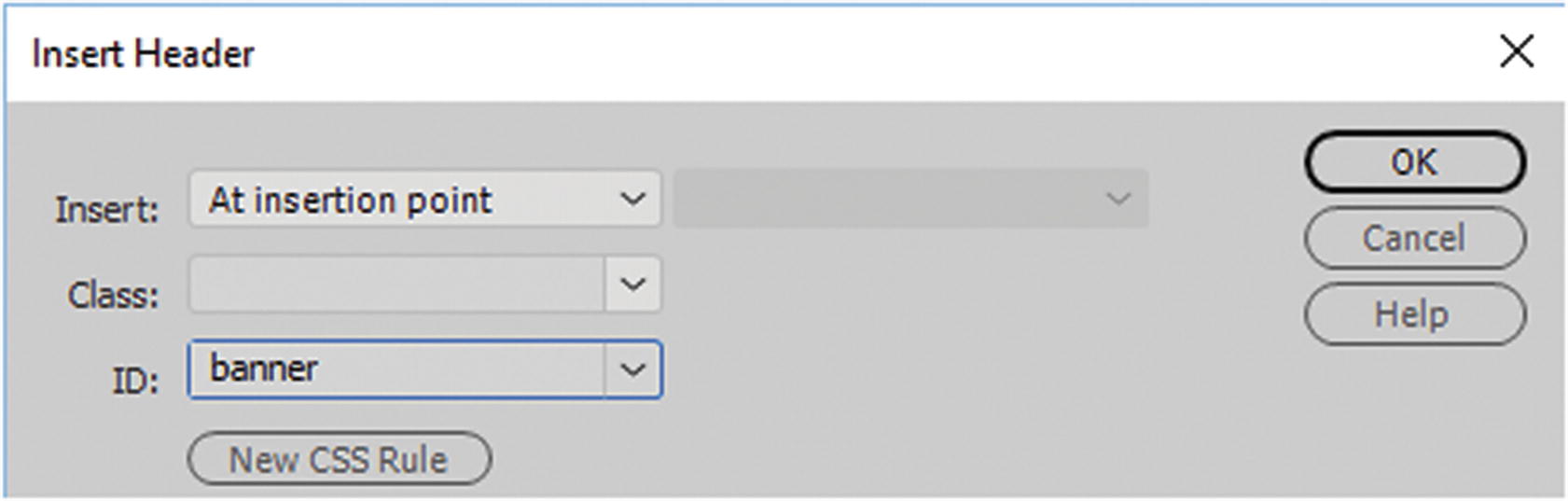
The <header> tag is used for introductory content, or it contains navigation links. It could also be used as the banner area containing company logo on a webpage. It can also replace the <hgroup> tag or be a header of a <section> or <article> tag or used for authorship information. You can have more than one <header> tag within a section. <header> is not the same as the <head> tag and is found outside the body while the <header> is found inside the <body>, usually within the wrapper. You can give it an ID or class, but it’s not a requirement. Refer to Figure 31-44.
../images/466782_1_En_31_Chapter/466782_1_En_31_Fig44_HTML.jpg
Figure 31-44

Insert Header dialog box with ID added

<header id="banner">Content for  id "banner" Goes Here</header>
Then you can insert your banner image <img> for the webpage. When selected, the Properties panel allows you to add CSS formatting. Refer to Figure 31-45.
../images/466782_1_En_31_Chapter/466782_1_En_31_Fig45_HTML.jpg
Figure 31-45

How the Header appears in the Properties panel

Note

A <header> cannot be placed within <footer>, <address>, or another <header> tag.

Navigation

The <nav> tag is useful for an area with navigation hyperlinks modified by CSS or a few images (rollovers). Not all links in a document should be used inside of a <nav> element. A <nav> should only be used for major blocks of navigation links.

This tag is very useful in browsers and in screen readers for disabled users. Browsers can use this element to determine whether to omit the initial rendering of the content.
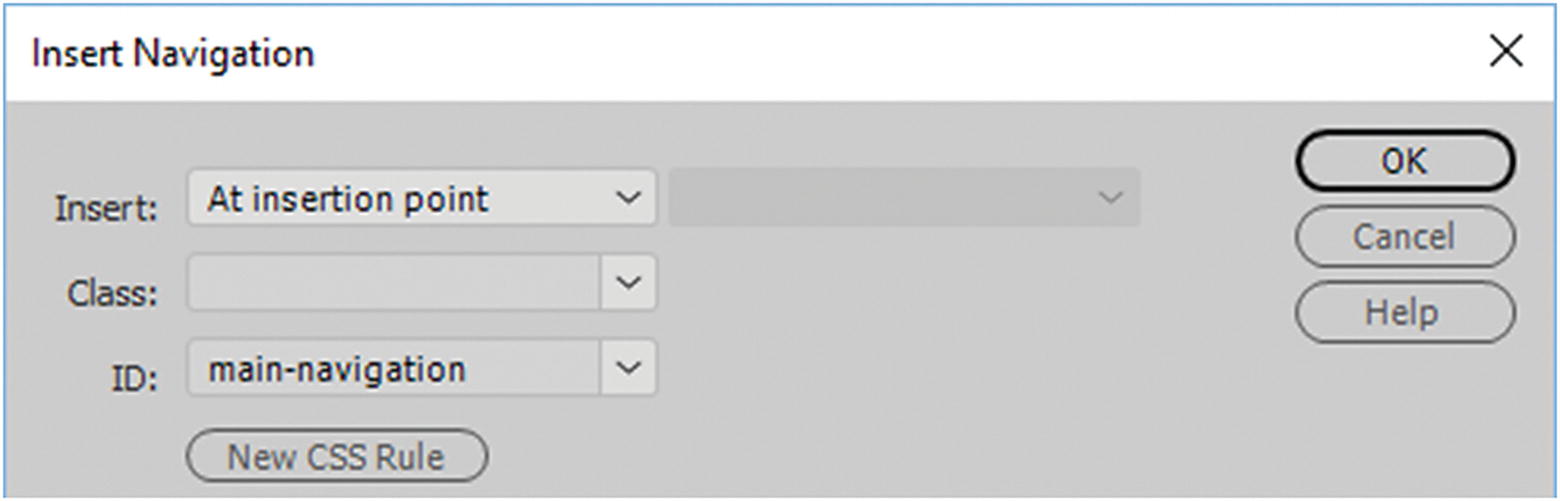
You can give it an ID or class, but it’s not a requirement. Refer to Figure 31-46.
../images/466782_1_En_31_Chapter/466782_1_En_31_Fig46_HTML.jpg
Figure 31-46

Insert Navigation dialog box with ID added

<nav id="navigation">Content for  id "navigation" Goes Here</nav>

You could insert your navigation images <img> using CSS or rollover links for the webpage to other webpages.

When selected, the Properties panel allows you to add CSS formatting. Refer to Figure 31-47.
../images/466782_1_En_31_Chapter/466782_1_En_31_Fig47_HTML.jpg
Figure 31-47

How the nav appears in the Properties panel

Main

The <main> element refers to the main content of the document or the main story. The content inside of the <main> tag should be unique to the document and should not contain any content that is repeated across documents such as sidebars, navigation links, copyright information, site logos, and search forms. It should also be noted that there must not be more than one <main> element in a HTML document. The <main> element must NOT be a descendant or child of an <article>, <aside>, <footer>, <header>, or <nav> element, though it could be the container (parent) for these elements.
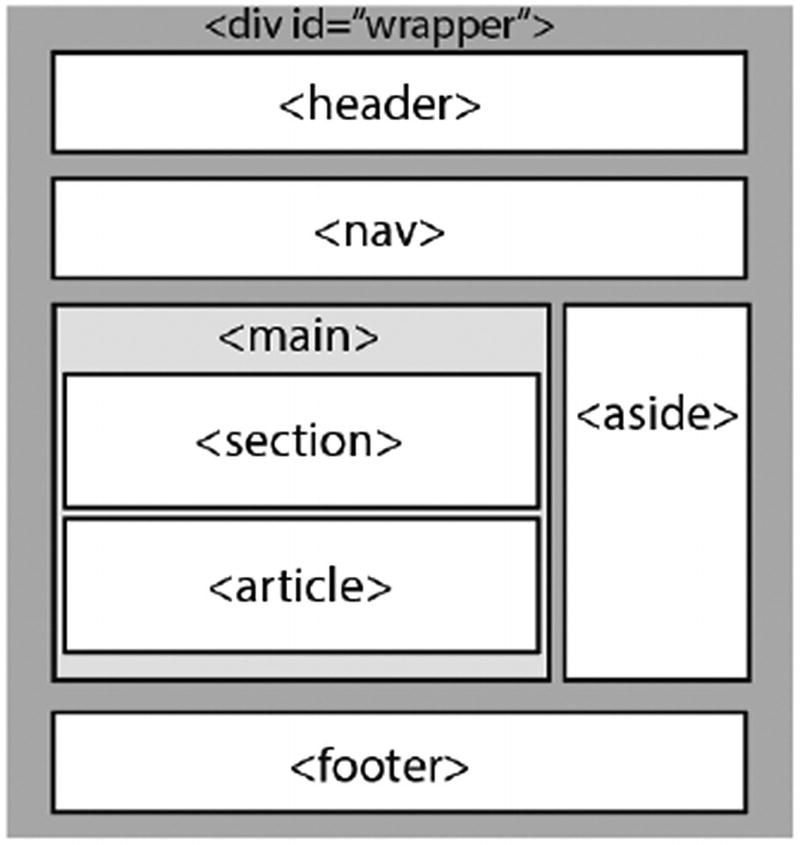
Figure 31-48 shows how this might look.
../images/466782_1_En_31_Chapter/466782_1_En_31_Fig48_HTML.jpg
Figure 31-48

A possible layout for a website using the main tag
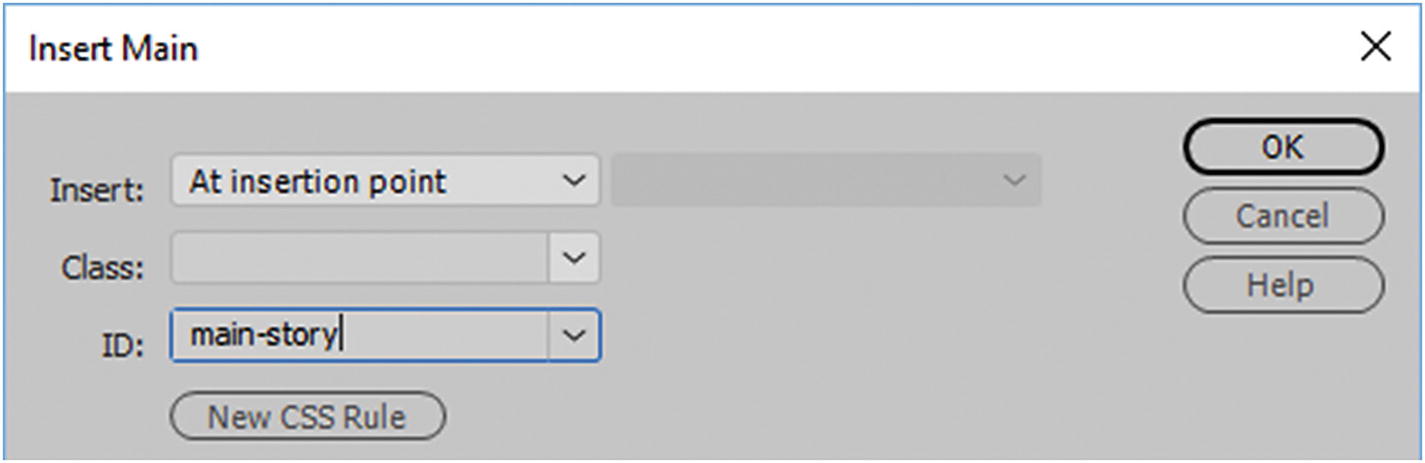
You can give it an ID or class, but it’s not a requirement. Refer to Figure 31-49.
../images/466782_1_En_31_Chapter/466782_1_En_31_Fig49_HTML.jpg
Figure 31-49

Insert Navigation dialog box with ID added

<main id="main-story">
   <div class="section1">
       <figure><img src="images/dome_1.gif" width="195" height="138" alt="A glass dome paperweight"/>
         <figcaption>Figure 1-2. A glass dome paperweight.</figcaption>
       </figure>
    </div>
    <div class="section2">Some text...
    </div>
</main>

Then you can insert your images, text, or other semantic elements into the <main> tag.

The Properties panel allows you to add CSS formatting. Refer to Figure 31-50.
../images/466782_1_En_31_Chapter/466782_1_En_31_Fig50_HTML.jpg
Figure 31-50

How the main ID appears in the Properties panel

Aside
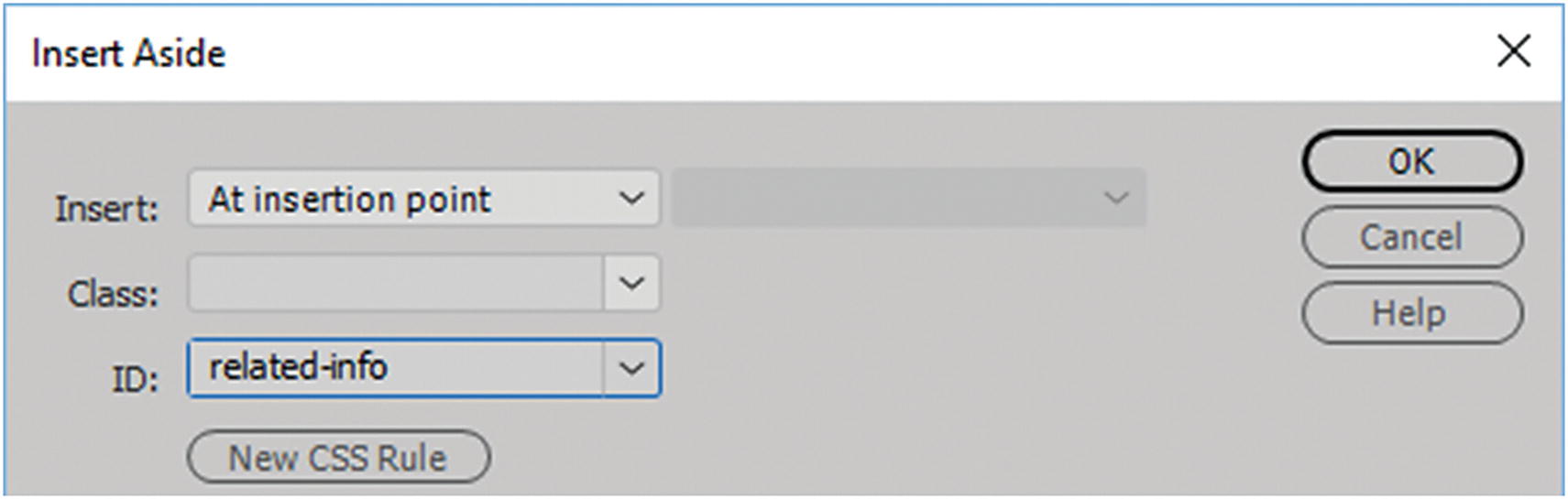
The <aside> tag defines content aside from the page content. The aside content should be related to the surrounding content. It is on its own or it could be placed as a sidebar in an <article>. You can give it an ID or class, but it’s not a requirement. Refer to Figure 31-51.
../images/466782_1_En_31_Chapter/466782_1_En_31_Fig51_HTML.jpg
Figure 31-51

Insert Aside dialog box with ID added

<aside id="related-info">Content for  id "related-info" Goes Here</aside>
You can insert your images, text, or other semantic elements into the <aside> tag. When selected, the Properties panel allows you to add CSS formatting. Refer to Figure 31-52.
../images/466782_1_En_31_Chapter/466782_1_En_31_Fig52_HTML.jpg
Figure 31-52

How the aside appears in the Properties panel

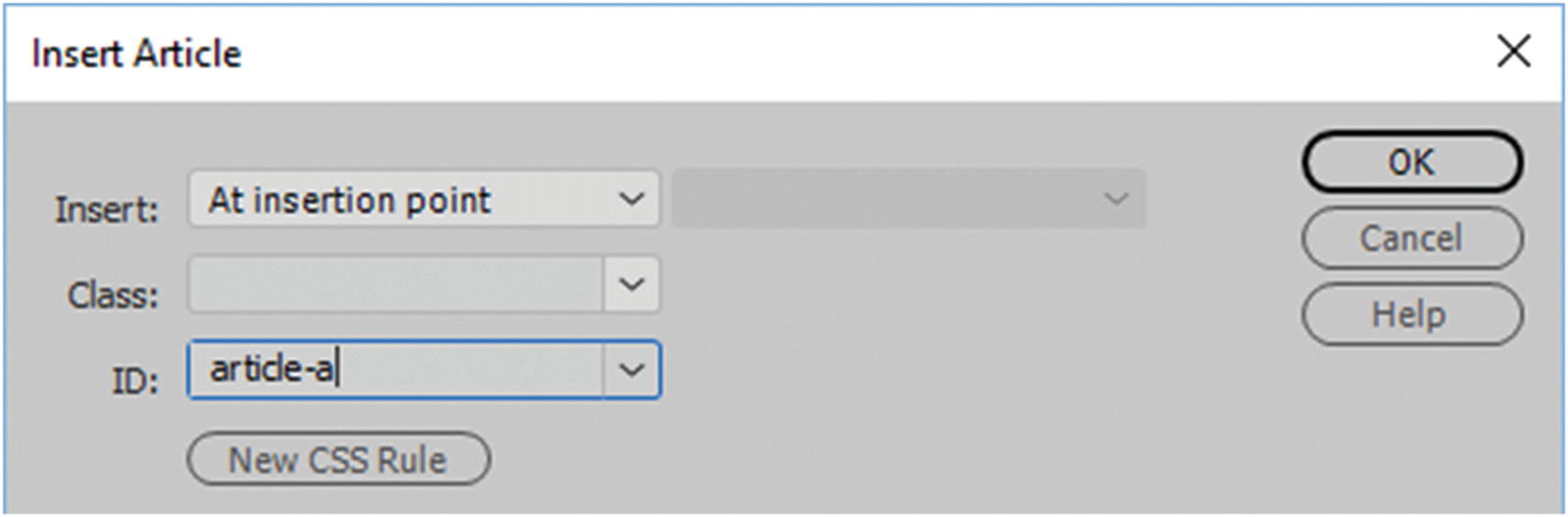
Article

The <article> element defines an article. The <article> tag specifies independent, self-contained content. It should make sense on its own and it should be possible to distribute it independently from the rest of the site. The following are some of uses of the <article> element.
  • Forum posts

  • Blog posts

  • News stories

  • Comments

More than one article element can appear within the <main> tag. It is often confused with the <section> tag; in some cases they are interchangeable, depending on how your website is constructed. You can give it an ID or class, but it’s not a requirement. Refer to Figure 31-53.
../images/466782_1_En_31_Chapter/466782_1_En_31_Fig53_HTML.jpg
Figure 31-53

Insert Article dialog box with ID added

You can insert your images and text into the <article> tag.
<article id="article-a">Content for  id "article-a" Goes Here</article>
When selected, the Properties panel allows you to add CSS formatting. Refer to Figure 31-54.
../images/466782_1_En_31_Chapter/466782_1_En_31_Fig54_HTML.jpg
Figure 31-54

How the Article appears in the Properties panel

Section
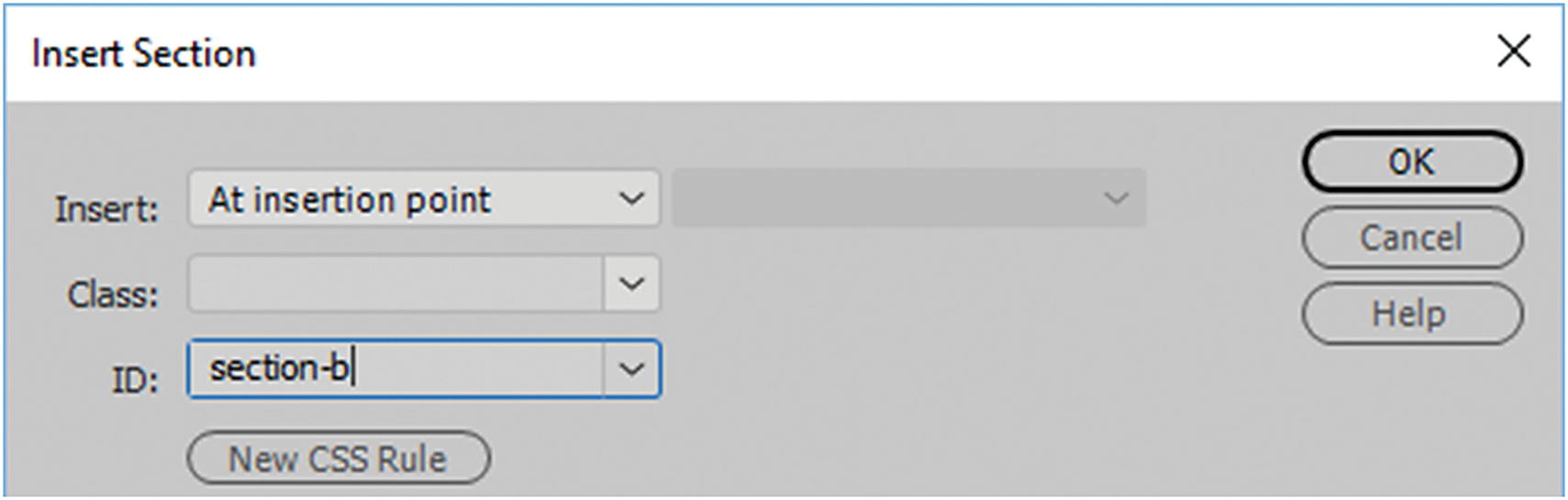
The <section> tag defines a section of a document. It can be chapters, headers, footers, or any other section of a document. More than one section element can appear within the <main> tag. It is often confused with the <article> tag; in some cases, they are interchangeable, depending on how your website is constructed. Articles are inserted inside sections. You can give it an ID or class, but it’s not a requirement. Refer to Figure 31-55.
../images/466782_1_En_31_Chapter/466782_1_En_31_Fig55_HTML.jpg
Figure 31-55

Insert Section dialog box with ID added

<section id="section-b">Content for  id "section-b" Goes Here</section>

You can insert your images and text into the <section> tag.

The Properties panel allows you to add CSS formatting. Refer to Figure 31-56.
../images/466782_1_En_31_Chapter/466782_1_En_31_Fig56_HTML.jpg
Figure 31-56

How the section appears in the Properties panel

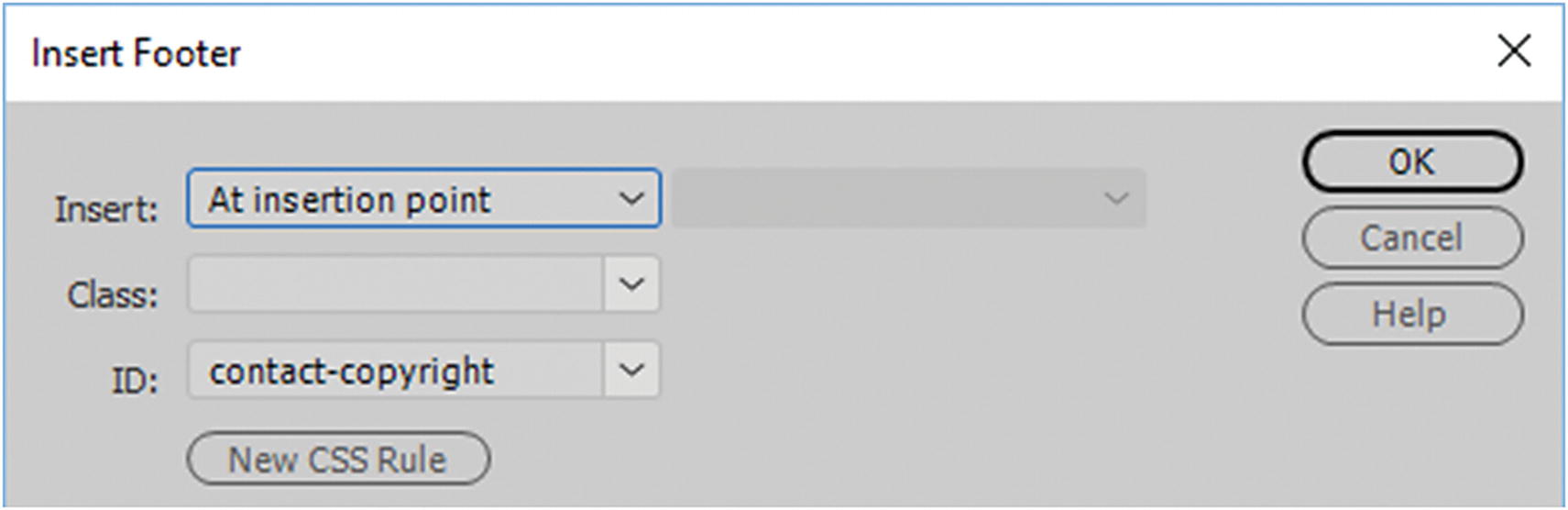
Footer

The <footer> element defines the footer of a document or section. A section can have more than one footer. A <footer> element should contain information about its containing element or tag.

A <footer> element typically contains the following:
  • authorship information

  • copyright information

  • contact information (inside an <address> tag)

  • sitemap

  • back to top links

  • related documents

When it appears at the bottom of a webpage, it can contain navigational images and links. Footers and headers are often used together. You can give it an ID or class, but it’s not a requirement. Refer to Figure 31-57.
../images/466782_1_En_31_Chapter/466782_1_En_31_Fig57_HTML.jpg
Figure 31-57

Insert Footer dialog box with ID added

<footer id="contact-copyright">Content for  id "contact-copyright" Goes Here</footer>

You can insert your images <img> and text into the <footer> tag.
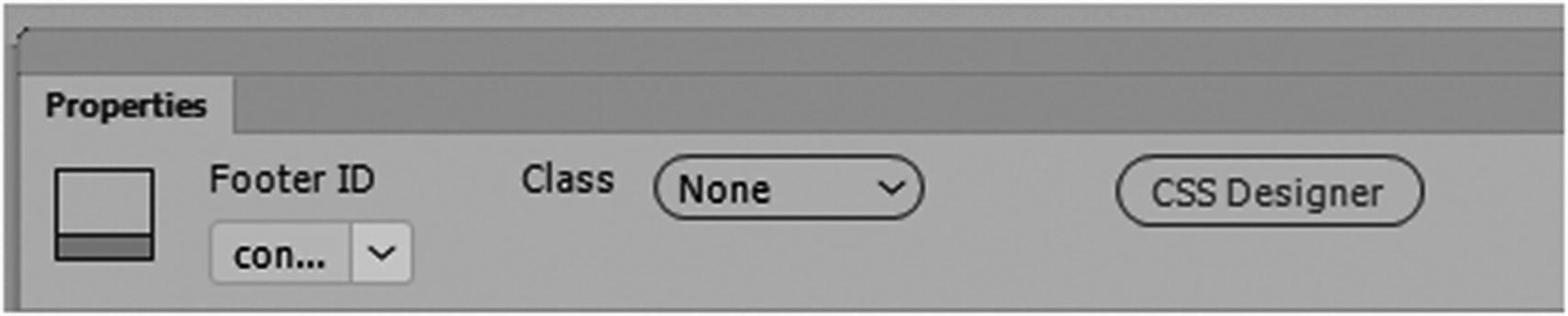
When selected, the Properties panel allows you to add CSS formatting. Refer to Figure 31-58.
../images/466782_1_En_31_Chapter/466782_1_En_31_Fig58_HTML.jpg
Figure 31-58

How the footer appears in the Properties panel

While semantic elements are good to use, there may be times when your content does not fall into any other category, or you need to add navigation somewhere else. In these cases, there is nothing wrong with using a <div> tag; perhaps in time, more semantic elements will become available. In the meantime, it is important to practice using them to build your website to make it more accessible to all users. in the next chapter, you look at how these tags can be altered further using CSS.

For more information, on semantic elements make sure to check out www.w3schools.com/html/html5_semantic_elements.asp .

Are Tables Obsolete in Web Design?
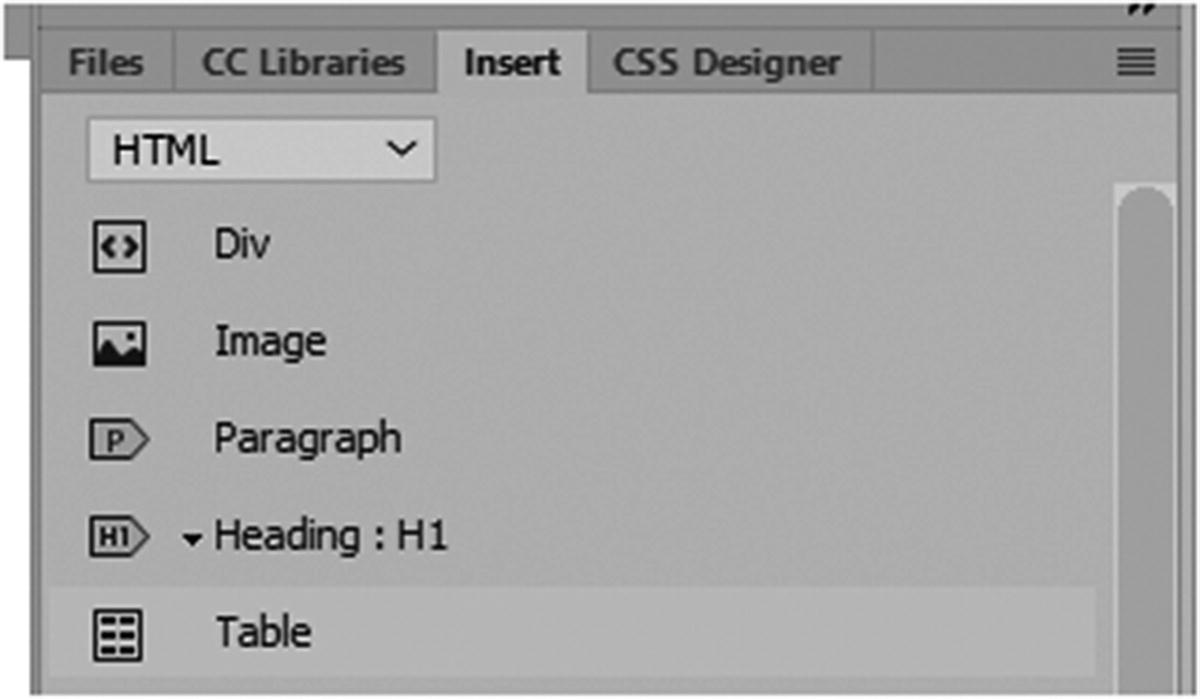
Developers have shifted from using tables to a div-based structure, which has made the responsive-based website cleaner with more reliable code and functionality. Nevertheless, tables are not gone for good. Tables and their cells are now used for their true purpose: to hold data and images like a Microsoft Excel spreadsheet. Do you want to show company profits or a product sheet? You can insert a table somewhere in your <main> tag and display the data. Refer to Figure 31-59.
../images/466782_1_En_31_Chapter/466782_1_En_31_Fig59_HTML.jpg
Figure 31-59

Insert a table using the Insert panel
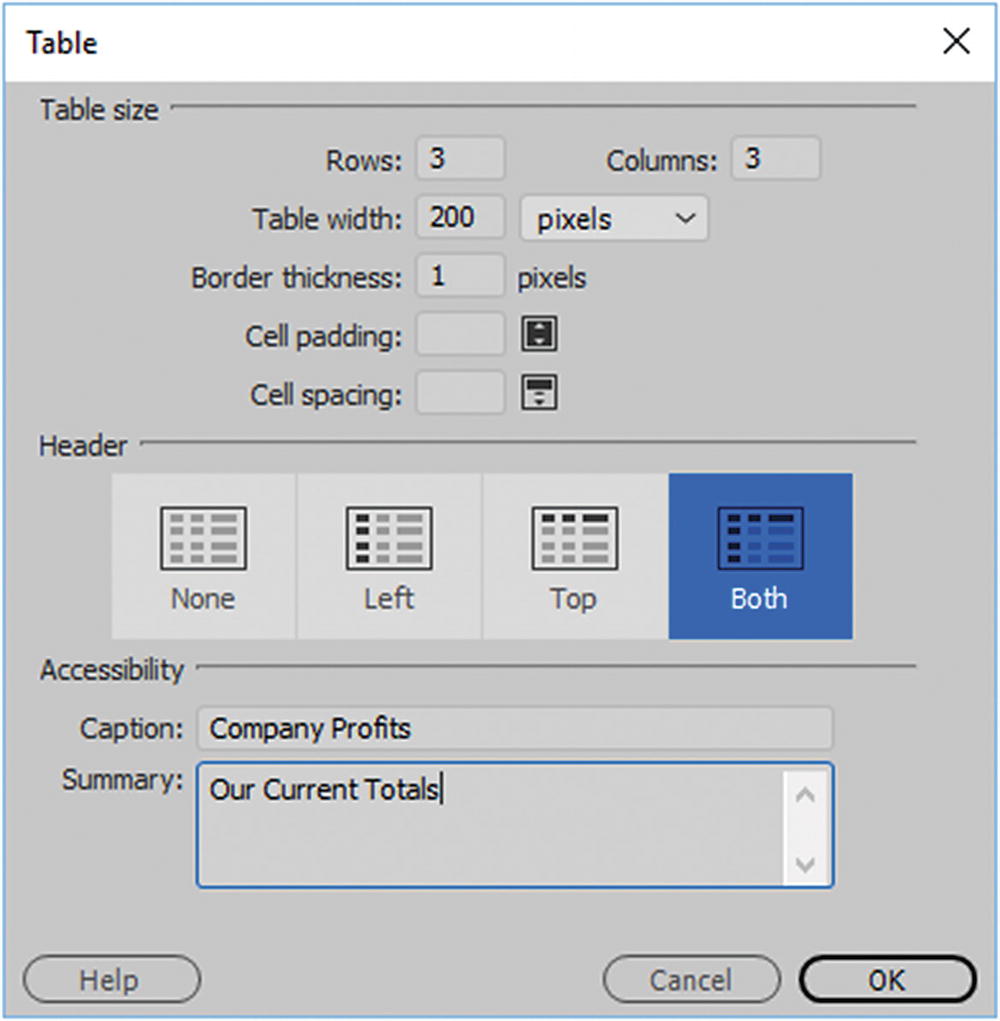
Here you can set the rows <tr> and columns <td>. You can also add the attributes of width (pixel or percent), border thickness, cell padding or spacing. Be aware that these attributes are not supported by HTML5. After you create the table, you should alter it using CSS instead. Refer to Figure 31-60.
../images/466782_1_En_31_Chapter/466782_1_En_31_Fig60_HTML.jpg
Figure 31-60

Insert a table settings entered into the table dialog box

Lastly, you can add a table header to the left <th scope=row> and top <th scope=col> and then add a caption for accessibility. Note that the attribute summary is not supported by HTML5, so you may want to leave this blank. When done, click OK and add your text and images to the <td> cell tags.
<table width="200" border="1" summary="Our Current Totals">
  <caption>
    Company Profits
  </caption>
  <tbody>
    <tr>
      <th scope="col">&nbsp;</th>
      <th scope="col">&nbsp;</th>
      <th scope="col">&nbsp;</th>
    </tr>
    <tr>
      <th scope="row">&nbsp;</th>
      <td>&nbsp;</td>
      <td>&nbsp;</td>
    </tr>
    <tr>
      <th scope="row">&nbsp;</th>
      <td>&nbsp;</td>
      <td>&nbsp;</td>
    </tr>
  </tbody>
</table>

Table tags are better manipulated using CSS for a mobile site. You can still run into formatting issues, depending on what is within the table, so you need to take this into account and test the pages for each device size that the table could be viewed on. For example, while rows and columns can get narrower, a row of data needs to be kept on the same row for it to make sense. At some point, the cells might wrap or appear broken. With CSS, you can modify this for smaller screens, but done incorrectly, the table can still look broken. So developers continue to struggle with table formatting for each unique site.

In the Properties panel, you can see many of the settings that are in the Insert Table dialog box, including icons that allow you to clear the column width, clear row height, and convert to either pixels or percentage. Refer to Figure 31-61.
../images/466782_1_En_31_Chapter/466782_1_En_31_Fig61_HTML.jpg
Figure 31-61

The table settings in the Properties panel

Settings like cellpad, cellspace alignment, and border are better controlled using classes in CSS.


The properties of rows and cells are accessed in the lower half of the Properties panel when they are selected. Alignment, width, height, and background color should be controlled with CSS rather than typed into the panel. You can still use the settings when two or more cells or rows are selected to split or merge, and you can determine whether a row or column is a header <th> or has the attribute of no wrap (nowrap=nowrap) to alter text wrap. Refer to Figure 31-62.
../images/466782_1_En_31_Chapter/466782_1_En_31_Fig62a_HTML.jpg../images/466782_1_En_31_Chapter/466782_1_En_31_Fig62b_HTML.jpg
Figure 31-62

The table row and cell settings in the Properties panel

You can still add images to table cells, but a better idea is to add them to the background using CSS.

Before you look at CSS, let’s look at a few other tags that also work with images.

Image Maps <area> and <map> Tags
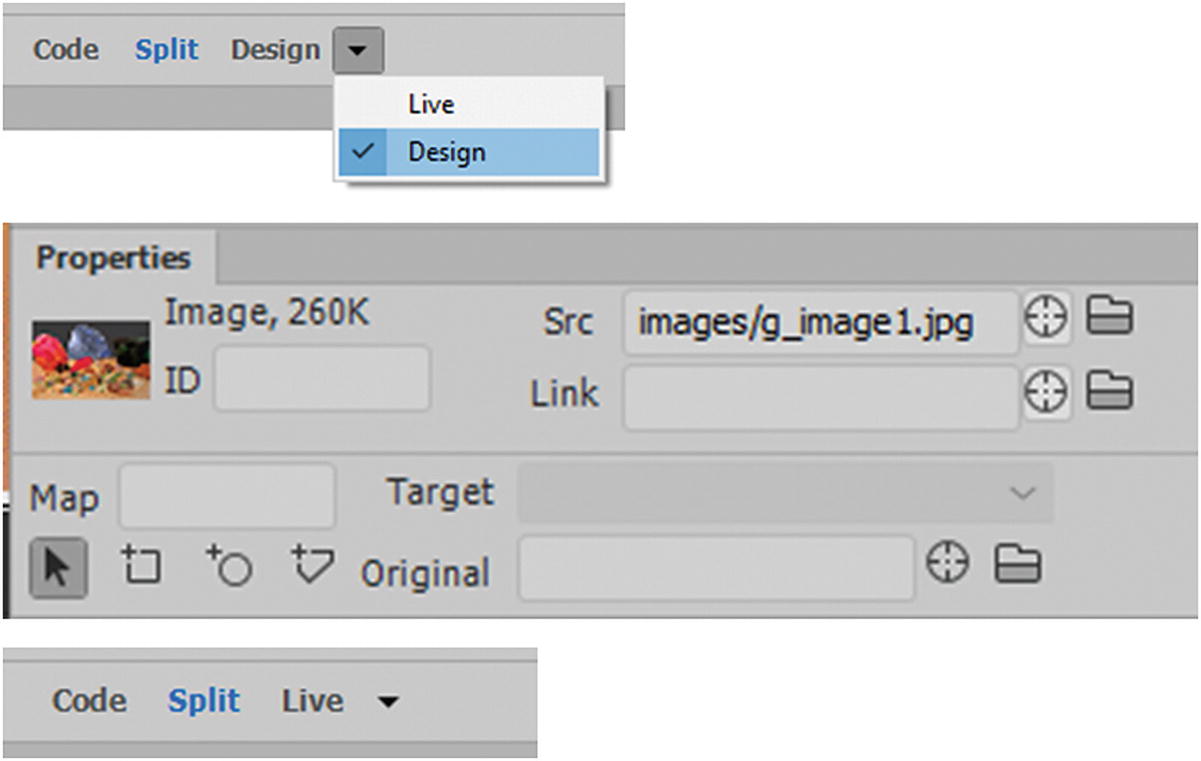
If you have a large image on your site, such as a map of various countries, a chart of the constellations, or any elements that are collectively part of one picture, you can add an image with clickable areas, rather than make individual navigation buttons. Any JPEG, GIF, PNG, SVG, or BMP file can be the background for an image map. When you plan to create an image map to access the tools in the Properties panel, make sure that you are in Design view; otherwise, these properties are inaccessible. Refer to Figure 31-63.
../images/466782_1_En_31_Chapter/466782_1_En_31_Fig63a_HTML.jpg../images/466782_1_En_31_Chapter/466782_1_En_31_Fig63b_HTML.jpg
Figure 31-63

Only in Design view do you have access to the Image map options in the Properties panel
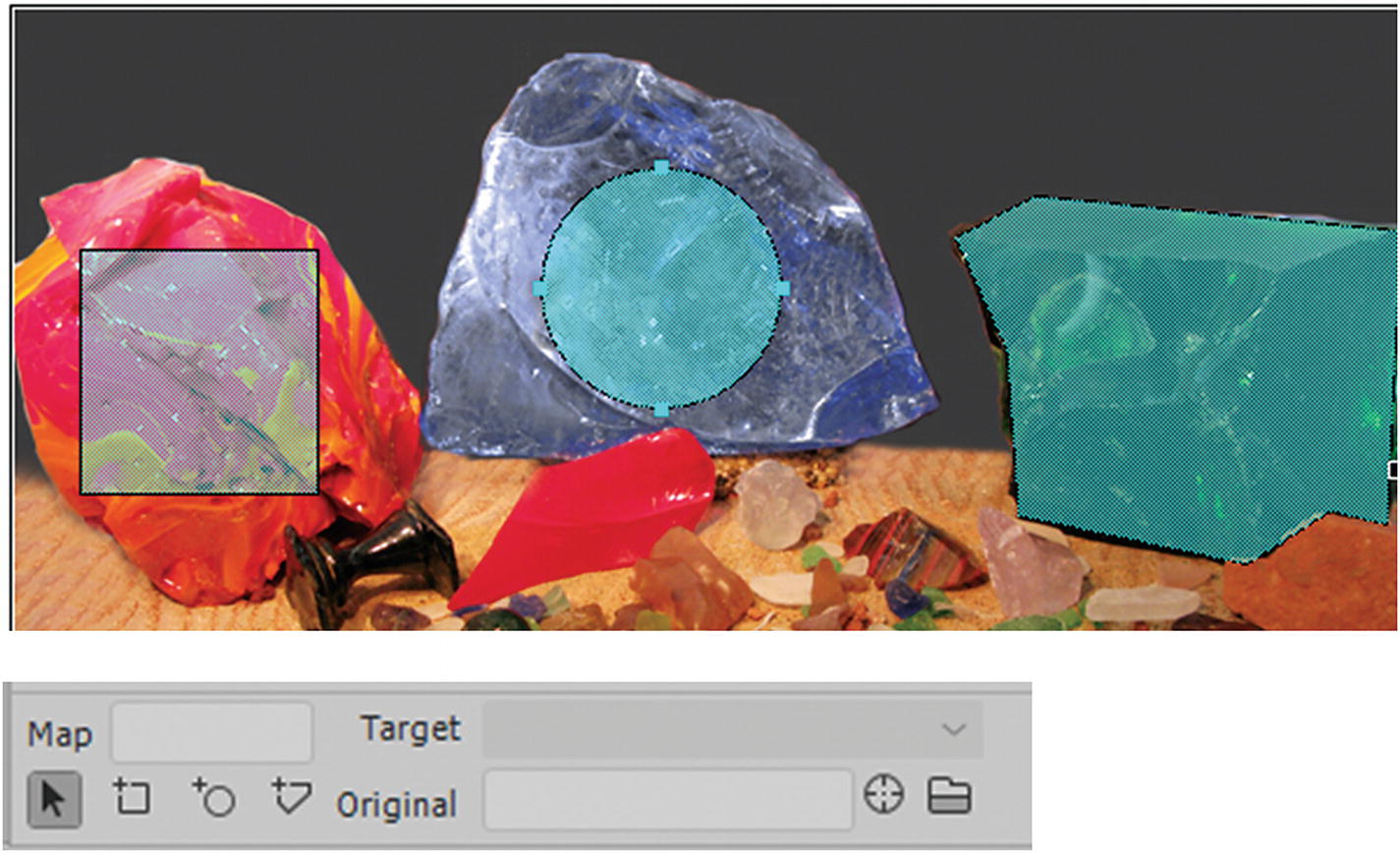
You need to select your image in Design view to access the tools. They allow you to draw a transparent hotspot or <area> on the map. This area can have a link and a target. An image can have many hotspots. Figure 31-64 shows an example.
../images/466782_1_En_31_Chapter/466782_1_En_31_Fig64_HTML.jpg
Figure 31-64

Various types of hotspots in Dreamweaver

  • Pointer Hotspot tool: Allows you to select, size, and move the hotspot to a new location.

  • Rectangle Hotspot tool: Lets you create a square or rectangular hotspot.

  • Circle Hotspot tool: Lets you create a circular or oval hotspot.

  • Polygon Hotspot tool: Lets you create a hotspot that can contain many points. This is useful if drawing the boundaries of a map.

Once the hotspots are drawn in Design view, they preview on top of the image as light-blue squares. In the actual browser, they are invisible, and only the cursor changes so that you know they are there.
The code may look something like this:
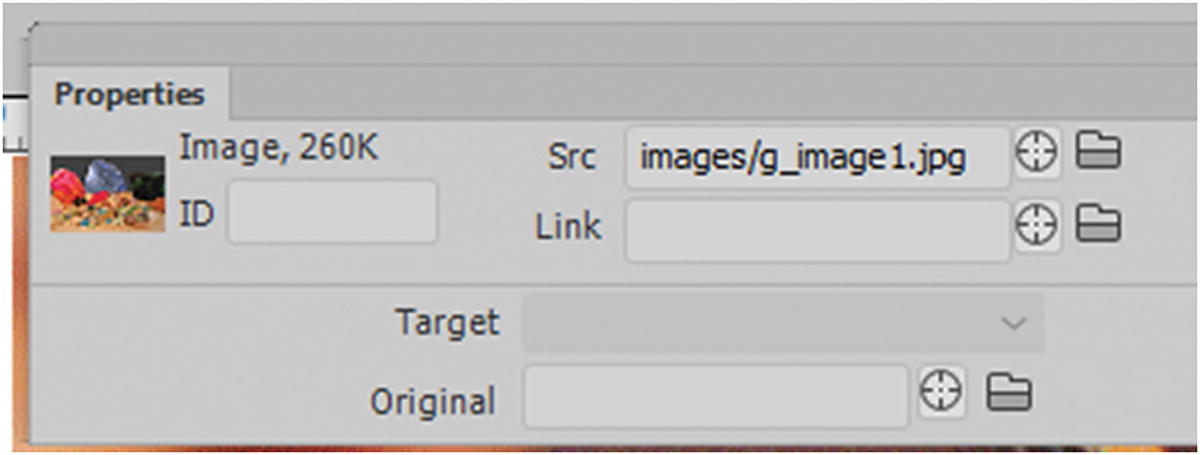
<img src="images/g_image1.jpg" alt="" width="600" height="400" usemap="#Map"/>
    <map name="Map">
      <area shape="rect" coords="30,105,133,211" href="#">
      <area shape="circle" coords="280,122,52" href="#">
      <area shape="poly" coords="406,100,428,148,433,219,531,240,567,217,591,223,597,97,440,82" href="#">
    </map>
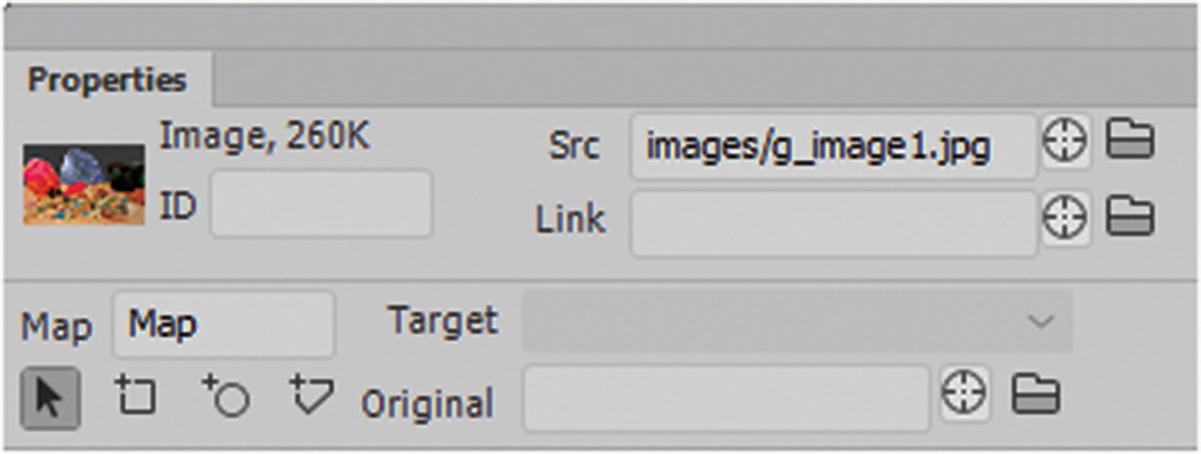
When you select the <img> tag in Code view, you see that a name has automatically been added to the map and the image now has an attribute link: usemap=#Map. It is important that these remain the same name, or the link between them can become corrupt and fail to work. Refer to Figure 31-65.
../images/466782_1_En_31_Chapter/466782_1_En_31_Fig65_HTML.jpg
Figure 31-65

The selected image map with an ID

Notice that when you select an <area> tag in the Properties panel, the tool changes to a hotspot. This is the same for all hotpot types. Refer to Figure 31-66.
../images/466782_1_En_31_Chapter/466782_1_En_31_Fig66_HTML.jpg
Figure 31-66

The selected hotspot in the Properties panel

Here you can add a link to another page on the site (local) and/or external site. Use the target or browse folders to locate a page.

As you saw when you made Photoshop slices in Chapter 5, a target can be any of the following.
  • _blank: Opens a linked file in a new window or tab and leaves the original webpage open (this is the same as choosing New).

  • _self: Opens the linked document in the same frame that it was clicked in (this is the same as default or leaving it blank).

  • _parent: Displays the linked file in its own parent frameset. Do not use this option unless the file contains a frame. The link is considered a child and it appears in the parent frame.

  • _top: Replaces the entire browser window with the linked file, removing all the current frames. The name must match a frame in the HTML file for this to work. When the link is clicked, the specified file appears in a new frame.

Besides a link, your image map should have an alt attribute that names what the hotspot links to; for example, alt=Information about Glass. Refer to Figure 31-67.
../images/466782_1_En_31_Chapter/466782_1_En_31_Fig67_HTML.jpg
Figure 31-67

New information added to the hotspot in the Properties panel

The following code in the area tag is added.
<area shape="rect" coords="30,105,133,211" href="glass.html" target="_blank" alt="Information about Glass">
If you do not add an alt attribute, Dreamweaver displays a warning symbol and a message appears in your Output panel to remind you to add this information in your code or via the Properties panel. Refer to Figure 31-68.
../images/466782_1_En_31_Chapter/466782_1_En_31_Fig68_HTML.jpg
Figure 31-68

Until all the hotspots are resolved, you may get this yellow warning in Dreamweaver; when resolved, it returns to a green check

After you save the file, the warning disappears and returns to a green check.

Note

you do not need a title attribute as this appear to corrupt the <area> tag.

Recently, HTML5 has added a few more attributes to the <area> tag; they currently do not show up in Dreamweaver’s Properties panel but could be added via Code view. If you would like to look at the new settings for media, you can view them at www.w3schools.com/tags/tag_area.asp .

Be aware that not all new HTML5 features are available for older browsers or your current browser, always read the documentation on the W3Schools website to see if the HTML5 feature is supported by your target browsers.

Another good website to check is Can I Use ( https://caniuse.com ), which provides more information on tags.

Let’s look a few more HTML5 tags you can add images to. Some are supported by most browsers and others are still experimental.

The <picture> and <source> Element

The <picture> tag gives web developers more flexibility in specifying image resources. The <source> is an empty element that can specify multiple media resources for the <picture> tag. For it to work correctly, you need to create media queries using either inline CSS or a class.
<picture>
  <source media="(min-width: 650px)" srcset="glass1.jpg">
  <source media="(min-width: 465px)" srcset="glass2.jpg">
  <img src="glass3.jpg" alt="Flowers" style="width:auto;">
</picture>

The most common use of the <picture> element is art direction in mobile-responsive designs. Instead of having one image that is scaled up or down based on the viewport width, multiple images can be designed to nicely fill the browser’s viewport; for example, one size for a desktop, another size for a tablet, and a third size for a smartphone.

The <picture> element must hold two different tags: one or more <source> tags and one <img> tag.

The <source> element has the following attributes:
  • srcset (required): Defines the URL of the image.

  • media: Accepts any valid media query that is normally defined in CSS.

  • sizes: Defines a single width descriptor, a single media query with width descriptor, or a comma-delimited list of media queries with a width descriptor (min-width: 650px).

  • type (optional): Defines the MIME type.

The browser uses the attribute values to load the most appropriate image. The browser uses the first <source> element with a matching hint and ignores any following <source> tags.

The <img> element is required as the last child tag of the <picture> declaration block. The <img> element is used to provide backward compatibility for browsers that do not support the <picture> element, or if none of the <source> tags matched.

The <picture> element works like the <video> and <audio> elements, which you look at in Chapter 36. In all cases, you set up various sources, and the first source that fits the preferences is the one being used by the browser.

The <details> and <summary> Elements

The <details> tag specifies additional information that the user can view or hide on demand.
<details>
  <summary>Book</summary>
  <p> Title of Book</p>
  <p>All content and graphics on this web site are the property of Jennifer</p>
</details>

The <details> tag is used to create an interactive widget that the user can open and close. Any sort of content can be put inside the <details> tag, including images. Normally, you have to use CSS and JavaScript to create this type of widget, but now you can do it with HTML5. It is currently supported by all modern browsers, except for Microsoft Edge and Internet Explorer.

The content of a <details> element should not be visible unless the open attribute is set; for example, <details open>. For the default closed option, remove the word open.

The <summary> tag is used to specify a visible heading for the details. The heading can be clicked to view or hide the details.

The <dialog> Element

The <dialog> tag defines a dialog box or window.

The <dialog> element makes it easy to create pop-up dialogs and modals on a webpage. Note that this tag is still experimental. It is supported in most modern browsers, except Edge and Internet Explorer. Like the <details> tag, it can use the open attribute.
<dialog open>This is an open dialog window</dialog>

The <menu> and <menuitem> Elements

The menu item tag is still in the experimental stage for most browsers and has currently been removed from HTML5; it is only supported by Firefox for use in context menus. Its purpose is to define a command/menu item that the user can invoke from a pop-up menu using a combination of HTML and JavaScript.

The <menu> tag defines a list/menu of commands. It is used for context menus, toolbars, and listing form controls and commands.

Perhaps in the future menus will also include images.

Inserting Images Favicons into Your Browser’s Tab

To finish this chapter, let’s look at one last image format that you may not have noticed. If you want your website to have a company logo rather than the default browser icon in the tab, there is a way to alter this by adding an image to the in your <head> tag.

Yes, I know I said that images belong in the <body>, and most of the time, that is where these links should be. In most cases, unless JavaScript code is involved, or you are trying to affect the browser tab icon. With JavaScript, if you do not have references to the image in the <body>, those images never appear in the browser. The browser tab icon appears outside the window. In this case, you need to create a favicon.

So far, you have created images for the web in JPEG (.jpg), GIF (.gif), PNG (.png), SVG (.svg), and bitmap (.bmp) formats. So, what is a favicon and what is its format?

A favicon is generally a square that can range from 16×16 pixels, up to 32 or 64 pixels square. Sometimes designing with a larger square and compressing the final size helps you create a more detailed graphic. It is originally a JPEG, GIF, or PNG file. Refer to Figure 31-69.
../images/466782_1_En_31_Chapter/466782_1_En_31_Fig69_HTML.jpg
Figure 31-69

Adding a favicon to the browser tab

The file format must end with .ico (e.g., favicon.ico) for the image to appear in the browser. None of the programs that you have looked at so far has allowed you to save a file in this format. You need to create a copy of your image and then rename it (e.g., company.gif to company.ico). Your computer may give you a warning message saying that it does not recognize this format; that’s OK. Your browser will recognize it once you insert the link in the correct area of your webpage.
<link rel="shortcut icon" type="image/x-icon" href="images/favicon.ico" />
You may have to adjust your link depending on where you put the image in your image folder. But it should be entered somewhere before the head tab closes. Refer to Figure 31-70.
../images/466782_1_En_31_Chapter/466782_1_En_31_Fig70_HTML.jpg
Figure 31-70

Adding a favicon link in the head of a webpage

Only until you upload the webpages will the image in favicon appear in the tab of your browser.

Some newer browsers support the original GIF, PNG, or SVG file formats. A few allow it to be an animated GIF, but not all older browsers. Also, some Macintosh browsers require a format called .icns. For more information on this file format, check out https://en.wikipedia.org/wiki/Favicon .

Note

HTML5 developers are working on a way to display the favicon at assorted sizes for visual media, but this is not available to browsers yet. You can check out the information at www.​w3schools.​com/​tags/​att_​link_​sizes.​asp.

HTML5 and the Snippets Panel

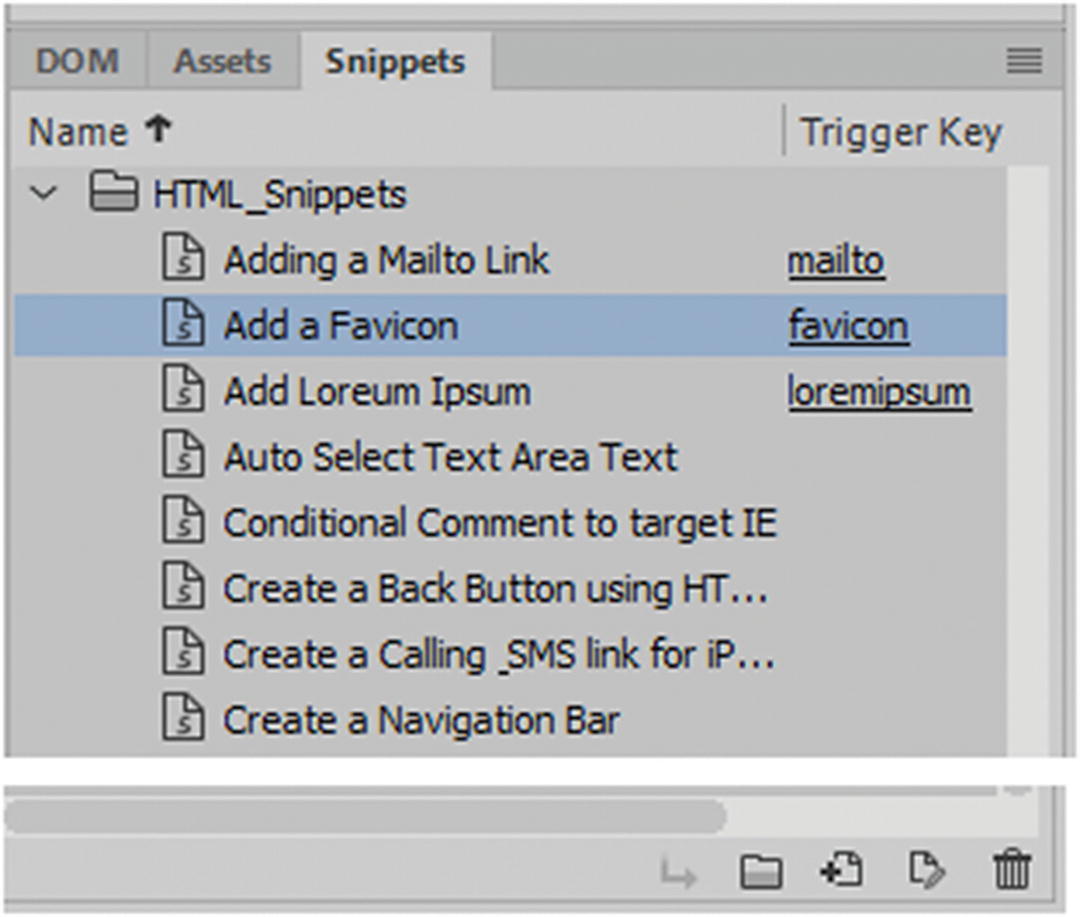
Dreamweaver CC also has snippets of code available in the Snippets panel (HTML_Snippets). Refer to Figure 31-71.
../images/466782_1_En_31_Chapter/466782_1_En_31_Fig71_HTML.jpg
Figure 31-71

Adding a favicon link using the Snippets panel
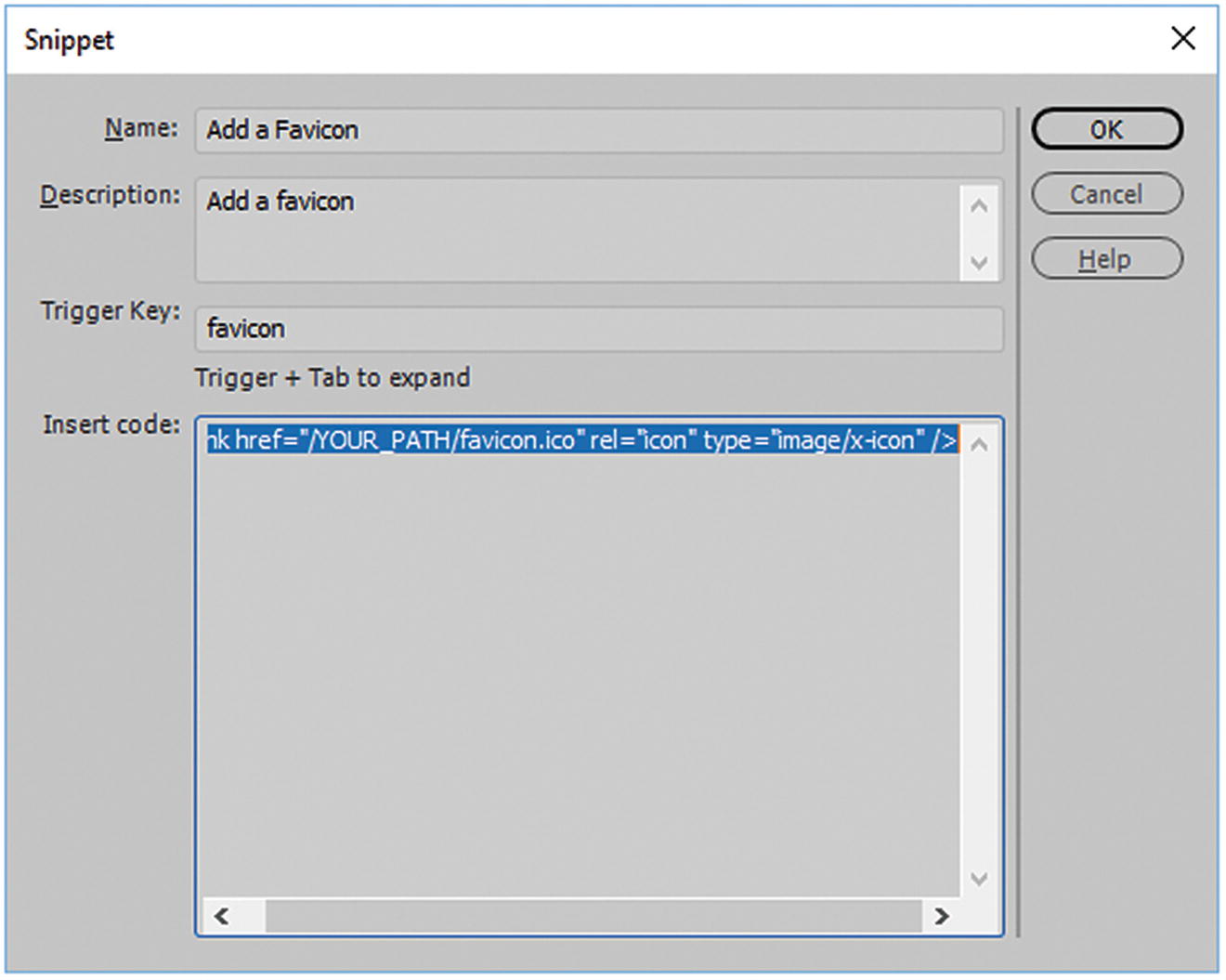
Snippets are a great library resource that you can use as shortcuts to code that you frequently use, or you can add your own to the list. If you don’t have a file open, you can view the code by clicking the snippet and the Edit Snippet button (the paper-and-pencil icon next to the Trash icon) and check out the code. This opens the Snippet dialog box. In this case, I found the code for adding a favicon. Refer to Figure 31-72.
../images/466782_1_En_31_Chapter/466782_1_En_31_Fig72_HTML.jpg
Figure 31-72

You can review the code in the Snippet dialog box before you insert it using the Snippets panel

Select and highlight the text in the Insert Code field and press Ctrl+C or Cmd+C to copy the text to paste later. Click Cancel so that you don’t save changes.

Alternatively, you could use the arrow Insert icon in the Snippets panel to insert the text on your page. You could then add this link into the head section of your HTML5 file. The Snippets panel offers many options, such as meta tags for mobile and hand-held devices. You look at snippets throughout Part 6.

Summary

In this chapter, you looked at how to insert various types of image formats. You also looked at <div> tags, semantic elements, and some upcoming elements that are new to HTML5. Finally, you looked at favicons and learned how to use the Snippets panel to insert small pieces of text.