Table of Contents for
The Modern Web
 The Modern Web
Published by
No Starch Press, 2013
The Modern Web
Published by
No Starch Press, 2013
- The Modern Web
- Cover
- The Modern Web
- Advance Praise for
- Praise for Peter Gasston’s
- Dedication
- About the Author
- About the Technical Reviewer
- Acknowledgments
- Introduction
- The Device Landscape
- The Multi-screen World
- Context: What We Don’t Know
- What You’ll Learn
- A. Further Reading
- 1. The Web Platform
- A Quick Note About Terminology
- Who You Are and What You Need to Know
- Getting Our Terms Straight
- The Real HTML5
- CSS3 and Beyond
- Browser Support
- Test and Test and Test Some More
- Summary
- B. Further Reading
- 2. Structure and Semantics
- New Elements in HTML5
- WAI-ARIA
- The Importance of Semantic Markup
- Microformats
- RDFa
- Microdata
- Data Attributes
- Web Components: The Future of Markup?
- Summary
- C. Further Reading
- 3. Device-Responsive CSS
- Media Queries
- Media Queries in JavaScript
- Adaptive vs. Responsive Web Design
- Viewport-Relative Length Units
- Responsive Design and Replaced Objects
- Summary
- D. Further Reading
- 4. New Approaches to CSS Layouts
- Multi-columns
- Flexbox
- Grid Layout
- The Further Future
- Summary
- E. Further Reading
- 5. Modern JavaScript
- New in JavaScript
- JavaScript Libraries
- Polyfills and Shims
- Testing and Debugging
- Summary
- F. Further Reading
- 6. Device Apis
- Geolocation
- Orientation
- Fullscreen
- Vibration
- Battery Status
- Network Information
- Camera and Microphone
- Web Storage
- Drag and Drop
- Interacting with Files
- Mozilla’s Firefox OS and WebAPIs
- PhoneGap and Native Wrappers
- Summary
- G. Further Reading
- 7. Images and Graphics
- Comparing Vectors and Bitmaps
- Scalable Vector Graphics
- The canvas Element
- When to Choose SVG or Canvas
- Summary
- H. Further Reading
- 8. New Forms
- New Input Types
- New Attributes
- Datalists
- On-Screen Controls and Widgets
- Displaying Information to the User
- Client-side Form Validation
- The Constraint Validation API
- Forms and CSS
- Summary
- I. Further Reading
- 9. Multimedia
- The Media Elements
- Media Fragments
- The Media API
- Media Events
- Advanced Media Interaction
- Summary
- J. Further Reading
- 10. Web Apps
- Web Apps
- Hybrid Apps
- TV Apps
- Webinos
- Application Cache
- Summary
- K. Further Reading
- 11. The Future
- Web Components
- The Future of CSS
- Summary
- L. Further Reading
- M. Browser Support as of March 2013
- The Browsers in Question
- Enabling Experimental Features
- Chapter 1: The Web Platform
- Chapter 2: Structure and Semantics
- Chapter 3: Device-Responsive CSS
- Chapter 4: New Approaches to CSS Layouts
- Chapter 5: Modern JavaScript
- Chapter 6: Device APIs
- Chapter 7: Images and Graphics
- Chapter 8: New Forms
- Chapter 9: Multimedia
- Chapter 10: Web Apps
- Chapter 11: The Future
- N. Further Reading
- Introduction
- Chapter 1: The Web Platform
- Chapter 2: Structure and Semantics
- Chapter 3: Device-Responsive CSS
- Chapter 4: New Approaches to CSS Layouts
- Chapter 5: Modern JavaScript
- Chapter 6: Device APIs
- Chapter 7: Images and Graphics
- Chapter 8: New Forms
- Chapter 9: Multimedia
- Chapter 10: Web Apps
- Chapter 11: The Future
- Index
- About the Author
- Copyright
Fullscreen
We all know the Web is an immensely powerful distraction machine, so sometimes providing an option to focus only on the content at hand is useful. This functionality is provided by the Fullscreen API, which allows you to expand any element to fill the entire screen of the device, rather than just the browser viewport. This is especially handy for large-screen devices, for instance, when playing video to provide the “lean back” experience of television.
Before setting up this script, check whether the browser has a full-screen mode. You can do this with the Boolean fullScreenEnabled attribute:
if (document.fullScreenEnabled) { … }
Fullscreen mode is called with the requestFullScreen() method. As this introduces potential security risks (an often-quoted example is an attack website that fools you into thinking that you’re seeing something else and copies your keystrokes), many devices provide an on-screen prompt to make sure you give permission to enter fullscreen mode. If you grant that permission, the element the method is called on scales up to 100 percent of the device screen’s height and width.
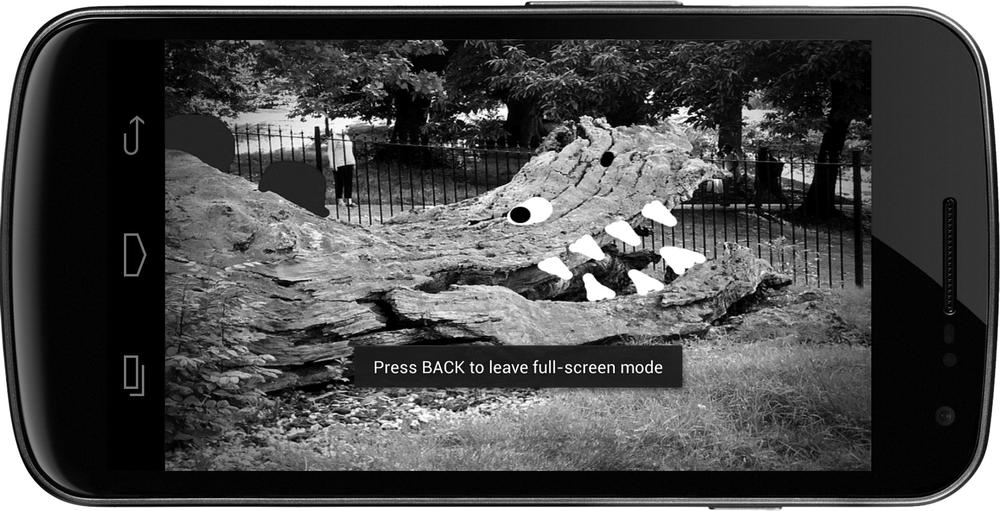
In the next code snippet, a click event listener is applied to the element #trigger, which, when fired, will put .target into fullscreen mode, as long as permission is granted. You can see this for yourself in the file fullscreen.html, which is illustrated in Figure 6-4.
var el = document.querySelector('.target'), launch = document.getElementById('trigger');
launch.addEventListener('click', function () {
  el.requestFullScreen();
}, false);
The browser should offer a means to exit fullscreen mode, but you can also provide your own with the exitFullScreen() method. The next code block shows a function that uses this method to leave fullscreen mode when the ENTER key is pressed. Note two further things in the code: First, it uses the fullscreenchange event, which is fired whenever an element enters or leaves fullscreen mode; and second, it relies on an if statement using the fullScreenElement attribute, which returns either information about the element that is in fullscreen mode or null if there is none.
document.addEventListener('fullscreenchange', function () {
  if (document.fullScreenElement !== null) {
    document.addEventListener('keydown', function (e) {
      if (e.keyCode === 13) {
        document.exitFullScreen();
      }
    }, false);
  }
}, false);
When an element has been put in fullscreen mode, you might want to style it (or its children) a little differently. It’s proposed that you can do this with a new dedicated CSS pseudo-class, which will be called either :fullscreen or :full-screen:
.target:full-screen {}