Table of Contents for
The Modern Web
 The Modern Web
Published by
No Starch Press, 2013
The Modern Web
Published by
No Starch Press, 2013
- The Modern Web
- Cover
- The Modern Web
- Advance Praise for
- Praise for Peter Gasston’s
- Dedication
- About the Author
- About the Technical Reviewer
- Acknowledgments
- Introduction
- The Device Landscape
- The Multi-screen World
- Context: What We Don’t Know
- What You’ll Learn
- A. Further Reading
- 1. The Web Platform
- A Quick Note About Terminology
- Who You Are and What You Need to Know
- Getting Our Terms Straight
- The Real HTML5
- CSS3 and Beyond
- Browser Support
- Test and Test and Test Some More
- Summary
- B. Further Reading
- 2. Structure and Semantics
- New Elements in HTML5
- WAI-ARIA
- The Importance of Semantic Markup
- Microformats
- RDFa
- Microdata
- Data Attributes
- Web Components: The Future of Markup?
- Summary
- C. Further Reading
- 3. Device-Responsive CSS
- Media Queries
- Media Queries in JavaScript
- Adaptive vs. Responsive Web Design
- Viewport-Relative Length Units
- Responsive Design and Replaced Objects
- Summary
- D. Further Reading
- 4. New Approaches to CSS Layouts
- Multi-columns
- Flexbox
- Grid Layout
- The Further Future
- Summary
- E. Further Reading
- 5. Modern JavaScript
- New in JavaScript
- JavaScript Libraries
- Polyfills and Shims
- Testing and Debugging
- Summary
- F. Further Reading
- 6. Device Apis
- Geolocation
- Orientation
- Fullscreen
- Vibration
- Battery Status
- Network Information
- Camera and Microphone
- Web Storage
- Drag and Drop
- Interacting with Files
- Mozilla’s Firefox OS and WebAPIs
- PhoneGap and Native Wrappers
- Summary
- G. Further Reading
- 7. Images and Graphics
- Comparing Vectors and Bitmaps
- Scalable Vector Graphics
- The canvas Element
- When to Choose SVG or Canvas
- Summary
- H. Further Reading
- 8. New Forms
- New Input Types
- New Attributes
- Datalists
- On-Screen Controls and Widgets
- Displaying Information to the User
- Client-side Form Validation
- The Constraint Validation API
- Forms and CSS
- Summary
- I. Further Reading
- 9. Multimedia
- The Media Elements
- Media Fragments
- The Media API
- Media Events
- Advanced Media Interaction
- Summary
- J. Further Reading
- 10. Web Apps
- Web Apps
- Hybrid Apps
- TV Apps
- Webinos
- Application Cache
- Summary
- K. Further Reading
- 11. The Future
- Web Components
- The Future of CSS
- Summary
- L. Further Reading
- M. Browser Support as of March 2013
- The Browsers in Question
- Enabling Experimental Features
- Chapter 1: The Web Platform
- Chapter 2: Structure and Semantics
- Chapter 3: Device-Responsive CSS
- Chapter 4: New Approaches to CSS Layouts
- Chapter 5: Modern JavaScript
- Chapter 6: Device APIs
- Chapter 7: Images and Graphics
- Chapter 8: New Forms
- Chapter 9: Multimedia
- Chapter 10: Web Apps
- Chapter 11: The Future
- N. Further Reading
- Introduction
- Chapter 1: The Web Platform
- Chapter 2: Structure and Semantics
- Chapter 3: Device-Responsive CSS
- Chapter 4: New Approaches to CSS Layouts
- Chapter 5: Modern JavaScript
- Chapter 6: Device APIs
- Chapter 7: Images and Graphics
- Chapter 8: New Forms
- Chapter 9: Multimedia
- Chapter 10: Web Apps
- Chapter 11: The Future
- Index
- About the Author
- Copyright
Client-side Form Validation
The new input types are really useful, but perhaps HTML5’s greatest gift to developers is native client-side error checking. Checking the contents of a form before it’s submitted is extremely important for security and usability, and until now, we haven’t had a simple way to do so, although many hundreds of JavaScript libraries have been written to work around this.
Now, with native form validation, many browsers will automatically warn you that the value you’ve entered into a field doesn’t match the input type. In Firefox, for example, if you type only numbers into an email input or omit the http:// protocol from the start of a URL in a url input, a glowing red rule around the input field warns you that the values are incorrect, as you can see in Figure 8-11.
If you try to submit the form now, you’ll receive an on-screen error message, such as the one in Figure 8-12—if, that is, your browser has implemented client-side validation. Each browser that has implemented it has its own style.
If you delete the content of the field and then click Submit again, no error is displayed. This field is optional by default, so not supplying a value is valid, but an incorrectly formatted value is invalid. To make the field not optional, you can add the Boolean required attribute:
<input type="email" required>

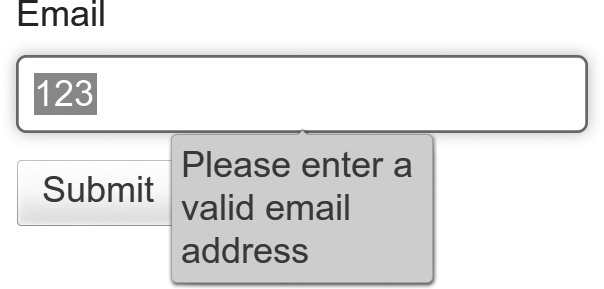
This attribute forces the browser to check the value of the field; an empty or improperly formatted value is invalid and returns an error, and only a properly formatted value allows you to submit the form.
The field’s type determines the pattern of the value format—email requires an email address, url requires a URL with protocol, date requires a year, month, and day, and so on—but you can override this requirement with the pattern attribute. The value for pattern is a regular expression, or regex, a standardized way of matching strings of data across many programming languages. As a simple example, you might want to allow only numbers in a tel input:
<input type="tel" pattern="\d*">
If you try to submit this input with letters or non-numeric characters, you’ll receive a different error message, asking you to use the correct pattern. You can customize this error message in some browsers by adding extra text in the title attribute; in this example, the words “Numbers only” are added to the on-screen message, as you can see in Figure 8-13.
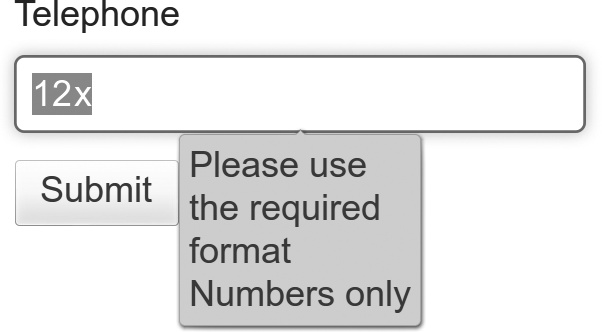
<input type="tel" pattern="\d*" title="Numbers only">
It’s far, far beyond the scope of this book to explain regular expressions in any more detail (to be honest, I barely understand them myself). You can find some useful regex generators online that will help if you need it. (There’s one listed in Appendix I.)
If you want to disable validation on an entire form, you can do so with the novalidate attribute. This attribute prevents any of the validation processes from running, regardless of the required state or pattern matching:
<form action="foo" novalidate>…</form>
And you can do this at a more local level with the formnovalidate attribute on an input or button element.
<button type="submit" formnovalidate>Go</button>
This option is useful when you want to have an option to submit without validation. For example, in a content management system, allowing the user to save a page for editing at a later date, without publishing it, is quite common; the data might be in an incomplete state and invalid, so running validation would only annoy the user.