Table of Contents for
Node.js 8 the Right Way
 Node.js 8 the Right Way
Published by
Pragmatic Bookshelf, 2018
Node.js 8 the Right Way
Published by
Pragmatic Bookshelf, 2018
- Title Page
- Node.js 8 the Right Way
- Node.js 8 the Right Way
- Node.js 8 the Right Way
- Node.js 8 the Right Way
- Acknowledgments
- Preface
- Why Node.js the Right Way?
- What’s in This Book
- What This Book Is Not
- Code Examples and Conventions
- Online Resources
- Part I. Getting Up to Speed on Node.js 8
- 1. Getting Started
- Thinking Beyond the web
- Node.js’s Niche
- How Node.js Applications Work
- Aspects of Node.js Development
- Installing Node.js
- 2. Wrangling the File System
- Programming for the Node.js Event Loop
- Spawning a Child Process
- Capturing Data from an EventEmitter
- Reading and Writing Files Asynchronously
- The Two Phases of a Node.js Program
- Wrapping Up
- 3. Networking with Sockets
- Listening for Socket Connections
- Implementing a Messaging Protocol
- Creating Socket Client Connections
- Testing Network Application Functionality
- Extending Core Classes in Custom Modules
- Developing Unit Tests with Mocha
- Wrapping Up
- 4. Connecting Robust Microservices
- Installing ØMQ
- Publishing and Subscribing to Messages
- Responding to Requests
- Routing and Dealing Messages
- Clustering Node.js Processes
- Pushing and Pulling Messages
- Wrapping Up
- Node.js 8 the Right Way
- Part II. Working with Data
- 5. Transforming Data and Testing Continuously
- Procuring External Data
- Behavior-Driven Development with Mocha and Chai
- Extracting Data from XML with Cheerio
- Processing Data Files Sequentially
- Debugging Tests with Chrome DevTools
- Wrapping Up
- 6. Commanding Databases
- Introducing Elasticsearch
- Creating a Command-Line Program in Node.js with Commander
- Using request to Fetch JSON over HTTP
- Shaping JSON with jq
- Inserting Elasticsearch Documents in Bulk
- Implementing an Elasticsearch Query Command
- Wrapping Up
- Node.js 8 the Right Way
- Part III. Creating an Application from the Ground Up
- 7. Developing RESTful Web Services
- Advantages of Express
- Serving APIs with Express
- Writing Modular Express Services
- Keeping Services Running with nodemon
- Adding Search APIs
- Simplifying Code Flows with Promises
- Manipulating Documents RESTfully
- Emulating Synchronous Style with async and await
- Providing an Async Handler Function to Express
- Wrapping Up
- 8. Creating a Beautiful User Experience
- Getting Started with webpack
- Generating Your First webpack Bundle
- Sprucing Up Your UI with Bootstrap
- Bringing in Bootstrap JavaScript and jQuery
- Transpiling with TypeScript
- Templating HTML with Handlebars
- Implementing hashChange Navigation
- Listing Objects in a View
- Saving Data with a Form
- Wrapping Up
- 9. Fortifying Your Application
- Setting Up the Initial Project
- Managing User Sessions in Express
- Adding Authentication UI Elements
- Setting Up Passport
- Authenticating with Facebook, Twitter, and Google
- Composing an Express Router
- Bringing in the Book Bundle UI
- Serving in Production
- Wrapping Up
- Node.js 8 the Right Way
- 10. BONUS: Developing Flows with Node-RED
- Setting Up Node-RED
- Securing Node-RED
- Developing a Node-RED Flow
- Creating HTTP APIs with Node-RED
- Handling Errors in Node-RED Flows
- Wrapping Up
- A1. Setting Up Angular
- A2. Setting Up React
- Node.js 8 the Right Way
Adding Authentication UI Elements
At this point, your skeleton B4 application has session support, but no way to sign in. There are two parts to implementing the authentication flow—the front end and the back end.
On the front end, we need to add buttons so the user can choose the service with which to authenticate. The first step is to install the social buttons for Bootstrap so we can insert them into a template.[90] This module depends on Font Awesome for its icons,[91] so you’ll need to install that too. Use npm for both.
| | $ npm install --save -E bootstrap-social@5.1.1 font-awesome@4.7.0 |
Next, for webpack to find and use these you’ll need to import them into your index.ts file. Add these lines at the top, right after the import line for Bootstrap, then save the file:
| | import '../node_modules/bootstrap-social/bootstrap-social.css'; |
| | import '../node_modules/font-awesome/css/font-awesome.min.css'; |
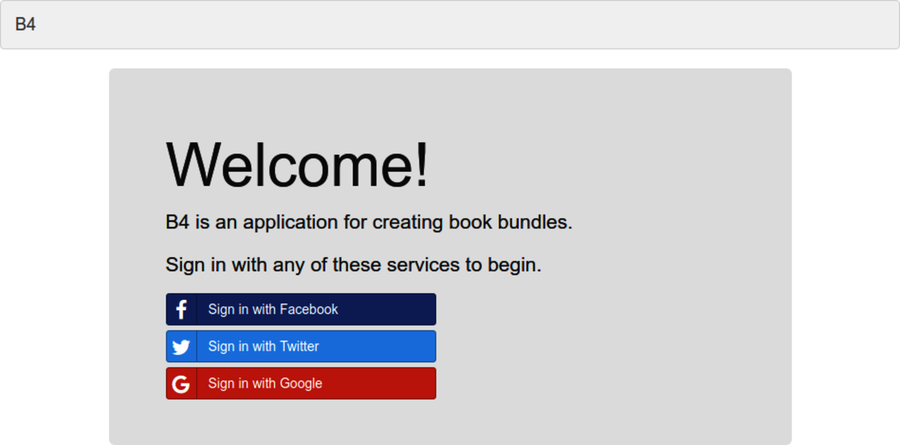
Now we can add the social sign-in buttons. Open your templates.ts file and update the welcome template by inserting the following to the end of the .jumbotron div:
| | {{#if session.auth}} |
| | <p>View your <a href="#list-bundles">bundles</a>.</p> |
| | {{else}} |
| | <p>Sign in with any of these services to begin.</p> |
| | <div class="row"> |
| | <div class="col-sm-6"> |
| | <a href="/auth/facebook" class="btn btn-block btn-social btn-facebook"> |
| | Sign in with Facebook |
| | <span class="fa fa-facebook"></span> |
| | </a> |
| | <a href="/auth/twitter" class="btn btn-block btn-social btn-twitter"> |
| | Sign in with Twitter |
| | <span class="fa fa-twitter"></span> |
| | </a> |
| | <a href="/auth/google" class="btn btn-block btn-social btn-google"> |
| | Sign in with Google |
| | <span class="fa fa-google"></span> |
| | </a> |
| | </div> |
| | </div> |
| | {{/if}} |
This code uses a Handlebars {{#if}} block to check if the passed-in session object has auth set to true. Recall that Handlebars is a templating language we introduced for rendering HTML in Templating HTML with Handlebars. If session.auth is true, then we show users a link to where they can view and edit their book bundles. Otherwise, we show the social sign-in buttons.
Note that our code currently doesn’t pass an empty session object to the welcome Handlebars template. We’ll need an API that the browser can hit to return a session object; we’ll implement that shortly. But for now, Handlebars will evaluate the expression session.auth to be falsey.
Also, the links for the Facebook, Twitter, and Google social sign-in buttons go to /auth/facebook, /auth/twitter, and /auth/google. Our server.js currently implements none of these endpoints, so we’ll need to do that as well.
After you save this file, head back to http://b4.example.com:60900. It should now look like the figure.
While you have templates.ts open for editing, let’s make one more quick change. When a user is signed in, there are a couple of links that would be helpful to show in the nav bar up top: a link to their book bundles, and a Sign Out link.
To add those, find the main Handlebars template and update it to look as follows by adding the {{#if}} block to the end of the .container-fluid div.
| | {{#if session.auth}} |
| | <div class="collapse navbar-collapse"> |
| | <ul class="nav navbar-nav navbar-right"> |
| | <li><a href="#list-bundles">My Bundles</a></li> |
| | <li><a href="/auth/signout">Sign Out</a></li> |
| | </ul> |
| | </div><!-- /.navbar-collapse --> |
| | {{/if}} |
Here again, we’re using {{#if}} to perform an auth check. If the user is signed in, then we’ll show links to My Bundles and Sign Out.
When you save this file, there won’t be any visible changes in your rendered page as yet. But once we finish the auth flow, these links will show up. Let’s implement the auth flow now.