Table of Contents for
Node.js 8 the Right Way
 Node.js 8 the Right Way
Published by
Pragmatic Bookshelf, 2018
Node.js 8 the Right Way
Published by
Pragmatic Bookshelf, 2018
- Title Page
- Node.js 8 the Right Way
- Node.js 8 the Right Way
- Node.js 8 the Right Way
- Node.js 8 the Right Way
- Acknowledgments
- Preface
- Why Node.js the Right Way?
- What’s in This Book
- What This Book Is Not
- Code Examples and Conventions
- Online Resources
- Part I. Getting Up to Speed on Node.js 8
- 1. Getting Started
- Thinking Beyond the web
- Node.js’s Niche
- How Node.js Applications Work
- Aspects of Node.js Development
- Installing Node.js
- 2. Wrangling the File System
- Programming for the Node.js Event Loop
- Spawning a Child Process
- Capturing Data from an EventEmitter
- Reading and Writing Files Asynchronously
- The Two Phases of a Node.js Program
- Wrapping Up
- 3. Networking with Sockets
- Listening for Socket Connections
- Implementing a Messaging Protocol
- Creating Socket Client Connections
- Testing Network Application Functionality
- Extending Core Classes in Custom Modules
- Developing Unit Tests with Mocha
- Wrapping Up
- 4. Connecting Robust Microservices
- Installing ØMQ
- Publishing and Subscribing to Messages
- Responding to Requests
- Routing and Dealing Messages
- Clustering Node.js Processes
- Pushing and Pulling Messages
- Wrapping Up
- Node.js 8 the Right Way
- Part II. Working with Data
- 5. Transforming Data and Testing Continuously
- Procuring External Data
- Behavior-Driven Development with Mocha and Chai
- Extracting Data from XML with Cheerio
- Processing Data Files Sequentially
- Debugging Tests with Chrome DevTools
- Wrapping Up
- 6. Commanding Databases
- Introducing Elasticsearch
- Creating a Command-Line Program in Node.js with Commander
- Using request to Fetch JSON over HTTP
- Shaping JSON with jq
- Inserting Elasticsearch Documents in Bulk
- Implementing an Elasticsearch Query Command
- Wrapping Up
- Node.js 8 the Right Way
- Part III. Creating an Application from the Ground Up
- 7. Developing RESTful Web Services
- Advantages of Express
- Serving APIs with Express
- Writing Modular Express Services
- Keeping Services Running with nodemon
- Adding Search APIs
- Simplifying Code Flows with Promises
- Manipulating Documents RESTfully
- Emulating Synchronous Style with async and await
- Providing an Async Handler Function to Express
- Wrapping Up
- 8. Creating a Beautiful User Experience
- Getting Started with webpack
- Generating Your First webpack Bundle
- Sprucing Up Your UI with Bootstrap
- Bringing in Bootstrap JavaScript and jQuery
- Transpiling with TypeScript
- Templating HTML with Handlebars
- Implementing hashChange Navigation
- Listing Objects in a View
- Saving Data with a Form
- Wrapping Up
- 9. Fortifying Your Application
- Setting Up the Initial Project
- Managing User Sessions in Express
- Adding Authentication UI Elements
- Setting Up Passport
- Authenticating with Facebook, Twitter, and Google
- Composing an Express Router
- Bringing in the Book Bundle UI
- Serving in Production
- Wrapping Up
- Node.js 8 the Right Way
- 10. BONUS: Developing Flows with Node-RED
- Setting Up Node-RED
- Securing Node-RED
- Developing a Node-RED Flow
- Creating HTTP APIs with Node-RED
- Handling Errors in Node-RED Flows
- Wrapping Up
- A1. Setting Up Angular
- A2. Setting Up React
- Node.js 8 the Right Way
Saving Data with a Form
It’s great that our application is able to list bundles that already exist, but what about adding new ones? The right tool for this job is the venerable HTML <form> tag. Using a form, we can capture user input and process it by making a proxied call to the back-end APIs. Since the form is static HTML, we’ll put it in app/templates.ts. Open that file now and add this template.
| | export const addBundleForm = Handlebars.compile(` |
| | <div class="panel panel-default"> |
| | <div class="panel-heading">Create a new bundle.</div> |
| | <div class="panel-body"> |
| | <form> |
| | <div class="input-group"> |
| | <input class="form-control" placeholder="Bundle Name" /> |
| | <span class="input-group-btn"> |
| | <button class="btn btn-primary" type="submit">Create</button> |
| | </span> |
| | </div> |
| | </form> |
| | </div> |
| | </div> |
| | `); |
Like the listBundles template, the addBundleForm template creates a Bootstrap panel to house the content. Inside the panel, we create a <form> with an <input> where the user can enter a new bundle name, and a <button> to submit the form.
Next, open your app/index.ts for editing and head to the listBundles. We need to add the form to this and handle form submission.
| | const listBundles = bundles => { |
| | mainElement.innerHTML = |
| | templates.addBundleForm() + templates.listBundles({bundles}); |
| | |
| | const form = mainElement.querySelector('form'); |
| | form.addEventListener('submit', event => { |
| | event.preventDefault(); |
| | const name = form.querySelector('input').value; |
| | addBundle(name); |
| | }); |
| | }; |
At the top of this function, we set the mainElement’s HTML to include both the form and the bundle-listing table. After that, we grab a reference to the <form> element and capture its submit event.
The browser’s default behavior when a form is submitted is to navigate away from the current page while submitting the form data to the server. Inside the submit event handler, the first thing we have to do is call event.preventDefault to stop this from happening. After that, we extract the name from the form’s <input> tag, and call the as-yet-unwritten addBundle.
To complete the functionality, we need to introduce the addBundle async function, which takes the name of a bundle to add and asynchronously adds it, then updates the list. Whether this operation succeeds or fails, we’ll need to inform the user, so add this convenience function for showing an alert to the user:
| | /** |
| | * Show an alert to the user. |
| | */ |
| | const showAlert = (message, type = 'danger') => { |
| | const html = templates.alert({type, message}); |
| | alertsElement.insertAdjacentHTML('beforeend', html); |
| | }; |
This simple helper function uses the alert Handlebars template from earlier to generate a nice-looking dismissable alert box. We inject the resulting HTML at the end of the alertsElement using the insertAdjacentHTML method.
Finally, still inside app/index.ts, add the following addBundle async function.
| | /** |
| | * Create a new bundle with the given name, then list bundles. |
| | */ |
| | const addBundle = async (name) => { |
| | try { |
| | // Grab the list of bundles already created. |
| | const bundles = await getBundles(); |
| | |
| | // Add the new bundle. |
| | const url = `/api/bundle?name=${encodeURIComponent(name)}`; |
| | const res = await fetch(url, {method: 'POST'}); |
| | const resBody = await res.json(); |
| | |
| | // Merge the new bundle into the original results and show them. |
| | bundles.push({id: resBody._id, name}); |
| | listBundles(bundles); |
| | |
| | showAlert(`Bundle "${name}" created!`, 'success'); |
| | } catch (err) { |
| | showAlert(err); |
| | } |
| | }; |
In form, this code shouldn’t appear too surprising. It’s the same sort of async function you’ve been developing in this chapter and the previous one, with a big try/catch block to handle both synchronous exceptions and rejected Promises.
First, we await an updated list of bundles from the async function getBundles. We have to get an updated list because it may have changed since the form was originally rendered on the page (for example, if the user took action in another tab).
Next, we issue an HTTP POST request using fetch to create a bundle with the user-specified name. Once that returns, we extract the JSON response, which gives us access to the ID that Elasticsearch generated for the bundle.
If everything was successful to this point, we add that bundle to the bundles array and then call listBundles to re-render the table. And lastly, we use the showAlert function to inform the user that the operation was successful. If anything went wrong, we use showAlert to indicate the problem in the catch block at the bottom.
You might wonder why we don’t just add the bundle and then request the full bundle list and display it. The reason is something called eventual consistency. Elasticsearch, like many database solutions, experiences a delay between successful changes to the data and those results showing up in subsequent queries. Consider this bad implementation of addBundle:
| | // BAD IMPLEMENTATION! Subject to stale data due to eventual consistency. |
| | const addBundle = async (name) => { |
| | try { |
| | // Add the new bundle. |
| | const url = `/api/bundle?name=${encodeURIComponent(name)}`; |
| | const res = await fetch(url, {method: 'POST'}); |
| | const resBody = await res.json(); |
| | |
| | // Grab the list of all bundles, expecting the new one to be in the list. |
| | // Due to eventual consistency, the new bundle may be missing! |
| | const bundles = await getBundles(); |
| | listBundles(bundles); |
| | |
| | showAlert(`Bundle "${name}" created!`, 'success'); |
| | } catch (err) { |
| | showAlert(err); |
| | } |
| | }; |
In this bad implementation, we POST the new bundle first, then immediately invoke getBundles, expecting it to contain all the bundles, including the brand-new one. Now, the ordering of the requests isn’t itself a problem. Since we’re using await at each step, the next fetch request won’t start until the previous one has finished.
However, there’s very little time between the finishing of the POST and the request to get bundles. That means it’s possible—and, in my experience, probable—that the result of the getBundles request won’t include the bundle that was just added.
Unfortunately, this experience is not unique to Elasticsearch. In order to handle requests at scale, many systems distribute the load across a network. Even SQL servers are not immune. One common practice is to have a central server receive write requests, then replicate data to other read-only servers to satisfy queries. Even if the delay between a central write and the replication is tiny, it’s still quite possible to perform a read too soon after a write to pick up the changes.
For this reason, it’s up to you to maintain the relevant data in your application and mirror the changes you’re making asynchronously upstream. That’s the safe way to guard against getting stale results due to eventual consistency.
Once you save these changes to app/index.ts, you should see the form above the list when you visit #list-bundles. Try adding a new bundle. It should appear in the list, with a success message up top.
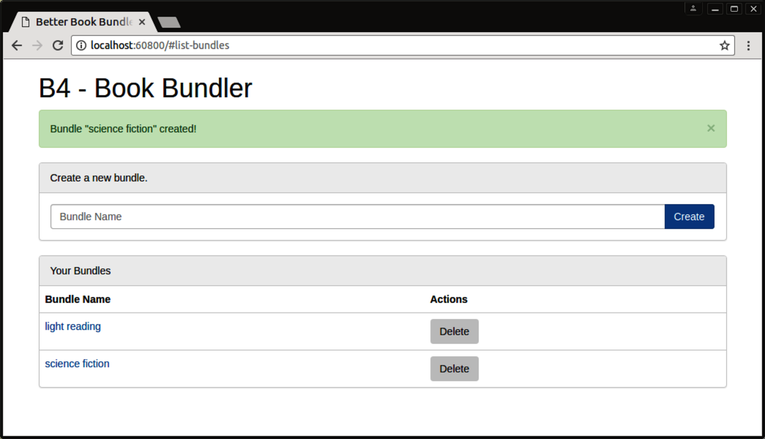
Whew! What a lot of work to get this far. There is, of course, a ton more functionality this application needs to be usable, but a lot of it is in the form of iterative features and improvements on this basic structure.
Let’s quickly recap what we discussed in this chapter, then move on to wrapping it all together.