Table of Contents for
Packet Tracer Network Simulator
 Packet Tracer Network Simulator
Published by
Packt Publishing, 2014
Packet Tracer Network Simulator
Published by
Packt Publishing, 2014
- Cover
- Table of Contents
- Packet Tracer Network Simulator
- Packet Tracer Network Simulator
- Credits
- About the Author
- About the Reviewers
- www.PacktPub.com
- Preface
- Who this book is for
- Conventions
- Reader feedback
- Customer support
- 1. Getting Started with Packet Tracer
- Installing Packet Tracer
- Interface overview
- Creating a simple topology
- Summary
- 2. Network Devices
- Customizing devices with modules
- Emulating WAN
- Accessing the CLI
- Summary
- 3. Generic IP End Devices
- Servers
- Other end devices
- Configuring end devices
- Summary
- 4. Creating a Network Topology
- Testing connectivity with PDUs
- Using the simulation mode
- Clustering a topology
- Summary
- 5. Navigating and Modifying the Physical Workspace
- Moving devices physically
- Managing cables and distances
- Customizing icons and backgrounds
- Summary
- 6. Configuring Routing with the CLI
- Dynamic routing protocols
- The Routing table
- Load sharing
- Summary
- 7. Border Gateway Protocol (BGP)
- BGP versus dynamic routing protocols
- Configuring BGP in Packet Tracer
- Summary
- 8. IPv6 on Packet Tracer
- IPv6 static and dynamic routing
- Using both IPv4 and IPv6
- Summary
- 9. Setting Up a Wireless Network
- Wireless networks and physical workspaces
- Summary
- 10. Configuring VLANs and Trunks
- InterVLAN routing with routers and layer 3 switches
- Switch-to-switch trunk links
- Analyzing broadcasts in the simulation mode
- Summary
- 11. Creating Packet Tracer Assessments
- The initial network
- The answer network
- Testing the activity
- Summary
- Index
IPv4 has 4.3 billion addresses, which may seem mindboggling. However, it took only two decades for it to reach its depletion. IPv6 has come to the rescue in the form of 128-bit addresses. Packet Tracer supports a wide array of IPv6 features. We'll start by learning how to assign IP addresses to different devices and how to configure routing between them. Finally, we'll create a setup that enables IPv6 communication over IPv4 devices.
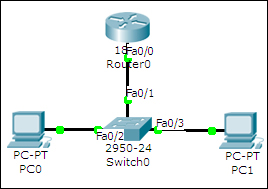
Starting from Packet Trace Version 6, the IP Configuration utility under the Desktop tab of end devices has an option to enter an IPv6 address. Let's begin with a simple topology consisting of two PCs and a router connected to a switch, as shown in the following screenshot:
There are three ways of assigning IPv6 addresses to a device and we'll see each one of them.
Autoconfiguration requires the least amount of configuration but makes it difficult to remember the IPv6 addresses. This method uses the MAC address of the device to create an IPv6 address with the FE80:: prefix. Carry out the following steps to assign IPv6 addresses using Autoconfiguration:
- Begin by configuring the router. Enter the interface configuration mode and enable IPv6 on the interface.
R0(config)#ipv6 unicast-routing
R0(config)#interface FastEthernet0/0
R0(config-if)#ipv6 enable
- Next, we will configure a link local address and a global unicast address on this interface. We'll use
eui-64to reduce the configuration.R0(config-if)#ipv6 address autoconfig R0(config-if)#ipv6 add 2000::/64 eui-64 R0(config-if)#no shutdown
- Verify that the interface is
upand has two IPv6 addresses.R0>sh ipv6 interface brief FastEthernet0/0 [up/up] FE80::2D0:58FF:FE65:E701 2000::2D0:58FF:FE65:E701
- These IPv6 addresses may vary when you try them out, as they are based on the MAC address. Enable routing so that this router can be identified as a default gateway.
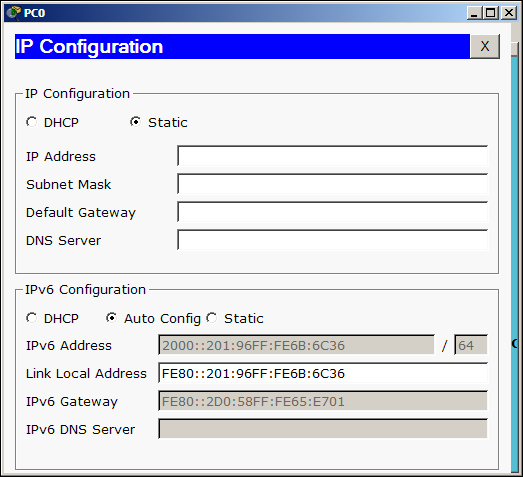
R0(config)#ipv6 unicast-routing - The configuration of the router is now done, let's move on to the PCs. Go to the Desktop tab of the PC, open IP Configuration, and under the IPv6 Configuration section, choose Auto Config. The gateway and the PC's IP address will be assigned automatically, as shown in the following screenshot:
- Use the simple PDU tool to test the connectivity; you'll see ICMPv6 packets moving between the nodes. To view the IPv6 address from the command line of PCs, use the
ipv6configcommand.
IPv6 addresses can also be assigned statically on all devices. We'll use the same topology for this section too. We'll carry out the following steps to configure IPv6 addresses statically:
- Begin by configuring a static IPv6 address on the router.
R0(config)#interface fastethernet0/0
R0(config-if)#ipv6 enable
R0(config-if)#ipv6 address 2000::1/64
R0(config-if)#no shutdown
- Go to the Desktop tab of PC, open the IP Configuration utility, and enter an IPv6 address with the same prefix.
- Now use the simple PDU tool to test the connectivity. Once both the methods work fine, you can have a look at the IPv6 neighbors table. This is similar to the ARP table of IPv4.
R0#sh ipv6 neighbor
IPv6 Address                              Age Link-layer Addr State Interface
2000::2                                     0 00E0.A39E.05C4  REACH Fa0/0
2000::3                                     0 0001.43B9.0268  REACH Fa0/0
Now that we have configured IPv6 addresses on a single network, let's configure them on more networks and enable routing between them.