Table of Contents for
Packet Tracer Network Simulator
 Packet Tracer Network Simulator
Published by
Packt Publishing, 2014
Packet Tracer Network Simulator
Published by
Packt Publishing, 2014
- Cover
- Table of Contents
- Packet Tracer Network Simulator
- Packet Tracer Network Simulator
- Credits
- About the Author
- About the Reviewers
- www.PacktPub.com
- Preface
- Who this book is for
- Conventions
- Reader feedback
- Customer support
- 1. Getting Started with Packet Tracer
- Installing Packet Tracer
- Interface overview
- Creating a simple topology
- Summary
- 2. Network Devices
- Customizing devices with modules
- Emulating WAN
- Accessing the CLI
- Summary
- 3. Generic IP End Devices
- Servers
- Other end devices
- Configuring end devices
- Summary
- 4. Creating a Network Topology
- Testing connectivity with PDUs
- Using the simulation mode
- Clustering a topology
- Summary
- 5. Navigating and Modifying the Physical Workspace
- Moving devices physically
- Managing cables and distances
- Customizing icons and backgrounds
- Summary
- 6. Configuring Routing with the CLI
- Dynamic routing protocols
- The Routing table
- Load sharing
- Summary
- 7. Border Gateway Protocol (BGP)
- BGP versus dynamic routing protocols
- Configuring BGP in Packet Tracer
- Summary
- 8. IPv6 on Packet Tracer
- IPv6 static and dynamic routing
- Using both IPv4 and IPv6
- Summary
- 9. Setting Up a Wireless Network
- Wireless networks and physical workspaces
- Summary
- 10. Configuring VLANs and Trunks
- InterVLAN routing with routers and layer 3 switches
- Switch-to-switch trunk links
- Analyzing broadcasts in the simulation mode
- Summary
- 11. Creating Packet Tracer Assessments
- The initial network
- The answer network
- Testing the activity
- Summary
- Index
All devices used in the logical workspace are placed in Main Wiring Closet; we'll learn how to move them.
- Create a topology in the logical workspace with two PCs. Replace their default modules with PT-HOST-NM-1FGE (remember to switch off both the PCs before doing this) because Ethernet has distance restrictions (we'll learn more about this in the following section). Connect both of them with a fiber cable and assign IP addresses.
- Switch to the physical view, click on the New City button on the yellow toolbar, and rename the newly-created city. In this example, we'll name it
Remote City. Open this city and create a new building, and then create a new wiring closet within this building. - Use the NAVIGATION button and navigate to Home City | Corporate Office | Main Wiring Closet. This contains both the PCs we inserted in the logical workspace, as shown in the following screenshot:
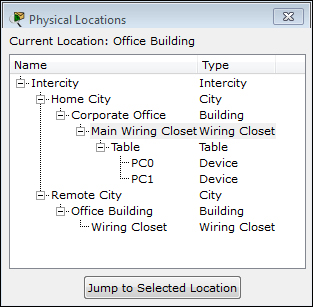
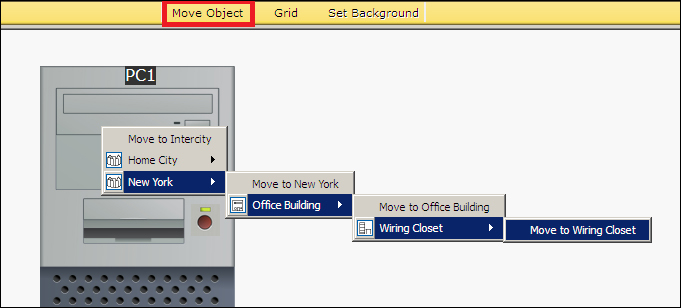
- Use the Move Object button (or keys Shift + M) and move one of the PCs to Remote City | Office Building | Wiring Closet, as shown in the following screenshot. This can also be done in the navigation box by using the drag-and-drop feature.
- Navigate to the intercity and you'll find a link between home city and remote city. Now navigate to Remote City | Office Building | Wiring Closet to find the PC we moved.
Moving back to the logical topology, you'll see absolutely no difference in the placement of the PCs. Devices can also be moved to the intercity, cities, and buildings. In these cases, the icon of the device is displayed in the physical environment.