Table of Contents for
Packet Tracer Network Simulator
 Packet Tracer Network Simulator
Published by
Packt Publishing, 2014
Packet Tracer Network Simulator
Published by
Packt Publishing, 2014
- Cover
- Table of Contents
- Packet Tracer Network Simulator
- Packet Tracer Network Simulator
- Credits
- About the Author
- About the Reviewers
- www.PacktPub.com
- Preface
- Who this book is for
- Conventions
- Reader feedback
- Customer support
- 1. Getting Started with Packet Tracer
- Installing Packet Tracer
- Interface overview
- Creating a simple topology
- Summary
- 2. Network Devices
- Customizing devices with modules
- Emulating WAN
- Accessing the CLI
- Summary
- 3. Generic IP End Devices
- Servers
- Other end devices
- Configuring end devices
- Summary
- 4. Creating a Network Topology
- Testing connectivity with PDUs
- Using the simulation mode
- Clustering a topology
- Summary
- 5. Navigating and Modifying the Physical Workspace
- Moving devices physically
- Managing cables and distances
- Customizing icons and backgrounds
- Summary
- 6. Configuring Routing with the CLI
- Dynamic routing protocols
- The Routing table
- Load sharing
- Summary
- 7. Border Gateway Protocol (BGP)
- BGP versus dynamic routing protocols
- Configuring BGP in Packet Tracer
- Summary
- 8. IPv6 on Packet Tracer
- IPv6 static and dynamic routing
- Using both IPv4 and IPv6
- Summary
- 9. Setting Up a Wireless Network
- Wireless networks and physical workspaces
- Summary
- 10. Configuring VLANs and Trunks
- InterVLAN routing with routers and layer 3 switches
- Switch-to-switch trunk links
- Analyzing broadcasts in the simulation mode
- Summary
- 11. Creating Packet Tracer Assessments
- The initial network
- The answer network
- Testing the activity
- Summary
- Index
All of this was done while we were working in real-time mode, so the only indication of traffic was the link status blinking green. But, using simulation mode, you can see packets flowing from one node to another and can also click on a packet to see detailed information categorized by OSI layers.
Use the realtime/simulation tab to switch to the simulation mode.
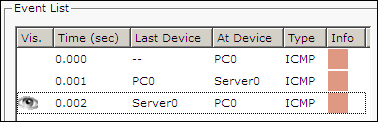
Click on the Auto Capture / Play button to begin packet capture. Try a Simple PDU, as described in the previous section, and the event list will be populated with three entries, indicating the creation of an ICMP packet, ICMP echo sent, and ICMP reply received:
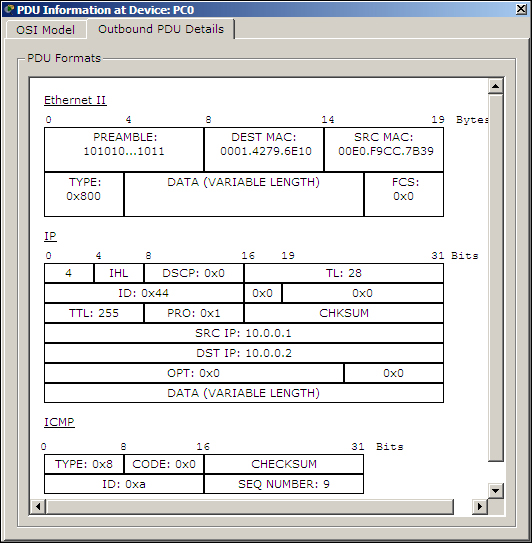
If you click on a packet (the envelope icon), you'll be presented with the packet information categorized according to OSI layers. The Outbound PDU Details tab lists each layer's information in a packet format:
The simulation mode has a Play Controls section that works similar to the controls of a media player and is as follows:
- Back: This button moves the process one step back each time it is clicked on.
- Auto Capture / Play: Pressing this button results in all of the network traffic (chosen under event filters) being continuously captured until this button is pressed again.
- Capture/Forward: This is the manual mode of the previous button. This has to be pressed each time to move the packet from one place to another.