Table of Contents for
Packet Tracer Network Simulator
 Packet Tracer Network Simulator
Published by
Packt Publishing, 2014
Packet Tracer Network Simulator
Published by
Packt Publishing, 2014
- Cover
- Table of Contents
- Packet Tracer Network Simulator
- Packet Tracer Network Simulator
- Credits
- About the Author
- About the Reviewers
- www.PacktPub.com
- Preface
- Who this book is for
- Conventions
- Reader feedback
- Customer support
- 1. Getting Started with Packet Tracer
- Installing Packet Tracer
- Interface overview
- Creating a simple topology
- Summary
- 2. Network Devices
- Customizing devices with modules
- Emulating WAN
- Accessing the CLI
- Summary
- 3. Generic IP End Devices
- Servers
- Other end devices
- Configuring end devices
- Summary
- 4. Creating a Network Topology
- Testing connectivity with PDUs
- Using the simulation mode
- Clustering a topology
- Summary
- 5. Navigating and Modifying the Physical Workspace
- Moving devices physically
- Managing cables and distances
- Customizing icons and backgrounds
- Summary
- 6. Configuring Routing with the CLI
- Dynamic routing protocols
- The Routing table
- Load sharing
- Summary
- 7. Border Gateway Protocol (BGP)
- BGP versus dynamic routing protocols
- Configuring BGP in Packet Tracer
- Summary
- 8. IPv6 on Packet Tracer
- IPv6 static and dynamic routing
- Using both IPv4 and IPv6
- Summary
- 9. Setting Up a Wireless Network
- Wireless networks and physical workspaces
- Summary
- 10. Configuring VLANs and Trunks
- InterVLAN routing with routers and layer 3 switches
- Switch-to-switch trunk links
- Analyzing broadcasts in the simulation mode
- Summary
- 11. Creating Packet Tracer Assessments
- The initial network
- The answer network
- Testing the activity
- Summary
- Index
When large topologies are created, it becomes difficult to understand them after a while. Clustering comes to the rescue by combining several devices that you choose into a single cloud icon. Then, double-clicking on the cluster expands and displays the devices normally.
Let us see how to create a cluster:
- We'll be using the following topology containing three switches and nine PCs. While this is not at all cluttered, it will give you an idea when to use this feature.
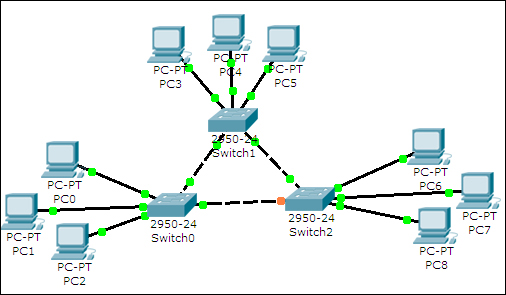
- Click on the whitespace next to PC3; drag your mouse to select PC3, PC4, PC5, and Switch1; and click on the New Cluster button on the top-right corner. Repeat these steps selecting the other two sets of three PCs and a switch.
- You'll get a clustered view as follows:
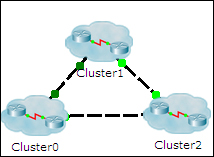
- Double-clicking on a cluster expands it and displays only the devices within it. To go back, click on the Back button on the top-left corner.
Clusters can also be created inside clusters. A cluster is a feature of the logical workspace and hence does not affect how devices are displayed in the physical workspace.