Table of Contents for
Building E-Commerce Solutions with WooCommerce - Second Edition
 Building E-Commerce Solutions with WooCommerce - Second Edition
Published by
Packt Publishing, 2015
Building E-Commerce Solutions with WooCommerce - Second Edition
Published by
Packt Publishing, 2015
- Cover
- Table of Contents
- Building E-Commerce Solutions with WooCommerce Second Edition
- Building E-Commerce Solutions with WooCommerce Second Edition
- Credits
- About the Author
- About the Reviewers
- www.PacktPub.com
- Preface
- What you need for this book
- Who this book is for
- Conventions
- Reader feedback
- Customer support
- 1. Setting Up WooCommerce
- Installing WooCommerce
- Setting up WooCommerce
- Summary
- 2. Creating Your First Products
- Creating your first product
- Setting the categories, tags, and images for your product
- Summary
- 3. Using Downloadable Products and Variations
- Using attributes
- Setting up variable and grouped products
- Other product types
- Summary
- 4. Payments, Shipping, and Coupons
- Shipping methods and prices
- Using discount coupons
- Summary
- 5. Working with WooCommerce Themes
- Making or buying a theme
- Installing a WooCommerce theme
- Using the Storefront theme
- Summary
- 6. Customizing a WooCommerce Theme
- WordPress theme basics
- Developing WooCommerce themes
- Summary
- 7. Running Your Online Store
- Deploying your WooCommerce store
- Working with sales orders
- Reporting
- Summary
- 8. More Possibilities Using Plugins
- Popular and useful WooCommerce plugins
- A store in multiple languages
- Summary
- Index
During the former chapters, we've learned to work with WooCommerce themes. We even had a look at changing our WordPress theme, although this is a subject that requires a deeper knowledge of web design and coding techniques.
Once we set up our store, payment methods, products, and theme, we are able to start doing business! But what happens next? As a store owner, it's important to test the purchase process completely. Not only to check what your customers will see and receive, but also to know what will happen once your first orders start rolling in. In this chapter, we'll learn to:
- Adjust the notification e-mails
- Deploy our WooCommerce store
- Work with sales orders
- Manage the inventory
- Look at the available sales reports
Assuming that, up to this point, you've been setting up your store in a development environment, you're now almost ready to deploy your store.
A topic that we didn't fully discuss during Chapter 1, Setting Up WooCommerce, is e-mail messages. We discussed the basic settings, but what if we wanted to do additional changes? Let's first go back to the WooCommerce Settings page and click on the Emails tab.
Under Email Options, there's a link available that shows a preview of your current e-mail template. We added a logo during Chapter 1, Setting Up WooCommerce and changed some of the colors. Our example currently looks as follows:
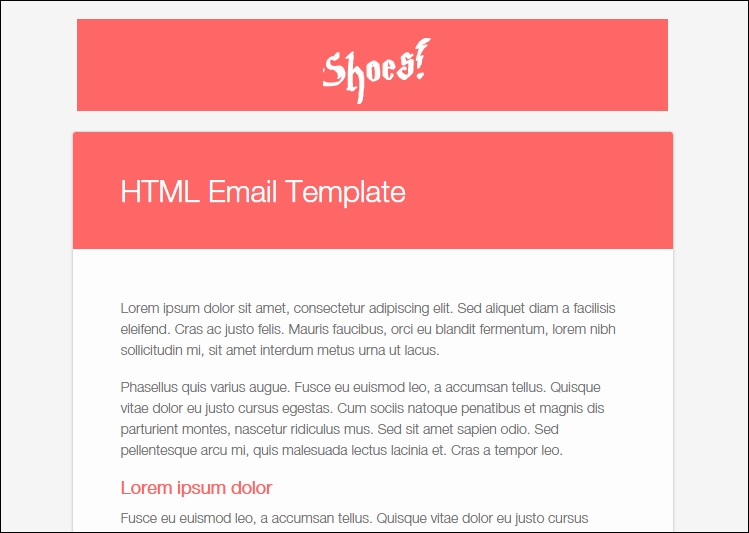
Note that, besides the general e-mail settings, every e-mail that WooCommerce can send has its own form with settings. You may use this to disable the e-mail completely or change its subject and title.
Tip
WooCommerce seems to offer an invoice possibility because it shows a couple of settings for the invoice e-mail. However, real invoice numbering doesn't exist in WooCommerce. WooCommerce uses post ID's, which means in practice that gaps will appear in your order numbering. In lots of countries, it's mandatory to use a progressive invoice number. You'll need an additional plugin to solve this issue. An example will follow in Chapter 8, More Possibilities Using Plugins.
If you like to have complete control over your e-mail templates, you have the following two possibilities:
- Use an additional plugin that give the possibility to create the layout of the e-mail templates using drag and drop
- Change the code of the default WooCommerce e-mail templates
In this chapter, we'll take a look at the second option. To be able to change the existing templates, you need to copy the template files to your own theme. By doing so, you will be able to change the HTML of your e-mails completely! Of course, you must have some PHP and HTML knowledge to be able to understand and change the files.
Don't just change the original WooCommerce e-mail templates in the plugin folder because, in that case, your changes will be lost when there's an update of the WooCommerce plugin.
If you want to use this possibility, copy the e-mail templates that you want to change from the following folder:
wp-content/plugins/woocommerce/templates/emails
Copy this to your theme folder:
wp-content/themes/your-theme-name/woocommerce/emails
In our demo store, using the Storefront Child theme, this would be as follows:
wp-content/themes/storefront-child/woocommerce/emails
WooCommerce has a handy function available that copies the necessary file for you. You can find it at the bottom of every individual e-mail settings screen:
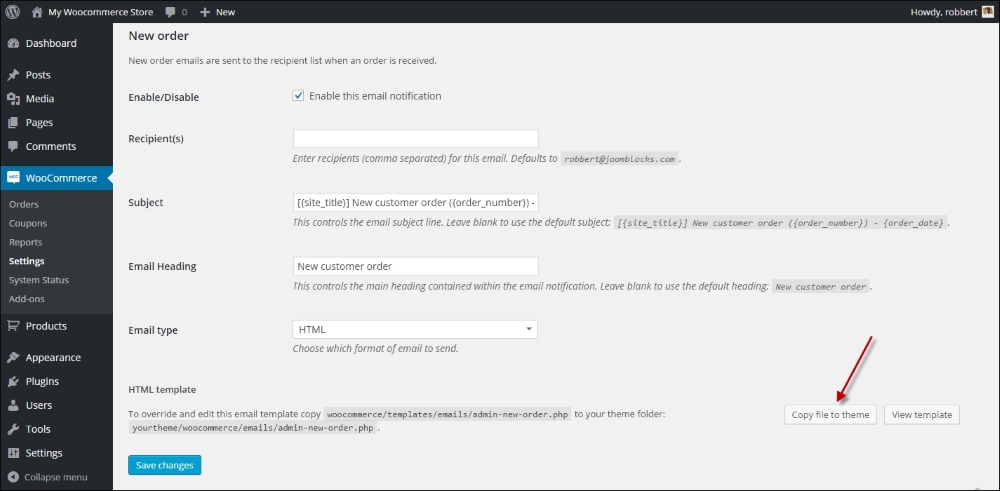
When you copy the file to your theme, it will automatically be added to your child theme if you're using one. Next, the view template button shows the code of the template file. It's possible to make changes here immediately and save your changes. Working that way isn't recommended though, because a small mistake in the code might break your website:
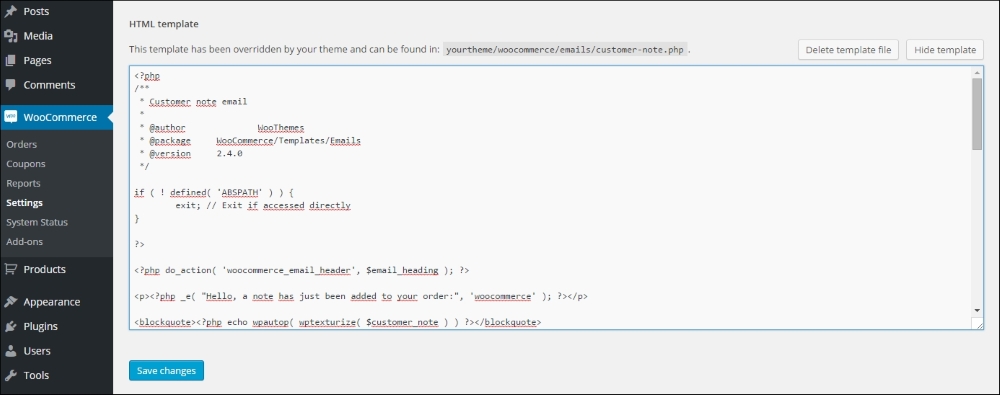
If you made any mistakes that break your e-mail, it's always possible to restart. Use the button Delete template file to remove it from your theme, and you can copy the original file again.
Note that you only need to copy the files that you want to change. Don't just copy all of them if you don't need it. That would only become confusing in the future when doing updates.
In the WooCommerce plugin folder, you'll see a PHP file for every e-mail template. There's also a subfolder available named plain. In this folder, the templates for non-HTML e-mails are stored. Depending on the changes that you're making, it can be necessary to copy as well the HTML e-mail templates as the plain versions to your theme folder.
Besides the template files, there are also helper files like email-header.php and email-footer.php. If you want to make a change to these parts of your e-mails, you need to copy these files as well.
For more information, refer to http://docs.woothemes.com/document/template-structure.