Table of Contents for
Building E-Commerce Solutions with WooCommerce - Second Edition
 Building E-Commerce Solutions with WooCommerce - Second Edition
Published by
Packt Publishing, 2015
Building E-Commerce Solutions with WooCommerce - Second Edition
Published by
Packt Publishing, 2015
- Cover
- Table of Contents
- Building E-Commerce Solutions with WooCommerce Second Edition
- Building E-Commerce Solutions with WooCommerce Second Edition
- Credits
- About the Author
- About the Reviewers
- www.PacktPub.com
- Preface
- What you need for this book
- Who this book is for
- Conventions
- Reader feedback
- Customer support
- 1. Setting Up WooCommerce
- Installing WooCommerce
- Setting up WooCommerce
- Summary
- 2. Creating Your First Products
- Creating your first product
- Setting the categories, tags, and images for your product
- Summary
- 3. Using Downloadable Products and Variations
- Using attributes
- Setting up variable and grouped products
- Other product types
- Summary
- 4. Payments, Shipping, and Coupons
- Shipping methods and prices
- Using discount coupons
- Summary
- 5. Working with WooCommerce Themes
- Making or buying a theme
- Installing a WooCommerce theme
- Using the Storefront theme
- Summary
- 6. Customizing a WooCommerce Theme
- WordPress theme basics
- Developing WooCommerce themes
- Summary
- 7. Running Your Online Store
- Deploying your WooCommerce store
- Working with sales orders
- Reporting
- Summary
- 8. More Possibilities Using Plugins
- Popular and useful WooCommerce plugins
- A store in multiple languages
- Summary
- Index
During the last couple of years, WordPress has outgrown any other Content Management Solution worldwide. Numerous websites are built using WordPress on a daily basis. WordPress is even popular among large companies. Currently about a quarter of all websites worldwide are powered by WordPress.
WooCommerce is a plugin for WordPress that turns your website into a complete online store. Practically in minutes, but that doesn't mean that the solution is very limited. This book will show you what you can do with it. WooCommerce is a versatile plugin that gives the possibility for everyone with a little WordPress knowledge to start their own online store.
Originally, WooCommerce was derived from the Jigoshop plugin. The WordPress theme developers of WooThemes quickly brought the solution to a higher level and soon it became the most popular plugin for e-commerce within WordPress. In 2015, Automattic (the company behind WordPress) acquired WooThemes and WooCommerce. So we could almost say that WooCommerce has become the default ecommerce solution for WordPress now. At time of print WooCommerce is even powering 30% of all online stores worldwide.
In case you are not familiar with WordPress at all, this book is not the first one you should read. No worries though, WordPress isn't that hard to learn and there are a lot of online possibilities resources to learn about WordPress solution very quickly. Or just turn to one of the many printed books on WordPress that are available.
The following are the topics covered in this chapter:
- Setting up your test environment
- Installing and activating WooCommerce
- Using all WooCommerce settings
- Setting up Tax
- Adding WooCommerce pages to your WordPress menu
Before we start, remember that it's only possible to install your own plugins if you're working in your own WordPress installation. This means that users that are running a website on WordPress.com will not be able to follow along. It's simply impossible in that environment to install plugins yourself. WooCommerce has recently become a part of WordPress itself. I can imagine that because of this WooCommerce might become available for WordPress.com users in the future. But so far there are no signs yet of an integration of WooCommerce into WordPress.com.
When starting with WooCommerce there are two situations that might occur:
- You have a running WordPress website to which you'd like to add WooCommerce
- You want to start from scratch and create a new WordPress installation including WooCommerce
Either way, you'll need a test environment to be able to play with WooCommerce and follow along with this book. Although technically possible to add WooCommerce to an existing WordPress website immediately, I highly recommend using a test environment. Things can and will go wrong and you don't want to confront your current visitors with your experiments.
Setting up a WordPress test environment isn't as difficult as it might seem. There are tons of tutorials available, whether you're working on Windows or working with a Mac. When you want to add WooCommerce to your existing website, this is what you need to do to setup a test environment:
- Create a backup copy of your complete WordPress environment using FTP. Alternatively use a plugin to store a copy into your Dropbox folder automatically: http://wordpress.org/plugins/wordpress-backup-to-dropbox. There are lots of solutions available, just pick your own favorite. UpDraftPlus is another option and delivers a complete backup solution as well: http://wordpress.org/plugins/updraftplus/.
- Don't forget to backup your WordPress database as well. You may do this using a tool like phpMyAdmin and create an export from there. But also in this case, there are plugins that make life easier. The UpDraftPlus plugin mentioned above can perform this task as well. The steps 1 and 2 aren't necessary when you're starting a new WordPress installation from scratch.
- Once your backups are complete, install XAMPP on a local (Windows) machine: http://www.apachefriends.org. Although XAMPP is available for Mac users, MAMP is a widely used alternative for this group: http://www.mamp.info/en/index.html. Restore your WordPress backup on your test server by copying all files to a subfolder and by restoring the database using phpMyAdmin.
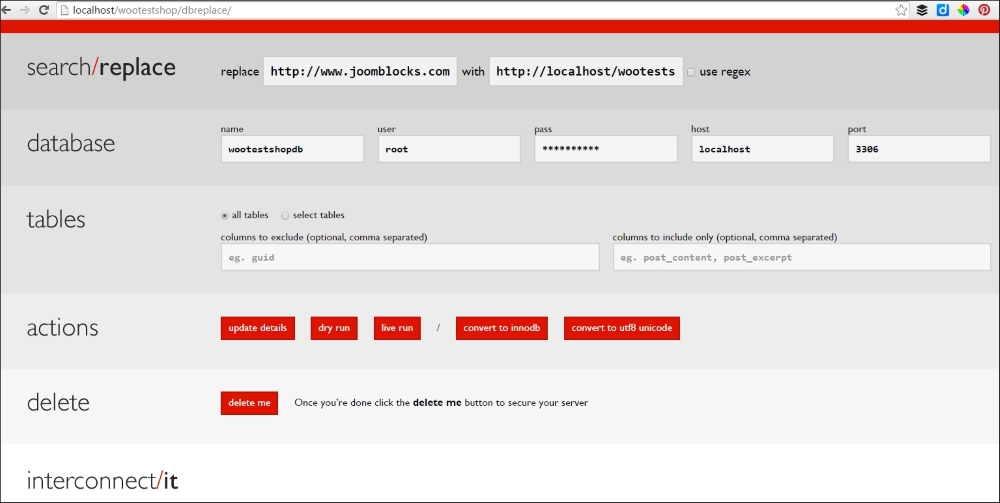
- Note that after restoring your database using phpMyAdmin, it's necessary to update the contents of the database as well. Unfortunately WordPress stores the full path URLs in lots of different database records. Without changes, those would still point to the location of your live website and not to your test environment. I mostly use a 'Search and replace' script to solve this issue. https://interconnectit.com/products/search-and-replace-for-wordpress-databases/. You can download the script, and store the contents of the zip file in a new subfolder of your test environment. Start it from there, like in the screenshot below. Next, replace the old URL with the new one from your test environment:
Alternatively, install a copy of your WordPress website as a temporary subdomain at your hosting provider. For instance, if my website is http://www.example.com, I could easily create a copy of my site in http://test.example.com. Possibilities may vary, depending on the hosting package you have with your hosting provider. Also in this scenario you need to adjust the content of the database, as mentioned in step four above.
If in your situation it isn't needed to add WooCommerce to an existing WordPress site, of course you may also start from scratch. Just install WordPress on a local test server or install it at your hosting provider.
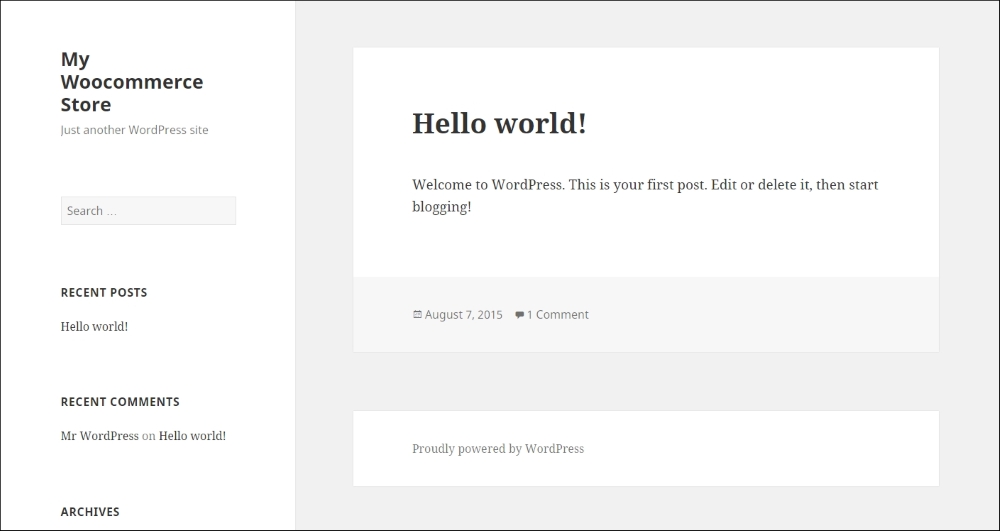
To keep our instructions in this book as clear as possible we did just that, so that there's no visible interference with already existing content and a custom theme. We created a fresh installation of WordPress version 4.2. Below you see a screenshot of our setup, still completely empty using the Twenty Fifteen default theme:
More information about setting up a test environment and restoring your website on it can be found in the following articles:
More tutorials will also be available on our website: http://www.joomblocks.com. Don't forget to sign up for the free Newsletter, that will bring you even more news and tutorials on WordPress, WooCommerce and other Open Source software solutions!
Once ready, we'll be able to take the next step and install the WooCommerce plugin. Let's take a look at our WordPress back-end. In our situation we can open this by browsing to http://localhost/wootestshop/wp-admin. Depending on the choices you made above for your test environment, your URL could be different.
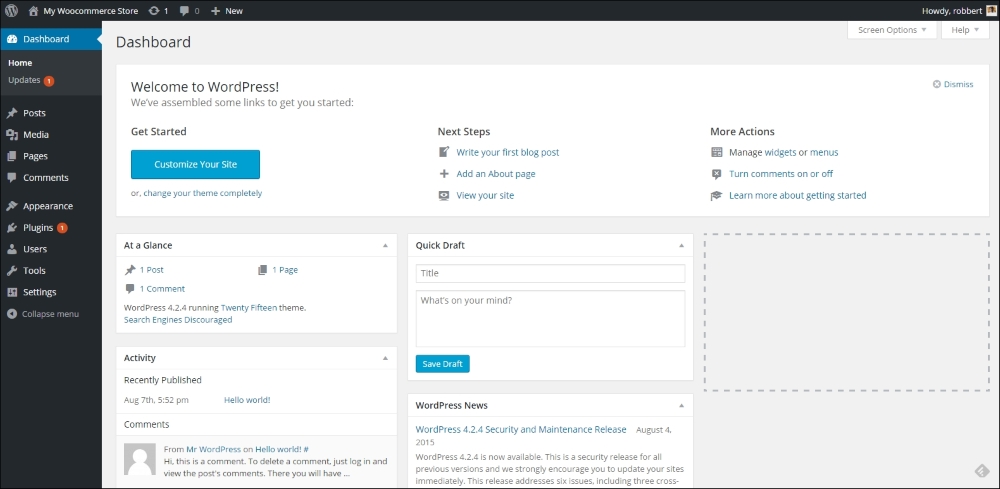
Well, this should all be familiar for you already. Again, your situation might look different, depending on your theme or the number of plugins that are already active for your website.