Table of Contents for
Building E-Commerce Solutions with WooCommerce - Second Edition
 Building E-Commerce Solutions with WooCommerce - Second Edition
Published by
Packt Publishing, 2015
Building E-Commerce Solutions with WooCommerce - Second Edition
Published by
Packt Publishing, 2015
- Cover
- Table of Contents
- Building E-Commerce Solutions with WooCommerce Second Edition
- Building E-Commerce Solutions with WooCommerce Second Edition
- Credits
- About the Author
- About the Reviewers
- www.PacktPub.com
- Preface
- What you need for this book
- Who this book is for
- Conventions
- Reader feedback
- Customer support
- 1. Setting Up WooCommerce
- Installing WooCommerce
- Setting up WooCommerce
- Summary
- 2. Creating Your First Products
- Creating your first product
- Setting the categories, tags, and images for your product
- Summary
- 3. Using Downloadable Products and Variations
- Using attributes
- Setting up variable and grouped products
- Other product types
- Summary
- 4. Payments, Shipping, and Coupons
- Shipping methods and prices
- Using discount coupons
- Summary
- 5. Working with WooCommerce Themes
- Making or buying a theme
- Installing a WooCommerce theme
- Using the Storefront theme
- Summary
- 6. Customizing a WooCommerce Theme
- WordPress theme basics
- Developing WooCommerce themes
- Summary
- 7. Running Your Online Store
- Deploying your WooCommerce store
- Working with sales orders
- Reporting
- Summary
- 8. More Possibilities Using Plugins
- Popular and useful WooCommerce plugins
- A store in multiple languages
- Summary
- Index
Our first product is available and we could easily continue using the same method to create multiple products in the same way. However, WooCommerce offers more possibilities than we just learned. In this chapter, we'll cover the following topics:
- Working with tags
- Virtual products
- Downloadable products
- Using attributes
- Setting up variable products
- Grouped products
We've mentioned the usage of product tags already in Chapter 2, Creating Your First Products. Using tags works exactly in the same way that you're used to when writing WordPress posts. So in here, we do not want to spend too much time in explaining the concept.
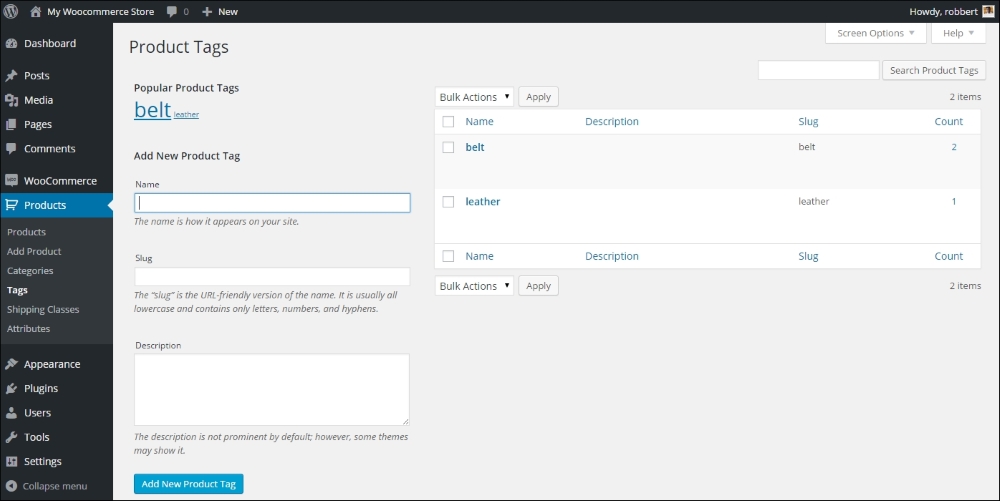
Just be aware that Product Tags and Tags for Posts are actually separated from each other. You may find the tags that you already used by navigating to Products | Tags in the menu on the left-hand side of your screen. Note that the tags that you entered during product creation appear here. Besides that, it's also possible to create a list of tags immediately in the Edit Product screen and use them later on. In general, when using a new tag, always ask yourself: Will this be a tag that I'll use more often?. If the answer is yes, go ahead and use it. If the answer is no, then it's better not to create that tag.
This product type is used for non-physical products. Use it to sell services, for instance. Virtual products will not be shipped, and as soon as you mark a simple product as virtual, the Shipping tab will disappear from the Product Data area. Besides that, if a customer only buys one or multiple virtual products in their order, the shipping address will be removed from the Checkout process:
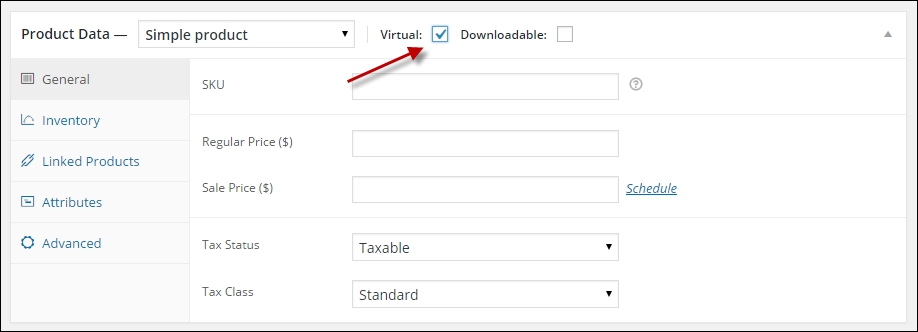
Note: In the preceding screenshot, the Virtual field can only be set for a Simple product. If you need a variable product to be virtual, that's still possible but not using this field.
If you have digital goods to offer to your customers, WooCommerce supports this using the Downloadable product type. Often, you'll also want to mark these items as Virtual since you won't physically ship anything. On the other hand, if your item will be as well downloaded as shipped, you should not check the Virtual field. An example could be a book that is physically shipped, but where the buyer also receives a downloadable copy.
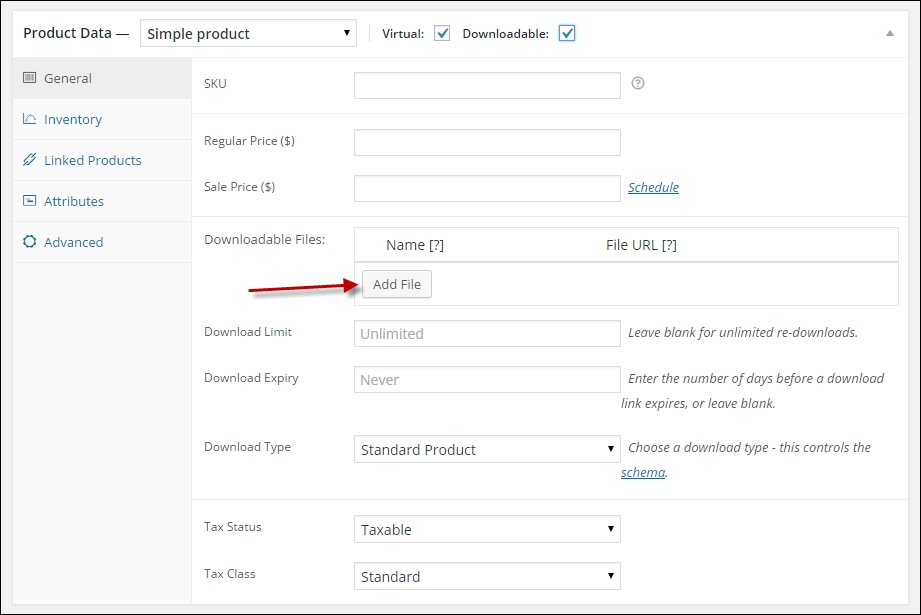
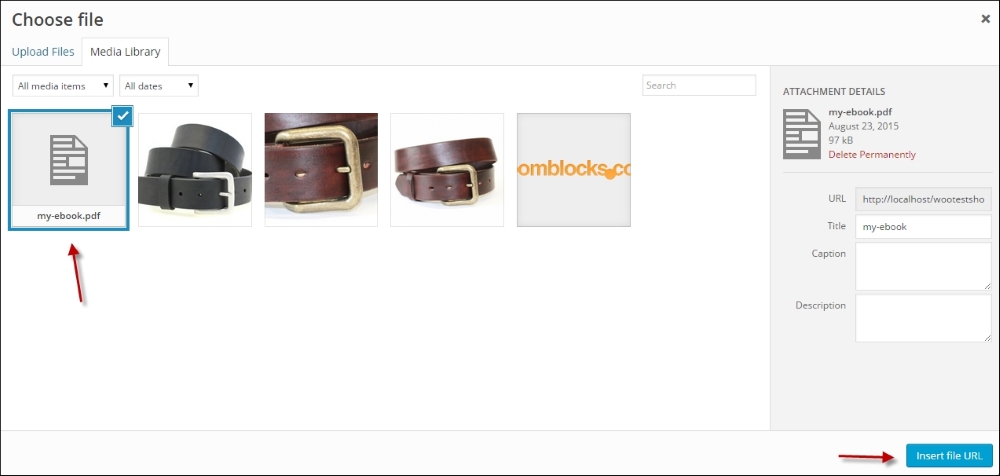
Once the Downloadable field has been checked, new fields become available in the General tab. Click on Add file, followed by the Choose file button to upload, and attach a digital file to your product:
You may also set the Download limit, which determines how often a customer can come back to download the same item again.
Besides that, you can set the Download expiry. Fill in the number of days that the download stays available for your customer after purchase. By default, both fields are blank, which means that there are no restrictions and your customers can always come back to download the purchased items again.
Tip
When using the Download limit or Download expiry fields, please note the following: if you ever need to change or replace an existing file, the download expiry and limit will be reset as it's technically a new file. Which means that the user can download the file again from their account or original e-mail.
Finally, the field Download type can contain the value Standard Product, Application/Software, or Music. If there's no fit for your product then leave it to Standard Product. This field controls the markup of your product page. To the end user, this field isn't visible, but it will tell the search engines what type of content the product contains. Unfortunately, the book type isn't supported in WooCommerce yet. More information can be found at http://schema.org/docs/schemas.html.
When your customer purchases a downloadable file, a link to download the item will be sent to the customer via an e-mail. But only if you enabled this e-mail in the WooCommerce settings. The link will also become available in the My Account section for that customer.
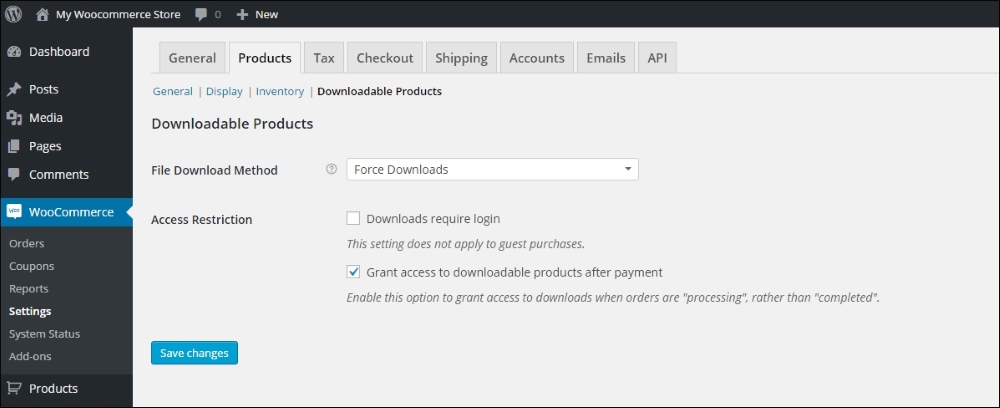
Whether or not a customer is forced to create an account in your store depends on the settings. Head over to WooCommerce | Settings | Products to check the settings for Downloadable products. See Chapter 1, Setting Up WooCommerce, for more information on these fields.
More information on using Downloadable products is available at the WooCommerce documentation website: https://docs.woothemes.com/document/digitaldownloadable-product-handling/.