Table of Contents for
Building E-Commerce Solutions with WooCommerce - Second Edition
 Building E-Commerce Solutions with WooCommerce - Second Edition
Published by
Packt Publishing, 2015
Building E-Commerce Solutions with WooCommerce - Second Edition
Published by
Packt Publishing, 2015
- Cover
- Table of Contents
- Building E-Commerce Solutions with WooCommerce Second Edition
- Building E-Commerce Solutions with WooCommerce Second Edition
- Credits
- About the Author
- About the Reviewers
- www.PacktPub.com
- Preface
- What you need for this book
- Who this book is for
- Conventions
- Reader feedback
- Customer support
- 1. Setting Up WooCommerce
- Installing WooCommerce
- Setting up WooCommerce
- Summary
- 2. Creating Your First Products
- Creating your first product
- Setting the categories, tags, and images for your product
- Summary
- 3. Using Downloadable Products and Variations
- Using attributes
- Setting up variable and grouped products
- Other product types
- Summary
- 4. Payments, Shipping, and Coupons
- Shipping methods and prices
- Using discount coupons
- Summary
- 5. Working with WooCommerce Themes
- Making or buying a theme
- Installing a WooCommerce theme
- Using the Storefront theme
- Summary
- 6. Customizing a WooCommerce Theme
- WordPress theme basics
- Developing WooCommerce themes
- Summary
- 7. Running Your Online Store
- Deploying your WooCommerce store
- Working with sales orders
- Reporting
- Summary
- 8. More Possibilities Using Plugins
- Popular and useful WooCommerce plugins
- A store in multiple languages
- Summary
- Index
Working with standard themes is a quick and effective solution to get your store up and running, but soon you'll feel the need to make changes to the theme that you're using. Or leave the standard theme and create one from scratch yourself. In this book, I cannot offer you a complete development course. I'll discuss the basics that will give you a good start, working with the Storefront theme. In this chapter, we will cover:
- General directions for changing or creating a WordPress theme
- Tips for changing or creating a WooCommerce theme
- Some practical examples of changes in the Storefront theme
First of all, before we do anything at all, you need to be aware of the fact that this chapter is not suitable for the real beginners. Did you ever work with HTML, CSS, and PHP and have some experience in these areas? Good, then you're good to move forward. If you do not yet have knowledge on these topics, it's probably better to skip this chapter and jump to Chapter 7, Running Your Online Store. That will be easier to follow.
If you're not yet familiar with the techniques mentioned, there's plenty of information available on the Internet to get you started. From short tutorials to complete online video training, everything is already there. The following websites are highly recommended:
- The Tuts+ network from Envato: For instance http://webdesign.tutsplus.com/ and http://wp.tutsplus.com/. The Tuts+ network also offers additional tutorials and video training as a paid service.
- Smashing Magazine: at http://www.smashingmagazine.com/. Besides their web design tutorials and special WordPress corner available at http://wp.smashingmagazine.com/, they also offer a recommended book series.
Would you rather work directly from a book? In that case, we can recommend the following books from Packt Publishing:
- Responsive Web Design by Example : Beginner's Guide: https://www.packtpub.com/web-development/responsive-web-design-example
- Responsive Web Design with HTML5 and CSS3: https://www.packtpub.com/web-development/responsive-web-design-html5-and-css3
- WordPress Theme Development : Beginner's guide - Third Edition: https://www.packtpub.com/web-development/wordpress-theme-development-beginners-guide
This chapter is too short to cover the topic of WordPress theme development completely. As we've seen, there have been complete books written about these topics. For this chapter, we'll stick to the basics and add specific WooCommerce information on top of that.
Before you start making changes to your theme, find out if it's really necessary to do so. WooCommerce comes with a lot of shortcodes that you can easily use on your posts and pages to call WooCommerce functions that you need. See http://docs.woothemes.com/document/woocommerce-shortcodes/ for a full list and examples.
Every web designer or developer has his/her own favorite tools. That's fine; just use what you like. If you're just starting, the minimum that you need is as follows:
- An image editor. Photoshop is top-notch, but expensive. Photoshop elements would work as well, just as the free, open source Gimp.
- A plain text editor, being able to help you with your HTML, CSS, and PHP files. Windows users could look at the free Notepad++, Coda is a good tool for Mac users but has its price. Alternatively, have a look at Sublime Text, which has a free version.
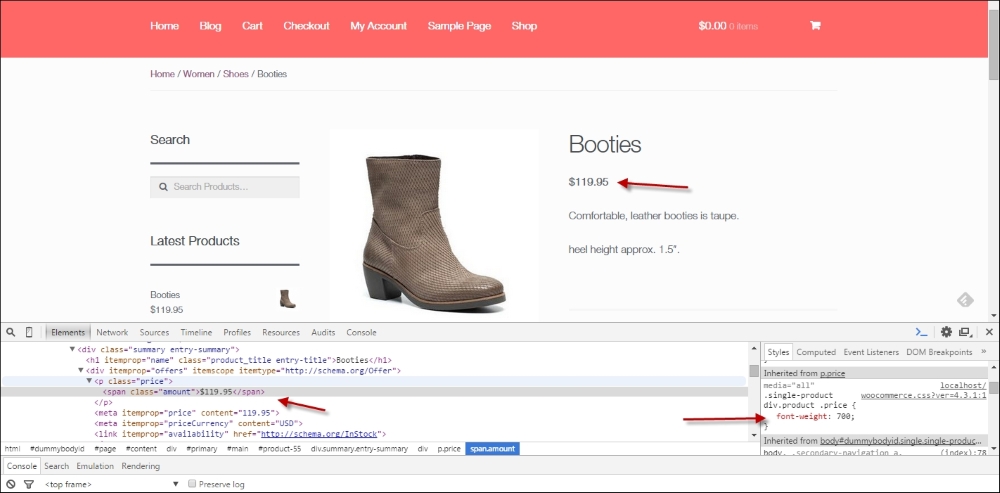
- A set of browsers and devices to test your work. Do not underestimate this part, it could be very annoying and time-consuming to fix some issues that are related to a specific browser and version. Firefox users should look at the Firebug plugin as well, it really helps when making changes on a theme to be able to see them immediately. Chrome and Safari have such functions built-in. The example below shows Google Chrome. Using the Inspect element function (just right-click on any element on your page), you are able to see which CSS styles were applied to that element. You may easily try to change the CSS code, but please note that these changes will not be stored and are only useful to test them. The following image below shows you the Inspect element function within Chrome: