Table of Contents for
Building E-Commerce Solutions with WooCommerce - Second Edition
 Building E-Commerce Solutions with WooCommerce - Second Edition
Published by
Packt Publishing, 2015
Building E-Commerce Solutions with WooCommerce - Second Edition
Published by
Packt Publishing, 2015
- Cover
- Table of Contents
- Building E-Commerce Solutions with WooCommerce Second Edition
- Building E-Commerce Solutions with WooCommerce Second Edition
- Credits
- About the Author
- About the Reviewers
- www.PacktPub.com
- Preface
- What you need for this book
- Who this book is for
- Conventions
- Reader feedback
- Customer support
- 1. Setting Up WooCommerce
- Installing WooCommerce
- Setting up WooCommerce
- Summary
- 2. Creating Your First Products
- Creating your first product
- Setting the categories, tags, and images for your product
- Summary
- 3. Using Downloadable Products and Variations
- Using attributes
- Setting up variable and grouped products
- Other product types
- Summary
- 4. Payments, Shipping, and Coupons
- Shipping methods and prices
- Using discount coupons
- Summary
- 5. Working with WooCommerce Themes
- Making or buying a theme
- Installing a WooCommerce theme
- Using the Storefront theme
- Summary
- 6. Customizing a WooCommerce Theme
- WordPress theme basics
- Developing WooCommerce themes
- Summary
- 7. Running Your Online Store
- Deploying your WooCommerce store
- Working with sales orders
- Reporting
- Summary
- 8. More Possibilities Using Plugins
- Popular and useful WooCommerce plugins
- A store in multiple languages
- Summary
- Index
Just as with Payment Methods, we also need to think about the shipping methods we are going to offer to our customers. Where are we going to ship to? Do we charge our customers for it and if yes, does the amount depend on the shipping address, the weight of the products or both? Also in here we have to think about several aspects:
- Which carrier(s) are we going to use?
- Is there any integration needed of our orders with that carrier or will we work manually?
- What are our shipping prices and in which way are we going to calculate shipping to our customers?
Looking at the functions WooCommerce is offering we see a similar screen as used for Payment Methods. There are a couple of settings that we need to check:
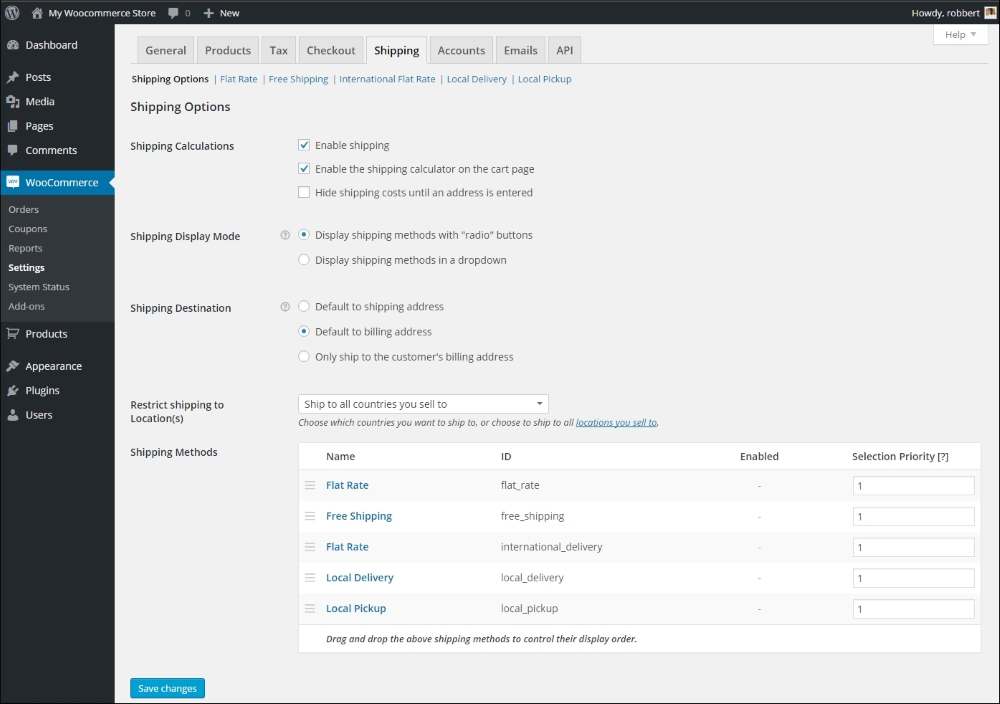
At the top of the screen we'll find all settings regarding shipping, which we already discussed during Chapter 1, Setting Up WooCommerce.
Below the settings we'll find all standard available shipping methods. Every Shipping Method has a link on top of the screen that will bring us to the settings page for that Shipping Method. This is what WooCommerce has to offer by default:
- Flat Rate, a fixed amount of shipping costs for all orders.
- Free Shipping, speaks for itself.
- International Delivery, for customers outside of our own country. Similar to Flat Rate shipping. The amount does not differ per country.
- Local Delivery, for customers living near us. We could enter zip codes to specify when this method will be available.
You may sort the table by dragging the various shipping methods around. This is useful because the sorting here will also be the sort order of shipping methods the user sees during checkout. Besides that, using the priority field you can control the order in which the shipping methods are selected. If two or more Shipping Methods have the same priority, the one with the lowest cost will be selected first.
- Local Pickup. Instead of delivering the order, our customers could also pick it up of course. WooCommerce assumes that in this case there's no charge for our customer.
Let's take a closer look at the Flat Rate method, just to check how we need to configure it. Just click on the Flat Rate link at the top of your screen. The Flat Rate method will calculate one shipping rate per order, regardless of the weight and dimensions of the products in that order. The Flat Rate cannot differ per country, but the field Costs can contain a calculation, which means that the Flat Rate can also be a percentage of the total order value:
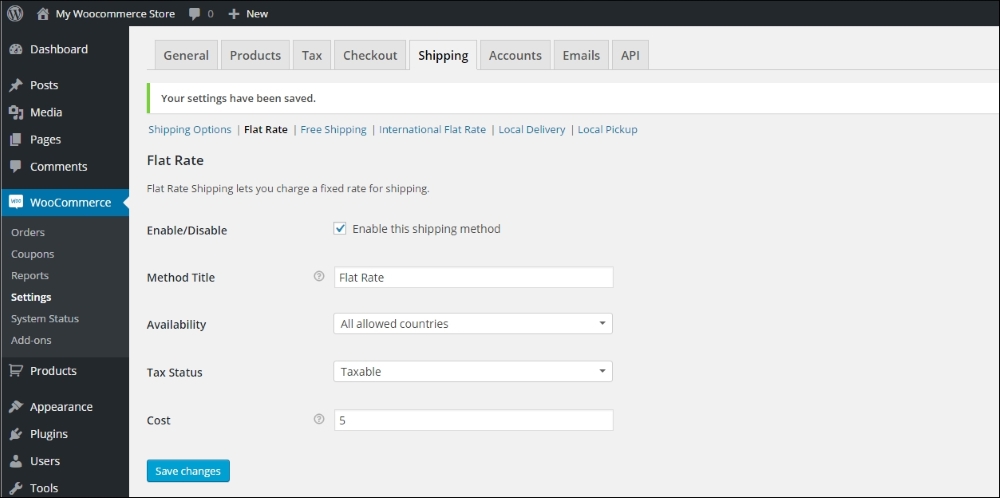
Some examples of a calculated Cost field could be:
- 5 + ( 1 * [qty] ) Which would calculate $5 for every order plus $1 extra for every item in that order
- 10 + [fee percent="10″ min_fee="2″] Would calculate a base amount of $10 plus 10% of the order total with a minimum of $2
Looking at the available Shipping Methods, we can imagine running short on possibilities. What if we need a Shipping Method that calculates the shipping rate based on the country, delivery address and the products that we'll ship? That's no longer a Flat Rate anymore and the other shipping methods do not offer a solution. In such a situation, WooCommerce needs additional extensions. A good and very flexible, but pretty expensive extension would be the Table Rate shipping plugin. It's available for $199 at the WooCommerce store: http://www.woothemes.com/products/table-rate-shipping-2/.
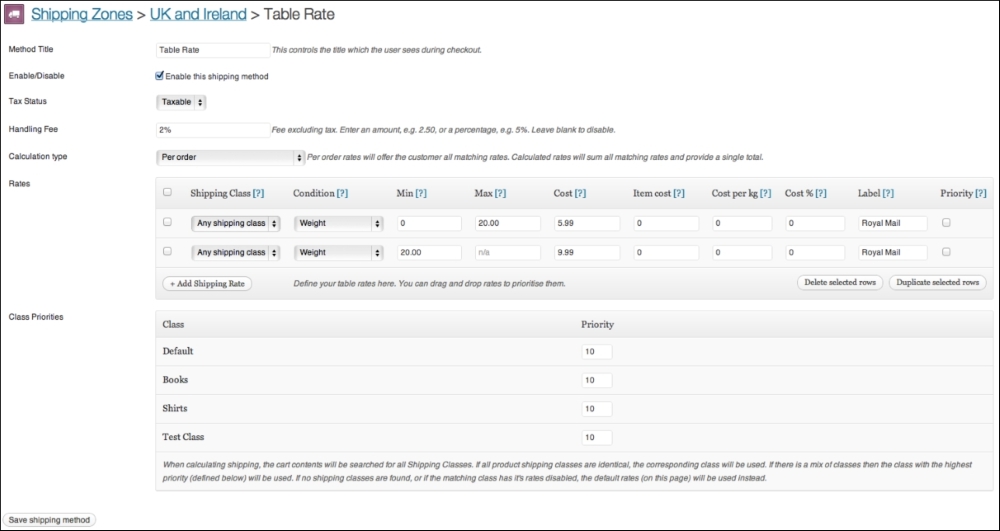
Because of the higher price of the official WooThemes extension, there's room for alternative suppliers in the market. On CodeCanyon, there's a reasonably priced plugin available. http://codecanyon.net/item/table-rate-shipping-for-woocommerce/3796656. It's already been on the market for a while now and has a lot of users.
Nowadays buyers often expect to receive free shipping when ordering items in your store. Shipping costs that are too high can be a reason for customers to leave your store and look for an alternative. WooCommerce offers a shipping method that gives the possibility to ship items for free. Let's have a look at the options:
- As with the other Shipping Methods, you must enable Free Shipping to be able to use it.
- Next, determine which countries you want to offer free shipping to, using the field Method availability:
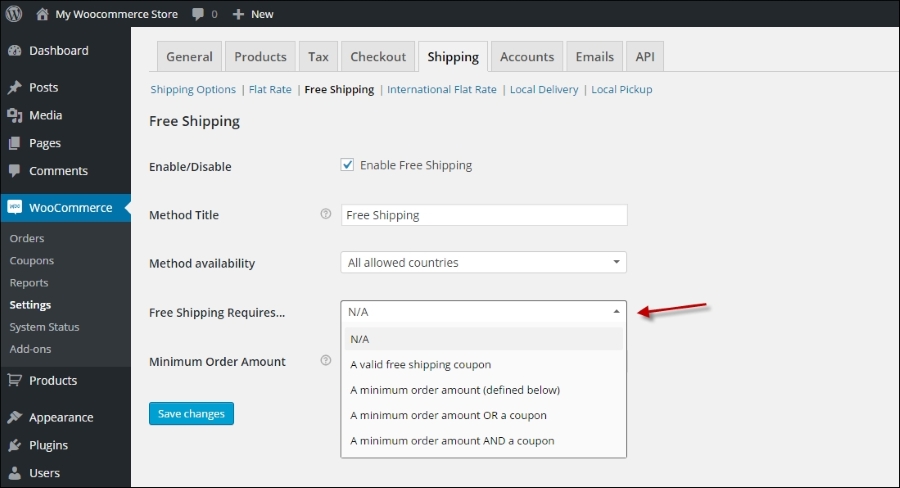
- Choose if there are any requirements that must be met before offering free shipping. You have the choice to set this to the following options:
- A valid free shipping coupon. We'll see coupon creation later on in this chapter.
- A minimum order amount. If you choose this one, also set the value in the field below: Minimum Order Amount.
- A combination of these two, where you have the possibility to choose OR and AND. In case of OR just one of the two requirements needs to be met to receive free shipping. In case of AND both requirements must be met to receive free shipping.
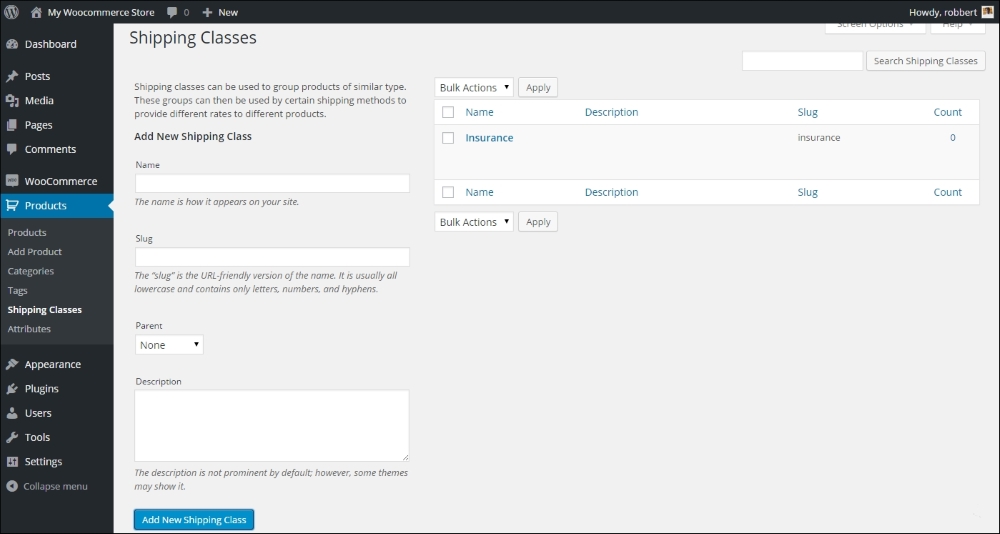
You must have noticed earlier in this book when creating products that there's a field named Shipping class that can be assigned to your products. A shipping class is nothing more than a connection between a product and a certain way of shipping. In other words, a shipping class can be assigned to a product. If we define multiple shipping classes, it becomes easier to use different shipping rates for different types of products. Defining shipping classes is just as easy as creating new categories. Just navigate in your WordPress menu on the left to Products | Shipping classes. Just enter a Name and Description for your class and click the button Add New Shipping Class:
Once done, it's possible to set a rate per shipping class. Whether or not it is possible to set a rate per shipping class also depends on the shipping method. This way of working could be helpful when, for example, you're selling items of a higher value that need additional insurance:
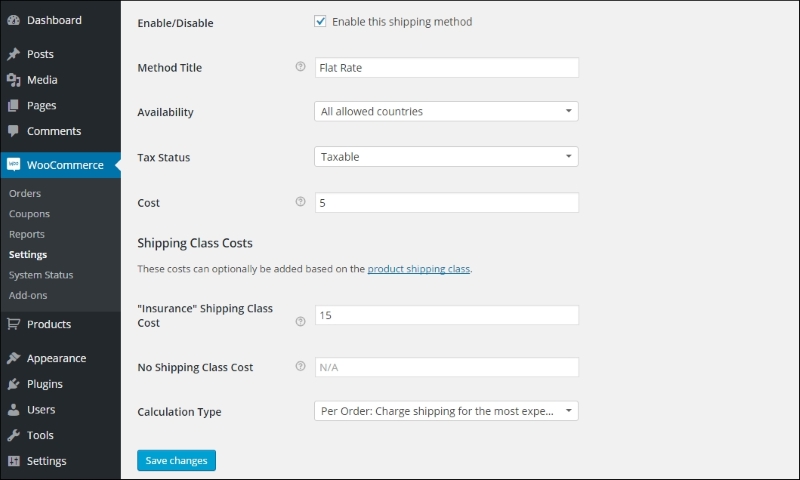
In this example we see that, when an item is part of the shipping class Insurance, there's a cost of $20 for shipping ($5 + $15), instead of the regular $5. The Calculation Type makes sure that the higher cost is only calculated once for the complete order. It's also possible to calculate the additional fee for every item on the order having this specific shipping class.
As with Payment Methods, there are lots of carriers on the market that offer integration with WooCommerce, so that you will not have to handle shipping transactions manually. There are too many possibilities to mention here, but there's always an extension needed to connect WooCommerce to a specific carrier.
If you're in need of integrating a carrier, head back to the WooCommerce website to check if there's an extension available: http://www.woothemes.com/product-category/woocommerce-extensions/. For major player like UPS and FedEx, extensions are available, but these extensions will only calculate the correct shipping rates for these carriers.