Table of Contents for
Building E-Commerce Solutions with WooCommerce - Second Edition
 Building E-Commerce Solutions with WooCommerce - Second Edition
Published by
Packt Publishing, 2015
Building E-Commerce Solutions with WooCommerce - Second Edition
Published by
Packt Publishing, 2015
- Cover
- Table of Contents
- Building E-Commerce Solutions with WooCommerce Second Edition
- Building E-Commerce Solutions with WooCommerce Second Edition
- Credits
- About the Author
- About the Reviewers
- www.PacktPub.com
- Preface
- What you need for this book
- Who this book is for
- Conventions
- Reader feedback
- Customer support
- 1. Setting Up WooCommerce
- Installing WooCommerce
- Setting up WooCommerce
- Summary
- 2. Creating Your First Products
- Creating your first product
- Setting the categories, tags, and images for your product
- Summary
- 3. Using Downloadable Products and Variations
- Using attributes
- Setting up variable and grouped products
- Other product types
- Summary
- 4. Payments, Shipping, and Coupons
- Shipping methods and prices
- Using discount coupons
- Summary
- 5. Working with WooCommerce Themes
- Making or buying a theme
- Installing a WooCommerce theme
- Using the Storefront theme
- Summary
- 6. Customizing a WooCommerce Theme
- WordPress theme basics
- Developing WooCommerce themes
- Summary
- 7. Running Your Online Store
- Deploying your WooCommerce store
- Working with sales orders
- Reporting
- Summary
- 8. More Possibilities Using Plugins
- Popular and useful WooCommerce plugins
- A store in multiple languages
- Summary
- Index
There's one more topic we would like to discuss in this chapter. Working with discount coupons gives you the possibility to organize promotions for your existing customers, subscribers, or any other target group. WooCommerce has the basic functionality on board to be able to work with discount coupons. You may find them in the menu by navigating to WooCommerce | Coupons:
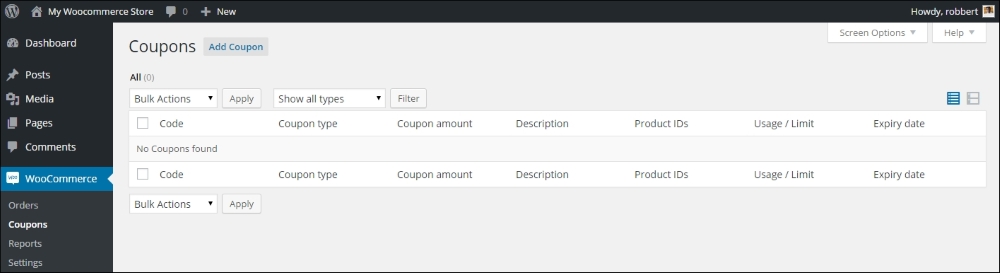
To add a new coupon, click on the Add Coupon button at the top of the screen:
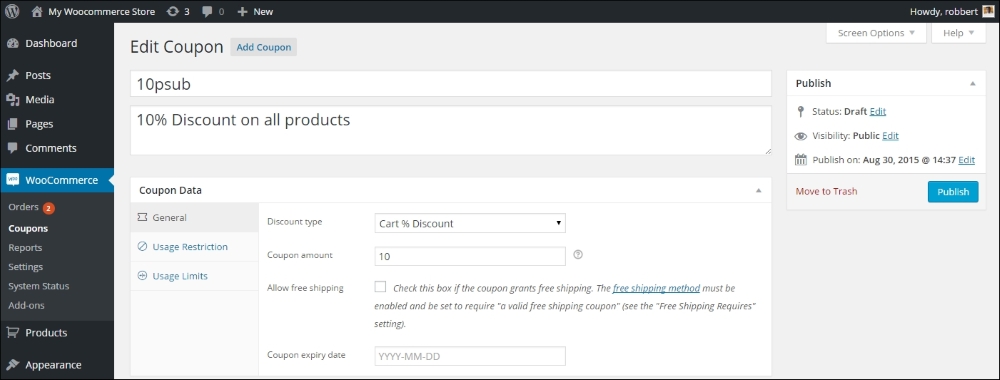
In the preceding example above we created a simple coupon that gives a 10% discount on the whole cart. To enable our coupon, we now simply need to hit the Publish button.
The Coupon function delivers several possibilities; let's go through the fields one by one:
- First of all, set the coupon code at the top of the screen. This is the code that your customers need to enter to be able to receive the discount. Keep it short.
- Next, enter a description for your coupon so that you will recognize it later on.
- An important one is Discount type. You may choose to give a discount as a fixed amount per product, as a percentage of the sale price per product, as a fixed amount for the whole cart or as a percentage for the whole cart. We used this last one, the setting Cart % Discount.
- Below the type field, set the amount or percentage of discount you want to give in the Coupon amount field.
- Besides the mentioned possibilities for giving an amount or percentage of discount, it's also possible to offer free shipping to your customers using a coupon. Check Allow free shipping if you want to use this function. However, note that it's also needed to enable the Free Shipping method we saw earlier and set it so that a coupon must be used.
- Next, we can also enter a Coupon Expiry date, so that when that date is reached, the coupon will no longer work.
- Other options can be found by clicking on the tabs on the left named Usage Restriction and Usage Limits:
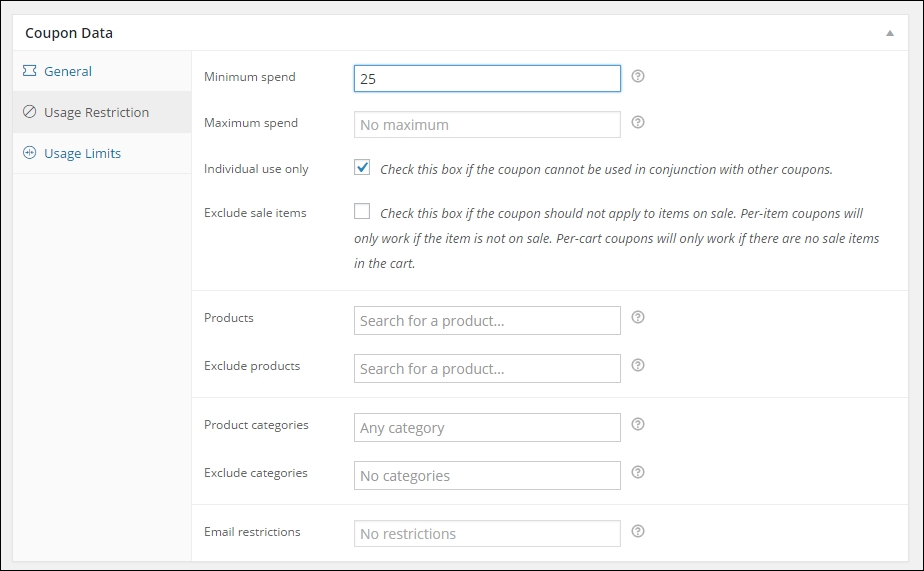
- You may restrict the coupon by entering a Minimum spend and/or Maximum spend, so that discount is only given to orders that meet these rules. Handy if you want to run a promotion like Receive 20% discount on all orders of $100 and over.
- Check the Individual use only field if you want to prevent your customers from combining several coupon codes.
- Can your customers use the coupon to buy items that are already on sale? If not, check the Exclude sale items field.
- Next, we can limit our coupon code to certain products or categories, or even exclude certain products or categories from the promotion. Just choose whatever is most convenient in your situation. Note: you cannot mix these rules. For example, if you exclude a certain category, you cannot include a specific product in the same category. There would be a conflict between the two rules, which will not work.
- Use the Email restrictions field if you want to make this field available only to some specific customer(s). You must know the e-mail address they will use to place their order to be able to use this. WooCommerce uses the e-mail address entered in the checkout form for this restriction. That doesn't have to be the same one as the e-mail address on the customer's account.
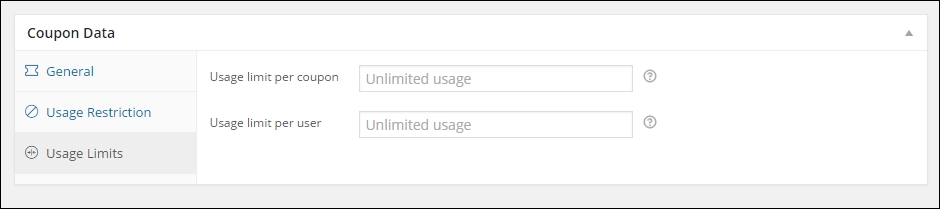
- Finally, there are two more settings to limit the usage of our coupon. First, we can set how many times this coupon may be used. Note that the Usage limit per coupon setting works on store level, this won't stop a specific customer to use the same coupon code multiple times for different orders. If you want to prevent that from happening, use the Usage limit per user setting.
At the Cart or Checkout, your customers will be asked to enter a coupon if they have one:
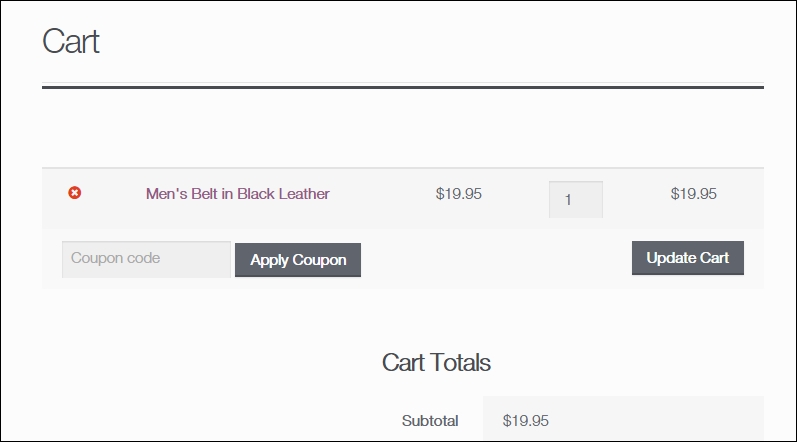
Note that the way this looks like completely depends on the theme you're using. Be aware that as soon as you enable the usage of coupons, potential customers that do not have one might be distracted and leave the cart to start searching for one. Sometimes it's just better to keep the function disabled, if you're not running any promotions where coupons are needed.
Once your customer applies the coupon to the order, the order review section looks as follows:
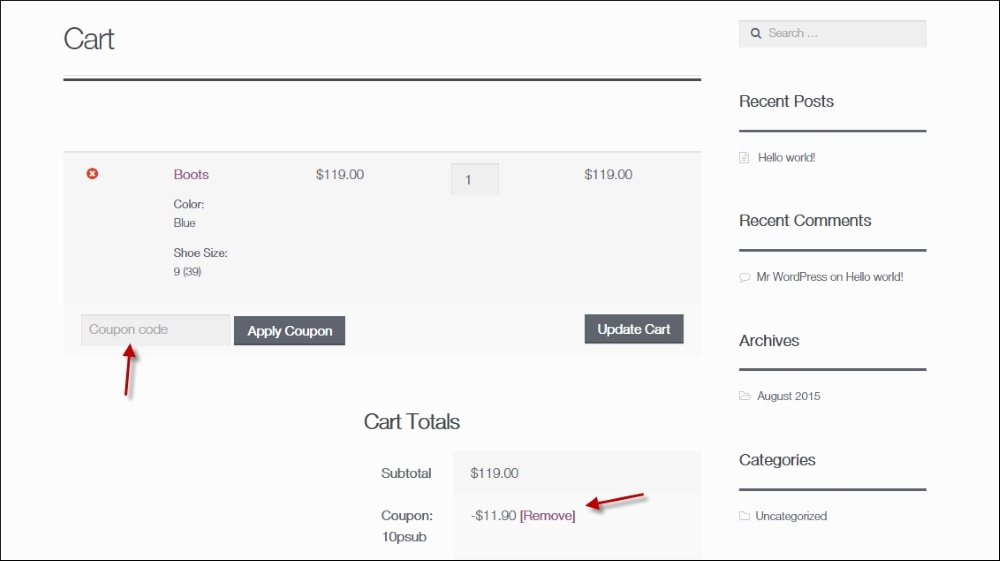
After adding the coupon, your customer can delete the coupon code again by clicking the Remove link.
Depending on the settings of your coupons, it will be allowed or disallowed to use multiple coupons for the same order.