Table of Contents for
Building E-Commerce Solutions with WooCommerce - Second Edition
 Building E-Commerce Solutions with WooCommerce - Second Edition
Published by
Packt Publishing, 2015
Building E-Commerce Solutions with WooCommerce - Second Edition
Published by
Packt Publishing, 2015
- Cover
- Table of Contents
- Building E-Commerce Solutions with WooCommerce Second Edition
- Building E-Commerce Solutions with WooCommerce Second Edition
- Credits
- About the Author
- About the Reviewers
- www.PacktPub.com
- Preface
- What you need for this book
- Who this book is for
- Conventions
- Reader feedback
- Customer support
- 1. Setting Up WooCommerce
- Installing WooCommerce
- Setting up WooCommerce
- Summary
- 2. Creating Your First Products
- Creating your first product
- Setting the categories, tags, and images for your product
- Summary
- 3. Using Downloadable Products and Variations
- Using attributes
- Setting up variable and grouped products
- Other product types
- Summary
- 4. Payments, Shipping, and Coupons
- Shipping methods and prices
- Using discount coupons
- Summary
- 5. Working with WooCommerce Themes
- Making or buying a theme
- Installing a WooCommerce theme
- Using the Storefront theme
- Summary
- 6. Customizing a WooCommerce Theme
- WordPress theme basics
- Developing WooCommerce themes
- Summary
- 7. Running Your Online Store
- Deploying your WooCommerce store
- Working with sales orders
- Reporting
- Summary
- 8. More Possibilities Using Plugins
- Popular and useful WooCommerce plugins
- A store in multiple languages
- Summary
- Index
You now have enough knowledge of the product possibilities WooCommerce has to offer. You may continue to add multiple categories and products to fill your product catalog. Next, we'll need to take a closer look at the shopping process your customers will be offered. In this chapter we'll have a closer look at:
- Setting up Payment methods
- Using PayPal
- Using Stripe for credit card acceptance
- Setting the Shipping methods and prices
- Using discount coupons
Earlier in this book, during Chapter 1, Setting Up WooCommerce, we skipped the areas about handling the payment and shipping methods. These are both important subjects for your online store that deserve additional attention. Let's start with the payment methods that you'll offer to your customers.
Which payment methods should you offer in your store? First of all, there's no best answer to this question. Looking at the payment solutions that are available worldwide, you might be surprised. There are literally hundreds of possibilities.
When speaking of payment methods, we distinguish between the following types:
- Online or onsite methods: the transaction is done online immediately at moment of creating the order by your customer. Payment by credit card or PayPal are examples of online payment methods.
- Offline or offsite methods: these payment methods do not authorize or capture the order amount online. In this scenario the user will pay in a different way, for example by doing a manual bank transfer or by paying at moment of delivery of the ordered items.
The methods that you need to offer to your customers will differ from country to country. Especially if you're selling locally (within a specific country), you need to prepare your store for that market. If you're not sure which payment methods you should offer, just look at the methods other online stores in your market are offering. Here are some, possibilities, but be aware that the list below only cover the most important, widely used payment possibilities:
- Credit Card
- Debit Card
- Bank transfer
- Cash on delivery
- Pay after delivery
- Cheques
- Online wallets
This list explains something about the payment methods, but not about the Payment Provider yet. A payment provider allows the online store to accept payments in different forms and will authorize the transactions. Often they also provide an online tool to manage your funds. Just to mention some of the major players:
- PayPal
- Amazon
- Google (Google Checkout, Google Wallet)
- Alipay (China)
- Credit card companies Mastercard, Visa, American Express, or Discover
- Stripe
- And many others.
It's important to understand the difference between a Payment Provider and a Payment Gateway. The Payment Provider is the company used to offer one or multiple Payment methods, which are in WooCommerce referred to as Payment Gateways. For example, PayPal is a Payment Provider, offering Payment Gateways like PayPal Pro, PayPal Express Checkout and PayPal Digital Goods. Often, a Payment Provider offers multiple Payment methods.
For your store it's likely that you need to offer a combination of payment possibilities. Let's first have a look at what WooCommerce has to offer by default. Navigate to WooCommerce | Settings | Checkout.
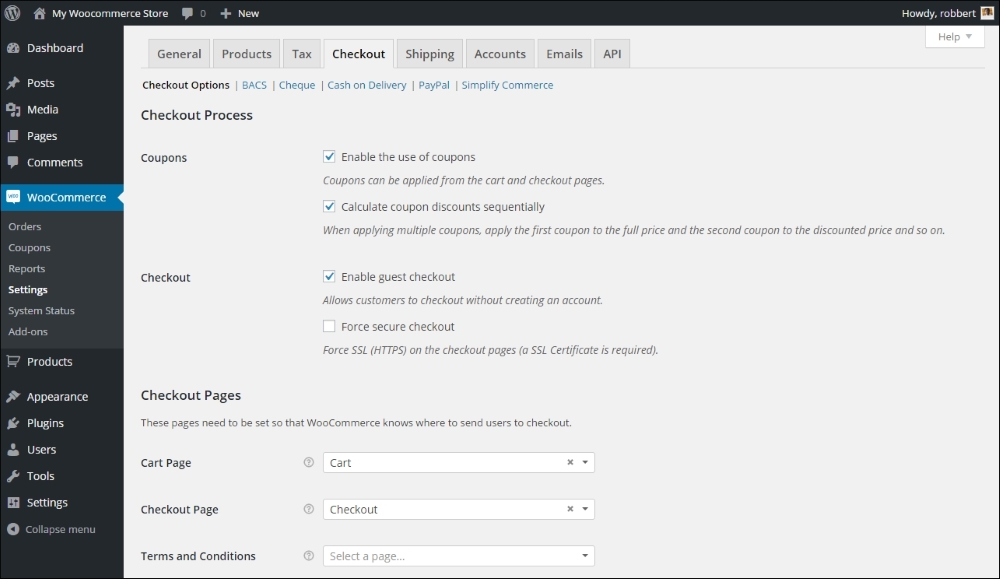
The Checkout Options were already discussed in Chapter 1, Setting Up WooCommerce. Note that next to the screen with options, we can see the following payment methods:
- BACS (Direct Bank Transfer)
- Cheque
- Cash on Delivery
- PayPal
- Simplify Commerce
In fact, the methods mentioned above are offline payment methods, except for PayPal and Simplify Commerce. PayPal is widely accepted. Simplify Commerce is at moment of writing only available for the USA and Ireland.
An offline payment method means that your customer can use that method if you offer it, but the actual payment is not carried out immediately. You'll have to manually check later on if you received the money from your customer. The offline method requires that your customer makes sure the payment is done. Online payment methods immediately do the payment transaction online, at the moment of sale. In most cases the payment is verified automatically and the order status in WooCommerce will be updated accordingly.
When you want to accept credit cards in your store, you'll soon hear something about PCI compliancy. The issue is: if you let your customers enter their credit card details directly on your website, you must be PCI compliant. The downside is that getting your website PCI compliant is difficult to reach.
If you'd like to know more about this subject, the following website may be useful: http://www.pcicomplianceguide.org/.
So, how are we going to solve this? We still need to be able to accept credit cards in our store. Luckily, this is where the Payment Service Providers jump in. These are third-party companies handling the payment transactions for you in a secure way. Simplify Commerce that we just mentioned, is just one of the many options you have. However, your country of residence will influence the number of possibilities you can choose from.
Just by checking out the WooCommerce extensions page, you'll get an idea of what's possible for your market: http://www.woothemes.com/product-category/woocommerce-extensions/.
Select Payment Gateways and your country to receive an overview of available, payment extensions for WooCommerce:
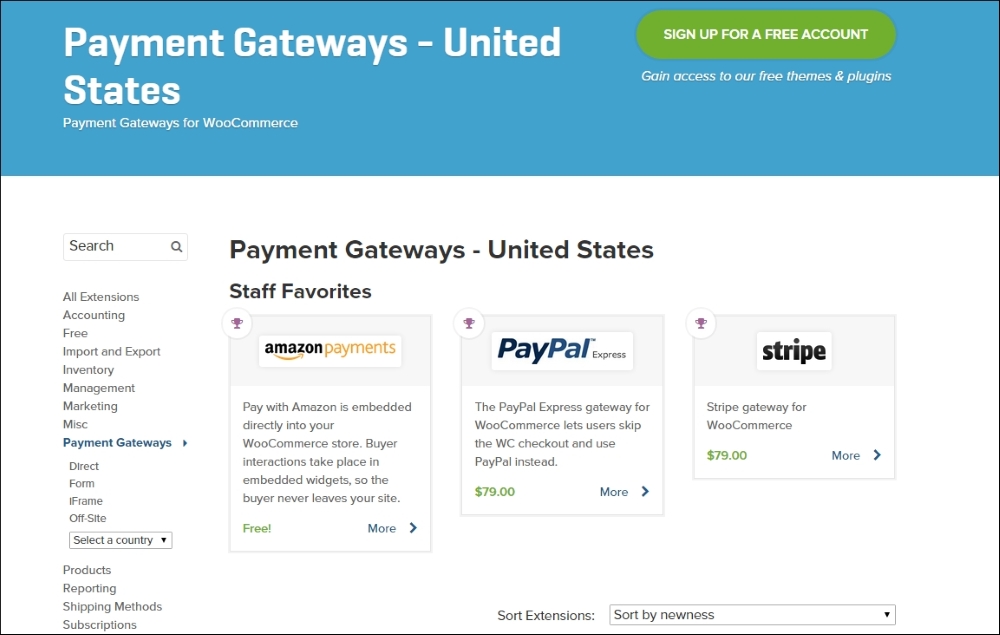
The extensions to support Payment Service Providers aren't free at the WooThemes website. Sometimes the Payment Service Provider of your choice might offer a free extension for WooCommerce when you sign up. Just make sure that you check if it is available. Installing an extension works in the same way as with any regular WordPress plugin. After installing the plugin there's always some configuration that needs to be done. The steps you need to take differ per Payment Gateway.
The extensions at the WooThemes website can sometimes be pricey. But you will receive support and updates for a year, which can be a good reason still to choose for a WooThemes plugin. Alternatively, there are lots of WooCommerce compatible extensions offered at the CodeCanyon website: http://codecanyon.net/category/wordpress/ecommerce/woocommerce. The quality of these plugins may differ, so please pay attention to the ratings and comments of other users.
It's wise to take some time to find the right Payment Service Provider for your market. Pay attention to the rates charged by the Payment Service Provider (as well transaction fees as monthly rates) and the way they will pay you after the transaction.
Setting up a contract with a Payment Service Provider of your choice and the way the setup is done in WooCommerce differs a lot. Therefore, in our example below, we've chosen to just stick to the default options of WooCommerce.
Setting up PayPal in your WooCommerce store is very simple. Of course you first need to create a PayPal account if you do not yet have one at http://www.paypal.com. Mark it as a business account and enter your bank account details to be able to transfer money from your PayPal account to your regular bank account.
Next, in WooCommerce, click PayPal at the top of the Payment Gateways tab
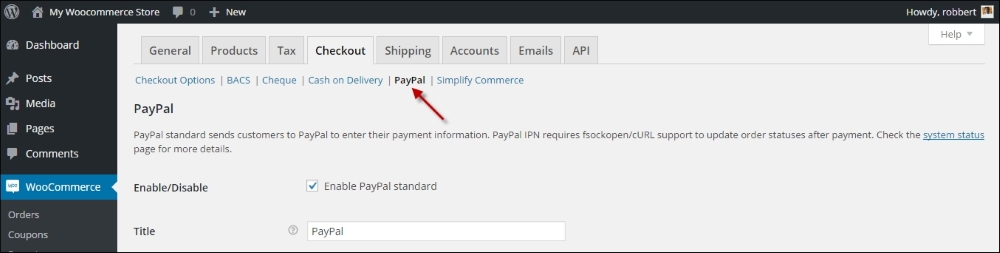
Enter the e-mail address that you used to create your PayPal account:
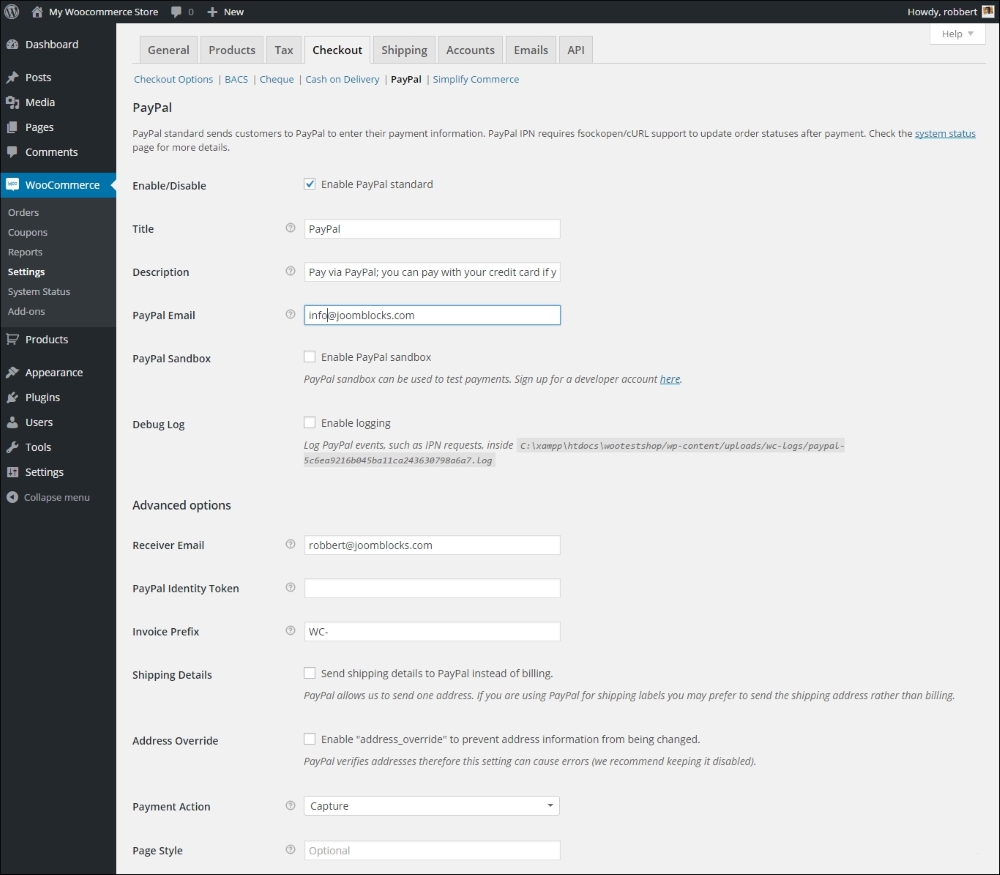
Note that you have the following possibilities:
- You can use a PayPal Sandbox function, to test your transactions, before your store is opened for customers. For more information about the Sandbox functions of PayPal, see https://developer.paypal.com/. When testing, you can also enable the Debug Log to receive detailed information about your transaction. Generally, you don't need this, the plugin should work out of the box.
- Use an Invoice prefix, that is used to create the transaction number. By default, this is WC (from WooCommerce), so you might want to use something different. Note that the invoice number will be sent to PayPal including the prefix. If you would be running multiple WooCommerce stores using one PayPal account, you need to use a different prefix for every store.
- Use Page styles, defined within your PayPal account, to be able to offer a non-standard look and feel of the PayPal checkout page. More information about using Page styles can be found here: https://www.paypal.com/customize.
Stripe is a payment method created for software developers. Meanwhile the service became more mature and is now available in more than 20 countries, among which the USA, Australia, and a part of Western Europe.
To be able to use Stripe, your website must use a SSL certificate. Without it, you cannot use Stripe in a production environment. If you'd like to receive more information on SSL: your hosting provider can help you. A good option could be Namecheap (https://www.namecheap.com/security/ssl-certificates.aspx), which has a pretty good acceptance and is very affordable. Even better, but also more expensive is Digicert (https://www.digicert.com/buy-ssl-certificates.htm). Note that Digicert also offers a lot of information on using SSL certificates.
After signing up for a Stripe account (http://stripe.com), you just have to confirm your e-mail address to get started. For WooCommerce, there are a couple of options. There's a plugin available at WooThemeshere: http://www.woothemes.com/products/stripe/.
There's also a free extension available through the WordPress.org website (https://wordpress.org/plugins/stripe-for-woocommerce/). And that's the one we'll be using in our example below:
- First install the Stripe plugin for WooCommerce by uploading it to your WordPress installation or just download and install it directly from WordPress.
- After activating the plugin navigate to WooCommerce | Settings | Checkout.
- Copy your API keys from the Stripe website (https://dashboard.stripe.com/account/apikeys) and paste them into your settings page:
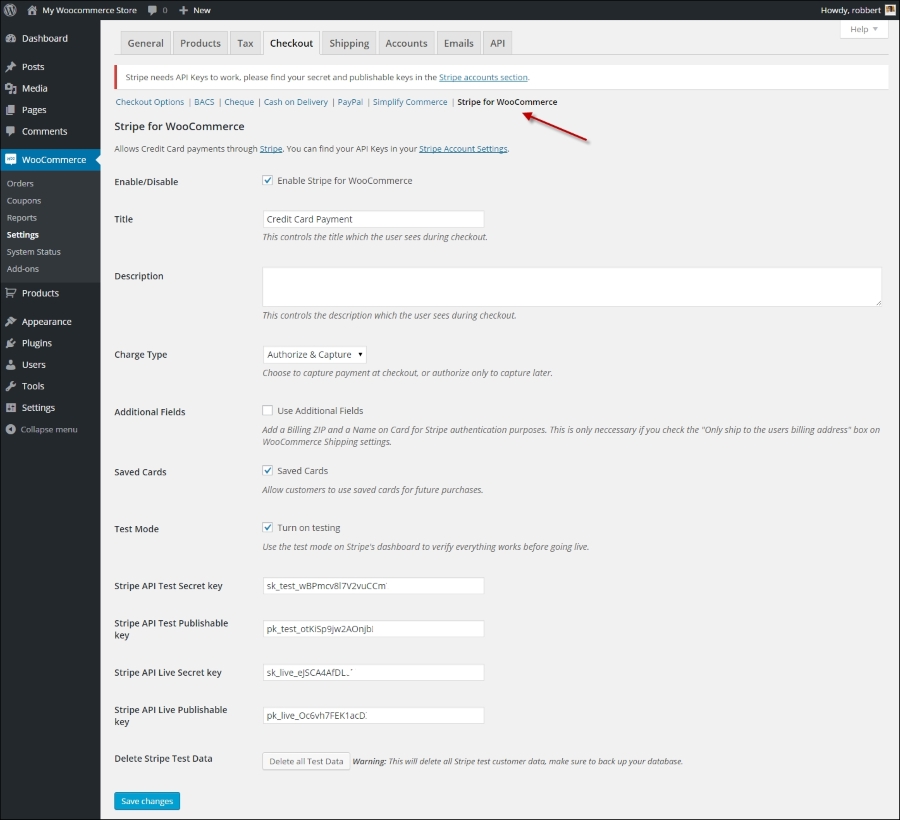
- Enable Turn on testing, so that you can start with testing Stripe Credit card payments in your store.
That's all you need to setup a working solution to accept credit cards on your website. The exact procedure for other payment gateways will differ, but generally the steps will look similar.
Tip
The mentioned, free plugin for working with Stripe currently doesn't work very well together with the Subscriptions plugin. If you need to sell subscriptions this plugin is not the best choice at moment of writing. More on working with subscriptions will follow in Chapter 8, More Possibilities Using Plugins.
For the other, offline Payment Methods, it's just a matter of enabling or disabling them as you please. You are able to change the description that your visitors will see for every payment method. The Cash on Delivery payment method also gives the possibility to connect it to a shipping method. That's useful so you'll be able to set a different price for using this method, since Cash on Delivery is often an expensive choice.