Table of Contents for
Running Linux, 5th Edition
 Running Linux, 5th Edition
Published by
O'Reilly Media, Inc., 2005
Running Linux, 5th Edition
Published by
O'Reilly Media, Inc., 2005
- Cover
- Running Linux, 5th Edition
- Preface
- Organization of This Book
- Conventions Used in This Book
- Using Code Examples
- How to Contact Us
- Safari® Enabled
- Acknowledgments
- I. Enjoying and Being Productive on Linux
- 1. Introduction to Linux
- 1.1. About This Book
- 1.2. Who’s Using Linux?
- 1.3. System Features
- 1.4. About Linux’s Copyright
- 1.5. Open Source and the Philosophy of Linux
- 1.6. Sources of Linux Information
- 1.7. Getting Help
- 2. Preinstallation and Installation
- 2.1. Distributions of Linux
- 2.2. Preparing to Install Linux
- 2.3. Post-Installation Procedures
- 2.4. Running into Trouble
- 3. Desktop Environments
- 3.1. Why Use a Graphical Desktop?
- 3.2. The K Desktop Environment
- 3.3. KDE Applications
- 3.4. The GNOME Desktop Environment
- 3.5. GNOME Applications
- 4. Basic Unix Commands and Concepts
- 4.1. Logging In
- 4.2. Setting a Password
- 4.3. Virtual Consoles
- 4.4. Popular Commands
- 4.5. Shells
- 4.6. Useful Keys and How to Get Them to Work
- 4.7. Typing Shortcuts
- 4.8. Filename Expansion
- 4.9. Saving Your Output
- 4.10. What Is a Command?
- 4.11. Putting a Command in the Background
- 4.12. Remote Logins and Command Execution
- 4.13. Manual Pages
- 4.14. Startup Files
- 4.15. Important Directories
- 4.16. Basic Text Editing
- 4.17. Advanced Shells and Shell Scripting
- 5. Web Browsers and Instant Messaging
- 5.1. The World Wide Web
- 5.2. Instant Messaging
- 6. Electronic Mail Clients
- 6.1. Using KMail
- 6.2. Using Mozilla Mail & News
- 6.3. Getting the Mail to Your Computer with fetchmail
- 6.4. OpenPGP Encryption with GnuPG
- 7. Games
- 7.1. Gaming
- 7.2. Quake III
- 7.3. Return to Castle Wolfenstein
- 7.4. Unreal Tournament 2004
- 7.5. Emulators
- 7.6. Frozen Bubble
- 7.7. Tux Racer
- 8. Office Suites and Personal Productivity
- 8.1. Using OpenOffice
- 8.2. KOffice
- 8.3. Other Word Processors
- 8.4. Synching PDAs
- 8.5. Groupware
- 8.6. Managing Your Finances
- 9. Multimedia
- 9.1. Multimedia Concepts
- 9.2. Kernel and Driver Issues
- 9.3. Embedded and Other Multimedia Devices
- 9.4. Desktop Environments
- 9.5. Windows Compatibility
- 9.6. Multimedia Applications
- 9.7. Multimedia Toolkits and Development Environments
- 9.8. Solutions to Common Problems
- 9.9. References
- II. System Administration
- 10. System Administration Basics
- 10.1. Maintaining the System
- 10.2. Managing Filesystems
- 10.3. Managing Swap Space
- 10.4. The /proc Filesystem
- 10.5. Device Files
- 10.6. Scheduling Recurring Jobs Using cron
- 10.7. Executing Jobs Once
- 10.8. Managing System Logs
- 10.9. Processes
- 10.10. Programs That Serve You
- 11. Managing Users, Groups, and Permissions
- 11.1. Managing User Accounts
- 11.2. File Ownership and Permissions
- 11.3. Changing the Owner, Group, and Permissions
- 12. Installing, Updating, and Compiling Programs
- 12.1. Upgrading Software
- 12.2. General Upgrade Procedure
- 12.3. Automated and Bulk Upgrades
- 12.4. Upgrading Software Not Provided in Packages
- 12.5. Archive and Compression Utilities
- 13. Networking
- 13.1. Networking with TCP/IP
- 13.2. Dial-Up PPP
- 13.3. PPP over ISDN
- 13.4. ADSL
- 13.5. Cable Modems
- 13.6. Network Diagnostics Tools
- 14. Printing
- 14.1. Printing
- 14.2. Managing Print Services
- 15. File Sharing
- 15.1. Sharing Files with Windows Systems (Samba)
- 15.2. NFS Configuration and NIS
- 16. The X Window System
- 16.1. A History of X
- 16.2. X Concepts
- 16.3. Hardware Requirements
- 16.4. Installing X.org
- 16.5. Configuring X.org
- 16.6. Running X
- 16.7. Running into Trouble
- 16.8. X and 3D
- 17. System Start and Shutdown
- 17.1. Booting the System
- 17.2. System Startup and Initialization
- 17.3. Single-User Mode
- 17.4. Shutting Down the System
- 17.5. A Graphical Runlevel Editor: KSysV
- 18. Configuring and Building the Kernel
- 18.1. Building a New Kernel
- 18.2. Loadable Device Drivers
- 18.3. Loading Modules Automatically
- 19. Text Editing
- 19.1. Editing Files Using vi
- 19.2. The (X)Emacs Editor
- 20. Text Processing
- 20.1. TeX and LaTeX
- 20.2. XML and DocBook
- 20.3. groff
- 20.4. Texinfo
- III. Programming
- 21. Programming Tools
- 21.1. Programming with gcc
- 21.2. Makefiles
- 21.3. Debugging with gdb
- 21.4. Useful Utilities for C Programmers
- 21.5. Using Perl
- 21.6. Java
- 21.7. Python
- 21.8. Other Languages
- 21.9. Introduction to OpenGL Programming
- 21.10. Integrated Development Environments
- 22. Running a Web Server
- 22.1. Configuring Your Own Web Server
- 23. Transporting and Handling Email Messages
- 23.1. The Postfix MTA
- 23.2. Procmail
- 23.3. Filtering Spam
- 24. Running an FTP Server
- 24.1. Introduction
- 24.2. Compiling and Installing
- 24.3. Running ProFTPD
- 24.4. Configuration
- IV. Network Services
- 25. Running Web Applications with MySQL and PHP
- 25.1. MySQL
- 25.2. PHP
- 25.3. The LAMP Server in Action
- 26. Running a Secure System
- 26.1. A Perspective on System Security
- 26.2. Initial Steps in Setting Up a Secure System
- 26.3. TCP Wrapper Configuration
- 26.4. Firewalls: Filtering IP Packets
- 26.5. SELinux
- 27. Backup and Recovery
- 27.1. Making Backups
- 27.2. What to Do in an Emergency
- 28. Heterogeneous Networking and Running Windows Programs
- 28.1. Sharing Partitions
- 28.2. Emulation and Virtual Operating Systems
- 28.3. Remote Desktop Access to Windows Programs
- 28.4. FreeNX: Linux as a Remote Desktop Server
- A. Sources of Linux Information
- A.1. Linux Documentation Project
- A.2. FTP Sites
- A.3. World Wide Web Sites
- About the Authors
- Colophon
- Copyright
Imagine X server technology with compression so tight that GNOME and KDE sessions run over modems with SSH encryption with impressive response time. FreeNX is an addition to the remote desktop line with stunning performance. Thin clients use small amounts of bandwidth while handling audio and video, printing, and other heavy applications, and permit the use of session suspension instead of termination. As long as you wish to primarily use Linux, FreeNX provides real virtual KVM switches without hardware.
FreeNX differs from both Windows RDP and VNC because it makes Linux the source of the applications people use. So if you want to set up a Linux server and provide OpenOffice.org or Firefox web browsers to remote users with minimal hardware, FreeNX would work for you. Also, if you have clients such as Windows 98 or Mac OS X, you can obtain free clients from http://nomachine.com to allow those platforms to connect and run those applications from the Linux server.
Using FreeNX server on Linux creates a secure environment for remote computing. Clients can run on Linux, of course, but FreeNX can also create X client sessions on various operating systems such as Windows and Macintosh without the need to install X. Clients also exist at the time of this writing for PlayStation2, iPAQ, and Zaurus 5XXX.
System administrators like FreeNX because they can control the features and content available to their users. They can also see and operate every Linux server in their data centers with a single keyboard, video console, and mouse. They can do this without a hardwire switch or keyboard, mouse, and video cables. They can also display multiple windows on a single desktop and monitor many servers at once, which they can’t do with a KVM switch beccause it is limited to one server at a time.
Gian Filippo Pinzari invented NX by taking the fat and insecure X client/server protocol and utilizing inventive compression to make it very thin. His company, NoMachine.com, released the code under the GPL license in 2003.
Let’s see how to set up and use FreeNX. We use an example that utilizes two free Linux distributions, Fedora and Ubuntu. First, we install FreeNX on Ubuntu, after obtaining it from the Ubuntu backports community at http://backports.ubuntuforums.org. Follow the directions on the site and add the recommended mirrors to your /etc/apt/sources.list file. Then run apt-get install FreeNX to add FreeNX to your server.
Once installed, add a user, as shown in Figure 28-14.
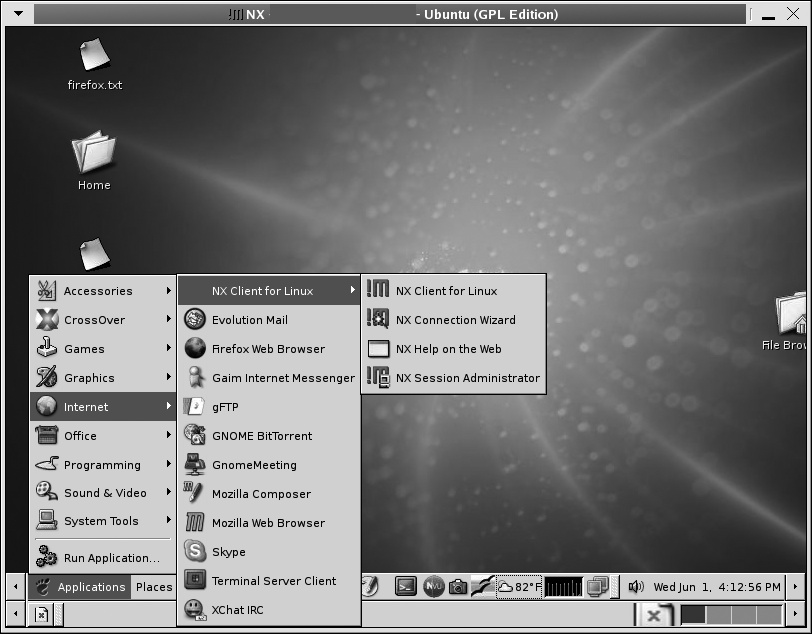
Following the setup, if you log out and log back in, you will see FreeNX added to the Applications menu under Internet. See Figure 28-15.
Next, obtain and install the RPMs for Fedora from http://fedoranews.org/contributors/rick_stout/freenx. Be sure to install both the client and the server. Again, add yourself as a user.
Client configuration involves running a wizard. As the wizard says, “The most important part of the initial connection is the key file. This file, client.id_dsa.key, must be copied from the server to your client machine.” Following these directions, I executed the following commands:
bash-3.00# scp /var/lib/nxserver/home/.ssh/client.id_dsa.key
username@192.168.1.109:~/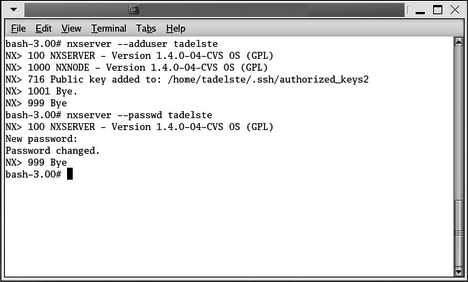
The authenticity of host '192.168.1.109 (192.168.1.109)' can't be established. RSA key fingerprint is 40:54:e3:c9:5e:81:39:2d:ac:70:b9:bf:44:a9:ec:a8. Are you sure you want to continue connecting (yes/no)?yesWarning: Permanently added '192.168.1.109' (RSA) to the list of known hosts. Password:password entered hereclient.id_dsa.key 100% 672 0.7KB/s 00:00 bash-3.00#
Once you accomplish these tasks, you should be able to use the FreeNX server to connect as a remote client and see a complete Linux session. If you run into any problems, many support sites exist on the Internet to assist you. You can also find answers on the FreeNX mailing lists or in its archives at http://developer.berlios.de/projects/freenx.
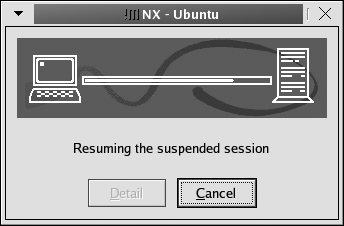
FreeNX opens sessions quickly. You will also notice that FreeNX can suspend sessions rather than close them. When you resume a suspended session, the client revalidates but still resumes midsession, at the point where you left off. Although this is not a stateless session in the purest terms, it does save bandwidth; see Figures 28-16 and 28-17.
FreeNX has many advantages for Linux uers. It provides an excellent and free thin client environment. It’s fast, and it uses a proven encryption methodology (OpenSSH) that has made it through major FIPS 140 criteria tests in source code form. FreeNX also is available for most commercial Linux distributions. Free distributions of Linux such as the Fedora Project and Ubuntu have extensive community support.
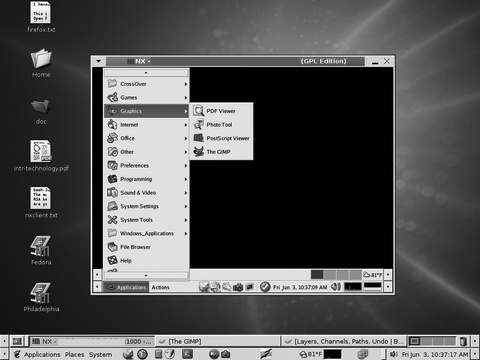
Finally, FreeNX can use a Linux server as a proxy to VNC and RDP servers. Run either vcnviewer or rdesktop on the Linux server and use those remote applications to start a Windows session. By using FreeNX, you speed up the VNC sessions, encrypt them, and provide broader access to Windows applications through RDP.