Table of Contents for
Running Linux, 5th Edition
 Running Linux, 5th Edition
Published by
O'Reilly Media, Inc., 2005
Running Linux, 5th Edition
Published by
O'Reilly Media, Inc., 2005
- Cover
- Running Linux, 5th Edition
- Preface
- Organization of This Book
- Conventions Used in This Book
- Using Code Examples
- How to Contact Us
- Safari® Enabled
- Acknowledgments
- I. Enjoying and Being Productive on Linux
- 1. Introduction to Linux
- 1.1. About This Book
- 1.2. Who’s Using Linux?
- 1.3. System Features
- 1.4. About Linux’s Copyright
- 1.5. Open Source and the Philosophy of Linux
- 1.6. Sources of Linux Information
- 1.7. Getting Help
- 2. Preinstallation and Installation
- 2.1. Distributions of Linux
- 2.2. Preparing to Install Linux
- 2.3. Post-Installation Procedures
- 2.4. Running into Trouble
- 3. Desktop Environments
- 3.1. Why Use a Graphical Desktop?
- 3.2. The K Desktop Environment
- 3.3. KDE Applications
- 3.4. The GNOME Desktop Environment
- 3.5. GNOME Applications
- 4. Basic Unix Commands and Concepts
- 4.1. Logging In
- 4.2. Setting a Password
- 4.3. Virtual Consoles
- 4.4. Popular Commands
- 4.5. Shells
- 4.6. Useful Keys and How to Get Them to Work
- 4.7. Typing Shortcuts
- 4.8. Filename Expansion
- 4.9. Saving Your Output
- 4.10. What Is a Command?
- 4.11. Putting a Command in the Background
- 4.12. Remote Logins and Command Execution
- 4.13. Manual Pages
- 4.14. Startup Files
- 4.15. Important Directories
- 4.16. Basic Text Editing
- 4.17. Advanced Shells and Shell Scripting
- 5. Web Browsers and Instant Messaging
- 5.1. The World Wide Web
- 5.2. Instant Messaging
- 6. Electronic Mail Clients
- 6.1. Using KMail
- 6.2. Using Mozilla Mail & News
- 6.3. Getting the Mail to Your Computer with fetchmail
- 6.4. OpenPGP Encryption with GnuPG
- 7. Games
- 7.1. Gaming
- 7.2. Quake III
- 7.3. Return to Castle Wolfenstein
- 7.4. Unreal Tournament 2004
- 7.5. Emulators
- 7.6. Frozen Bubble
- 7.7. Tux Racer
- 8. Office Suites and Personal Productivity
- 8.1. Using OpenOffice
- 8.2. KOffice
- 8.3. Other Word Processors
- 8.4. Synching PDAs
- 8.5. Groupware
- 8.6. Managing Your Finances
- 9. Multimedia
- 9.1. Multimedia Concepts
- 9.2. Kernel and Driver Issues
- 9.3. Embedded and Other Multimedia Devices
- 9.4. Desktop Environments
- 9.5. Windows Compatibility
- 9.6. Multimedia Applications
- 9.7. Multimedia Toolkits and Development Environments
- 9.8. Solutions to Common Problems
- 9.9. References
- II. System Administration
- 10. System Administration Basics
- 10.1. Maintaining the System
- 10.2. Managing Filesystems
- 10.3. Managing Swap Space
- 10.4. The /proc Filesystem
- 10.5. Device Files
- 10.6. Scheduling Recurring Jobs Using cron
- 10.7. Executing Jobs Once
- 10.8. Managing System Logs
- 10.9. Processes
- 10.10. Programs That Serve You
- 11. Managing Users, Groups, and Permissions
- 11.1. Managing User Accounts
- 11.2. File Ownership and Permissions
- 11.3. Changing the Owner, Group, and Permissions
- 12. Installing, Updating, and Compiling Programs
- 12.1. Upgrading Software
- 12.2. General Upgrade Procedure
- 12.3. Automated and Bulk Upgrades
- 12.4. Upgrading Software Not Provided in Packages
- 12.5. Archive and Compression Utilities
- 13. Networking
- 13.1. Networking with TCP/IP
- 13.2. Dial-Up PPP
- 13.3. PPP over ISDN
- 13.4. ADSL
- 13.5. Cable Modems
- 13.6. Network Diagnostics Tools
- 14. Printing
- 14.1. Printing
- 14.2. Managing Print Services
- 15. File Sharing
- 15.1. Sharing Files with Windows Systems (Samba)
- 15.2. NFS Configuration and NIS
- 16. The X Window System
- 16.1. A History of X
- 16.2. X Concepts
- 16.3. Hardware Requirements
- 16.4. Installing X.org
- 16.5. Configuring X.org
- 16.6. Running X
- 16.7. Running into Trouble
- 16.8. X and 3D
- 17. System Start and Shutdown
- 17.1. Booting the System
- 17.2. System Startup and Initialization
- 17.3. Single-User Mode
- 17.4. Shutting Down the System
- 17.5. A Graphical Runlevel Editor: KSysV
- 18. Configuring and Building the Kernel
- 18.1. Building a New Kernel
- 18.2. Loadable Device Drivers
- 18.3. Loading Modules Automatically
- 19. Text Editing
- 19.1. Editing Files Using vi
- 19.2. The (X)Emacs Editor
- 20. Text Processing
- 20.1. TeX and LaTeX
- 20.2. XML and DocBook
- 20.3. groff
- 20.4. Texinfo
- III. Programming
- 21. Programming Tools
- 21.1. Programming with gcc
- 21.2. Makefiles
- 21.3. Debugging with gdb
- 21.4. Useful Utilities for C Programmers
- 21.5. Using Perl
- 21.6. Java
- 21.7. Python
- 21.8. Other Languages
- 21.9. Introduction to OpenGL Programming
- 21.10. Integrated Development Environments
- 22. Running a Web Server
- 22.1. Configuring Your Own Web Server
- 23. Transporting and Handling Email Messages
- 23.1. The Postfix MTA
- 23.2. Procmail
- 23.3. Filtering Spam
- 24. Running an FTP Server
- 24.1. Introduction
- 24.2. Compiling and Installing
- 24.3. Running ProFTPD
- 24.4. Configuration
- IV. Network Services
- 25. Running Web Applications with MySQL and PHP
- 25.1. MySQL
- 25.2. PHP
- 25.3. The LAMP Server in Action
- 26. Running a Secure System
- 26.1. A Perspective on System Security
- 26.2. Initial Steps in Setting Up a Secure System
- 26.3. TCP Wrapper Configuration
- 26.4. Firewalls: Filtering IP Packets
- 26.5. SELinux
- 27. Backup and Recovery
- 27.1. Making Backups
- 27.2. What to Do in an Emergency
- 28. Heterogeneous Networking and Running Windows Programs
- 28.1. Sharing Partitions
- 28.2. Emulation and Virtual Operating Systems
- 28.3. Remote Desktop Access to Windows Programs
- 28.4. FreeNX: Linux as a Remote Desktop Server
- A. Sources of Linux Information
- A.1. Linux Documentation Project
- A.2. FTP Sites
- A.3. World Wide Web Sites
- About the Authors
- Colophon
- Copyright
Ownership and permissions are central to security. It’s important to get them right, even when you’re the only user, because odd things can happen if you don’t. For the files that users create and use daily, these things usually work without much thought (although it’s still useful to know the concepts). For system administration, matters are not so easy. Assign the wrong ownership or permission, and you might get into a frustrating bind such as being unable to read your mail. In general, the message:
Permission denied
means that someone has assigned an ownership or permission that restricts access more than you want.
Permissions refer to the ways in which someone can use a file. There are three such permissions under Unix:
Read permission means you can look at the file’s contents.
Write permission means you can change or delete the file.
Execute permission means you can run the file as a program.
When each file is created, the system assigns some default permissions that work most of the time. For instance, it gives you both read and write permission , but most of the world has only read permission . If you have a reason to be paranoid, you can set things up so that other people have no permissions at all.
Additionally, most utilities know how to assign permissions . For instance, when the compiler creates an executable program, it automatically assigns execute permission.
There are times when defaults don’t work, though. For instance, if you create a shell script or Perl program, you’ll have to assign execute permission yourself so that you can run it. We show how to do that later in this section, after we get through the basic concepts.
Permissions have different meanings for a directory:
Read permission means you can list the contents of that directory.
Write permission means you can add or remove files in that directory.
Execute permission means you can list information about the files in that directory.
Don’t worry about the difference between read and execute permission for directories; basically, they go together. Assign both or neither.
Note that if you allow people to add files to a directory, you are also letting them remove files. The two privileges go together when you assign write permission. However, there is a way you can let users share a directory and keep them from deleting each other’s files. See "Upgrading Software Not Provided in Packages" in Chapter 12.
There are more files on Unix systems than the plain files and directories we’ve talked about so far. These are special files (devices), sockets, symbolic links, and so forth—each type observing its own rules regarding permissions. But you don’t need to know the details on each type.
Now, who gets these permissions? To allow people to work together, Unix has three levels of permission: owner, group, and other. The “other” level covers everybody who has access to the system and who isn’t the owner or a member of the group.
The idea behind having groups is to give a set of users, such as a team of programmers, access to a file. For instance, a programmer creating source code may reserve write permission to herself, but allow members of her group to have read access through a group permission. As for “other,” it might have no permission at all so that people outside the team can’t snoop around. (You think your source code is that good?)
Each file has an owner and a group. The owner is generally the user who created the file. Each user also belongs to a default group, and that group is assigned to every file the user creates. You can create many groups, though, and assign each user to multiple groups. By changing the group assigned to a file, you can give access to any collection of people you want. We discussed groups earlier in "The Group File.”
Now we have all the elements of our security system: three permissions (read, write, execute) and three levels (user, group, other). Let’s look at some typical files and see what permissions are assigned.
Figure 11-1 shows a typical executable program. We generated this output by executing ls with the -l option.
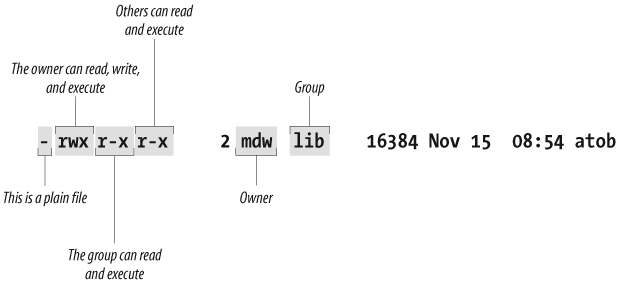
Two useful facts stand right out: the owner of the file is an author of this book and your faithful guide, mdw, and the group is lib (perhaps a group created for programmers working on libraries). But the key information about permissions is encrypted in the set of letters on the left side of the display.
The first character is a hyphen, indicating a plain file. The
next three bits apply to the owner; as we would expect,
mdw has all three permissions. The next three
bits apply to members of the group: they can read the file (not too
useful for a binary file) and execute it, but they can’t write to it
because the field that should contain a w contains a hyphen instead. And the last
three bits apply to “other”; they have the same permissions in this
case as the group.
Here is another example. If you asked for a long listing of a C source file, it would look something like this:
    $ ls -l
    -rw-rw-r--    1 kalle    kalle       12577 Apr 30 13:13 simc.c
The listing shows that the owner has read and write (rw) privileges, and so does the group.
Everyone else on the system has only read privileges.
Now suppose we compile the file to create an executable program. The file simc is created by the gcc compiler:
$gcc -osimc simc.c$ls -ltotal 36 -rwxrwxr-x 1 kalle kalle 19365 Apr 30 13:14 simc -rw-rw-r-- 1 kalle kalle 12577 Apr 30 13:13 simc.c
In addition to the read and write bits, gcc has set the executable (x) bit for owner, group, and other on the
executable file. This is the appropriate thing to do so that the
file can be run:
$./simc(output here)
One more example—a typical directory:
drwxr-xr-x 2 mdw lib 512 Jul 17 18:23 perl
The leftmost bit is now a d
to show that this is a directory. The executable bits are back
because you want people to see the contents of the directory.
Files can be in some obscure states that aren’t covered here; see the ls manual page for gory details. But now it’s time to see how you can change ownership and permissions.