Table of Contents for
Linux in a Windows World
 Linux in a Windows World
Published by
O'Reilly Media, Inc., 2005
Linux in a Windows World
Published by
O'Reilly Media, Inc., 2005
- Cover
- Linux in a Windows World
- Dedication
- Preface
- Contents of This Book
- Conventions Used in This Book
- Using Code Examples
- Comments and Questions
- Safari Enabled
- Acknowledgments
- I. Linux’s Place in a Windows Network
- 1. Linux’s Features
- Linux as a Server
- Linux on the Desktop
- Comparing Linux and Windows Features
- Summary
- 2. Linux Deployment Strategies
- Linux Desktop Migration
- Linux and Thin Clients
- Summary
- II. Sharing Files and Printers
- 3. Basic Samba Configuration
- The Samba Configuration File Format
- Identifying the Server
- Setting Master Browser Options
- Setting Password Options
- Summary
- 4. File and Printer Shares
- Printing with CUPS
- Creating a Printer Share
- Delivering Printer Drivers to Windows Clients
- Example Shares
- Summary
- 5. Managing a NetBIOS Network with Samba
- Enabling NBNS Functions
- Assuming Master Browser Duties
- Summary
- 6. Linux as an SMB/CIFS Client
- Accessing File Shares
- Printing to Printer Shares
- Configuring GUI Workgroup Browsers
- Summary
- III. Centralized Authentication Tools
- 7. Using NT Domains for Linux Authentication
- Samba Winbind Configuration
- PAM and NSS Winbind Options
- Winbind in Action
- Summary
- 8. Using LDAP
- Configuring an OpenLDAP Server
- Creating a User Directory
- Configuring Linux to Use LDAP for Login Authentication
- Configuring Windows to Use LDAPfor Login Authentication
- Summary
- 9. Kerberos Configuration and Use
- Linux Kerberos Server Configuration
- Kerberos Application Server Configuration
- Linux Kerberos Client Configuration
- Windows Kerberos Tools
- Summary
- IV. Remote Login Tools
- 10. Remote Text-Mode Administration and Use
- SSH Server Configuration
- Telnet Server Configuration
- Windows Remote-Login Tools
- Summary
- 11. Running GUI Programs Remotely
- Using Remote X Access
- Encrypting X by SSH Tunneling
- VNC Configuration and Use
- Running Windows Programs from Linux
- Summary
- 12. Linux Thin Client Configurations
- Hardware Requirements
- Linux as a Server for Thin Clients
- Linux as a Thin Client
- Summary
- V. Additional Server Programs
- 13. Configuring Mail Servers
- Configuring Sendmail
- Configuring Postfix
- Configuring POP and IMAP Servers
- Scanning for Spam, Worms, and Viruses
- Supplementing a Microsoft Exchange Server
- Using Fetchmail
- Summary
- 14. Network Backups
- Backing Up the Linux System
- Backing Up with Samba
- Backing Up with AMANDA
- Summary
- 15. Managing a Network with Linux
- Delivering Names with DNS
- Keeping Clocks Synchronized with NTP
- Summary
- VI. Appendixes
- A. Configuring PAM
- The PAM Configuration File Format
- PAM Modules
- Sample PAM Configurations
- Summary
- B. Linux on the Desktop
- Configuring Applications and Environments
- Running Windows Programs in Linux
- File and Filesystem Compatibility
- Font Handling
- Summary
- Index
- Colophon
One of the frustrations of using a computer network is that the individual computer clocks can report different times. This fact can be a minor annoyance when, say, you seem to have jumped back in time by two minutes when switching computers. It can become more serious when programs that rely on time stamps see inconsistent times on files. A make utility, for instance, might fail to compile a file if it believes that file changed before the last compilation, when in fact it changed after the last compilation but the time stamps are off. Even more serious temporal problems result with tools such as Kerberos, which embed timestamps in some of their packets as a security measure. Depending on your Kerberos settings, logins can fail completely if two computers’ clocks are inconsistent.
These problems can all be overcome using a protocol designed to keep computers’ clocks synchronized. The most popular protocol to do this job is known as the Network Time Protocol, which is headquartered at http://www.ntp.org. Before proceeding with the details of NTP configuration, you should understand its basic operating principles; this will help you decide how to implement NTP. As with most protocols, you must then configure both servers and clients. The Linux NTP server, though, does double duty as both a server and a client. On the Windows side, you can use either a full NTP implementation or a built-in Windows command.
NTP can do more than simply keep your clocks synchronized on your local network: it’s designed to help you keep all your computers’ clocks set to an accurate time source. It does so by creating a hierarchy of NTP servers, most of which also function as clients to NTP servers that are closer to the ultimate time source—usually an atomic clock or a device that reads its time from one, such as a radio that receives signals from an atomic clock. This arrangement is illustrated in Figure 15-2.
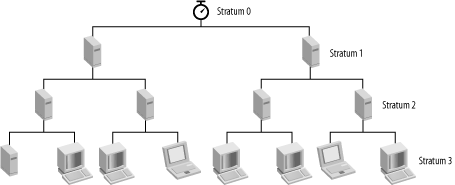
The atomic clock or other time source is referred to as a stratum 0 time source. The servers that communicate with this device are known as stratum 1 servers; those that communicate with the stratum 1 servers are stratum 2 servers, and so on. This arrangement provides a powerful exponential effect on the number of computers a single time source can serve. For instance, if each server has just 100 clients, a single stratum 1 server can have 10,000 stratum 3 and 1,000,000 stratum 4 clients. As the stratum level increases, the accuracy of the clocks decreases, but not by much; times are typically accurate to well under a second up to several stratums. (The exact values depend on factors such as the variability of transit times and how evenly divided the transit times are on each leg of the journey.)
At each step of the way, NTP works by measuring the time it takes for packets to traverse the network. For instance, if you send a packet to a computer, and it replies, you can measure the round-trip transit time. (You can use ping to do this in a crude way.) If the return packet includes a time stamp, you can use the time stamp and round-trip transit time to set your own clock to that of the remote server; you use the time stamp in the packet and half the transit time. NTP uses this principle at its core, although it’s more sophisticated. For instance, a full NTP implementation runs as a daemon and checks its upstream time source on a periodic basis. It can use the data gleaned from these checks to adjust the rate at which its own clock “ticks,” thus maintaining a more accurate time even between time checks. NTP can also refer to multiple upstream time sources, thus providing redundancy and enabling it to select the best time source.
In practice, you’ll set up one computer as a master NTP server for your network. (You might set up more than one if your network is very large or is geographically diverse.) Your master NTP server refers to an upstream server to set its own clock; the rest of your computers set their clocks based on their own master NTP server. This configuration minimizes network traffic; you can set potentially thousands of computers’ clocks using the external bandwidth required to set just one system’s clock.
What computer should you use as your master NTP server? In practice, requirements are fairly minor. Compared to most other network protocols, NTP generates little network traffic and requires practically no disk space, aside from that needed for the OS itself. Therefore, it’s common to piggyback NTP duties onto another server. On the other hand, you don’t want to add master NTP duties to a server that’s already overloaded, because delays in handling the NTP packets will be quite detrimental to the NTP server functions. In any event, the server should have ready network access to the Internet and to all the computers on your local network. Of course, like all servers, NTP is a potential security risk, although it’s a minor one compared to servers that provide login or file access.
In Linux, an NTP server acts as both a client and a server. In fact, to maintain the most accurate time in Linux, you may want to install a full NTP server, even if it has no clients of its own; your NTP server will act only as a client.
All major Linux distributions ship with NTP servers, typically in
packages called ntp, xntp,
or a variant with a major version number appended, such as
ntp4. The major NTP configuration file is
/etc/ntp.conf. Most distributions ship
ntp.conf files that should require few changes;
you may only need to set an appropriate server. A few other options
may need attention as well, though:
-
server This line sets the hostname or IP address of an NTP server, as in
server tick.pangaea.eduto tell NTP to refer to the NTP server on http://tick.pangaea.edu. You can also add various options to support authentication and other features, but, in most cases, these aren’t needed. Picking a server is described in more detail shortly. One special case that deserves attention is settingserver127.127.1.0. This line tells NTP to use the local system clock. It may be included as a fallback position in case all other servers become unavailable.-
fudge Ordinarily, NTP automatically detects the stratum of the servers to which it communicates; it can then set its own stratum automatically. The
fudgeline enables you to force NTP to treat a server as belonging to another stratum. It’s most often used in conjunction with the 127.127.1.0 address to force NTP to give the local NTP server a very high stratum number so that it’s not used in preference to more accurate sources. For instance,fudge 127.127.1.0 stratum10tells NTP to treat the local clock as a stratum 10 server.-
driftfile You can specify a file in which NTP stores information on the hardware clock’s drift. This information can help when you first start the server after it’s been down for a while or in case your network access goes out. Using the drift file, NTP should be able to maintain your clock’s accuracy much better than is possible using the computer’s unmodified clock. You shouldn’t need to adjust this entry unless you rearrange your directory structure in some unusual way.
-
broadcast If your network hosts many systems that also run the full version of NTP, you can minimize local NTP-related network traffic by telling your main NTP server to periodically broadcast its time information, which then reaches all the clients, obviating the need for them to contact the server individually. To use this feature, specify the
broadcastkeyword followed by the computer’s own IP address; it then broadcasts to the local network.-
broadcastclient The flip side of the
broadcastfeature is the configuration of the NTP broadcast clients. On these systems, you setbroadcastclientyesto have NTP listen for broadcasts from other NTP servers, orbroadcastclientnoto have the server ignore such broadcasts.
One of the trickiest aspects of NTP configuration is in selecting an upstream NTP server. NTP server lists are maintained at http://www.eecis.udel.edu/~mills/ntp/servers.html; this list has links to both stratum 1 and stratum 2 servers, and it describes rules of etiquette for using the servers. You may be able to find other sources, as well. For instance, your ISP might operate an NTP server that you can use, or if you’re setting up NTP for a single department in a much larger organization, your organization might run an NTP server. In most cases, you should contact the server’s operator before connecting your own server, although some server operators provide blanket permission for certain people to use their NTP servers. (Lists of NTP servers often contain information on what types of permission should be obtained before using any given server.) You should try to pick a server that’s close to you in network topology. For rough estimates of this measure, use ping to determine the round-trip transit time to potential servers, and use traceroute to measure the number of intervening systems. The lower the transit time and the fewer the intervening systems the better.
The higher you go in the NTP stratum hierarchy, the more accurate the times; however, NTP servers with low stratum numbers are few in number and shouldn’t be used except by clients that themselves serve many clients. As a general rule of thumb, you shouldn’t use a stratum 1 server unless your own server is itself delivering time to at least 100 clients. For smaller networks, use a stratum 2 or lower server; the accuracy of your time won’t suffer much, and the variability within your network won’t suffer at all, but you’ll be helping to distribute the load on the NTP network as a whole.
You can specify multiple upstream NTP servers, but you can get by with just one. Using multiple servers provides redundancy and enables the NTP software to pick the best server from the lot automatically. On the other hand, using few servers reduces network load. Generally speaking, small networks can get by just fine with just one server, although you might want to try several at first to determine which works best. Large networks, or networks on which precision timekeeping is particularly important, may do well to use multiple upstream servers—typically, at least three to make it easier to pick the bad time keeper, if there is one.
Once you’ve entered one or more
server lines in ntp.conf and
made any other changes you like, you should start NTP. On most
distributions, this can be done using a SysV startup script, e.g., by
typing /etc/init.d/ntpd
start. (The exact name of the SysV startup
script varies; some omit the d from the end of
the script name or add x to the start.) To run
NTP regularly, use tools such as chkconfig to add
the NTP startup script to your default runlevel. Consult
distribution-specific documentation for help on this topic.
Once the NTP server is running, you can use the
ntpq tool to monitor its operation. Type
ntpq to run the program, and it replies with a
ntpq> prompt. Type peers
to obtain a list of upstream NTP servers and assorted statistics on
them. In particular, note the value of the st
column, which shows the upstream server’s stratum.
Initially, NTP polls the upstream servers frequently to determine
which one is the most accurate. After a few minutes, it settles on
one as its primary source and marks it with an asterisk
(*) to the left of the server’s
hostname. Other servers that generate reasonable results receive a
plus (+) mark in this position. Be wary of a
server that’s marked with an x to
the left of its name; this is a false ticker,
which is providing times that are inaccurate compared to the other
servers.
To configure Linux NTP clients (which may run other servers, such as Samba), configure them just as you do your primary NTP server, but instead of pointing them at one or more external NTP servers, point them to your primary NTP server alone. Because these servers are all on the same network, the time for NTP packets to make their round trip will be tiny, and the NTP clients you configure will have times that are virtually identical to the time on your primary NTP server.
In principle, Windows computers are no different from Linux computers when it comes to NTP. In practice, though, it may be easier to use a standard Windows command, NET, to set their clocks than to install a full NTP package. You can take the full approach if you prefer, though. This is most likely to be helpful on important servers or if you want the Windows system to function as an NTP server to other clients.
The Windows NET
command lets you set the Windows computer’s clock.
In Windows NT/200x/XP, you can use this command to set the clock
using NTP with the
/SETSNTP:server option,
where server is the NTP
server’s name. For instance, to set the Windows
system’s clock to the time maintained by the
http://harrison.example.com server, use
this command:
C:\> NET TIME /SETSNTP:harrison.example.comThis command actually uses a simplified variant of the full NTP
protocol, known as SNTP. This procedure should be good enough for
most purposes. If the computer restarts on a regular basis, you can
include a command like this in a batch file that runs when the
computer starts. Placing it in the Windows
StartUp folder can be a good choice,
particularly on desktop computers; this ensures that the script is
run on a regular basis. Another option is to place this call in a
domain’s network logon script.
Unfortunately, Windows 9x/Me doesn’t accept the
/SETSNTP option, so you can’t set
a Windows 9x/Me computer’s clock using an NTP server
in this way. You can, though, use a similar command to set the clock
using part of the SMB/CIFS protocol suite:
C:\> NET TIME \\HARRISON /SET /YESThis command sets the computer’s time to that
maintained on HARRISON. If your
main NTP server also runs Samba, this can be a good way to deliver
the time to Windows 9x/Me clients. If your primary NTP server
doesn’t run Samba, but you do run Samba on another
computer, you can use this procedure to set the clock from the Samba
server, which can use NTP to synchronize its clock to your main NTP
server’s clock. As with the
/SETSNTP variant, you can include this command in
a batch file you run from a StartUp folder or
network logon script. Windows NT/200x/XP responds to this command as
well, so if you want to simplify your configuration task, you can use
this SMB/CIFS variant on all your Windows computers.
Sometimes, only the “real thing” will do. Perhaps you want a Windows computer to function as an NTP server, or you want it to maintain highly accurate time without having to run NET TIME on a periodic basis. In such cases, running a full NTP package on Windows is an option. Even if you don’t need a full NTP client/server package, you might want to track down an NTP client for Windows 9x/Me—say, if you don’t use SMB/CIFS at all on your network but do want to set Windows 9x/Me systems’ clocks.
The official NTP software package is available only for Unix and Unix-like systems. However, the NTP protocol has been implemented on many other OSs, either by porting the official package or by writing a new implementation. Microsoft’s NET TIME /SETSNTP command is one implementation. Here are some others:
- Automachron
This is an SNTP client only, but it runs on all versions of Windows, making it a good choice for Windows 9x/Me clients. This program is free in the sense of no-cost, but it’s not open source. Check its home page at http://www.oneguycoding.com/automachron/ for more details.
- NetTime
This program, headquartered at http://sourceforge.net/projects/nettime/, is an open source SNTP client and server for all versions of Windows. This program can run as a service on Windows NT/200x/XP, meaning that it runs at all times, much like the NTP daemon in Linux. Development has officially been abandoned because of Microsoft’s inclusion of SNTP support in recent versions of Windows, but NetTime can still be useful if you’re running old versions of Windows.
- NTP for Windows
The Unix NTP code has been ported to Windows NT/200x/XP and is available, in both source and binary forms, from http://www.eecis.udel.edu/~ntp/ntp_spool/html/hints/winnt.html. If nothing but a full NTP implementation for Windows will do, this package is well worth investigating. However, it doesn’t run on Windows 9x/Me.