Table of Contents for
Linux in a Windows World
 Linux in a Windows World
Published by
O'Reilly Media, Inc., 2005
Linux in a Windows World
Published by
O'Reilly Media, Inc., 2005
- Cover
- Linux in a Windows World
- Dedication
- Preface
- Contents of This Book
- Conventions Used in This Book
- Using Code Examples
- Comments and Questions
- Safari Enabled
- Acknowledgments
- I. Linux’s Place in a Windows Network
- 1. Linux’s Features
- Linux as a Server
- Linux on the Desktop
- Comparing Linux and Windows Features
- Summary
- 2. Linux Deployment Strategies
- Linux Desktop Migration
- Linux and Thin Clients
- Summary
- II. Sharing Files and Printers
- 3. Basic Samba Configuration
- The Samba Configuration File Format
- Identifying the Server
- Setting Master Browser Options
- Setting Password Options
- Summary
- 4. File and Printer Shares
- Printing with CUPS
- Creating a Printer Share
- Delivering Printer Drivers to Windows Clients
- Example Shares
- Summary
- 5. Managing a NetBIOS Network with Samba
- Enabling NBNS Functions
- Assuming Master Browser Duties
- Summary
- 6. Linux as an SMB/CIFS Client
- Accessing File Shares
- Printing to Printer Shares
- Configuring GUI Workgroup Browsers
- Summary
- III. Centralized Authentication Tools
- 7. Using NT Domains for Linux Authentication
- Samba Winbind Configuration
- PAM and NSS Winbind Options
- Winbind in Action
- Summary
- 8. Using LDAP
- Configuring an OpenLDAP Server
- Creating a User Directory
- Configuring Linux to Use LDAP for Login Authentication
- Configuring Windows to Use LDAPfor Login Authentication
- Summary
- 9. Kerberos Configuration and Use
- Linux Kerberos Server Configuration
- Kerberos Application Server Configuration
- Linux Kerberos Client Configuration
- Windows Kerberos Tools
- Summary
- IV. Remote Login Tools
- 10. Remote Text-Mode Administration and Use
- SSH Server Configuration
- Telnet Server Configuration
- Windows Remote-Login Tools
- Summary
- 11. Running GUI Programs Remotely
- Using Remote X Access
- Encrypting X by SSH Tunneling
- VNC Configuration and Use
- Running Windows Programs from Linux
- Summary
- 12. Linux Thin Client Configurations
- Hardware Requirements
- Linux as a Server for Thin Clients
- Linux as a Thin Client
- Summary
- V. Additional Server Programs
- 13. Configuring Mail Servers
- Configuring Sendmail
- Configuring Postfix
- Configuring POP and IMAP Servers
- Scanning for Spam, Worms, and Viruses
- Supplementing a Microsoft Exchange Server
- Using Fetchmail
- Summary
- 14. Network Backups
- Backing Up the Linux System
- Backing Up with Samba
- Backing Up with AMANDA
- Summary
- 15. Managing a Network with Linux
- Delivering Names with DNS
- Keeping Clocks Synchronized with NTP
- Summary
- VI. Appendixes
- A. Configuring PAM
- The PAM Configuration File Format
- PAM Modules
- Sample PAM Configurations
- Summary
- B. Linux on the Desktop
- Configuring Applications and Environments
- Running Windows Programs in Linux
- File and Filesystem Compatibility
- Font Handling
- Summary
- Index
- Colophon
Linux desktop systems must frequently access files created by Windows computers, or store files in a way that Windows computers can handle. This task has two components. First, Linux must be able to read and write the filesystems used by Windows, at least when files are transferred on disks. Second, Linux applications must be able to process the file formats that are most commonly used on Windows. This second task can be broken down into many categories depending on the programs in question, and in this chapter I describe office file formats, PDF files, and archive files. I also provide some tips for transitioning a network from using Windows to one that uses Linux desktop systems.
Before you can deal with file format issues, you must be able to access the files in question. In many networked environments, the easiest way to deal with this issue is to use the network. Tools like FTP and email can be a good way to transfer files, particularly over the Internet at large. The SMB/CIFS is a common file-sharing protocol among Windows systems, and using Linux as an SMB/CIFS client is described in detail in Chapter 6.
Sometimes, though, network protocols aren’t the best solution. Network bandwidth may be inadequate for delivering very large files, network firewalls might prevent data exchange, or one or both of the systems might not even be on a network. Such situations are particularly common when users want to move files between home and work. Another situation in which network access may be inadequate is when moving data across time rather than space—that is, when archiving data for long-term storage or when reading files that have been so archived in the past. In all these situations, you must be able to share data on a common disk filesystem. Several filesystems are likely to be used for such data transfers:
- FAT
The File Allocation Table filesystem is named after one of its key data structures. FAT is a very old filesystem, dating back to the earliest days of DOS—and earlier (FAT variants were used on DOS’s predecessor OSs). FAT is actually a family of filesystems, which vary on two dimensions: the size of FAT entries, in bits (12-, 16-, or 32-bit) and filename length limits (short or 8.3 filenames, which can be no longer than eight characters with a three-character extension; VFAT long filenames; or a Linux-specific long filename extension). FAT size varies with disk size: floppies and very small hard disks generally use FAT-12; FAT-16 tops out at 2-GB partitions (4 GB for Windows NT/200x/XP); and FAT-32 is often used for disks larger than a few hundred megabytes, and must be used for disks larger than the FAT-16 limit. Linux auto-detects the FAT size, but you specify the nature of the filename support using one of three filesystem type codes:
msdosstands for the original FAT with 8.3 filenames;vfatadds VFAT long filenames; andumsdosadds the Linux-specific long filename support to the original FAT. Note that VFAT and UMSDOS are mutually exclusive; UMSDOS and VFAT both build on the original FAT in different ways. All these drivers support both read and write access, and all are very stable and reliable. FAT (in all its variants) is most commonly found on hard disks used by Windows 9x/Me, floppy disks, Zip disks, and other removable magnetic disks.- NTFS
The New Technology File System was created for Windows NT and is the preferred filesystem for use on hard disks with all computers in the Windows NT/200x/XP family. It’s seldom found on removable media, so the main reasons to access NTFS from Linux are for a dual boot configuration or if you need to recover data from an existing Windows hard disk (say, after replacing Windows with Linux). Linux provides reasonably reliable read-only support for NTFS, but read/write support is much less stable. In 2.4.x and earlier kernels, Linux’s NTFS read/write support was almost certain to corrupt the NTFS partition. In the 2.6.x kernel, the NTFS read/write support is more limited in capabilities (it can modify only existing files, not create new ones), but it’s less likely to damage the existing filesystem. Linux’s NTFS support uses the
ntfsfilesystem type code.- ISO-9660 and Rock Ridge
This filesystem is the most common one of CD-ROM, CD-R, and CD-RW discs. It’s also sometimes used on recordable DVD media. ISO-9660 comes in three levels. ISO-9660 Level 1 is limited to 8.3 filenames similar to those of FAT; Level 2 adds support for 32-character filenames; and Level 3 also supports 32-character filenames, but changes some internal data structures to make it easier to update an existing filesystem. Linux supports reading all three levels via its
iso9660filesystem type code. An extension to ISO-9660, known as Rock Ridge, supports long filenames and Unix-style ownership and permissions. Windows systems can’t handle Rock Ridge extensions, but they don’t interfere with Windows’ ability to read the underlying ISO-9660 filesystem. Linux’siso9660driver auto-detects Rock Ridge and uses these extensions if they’re available. You can create an ISO-9660 filesystem using the Linux mkisofs command, which takes a wide range of options (consult its manpage for details), and burn it to a recordable disc with cdrecord. Windows systems have no problems reading optical discs created in this way. Various GUI frontends to these tools are also available, such as X-CD-Roast (http://www.xcdroast.org) and K3b (http://www.k3b.org).- Joliet
Microsoft created the Joliet filesystem as a way to add long filenames, Unicode filenames, and other features to CD-ROMs. Joliet typically exists side by side with an ISO-9660 filesystem, and it can be ignored by OSs that don’t understand it, so, in practice, Joliet works much like the Rock Ridge ISO-9660 extensions. Linux’s
iso9660driver automatically detects Joliet and will use the Joliet filesystem if it’s present. When both Joliet and Rock Ridge are present, though, Linux favors the Rock Ridge extensions. The Linux mkisofs tool can create an image with Joliet extensions enabled.- UDF
The Universal Disk Format is a next-generation optical disc filesystem. Commercial DVDs usually employ this filesystem, and it’s also used on some CD-R and CD-RW discs, particularly those created by Windows packet writing drivers—tools that make the CD-RW drive behave more like a conventional removable magnetic disk than a traditional write-once optical disc. Linux can mount such discs using the
udffilesystem type code, but discs so mounted can’t be written. The Linux mkisofs utility can create a UDF filesystem alongside an ISO-9660 filesystem, but this feature is considered experimental, at least as of Version 2.0.1.
Any of these filesystems may be used for data exchange between Linux and Windows systems. You can mount them just as you would Linux-native filesystems, but for most, some extra options may be helpful. In particular, most of these filesystems lack Linux ownership and permissions information, so the filesystem driver must fake this information. By default, ownership is given to the user who mounted the disk. This might or might not be appropriate. You can override the setting using various options:
-
uid=value This option sets the UID number for all the files on the disk.
-
gid=value This option is similar to the
uidoption, but it sets the GID number rather than the UID.-
umask=value You can set the permission bits that should be removed from all files on a FAT or UDF filesystem with this option.
-
dmask=value This option works much like
umask, but it applies only to directories on FAT filesystems.-
fmask=value This option works much like
umask, but it applies only to nondirectory files on FAT filesystems.-
mode=value This is the ISO-9660 and UDF equivalent to
umask, but it accepts a mode to set, rather than permission bits to be removed from the mode.-
norock This option disables use of Rock Ridge extensions on ISO-9660 filesystems.
-
nojoliet This option disables use of a Joliet filesystem, if one is found.
-
execornoexec These options tell the kernel to permit (
exec) or not permit (noexec) users to run programs that are marked as executable on a partition. Settingnoexeccan be a useful security feature to block users running unauthorized code, but it’s most useful only if you take other rather extreme measures to prevent users from setting up unauthorized executable programs in other ways.
Frequently, you use these options in /etc/fstab
to specify how a filesystem should be mounted:
/dev/hdc   /mnt/cdrom   auto  users,noauto,gid=121,mode=0440 0 0
/dev/fd0   /mnt/floppy  auto  users,noauto,uid=567,gid=121,umask=0113 0 0
All these entries use the auto filesystem type
code, which tells the kernel to auto-detect the filesystem type. All
the entries also use the users and
noauto filesystem mount options, which let
ordinary users mount and unmount disks and tell the system not to
attempt to mount the filesystems at boot time, respectively. The
first entry uses mod=0440 to set those permissions
on mounted CD-ROMs, effectively granting read access to the user who
mounts the disc and to everybody in GID 121. The second line sets a
specific owner and group for floppies, removes
everybody’s execute access, and also removes write
access for users who aren’t UID 567 or GID 121.
Office suites are extremely popular tools. Many sites rely on them as their primary workhorse programs. Furthermore, many organizations need to exchange office files with others, in order to collaborate on projects, submit bids for new work, and so on. Thus, file compatibility of office tools is extremely important. Even if you don’t need such compatibility for collaboration or other purposes outside of your site, you may need at least minimal compatibility to read old files after migrating a computer or network from Windows to Linux.
Table B-1 summarizes some of the important office suites. In some cases, you may luck out because you might only need a suite that’s available across platforms. For instance, if you use StarOffice or OpenOffice.org on Windows, migrating to Linux should be relatively painless, because the Linux versions of these programs use the same file formats. (In fact, OpenOffice.org is the open source variant of the commercial StarOffice, and both use the same file formats.)
One obstacle to Linux migration is the fact that the most ubiquitous office suite today is Microsoft Office, and it’s not available for Linux (although it can be run in WINE, Crossover Office, and other emulators). Fortunately, most Linux office suites offer the ability to read Microsoft Office files, although that ability is never perfect. Of these file types, Microsoft Word files are the most difficult to handle. OpenOffice.org and StarOffice provide the best Microsoft Word import ability, although AbiWord is also reasonably good. Others tend to drop a lot of the more advanced formatting features. File exports from native Linux formats to Microsoft Word formats suffer from similar problems. For any of these file types, you should definitely test the import and export abilities. For simple documents, most any program’s import/export filters should work adequately. For very complex documents that rely on advanced features, even OpenOffice.org or StarOffice might be inadequate.
PDF files are extremely important today. Many web sites provide white papers, specification sheets, and other data in PDF form. If you expect to be able to read such files, you must have a PDF-reading program. Likewise, if you want to place such documents on your own web site, you must be able to create these files. Fortunately, Linux has good PDF support, for both creating and reading.
Many Linux PDF-creation tools revolve around Ghostscript (http://www.cs.wisc.edu/~ghost/). This program accepts PostScript input and creates outputs in any of several formats. Most of these formats are bitmap graphics files, but Ghostscript can also create PDF files. Because most Linux programs that can print do so by creating PostScript files and sending them to a print queue, you can usually create a PDF file from a Linux program that can print. One way to do this is to start from a PostScript file on disk (presumably created using an application’s “print to disk” feature). The ps2pdf script can pass a PostScript file through Ghostscript with all the correct options to generate a PDF file as output:
$ ps2pdf sample.psThe result of typing this command is an output file called
sample.pdf; ps2pdf generates
the output filename based on the input filename. If you like, you can
use ps2pdf12, ps2pdf13, or
ps2pdf14 instead of ps2pdf.
These variants generate output using the Version 1.2, 1.3, or 1.4 PDF
specifications, respectively. Most modern readers can handle any of
these formats, but if you know the reader used to access the file
handles one format or another better, you can force the issue. As of
Ghostscript 7.07, the default output of ps2pdf is
equivalent to ps2pdf12, but this might change in
later versions.
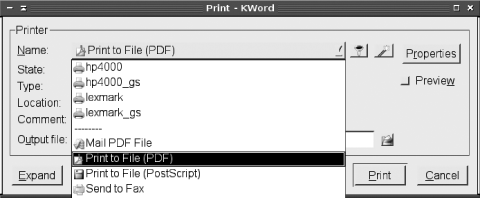
Some programs include explicit PDF-generation support, usually in whatever area handles printing. For instance, Figure B-1 shows KWord’s Print dialog box. Rather than select a printer in the Name area, you can select Print to File (PDF), which generates a PDF file. (You must also enter an output filename in a field that’s hidden in Figure B-1. Most programs that provide such support rely on Ghostscript; these features merely pass PostScript output through Ghostscript to generate the file you specify.
Another approach to generating PDF files is to link the feature to a
printer share. Chapter 4 described this
approach with respect to Samba printer shares; you can set up a Samba
printer share to pass its input through a custom print command to generate PDF output. You can then call this
share from any Samba client, including a Linux system configured to
print through the Samba server.
As for reading PDF files, Ghostscript can handle PDF inputs as well as PostScript inputs, so Ghostscript can do the job. Ghostscript by itself isn’t exactly a convenient viewer, though. Typically, you’ll use a GUI frontend, such as gv (http://wwwthep.physik.uni-mainz.de/~plass/gv/) or KGhostview (a part of KDE). Another alternative is to use Xpdf (http://www.foolabs.com/xpdf/), which is a dedicated PDF viewer that’s independent of Ghostview. Another such tool is Adobe’s own Acrobat Reader (http://www.adobe.com/products/acrobat/). This program is not open source, but it is freely available. Because Adobe originated the PDF format, Acrobat Reader may be considered the “official” PDF viewer, and it occasionally does a better job with some PDF files, particularly if the creator used was very recent. Unfortunately, Adobe’s Linux version is available in binary form only, so you might not be able to run it if you’re using an unusual CPU platform.
Sometimes you must bundle files together, or unbundle files that others have bundled into a carrier archive file. Several classes of files are commonly used for this purpose:
- Tarballs
These files are archives with tar and compressed using compress, gzip, or bzip2. These files most commonly have
.tar.Z,.tar.gz,.tar.bz2,.tgz, or.tbzfilename extensions. They’re most frequently created on Linux or Unix systems, and Linux can handle them just fine. Common Windows archiving programs can usually uncompress these files, but if you know a file will be going to a Windows user, a Zip archive is usually better.- Zip files
Zip files are denoted by
.zipfilename extensions. This file format is most popular on Windows systems, which use tools such as PKZIP (http://www.pkware.com) or InfoZip (http://www.info-zip.org/pub/infozip/) to create them. Both utilities are available in Linux, although only InfoZip is open source. It’s usually in a package calledzip. This package includes programs called zip and unzip to compress and uncompress files, respectively. Zip files are usually the safest format when sending archive files to Windows users, and they’re the format you’re most likely to encounter from Windows users.- CAB files
Microsoft uses its Cabinet (CAB) file format to distribute software. Chances are you won’t need to create a CAB file in Linux, but if you run across a CAB file you want to extract, you can do the job with cabextract (http://www.kyz.uklinux.net/cabextract.php). This might be helpful if you run across some fonts or want to view the instructions that come with a CAB file holding a Windows program before extracting it on a Windows system.
- StuffIt files
The StuffIt format originated on the Mac OS platform and is usually denoted by a
.sitfilename extension. You’re unlikely to run into StuffIt archives from Windows users, but you might run into such files from Macintosh users. The best way to handle these files in Linux is to use the commercial Stuffit Expander (http://www.stuffit.com). A demo version that can extract files is available for free, but the full version requires payment.
In addition to these major formats, quite a few minor ones exist. Most are supported by Linux programs, so try doing a web search on the filename extension of an unknown archive file and the keyword Linux to locate information on the Linux program. You might also check your Linux distribution’s package management system; some have a readily viewed category for archiving utilities.
Tip
Some Windows archives are distributed as self-extracting
archives. These files have .EXE or
.COM extensions, but they really consist of
another file format along with a short program to extract the data,
all in a single file. These formats are often used for program
installers. Self-extracting archives can usually be extracted in
Linux using an appropriate Linux program, such as
unzip for a self-extracting Zip file archive. The
trick is finding the right archiving tool. In theory, the
identify might help, but in practice it often
fails to be helpful. You may need to simply try one format after
another. Most Windows self-extracting archives are either Zip or CAB
files, but other formats do crop up from time to time.
Migrating desktop users from Windows to Linux can be a trying experience. Users are likely to have large numbers of datafiles they rely on. Ensuring that these files aren’t lost or damaged can be a tricky proposition. Users must also be trained in the new OS and its applications, and of course the transition period is likely to be chaotic simply because of the number of ongoing changes.
How can you make matters run more smoothly? You can employ several tricks to help minimize the risk of disaster and smooth the transition from Windows to Linux:
- Use backups
Before doing anything destructive to users’ desktop systems, back them up—or at least back up critical user datafiles. (Locating such files may be very challenging; if you can possibly afford it, perform a full backup.) The network backup procedures described in Chapter 14 can be very helpful in performing this backup. When something else goes wrong (and in a big transition, it will), a backup can be a life-saver.
- Use file servers
You can set up a Samba file server (or a Windows file server) and instruct your users to copy or move all their important files to this server. (You may need to keep an eye on the server to be sure they don’t copy their Windows system files and program files, though!) When users are transitioned over to Linux, you can configure the new desktop systems to access the same files, thus minimizing your need to copy user files during the transition process. This can be a useful strategy even if you don’t want to use the file server on a long-term basis; create a transition schedule and cycle users’ files on and off the temporary file server.
- Use IMAP servers
Ahead of the transition, you can set up an IMAP server, as described in Chapter 13, to handle mail. Instruct your users to store their mail on the IMAP server, using their Windows mail clients. When users transition to Linux, they’ll find all their email files present on the IMAP server, thus minimizing email disruption and obviating the need to copy mailbox files or convert their format. The risk, of course, is that if users don’t move their mail files to the IMAP server, those files might be lost.
- Consider personal files and conversions
Some types of files may need to be converted, copied to new locations, or abandoned. For instance, web browser bookmark files and email address books are likely to require conversion. (You can use Mozilla or Firefox on Windows to convert Internet Explorer bookmarks, then move the
bookmarks.htmlfile to Linux.) If you can find command-line utilities to handle such files, you may be able to write a script to handle the most important of these files, or at least create a checklist to help you convert them manually.- Rotate upgrades
Rather than try to upgrade the system at a user’s desk, install Linux on a computer, swap it with a user’s existing machine, install Linux on that machine, and then repeat the process. You should be able to perform the physical machine swap in just a few minutes, minimizing the user’s downtime. Of course, you’ll have to carefully plan this operation so that users don’t receive machines with radically different capabilities than their existing ones—unless of course you want to provide upgrades (or downgrades) to some users. Another problem is in managing users’ local datafiles, which may change until the last minute. Using a file server to store such files, as just described, can help with this problem.
- Use Linux emergency systems
If you plan to migrate existing hardware, use an emergency or demo Linux system, such as Knoppix (http://www.knoppix.org), to test the hardware before wiping the hard disk and installing Linux. Such tools are likely to turn up problems with unsupported video cards or other hardware problems before you get too far into the installation process. If a potential problem looks too tough, you can delay the upgrade on that computer rather than spend time on it in a time-critical period.
- Provide adequate training
You can’t expect the average user to pick up Linux with no trouble. Training is therefore imperative and should be done before users are faced with their new OS.
- Perform test conversions
Try converting a small number of users in a nondestructive way—say, by setting them up with new computers while leaving their old Windows computers in place, at least temporarily. This practice will enable you to locate potential trouble spots in the conversion, and if this goes badly enough, you can back out.
- New-hire conversions
You can introduce Linux initially for new users and keep their systems upgraded, but upgrade existing Windows systems less frequently. This practice tends to create a user-driven demand for conversion, particularly among users of older Windows systems. Having users asking to be switched to Linux can be very helpful because you won’t be fighting your users on this point.
Generally speaking, you should think through the upgrade process. What tasks are likely to require a lot of time, either on your part or on the part of the users? Can anything be done to minimize this time investment? A little thought and experimentation before you begin can prevent a lot of chaos down the road.