Table of Contents for
Linux in a Windows World
 Linux in a Windows World
Published by
O'Reilly Media, Inc., 2005
Linux in a Windows World
Published by
O'Reilly Media, Inc., 2005
- Cover
- Linux in a Windows World
- Dedication
- Preface
- Contents of This Book
- Conventions Used in This Book
- Using Code Examples
- Comments and Questions
- Safari Enabled
- Acknowledgments
- I. Linux’s Place in a Windows Network
- 1. Linux’s Features
- Linux as a Server
- Linux on the Desktop
- Comparing Linux and Windows Features
- Summary
- 2. Linux Deployment Strategies
- Linux Desktop Migration
- Linux and Thin Clients
- Summary
- II. Sharing Files and Printers
- 3. Basic Samba Configuration
- The Samba Configuration File Format
- Identifying the Server
- Setting Master Browser Options
- Setting Password Options
- Summary
- 4. File and Printer Shares
- Printing with CUPS
- Creating a Printer Share
- Delivering Printer Drivers to Windows Clients
- Example Shares
- Summary
- 5. Managing a NetBIOS Network with Samba
- Enabling NBNS Functions
- Assuming Master Browser Duties
- Summary
- 6. Linux as an SMB/CIFS Client
- Accessing File Shares
- Printing to Printer Shares
- Configuring GUI Workgroup Browsers
- Summary
- III. Centralized Authentication Tools
- 7. Using NT Domains for Linux Authentication
- Samba Winbind Configuration
- PAM and NSS Winbind Options
- Winbind in Action
- Summary
- 8. Using LDAP
- Configuring an OpenLDAP Server
- Creating a User Directory
- Configuring Linux to Use LDAP for Login Authentication
- Configuring Windows to Use LDAPfor Login Authentication
- Summary
- 9. Kerberos Configuration and Use
- Linux Kerberos Server Configuration
- Kerberos Application Server Configuration
- Linux Kerberos Client Configuration
- Windows Kerberos Tools
- Summary
- IV. Remote Login Tools
- 10. Remote Text-Mode Administration and Use
- SSH Server Configuration
- Telnet Server Configuration
- Windows Remote-Login Tools
- Summary
- 11. Running GUI Programs Remotely
- Using Remote X Access
- Encrypting X by SSH Tunneling
- VNC Configuration and Use
- Running Windows Programs from Linux
- Summary
- 12. Linux Thin Client Configurations
- Hardware Requirements
- Linux as a Server for Thin Clients
- Linux as a Thin Client
- Summary
- V. Additional Server Programs
- 13. Configuring Mail Servers
- Configuring Sendmail
- Configuring Postfix
- Configuring POP and IMAP Servers
- Scanning for Spam, Worms, and Viruses
- Supplementing a Microsoft Exchange Server
- Using Fetchmail
- Summary
- 14. Network Backups
- Backing Up the Linux System
- Backing Up with Samba
- Backing Up with AMANDA
- Summary
- 15. Managing a Network with Linux
- Delivering Names with DNS
- Keeping Clocks Synchronized with NTP
- Summary
- VI. Appendixes
- A. Configuring PAM
- The PAM Configuration File Format
- PAM Modules
- Sample PAM Configurations
- Summary
- B. Linux on the Desktop
- Configuring Applications and Environments
- Running Windows Programs in Linux
- File and Filesystem Compatibility
- Font Handling
- Summary
- Index
- Colophon
One of the big drawbacks to X is that it provides no way to encrypt your data. Thus, raw X sessions are risky choices for performing tasks with sensitive data, including system administration tasks. One way around this problem is to tunnel the X connection through SSH. Fortunately, this task is fairly easy to do, and it provides an excellent level of encryption. It does require specific configuration options on both the client and the server, however.
By and large, SSH tunneling is a great boon for using X. Its main advantage is its encryption, but it has other pluses, as well:
- Compression
SSH supports data compression as well as encryption. Using these features can improve the speed of X sessions, depending on the speed of the two computers’ CPUs and their CPU loads. (See the upcoming list of drawbacks for more on this issue.) This feature is most likely to be important on slow network links.
- Simplified sign-ons
The procedure for initiating the connection using the remote text-mode login protocol, described earlier, is awkward. Using SSH tunneling actually simplifies this procedure, although the underlying connection model is actually more complex.
- Simplified firewall requirements
Because a tunneled X connection is carried over an SSH link, you don’t need to be concerned with working around firewall limitations for X alone. If you can establish an SSH connection between a user’s desktop computer and a remote server, the X connection can be tunneled through any intervening firewalls. (Firewalls on the X client and server might still remain obstacles if they’re extremely tight.)
Tunneling X through SSH isn’t without its drawbacks:
- CPU time and speed
The encryption and decryption processes take a certain amount of CPU time on both systems. This fact can slow down connections, particularly if one or both systems has a weak CPU. This factor can sometimes be mitigated by use of SSH’s compression features, which can improve data throughput, but the compression itself will consume CPU time. Ultimately, the speed consequences of using SSH tunneling are uncertain; you’ll have to test it on your own network to know.
- Support
Using SSH for tunneling means that you’ll need to run an SSH server on your X client computer and an SSH client on your X server system. This may complicate your software installation, particularly if you wouldn’t ordinarily be installing SSH clients on your X server (that is, desktop) systems. Furthermore, not all SSH clients support tunneling X connections, although most do.
- Extra configuration and debugging
Even when you’d ordinarily install the necessary SSH software for purposes other than tunneling X, you must configure both the client and server to handle the job. This task shouldn’t be a difficult one, but doing it on dozens or hundreds of systems could be tedious. If something doesn’t work, tracking down the source of the problem will become more tedious than it would be without SSH in the picture.
- Lack of XDMCP support
Tunneling X connections over a standard text-mode login session is fairly easy, but adding XDMCP to the mix is not. If you want to provide remote system selection akin to that provided by an XDMCP chooser (Figure 11-6), your best bet is to write a simple program or to use an X server that can do the job via an integrated SSH client.
Overall, tunneling X over SSH is worth doing; these disadvantages are minor compared to the advantages, particularly in encryption. In fact, if you want to use X between computers on the Internet at large, I wouldn’t recommend doing it in any way that doesn’t provide encryption, and SSH is one of the simpler ways of providing encryption to X connections.
Chapter 10 provides information on configuring SSH to accept remote text-mode logins. If you’ve not already read that chapter and don’t know how to configure SSH, you should read up on the topic. The assumption hereafter is that you have a working SSH server and can log into it from the system you intend to use as an X server.
On the SSH server computer, you should examine the
/etc/ssh/sshd_config
file. (Be sure to examine the correct file and not the similarly
named ssh_config file, which configures the SSH
client.) This file contains an option that’s
critical for tunneling X:
X11Forwarding yes
The default setting for this option is no, so
unless you explicitly set it to yes, your SSH
server will refuse to forward X connections. If this option needs to
be altered, you should do so and then restart or reload your SSH
server.
In the Linux OpenSSH client, the
/etc/ssh/ssh_config
file controls the client options. This file contains an option
that’s analogous to the SSH
server’s X forwarding option:
ForwardX11 yes
This option defaults to no, which blocks X
tunneling. To enable this feature by default, you must change the
setting in the main SSH client configuration file. Unlike the server
option, individual users can override this default with command-line
options to the ssh command: the
-x option disables X forwarding, and
-X enables it. (Note that these options differ
only in case.)
Using X forwarding is fairly straightforward: from an X session, a user can employ SSH to log in to a remote system and then immediately launch X programs, without typing extra commands:
$ssh -X linnaeus@plutoPassword: Last login: Mon Dec 27 11:24:49 2004 from venus.pangaea.edu Have a lot of fun... linnaeus@pluto:~>xeyes
The elaborate procedure of setting the DISPLAY
environment variable and setting permissions on the local X server
becomes unnecessary; more precisely, the X client and server handle
these tasks transparently to the user. Programs run on the remote
system are displayed on the local X server just as if a more
traditional unencrypted X connection had been established. Of course,
if X isn’t already running locally, it must be
started first.
Tip
This particular example uses the -X option, which
means that it will work whether or not the local SSH client is
configured to tunnel X. This option may be omitted if
you’ve configured your local X client to do so. The
remote SSH server must be configured to tunnel X in either case,
though.
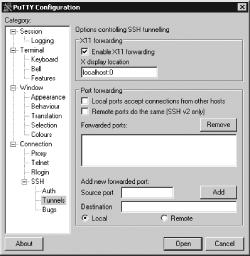
What about Windows, though? The procedure is basically the same for it, but configuration details may differ. In particular, you should check your preferred SSH client’s configuration options for one that enables X forwarding. For instance, Figure 11-7 shows the relevant option for the PuTTY SSH client in Windows. You must check the “Enable X11 forwarding” option and, if necessary, adjust the “X display location” field (the default is fine in most cases).
Some Windows X servers include integrated SSH clients. These systems can be used to establish encrypted SSH sessions that tunnel X automatically, much as they can establish links using Telnet or other unencrypted login protocols. Thus, you may want to check your Windows X server for SSH support before using a separate SSH client.
Tip
If you’re not sure whether your encryption is
encrypted, one quick check is to type echo $DISPLAY in an xterm window that uses
the connection. If the result reads
localhost:10.0, you’re almost
certainly using a tunneled SSH connection. This response indicates
that programs are connecting to their local computer on the tenth X
port, which is the one that the SSH server sets up for its tunneling.
If the result of typing this command is
your.host.name:0.0, and
your.host.name is your X
server’s hostname, it means that your connection
isn’t encrypted.