Table of Contents for
Linux in a Windows World
 Linux in a Windows World
Published by
O'Reilly Media, Inc., 2005
Linux in a Windows World
Published by
O'Reilly Media, Inc., 2005
- Cover
- Linux in a Windows World
- Dedication
- Preface
- Contents of This Book
- Conventions Used in This Book
- Using Code Examples
- Comments and Questions
- Safari Enabled
- Acknowledgments
- I. Linux’s Place in a Windows Network
- 1. Linux’s Features
- Linux as a Server
- Linux on the Desktop
- Comparing Linux and Windows Features
- Summary
- 2. Linux Deployment Strategies
- Linux Desktop Migration
- Linux and Thin Clients
- Summary
- II. Sharing Files and Printers
- 3. Basic Samba Configuration
- The Samba Configuration File Format
- Identifying the Server
- Setting Master Browser Options
- Setting Password Options
- Summary
- 4. File and Printer Shares
- Printing with CUPS
- Creating a Printer Share
- Delivering Printer Drivers to Windows Clients
- Example Shares
- Summary
- 5. Managing a NetBIOS Network with Samba
- Enabling NBNS Functions
- Assuming Master Browser Duties
- Summary
- 6. Linux as an SMB/CIFS Client
- Accessing File Shares
- Printing to Printer Shares
- Configuring GUI Workgroup Browsers
- Summary
- III. Centralized Authentication Tools
- 7. Using NT Domains for Linux Authentication
- Samba Winbind Configuration
- PAM and NSS Winbind Options
- Winbind in Action
- Summary
- 8. Using LDAP
- Configuring an OpenLDAP Server
- Creating a User Directory
- Configuring Linux to Use LDAP for Login Authentication
- Configuring Windows to Use LDAPfor Login Authentication
- Summary
- 9. Kerberos Configuration and Use
- Linux Kerberos Server Configuration
- Kerberos Application Server Configuration
- Linux Kerberos Client Configuration
- Windows Kerberos Tools
- Summary
- IV. Remote Login Tools
- 10. Remote Text-Mode Administration and Use
- SSH Server Configuration
- Telnet Server Configuration
- Windows Remote-Login Tools
- Summary
- 11. Running GUI Programs Remotely
- Using Remote X Access
- Encrypting X by SSH Tunneling
- VNC Configuration and Use
- Running Windows Programs from Linux
- Summary
- 12. Linux Thin Client Configurations
- Hardware Requirements
- Linux as a Server for Thin Clients
- Linux as a Thin Client
- Summary
- V. Additional Server Programs
- 13. Configuring Mail Servers
- Configuring Sendmail
- Configuring Postfix
- Configuring POP and IMAP Servers
- Scanning for Spam, Worms, and Viruses
- Supplementing a Microsoft Exchange Server
- Using Fetchmail
- Summary
- 14. Network Backups
- Backing Up the Linux System
- Backing Up with Samba
- Backing Up with AMANDA
- Summary
- 15. Managing a Network with Linux
- Delivering Names with DNS
- Keeping Clocks Synchronized with NTP
- Summary
- VI. Appendixes
- A. Configuring PAM
- The PAM Configuration File Format
- PAM Modules
- Sample PAM Configurations
- Summary
- B. Linux on the Desktop
- Configuring Applications and Environments
- Running Windows Programs in Linux
- File and Filesystem Compatibility
- Font Handling
- Summary
- Index
- Colophon
Linux can be an effective addition to a Windows network for several reasons, most of which boil down to cost. Windows has achieved dominance, in part, by being less expensive than competitors from the 1990s, but today Linux can be less expensive to own and operate. This is particularly true if you’re running Windows NT 4.0, which has reached end-of-life and is no longer supported. (Windows 2000 will soon fall into this category, as well.) For these old versions of Windows, you’re faced with the prospect of paying to upgrade to a newer version of Windows or switch to another operating system. Linux can be that other OS, but you should know something about Linux’s features and capabilities before you deploy it.
Effectively deploying Linux requires understanding the OS’s capabilities and where it makes the most sense to use. This chapter begins with a look at the Linux roles that this book describes in subsequent chapters. The bulk of this chapter is devoted to an overview of Linux’s capabilities and requirements when used as a server or as a desktop system. Because you may be considering replacing Windows systems with Linux, this chapter concludes with a comparison of Linux to Windows in these two roles.
Most operating systems—and Linux is no exception to this rule—can be used in a variety of ways. You can run Linux (or Windows, or Mac OS, or most other common general-purposes OSs) on personal productivity desktop systems, on mail server computers, on routers, and so on. This book doesn’t cover every possible use of Linux; instead, it focuses on how Linux interacts with Windows systems on a local area network (LAN) or how Linux can take over traditional Windows duties. This book will further focus on areas in which you can get the most “bang for the buck” by deploying Linux, either in addition to or instead of Windows systems. Chapter 2 covers Linux deployment strategies in greater detail, but, for now, consider Figure 1-1, which depicts a typical office network. Linux’s mascot is a penguin (known as Tux), so Figure 1-1 uses penguin images to mark the areas of Linux deployment covered in this book.
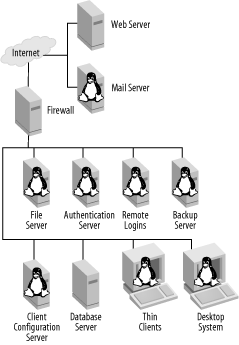
Of course, Linux can be used in roles not shown in Figure 1-1. In fact, Linux can be an excellent choice for an OS for such roles as a web server; however, because such uses aren’t LAN-centric or don’t tie closely to Windows, this book doesn’t cover them. You might want to begin with just one or two functions for Linux on your network, such as a file server or a Dynamic Host Configuration Protocol (DHCP) server. Some systems, such as backend database servers, may be so vital and data-intensive that replacing them with Linux systems, although possible, is a major undertaking that can’t be adequately covered here.