Table of Contents for
Linux in a Windows World
 Linux in a Windows World
Published by
O'Reilly Media, Inc., 2005
Linux in a Windows World
Published by
O'Reilly Media, Inc., 2005
- Cover
- Linux in a Windows World
- Dedication
- Preface
- Contents of This Book
- Conventions Used in This Book
- Using Code Examples
- Comments and Questions
- Safari Enabled
- Acknowledgments
- I. Linux’s Place in a Windows Network
- 1. Linux’s Features
- Linux as a Server
- Linux on the Desktop
- Comparing Linux and Windows Features
- Summary
- 2. Linux Deployment Strategies
- Linux Desktop Migration
- Linux and Thin Clients
- Summary
- II. Sharing Files and Printers
- 3. Basic Samba Configuration
- The Samba Configuration File Format
- Identifying the Server
- Setting Master Browser Options
- Setting Password Options
- Summary
- 4. File and Printer Shares
- Printing with CUPS
- Creating a Printer Share
- Delivering Printer Drivers to Windows Clients
- Example Shares
- Summary
- 5. Managing a NetBIOS Network with Samba
- Enabling NBNS Functions
- Assuming Master Browser Duties
- Summary
- 6. Linux as an SMB/CIFS Client
- Accessing File Shares
- Printing to Printer Shares
- Configuring GUI Workgroup Browsers
- Summary
- III. Centralized Authentication Tools
- 7. Using NT Domains for Linux Authentication
- Samba Winbind Configuration
- PAM and NSS Winbind Options
- Winbind in Action
- Summary
- 8. Using LDAP
- Configuring an OpenLDAP Server
- Creating a User Directory
- Configuring Linux to Use LDAP for Login Authentication
- Configuring Windows to Use LDAPfor Login Authentication
- Summary
- 9. Kerberos Configuration and Use
- Linux Kerberos Server Configuration
- Kerberos Application Server Configuration
- Linux Kerberos Client Configuration
- Windows Kerberos Tools
- Summary
- IV. Remote Login Tools
- 10. Remote Text-Mode Administration and Use
- SSH Server Configuration
- Telnet Server Configuration
- Windows Remote-Login Tools
- Summary
- 11. Running GUI Programs Remotely
- Using Remote X Access
- Encrypting X by SSH Tunneling
- VNC Configuration and Use
- Running Windows Programs from Linux
- Summary
- 12. Linux Thin Client Configurations
- Hardware Requirements
- Linux as a Server for Thin Clients
- Linux as a Thin Client
- Summary
- V. Additional Server Programs
- 13. Configuring Mail Servers
- Configuring Sendmail
- Configuring Postfix
- Configuring POP and IMAP Servers
- Scanning for Spam, Worms, and Viruses
- Supplementing a Microsoft Exchange Server
- Using Fetchmail
- Summary
- 14. Network Backups
- Backing Up the Linux System
- Backing Up with Samba
- Backing Up with AMANDA
- Summary
- 15. Managing a Network with Linux
- Delivering Names with DNS
- Keeping Clocks Synchronized with NTP
- Summary
- VI. Appendixes
- A. Configuring PAM
- The PAM Configuration File Format
- PAM Modules
- Sample PAM Configurations
- Summary
- B. Linux on the Desktop
- Configuring Applications and Environments
- Running Windows Programs in Linux
- File and Filesystem Compatibility
- Font Handling
- Summary
- Index
- Colophon
Up to now, this chapter has presented Kerberos largely from a Linux perspective. Kerberos, though, is a cross-platform tool, and you can use it to help integrate Linux and Windows systems. You can use Windows in any of the main Kerberos roles (KDC, application server, or client).
Broadly speaking, three approaches to Kerberos are possible under Windows:
- Microsoft’s Kerberos implementation
Microsoft provides a Kerberos implementation as part of Windows 200x/XP (but not Windows XP Home). As described in Section 9.1.4, Microsoft’s Kerberos implementation deviates from others, which can make using it with a non-Microsoft KDC tricky. In the Section 9.5.3, some pointers for using Microsoft’s Kerberos clients with non-Microsoft KDCs are presented.
- Conventional non-Microsoft Kerberos implementations
You can obtain non-Microsoft Kerberos implementations for Windows. For instance, a Windows binary version of MIT Kerberos (http://web.mit.edu/kerberos/) is available for all versions of Windows since Windows 98. (Windows 95 and earlier are not supported.) This tool can be configured and used much like Linux versions of Kerberos. The main difference is that configuration file locations differ. Most importantly, instead of editing
/etc/krb5.conf, you editC:\WINDOWS\krb5.ini. (This file may reside in another directory if you installed Windows to a directory other thanC:\WINDOWS.) This package also includes a GUI tool called Leash, which manages Kerberos tickets.- Limited non-Microsoft Kerberos implementations
Some tools provide limited Kerberos support—typically, Kerberos-enabled versions of a handful of protocols, with their own Kerberos libraries. One of the more popular of these is Kerberos Telnet (http://www.stacken.kth.se/~thn/ktelnet/), which provides Kerberized Telnet, FTP, and POP implementations for Windows. Tools like this don’t work in conjunction with either Microsoft’s Kerberos or broader non-Microsoft Kerberos tools on the same system, although, of course, they can interact with such systems as KDCs and application servers.
Each tool type has its advantages and disadvantages. Broadly speaking, you’re most likely to find Kerberized Windows clients and application servers that work with the Windows implementation of Kerberos; however, this implementation is limited to just a few recent versions of Windows, and it doesn’t always interoperate well with non-Microsoft KDCs. Kerberized Windows clients and servers can also be very difficult to locate, aside from those provided with Windows. Microsoft’s Kerberos implementation can function well as a KDC for non-Microsoft application servers and clients. Full non-Microsoft Kerberos implementations work best with Unix tools ported to Windows (say, running in conjunction with Cygwin) or with Kerberized Windows clients and application servers. These tools interoperate well with Kerberized Linux programs, but the implementation is awkward when it comes to providing single-login authentication for Windows desktop systems. Limited non-Microsoft Kerberos implementations can be handy on desktop systems when you want to use Kerberos authentication for security reasons or to provide single-login authentication but when you’re not concerned about Kerberizing the initial logon to Windows.
Windows 200x/XP systems that are members of an AD domain automatically use the AD controller’s Kerberos features to authenticate file and printer sharing access. Thus, configuring this aspect of Kerberized server use is relatively straightforward.
Tip
By treating the AD controller as an NT domain controller, Linux systems running Samba and older Windows NT servers can authenticate against the AD controller even if these domain member servers don’t use Kerberos. Thus, many of the benefits of Kerberos extend even to some non-Kerberos systems.
As with Linux servers, Kerberos support in most third-party servers is a hit-or-miss proposition. Windows doesn’t ship with Kerberized Telnet, FTP, or other servers, and these servers are lacking even in some third-party Kerberos packages.
In principle, Windows Kerberos clients can be as varied as Linux Kerberos clients. If you have specific needs, you may need to consult the documentation for the Kerberized clients you’ve selected. It’s even possible that your choice of client programs will dictate your choice of overall Windows Kerberos implementation (Microsoft’s, a third party’s, or Kerberos integrated into a server). As a couple of examples, I present information on using Microsoft’s Kerberos to authenticate against a non-Windows KDC and using the Kerberos Telnet package.
Microsoft supports Kerberos as part of its Active Directory domain authentication. If you’re using an AD domain controller, Windows clients automatically use the AD controller’s KDC features when they’re configured as members of the domain. This support also extends to use of Windows file and printer shares offered by domain members.
You can use a non-Windows Kerberos KDC as a way to authenticate Windows 200x/XP users’ initial sign-ons, but the process is awkward. One way to do it is to establish a cross-realm trust relationship between a Windows AD controller and the non-Windows KDC. This procedure is quite advanced, though, and is beyond the scope of this book. A somewhat simpler, but more limited, approach is to configure local user accounts on the Windows desktop system and tell it to use the KDC, thus centralizing the password database. The following list shows you how:
Create a host key for the Windows client using kadmin on the KDC. This key must use DES encryption. In MIT Kerberos, you can do this with the
-eoption to addprinc, as inaddprinc-edes:normalhost/mimbulus.example.com@EXAMPLE.COMto add a principal for the Windows system http://mimbulus.example.com. Don’t randomize the password when you create this principal, as you do when creating a principal for a Linux application server.Run the ksetup program on the Windows client, and tell it how to locate the KDC. In the last step, you’ll need to enter the password you used when you created the host key for the Windows system:
C:\>
ksetup /setdomain EXAMPLE.COMC:\>ksetup /addkdc EXAMPLE.COM kdc.example.comC:\>ksetup /addkpasswd EXAMPLE.COM kdc.example.comC:\>ksetup /setmachpasswdpasswordUse the Windows ksetup tool to map a Kerberos principal name to a local username. For instance, typing
ksetup /mapuser fluffy@EXAMPLE.COM Cerberusmaps the Kerberos principal name fluffy@EXAMPLE.COM to the local account Cerberus. As a shortcut, you can typeksetup/mapuser**. This command maps local users to like-named Kerberos principals; for instance, the local user fluffy maps to the fluffy@EXAMPLE.COM principal.
Once this is done, you should be able to log on and have the Windows desktop system use the KDC for authentication. You will, however, have to maintain local accounts corresponding to those on the KDC, or at least mapped to it using ksetup /mapuser.
If you want to use Kerberos only for Telnet, FTP, or POP access, Kerberos Telnet (http://www.stacken.kth.se/~thn/ktelnet/) may be just what you need. This program, shown in Figure 9-1, is a Kerberized POP proxy, FTP, and Telnet implementation for Windows that doesn’t rely on any other local Kerberos tools.
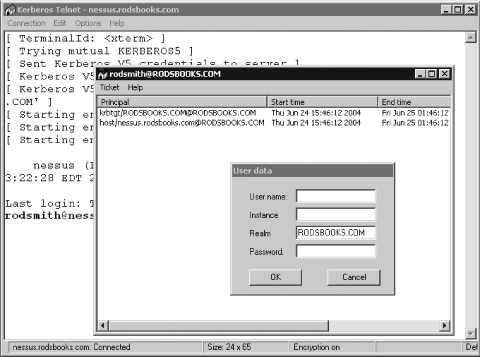
When you install Kerberos Telnet, you’ll be asked for basic information, such as your realm name. The tool then uses that information when you request a connection to a server. The first time you do this, you’ll be asked for principal information (in the “User data” dialog box shown in Figure 9-1. Thereafter, you won’t have to type your password again. Kerberos Telnet provides integrated ticket management tools (also shown in Figure 9-1), so you can check on tickets’ expiration dates, destroy them, and so on.