Table of Contents for
Linux in a Windows World
 Linux in a Windows World
Published by
O'Reilly Media, Inc., 2005
Linux in a Windows World
Published by
O'Reilly Media, Inc., 2005
- Cover
- Linux in a Windows World
- Dedication
- Preface
- Contents of This Book
- Conventions Used in This Book
- Using Code Examples
- Comments and Questions
- Safari Enabled
- Acknowledgments
- I. Linux’s Place in a Windows Network
- 1. Linux’s Features
- Linux as a Server
- Linux on the Desktop
- Comparing Linux and Windows Features
- Summary
- 2. Linux Deployment Strategies
- Linux Desktop Migration
- Linux and Thin Clients
- Summary
- II. Sharing Files and Printers
- 3. Basic Samba Configuration
- The Samba Configuration File Format
- Identifying the Server
- Setting Master Browser Options
- Setting Password Options
- Summary
- 4. File and Printer Shares
- Printing with CUPS
- Creating a Printer Share
- Delivering Printer Drivers to Windows Clients
- Example Shares
- Summary
- 5. Managing a NetBIOS Network with Samba
- Enabling NBNS Functions
- Assuming Master Browser Duties
- Summary
- 6. Linux as an SMB/CIFS Client
- Accessing File Shares
- Printing to Printer Shares
- Configuring GUI Workgroup Browsers
- Summary
- III. Centralized Authentication Tools
- 7. Using NT Domains for Linux Authentication
- Samba Winbind Configuration
- PAM and NSS Winbind Options
- Winbind in Action
- Summary
- 8. Using LDAP
- Configuring an OpenLDAP Server
- Creating a User Directory
- Configuring Linux to Use LDAP for Login Authentication
- Configuring Windows to Use LDAPfor Login Authentication
- Summary
- 9. Kerberos Configuration and Use
- Linux Kerberos Server Configuration
- Kerberos Application Server Configuration
- Linux Kerberos Client Configuration
- Windows Kerberos Tools
- Summary
- IV. Remote Login Tools
- 10. Remote Text-Mode Administration and Use
- SSH Server Configuration
- Telnet Server Configuration
- Windows Remote-Login Tools
- Summary
- 11. Running GUI Programs Remotely
- Using Remote X Access
- Encrypting X by SSH Tunneling
- VNC Configuration and Use
- Running Windows Programs from Linux
- Summary
- 12. Linux Thin Client Configurations
- Hardware Requirements
- Linux as a Server for Thin Clients
- Linux as a Thin Client
- Summary
- V. Additional Server Programs
- 13. Configuring Mail Servers
- Configuring Sendmail
- Configuring Postfix
- Configuring POP and IMAP Servers
- Scanning for Spam, Worms, and Viruses
- Supplementing a Microsoft Exchange Server
- Using Fetchmail
- Summary
- 14. Network Backups
- Backing Up the Linux System
- Backing Up with Samba
- Backing Up with AMANDA
- Summary
- 15. Managing a Network with Linux
- Delivering Names with DNS
- Keeping Clocks Synchronized with NTP
- Summary
- VI. Appendixes
- A. Configuring PAM
- The PAM Configuration File Format
- PAM Modules
- Sample PAM Configurations
- Summary
- B. Linux on the Desktop
- Configuring Applications and Environments
- Running Windows Programs in Linux
- File and Filesystem Compatibility
- Font Handling
- Summary
- Index
- Colophon
If Windows systems are to interact with Linux systems via text-mode tools, you must locate matching Windows clients to Linux servers or locate Windows servers for Linux clients. The first task is considerably easier and likely to be more productive than the second; although text-mode Windows login servers do exist, they aren’t nearly as useful as Linux remote text-mode login servers because Windows was never designed with this sort of operation in mind.
Windows client software for both
Telnet and SSH protocols is fairly easy to find. In fact, all
versions of Windows that support TCP/IP networking ship with a Telnet
client. Type TELNET in a DOS prompt window or
select the Telnet item from the Start menu to launch this client.
If you’re not satisfied with the features of the standard Windows Telnet server or if you want to use SSH to access your Linux system, you’ll need to look elsewhere. One excellent resource is the Free SSH web site’s Windows page, http://freessh.org/windows.html, which lists Windows SSH clients and servers, of both the free and the pay variety. Many of these SSH clients can also handle Telnet and other protocols, so they’re well worth investigating.
As an example of a Windows text-mode login client, consider PuTTY (http://www.chiark.greenend.org.uk/~sgtatham/putty/). This program can handle rlogin, Telnet, and SSH protocols. When you first launch it, you’ll see a PuTTY Configuration dialog box, as shown in Figure 10-1. To open a basic SSH session, type the hostname or IP address of the server in the Host Name (or IP Address) field, check that the Protocol item is set to SSH, and then click Open. The first time you connect, the system will notify you that the server’s host key is not cached. This is normal for an initial connection, so click Yes to accept the key. The system will then prompt you for a username and password in the access window and, if you enter them correctly, you’ll be in and able to use the remote system.
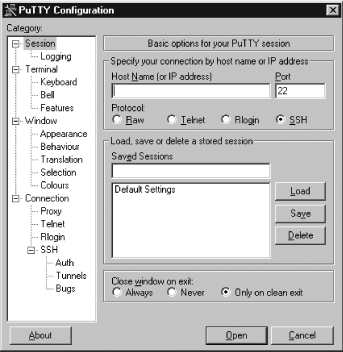
For more advanced uses, you can adjust various options by clicking their categories in the list in the Category field of the PuTTY Configuration dialog box. If you regularly use particular settings (including connections to specific servers), you can make the adjustments you want, type a session name in the Saved Sessions field, and click Save to save your settings. Thereafter, double-clicking on the session name launches a session with those settings.
Windows, unlike Linux, was not designed with remote text-mode use in mind. Although Windows has DOS—a text-mode OS—in its history, Windows simply never embraced the notion of remote text-mode access in the way Linux has. Furthermore, Windows is tied more tightly to its GUI for both common user programs and system administration than is Linux, so using it from a text-mode login will tie your hands in terms of the tasks you can accomplish.
These caveats aside, remote text-mode access tools for Windows are available. Because these tools are of limited utility, I don’t describe them in great detail, but they do deserve a few pointers. A few of the available servers include:
- Cygwin OpenSSH
The Cygwin package includes an OpenSSH server, whose setup and basic operation is documented at http://tech.erdelynet.com/cygwin-sshd.html. This configuration provides access to a Windows system using the Cygwin environment, which resembles a Unix environment but enables you to run many text-mode DOS and Windows programs.
- OpenSSH for Windows
This package borrows from Cygwin but doesn’t install a full Cygwin environment. As a result, when you log into the server, you’ll see a DOS-style C:\> prompt. You can learn more at http://sshwindows.sourceforge.net/.
- Georgia Softworks Telnet and SSH
Georgia Softworks (http://www.georgiasoftworks.com) sells a commercial Telnet server for Windows and a commercial SSH server for Windows. These packages provide unusually good terminal emulation; that is, they do a better job than most at enabling you to run text-mode programs that require extensive cursor control, such as text-mode editors.
As noted earlier, the Free SSH site’s Windows page (http://freessh.org/windows.html) provides pointers to Windows SSH servers as well as SSH clients, so you can consult it for links to more servers. As a general rule, the free offerings are scarce, but several commercial products are available.
One of the difficulties in using a text-mode Windows remote-access
tool manifests itself when you try to run programs that move the
cursor around the screen in an arbitrary way, such as text editors.
Under Linux, a set of libraries between programs and the screen
display handle the translation for any number of display
types—a text-mode console, an xterm window,
a remote Telnet session, and so on. (In fact, some Windows Telnet and
SSH clients provide options that influence how they interact with
these libraries by changing their terminal
emulation mode, which can improve their ability to handle
features such as colored text.) Windows lacks these libraries, so the
remote-access server must either implement these translations
themselves or ignore the issue. The former is a difficult task, so
many servers ignore the issue. The result is an inability to run
text-mode programs that do more than display text in a simple linear
fashion. For instance, typing EDIT in an
OpenSSH for Windows session effectively hangs the session.
Despite these limitations, text-mode login tools for Windows can be handy in some situations; you can run simple tools and scripts that don’t rely on GUI components or the more advanced text-mode features. If you have a specific use in mind for the access, you might be able to track down or write a program to do a job, thus saving considerable bandwidth (and, hence, time) that might otherwise be required to use a GUI login tool. You can also use an SSH server as a way to establish encrypted connections to other servers running on the Windows machine, by using SSH’s port-forwarding capabilities.