We can run the script with arguments; after all, it's a free world and Linux promotes your freedom to do what you want to do with the code. However, if the script does not make use of the arguments, then they will be silently ignored. The following command shows the script running with a single argument:
$ hello1.sh fred
The script will still run and will not produce an error. The output will not change either and will print Hello World:
|
Argument Identifier |
Description |
|
$0 |
The name of the script itself, which is often used in usage statements. |
|
$1 |
A positional argument, which is the first argument passed to the script. |
|
${10} |
Where two or more digits are needed to represent the argument position. Brace brackets are used to delimit the variable name from any other content. Single value digits are expected. |
|
$# |
The argument count is especially useful when we need to set the amount of arguments needed for correct script execution. |
|
$* |
Refers to all arguments. |
For the script to make use of the argument, we can change its content a little. Let's first copy the script, add in the execute permissions, and then edit the new hello2.sh:
$ cp $HOME/bin/hello1.sh $HOME/bin/hello2.sh
$ chmod +x $HOME/bin/hello2.sh
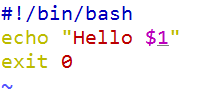
We need to edit the hello2.sh file to make use of the argument as it is passed at the command line. The following screenshot shows the simplest use of command-line arguments, now allowing us to have a custom message:
Run the script now; we can provide an argument as shown in the following:
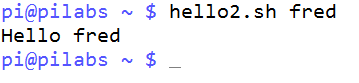
$ hello2.sh fred
The output should now say Hello fred. If we do not provide an argument, then the variable will be empty and will just print Hello. You can refer to the following screenshot to see the execution argument and output:
If we adjust the script to use $*, all the arguments will print. We will see Hello and then a list of all the supplied arguments. Edit the script and replace the echo line as follows:
echo "Hello $*"
This will execute the script with the following arguments:
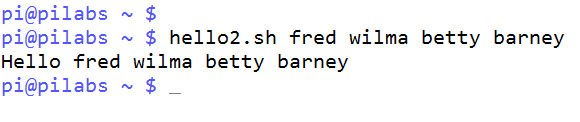
$ hello2.sh fred wilma betty barney
And this will result in the output shown in the following screenshot:
If we want to print Hello <name>, with each name on a separate line, we will need to wait a little until we cover looping structures. A for loop is a good way to achieve this.