So far, in this book we have been able to see that the echo command is very useful and is going to be used in many of our scripts, if not all of them. When running the echo command, the built-in command will be used unless we state the full path to the file. We can test this with the following command:
$ which echo
To gain help on the built-in command, we can use man bash and search for echo; however, the echo command is identical to the internal command, so we recommend that you use man echo in most cases in order to display the command options.
The basic use of echo that we have seen so far will produce a text output and a new line. This is often the desired response, so we don't need to be concerned that the next prompt will append to the end of the echoed text. The new line separates the script output from the next shell prompt. If we do not supply any text string to print, echo will print only the new line to STDOUT. We can test this with the following command, directly from the command line. We do not need to run echo or, in fact, any other command from a script. To run echo from the command line, we simply enter the command as shown:
$ echo
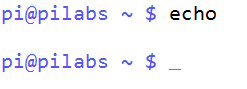
The output will show a clear new line between the command we issued and the subsequent prompt. We can see this in the following screenshot:
If we want to suppress the new line, which is especially useful if we are to prompt users, we can do this in the following two ways, with the help of echo:
$ echo -n "Which directory do you want to use? "
$ echo -e "Which directory do you want to use? \c"
The result will be to suppress the line feed. In the initial example, the -n option is used to suppress the line feed. The second example uses the more generic -e option, which allows escape sequences to be added to the text string. To continue on the same line, we use \c as the escape sequence.
This does not look great as the final part of the script or when it is run from the command line, as the command prompt will follow. This is illustrated in the following screenshot:
