For those who love graphical IDEs, you can use VS Code as an editor for your shell scripts. We used it as a debugger in Chapter 1, The What and Why of Scripting with Bash. Now we will see one of its capabilities as an editor.
You can create your own snippets in VS Code as follows.
Navigate to File | Preferences | User Snippets.
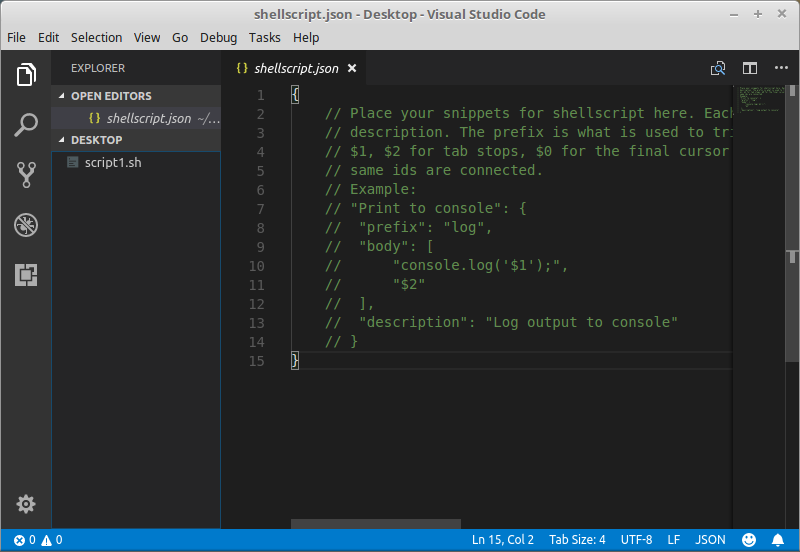
Then start to type shell. This will open the shellscript.json file.
The file has two brackets ready to enter your snippets between them:
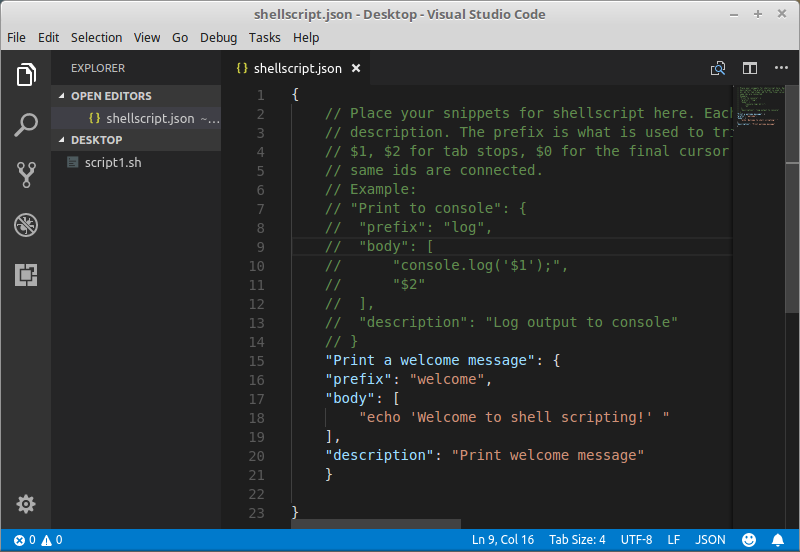
To create a snippet, type the following between the brackets on the file:
"Print a welcome message": {
   "prefix": "welcome",
   "body": [
         "echo 'Welcome to shell scripting!' "
   ],
   "description": "Print welcome message"
  }
You can use the following template and modify it based on your needs.
Try to use prefixes different to the shell scripting keywords to avoid confusion.
When you open any .sh file and start to type welcome, the autocompletion will show you the snippet we have just created:
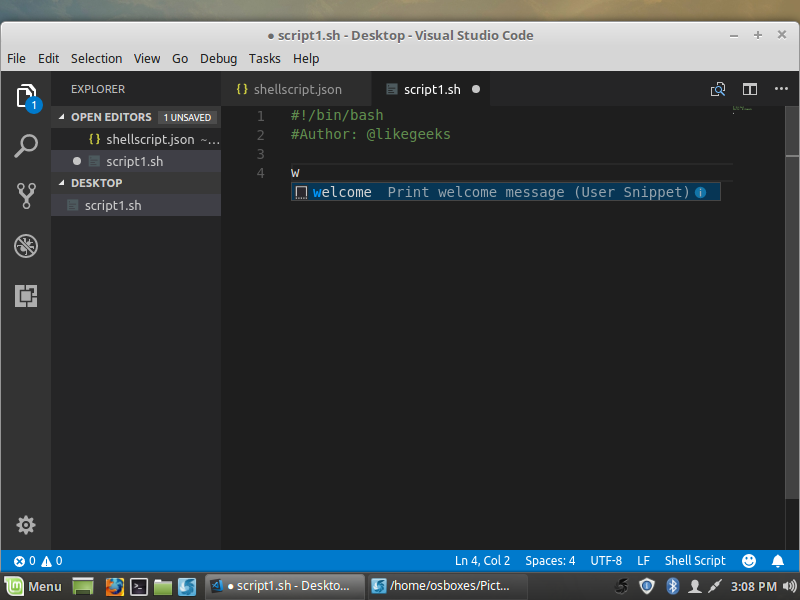
You can use any prefix you want; in our case, we used welcome so the autocompletion starts with it.
You can add many lines to your snippet body:
"Print to a welcome message": {
    "prefix": "welcome",
    "body": [
      "echo 'Welcome to shell scripting!' ",
      "echo 'This is a second message'"
    ],
    "description": "Print welcome message"
  }
You can use placeholders in your snippet body to simplify code editing.
Placeholders are written like this:
$1, $2, etc,
Modify the previous snippet and add a placeholder like this:
"Print a welcome message": {
  "prefix": "welcome",
  "body": [
    "echo 'Welcome to shell scripting! $1' "
  ],
  "description": "Print welcome message"
  }
When you start to type welcome and after you choose the snippet, you will notice that the cursor will stop at the exact position of the placeholder waiting for your input.
You can use choices if you forget what to type in these editable places:
  "Print to a welcome message": {
    "prefix": "welcome",
    "body": [
      "echo 'Welcome to shell scripting! ${1|first,second,third|}' "
    ],
    "description": "Print welcome message"
  }
After you choose this snippet in your code and hit Enter, you should see the cursor waiting for your input with your choices:
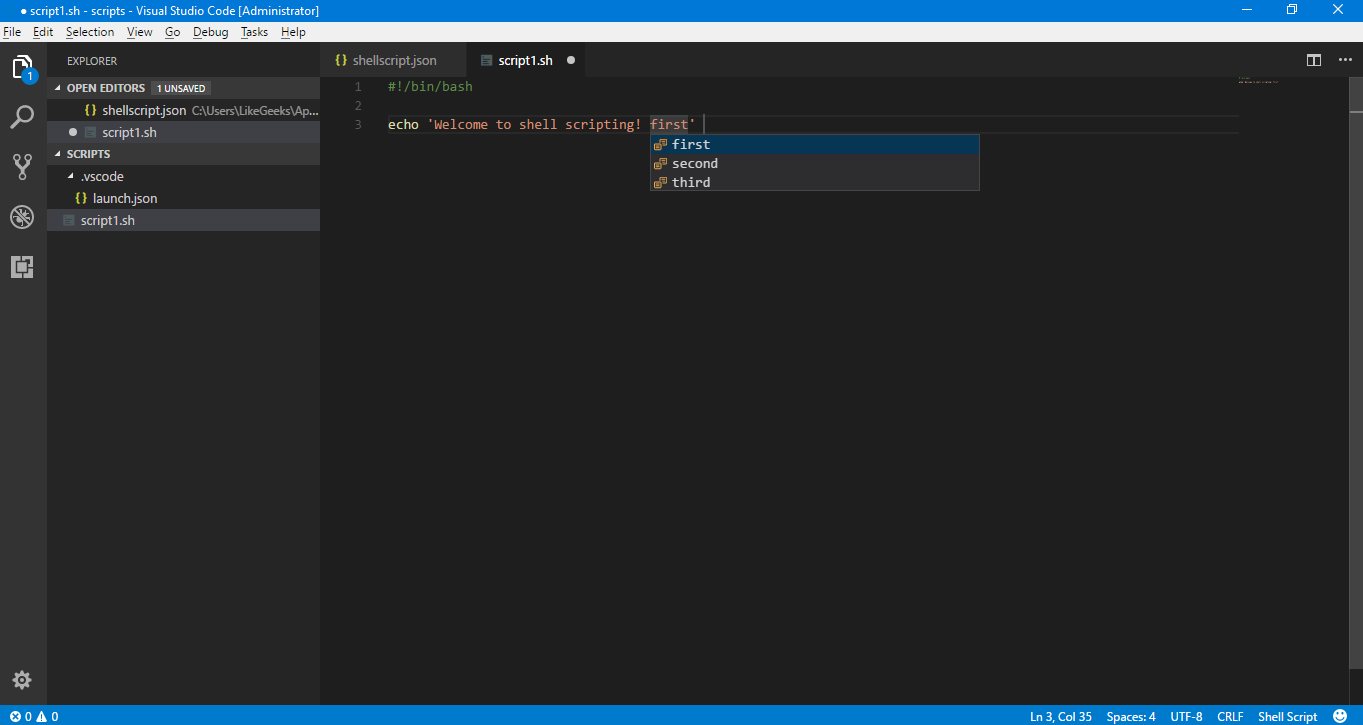
That's very helpful!
Also, you can add a default value for the placeholder so this value will be written if you hit Tab:
"Print a welcome message": {
  "prefix": "welcome",
  "body": [
    "echo 'Welcome to shell scripting! ${1:book}' "
  ],
  "description": "Print welcome message"
  }