The local user account database in Linux is the /etc/passwd file and this is readable by all user accounts. If we want to search for the line that contains our own data, we can use either our own login name in the search or use parameter expansion and the $USER variable. We can see this in the following command example:
$ grep "$USER" /etc/passwd
In this example, the input to grep comes from the /etc/passwd file and we search for the value of the $USER variable. Again, in this case, it is a simple text, but it is still the regular expression, just without any operators.
For completeness, we include the output in the following screenshot:

We can extend this a little using this type of query as a condition within a script. We can use this to check whether a user account exists before trying to create a new account. To keep the script as simple as possible and to ensure that administrative rights are not required, creating the account will display just the prompt and conditional test in the following command-line example:
$ bash
$ read -p "Enter a user name: "
$ if (grep "$REPLY" /etc/passwd > /dev/null) ; then
> echo "The user $REPLY exists"
> exit 1
> fi
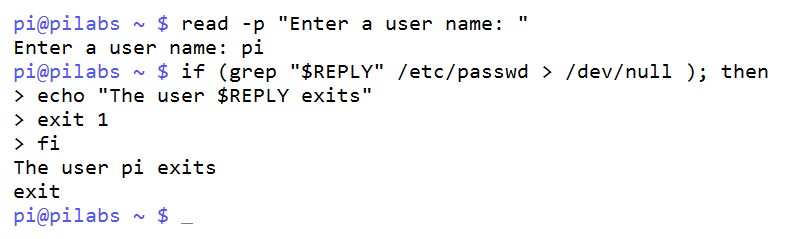
The grep search now makes use of the $REPLY variable populated by read. If I enter the name pi, a message will be displayed and we will exit because my user account is also called pi. There is no need to display the result from grep; we are just looking for a return code that is either true or false. To ensure that we do not see any unnecessary output if the user is in the file, we redirect the output from grep to the special device file /dev/null.
If you want to run this from the command line, you should start a new bash shell first. You can do this by simply typing bash. In this way, when the exit command runs, it will not log you out but close the newly opened shell. We can see this happening and the results when specifying an existing user in the following screenshot: