Table of Contents for
Web Design Blueprints
 Web Design Blueprints
Published by
Packt Publishing, 2016
Web Design Blueprints
Published by
Packt Publishing, 2016
- Cover
- Table of Contents
- Web Design Blueprints
- Web Design Blueprints
- Credits
- About the Author
- About the Reviewer
- www.PacktPub.com
- Preface
- What you need for this book
- Who this book is for
- Conventions
- Reader feedback
- Customer support
- 1. Responsive Web Design
- Getting familiar with the basics
- Using media queries for responsive design
- Working with responsive media
- Building responsive layouts
- Summary
- 2. Flat UI
- Flat UI color
- Creating a flat UI layout
- Summary
- 3. Parallax Scrolling
- Color classes
- Using SVG font icons
- Getting the fonts
- That's no moon!
- OMG, it's full of stars!
- Clouds, birds, and airplanes
- The rocket
- Terra firma
- Next up, the CSS
- Styling the objects with CSS
- Styling the ground objects
- Writing the JavaScript effects
- Setting the row height
- Spreading the objects
- Spreading the clouds
- Loading the page functions
- Smoothening the scroll
- Updating elements on the scroller
- Collecting the moving elements
- Creating functions for the element types
- Setting the left positions
- Creating the rocket's movement function
- Finally, moving the earth
- Summary
- 4. Single Page Applications
- Getting to work
- Getting the old files
- Object and function conventions
- Creating utility functions
- Working with the home structure
- Setting up other sections
- Performing housekeeping
- Creating a callBack function for the API
- Summary
- 5. The Death Star Chapter
- Dropping in the parallax game
- Loading elements from JSON
- What can be done in the shared levels service
- Editing the home JavaScript
- Creating the other pages – credits and leaderboard
- Creating the second level
- Summary
- Index
Next, let's get the content into separate files for the sections. We're going to really break the application now. At least we'll have something to fix again to move forward with our Single Page Application.
We already have a home directory. Next, add directories for the remaining sections: news, tasks, weather, travel, and stocks, with the name being the same as the section. Inside each of these directories, add an HTML file named the same as the directory prepended by home and a dash, like this: home-news.html and home-stocks.html. Now, we need to break out the content from the DIV elements and into the directories. First, in home-home.html file, only write the text, time, with no markup. As you may recall, the time JavaScript will replace this anyway with the clock. Next, in the home.html file, find the DIV element with the class news. Add an ID attribute, news, to that DIV element.
Then cut its child UL list element from it. Paste it into the home.news.html file inside the /app/news/ directory. The home-news.html file will look like the following:
<ul> <li class="ellipsis"> <h4 class="dark"> <i class="fa fa-newspaper-o"></i> Title 1 </h4> <p>Lorem ipsum dolor sit amet, consectetur adipiscing elit, </p> </li> <li class="ellipsis"> <h4 class="dark"> <i class="fa fa-newspaper-o"></i> Title 2 </h4> <p>sed do eiusmod tempor incididunt ut labore et dolore magna aliqua. </p> </li> <li class="ellipsis"> <h4 class="dark"> <i class="fa fa-newspaper-o"></i> Title 3 </h4> <p>Ut enim ad minim veniam, quis nostrud exercitation ullamco laboris nisi ut aliquip ex ea commodo consequat. </p> </li> <li class="ellipsis"> <h4 class="dark"> <i class="fa fa-newspaper-o"></i> Title 4 </h4> <p>Ut enim ad minim veniam, quis nostrud exercitation ullamco laboris nisi ut aliquip ex ea commodo consequat. </p> </li> </ul>
Follow the same procedure for the tasks starting in the DIV element with the tasks class. Add the ID attribute tasks, and cut out its child content. Paste it into home-tasks.html.
<ul> <li class="ellipsis"> <h4 class="dark"> <i class="fa fa-calendar-check-o"></i> 8:00am </h4> <p>Wake up, fall out of bed</p> </li> <li class="ellipsis"> <h4 class="dark"> <i class="fa fa-calendar-check-o"></i> 9:00am </h4> <p>Run the comb across your head</p> </li> <li class="ellipsis"> <h4 class="dark"> <i class="fa fa-calendar-check-o"></i> 10:00am </h4> <p>Find your way downstairs and Drink a cup </p> </li> <li class="ellipsis"> <h4> <i class="fa fa-calendar-check-o"></i> 11:00am </h4> <p>Looking up, notice you are late </p> </li> <li class="ellipsis"> <h4 class="dark"> <i class="fa fa-calendar-check-o"></i> 12:00am </h4> <p>Find your coat and grab your hat </p> </li> </ul>
Next, follow the same procedure for the weather section. This is the content that the home-weather.html file will have in it.
<ul>
<li>
<ul>
<li>
<h2><i class="fa fa-cloud fa-3x"></i></h2>
</li>
<li>
<ul>
<li class="left">
<span>104</span>
<br>
<span class="dark">High</span>
</li>
<li class="right">
<span>94</span>
<br>
<span class="dark">Low</span>
</li>
</ul>
</li>
</ul>
</li>
<li>
<ul>
<li>
<ul>
<li>
<span class="dark">Pollen</span>
<span>3.5</span>
</li>
<li>
<span class="dark">Humidity</span>
<span>90%</span>
</li>
<li>
<span class="dark">Precip</span>
<span>90%</span>
</li>
<li>
<span class="dark">Wind</span>
<span>0</span>
</li>
</ul>
</li>
<li>
<ul>
<li>
<span>9</span><i class="fa fa-sun-o"></i> <span>95</span></li>
<li>
<span>12</span><i class="fa fa-sun-o"></i> <span>100</span></li>
<li>
<span>3</span><i class="fa fa-cloud"></i> <span>105</span>
</li>
<li>
<span>6</span><i class="fa fa-cloud"></i> <span>105</span>
</li>
</ul>
</li>
</ul>
</li>
</ul>
<h2>
<i class="fa fa-bicycle fa-4x"></i>
</h2>
<h3>45</h3>
<h4 class="dark">Minutes to work</h4>
And the stocks section:
<ul>
<li>
<h2 class="">
<i class="fa fa-line-chart"></i>FOO
</h2>
</li>
<li>
<ul>
<li class="left">
<span>104</span>
</li>
          <li class="right">
<span>+5.5</span>
</li>
</ul>
</li>
<li>
<button onclick="doSomething()" class="wet-asphalt">more</button>
</li>
</ul>
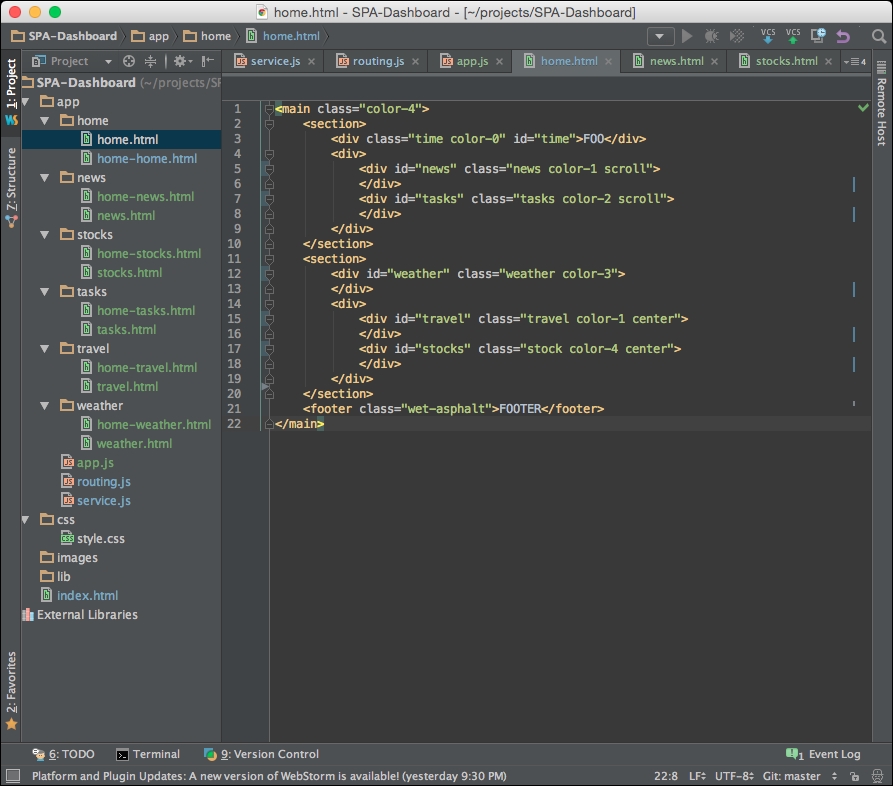
Now, home.html will look a bit tidier and easier to manage. Changes to the main template, or the template partials, may be a little easier to work with now. The IDs we added for each content section will be used later to identify which section to load the section templates into. The home template code will look like this:
<main class="color-4">
    <section>
        <div class="time color-0" id="time">FOO</div>
        <div>
            <div id="news" class="news color-1 scroll"></div>
            <div id="tasks" class="tasks color-2 scroll"></div>
        </div>
    </section>
    <section>
            <div id="weather" class="weather color-3"></div>
        <div>
            <div id="travel" class="travel color-1 center"></div>
            <div id="stocks" class="stock color-4 center"></div>
        </div>
    </section>
    <footer class="wet-asphalt">FOOTER</footer>
    </main>
Refresh your browser and you will see the app is broken. None of the content, except our clock, appears. We can fix this with a few more lines of code.
To fix this, we need to make our routing table, which will be a list of our content sections containing information about where to find the various necessary content for it. Create a new JavaScript file in the app directory named routing.js.
Include the link to the script in the bottom of the body in the index.html file right before the closing BODY tag.
<body onload="home.getTime()" class="color-0">
<div id="content"></div>
<script src="app/service.js"></script>
<script src="app/routing.js"></script>
</body>
In routing.js, create a new object called routing. Inside it a array called routesArray. The array is where we will create our routing table.
var routing = {};
routing.routesArray = [];
The next function will be used to register and store the routes to be used when a link is clicked. Create a new method of the services routing object called routing.register as a function. It receives the variables path and callBack.
services.routing.register = function(path, callBack){
//Do Something
}
Inside that function, create a new object variable called routeObject. It has the properties path equaling path, and callBack equaling callBack, both being the variables sent to the function.
var routeObject = {};
routeObject.path = path;
routeObject.callBack = callBack;
Before closing the function, use the array push method to push routeObject into the routing.routesArray array.
routing.routesArray.push(routeObject);
Let's quickly move to attempt to see what's going on here, that is, use the functions we are creating. To do so, we want to register our first route. To make it easy, the first route to register in the routing table will be the home route. Call the services.routing.register function and send the two variable described earlier: the path named home, and an anonymous callBack function.
services.routing.register('home',function(){
//Do something
});
Inside the anonymous function, set an undeclared variable, pageRoute, to equal an object with a property: partial. Assign the value to the property: ./app/home/home-home.html. After the object's closing bracket, add console.log to log the string home. This will be helpful later to see when this function is fired.
pageRoute = {
partial:"./app/home/home-home.html"
};
console.log('home');
Following the services.routing.register call, add console.log to log routing.routesArray and you will see this later:
console.log(routing.routesArray)
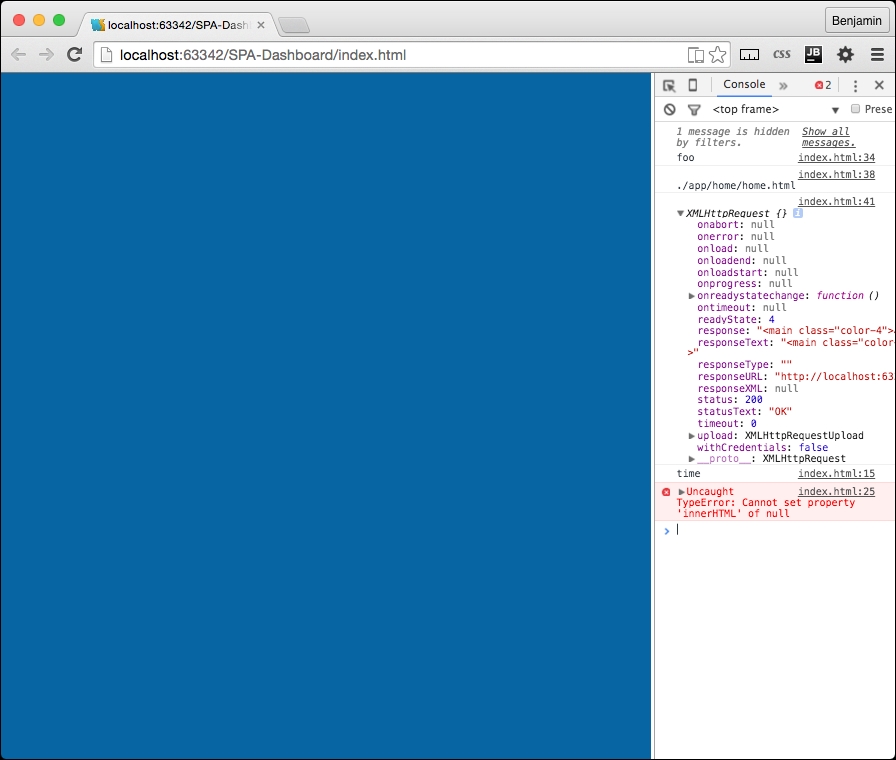
Now you see the routing registration table with the first route. We will of course add more as we move forward, but first, let's make this work. We want to use this to load the home content.
In the index.html file's header, create a new function called home.loadSections. This will perform the task of loading the content into the template asynchronously. Inside the function, create a for loop that iterates over the routing.routesArray array. Add a TODO note to move this later.
//TODO Move this later
    home.loadSections = function() {
        for (i = 0; i < routing.routesArray.length; i++) {
//Do Something
}
In the loop, call the routesArray's current value's callBack using the call method. And then call the services.getPage function, sending it the values pageRoute.partial, which we just initiated in the previous line of code, the routing.routesArray's current values path property, which tells the function where to stick it, and then the callBack to the function we have already created, services.routing.writeHTML, which we know executes the content we called asynchronously in services.getPage.
routing.routesArray[i].callBack.call();
services.getPage(pageRoute.partial,routing.routesArray[i].path,services.routing.writeHTML);
The function you just created is fully operational and will create the whole page of content asynchronously. All it needs are the values to be sent to it from the routing table. So let's go back and create the routing table for the rest of the home page. You will need to create routing registries for the weather, news, tasks, travel, and stocks. Then magically they should all load into the home page. Simply follow the model you created for registering the home route.
services.routing.register('weather',function(){
    pageRoute = {
        partial:"./app/weather/home-weather.html"
    };
    console.log('weather')
});
services.routing.register('travel',function(){
    pageRoute = {
        partial:"./app/travel/home-travel.html"
    };
    console.log('travel')
});
services.routing.register('news',function(){
    pageRoute = {
        partial:"./app/news/home-news.html"
    };
    console.log('news')
});
services.routing.register('stocks',function(){
    pageRoute = {
        partial:"./app/stocks/home-stocks.html"
    };
    console.log('stocks')
});
services.routing.register('tasks',function(){
    pageRoute = {
        partial:"./app/tasks/home-tasks.html"
    };
    console.log('tasks')
});
Now, refresh your screen and you will see how you have fixed the broken page. We have emerged through failure and are again into success! Good work. You will also see that the console log we added earlier is full with an entry for each section.
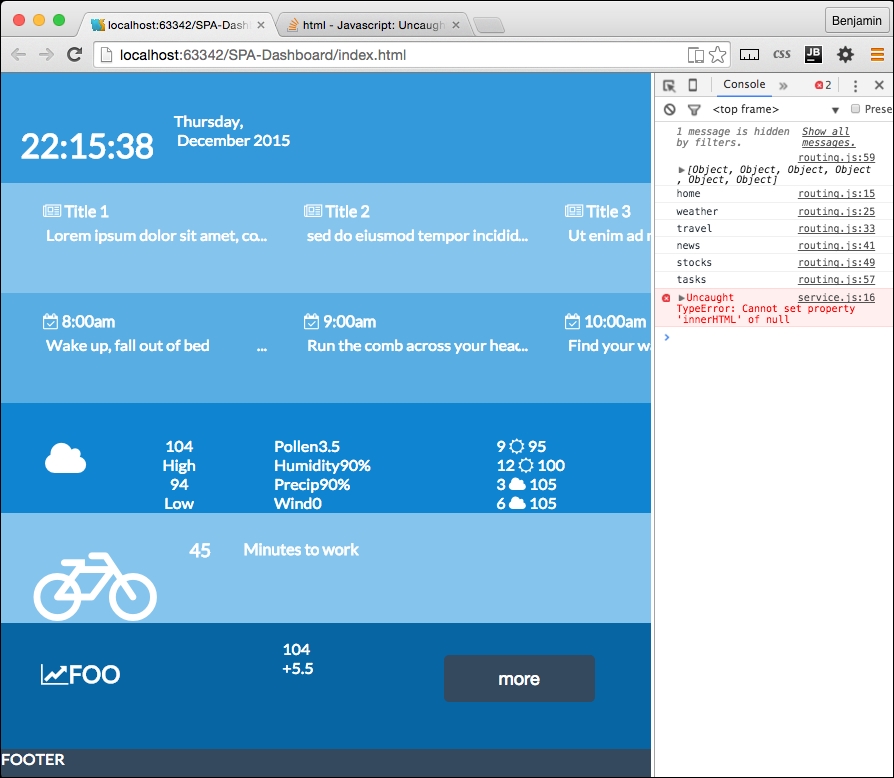
That's pretty cool, and a big deal so far. You have created a page that not only loads components asynchronously but also does it through definitions in your routing table. At this point, you could easily add content and the only code change to make is modifying the routing table (of course you have to also add the content). The components are loaded through a script that loops through the routing table.
However, as cool as we think we are, we have not yet truly created a full Single Page Application. This is because there is no navigation yet. It's just a page built up of pieces. So let's make this more interesting by adding some navigation elements. What we want to do is load content using the routing table, but dynamically through navigation and URLs.
We want the routing table to be used when the URL hash changes. The URL hash actually is referring to the fragment identifier introduced in a URL by the (optional) hash mark # in a URL used to specify a portion of the document. That is the original use, to get your browser to a specific place in the document. We will use the same hash to call in our content in our routing table. This requires using JavaScript to 'intercept' the hash and use it to call instructions to perform. The function will use the variable page.
To use the hash to navigate, we need to write a function that detects the hash fragment and uses it to call the correct content using the routing table. Much of the code is already in place since we have been creating reusable functions. These are mostly ready to use for page loading, with some additional code.
The next code to write will be in your routing.js file. We will first write the function to get the location hash and extrapolate the URL from the hash fragment, and then send that URL to another function.
At the end of the routing.js file, create a new method of the routing object called routing.getLocationHash. The first line of the function is a conditional statement; if the window's location property hash has no value, then change it to equal #home.
    if(!window.location.hash)
        window.location.hash = '#home';
Next, get the hash string and split it at the hash #. From the resulting array values, select the 1 value, and send it to a new function in the services object, called services.routing. It can be seen in the next example:
var hash = window.location.hash.split('#')[1];
services.routing.useArray(hash);
You can also efficiently write this as the following:
services.routing.useArray(window.location.hash.split('#')[1]);Then close the function. We next need to call this function in two distinct operations: once when the page initializes, and then any time a new hash, or location, is selected in a link or typed into the URL bar.
This is an action event, not really reusable services, and because we are trying to keep a separation of concerns, this should be outside of the routing and services JavaScript pages. Therefore, we need to create a whole new JavaScript file, named app.js. This is where the actionable things should go. It will only get light use in this framework, but as you build on top of it, more may go here.
First, in the app.js file, detect when the window's onhaschange method is called and then call the services.routing.getLocationHash function. Write another line of code calling the same function for the window's onload method. See the following example:
window.onhashchange = services.routing.getLocationHash;
window.onload = services.routing.getLocationHash;
You have probably realized that I've created a bug, since I have already used the window's onload method, and it will not work again. Remember, we used it inline in the index.html file's BODY tag to activate the clock. So now we have some more broken application code to fix.
We will have to write some new functions, because we will take advantage of this failure to not only fix but also upgrade the application.
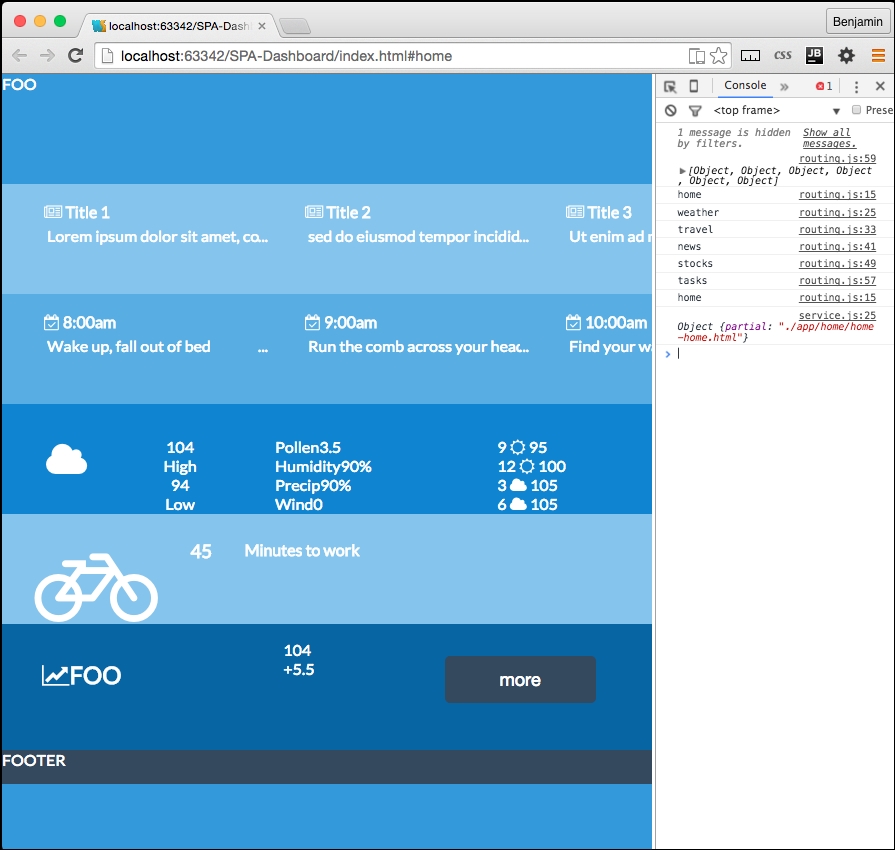
To fix the broken application, let's get this routing table working. It already loads the content in, but we now need it to initialize the application. This will take some mental elbow grease, so let's get moving on it.
In the services.routing.getLocationHash function, we called a service method that does not yet exist; we had better fix that problem. So let's create another new services method. You probably can guess what it will be called and what file to write it in; it follows the same conventions.
If you created a services.routing.useArray function in the service.js file, you are a Jedi Master. If not, just pretend you did and write it quickly while no one is looking. It receives the variable hash. Be sure you are following the definition of the services.routing object.
services.routing.useArray = function(hash){
//Do Something
};
Inside the services.routing.useArray function, create a for loop iterating over the routing.routesArray array. In each, check that the routing.routesArray current value's path property is equal to the hash variable. If it matches, call the routing.routesArray current value's callBack. This will define, or redefine, to the pageRoute value, which is used to load the content into the Single Page Application.
    for(i=0;i<routing.routesArray.length;i++){
        if(routing.routesArray[i].path===hash)
        routing.routesArray[i].callBack.call();
}
Following the for loop, we can reconnect full circle to our first service function we created, the services.getPage function. The services.getPage function will receive four variables, one of which does not exist yet, and we will immediately need to create it to make this work, and it will send more variables than the services.getPage function can so far handle, so we now have a new to-do list. This may be a good time to brew some coffee, and then we'll continue.
The services.getPage function will receive a new property of pageRoute in the routing registration table. The new property is page. Inside each registry, you will need to add the new page property; each will have the value of the path and page name with the HTML extension. It will essentially give the location of the page to load into the Single Page Application framework when you click the link. So for home, the page property looks like ./app/home/home.html, and the weather page ./app/weather/weather.html.
The weather pageRoute object will look like the following example:
pageRoute = {
        page:"./app/weather/weather.html",
        partial:"./app/weather/home-weather.html"
};
Pretty slick! Now, add the entry for each router registry. I'll include them all in this example.
    services.routing.register('home',function(){
        pageRoute = {
            page:"./app/home/home.html",
            partial:"./app/home/home-home.html",
        };
    console.log('home')
        });
    services.routing.register('weather',function(){
        pageRoute = {
            page:"./app/weather/weather.html",
            partial:"./app/weather/home-weather.html",
        };
    console.log('weather')
        });
    services.routing.register('travel',function(){
        pageRoute = {
            page:"./app/travel/travel.html",
            partial:"./app/travel/home-travel.html",
        };
    console.log('travel')
        });
    services.routing.register('news',function(){
        pageRoute = {
            page:"./app/news/news.html",
            partial:"./app/news/home-news.html",
        };
    console.log('news')
        });
        services.routing.register('stocks',function(){
        pageRoute = {
            page:"./app/stocks/stocks.html",
            partial:"./app/stocks/home-stocks.html",
        };
    console.log('stocks')
        });
    services.routing.register('tasks',function(){
        pageRoute = {
            page:"./app/tasks/tasks.html",
            partial:"./app/tasks/home-tasks.html",
        };
    console.log('tasks')
        });
You also need to create each of these pages in their proper directory (with the exception of home.html, it should already exist). Let's take a shortcut and simply copy each page partial (excluding home-news.html) into the new page (excluding news.html). This will save a few laborious steps.
We will not have to further modify our HTML files right now. These are ready to go. It will give us some better testability of our progress. Let's clean up some code that has already been made obsolete by what we just created.
In your services.js JavaScript file, look for the TODO we created earlier as a reminder to delete some code. It should still be down at the bottom. Find it and remove it.
//TODO: remove later
var url = './app/home/home.html';
var id = "content";
services.getPage(url, id, services.routing.writeHTML);
Now, it may seem like it's still broken, but in actuality, it's working pretty well. Let's test drive our Single Page Application routing engine we created. Try entering the base URL of the website http://localhost:63342/SPA-Dashboard/ or http://localhost:63342/SPA-Dashboard/index.html (depending on how your server is configured, I am using my IDE as a localhost. It will redirect you to the #home> hash and load the home page like such: http://localhost:63342/SPA-Dashboard/#home or http://localhost:63342/SPA-Dashboard/index.html/#home.
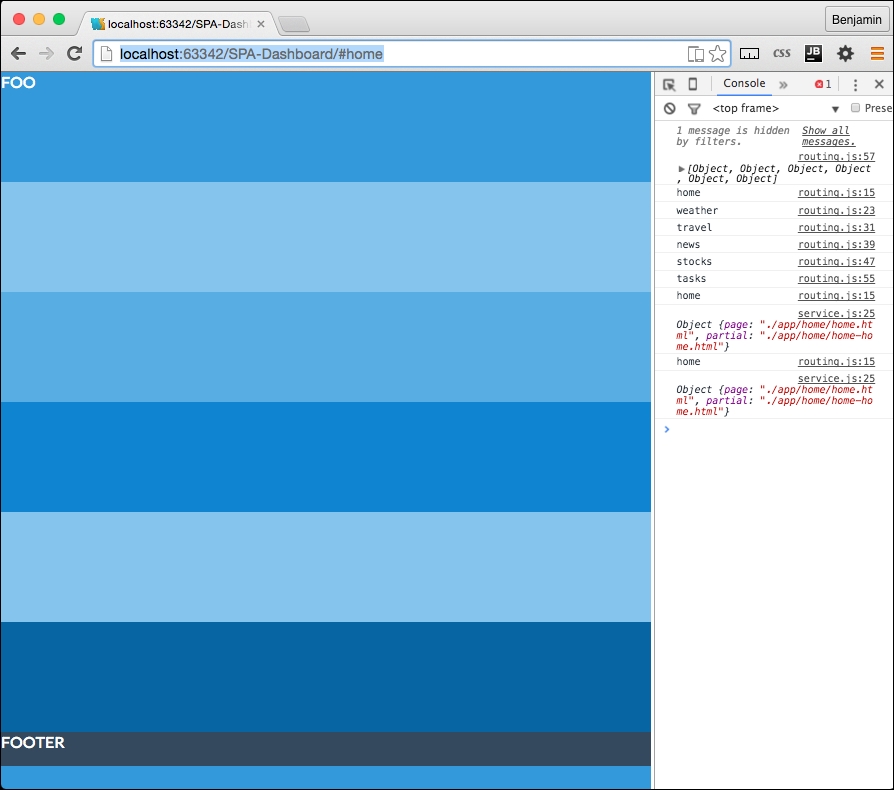
I know you have seen that screen several times already and it's likely irritating you, so let's try a surprise: change the hash from #home to #news. Now you will see the Single Page Application routing table working.
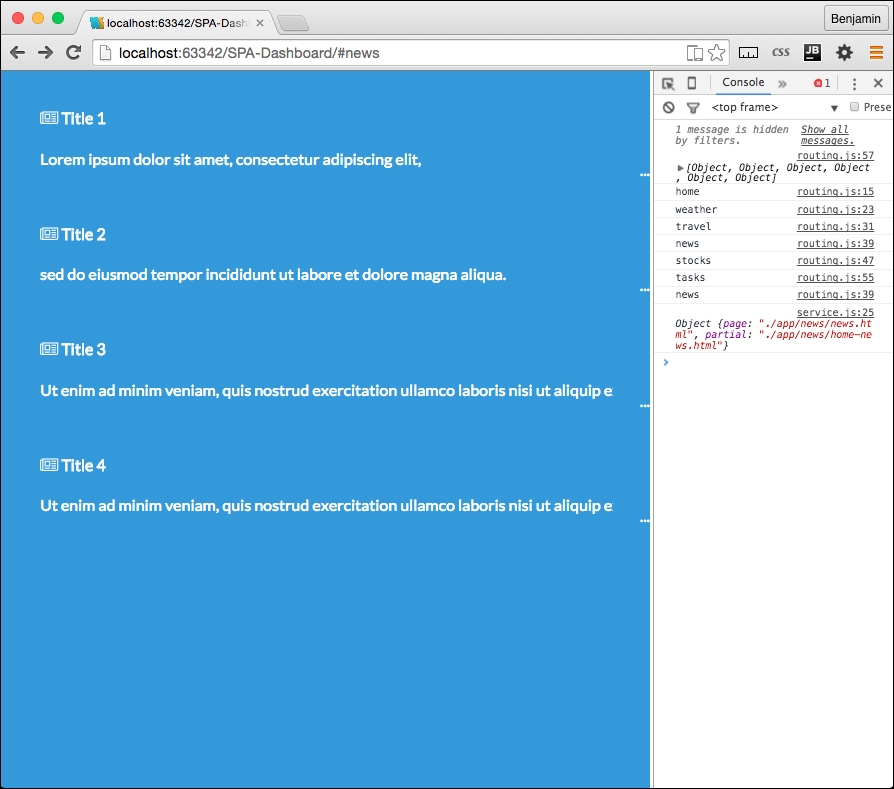
Let's add a bit of navigation to the pages. For now, we will skip creating the navigation on the home page because there is another step we want to perform on that.
In each page HTML (excluding /app/news/news.html) file, add a link that contains a Font Awesome left chevron to the beginning of the page. The link HREF should be pointed to the home page hash. It looks like the following example:
<a href="#home"><i class="fa fa-chevron-left fa-3x"></i></a>
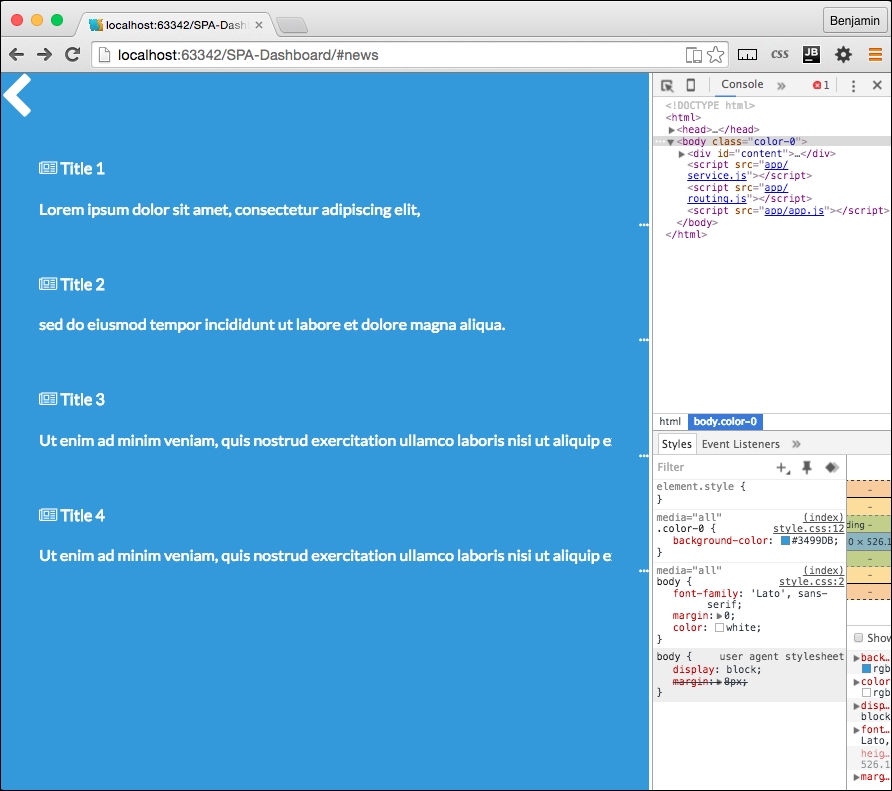
I do not like the blue arrow; actually, I prefer it to be white. So add a white class to the I Element, and in your CSS add to the color section you created in the Chapter 2, Flat UI a white selector (following the wet-asphalt selector), with the attribute color:white. Also, let's do a preemptive strike and a selector for the a to make all the links white, since we are going to link out to some real content soon enough. See the following example:
.white, a{
color:white;
}
Now when you refresh the page, the chevron stands out in white.
You can now enter any of the paths from the routing table, and they will load up the content into the Single Page Application. Much of the framework is working at this point. It's loading content, but we really also want it to do some things in these new pages. When you load a new page, it's still fairly static. We want more interaction and better active content. One way we could do this is in the routing table; you may recall that there is a callBack function that loads in each registry in the routing registration table, and we already employ it to define and refresh the pageRoute object, and it gives us a console.log to see that it has fired. That is certainly a possibility; however, the main reason I want to not do that is because it will break out of the convention of the separation of concerns that has been working well for us already. If we started loading up the routing registry callBacks with functional script, it will become difficult to manage, and difficult to navigate to the code to modify it. The other reason is that we already have an engine that can handle this loading of content from the application directories, so let's use it.
In each section directory, we already have two HTML files that we load up as needed. We can modify the code to load up JavaScript when needed. So, let's add a new JavaScript file in each directory. For example, in the news directory, create a new JavaScript file named news.js. Do this for every section. In each new JavaScript file, add the code to console.log a variable id (which we will create soon) so we can confirm it when it works.
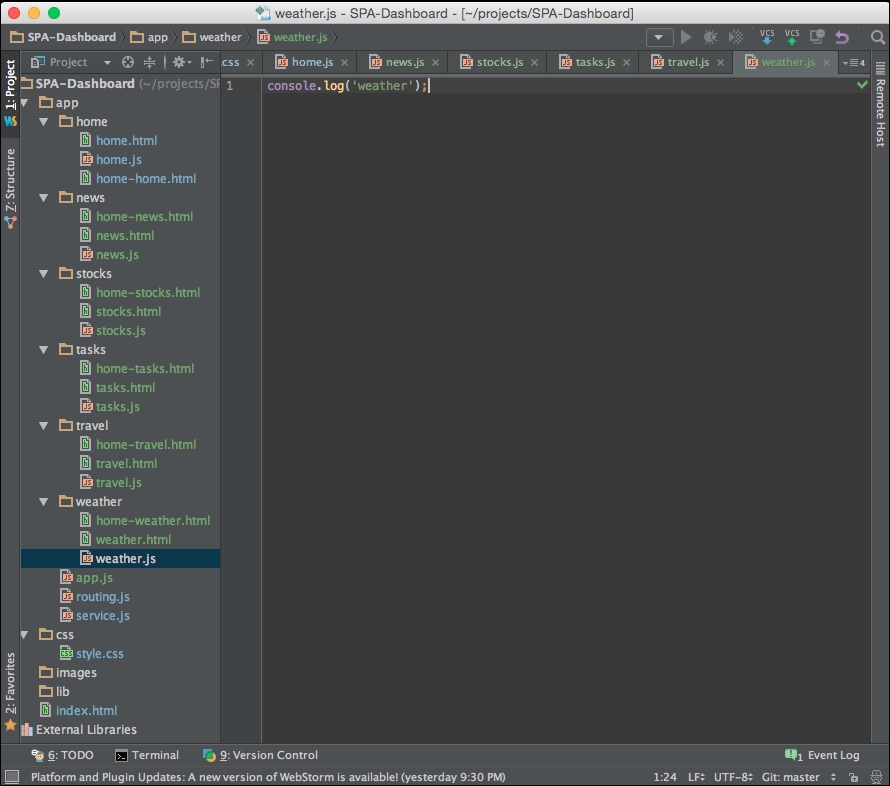
Now you can add these JavaScript files to the routing table. In each routing registry, add a new property to the pageRoute object, script. The value for each property id should be the path to the JavaScript you created. For weather's pageRoute, the property and value will be script: ./app/weather/weather.js. See the following example for the full routing registry:
    services.routing.register('weather',function(){
        pageRoute = {
            page:"./app/weather/weather.html",
            partial:"./app/weather/home-weather.html",
            script:"./app/weather/weather.js"
        };
    console.log('weather')
        });
Now each routing table registry should have this full set of three paths. Nothing is done with the scripts yet, but we will fix that problem right now.