Being able to offer content in multiple languages is great, but only if the site visitor can take advantage of it. Drupal makes that easy with a language switcher.
We need to enable another module. Navigate to Extend (/admin/modules) and enable the Language Icons module. Drupal will let you know that this module depends on the Interface Translation module and will ask whether you want to proceed with enabling both. Go ahead.
The Language Icons module provides flag icons for each language. It does this by way of a block that needs to be placed somewhere on the page. Let's do that.
- Navigate to Structure | Block layout (/admin/structure/block). You'll need to choose a region of the screen in which to have the language switcher block appear, such as Header or Sidebar first. I chose the latter.
- Click the Place block button beside whichever region you choose. Scroll down to Language switcher and click the Place block button in its row. A configuration screen will appear.
- You can leave the Title as Language switcher.
- Uncheck the Display title box below it; the icons will speak for themselves without displaying a block title.
- The vertical tabs allow constraints to be put on this block. The Language tab can be used to offer only a subset of the configured languages.
- The Content types tab can limit which types of content the translation will choose. We don't need to set any limitations.
- If we want to limit the appearance of the Language switcher to just the homepage, on the Pages tab, we can enter <front> into the Pages text box.
- Click the Save block button and navigate to the homepage.
On my site, I now have a block that looks like what's shown in the following screenshot. Yours will vary based on the language(s) that you chose:
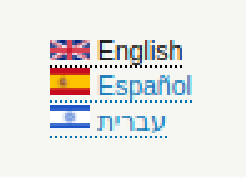
By clicking on one of the links, the site visitor chooses to receive translated content in that language. Content that's not available in the selected language will not be presented.