There are many ways to install modules, and all require some administrative capability. The installation of the contributed module is outside the scope of this book. We'll start from the point of the module files being in the correct place.
Because the pathauto module is included with Drupal, the files certainly will be present. We can verify this by navigating to Extend on the admin menu, or /admin/modules. Once there, enter pathauto in the filter text box at the top of the page. You should see the following entry listed:
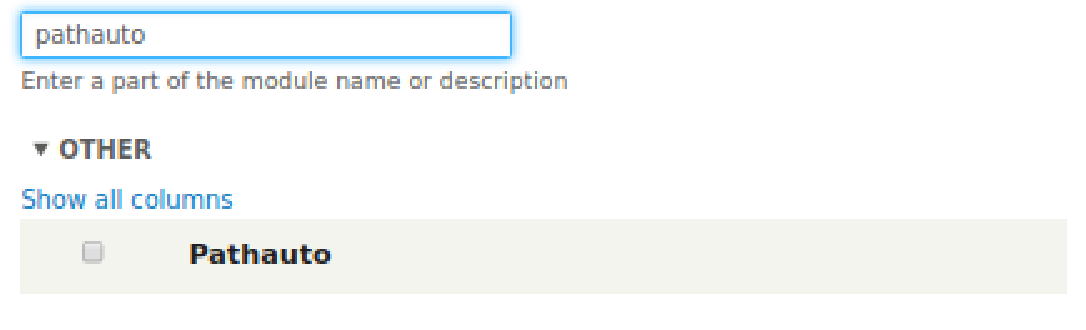
Let's check the box beside it and click the Install button. Depending on what other modules have been enabled on your site, you might receive the following message:

If you do receive this message, or a similar one when you are installing a module, it is because the module is dependent on other modules, and one or more of them isn't enabled. If the necessary modules are present, Drupal will offer to enable them as well. Simply click Continue. In this case, if all goes well, you will receive a status message at the top of the reloaded page stating that three modules have been enabled: pathauto, Chaos tools, and Token.
At this point, we can configure Pathauto. Most modules have a configuration page, but not all. Scroll down to the Pathauto entry, or use the filter text box to find it, and click the arrow just to the left of the module description. An accordion control will open and reveal a configuration link, among other things. Click it, and you will be redirected to Pathauto's configuration page at /admin/config/search/path/patterns. The page will be sparse, because no pattern exists yet. Let's create one.
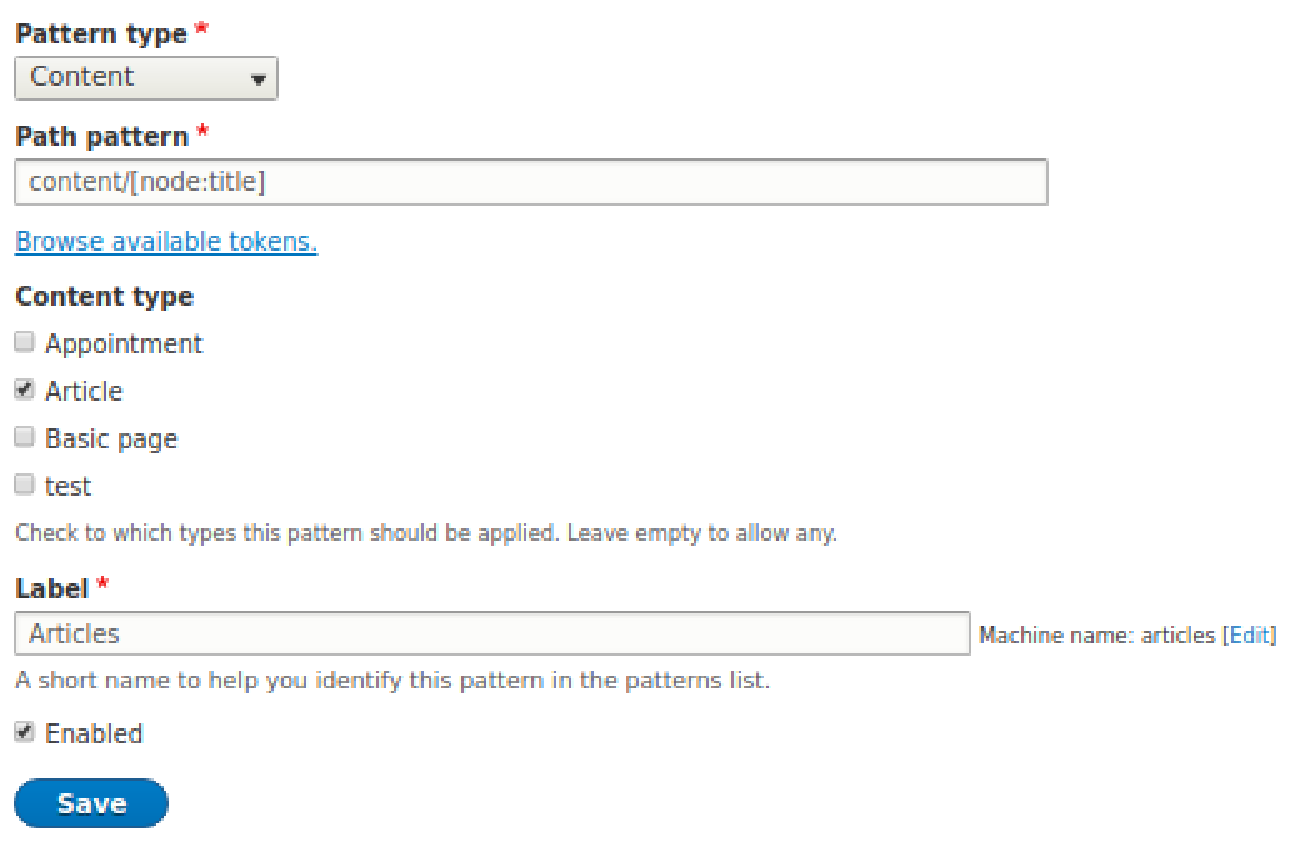
Click the +Add Pathauto pattern button. The resulting page, with the same title as the button that you just clicked, contains a dropdown selection that offers various entity types that are suitable for path patterns. Initially, the option are Content, Taxonomy, Term, and User. For any of those, a path pattern can be specified for creating meaningful URLs. We are going to create a pattern for Content, and select the same.
Our selection causes the page to change a bit, as each content type is now listed. You can check the box for Article, as we are creating a pattern for it.
We need to define the pattern that we want to use. There are many possibilities. We will choose a simple pattern. We'll have article URLs containing the word "content" and the article title in the form content/my-article-title. How will we get the article title to be used too? Click the link to Browse available tokens.
Tokens are placeholders that will make a specific type of value available at the proper time. A pop-up will appear that contains a number of token categories. We are interested in Nodes, so click the arrow beside it. An expanded list will appear, and in it you will find Title, referring to the title of the node, or in this case, the article title. To the right of that is a link containing the token for the node title, [node:title]. Click inside the pattern text box, and then click the link for the token. It will appear in the text box. Now, place your cursor to the left of the token and type content/.
Lastly, type articles in the Label text box to identify this pattern. The form should look similar to the following screenshot, though your content type list might vary:
Click Save to save your pattern, and you will be returned to the pattern list, which will now have one entry. Let's test it by creating an article. Navigate to /node/add/article.
Add whatever title and body text you'd like. I'm naming my article My New Article. The magic comes when you save it. When I do, instead of having a URL like http://d8quickstart/node/5, I have http://d8quickstart/content/my-new-article. Note that the original URL will still exist and can still be used. The Pathauto list at /admin/config/search/path lists both the alias based on the pattern and the original URL for each node. In my case, the node I created has a node ID of 2, and so I could still enter http://d8quickstart/node/2 as the URL if I so desired.
Notice that Pathauto automatically converted the article title to a URL-friendly string by replacing spaces with hyphens and making the title lower case. The settings for this can be controlled under the Settings tab on the Pathauto config page. There is an addition tab there that is very important: Bulk generate. Let's say that you create a pattern after a number of nodes have already been created. Rather than editing each and changing the URL to match your pattern, you can instruct Drupal to generate a patterned URL for every existing article.