Table of Contents for
Drupal 8 Quick Start Guide

Version ebook / Retour

Cover image for bash Cookbook, 2nd Edition Drupal 8 Quick Start Guide by J. Ayen Green Published by Packt Publishing, 2018
  1. Drupal 8 Quick Start Guide
  2. Title Page
  3. Copyright and Credits
  4. Drupal 8 Quick Start Guide
  5. Dedication
  6. Packt Upsell
  7. Why subscribe?
  8. Packt.com
  9. Contributors
  10. About the author
  11. About the reviewers
  12. Packt is searching for authors like you
  13. Table of Contents
  14. Preface
  15. Who this book is for
  16. What this book covers
  17. To get the most out of this book
  18. Download the color images
  19. Conventions used
  20. Get in touch
  21. Reviews
  22. Finding Your Way around Drupal
  23. Installing Drupal
  24. Readying the environment
  25. Running the Drupal installation script
  26. Site information
  27. Site maintenance account
  28. Regional settings
  29. Update notifications
  30. The behind-the-scenes tour
  31. Administration menu
  32. Tabs
  33. System message area
  34. Search widget
  35. User menu
  36. Main navigation
  37. Main content area
  38. Summary
  39. Structuring Content Types
  40. What is content?
  41. Content as fields
  42. Understanding content types
  43. Defining the content type
  44. Submission form settings
  45. Publishing options
  46. Display settings
  47. Menu settings
  48. Managing content type fields
  49. Designing a content type
  50. Content type settings
  51. Fielding the content type
  52. Field types
  53. Our content type field
  54. Adding fields to the content type
  55. Summary
  56. Managing Users
  57. User types
  58. User roles
  59. Managing permissions
  60. Users
  61. Creating a user account
  62. Summary
  63. Creating and Editing Content
  64. Using the WYSIWYG editor
  65. Title*
  66. Body
  67. Summary Field
  68. Body text
  69. Text format
  70. Tags
  71. Images
  72. Publishing the content
  73. Additional settings
  74. Revision log message
  75. Menu Settings
  76. Comment Settings
  77. URL Path Settings
  78. Authoring Information
  79. Promotion Options
  80. Completing the process
  81. Summary
  82. Making Drupal Even More Useful
  83. Pathauto
  84. Paragraphs
  85. Content moderation
  86. States
  87. Transitions
  88. Workflow application
  89. Summary
  90. Grabbing Global Readership
  91. Declaring additional languages
  92. Translating content
  93. User language selection
  94. Translating the user interface
  95. Summary
  96. Feeding the Masses – RSS
  97. Why feeds?
  98. Selecting content for a feed
  99. Modifying content for feed selection
  100. Pick-me flags
  101. Tags
  102. Views
  103. Creating the container view
  104. Creating the Pets feed
  105. Display name
  106. Title
  107. Format
  108. Feed settings
  109. Filtering the criteria
  110. Sort criteria
  111. Creating the Travel feed
  112. Title
  113. Feed settings
  114. Format
  115. Filtering criteria
  116. Creating the Leftovers feed
  117. Title
  118. Feed settings
  119. Format
  120. Filtering criteria
  121. Creating the Feed Links block
  122. Summary
  123. Welcome Home!
  124. BAD home page!
  125. Design improvements
  126. Too much content!
  127. No access to content
  128. No RSS feeds menu
  129. We need a Terms and Conditions page
  130. Making the changes
  131. Improving the Frontpage view
  132. Title
  133. Format
  134. Fields
  135. Filtering criteria
  136. Block settings
  137. Pager
  138. Adding an Archive
  139. Adding the RSS Feeds menu
  140. Fixing the Footer menu
  141. Summary
  142. Other Books You May Enjoy
  143. Leave a review - let other readers know what you think

Readying the environment

Physically, Drupal is a collection of folders and files, most often found within a parent folder that is typically referred to as the Drupal root. Drupal also consists of a database, where the site's content and various settings are kept. 

The Drupal root will most often be situated on a computer known as a web server that may contain many websites, though the web server could also exist on a laptop for use in developing websites. The environment in which Drupal exists will consist of the following:

  • An operating system, which is usually Linux, but can be any another, such as Windows, OS X, or Unix
  • A web server, such as Apache or Nginx
  • A database, most often MySQL, which may be on the same server or on a separate database server
  • The PHP language

The environment in which Drupal exists is collectively referred to as a LAMP environment, which stands for Linux, Apache, MySQL, and PHP, though other combinations exist, such as WAMP for Windows rather than Linux.

The subject of the overall installation actions needed before running the Drupal site installation process, such as readying the LAMP environment, downloading the Drupal code, and installing the symbiotic technologies used with it, is outside the scope of this book. 

To get started, an administrator should first have followed these steps, or similar:

  1. Gone through the Drupal 8 installation (https://www.drupal.org/docs/8/install/before-a-drupal-8-installation)
  2. Gathered the code (https://www.drupal.org/docs/8/install/step-1-get-the-code)
  3. Installed the dependencies with Composer (https://www.drupal.org/docs/8/install/step-2-install-dependencies-with-composer)
  4. Created a database (https://www.drupal.org/docs/8/install/step-3-create-a-database)
  5. Configured the installation (https://www.drupal.org/docs/8/install/step-4-configure-your-installation)

Having done so, what exists now is the necessary environment for you to create your Drupal site. You might be thinking that the preceding steps have created the Drupal site already, but this isn't the case. Since I'm going to do this now, this is a good time to mention that my most often-used analogy of a website is a house. What the preceding steps did was select the location, prep the lot, run the utilities for it, pour the foundation, and ensure that you have the materials necessary to build the house. Now, we're going to build it. 

"Oh, no!" you might be saying, "does that mean I need to learn all that web programming stuff, like HTML?" Fear not. One of the magical things that Drupal does is create all of the geeky stuff that's necessary for a website. After following a few steps, you will have a "vanilla" Drupal site, unadorned and not customized very much, but present and totally usable. Yes, just like a house that might be built in a cookie-cutter fashion, you have the ability to choose the paint, carpet, tiles, curtains, and appliances to make it unique and best reflect your vision, but those customizations are a topic outside of the scope of this book, although we will select a few "appliances" later on.

Unlike a house, there's no cutting, nailing, or other labor-intensive things to be done here with the raw materials waiting for assembly—just a few simple steps. First, though, there are a few pieces of information that you will need to know about in order to answer the questions that are asked about the new site during Drupal's installation process:

  1. Which URL has been assigned to the site? If the site is on a remote server, it might be something with a familiar look, like http://www.mysite.com. On a local system, it could be something simple like http://mysite or even http://localhost.
  2. What will the Drupal admin username and password be? 
  3. What will the email address for the site be?
  4. What are the username and password for the database, and what is its name?
If the site is not being accessed as a registered website, it is likely that an entry needs to be added to a file in your workstation's hosts file, which is the equivalent of a contact entry with the name you type and the address at which it can be found.

The installation process cannot be completed without the answers to these questions. Once you have them, we're ready to proceed!

We'll start by opening a browser. Any current version of the common ones, such as Chrome, Firefox, IE, Edge, or Safari, can be used. In the address bar, enter the URL that has been assigned to this site:
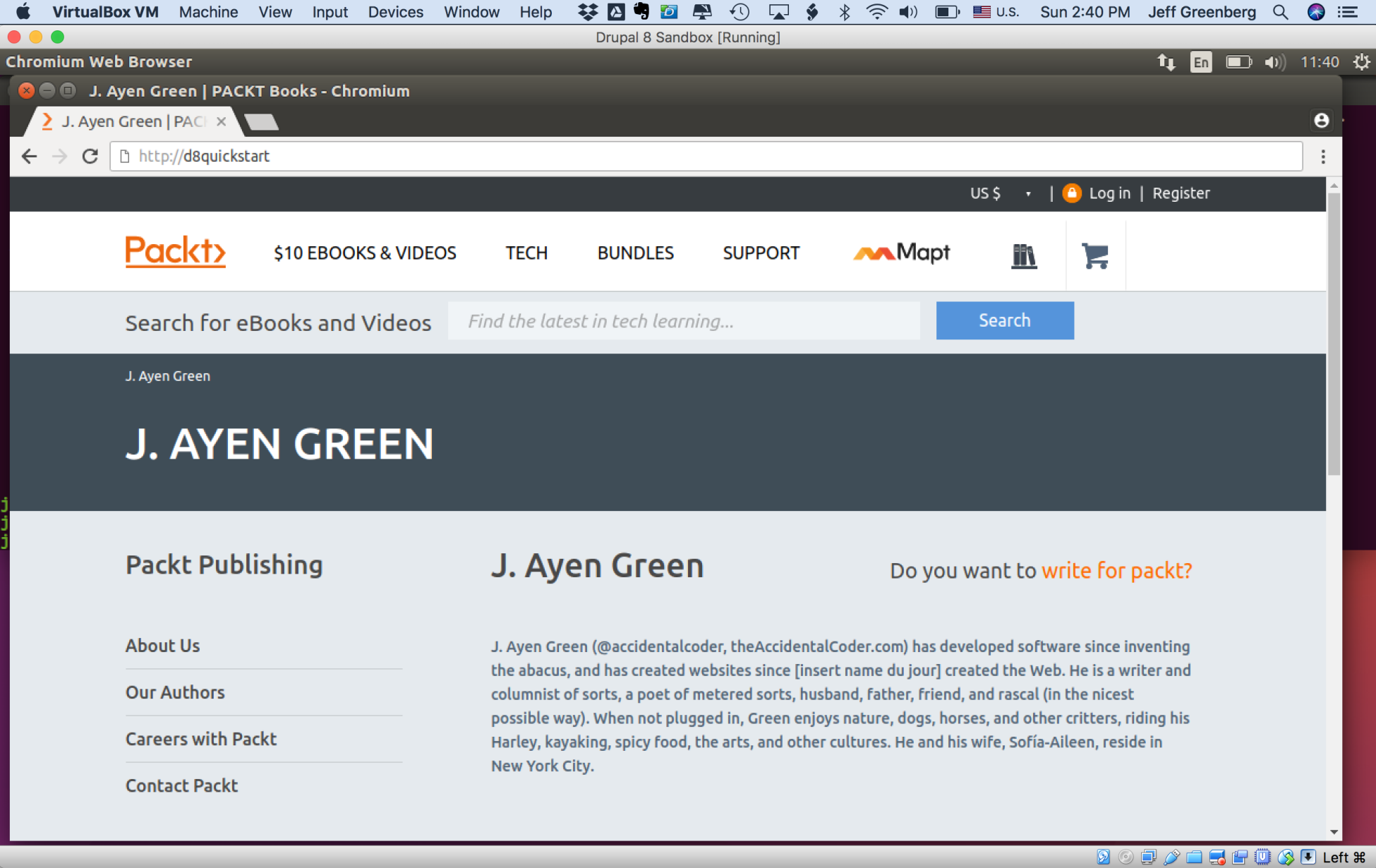
The URL that I'll be using for this book is d8quickstart, and you will see this present in the address bar in any illustrations that contain one, such as image below. You will need to use the URL assigned for your site instead.