
Just as content is kept in an entity called a node, Drupal also has an entity type called taxonomy, which is a scientific word for classification. Just as nodes are represented by content, taxonomy is represented by vocabularies containing terms.
Drupal comes with a taxonomy vocabulary, called Tags. The intended use of tags is to categorize content. Additional vocabularies can also be created to hold tags for specific use, such as one for travel-related terms, or one for Spanish-language terms, but for the purpose of assigning categories applicable to the content, this is what the Tags vocabulary was designed for, and it will work for us.
I'm going to go back and edit the article A Moment in the Life of My Dog, and in the Tags field, which currently contains Sasha and donuts, I'm going to add one more, pets, and save it again.
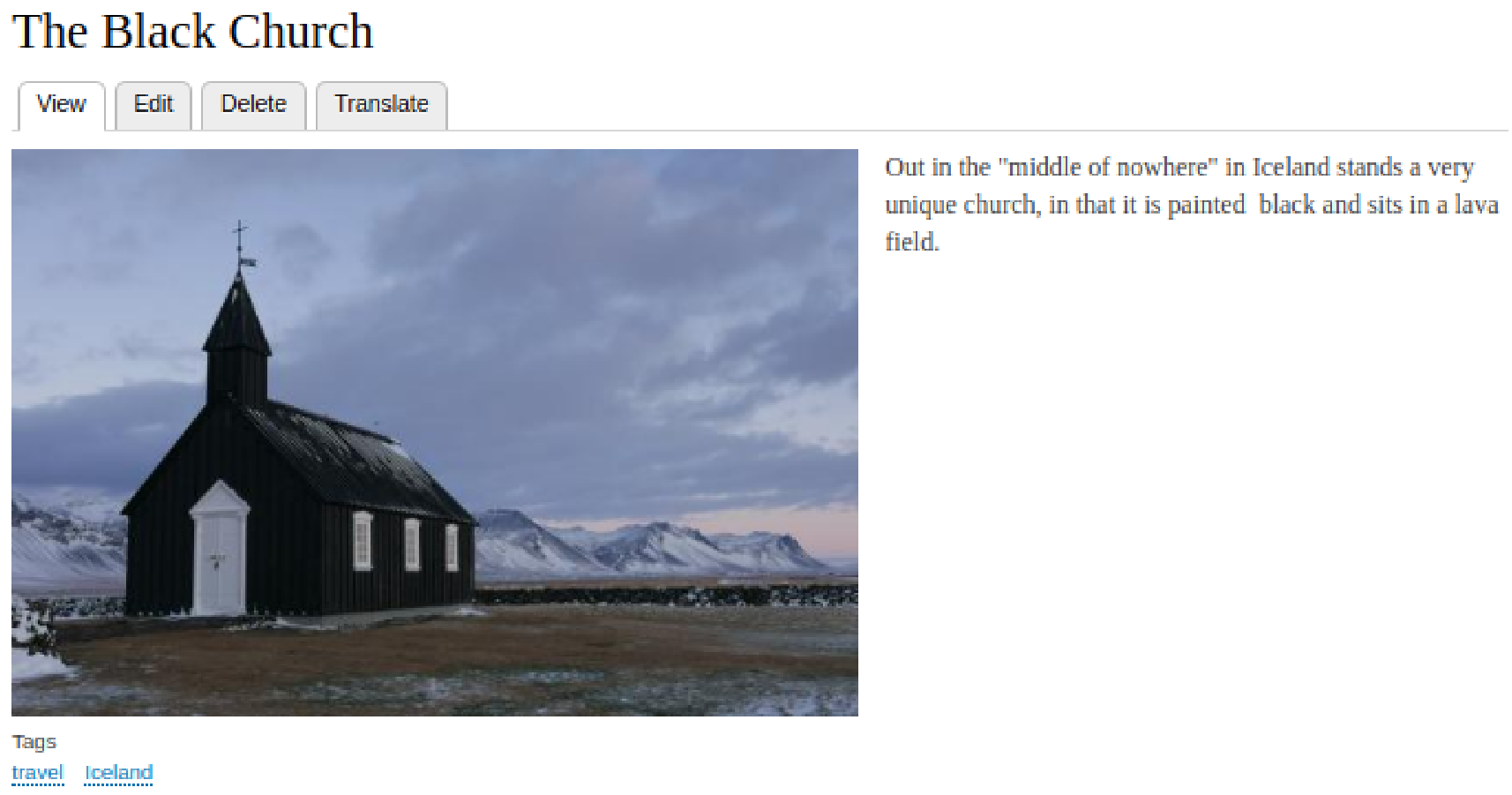
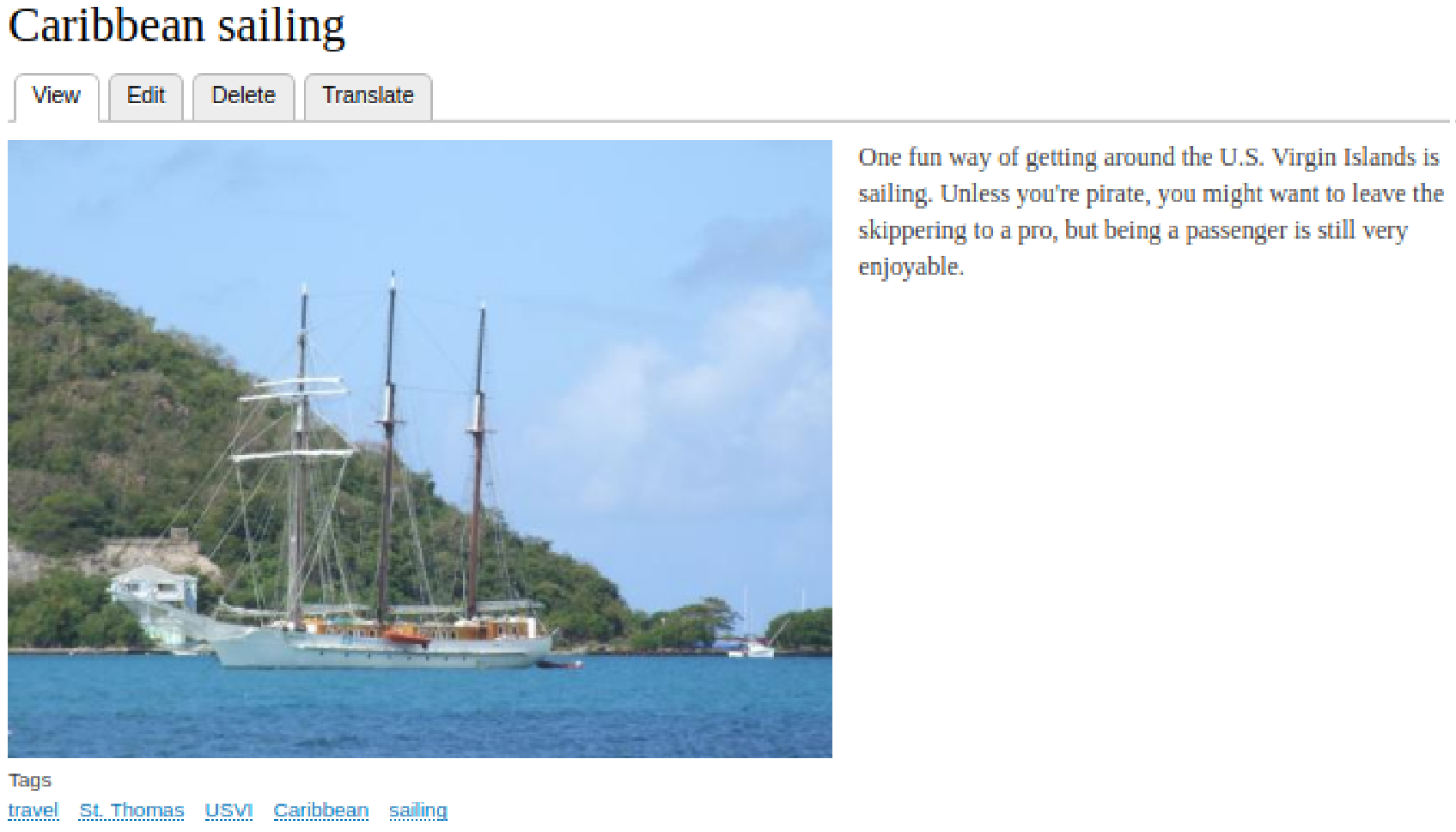
Then, I will add two additional pieces of content, both related to travel, and will tag them with travel, as well as tags specific to the travel type and destination, as shown in the following screenshots. The following screenshot is related to Iceland:
And the other is related to the Caribbean:
Now, we need one final piece of content for the third of our feeds. The tag for this content will be leftovers, since the feed is for any content not tagged as pets or travel.
Having created some content for testing our feed, let's look at how we're going to do that.