At this point, we are ready to save our new content by clicking the Save button. After doing so, the content is displayed for you to see. Note the URL that is shown. In my case, it is node/2. I would rather have something more meaningful for the user and for good SEO, so I will click the Edit tab and navigate to the vertical tab for URL PATH SETTINGS. There, I will enter /sasha-discovers-donuts (the initial slash is required) and save the article again. Now, the browser will show my improved URL. I can still use the original URL of node/2. It has not been removed. Create a better URL for your content in the same way.
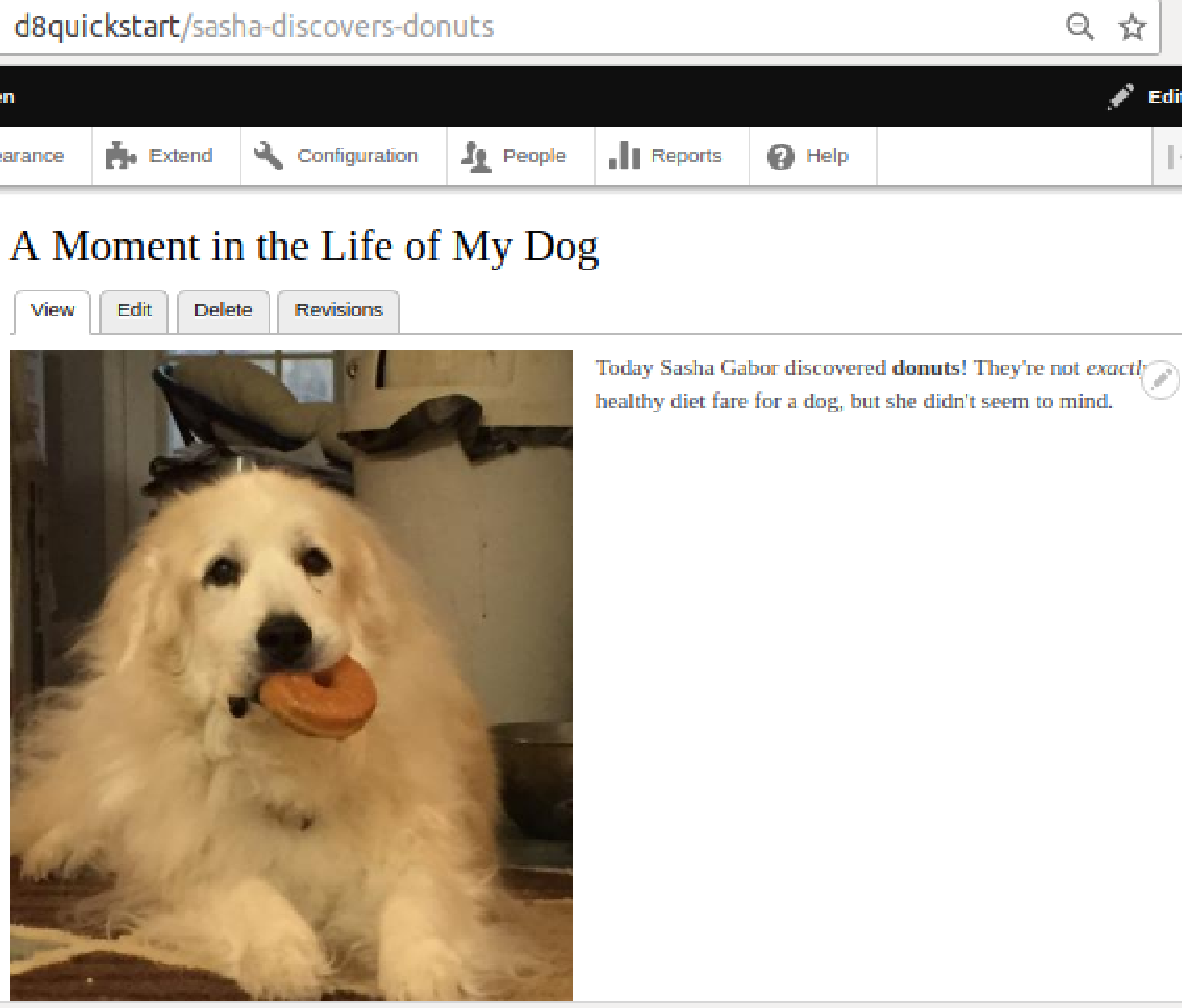
You will notice that one of the tabs above your article reads Revisions. Click it. Because the Article content type is configured to create revisions when saved, and we did not override that by unchecking the Create new revision checkbox, the change we made and saved in order to improve our URL resulted in the change being saved as a new version rather than simply overwriting the original one. In this manner, we could create a new revision every time we edit the content. From this Revisions page, we can do the following:
- View a list of the previous versions
- View a previous version
- Delete a previous version
- Revert to (restore) an earlier version, foregoing the changes made since