Table of Contents for
Web Mapping Illustrated
 Web Mapping Illustrated
Published by
O'Reilly Media, Inc., 2005
Web Mapping Illustrated
Published by
O'Reilly Media, Inc., 2005
- Web Mapping Illustrated
- Cover
- Web Mapping Illustrated
- A Note Regarding Supplemental Files
- Foreword
- Preface
- Youthful Exploration
- The Tools in This Book
- What This Book Covers
- Organization of This Book
- Conventions Used in This Book
- Safari Enabled
- Comments and Questions
- Acknowledgments
- 1. Introduction to Digital Mapping
- 1.1. The Power of Digital Maps
- 1.2. The Difficulties of Making Maps
- 1.3. Different Kinds of Web Mapping
- 2. Digital Mapping Tasks and Tools
- 2.1. Common Mapping Tasks
- 2.2. Common Pitfalls, Deadends, and Irritations
- 2.3. Identifying the Types of Tasks for a Project
- 3. Converting and Viewing Maps
- 3.1. Raster and Vector
- 3.2. OpenEV
- 3.3. MapServer
- 3.4. Geospatial Data Abstraction Library (GDAL)
- 3.5. OGR Simple Features Library
- 3.6. PostGIS
- 3.7. Summary of Applications
- 4. Installing MapServer
- 4.1. How MapServer Applications Operate
- 4.2. Walkthrough of the Main Components
- 4.3. Installing MapServer
- 4.4. Getting Help
- 5. Acquiring Map Data
- 5.1. Appraising Your Data Needs
- 5.2. Acquiring the Data You Need
- 6. Analyzing Map Data
- 6.1. Downloading the Demonstration Data
- 6.2. Installing Data Management Tools: GDAL and FWTools
- 6.3. Examining Data Content
- 6.4. Summarizing Information Using Other Tools
- 7. Converting Map Data
- 7.1. Converting Map Data
- 7.2. Converting Vector Data
- 7.3. Converting Raster Data to Other Formats
- 8. Visualizing Mapping Data in a Desktop Program
- 8.1. Visualization and Mapping Programs
- 8.2. Using OpenEV
- 8.3. OpenEV Basics
- 9. Create and Edit Personal Map Data
- 9.1. Planning Your Map
- 9.2. Preprocessing Data Examples
- 10. Creating Static Maps
- 10.1. MapServer Utilities
- 10.2. Sample Uses of the Command-Line Utilities
- 10.3. Setting Output Image Formats
- 11. Publishing Interactive Maps on the Web
- 11.1. Preparing and Testing MapServer
- 11.2. Create a Custom Application for a Particular Area
- 11.3. Continuing Education
- 12. Accessing Maps Through Web Services
- 12.1. Web Services for Mapping
- 12.2. What Do Web Services for Mapping Do?
- 12.3. Using MapServer with Web Services
- 12.4. Reference Map Files
- 13. Managing a Spatial Database
- 13.1. Introducing PostGIS
- 13.2. What Is a Spatial Database?
- 13.3. Downloading PostGIS Install Packages and Binaries
- 13.4. Compiling from Source Code
- 13.5. Steps for Setting Up PostGIS
- 13.6. Creating a Spatial Database
- 13.7. Load Data into the Database
- 13.8. Spatial Data Queries
- 13.9. Accessing Spatial Data from PostGIS in Other Applications
- 14. Custom Programming with MapServer’s MapScript
- 14.1. Introducing MapScript
- 14.2. Getting MapScript
- 14.3. MapScript Objects
- 14.4. MapScript Examples
- 14.5. Other Resources
- 14.6. Parallel MapScript Translations
- A. A Brief Introduction to Map Projections
- A.1. The Third Spheroid from the Sun
- A.2. Using Map Projections with MapServer
- A.3. Map Projection Examples
- A.4. Using Projections with Other Applications
- A.5. References
- B. MapServer Reference Guide for Vector Data Access
- B.1. Vector Data
- B.2. Data Format Guide
- ESRI Shapefiles (SHP)
- PostGIS/PostgreSQL Database
- MapInfo Files (TAB/MID/MIF)
- Oracle Spatial Database
- Web Feature Service (WFS)
- Geography Markup Language Files (GML)
- VirtualSpatialData (ODBC/OVF)
- TIGER/Line Files
- ESRI ArcInfo Coverage Files
- ESRI ArcSDE Database (SDE)
- Microstation Design Files (DGN)
- IHO S-57 Files
- Spatial Data Transfer Standard Files (SDTS)
- Inline MapServer Features
- National Transfer Format Files (NTF)
- About the Author
- Colophon
- Copyright
Using MapServer with Web Services
It isn’t necessary to program applications to use web services. MapServer is already able to access and provide data using a web services framework. This chapter focuses on setting up your MapServer application to use these services and will show you how to define a layer in your map file (which uses data retrieved from a remote data source). You will also learn how to set up your own service to make your data available to others.
The web services specifications for mapping come from the Open Geospatial Consortium (formerly known as the Open GIS Consortium). The OGC has developed standards or specifications for web services for mapping. The goal of the organization is to improve interoperability between applications by creating some common interchange languages through common standards. The membership list is quite impressive, as are the goals. Here is a brief description from the About page at http://opengeospatial.org/about/:
The Open Geospatial Consortium, Inc. (OGC) is an international industry consortium of 270 companies, government agencies and universities participating in a consensus process to develop publicly available interface specifications. OpenGIS® Specifications support interoperable solutions that “geo-enable” the Web, wireless and location-based services, and mainstream IT. The specifications empower technology developers to make complex spatial information and services accessible and useful with all kinds of applications.
The focus here isn’t on creating applications, but on specifications for sharing data. This makes sense when you consider that major mapping, GIS, and IT players sit together on this consortium (e.g., Autodesk, ESRI, MapInfo, Intergraph, and Oracle).
MapServer can implement many OGC specifications, in varying degrees of completeness, as summarized in Table 12-1.
Abbreviation | Name | Purpose |
WMS | Web Map Service | Share and request vector and raster map data in plain image format |
WFS | Web Feature Service | Share and request vector map data and attributes in GML format |
WCS | Web Coverage Service | Share image/raster data with original data values |
WMC | Web Map Context | Save and load views of a WMS application as XML |
SLD | Styled Layer Descriptors | Request particular symbolization and styling from a WMS |
GML | Geography Markup Language | XML-based format for spatial and tabular data interchange |
Filter | Filter Encoding | XML-based format for defining queries on spatial data |
Two of the more popular specifications are presented here: Web Map Service and Web Feature Service. Other specifications are useful, including some not used for mapping, but aren’t discussed here. Information on all the OGC specifications can be found at http://www.opengeospatial.org/specs/?page=specs.
Tip
A MapServer OGC Web Services Workshop package can be downloaded fromhttp://devgeo.cciw.ca/ms_ogc_workshop/index.html. This demonstrates various ways to access services.
Reference and tutorial documents for WMS and WFS are available in the OGC Compliance section of the MapServer documentation page. See these documents for the most up-to-date, MapServer-specific information about WMS, WFS, and other web services at http://mapserver.gis.umn.edu/doc/.
These web sites may help you find a publicly accessible web service:
- GeoConnections Discovery Portal
http://geodiscover.cgdi.ca/gdp/search?action=searchForm&entryType=webService
- Refractions Research: OGC Services Survey
- National Geophysical Data Center: Interactive Map Services
Web Map Service (WMS)
WMS provides a way to send map images over the Web. Your MapServer applications can request customized maps from remote sources that have a WMS available. Finding a WMS source isn’t always easy. Others on the MapServer or OGC-related mailing list can point you in the right direction. Any web site you find that uses web mapping may also have a WMS available. For sites using MapServer, enabling this service can be simple.
A range of parameters and options are used when requesting a map, its content, and look. It works much like if you phoned a consultant and asked him to put together a map and email the image to you. How would you make the request? It might be something like this:
Client: “Good morning. I need a map.”
Consultant: “Hello. What part of the world are you interested in?”
Client: “Pretty much all of North America.”
Consultant: “Really? All Canada, United States, and Mexico?”
Cl: “Actually, I’m interested in everything north of the equator.”
Co: “Okay, that’s still pretty big. You want all the way to the North Pole?”
Cl: “Yes, definitely.”
Co: “Okay, I’m going to give you a map that goes from the equator to the North Pole, and also covers Newfoundland in the east (50 degrees west) to the border of Russia in the west (170 degrees west). How big is the final map going to be?”
Cl: “It’s going to cover my entire wall from floor to ceiling.”
Co: “So about eight feet tall?”
Cl: “Yes, I guess so.”
Co: “How wide do you think it will be?”
Cl: “Probably half as wide: four feet.”
Co: “What print resolution are you going to use?”
Cl: “Hmm, my printer supports up to 150 dpi.”
Co: “Okay, the image will be about 14,400 pixels high and 7,200 pixels wide. I hope you have lots of space in your email box. This is going to be a big file! Is there a particular map projection you want to use?”
Cl: “I want it to be just like one I already have. Just a second, I’ll see what it is. Okay, it says it is Plate Caree. Does that mean anything to you?”
Co: “Yep, no problem. I’ll just use the EPSG projection code 4326 for the map, same thing. What do you want to see on your map?”
Cl: “Hmmm, the country boundaries, major highways, waterways, and capital cities.”
Co: “Do you want any special styling for your layers, or should I just use the default way I usually do them?”
Cl: “Keep it simple; the usual way is fine.”
Co: “Okay, I’ve got those. One last question. What type of image file would you like? I can give you JPEG or PNG.”
Cl: “JPEG please.”
Co: “Okay, I’ll send you the file in a few minutes.”
Cl: “Thanks a lot. Talk to you later.”
All the crucial information needed to get started on a map was collected by the consultant. Now he can go away and create the map image for the client. A WMS request is virtually the same thing, except that there isn’t as much two-way discussion going on. The client must know what to ask for. Asking for the wrong thing doesn’t get you very far.
Specific WMS parameters are required for requesting a map. Table 12-2 briefly describes them, using the phone call analogy for examples.
Common name | Description | WMS example |
The type of service | Tell the server you want to make a WMS request. This is done automatically by MapServer. | service=WMS |
Request a map | As opposed to requesting other types of WMS information. This is done automatically by MapServer. | request=getmap |
Specify the version of the WMS to be used | Some WMS supports only certain versions. | version=1.1.1 |
Projection or spatial reference system (SRS) | Requested map projection using the EPSG projection code. SRS is going to be called CRS in future versions of the WMS. | srs=EPSG:4326 |
Image format | What image format the map will be sent back in. | format=image/jpeg |
Layer names or data sources | Names used by the server to describe
a layer or group of layers to be drawn. As a URL, the
parameter is called A map file uses
the | layers=Countries, road, water, cities |
Image size | Image size in width and height, pixel units. Many servers restrict the size of the image to 1024×1024 or 2000×2000. | width="7200” height="14400” |
Geographic extent or bounding box | Two pairs of coordinates defining the southwest and northeast corners of the map. | bbox=-170 0,-50 90 |
Choose styles for each layer | Layers can be drawn in different ways, e.g., using different datasets, if the server supports it. Leaving it blank selects the default style. | styles= |
In many cases you may specify only the SRS, layer, and image type in your map file. The rest is taken care of by MapServer when it makes the actual request. For example, MapServer knows what size the map is and requests an image size that is the same. It also knows what area of the world the map is looking at, so it automatically passes the bounding box parameter with correct values. If you are building a URL manually, you will have to specify all these parameters.
Warning
The parameter names aren’t case sensitive, but the values are.
Depending on the server that receives the request, you may need to
match their values exactly. For instance, some servers allow
request=getMap, and others
require request=getmap. Using the
wrong case for layer names is also a common pitfall.
Checking the capabilities of a WMS provider
Once you’ve found a WMS source or a site offering WMS, you will probably be given an obscure URL to look at. This page (http://www.refractions.net/ogcsurvey/index.php?country=US) provides a comprehensive list of WMS (and other) services that are available. The URL given for each item doesn’t take you to a web page. This is the reference to a WMS document (a.k.a. capabilities document ). This may not mean much to someone just starting out with WMS, but this is the standard way of sharing connection information.
To understand what a WMS offers, you need to access this capabilities document. For these examples, you will use a popular WMS that provides global satellite imagery and various other layers for the United States. The URL for wms.jpl.nasa.gov is shown on the WMS listing as http://wms.jpl.nasa.gov/wms.cgi?request=GetCapabilities.
So what do you do with this URL? Depending on your web
browser, clicking on the link may or may not be helpful. The result
is an XML document with information in it about the WMS. If your
browser doesn’t automatically show the contents of the document, you
may need to save it to a file on your system and open it with
another program. It is sent in a WMS-specific XML format that most
browsers won’t recognize, though when you force it to load the file,
it can render the XML just fine. You can also use the command-line
tool wget to download the
document directly to a file, like this:
> wget -O jplwms.xml "http://wms.jpl.nasa.gov/wms.cgi?request=GetCapabilities"This is all one line. The -O (capital letter o) option saves the
results of the URL into a file. Otherwise it will list it on the
screen instead. Any text editor such as Notepad, Wordpad, or Emacs
can open this document. A web browser should be able to as well. You
should save this file using the .xml file extension.
Example 12-1 shows some pieces of the capabilities document. The document is usually rich with information and includes the names of those who maintain the service and any restrictions on use. The parts you are most interested in describe the available projections, layers, and image formats.
...
<Title>OnEarth Web Map Server</Title>
  <SRS>EPSG:4326</SRS>
  <SRS>AUTO:42003</SRS>
...
<Layer queryable="0">
  <Name>global_mosaic</Name>
  <Title>WMS Global Mosaic, pan sharpened</Title>
  ...
  <LatLonBoundingBox minx="-180" miny="-90" maxx="180" maxy="90"/>
...
</layer>
...
Capabilities documents play an integral role in effective web map services. They contain metadata (data about the data) that isn’t obvious by looking at the data itself. These documents allow tools to search for the availability of information or catalog services, even by geographic location. Capabilities documents describe what information is available and how to access it. Without these documents, the implementation of OGC web services is hampered.
All you need to know is that each little section holds some information about the service. Much of the document may be meaningless to you, but the following paragraphs highlight the key things to look for.
Projections are especially important when using WMS layers in MapServer. The remote WMS source may provide maps in various projections. When you set up a layer, you need to decide which projection to request. This should be the same as the projection you are using in your application. The first three lines of Example 12-1 show the title of the service and two spatial reference system codes you can choose from. If the one you are using in your map isn’t listed, you can still use the WMS but you’ll have to tell MapServer to reproject the image to fit your other layers. The EPSG code for the example is 4326, a global coordinate reference system typically known as WGS 84. So you’re in luck; it is listed as an option:
<SRS>EPSG:4326</SRS>
You can request this directly from the service provider, and MapServer won’t have any additional overhead for reprojecting the map for your application.
The next section in Example 12-1 is the most important if you already know that the service will be useful to you:
<Layer queryable="0">
  <Name>global_mosaic</Name>
  <Title>WMS Global Mosaic, pan sharpened</Title>
  ...
  <LatLonBoundingBox minx="-180" miny="-90" maxx="180" maxy="90"/>
</layer>
The layer sections give you the critical pieces of layer
connection information. The main item is the Name element.
<Name>global_mosaic</Name>
This element gives the layer a unique name that you will refer
to in your application. The name here is global_mosaic. Layer names can be quite
cryptic. The title element can help you understand what the name
means. In this case, the title for the layer is WMS Global Mosaic,
pan sharpened. Use the name and not the title of the layer in your
MapServer map file.
The next section in Example 12-1 is the LatLonBoundingBox:
<LatLonBoundingBox minx="-180" miny="-90" maxx="180" maxy="90"/>
This is most useful if you are unfamiliar with the geographic
area that a WMS covers. The coordinates represent a geographic
rectangle that the service covers. If you are south of the equator,
a quick look at this line tells you that the southernmost area
covered is miny="-90" or 90
degrees south of the equator. It extends to
maxy="90.0" or 90 degrees
north. This service covers the globe, so you
should be able to use it in any application you want, no matter
where it is located.
There are other useful elements in the capabilities document,
such as <MinScaleDenominator>20000</MinScaleDenominator>.
You can use it as a guide to know what scale the layer is meant to
mapped at. This value is set as the MINSCALE when adding the layer to the
MapServer map file, which you’ll see later in Example 12-4.
The layer name and other parameters are put into a URL and sent to the WMS provider, which then sends back a map image. If there is a problem with your request you will probably get an error message instead of an image. If you have the request right, but there is no data for that area, or at that scale, you will get an empty map and no error.
Manually requesting a map from a WMS source
Now you’ll take this information and build your own URL from scratch. MapServer creates all of this automatically later on, but Example 12-2 gives you a taste of what is going on behind the scenes. This URL is all one line, with no spaces. It has been broken into multiple lines with space added to make it more readable. Figure 12-2 then shows the image that is returned from this URL.
http://wms.jpl.nasa.gov/wms.cgi
     ?request=GetMap
     &service=WMS
     &version=1.1.1
     &srs=EPSG:4326
     &format=image/jpeg
     &styles=
     &bbox=-180,-90,180,90
     &width=600
     &height=300
     &layers=global_mosaic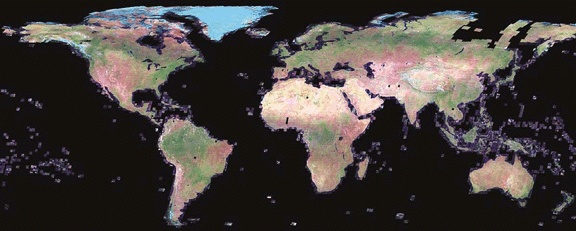
This is a very simple example though it may look complicated. There are other parameters and options that can be used by some WMS providers, but these are just the most basic. The last four settings (layers, bbox, width, and height) can be easily changed to modify your map if you want a larger map, or a different layer.
The example can be spiced up a bit by simply adding more layer
names to the layers parameter. Example 12-3 shows a map
that adds another layer listed in the capabilities document. This
layer helps fill in the background where the global_mosaic layer had gaps, in
Antarctica and northeast Asia, for instance.
http://wms.jpl.nasa.gov/wms.cgi
?request=GetMap
&service=WMS
&version=1.1.1
&srs=EPSG:4326
&format=image/jpeg
&styles=
&bbox=-180,-90,180,90
&width=600
&height=300
&layers=modis,global_mosaic
Very little effort is needed to change the URL and produce a map displaying more information. Figure 12-3 shows the map that is created and returned.
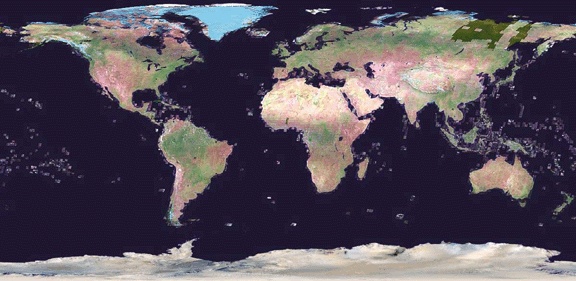
A few minor modifications yield a much more complete-looking
map. Notice that where there was no Landsat imagery in Figure 12-2, the gaps have
been filled. Note that the modis
layer was listed first in the layers parameter. This draws it first on
the map, then the global_mosaic
draws over top. If you put the modis layer after the global_mosaic, it will draw, but
completely cover the global_mosaic.
If you want to experiment a bit, change the bbox setting to one of these, for
interesting views of parts of the world. Be sure to keep the image
size to 600×300 or at least keep the width/height ratio as
2:1.
- Baghdad
&bbox=44.22252,33.24291,44.58252,33.42291- Gibraltar
&bbox=-6.825,35.3775,-4.575,36.5025- Panama Canal
&bbox=-80.30625,8.8725,-79.18125,9.435
You can also remove the global_mosaic layer and see how the global
modis layer looks on its
own.
All the other layers listed in the capabilities document can be added to the URL, but many won’t show very well because they overlap each other and may only draw at certain scales.
Adding a WMS layer to a MapServer map file
Sending WMS requests through URLs in your web browser can be interesting, but WMS becomes much more powerful when you combine it with your own, locally stored, data. The remote source doesn’t know anything about the other layers on your map, but can add to them. MapServer takes the image that results from the request and treats it as another layer to overlay. It is possible to have an application that uses only external WMS layers. The real power is in combining your own information with someone else’s to produce a more effective map than you would have been able to do on your own.
A WMS layer in your map file has some more specific settings than other layers. Example 12-4 shows a layer defined using the data source in Example 12-2.
LAYER
  NAME global_landsat
  TYPE RASTER
  STATUS DEFAULT
  CONNECTIONTYPE WMS
  CONNECTION "http://wms.jpl.nasa.gov/wms.cgi?"
  MINSCALE 20000
  METADATA
    "wms_server_version" "1.1.1"
    "wms_srs" "EPSG:4326"
    "wms_format" "image/jpeg"
    "wms_styles" ""
    "wms_name" "modis,global_mosaic"
  END
END
You can add this layer to the global.map used in previous chapters. A
couple other changes will be required to make it work in that
environment. You will probably want to change MapServer’s output
image format to support more colors, because this WMS has a lot of
different colors. Add IMAGETYPE
PNG24 right after the IMAGECOLOR setting. You should also remove
the COLOR setting from the
countries layer so that you can see the WMS data underneath. A
complete listing of the global.map file used for these examples
is included at the end of the chapter in Example 12-13.
The settings in a map file are very similar to those used in
the URL. The biggest difference is that several settings aren’t
required because MapServer generates them internally (e.g., width, height, bbox). MapServer can infer these settings
based on the current map being viewed, its extent, size, etc.
The connection setting must be set to CONNECTIONTYPE WMS to tell MapServer to
make a WMS request. Then the base URL is put in as the connection
string. This URL goes up to and includes the question mark (as in
Examples 12-2 and 12-3).
Warning
If the server is based on MapServer, the path to the map
file may also need to be specified in the CONNECTION string. In that case, the
base URL will end at the ampersand (&) after this setting; for example,
http://spatialguru.com/cgi-bin/mapserv?map=/maps/globalwms.map&.
All remaining parameters are put into a METADATA section for the layer. Each
setting is named, and a value is given. For example "wms_name" is the setting, and the value
is "modis,global_mosaic". These
setting/value pairs are taken by MapServer and converted into the
proper format to request the map image behind the scenes.
Most of the settings are self-explanatory if you compare them
to the earlier examples. The main difference is the use of "wms_name" to provide the list of layer
names. Instinct might tell you to use something like "wms_layers", but that won’t work. All the
layers that you are requesting need to be set in the wms_name setting. Multiple layers are
listed in one long piece of text, separated by a comma.
Notice that you don’t use any CLASS objects in a WMS layer. You can’t
change the way the WMS map is drawn unless you use another OGC
specification called Styled Layer Descriptors (SLD). SLD allows you to request specific styling of a WMS
layer if the WMS supports it. Using SLD is beyond the scope of this
book. More information about using SLD with MapServer can be found
at http://mapserver.gis.umn.edu/doc/sld-howto.html.
Tip
It is possible to query WMS layers. Instead of a getMap request, it uses a getFeatureInfo request. Querying is more
complicated than making basic map viewing requests. See the OGC
WMS specification to understand more about what parameters it
requires at http://www.opengeospatial.org/specs/?page=specs.
WMS is aimed at interoperability between applications; this includes MapServer and any other WMS-compliant mapping program. In the examples earlier in this chapter, you use MapServer as a client program to make requests from a WMS. The WMS is provided by a different web mapping package from MapServer. This is the power of WMS: application independence not being tied to one particular software package. It is the same when using MapServer as a WMS server ; any other program that supports WMS can connect to it, and MapServer doesn’t care.
There are many other tools that can act as WMS clients. Here are a few:
- OpenEV WMS Tool (http://openev.sourceforge.net)
A WMS Client tool for OpenEV that allows you to add WMS layers. It is also included with FWTools.
- Intergraph OGC WMS Viewer (http://wmsviewer.com)
A web-based WMS viewing tool that allows you to add your own WMS sources to their global mapping application
- Refractions WMS Extension for ArcView 3 (http://refractions.net/arc3wms/)
An extension that allows you to define and add WMS themes to ArcView 3
- ESRI ArcMap (http://esri.com/software/arcgis/)
A commercial desktop GIS program that supports connections to WMS data sources
Using MapServer as a WMS server
MapServer can also serve as a WMS server, allowing you to make your data available to others. There isn’t a lot to it. You just need to add a few more settings to the map file, and then others can connect to your WMS with their applications.
Two parts of the map file need to be modified to support a
WMS. Some changes need to be made in the WEB section of the map file; other changes
need to be made in the layers you want to make available.
The WEB section defines
some settings for the entire MapServer application. In this case,
you add a few lines describing your application to external WMS
clients. Example 12-5
shows what the WEB section looks
like if you modify the global.map application. A full listing of
global.map is shown in Example 12-13 at the end of
the chapter. The highlighted sections were added to enable WMS
server support.
WEB
  HEADER none
  TEMPLATE global.html
  FOOTER none
  IMAGEPATH "/srv/www/htdocs/tmp/"
  IMAGEURL "/tmp/"
  METADATA
    "wms_title" "My Global Map WMS Server"
    "wms_srs" "EPSG:4326"
  END
END
These values are used when a WMS client makes a GetCapabilities request to your server. It
shows the title of your service and what projection it uses.
The other place to make changes is at the layer level. Again,
we modify the METADATA section of
a layer to add a few settings. Most settings merely describe your
layer in more detail so that external users can request appropriate
information. Example
12-6 shows what the definition for the WMS-enabled layer
looks like, with the modifications highlighted. A full map file is
listed at the end of the chapter in Example 12-14. The global_mosaic WMS layer was removed as
well as the labels for the country layer, to keep this example short
and simple.
LAYER NAME countries TYPE POLYGON STATUSONDATA countries_simplMINSCALE 1000 MAXSCALE 1000000000CLASSITEM 'NAME' CLASS NAME 'Bulgaria' EXPRESSION 'Bulgaria' STYLE OUTLINECOLOR 100 100 100 END END CLASS NAME 'All Countries' EXPRESSION ('[NAME]' ne 'Bulgaria') STYLE OUTLINECOLOR 100 100 100 END ENDMETADATA "wms_title" "Country boundaries" ENDEND
This layer makes the countries layer WMS-accessible.
By setting STATUS ON, this layer won’t be drawn by default.
WMS clients won’t want default layers every time; they’ll want to
pick and choose.
MINSCALE and MAXSCALE settings prevent data from being
used at unsuitable scales. If you don’t set them, you may receive
warnings. These warnings can be safely ignored, but it is good
practice to set them anyway. In this example, it doesn’t really
matter, so the range is very broad.
Just as with the WEB
object, you insert a METADATA
object containing a wms_title for
the layer. This title is displayed in the capabilities
document for your WMS.
Checking your own WMS capabilities document
Once you have a WMS server up and running with the previous
modifications to your map file, you can test it. The URL will point
to the MapServer executable and the map file, using a request=GetCapabilities tagged on the end.
The URL used to check is (again, all one line with no spaces) http://spatialguru.com/cgi-bin/mapserv? map=/maps/global.map&request=GetCapabilities&service=WMS.
If you are running the example on your own computer, you need to replace http://spatialguru.com/ with your hostname, e.g., http://localhost/. You also need to give it the path to the map file you have built.
You will get a lot of information back from the getCapabilities request, but all you need
to know is that the layer you set up earlier is listed properly. It
is in the XML file you downloaded using the earlier URL, shown here.
The <Style> section was
removed to show the main layer settings.
...
<Layer queryable="0" opaque="0" cascaded="0">
    <Name>countries</Name>
    <Title>Country boundaries</Title>
    <Style>
       ...
    </Style>
    <ScaleHint min="0.498903" max="498903" />
</Layer>
...
Now someone else can request data from the WMS running on your
web server. The first three lines describe the group the layers are
assigned to in the map file. The second <Layer...> tag in the file starts
the actual countries layer
section, which is shown. Notice how a lot of information is provided
about the layer, including SRS
and BoundingBox. These were not
explicitly set in the METADATA;
MapServer provides these important pieces of information
automatically.
Web Feature Service (WFS)
Another increasingly popular service uses the WFS specification. It is implemented in several mapping applications; MapServer is just one example. WFS operates much like the WMS but has significant differences. With WMS, only a map image is returned to you; with WFS, actual feature data is returned to the client. The server sends back geographic coordinate data such as line, point, or polygon features.
In MapServer, the features can then be drawn like any other layer because it has a copy of the data to work with. The process is more labor-intensive than WMS. WMS is desirable because MapServer just overlays other layers on top of the image; you’ll like WFS because it offers more flexibility and can, optionally, save features into a usable data file.
Checking the capabilities of a WFS provider
The capabilities of a WFS can be determined through a URL request. Here’s a simple one:
The results are given back to you in an XML file, similar to the WMS capabilities document format. Portions of the document are listed in Example 12-7.
...
<Service>
  <Name>MapServer WFS</Name>
  <Title>ENVIRODAT - Atlantic Region Water Quality Chemistry Database</Title>
  <Abstract>ENVIRODAT is a repository of water quality information including chemical,
 physical, biological, and selected hydrometric data which are stored for surface,
 groundwater, wastewater, precipitation and various other water types</Abstract>
...
  <OnlineResource>http://map.ns.ec.gc.ca/envdat/map.aspx?</OnlineResource>
...
    <FeatureType>
      <Name>envirodat</Name>
      <Title>ENVIRODAT - Atlantic Region Water Quality Chemistry Database</Title>
...
      <SRS>EPSG:4326</SRS>
      <LatLongBoundingBox minx="-64.6622" miny="46.7594" maxx="-52.6808" maxy="55.2333" />
    </FeatureType>
The key pieces of information needed for this map file are the
OnlineResource and the Name of the FeatureType.
Manually requesting data from a WFS source
Manual requests to a WFS source can also be made through a URL. Instead of getting a map back, you get an XML file with geographic and tabular data encoded in it. The file is in the OGC format, Geography Markup Language or GML. WMS gave you a map image back; WFS gives you raw data to work with.
The URL looks similar to the WMS URL, but is often much
simpler. Because WFS sends you raw data to work with, you don’t need
to send the service any information such as the size of your map or
the image format. The following example shows how to use the
wget command to grab data and put
it into a file:
> wget -O wfs_data.gml
"http://map.ns.ec.gc.ca/envdat/map.aspx?service=WFS&version=1.0.0&request=
GetFeature&typename=envirodat"
Other services may be more strict, but this will at least get you started. The resulting file is 86 KB in size and over 2,000 lines long.
Tip
If you have the ogrinfo
utility handy, you can see summary details about the GML file by
running:
> ogrinfo wfs_data.gml envdat:envirodat -soUsing the results, you can select one attribute to use to
label these points. Remove -so
to list all the feature details, or just open it in a text editor
to see all the gory details.
This file can be used as a GML data source in your map file, but with WFS, you don’t need this manual step. Instead you can encode the details from the URL into a connection string in the layer definition.
Adding a WFS layer to a MapServer map file
Adding the WFS from the previous section as a layer in
the map file is fairly simple, as shown in Example 12-8. The key parts
are highlighted, and the rest are just settings that make the points
look better on the map. Certain parts of the URL used in Example 12-8 are split into
METADATA parameters, as with
WMS.
...EXTENT -64.6622 46.7594 -52.6808 55.2333... LAYER GROUP testing NAME wfs_test STATUS OFFTYPE POINT CONNECTIONTYPE WFS CONNECTION "http://map.ns.ec.gc.ca/envdat/map.aspx?"LABELITEM "envdat:Station_ID" CLASS STYLE SYMBOL 'circle' SIZE 10 OUTLINECOLOR 150 150 0 COLOR 250 250 0 END LABEL SIZE SMALL COLOR 255 255 255 POSITION UR END END METADATA"wfs_version" "1.0.0" "wfs_srs" "EPSG:4326" "wfs_typename" "envirodat" "wfs_request_method" "GET" "wfs_service" "WFS"END END
Warning
If the WFS source is an older version of MapServer than
yours, you have to include the last parameter: wfs_request_method. Otherwise, this
parameter is optional. This may also be necessary for other
vendors’ map servers. The wfs_service also needs to be explicitly
set in older versions of MapServer, unlike with a WMS layer. This
bug was recently fixed.
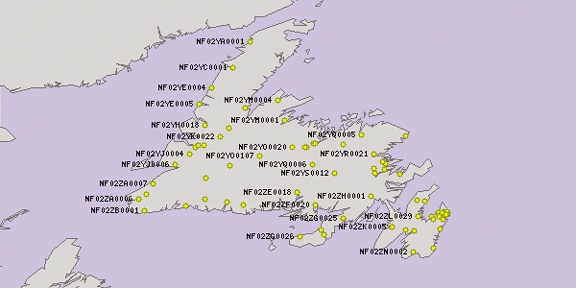
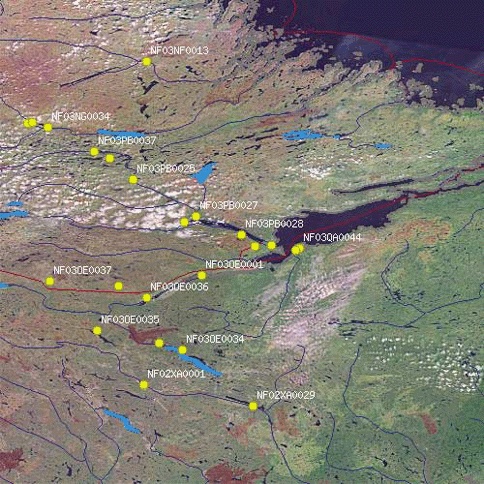
As shown in Figure
12-4, part of the global mapping application produces a map
of water quality points in Newfoundland, Canada. The EXTENT for the map was changed so that the
map would focus on an area within the WFS data source bounding box.
Example 12-15 shows
the complete map file for this WFS client test. Several items were
added to improve appearance. Notice that the COUNTRIES layer was shaded, and the WFS
layer was added to the end of the map file so that the points draw
on top of the COUNTRIES
layer.
Figure 12-5
shows an example of a map with the WMS global_mosaic layer used earlier, in
combination with the WFS layer and some local water and
transportation layers. This shows just how well sources can be
combined to provide valuable context.
Using MapServer as a WFS server
MapServer can be built to operate as a WFS server. It is then easy to make your vector data accessible to others. As with WMS, there are two places you need to add WFS settings.
The first place to add settings is in the WEB...METADATA section. Example 12-9 shows the
WEB section of the map file, with
some WFS METADATA added.
WEB
  IMAGEPATH "/srv/www/tmp/"
  IMAGEURL "/tmp/"
  METADATA
   "wfs_title" "My Global WFS Map Service"
  END
END
The example shows the most basic settings possible, adding
only a "wfs_title" parameter and
a name value for the service. There are several other parameters you
might choose to include. The EXTENT for the map file restricts any WFS
request. In this example, set it back to a global extent (EXTENT -180 -90 180 90). If you keep the
EXTENT used in the previous
section, only features that overlap the EXTENT are returned.
The MapServer OGC Web Services Workshop is a good resource for seeing more complete examples of a map file configured for WFS; see http://devgeo.cciw.ca/ms_ogc_workshop/index.html.
For more information about these parameters, see the MapServer documentation for adding WFS support to your map files at http://mapserver.gis.umn.edu/doc/wfs-server-howto.html.
Other changes need to be made for each LAYER you want to make available. Keep in
mind that only vector data layers can be used for WFS. GML supports
vector data types, not imagery; if you need to serve up images, you
should be using WMS or WCS (see Table 12-1). Example 12-10 shows the
countries layer with the changes required to make it WFS accessible.
The full map file is shown at the end of the chapter in Example 12-16.
LAYER
    NAME countries
    TYPE POLYGON
    STATUS ON
    DUMP TRUE
    DATA countries_simpl
    METADATA
      "wfs_title" "Country Boundaries"
    END
    PROJECTION
      "init=epsg:4326"
    END
END
Notice how all the styling CLASS objects and some other settings have
been removed. If you only want to make your data available through
WFS, these objects aren’t required because they aren’t being mapped.
Only the feature data is being sent back to the client. You can
still have layers set up to draw maps, and serve up WFS or WMS data
as well.
Not all settings are made in the METADATA section. For instance, the
DUMP parameter needs to be set to
TRUE at the layer level. This
gives MapServer permission to send raw data to those requesting it.
Set this to FALSE for layers you
don’t want to share.
The only required METADATA
setting is "wfs_title". It is
good practice to use a lot more metadata than shown in these
simplistic examples. In fact, you can use it to store whatever
metadata you want. Metadata describes your information so that users
who aren’t familiar with it won’t expect more from it than it can
provide. It is also a critical tool for large organizations because
it keeps track of and manages their spatial data
infrastructure.
Checking your own WFS capabilities document
Testing your WFS server is much easier than testing a
WMS server, because very few parameters are required. Example 12-11 shows
wget downloading the capabilities
document URL for the previous example. Parts of the results of the
capabilities document are shown as well.
                     > wget -O wfscapabilities.xml "http://spatialguru.com/cgi-bin/mapserv?map=
/maps/globalwfs.map&service=WFS&version=1.0.0&request=GetCapabilities"

...
<Service>
  <Name>MapServer WFS</Name>
  <Title>My Global WFS Map Service</Title>
  <OnlineResource>http://spatialguru.com:80/cgi-bin/mapserv?map=/maps/globalwfs.map&</OnlineResource>
</Service>
...
<FeatureTypeList>
  <Operations>
    <Query/>
  </Operations>
    <FeatureType>
        <Name>countries</Name>
        <Title>Country Boundaries</Title>
        <SRS>EPSG:4326</SRS>
        <LatLongBoundingBox minx="-180" miny="-89.9999" maxx="180" maxy="83.6274" />
    </FeatureType>
</FeatureTypeList>
...
Notice that the file is full of many entries automatically
generated by MapServer, i.e., not part of the WFS METADATA object. MapServer even calculated
the LatLongBoundingBox for you.
It also created a Name element
based on the layer’s name setting, which is something else you can
set in the METADATA section using
the wfs_name parameter if you
would like something different.
To grab the data from the test layer you have to change the
type of request to &request=GetFeature and add &typename=countries based on the
FeatureType Name for the layer in the capabilities
document. The URL and a piece of the data output from the request is
shown in Example
12-12.
                     > wget -O countries.gml "http://spatialguru.com/cgi-bin/mapserv?map=/maps/
globalwfs.map&service=WFS&version=1.0.0&request=GetFeature&typename
=countries"
...
<gml:featureMember>
  <countries>
    <gml:boundedBy>
      <gml:Box srsName="EPSG:4326">
        <gml:coordinates>
            -57.336025,54.494965 -57.245407,54.577198
        </gml:coordinates>
      </gml:Box>
    </gml:boundedBy>
    <gml:polygonProperty>
      <gml:Polygon srsName="EPSG:4326">
        <gml:outerBoundaryIs>
          <gml:LinearRing>
            <gml:coordinates>
              -57.336025,54.494965 -57.330402,54.563805
              -57.245407,54.577198 -57.250492,54.506748
              -57.336025,54.494965
            </gml:coordinates>
          </gml:LinearRing>
        </gml:outerBoundaryIs>
      </gml:Polygon>
    </gml:polygonProperty>
    <gid>36354</gid>
    <cat>38</cat>
    <fibs>CA</fibs>
    <name>Canada</name>
    <f_code>FA001</f_code>
    <total>32507874</total>
    <male>16071958</male>
    <female>16435916</female>
    <ratio>97.799999999999997</ratio>
  </countries>
</gml:featureMember>
...
The list goes on and on, showing the data for every country polygon feature in the layer.
GML is a vector format that OpenEV can read, so Figure 12-6 shows a map made to test the downloaded data. Country boundaries were put on top of an earth image, and then some clouds were added. Now this file can be zipped and emailed to somebody else or connected to as a WFS layer in another MapServer application.