Table of Contents for
Web Mapping Illustrated
 Web Mapping Illustrated
Published by
O'Reilly Media, Inc., 2005
Web Mapping Illustrated
Published by
O'Reilly Media, Inc., 2005
- Web Mapping Illustrated
- Cover
- Web Mapping Illustrated
- A Note Regarding Supplemental Files
- Foreword
- Preface
- Youthful Exploration
- The Tools in This Book
- What This Book Covers
- Organization of This Book
- Conventions Used in This Book
- Safari Enabled
- Comments and Questions
- Acknowledgments
- 1. Introduction to Digital Mapping
- 1.1. The Power of Digital Maps
- 1.2. The Difficulties of Making Maps
- 1.3. Different Kinds of Web Mapping
- 2. Digital Mapping Tasks and Tools
- 2.1. Common Mapping Tasks
- 2.2. Common Pitfalls, Deadends, and Irritations
- 2.3. Identifying the Types of Tasks for a Project
- 3. Converting and Viewing Maps
- 3.1. Raster and Vector
- 3.2. OpenEV
- 3.3. MapServer
- 3.4. Geospatial Data Abstraction Library (GDAL)
- 3.5. OGR Simple Features Library
- 3.6. PostGIS
- 3.7. Summary of Applications
- 4. Installing MapServer
- 4.1. How MapServer Applications Operate
- 4.2. Walkthrough of the Main Components
- 4.3. Installing MapServer
- 4.4. Getting Help
- 5. Acquiring Map Data
- 5.1. Appraising Your Data Needs
- 5.2. Acquiring the Data You Need
- 6. Analyzing Map Data
- 6.1. Downloading the Demonstration Data
- 6.2. Installing Data Management Tools: GDAL and FWTools
- 6.3. Examining Data Content
- 6.4. Summarizing Information Using Other Tools
- 7. Converting Map Data
- 7.1. Converting Map Data
- 7.2. Converting Vector Data
- 7.3. Converting Raster Data to Other Formats
- 8. Visualizing Mapping Data in a Desktop Program
- 8.1. Visualization and Mapping Programs
- 8.2. Using OpenEV
- 8.3. OpenEV Basics
- 9. Create and Edit Personal Map Data
- 9.1. Planning Your Map
- 9.2. Preprocessing Data Examples
- 10. Creating Static Maps
- 10.1. MapServer Utilities
- 10.2. Sample Uses of the Command-Line Utilities
- 10.3. Setting Output Image Formats
- 11. Publishing Interactive Maps on the Web
- 11.1. Preparing and Testing MapServer
- 11.2. Create a Custom Application for a Particular Area
- 11.3. Continuing Education
- 12. Accessing Maps Through Web Services
- 12.1. Web Services for Mapping
- 12.2. What Do Web Services for Mapping Do?
- 12.3. Using MapServer with Web Services
- 12.4. Reference Map Files
- 13. Managing a Spatial Database
- 13.1. Introducing PostGIS
- 13.2. What Is a Spatial Database?
- 13.3. Downloading PostGIS Install Packages and Binaries
- 13.4. Compiling from Source Code
- 13.5. Steps for Setting Up PostGIS
- 13.6. Creating a Spatial Database
- 13.7. Load Data into the Database
- 13.8. Spatial Data Queries
- 13.9. Accessing Spatial Data from PostGIS in Other Applications
- 14. Custom Programming with MapServer’s MapScript
- 14.1. Introducing MapScript
- 14.2. Getting MapScript
- 14.3. MapScript Objects
- 14.4. MapScript Examples
- 14.5. Other Resources
- 14.6. Parallel MapScript Translations
- A. A Brief Introduction to Map Projections
- A.1. The Third Spheroid from the Sun
- A.2. Using Map Projections with MapServer
- A.3. Map Projection Examples
- A.4. Using Projections with Other Applications
- A.5. References
- B. MapServer Reference Guide for Vector Data Access
- B.1. Vector Data
- B.2. Data Format Guide
- ESRI Shapefiles (SHP)
- PostGIS/PostgreSQL Database
- MapInfo Files (TAB/MID/MIF)
- Oracle Spatial Database
- Web Feature Service (WFS)
- Geography Markup Language Files (GML)
- VirtualSpatialData (ODBC/OVF)
- TIGER/Line Files
- ESRI ArcInfo Coverage Files
- ESRI ArcSDE Database (SDE)
- Microstation Design Files (DGN)
- IHO S-57 Files
- Spatial Data Transfer Standard Files (SDTS)
- Inline MapServer Features
- National Transfer Format Files (NTF)
- About the Author
- Colophon
- Copyright
Sample Uses of the Command-Line Utilities
When MapServer runs as a web mapping application it produces various graphic images. A map image is one of them. It can also produce an image of a scale bar, a reference map, and a legend. The command-line utilities let you create these manually (or scripted through your favorite scripting language). The following examples give a feel for the process of creating some basic results using these programs. These examples use the utilities from a typical MapServer installation as described in Chapter 4.
Acquire Some Mapping Data
A simple world map boundary dataset will be used for this example. This shapefile contains boundaries of the country borders for the world and are available from the FreeGIS (http://www.freegis.org) web site at http://ftp.intevation.de/freegis/worlddata/freegis_worlddata-0.1_simpl.tar.gz.
Warning
This version contains simplified, lower-resolution boundaries and are about 3.7 MB in size. The full resolution boundaries take more effort for MapServer to display and are a larger file at over 30 MB.
You can use the full resolution data for the exercises in this chapter, but the files are large enough to require optimization to be effective. The exercises will run more slowly than with the simplified boundaries. For further exploration of MapServer, the higher resolution boundaries make a great dataset to work with. You can download them from http://ftp.intevation.de/freegis/worlddata/freegis_worlddata-0.1.tar.gz.
The first thing to do is check out the data. This is done using
the ogrinfo tool as described in
Chapter 6. This isn’t a
MapServer utility but is a valuable tool for getting started, as shown
in Example 10-1.
                  > ogrinfo countries_simpl.shp -al -summary
INFO: Open of 'countries_simpl.shp'
using driver 'ESRI Shapefile' successful.

Layer name: countries_simpl
Geometry: Polygon
Feature Count: 3901
Extent: (-179.999900, -89.999900) - (179.999900, 83.627357)
Layer SRS WKT:
(unknown)
gid: Integer (11.0)
cat: Integer (11.0)
fibs: String (2.0)
name: String (255.0)
f_code: String (255.0)
total: Integer (11.0)

male: Integer (11.0)
female: Integer (11.0)
ratio: Real (24.15)
This example shows several key pieces of information prior to building the MapServer map file.
Geometry: Polygon
The shapefile holds polygon data. MapServer can shade the polygon areas or just draw the outline of the polygons. If the geometry was line or linestring, it wouldn’t be possible to fill the polygons with a color.
Feature Count: 3901
The feature count shows that there are many (3,901 to be exact) polygons in this file. If it said there were no features, that would tell me there is something wrong with the file.
Extent: (-179.999900, -89.999900) - (179.999900, 83.627357)
ogrinfo shows that the data
covers almost the entire globe, using latitude and longitude
coordinates. The first pair of numbers describes the most southwestern
corner of the data. The second pair of numbers describes the most
northeastern extent. Therefore when making a map file, set it up so
that the map shows the entire globe from -180,-90 to 180,90 degrees.
    Layer SRS WKT:
    (unknown)
There is no spatial reference system (SRS) set for this shapefile. By looking at the fact that the extent is shown in decimal degrees, it is safe to say that this file contains unprojected geographic coordinates.
    gid: Integer (11.0)
    cat: Integer (11.0)
    fibs: String (2.0)
    name: String (255.0)
    f_code: String (255.0)
    total: Integer (11.0)
    male: Integer (11.0)
    female: Integer (11.0)
This is a list of the attributes (or fields) that are part of the
file. This is helpful to know when adding a label to your map to show,
for example, the name of the country. It also indicates that the field
called name holds up to 255
characters. Therefore some of the names can be quite long, such as
"Macedonia, The Former Yugo. Rep.
        of"
.
With this information you are ready to put together a basic map file.
Tip
If you want to have a quick look at what countries are
included in the shapefile, some common text processing commands can
be used to quickly filter the output from ogrinfo. This process is described further
in Chapter 6. Here is a
short example:
    > ogrinfo countries_simpl.shp -al | grep name | sort | uniqLayer name: countries_simpl
      name: String (255.0)
      name (String) = Afghanistan
      name (String) = Albania
      name (String) = Algeria
      name (String) = American Samoa
    continued...
Creating a Simple MapServer Map File
The map file is the core of MapServer applications. It configures how the map will look, what size it will be, and which layers to show. There are many different configuration settings. Map file reference documents on the MapServer web site are a necessary reference for learning about new features. You can find the documents at http://mapserver.gis.umn.edu/doc/mapfile-reference.html.
Map files are simple text files that use a hierarchical, or nested, object structure to define settings for the map. The map file is composed of objects (a.k.a. sections). Each object has a keyword to start and the word END to stop. Objects can have other subobjects within them where applicable. For example, a map layer definition will include objects that define how layers will be drawn or how labels are created for a layer. Example 10-2 shows the most basic possible definition of a map file, using only 15 lines of text.
MAP                         # Start of MAP object
  SIZE 600 300
  EXTENT -180 -90 180 90
  LAYER                     # Start of LAYER object
    NAME countries
    TYPE POLYGON
    STATUS DEFAULT
    DATA countries_simpl
    CLASS                   # Start of CLASS object
      STYLE                 # Start of STYLE object
        OUTLINECOLOR 100 100 100
      END                   # End of STYLE object
    END                     # End of CLASS object
  END                       # End of LAYER object
END                         # End of MAP object and map file
There are only four objects in this map file:
MAPobject map-wide settings for the whole fileLAYERobject to define the layer to draw in the mapCLASSobject to define classes of settings for the layerSTYLEobject to define how features will be drawn in the class
Figure 10-1 is a graphical representation of the nested hierarchy of objects and properties.
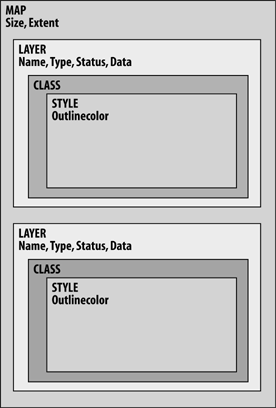
These objects are nested within each other. Each object has
different types of settings. The SIZE and EXTENT settings are part of the MAP object. The LAYER object has a NAME, TYPE, STATUS, and DATA setting. The CLASS object has no settings in this
example, but holds the STYLE
object, which defines what OUTLINECOLOR to draw the lines.
The DATA setting gives the
name of the dataset used for drawing this layer. In these examples,
the data is a shapefile called countries_simpl. The examples assume that
the map file is saved in the same location that you are running the
commands from. For more information on other data formats and how to
use them in MapServer, see Appendix
B.
Map File Rules and Recommendations
Comments can be interspersed throughout the map file
using the # symbol. Everything
written after the symbol, and on the same line, is ignored by
MapServer. Example 10-2
uses comments to show the start and end of the main objects.
Indenting lines is optional but recommended to make your map file more readable. This structure is treated hierarchically by indenting the start of an object and un-indenting the end of the object.
Keywords in the map file can be upper, lower, or mixed case. It
is recommended to write object names (such as MAP) and other keywords (such as DATA,
COLOR) in uppercase and any items
that are values for settings in lowercase (such as filenames, layer
names, and comments). This is personal preference, but the convention
can make it easier to read.
The text of the map file must be saved into a file on your
filesystem. The filename of a map file must have a map suffix. The map file in Example 10-2 was saved as a
file named global.map.
Values needing quotations can use either single or double quotes. In many cases, quotes are optional. Filenames are a good example. They can be either unquoted, single quoted, or double quoted.
Creating Your First Map Image
The MapServer command shp2img takes the settings in the map file and produces a map
image. Example 10-3 and
the later Example 10-4
show the syntax of the command as well as an example of how to run it
with the global.map map
file.
> shp2img
Syntax: shp2img -m [mapfile] -o [image] -e minx miny maxx maxy
                -t -l [layers] -i [format]
  -m mapfile: Map file to operate on - required.
  -i format: Override the IMAGETYPE value to pick output format.
  -t: enable transparency
  -o image: output filename (stdout if not provided)
  -e minx miny maxx maxy: extents to render - optional
  -l layers: layers to enable - optional
  -all_debug n: Set debug level for map and all layers.
  -map_debug n: Set map debug level.
  -layer_debug layer_name n: Set layer debug level.
Only the first two options (-m and -o) are used in the following
example:
> shp2img -m global.map -o mymap.pngTip
The global.map file assumes that the shapefile countries_simpl is located in the same folder as the map file.
This example produces a new file called mymap.png, shown in Figure 10-2.
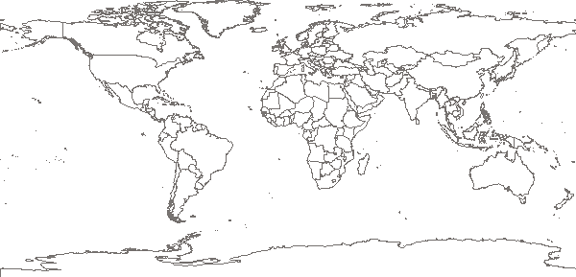
When the image is created, you can view it with any image viewing software. Internet web browsers can usually view PNG, JPEG, GIF, and others.
Tip
PNG is the Portable Network Graphics image format, and is much like a GIF or JPEG. For more information on the PNG format, see http://libpng.org/pub/png/.
Depending on where you got MapServer from or how you compiled
it, the images you produce might not be PNG format by default. To
explicitly request PNG output files, use the -i option, like:
> shp2img -m global.map -o mymap.png -i PNG
If you get an error or an image that isn’t viewable, your copy of MapServer might not support PNG output. If so, try a JPEG or GIF format. Make sure you change the file extension of the output image to reflect the image format you choose, for example:
> shp2img -m global.map -o mymap.jpg -i JPEG
For more assistance see the Setting Output Image Formats section at the end of this chapter.
Adding Labels to the Map
The simple map outline used in the previous example is great for new users. With some simple additions to the map file, you can easily add labels to your map. Example 10-4 shows the additional lines required to do this.
MAP
  SIZE 600 300
  EXTENT -180 -90 180 90
  LAYER
    NAME countries
    TYPE POLYGON
    STATUS DEFAULT
    DATA countries_simpl
    LABELITEM 'NAME'
    CLASS
      STYLE
        OUTLINECOLOR 100 100 100
      END
      LABEL
                  MINFEATURESIZE 40
                  END
    END
  END
END
Four more lines were add to the country LAYER object.
LABELITEM 'NAME'This setting tells MapServer what attribute to use to label the
polygons. Each country polygon has a set of attributes that can be
used to create labels. The LABELITEM setting specifies which one is
used. ogrinfo, discussed in Chapter 7, can output a list of the
attributes available in the file.
The additional lines were very simple:
    LABEL
        MINFEATURESIZE 40
    END
The second line is optional but makes the map more readable.
There are a lot of ways to control how labels are drawn by MapServer.
The MINFEATURESIZE option allowed
me to specify a minimum size (number of pixels wide) that a country
has to be before it will have a label created for it. Therefore
smaller countries don’t get labeled because they would be unreadable
at this scale anyway. Playing around with the value used for MINFEATURESIZE will yield very different
results; try changing it from 40 to 20 or even down to 10.
If the EXTENT line is changed to zoom in to a smaller part of the
world, more labels will show because the size of the countries will be
larger.
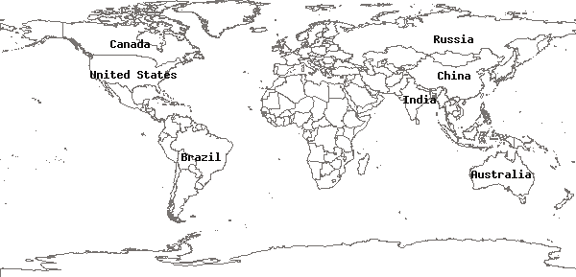
When you rerun the shp2img
command as in Example
10-4, it now produces a world map with a few labels, as seen in
Figure 10-3.
Determining the Extent of a Country
The shp2img utility
has several other options. One allows you to select a different map
EXTENT to override what is defined
in the map file. This is very handy because you don’t need to change
the map file. Simply modify your command by adding the -e parameter and specify an extent as in the
map file.
Before using the -e parameter
you must choose an area to zoom in to. You can use the ogrinfo utility in concert with the ogr2ogr conversion tool. The ogrinfo command gives you only the overall
extent of a given layer; it doesn’t report on the extent of a single
feature. Therefore, you might want to extract only the features of
interest and put them into a temporary shapefile. You can use the
ogrinfo command on the new file and
then throw the data away.
Tip
You can also open the shapefile with a tool like OpenEV and find the coordinates of an area by zooming in.
Example 10-5 shows an example of this utility assessing the extents of a country.
> ogr2ogr -where "name='Bulgaria'" bulgaria.shp countries_simpl.shp> ogrinfo bulgaria.shp -al -summaryINFO: Open of 'bulgaria.shp' using driver 'ESRI Shapefile' successful. Layer name: bulgaria Geometry: Polygon Feature Count: 1 Extent: (22.371639, 41.242084) - (28.609278, 44.217640) continued...
Using the -where option with
ogr2ogr allows you to convert from
one shapefile to a new one, but only transfer certain features, e.g.,
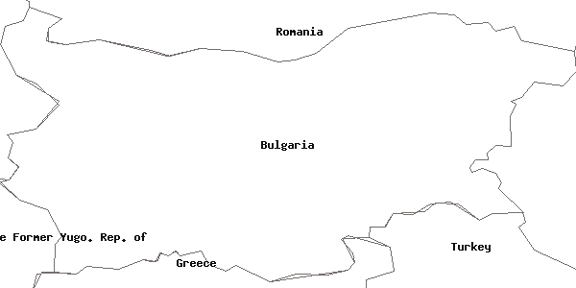
the boundary of Bulgaria. By running ogrinfo on that new file, you can see what
Extent you should use in your map
file to focus on that country. You can then use this extent in the
shp2img command to create a map, as
seen in Figure
10-4.
Warning
Beware of using this method with other countries that may not be as neatly packaged as Bulgaria. For example, the United Kingdom has lands outside of the British Isles, so if you create a new file with just the U.K. features in it, you may wonder why the extent is well beyond Europe. If you get an extent that looks wrong to you, consider foreign lands that belong to that country.
Here is an example that uses this information with the -e option:
> shp2img -m global.map -o mymap.png -e 22.371639 41.242084 28.609278 44.217640This map shows Bulgaria and some of the surrounding countries.
If you want to zoom out further, decrease the minimum coordinates (the first pair of numbers) and increase the maximum coordinates (the second pair) by one or two degrees like this:
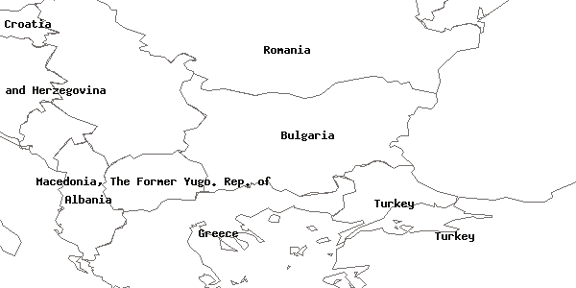
> shp2img -m global.map -o mymap.png -e 19 39 31 46The map in Figure 10-5 is zoomed out further, giving a better context for Bulgaria.
Color Theming the Map
With a few more lines in the map file, as shown in Example 10-6, you can create a better looking map. Here is a modified map file with a few lines added and a couple changed.
MAP SIZE 600 300 EXTENT -180 -90 180 90IMAGECOLOR 180 180 250LAYER NAME countries TYPE POLYGON STATUS DEFAULT DATA countries_simpl LABELITEM 'NAME'CLASSITEM 'NAME'CLASSEXPRESSION 'Bulgaria'STYLE OUTLINECOLOR 100 100 100COLOR 255 255 150END LABELSIZE LARGEMINFEATURESIZE 40END END CLASS EXPRESSION ('[NAME]' ne 'Bulgaria') STYLE OUTLINECOLOR 100 100 100 COLOR 200 200 200 END END END END
The shp2img command is the
same as in the previous example, but produces a colored map showing
Bulgaria more clearly. The command is:
> shp2img -m global.map -o example6b.png -e 19 39 31 46The extent given by the shp2img command is still zoomed in to
Bulgaria. Remember that the -e
option overrides the EXTENT setting
in the map file.
The result of this map file is shown in Figure 10-6.
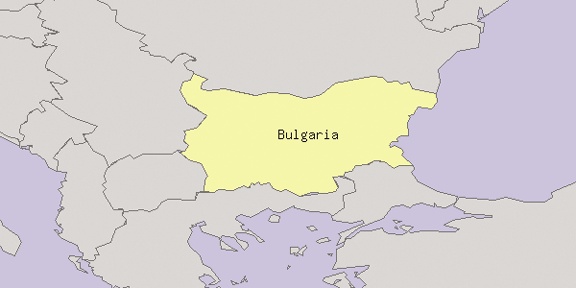
A few things to notice are three different COLOR settings and the single label:
IMAGECOLOR 180 180 250This setting basically makes any place blue where there were no
country polygons in the shapefile. IMAGECOLOR is the background color of the map image, which is
white by default. In this case it makes an interesting background
simulating water.
You may notice that in the map file there are two CLASS...END objects. One tells how to color
and label Bulgaria. The other tells how to color all the other
countries.
CLASSITEM 'NAME'This line sets you up to use multiple classes in your map file.
In this case, it says that the NAME
attribute is going to be used to filter out certain features on the
map. This is done by specifying an EXPRESSION (more on expressions in the next
section) for each class, like in the first class:
    CLASS
       EXPRESSION 'Bulgaria'
       STYLE
          OUTLINECOLOR 100 100 100
          COLOR 255 255 150
       END
       LABEL
          SIZE LARGE
       END
    END
When drawing this class, MapServer draws only the polygons that
have a NAME attribute of 'Bulgaria'. All other polygons or countries
aren’t drawn in this class. The COLOR setting tells MapServer to fill
Bulgaria with a color, and not just draw the outline as before. The
only other change in this class is that the label size has been
explicitly set a bit larger than the default.
Tip
The default types of MapServer labels (a.k.a. bitmap type font) can be
TINY, SMALL, MEDIUM, LARGE, or GIANT. It is also possible to use TrueType
fonts, which produce higher quality labels. This requires a
few more settings and some font files.
With TrueType fonts you can specify a particular point size (e.g., 12) rather than a subjective size like TINY or LARGE. You have probably encountered TrueType fonts when using a word processing application. You might know a font by its name such as Arial or Times New Roman; these are usually TrueType fonts.
The second class tells how to draw all countries other than Bulgaria.
    CLASS
       EXPRESSION ('[NAME]' ne 'Bulgaria')
       STYLE
         OUTLINECOLOR 100 100 100
         COLOR 200 200 200
       END
    END
Notice that there is a more complex expression set for this class. This one ignores Bulgaria but draws all the other countries. The next section discusses expression concepts in more detail.
Understanding Operators
The FILTER and
EXPRESSION keywords can use simple
or complex expressions to define the set of features to draw. Example 10-6 showed the simple
way to use EXPRESSION to define the
features for a CLASS . In the example, a single text string is provided. It
is quoted, but doesn’t need to be. MapServer will look for all
occurrences of that string in whatever attribute is set by CLASSITEM .
Logical expressions can also be defined where more than one value in a single attribute needs to be evaluated. Ranges of values and combinations of attributes can be given. Table 10-1 gives a summary of the types of expressions that can be used.
Operator | Comments | Examples |
= eq | Equals or is equal to | ('[NAME]' eq ‘Canada') ([TOTAL] = 32507874) |
ne | Not equal to | ('[NAME]' ne ‘Canada') |
> gt | Greater than | ([TOTAL] gt 1000000) ([TOTAL] > 1000000) |
< lt | Less than | ([TOTAL] lt 1000000) ([TOTAL] < 1000000) |
>= ge | Greater than or equal to | ([TOTAL] ge 1000000) ([TOTAL] >= 1000000) |
<= le | Less than or equal to | ([TOTAL] le 1000000) ([TOTAL] <= 1000000) |
AND | Where two statements are true | (('[NAME]' ne ‘Canada') AND ([TOTAL] > 1000000)) |
OR | Where one or both statements are true | (('[NAME]' eq ‘Canada') OR ('[NAME]' eq ‘Brazil')) |
There are some exceptions to this table’s above rules when using
the FILTER option with some data
sources, particularly with database connections such as
PostGIS:
The operators
eq,ne,gt,lt,ge, andlearen’t available.Attribute names aren’t enclosed in quotes or square brackets. For example:
(TOTAL >
            1000)
is valid, and so is(NAME = 'Canada').
Creating expressions isn’t always easy. Here are a few rules to keep in mind:
Don’t put quotes around the whole expression such as
"('[COUNTRY]' = 'Canada')".Fields holding string/text values must have both the field name and the value quoted, such as:
('[COUNTRY]' = 'Canada').Fields holding numeric values must not have their field names or their values quoted, such as
([TOTAL] = 1000).
Creating a Map Legend
An important part of any map is the legend describing what colors and symbols mean. MapServer can create legends in realtime when a map is produced, or as a separate image.
To add a legend to your map, you must add a LEGEND...END object to your MAP. Note that this isn’t part of a LAYER object. It is part of the overall map
object settings. Example
10-7 shows the first few lines of the map file (for context)
with a few legend-specific settings highlighted.
MAP
  SIZE 600 300
  EXTENT -180 -90 180 90
  IMAGECOLOR 180 180 250

  LEGEND
    STATUS EMBED
    POSITION LR
    TRANSPARENT TRUE
  END
...
The status setting can be set to ON, OFF,
or EMBED. The EMBED option is a great way to add the
legend directly to the map. If you don’t use EMBED, then you must create the legend as a
separate image (as you will see in a moment). Setting the legend to
have a transparent background is also a nice option. If you don’t want
it to be transparent, then you can remove the TRANSPARENT TRUE line. A default white
background will be drawn behind the legend.
One more change is required to make the legend draw. You must
have NAME settings for each class.
The name given will be the text shown in the legend next to the
symbols for that class. For example, add NAME
'Bulgaria' to the first class and NAME 'All Countries' to the second class as
in Example 10-8. Until
you do so, no legend will be created.
...
CLASS
NAME
        'Bulgaria'
EXPRESSION 'Bulgaria'
STYLE
OUTLINECOLOR 100 100 100
COLOR 255 255 150
END
LABEL
SIZE LARGE
MINFEATURESIZE 40
END
END
CLASS
NAME 'All Countries'
EXPRESSION ('[NAME]' ne 'Bulgaria')
STYLE
OUTLINECOLOR 100 100 100
COLOR 200 200 200
END
END
...Rerunning the shp2img
command as before creates the image shown in Figure 10-7.
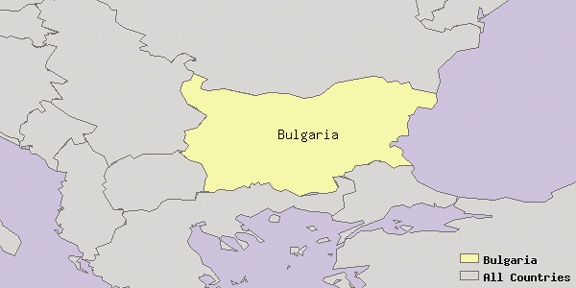
The POSITION setting has a
few basic options that tell MapServer where to place the legend on the
map using a two-letter code for the relative position: lower-right
(LR), upper-center (UC), etc.
The legends so far have been embedded in the map image, but you
can also create a separate image file that just includes the legend.
This is done with the legend
command:
> legend global.map legend.pngThe legend command creates an image that has just the legend in it as
shown in Figure 10-8.
It takes two parameters after the command name: first, the map file
name and then the output image filename to be created.
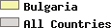
The legend is created according to the settings in the LEGEND object of the map file. You can
change certain settings, but the POSITION and EMBED options are effectively ignored. Those
options are intended for use with shp2img or with the mapserv web application.
Adding a Scale Bar Using the scalebar Command
A scale bar is a graphic showing the relative distances on the map. It consists of lines or shading and text describing what distance a segment of line in the scale-bar represents. As with legends in the preceding examples, it is simple to add scale-bar settings to your map file. All the options for scale-bar settings are listed in the MapServer map file documentation, under the scale-bar object at http://mapserver.gis.umn.edu/doc/mapfile-reference.html#scalebar.
Example 10-9 highlights the eight lines added to the map file in previous examples.
MAP
  SIZE 600 300
  EXTENT -180 -90 180 90
  IMAGECOLOR 180 180 250

  UNITS DD

  SCALEBAR
    STATUS EMBED
    UNITS KILOMETERS
    INTERVALS 3
    TRANSPARENT TRUE
    OUTLINECOLOR 0 0 0
  END

  LEGEND
    STATUS EMBED
...
A scale bar converts the map distances (centimeters, inches, pixels) to real-world distances (kilometers, miles), as seen in the lower-left corner of Figure 10-9.
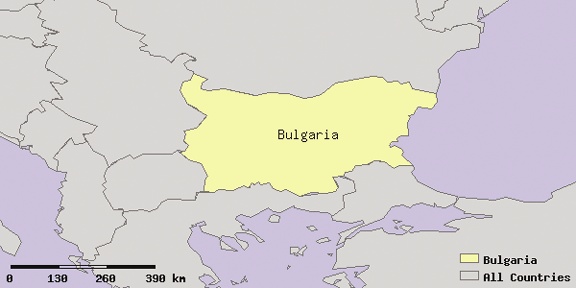
The same method used in previous examples using shp2img created this map with the embedded
scale bar:
> shp2img -m global.map -o mymap.png -e 19 39 31 46The first line added to the map file is the UNITS keyword. DD tells MapServer that the mapping data is
represented in decimal degree coordinates/units. This setting affects
the whole map file and isn’t just scale bar-specific, which is why it
isn’t inside the SCALEBAR...END
object.
Tip
The topic of map units, coordinate systems, and map projections is beyond the scope of this chapter. It is important when you start to work with data from different sources, or when you want to make your maps for different purposes. For more on projections, see Appendix A.
The SCALEBAR object of the
map file has several options. A few, but not all, of the options are
used in this example. These are just enough to make a nice-looking
scale bar without a lot of fuss. The STATUS
EMBED option is just like the one used in the legend example
earlier. It puts the graphic right on the map, rather than requiring
you to create a separate graphic. The UNITS
KILOMETERS specifies what measurement units are shown on the scale
bar. In this case each segment of the scale bar is labeled in
kilometers. This can be changed to inches, feet, meters, etc.
INTERVALS 3 makes three segments in the scale bar. The default is
four segments. This is a handy option, allowing you to have control
over how readable the resulting scale bar is. If you have too many
segments crammed into a small area, the labels can become hard to
read.
There is one important option not shown in the earlier example.
SIZE x y is an option that explicitly sets the width (x) and height (y) of the scale bar. You can accept the
default to keep it simple. Note that when specifying the number of
segments using INTERVALS, it
subdivides the width accordingly. If you want a large number of
INTERVALS, you will probably need
to increase the SIZE of the scale
bar to make it readable.
The last two options in Example 10-9 are aesthetic.
TRANSPARENT makes the background of the scale bar clear. OUTLINECOLOR creates a thin black outline
around the scale bar segments.
If you don’t want to embed the scale bar in your map, change
STATUS EMBED to STATUS ON and use the scalebar command-line utility to create a
separate graphic image. It is used like the legend utility in previous examples. The
following example shows how you use the command:
> scalebar global.map scalebar.pngThe command takes two parameters, a map filename and an output
image name. Note that scalebar
doesn’t have the same options as shp2img.
Figure 10-10 shows the image created by the command.

Be sure not to scale the graphics if you are going to manually pull together the scale bar and map images for something like a publication or web page. If you change the size or scale of the scale bar and don’t adjust the map image accordingly, your scale bar will be inaccurate.
The Final Map File
The final map file created for this example is shown in Example 10-10. The EXTENT value has been changed to reflect the
extents used in the shp2img command
in earlier examples.
MAP # Start of MAP object
SIZE 600 300 # 600 by 300 pixel image output
#EXTENT -180 -90 180 90 # Original extents ignored
EXTENT 19 39 31 46 # Final extents
IMAGECOLOR 180 180 250 # Sets background map color
UNITS DD # Map units
SCALEBAR # Start of SCALEBAR object
STATUS EMBED # Embed scalebar in map image
UNITS KILOMETERS # Draw scalebar in km units
INTERVALS 3 # Draw a three piece scalebar
TRANSPARENT TRUE # Transparent background
OUTLINECOLOR 0 0 0 # Black outline
END # End of SCALEBAR object
LEGEND # Start of LEGEND object
STATUS EMBED # Embed legend in map image
POSITION LR # Embed in lower-right corner
TRANSPARENT TRUE # Transparent background
END # End of LEGEND object
LAYER # Start of LAYER object
NAME countries # Name of LAYER
TYPE POLYGON # Type of features in LAYER
STATUS DEFAULT # Draw STATUS for LAYER
DATA countries_simpl # Source dataset
LABELITEM 'NAME' # Attribute for labels
CLASSITEM 'NAME' # Attribute for expressions
CLASS # Start of CLASS object
NAME 'Bulgaria' # Name of CLASS
EXPRESSION 'Bulgaria' # Draw these features in class
STYLE # Start of STYLE object
OUTLINECOLOR 100 100 100
# Color of outer boundary
COLOR 255 255 150 # Polygon shade color
END # End of STYLE object
LABEL # Start of LABEL object
SIZE LARGE # Size of font in label
MINFEATURESIZE 40 # Min. sized polygon to label
END # End of LABEL object
END # End of CLASS object
CLASS # Start of CLASS object
NAME 'All Countries' # Name of CLASS
EXPRESSION ('[NAME]' ne 'Bulgaria')
# Draw features in class
STYLE # Start of STYLE object
OUTLINECOLOR 100 100 100
# Color of outer boundary
COLOR 200 200 200 # Polygon shade color
END # End of STYLE object
END # End of CLASS object
END # End of LAYER object
END # End of MAP object and map file