In the previous sections, you learned how to make use of QHBoxLayout and QVBoxLayout. Actually, these two classes are the convenience classes for QBoxLayout. In the case of QHBoxLayout, the QHBoxLayout class has subclassed QBoxLayout and configured QBoxLayout::Direction to QBoxLayout::LeftToRight, whereas the QVBoxLayout class has subclassed QBoxLayout and configured QBoxLayout::Direction to QBoxLayout::TopToBottom.
Apart from these values, QBoxLayout::Direction supports various other values, as follows:
- QBoxLayout::LeftToRight: This arranges the widgets from left to right
- QBoxLayout::RightToLeft: This arranges the widgets from right to left
- QBoxLayout::TopToBottom: This arranges the widgets from top to bottom
- QBoxLayout::BottomToTop: This arranges the widgets from bottom to top
Let's write a simple program using QBoxLayout with five buttons.
Let's start with the MyDlg.h header file. I have declared five button pointers in the MyDlg class and a QBoxLayout pointer:
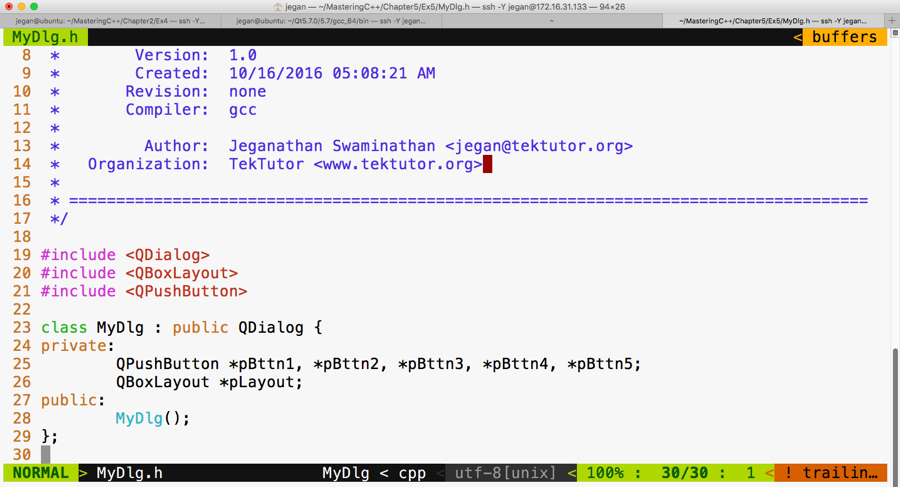
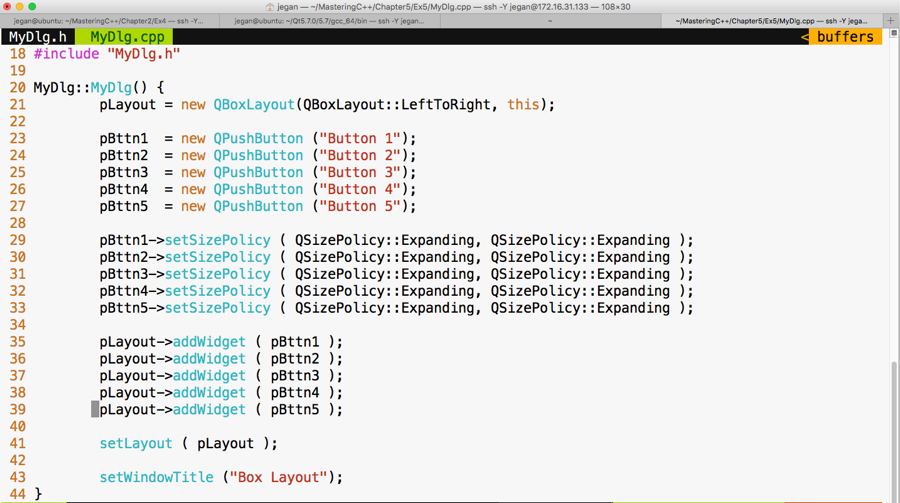
Let's take a look at our MyDlg.cpp source file. If you notice line number 21 in the following screenshot, the QBoxLayout constructor takes two arguments. The first argument is the direction in which you wish to arrange the widgets and the second argument is an optional argument that expects the parent address of the layout instance.
As you may have guessed, the this pointer refers to the MyDlg instance pointer, which happens to be the parent of the layout.
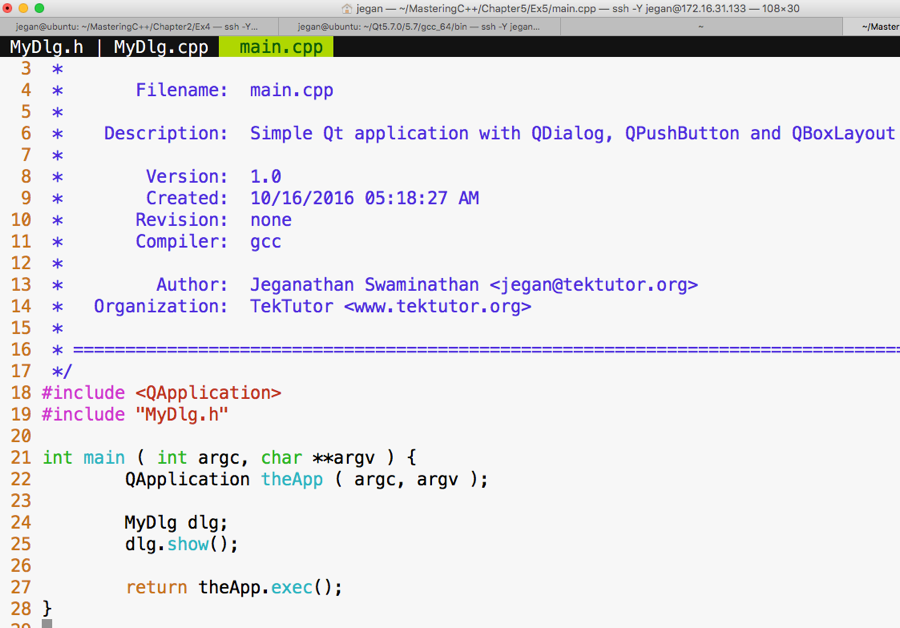
Again, as you may have guessed, the main.cpp file isn't going to change from our past exercises, as shown in the following screenshot:
Let's compile and run our program, as follows:
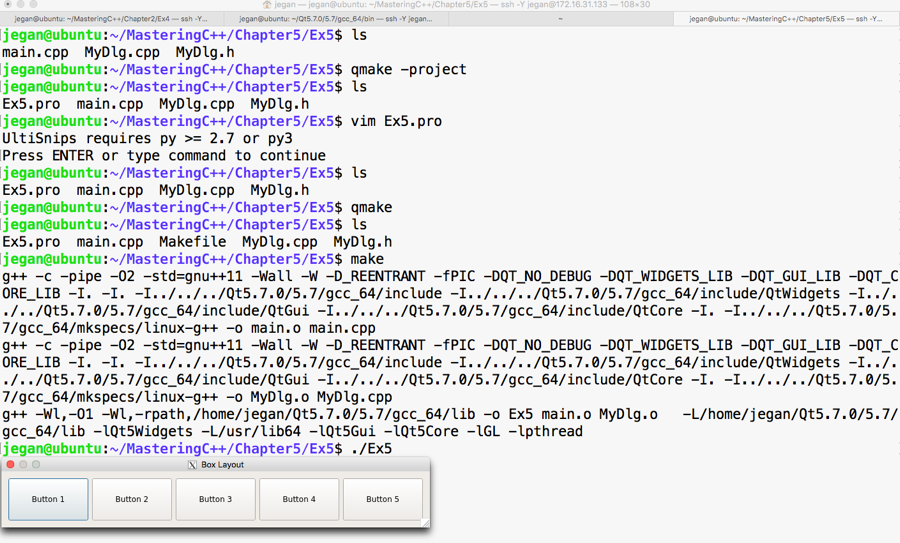
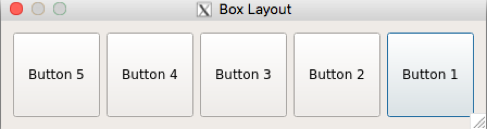
If you notice the output, it looks like a horizontal box layout output, right? Exactly, because we have set the direction to QBoxLayout::LeftToRight. If you modify the direction to, say, QBoxLayout::RightToLeft, then Button 1 would appear on the right-hand side, Button 2 would appear on the left-hand side of Button 1, and so on. Hence, the output would look as shown in the following screenshot:
-
If the direction is set to QBoxLayout::RightToLeft, you'll see the following output:
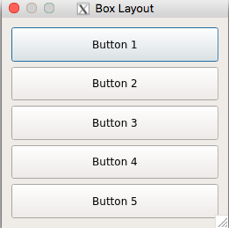
- If the direction is set to QBoxLayout::TopToBottom, you'll see the following output:
- If the direction is set to QBoxLayout::BottomToTop, you'll see the following output:
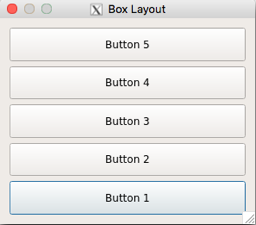
In all the preceding scenarios, the buttons are added to the layout exactly in the same sequence, starting from Button 1 through Button 5, respectively. However, depending on the direction chosen in the QBoxLayout constructor, the box layout will arrange the buttons, hence the difference in the output.