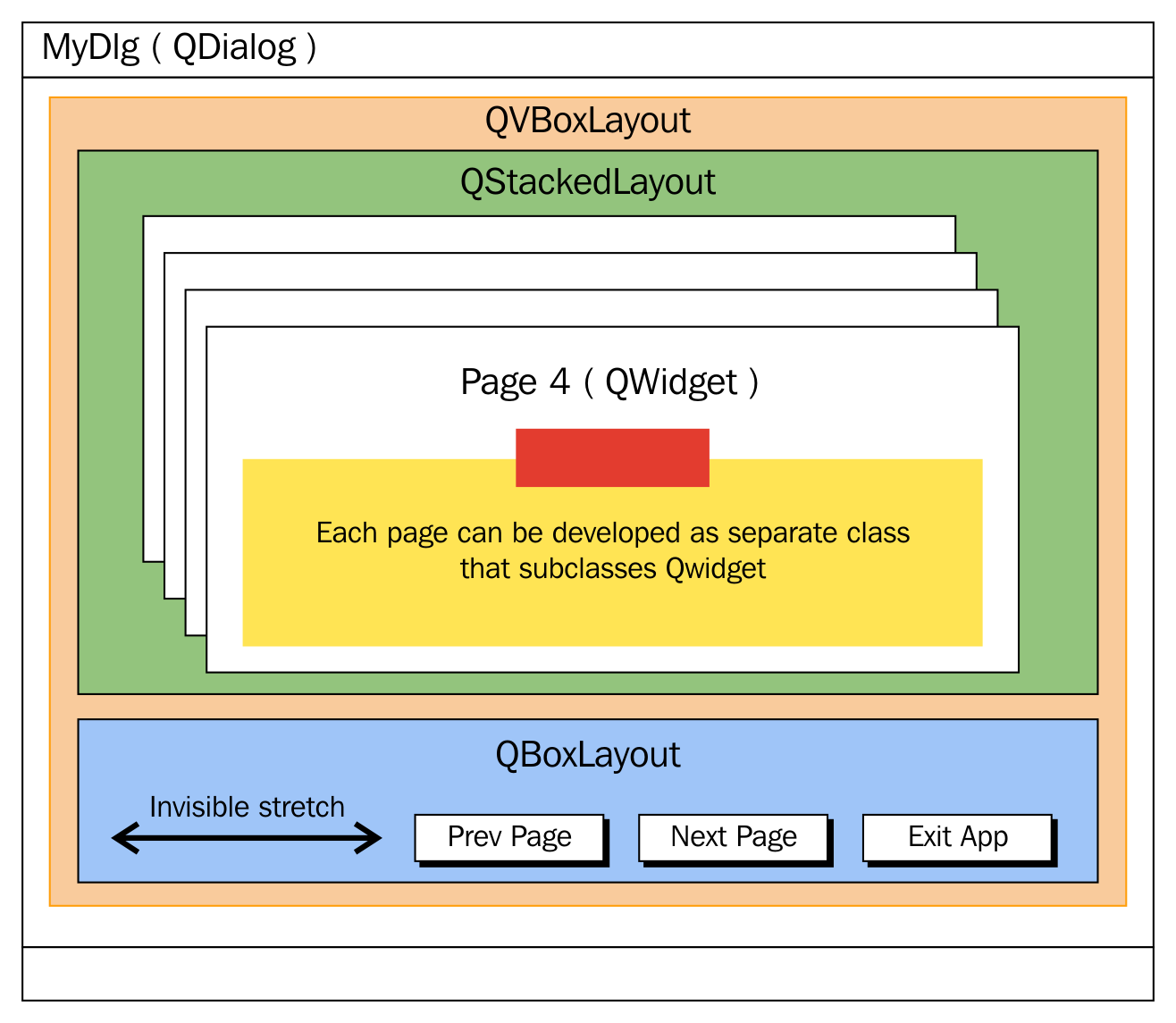
As you have learned about signals and slots, in this section, let's explore how to use a stacked layout in an application that has multiple windows; each window could be either a QWidget or QDialog. Each page may have its own child widgets. The application we are about to develop will demonstrate the use of a stacked layout and how to navigate from one window to the other within the stacked layout.
This application is going to require a decent amount of code, hence it is important that we ensure our code is structured carefully so that it meets both the structural and functional quality, avoiding code smells as much as possible.
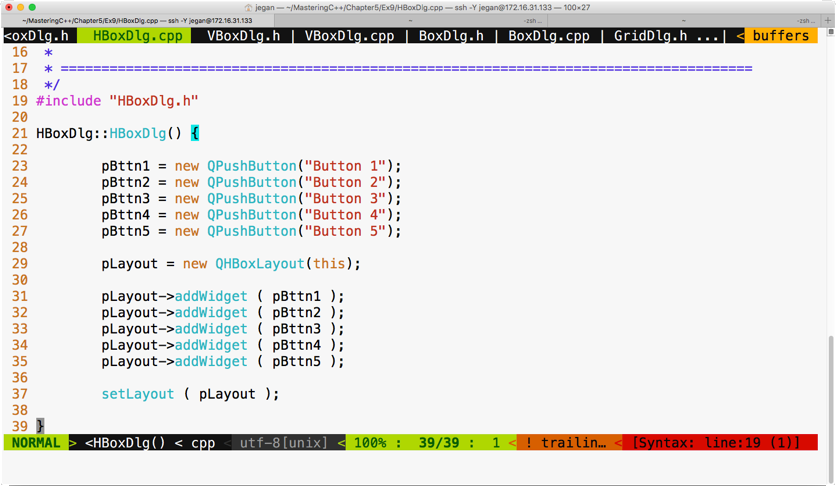
Let's create four widgets/windows that could be stacked up in a stacked layout, where each page could be developed as a separate class split across two files: HBoxDlg.h and HBoxDlg.cpp and so on.
Let's start with HBoxDlg.h. As you are familiar with layouts, in this exercise, we are going to create each dialog with one layout so that while navigating between the subwindows, you can differentiate between the pages. Otherwise, there will be no connection between the stacked layout and other layouts as such.
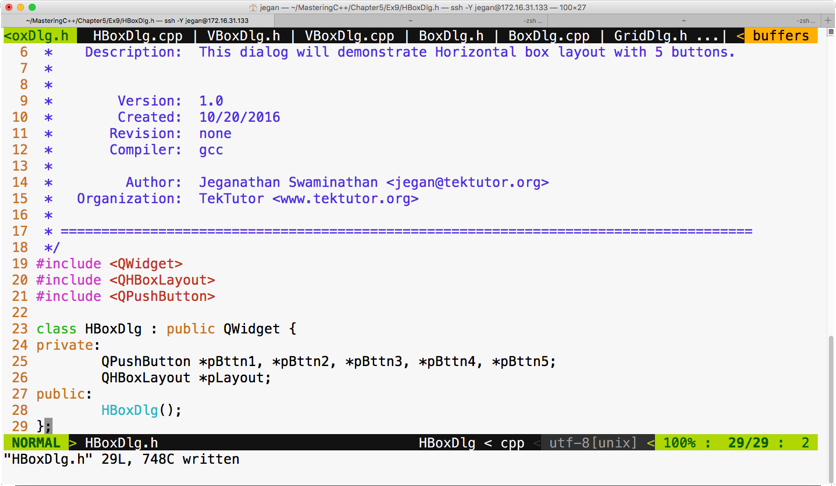
The following code snippet is from the HBoxDlg.cpp file:
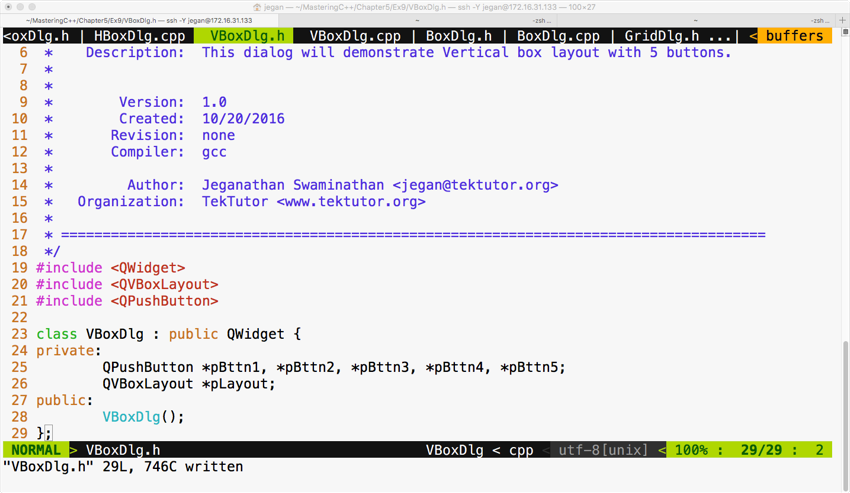
Similarly, let's write VBoxDlg.h as follows:
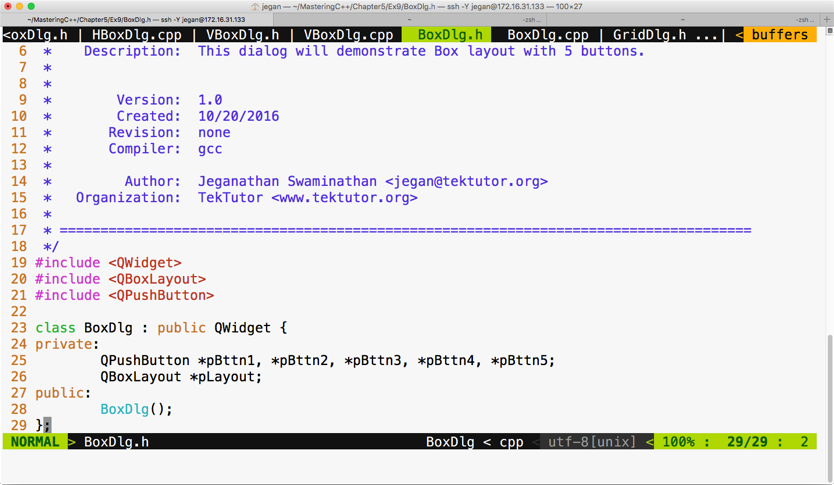
Let's create the third dialog BoxDlg.h with a box layout, as follows:
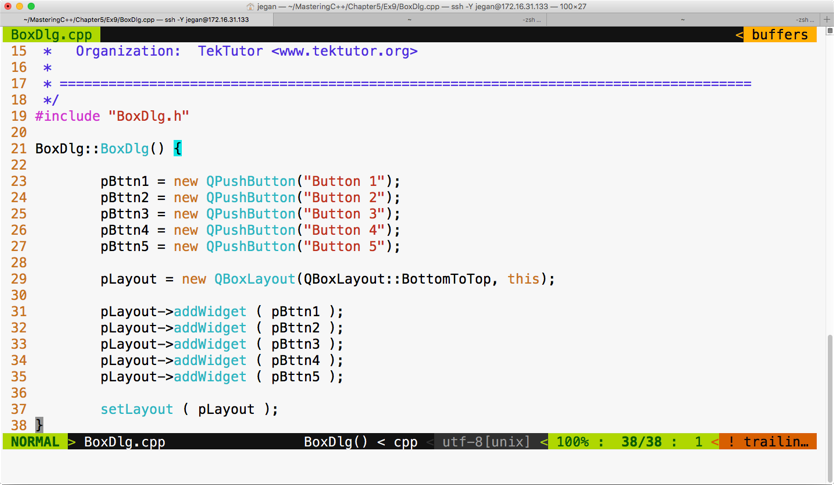
The respective BoxDlg.cpp source file will look as follows:
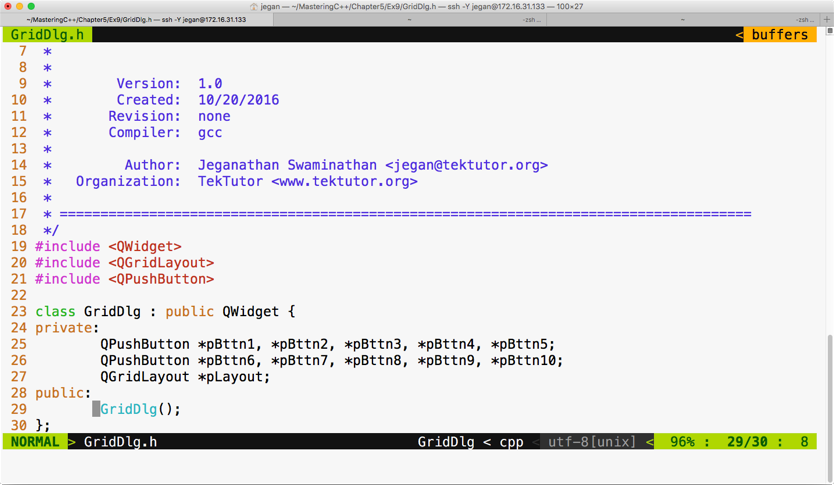
The fourth dialog that we would like to stack up is GridDlg, so let's see how GridDlg.h can be written, which is illustrated in the following screenshot:
The respective GridDlg.cpp will look like this:
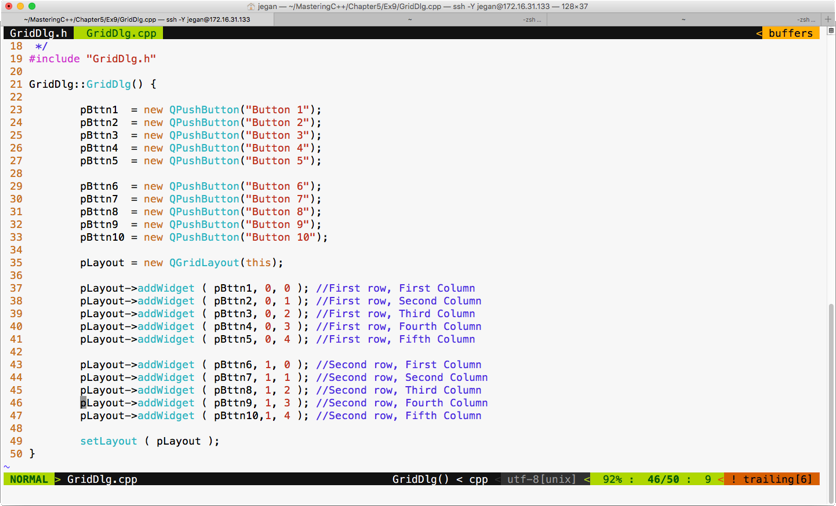
Cool, we are done with creating four widgets that can be stacked up in MainDlg. MainDlg is the one that's going to use QStackedLayout, so the crux of this exercise is understanding how a stacked layout works.
Let's see how MainDlg.h shall be written:
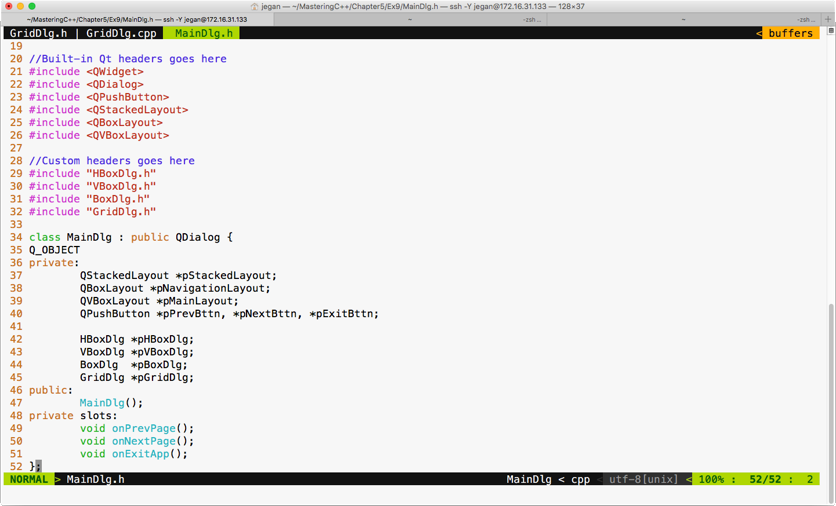
In MainDlg, we have declared three slot functions, one for each button, in order to support the navigation logic among the four windows. A stacked layout is similar to a tabbed widget, except that a tabbed widget will provide its own visual way to switch between the tabs, whereas in the case of a stacked layout, it is up to us to provide the switching logic.
The MainDlg.cpp will look like this:
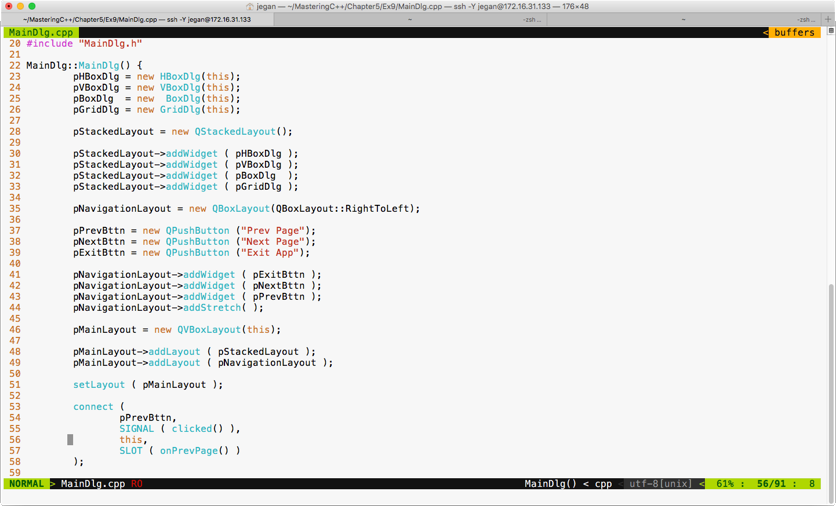
You can choose a box layout to hold the three buttons, as we prefer buttons aligned to the right. However, in order to ensure that extra spaces are consumed by some invisible glue, we have added a stretch item at line number 44.
Between lines 30 through 33, we have added all the four subwindows in a stacked layout so that windows can be made visible one at a time. The HBox dialog is added at index 0, the VBox dialog is added at index 1, and so on.
Lines 53 through 58 demonstrate how the previous button's clicked signal is wired with its corresponding MainDlg::onPrevPage() slot function. Similar connections must be configured for next and exit buttons:
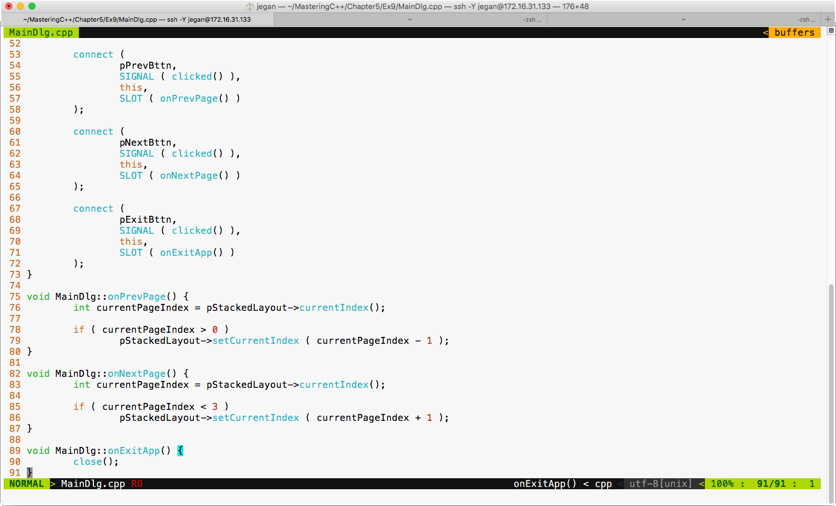
The if condition in line 78 ensures that the switching logic happens only if we are in the second or later subwindows. As the horizontal dialog is at index 0, we can't navigate to the previous window in cases where the current window happens to be a horizontal dialog. A similar validation is in place for switching to the next subwindow in line 85.
The stacked layout supports the setCurrentIndex() method to switch to a particular index position; alternatively, you could try the setCurrentWidget() method as well if it works better in your scenario.
The main.cpp looks short and simple, as follows:
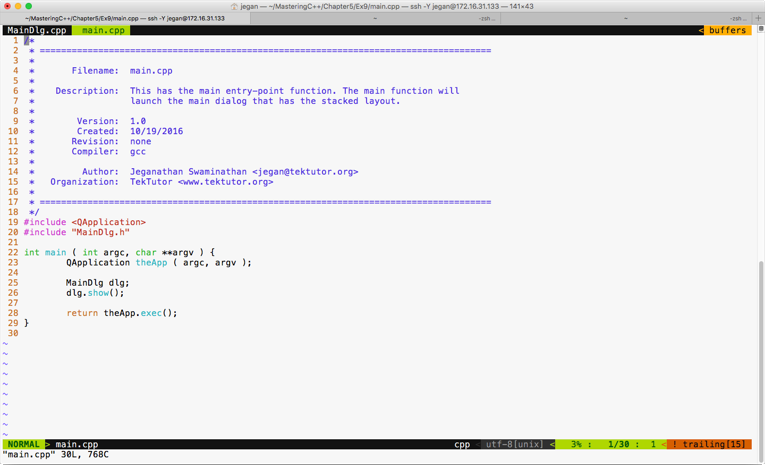
The best part of our main function is that irrespective of the complexity of the application logic, the main function doesn't have any business logic. This makes our code clean and easily maintainable.