In the previous section, you learned how to use a horizontal box layout. In this section, you will see how to use a vertical box layout in your application.
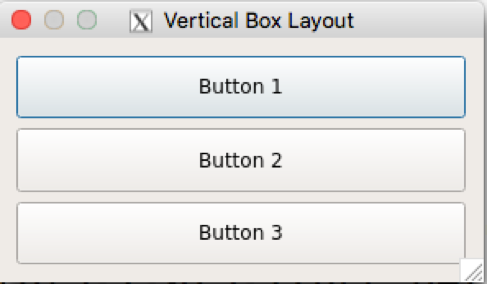
As a matter of fact, the horizontal and vertical box layouts vary only in terms of how they arrange the widgets. For instance, the horizontal box layout will arrange its child widgets in a horizontal fashion from left to right, whereas the vertical box layout will arrange its child widgets in a vertical fashion from top to bottom.
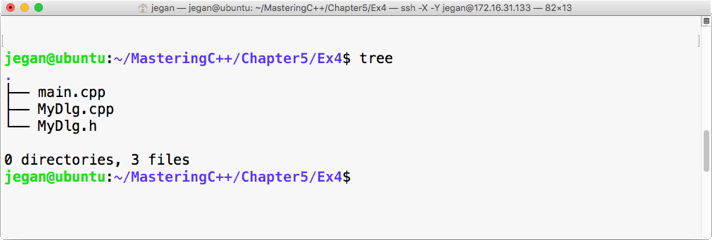
You can copy the source code from the previous section, as the changes are minor in nature. Once you have copied the code, your project directory should look as follows:
Let me demonstrate the changes starting from the MyDlg.h header file, as follows:
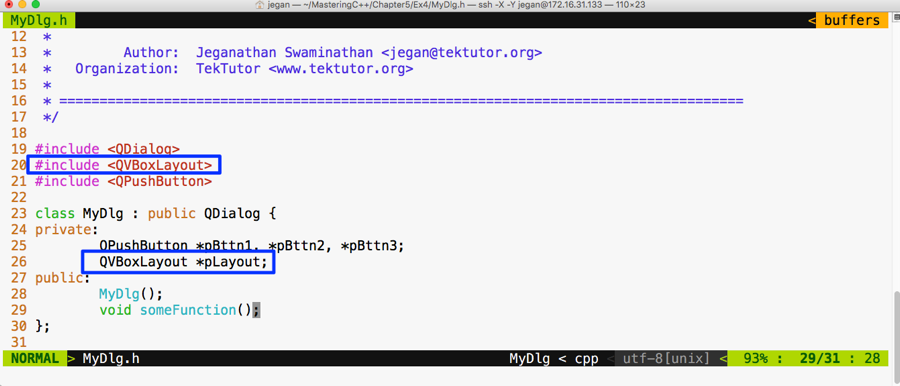
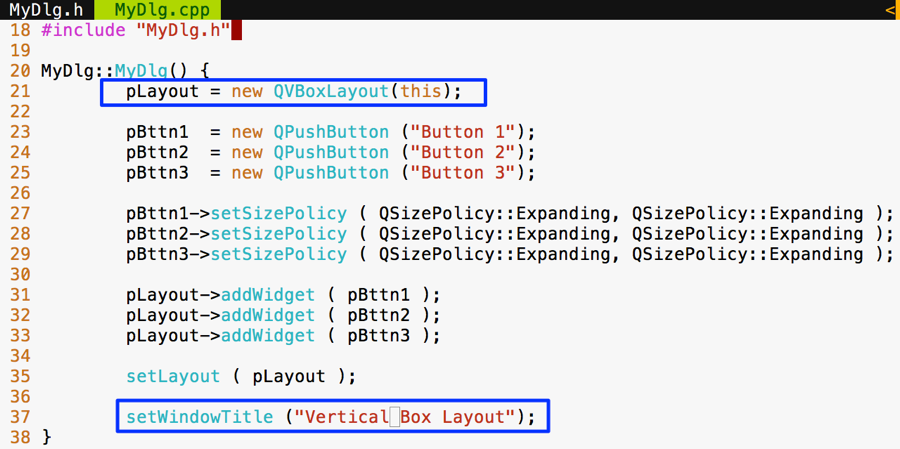
I have replaced QHBoxLayout with QVBoxLayout; that is all. Yes, let's proceed with file changes related to MyDlg.cpp:
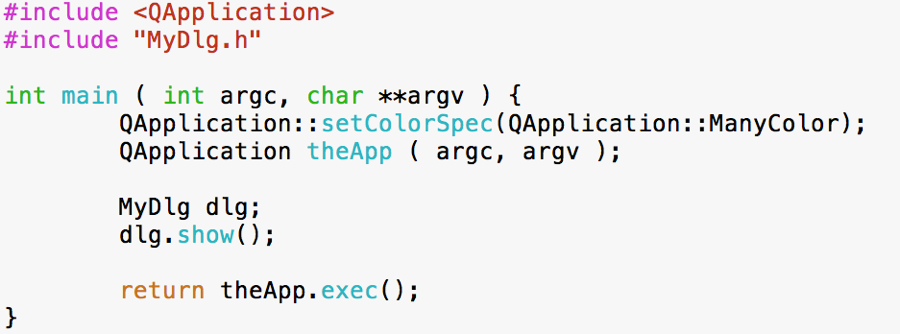
There are no changes to be done in main.cpp; however, I have shown main.cpp for your reference, as follows:
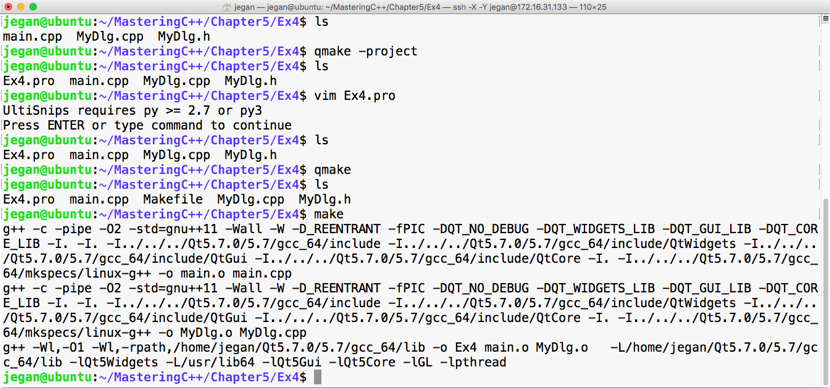
Now all we need to do is autogenerate Makefile and then make and run the program as follows:
Let's execute our brand new program and check the output. The following output demonstrates that QVBoxLayout arranges the widgets in a vertical top to bottom fashion. When the window is stretched, all the buttons' width will increase/decrease depending on whether the window is stretched out or stretched in: