Table of Contents for
Building PHP Applications with Symfony™, CakePHP, and Zend® Framework
 Building PHP Applications with Symfony™, CakePHP, and Zend® Framework
Published by
Wrox, 2011
Building PHP Applications with Symfony™, CakePHP, and Zend® Framework
Published by
Wrox, 2011
- Copyright
- Credits
- ABOUT THE AUTHORS
- ACKNOWLEDGMENTS
- Introduction
- 1. Introducing Symfony, CakePHP, and Zend Framework
- 2. Getting Started
- 3. Working with Databases
- 4. Your First Application in the Three Frameworks
- 5. Forms
- 6. Mailing
- 7. Searching
- 8. Security
- 9. Templates
- 10. AJAX
- 11. Making Plug-ins
- 12. Web Services
- 13. Back End
- 14. Internationalization
- 15. Testing
- 16. User Management
- 17. Performance
- 18. Summary
- A. Web Resources
- B. CodeIgniter, Lithium, and Agavi with Code Examples
- GLOSSARY OF ACRONYMS AND TECHNICAL TERMS
If you type "Google" into Google, you can break the Internet. So please, no one try it, even for a joke. It's not a laughing matter. You can break the Internet!
WHAT'S IN THIS CHAPTER?
With the advent of Web 2.0, web content was no longer generated solely by webmasters and dedicated editors, but by communities of end users themselves. One side effect of this transformation was a huge increase in web content that needs to be stored and occasionally searched.
In this chapter, we are going to show you how to integrate search engines with the frameworks. There are many search engines on the market, but we chose only three because of their usefulness, efficiency, and popularity; we also discuss important differences between them. The engines we describe are Lucene, Sphinx, and the Google API. Apache Lucene is a popular, Java-based, open-source engine that has spawned several successful subprojects. Sphinx was written in C++ by a sole dedicated software engineer with top performance and scalability in mind. The Google AJAX Search API allows you to easily embed web search capability into your website. It is unfortunately not open-source, but it is so cool we couldn't ignore it.
When you have a small database of a few thousand records and you need to run a query as rarely as once a minute, the search method doesn't really matter. You may use the SQL WHERE clause and built-in database mechanisms then. But when the query count increases, you simply cannot afford to run each search separately. You need to look for a more advanced mechanism.
Matters further complicate when you want to broaden your results to synonyms of your search phrase. You may expect that if somebody looks for guns he would be interested in firearms, too. However, the situation gets really messed up if you decide that searching should be intelligent and filter out irrelevant hits like Guns N' Roses. Of course that's messed up unless you integrate your application with a search engine. If you do, everything gets much simpler.
There is a good chance that you have used Google, Yahoo, or another web search engine. You were using full-text searching then. The web search engines are the most prominent examples of search engines, but there are also other solutions, especially those called enterprise search engines used for applications' internal resources. The only difference is that they do not crawl the Internet to get the content, but instead they search and index databases or files filled with content written by web app users. The type of data source is not that important as long as you have full access to it.
The problem with full-text searching is that you want to quickly get a large number of relevant results. It is hard to achieve that goal, and relevance seems to decrease as the number of results increases. To quantify these results, two important notions were defined:
Recall — The ratio of the quantity of returned relevant results to the quantity of all relevant items. In other words, it is the ratio of those items that you intended to hit and actually did to all items that you wanted to hit.
Precision — The ratio of the quantity of returned relevant results to the quantity of all returned results, including irrelevant ones. In other words, it is the ratio of those items you wanted to hit and did to all items you hit whether you wanted them or not.
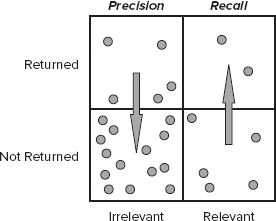
These notions are illustrated in Figure 7-1. Recall is increased when relevant items are returned, and precision is increased mainly if irrelevant items are not returned (but also by increasing recall). The density of dots roughly represents the fact that most items are not relevant and stay within the database.
As you probably expect, naive scanning of all data looking for exact matches is the worst option possible. If you look for "how to feed cats", this process compares this exact phrase with the beginning of every string in the database, moves one letter forward, compares it again, and so on. If 100 users look for "how to feed cats", the process is repeated from scratch. Moreover, such an exact phrase search cannot hit a sentence like "The favorite food of my cat is raw fish", which seems quite a relevant answer.
There are many indexing algorithms, but the thing they all have in common is that they initially analyze the database to decrease the work that needs to be done later, possibly increasing the recall of search. The index itself needs to be stored, but it is usually not much bigger than a few thousand commonly used words, so it is a little tradeoff for its effectiveness. Some common steps done during indexing include the following:
Tokenization — Continuous strings need to be segmented into individual words, called tokens. In most Western languages, words are clearly separated by spaces, but even then some problems may occur. For example, in English,
"killer whale"is the same as"orca", but when indexed as separate words may lead to"whale killers", meaning"whalers". Proper tokenization of the German language may be even more difficult, as it tends to dynamically create compound words such as"Tempolimit", which is"speed limit". Eastern languages are even less clearly whitespace-delineated, which makes tokenization challenging.Stop words — Some words are themselves meaningless, extremely common, or otherwise unwanted, and you want them filtered out from the index. Some common stop words are
"the", "it", "how", "to", or"however".Stemming — Many words may be derived from a common stem. For example,
"painting", "painted", "paints", and"painter"have a common stem"paint"and can be stored as one concept word under one index. This can dramatically improve recall, but at the cost of precision. A more sophisticated form of stemming is lemmatization. The word is first identified as a part of speech (e.g., a noun), and then an appropriate rule is used to find the stem. This allows better precision as the word"painting"may be either a noun, like"Caravaggio's painting", or a verb, like"Mary likes painting".Entity extraction — Some phrases in text can be identified as named entities and stored under their own indexes. This may include places like
"Great Barrier Reef", organizations like"Free Software Foundation", currencies, dates recognized from multiple formats, or others.Experimental methods — There is still much that can be done to improve general indexing algorithms and even more regarding language-specific indexing algorithms. There are some interesting methods introducing human-like fuzziness, like those indexing the phonetic sound of words. Some other systems try to match synonyms of various words to index pure concepts that can be expressed using several different words. Sometimes even semantic webs are constructed that allow the calculation of conceptual distance between particular words.
As you can see, this is quite a complex issue, perhaps more related to linguistics than information technology or computer science in general. Fortunately you do not have to go deep and you can focus on application development instead as each of the search engines discussed in this chapter provides its own indexing methods.
When users enter a search query, some magic can be done by the search engine. There are some well-known techniques for increasing the quality of returned hits:
Boolean operators — Queries can be more precise when you are able to specify that you want only results with all queried words or exclude results with some unwanted words.
Wildcards — Special characters that may substitute any other character or an indefinite amount of other characters.
Regular expressions — The preceding methods can be further refined to create a full syntax that allows for matching a word/character pattern with indexed items.
Fuzzy search — If fuzziness was not introduced in the index itself, you can do it during the search to improve the recall.
Field match — If the data source is a database of known structure, you can employ field-specific searching. For example, you can search only
Titlefields or filter old results using theDate_Createdfield.
In web application development, three search engine solutions are most commonly used: Sphinx, Lucene, and the Google Custom Search API. Because this book is not a never-ending story, we decided to integrate each search engine with only one web framework. It's an exception from the rule we've followed generally in this book that we show how to do exactly the same thing for each of the frameworks. The reason was to give every framework full-text search capabilities, rather than integrate it with a concrete search engine. Moreover, each search engine can be integrated with each web framework, often with few modifications. So after reading this, you should be able to get all combinations working (for example, Sphinx with CakePHP), even one that wasn't explained explicitly. We believe it's better than showing three nearly identical integrations.

Sphinx is a free search engine licensed under General Public License version 2. It was developed by a Russian software engineer, Andrew Aksyonoff. To get more detailed information about Sphinx, go to http://sphinxsearch.com. This section describes how to use Sphinx within Symfony. Sphinx is also available as a CakePHP plug-in or you can just use Sphinx's libraries to integrate it with Zend Framework. The Sphinx logo is shown in Figure 7-2.
Before you can use Sphinx inside your application, you need to install it first. Sphinx is a stand-alone application that is accessed rather than included by your web applications. Therefore, before using any framework's extension or enhancement, you need to install the engine separately. For some systems (for example, Windows and Ubuntu Linux), a binary version of Sphinx is available.
For Windows, the binaries are the default solution. You can grab them from Sphinx's homepage. Under Linux distributions, it is best to create binaries from the newest sources to avoid version compatibility issues. To do that, you first need to install some additional packages that are needed for the building process:
# apt-get install build-essential
When installation is complete, you can run the configuration script to set up your Sphinx to work with a chosen database engine, as it's done here:
# ./configure --with-mysql
# make
# make install
You need to edit the configuration file. On Linux, you can find it at /etc/sphinxsearch/sphinx.conf or /usr/local/etc/sphinx.conf, depending on the Sphinx version. On Windows, choose the file called sphinx-min.conf.in located in the main Sphinx installation directory and make a copy for editing called sphinx.conf. The reference manual recommends that you install Sphinx at C:\Sphinx, so we will follow this convention.
The following code snippet shows how this configuration file should look on Ubuntu Linux. You need to include a named data source with an SQL query that gets data from a database table. You also need to specify details for connecting to this database. The second thing you need to include is a named index. Set the data source as the source of this index and provide a path to store it.

source wroxSrc {
    type = mysql
    sql_host = localhost
    sql_user = foo
    sql_pass = bar
    sql_db = sphinx
    sql_port = 3306
    sql_query = \
        SELECT id, title, description \
        FROM news
    sql_query_info = SELECT * FROM news WHERE id=$id
}
index wroxIndex {
    source = wroxSrc
    path = /home/wrox/sphinx/source/wroxSrc
    docinfo = extern
    charset_type = sbcs
}
indexer {
    mem_limit = 32M
}
searchd {
    port = 3312
    log = /var/log/sphinxsearch/searchd.log
    query_log = /var/log/sphinxsearch/query.log
    read_timeout = 5
    max_children = 30
    pid_file = /var/run/searchd.pid
    max_matches = 1000
seamless_rotate = 1
preopen_indexes = 0
unlink_old = 1
}
code snippet /sphinx/sphinx.confThe next thing that needs to be done is adding the directory, where executable files are stored, to the PATH variable of your environment. This allows you to use available Sphinx tools: indexer, indextool, search, searchd, spelldump. On UNIX-like operating systems, after you execute make install, the symlinks are automatically added into /usr/bin/ or another directory that was already included into the system's PATH environment variable. On Windows you need to include the C:\Sphinx\bin directory using dialog windows (refer to Chapter 2).
Create the target folder for your index folder (Linux — /home/wrox/sphinx/source; Windows — C:\Sphinx\data) and an empty wroxSrc.spl file inside it. As always, make sure the paths are valid for your operating system. In the Windows configuration file, you will see in some places, the @CONFDIR@ variable. It is a placeholder and you must change these paths to correct ones like C:\Sphinx\data\wroxSrc.
Using the following tool, you can create the index (the parameter is the name of the index created in the configuration file):
$ indexer wroxIndex
It will consume the wroxSrc.spl file and create these files in the /data directory:
wroxSrc.spa
wroxSrc.spd
wroxSrc.sph
wroxSrc.spi
wroxSrc.spl
wroxSrc.spm
wroxSrc.spp
Now, run the Sphinx daemon so your application can access it to conduct search queries. It is a compiled C++ application, so it runs really fast. On Linux, you can run it just like this:
/etc/init.d/sphinxsearch start
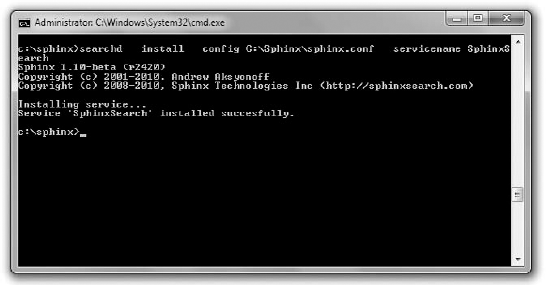
On Windows, you need to add it to Windows Services first. It will be more convenient than starting it from the console every time manually. Create another folder: /log, in C:\Sphinx. You need to run the console as administrator. Find the cmd.exe executable (type cmd in the Windows 7 start menu), right-click it, and choose the shielded option. When you've got the admin console, run the following command:
$ searchd --install --config C:\Sphinx\sphinx.conf --servicename SphinxSearch
The console output should look like Figure 7-3 if everything went well.
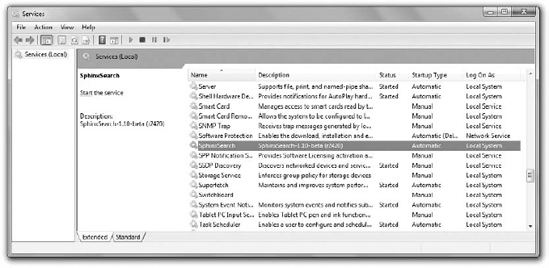
Now, when you go to Windows Services, you can start this SphinxSearch daemon, as shown in Figure 7-4. Automatic startup means that this service will be started on demand, so you don't have to do it manually.
In Symfony, there is a plug-in for almost everything, including Sphinx. You can read more about it at http://www.symfony-project.org/plugins/sfSphinxPlugin. To install it through the command line, you need to type the following command:
$ symfony plugin-install sfSphinxPlugin
Installing the Symfony plug-in gives you the possibility to access the Sphinx daemon.
As shown in the following code, generate the mysearch project that contains the frontend application and a nice search module:
$ symfony generate:project mysearch
$ symfony generate:app frontend
$ symfony generate:module frontend search
Fill the controller file with the index action as in the following code:
<?php
class searchActions extends sfActions {

    public function executeIndex(sfWebRequest $request) {
        $this->query = $this->getRequestParameter('search');
        $this->page = $this->getRequestParameter('p', 1);
        $options = array(
          'limit' => 5,
          'offset' => ($this->page - 1) * 5,
          'weights' => array(100, 1),
          'sort' => sfSphinxClient::SPH_SORT_EXTENDED,
          'sortby' => '@weight DESC',
          );
        if (!empty($this->query)) {
          $this->sphinx = new sfSphinxClient($options);
          $res = $this->sphinx->Query($this->query, 'wroxIndex');
          $this->pager =
             new sfSphinxDoctrinePager('News', $options['limit'], $this->sphinx);
          $this->pager->setPage($this->page);
          $this->pager->init();
        }
    }
}
code snippet /sphinx/symfony/apps/frontend/modules/search/actions/actions.class.php
This code requires some explanation. The first two parameters are fetched from the web request: the query and the page number. If no page number is present, it is set to 1. Then, an array of options is constructed, including display count limit, offset in search result number, weights, and sortingmethod. If the query is not empty, an instance of sfSphinxClient is created and then used to execute the query. Note that the second argument of the Query() function is the name of the index created before. The next line creates a Doctrine pager. There is also a pager for Propel called sfSphinxPager. Set the page and run the init() method that initializes the pager and results in pagination.
The next step is to create the search form. The following snippets are segments of one template file, sindexSuccess.php.
As shown in the following code, you should include the Search helper because it will be helpful for displaying data. Create a simple GET form with an input field and a submit button:
<?php use_helper('Search') ?>
What are you looking for?
<form action="<?php echo url_for('/index.php/search') ?>" method="get">
<input type="text" name="search" value="<?php echo $query; ?>" />
<input type="submit" name="submit" value="search" />
</form>
code snippet /sphinx/symfony/apps/frontend/modules/search/template/indexSuccess.php
If the query is empty then, well, return and that's all:
<?php if (empty($query)): ?>
<?php return ?>
<?php endif ?>
code snippet /sphinx/symfony/apps/frontend/modules/search/template/indexSuccess.php
If the query is not empty, handle it appropriately. The bold section in the following code is important because it displays in a loop all the titles and descriptions of the results of this query. Moreover, the search result in these texts gets highlighted.
<?php $res = $pager->getResults() ?>
<?php if (empty($res)): ?>
No result matches your query
<?php else: ?>
<?php if ($sphinx->getLastWarning()): ?>
Warning: <?php echo $sphinx->getLastWarning() ?>
<?php endif ?>
<ol start="<?php echo $pager->getFirstIndice() ?>">
<?php foreach ($res as $news): ?>
    <li>
     <?php echo link_to(highlight_search_result($news->getTitle(), $query),
         'news?id=' . $news->getId()) ?>
     <?php echo highlight_search_result($news->getDescription(), $query) ?>
    </li>
<?php endforeach ?>
</ol>
<?php endif ?>
code snippet /sphinx/symfony/apps/frontend/modules/search/template/indexSuccess.phpNow, prepare the pagination module. If there is enough content to be paginated, the following code will split it into pages and provide the well-known navigation links:
<?php if ($pager->haveToPaginate()): ?>
<?php echo link_to('«', 'index.php/search?q=' . $query . '&p=' .
$pager->getFirstPage()) ?><?php echo link_to('<', 'index.php/search?q=' . $query . '&p=' .
$pager->getPreviousPage()) ?>
<?php $pages = $pager->getLinks() ?>
<?php foreach ($pages as $page): ?>
<?php echo ($page == $pager->getPage()) ? $page : link_to($page,
'index.php/search?q=' . $query . '&p=' . $page) ?>
<?php endforeach ?>
<?php echo link_to('>', 'index.php/search?q=' . $query . '&p=' .
$pager->getNextPage()) ?>
<?php echo link_to('»', 'index.php/search?q=' . $query . '&p=' .
$pager->getLastPage()) ?>
<?php endif ?>
code snippet /sphinx/symfony/apps/frontend/modules/search/template/indexSuccess.phpThe last thing you need to include in your template is the number of matches found as the query result. It can be achieved with the following line:
Sphinx search "<?php echo $query; ?>" found
<?php echo $pager->getNbResults(); ?> matches.
code snippet /sphinx/symfony/apps/frontend/modules/search/template/indexSuccess.phpIt would be nice to test the search engine on a data set, wouldn't it? Well, that's what fixtures are for. Create a fixturex.yml fixture file. It may be as simple as the one following, but you are free to generate a really big file. You can read more about fixtures and testing in Chapter 15.
news:
  first:
    title: first news
    description: important news
  second:
    title: second news
    description: important news
  third:
    title: third news
    description: important news
  fourth:
    title: fourth news
    description: important news
  fifth:
    title: fifth news
    description: important news
  sixth:
    title: sixth news
    description: important news
  seventh:
    title: seventh news
    description: important news
code snippet /sphinx/symfony/data/fixtures/fixtures.yml
Load the data with following command. The database must be configured before and contain a news table with id (autoincremented INT), title (VARCHAR), and description (VARCHAR too, but bigger) fields.
$ symfony doctrine:data-load
To see the output you've been waiting for (see Figure 7-5), go to your browser, enter http://localhost/index.php/search in the address bar (remember to configure the routing), and then search for a phrase that can be found in the fixtures' titles.

If you need continuous indexing, you have to set Linux cron or Windows Scheduler to systematically run the indexer tool.
Integrating Sphinx is nearly as easy and straightforward in any other framework as it is in Symfony. When working with CakePHP, it's best to use the SphinxClient class in the model. In ZF, use it as an adapter. However, the Symfony plug-in makes it even easier, which is why we chose this combination in this chapter.

Lucene was written originally by Dave Cutting, but now, it is developed and supported by the Apache Software Foundation. At first, it was Jakarta family Java software, but it has been ported to many other programming languages, including PHP. You can read more about Lucene at its website: http://lucene.apache.org/java/docs/index.html. The Lucerne logo is shown in Figure 7-6.
Using Lucene and Zend Framework together is not a big deal because Lucene is already integrated with Zend Framework by default. Zend_Search_Lucene included in Zend Framework is one of the most successful ports of the Apache Lucene project. You can read more about this Zend component in the official documentation: http://framework.zend.com/manual/en/zend.search.lucene.html.
Go to /application/controllers/IndexController.php and create an indexing action that will be responsible for generating the index. All indexed items in Zend Lucene are instances of the Zend_Search_Lucene_Document class. The following code creates the documents, fills them with sample data, and adds them to the index:
public function indexingAction() {
    $index = Zend_Search_Lucene::create('/home/wrox/public_html/lucene/');
    $doc = new Zend_Search_Lucene_Document();
    $doc->addField(Zend_Search_Lucene_Field::Text('title', 'first news'));
    $doc->addField(Zend_Search_Lucene_Field::Text('description','hot news'));
    $index->addDocument($doc);
    $doc = new Zend_Search_Lucene_Document();
    $doc->addField(Zend_Search_Lucene_Field::Text('title', 'second news'));
    $doc->addField(Zend_Search_Lucene_Field::Text('description','hot news'));
    $index->addDocument($doc);
    $doc = new Zend_Search_Lucene_Document();
    $doc->addField(Zend_Search_Lucene_Field::Text('title', 'third news'));
    $doc->addField(Zend_Search_Lucene_Field::Text('description','hot news'));
    $index->addDocument($doc);
    $doc = new Zend_Search_Lucene_Document();
    $doc->addField(Zend_Search_Lucene_Field::Text('title', 'fourth news'));
    $doc->addField(Zend_Search_Lucene_Field::Text('description','hot news'));
    $index->addDocument($doc);
    $doc = new Zend_Search_Lucene_Document();
    $doc->addField(Zend_Search_Lucene_Field::Text('title', 'fifth news'));
    $doc->addField(Zend_Search_Lucene_Field::Text('description','hot news'));
    $index->addDocument($doc);
    $doc = new Zend_Search_Lucene_Document();
    $doc->addField(Zend_Search_Lucene_Field::Text('title', 'sixth news'));
    $doc->addField(Zend_Search_Lucene_Field::Text('description','hot news'));
    $index->addDocument($doc);
}
code snippet /lucene/zf/application/controllers/IndexController.php
Create the associated view. It can be as simple as this one.
indexing..
code snippet /lucene/zf/application/views/scripts/index/indexing.phtml
When you execute this action through your browser with the following link: http://localhost/index.php/index/indexing, you will see the simple view, as shown in Figure 7-7, and the index will be created in the background.
This is a makeshift solution designed as an example illustrating how to implement searching in Lucene. In a production environment, you can't create a single controller with hard-coded values to create an index. Instead, the index should be updated when new data is entered into or deleted from the database. We hope that it's clear for you.

In the same IndexController.php, edit the indexAction() as shown in the following code. The searched query is retrieved using the $this->_getParam() method with 'search' as the argument.
if ($this->_getParam('search') == "") {
    $searchQuery = "";
}else {
    $searchQuery =$this->_getParam('search');
}
$this->view->search = $searchQuery;
$index = Zend_Search_Lucene::open('/home/username/lucene/');
$this->view->results = $index->find($searchQuery);
code snippet /lucene/zf/application/controllers/IndexController.php
The phrase is searched using the index created before, and the results are returned to the view as the $this->results variable.
Create a view that allows you to enter the queries with a form and displays the results at the same time. The following code realizes these goals:
<form method="get" action="/index.php/index">
    Something missing?
    <input type="text" name="search" value="<?php echo $this->search; ?>" />
    <input type="submit" name="submit" value="search" />
</form>
<ol>
    <?php foreach ($this->results as $res): ?>
       <li><?php echo $res->title.' - '.$res->description; ?></li>
    <?php endforeach; ?>
</ol>
code snippet /lucene/zf/application/views/scripts/index/index.phtml
Pagination is only a little bit more complicated; you need to use the Zend_Paginator library. All you have to do is to supply the Zend_Paginator::factory() method with the results. This factory method produces the $pager paginator that is really easy to use. Just set the current page number and items per page. The full index action grows to look something like this:
public function indexAction() {
    if ($this->_getParam('search') == "") {
        $searchQuery = "";
    }else {
        $searchQuery =$this->_getParam('search');
    }
    $this->view->search = $searchQuery;
    $index = Zend_Search_Lucene::open('/home/username/lucene/');
    $results = $index->find($searchQuery);
    if ($this->_getParam('page') == "") {
        $page = 1;
    } else {
        $page = $this->_getParam('page');
    }
    $pager = Zend_Paginator::factory($results);
    $pager->setCurrentPageNumber($page);
    $pager->setItemCountPerPage(3);
    $this->view->results=$pager;
    $this->view->page = $page;
}
code snippet /lucene/zf/application/controllers/IndexController.php
You need also to update the view to use the pagination as shown in the following code. Notice the $res->score fragment; Zend allows you to access the relevance score determined by Lucene for each queried word.
<form method="get" action="/index.php/index">
    Something missing?
    <input type="text" name="search" value="<?php echo $this->search; ?>" />
    <input type="submit" name="submit" value="search" />
</form>
<?php // print_r($this->results); ?>
<?php if(!empty($this->results)): ?>
<ol>
    <?php foreach ($this->results as $res): ?>
      <li><?php echo $res->title.' - '.$res->description.', score: '.$res->score; ?>
      </li>
    <?php endforeach; ?>
</ol>
<?php echo $this->paginationControl(
    $this->results, 'Jumping','index/pager.phtml',
    array('search'=>$this->search));?>
<?php else: ?>
    No result matches your query
<?php endif; ?>
code snippet /lucene/zf/application/views/scripts/index/index.phtml
Zend's paginationControl() method highlighted in bold calls another view, here named pager.phtml, to do the pagination. There are also various scrolling styles available. According to Zend documentation, they are as follows:
Elastic — A Google-like scrolling style that expands and contracts as a user scrolls through the pages.
Jumping — As users scroll through, the page number advances to the end of a given range and then starts again at the beginning of the new range.
Sliding — A Yahoo!-like scrolling style that positions the current page number in the center of the page range or as close as possible. This is the default style.
The pagination view pager.phtml mentioned before is presented in the following code. The first section is responsible for checking whether the Previous link is applicable; if so, link it with the previous page. The middle section shows pages from the neighborhood determined by the $this->pagesInRange variable. And the last section is responsible for the Next button.
<?php if ($this->pageCount): ?>
    <?php if (isset($this->previous)): ?>
       <a href="
           <?php echo $this->url(array('search'=>$this->search,
              'page' => $this->previous)); ?>
           ">Previous </a>
    <?php else: ?>
      Previous
    <?php endif; ?>
    <?php foreach ($this->pagesInRange as $page): ?>
       <?php if ($page != $this->current): ?> <a
           href="<?php echo $this->url(array('search'=>$this->search,
              'page' => $page)); ?>"> <?php echo $page; ?></a>
       <?php else: ?>
       <?php echo $page; ?>
       <?php endif; ?>
    <?php endforeach; ?>
    <?php if (isset($this->next)): ?>
       <a href="
          <?php echo $this->url(array('search'=>$this->search,
             'page' => $this->next)); ?>
          "> Next</a>
    <?php else: ?>
       Next
    <?php endif; ?>
<?php endif; ?>
code snippet /lucene/zf/application/views/scripts/index/pager.phtml
The final output of this application is displayed in Figure 7-8.

Please notice that this is a full-featured fuzzy search. The search term was first news, but there were many other results displayed with lower match scores. A big advantage of Zend Framework is that it includes a search engine of such capabilities out of the box.
The Symfony integration is also rather simple because a Lucene plug-in is available at www.symfony-project.org/plugins/sfLucenePlugin. CakePHP developers are not so lucky, and again, they would have to write a special component to handle Lucene searching. This is not very hard, but it is rather time-consuming.

The previous two search engines were oriented for searching a named data source, preferably a local database. The solution presented here is powered by the Google Search Engine and allows you to use its vast database of indexed websites. The Google logo is shown in Figure 7-9.
The first web-search API from Google was called the Google SOAP search API, and it is no longer supported. A newer solution was the Google AJAX Search API. We were going to present it here, but it became deprecated as we were writing this chapter. Therefore, the newest solution from the Google search family will be used here: the Google Custom Search.
Go to the following web page and follow the white rabbit: http://www.google.com/cse.
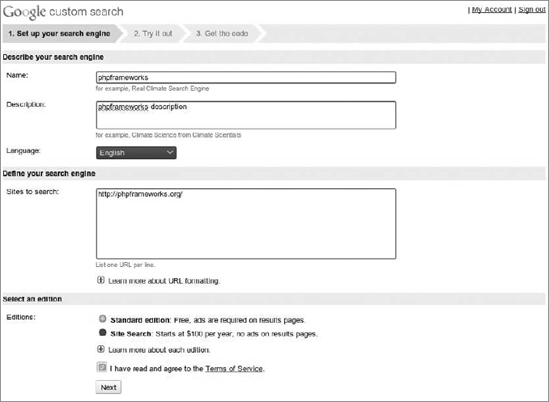
Click the Create a Custom Search Engine button. You'll need a Google account for this, so create it if you don't have one. The first step is shown in Figure 7-10.
Provide the name and description of the search engine. Chose the websites your search engine will focus on. In most cases, this will be your own website, but you can include some friends' sites as well or create a search engine for any other combination of places. Well, that's why it's called custom. Accept the terms of service and free or ads-free edition. Proceed to the second step shown in Figure 7-11.
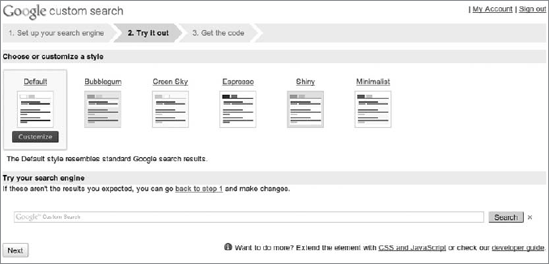
Pick one of the ready-to-use stylesheets or customize them to your liking. You can test the outputs with the following form. Proceed to the last step shown in Figure 7-12.
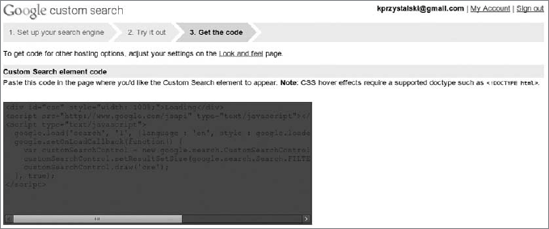
All you have to do is to copy the code and paste it into your web page. That's all.
Symfony had Sphinx and Zend had Lucene, so we will show how to integrate Google Custom Search with CakePHP only. Well, "integration" is surely too strong a word here as it boils down to inserting a bunch of Google code into a view. It just couldn't be easier.
Take a view and insert the obtained code into it. It will look similar to the following snippet, although not exactly the same because the keys will vary.
<div id="cse" style="width: 100%;">Loading</div>
<script src="http://www.google.com/jsapi" type="text/javascript"></script>
<script type="text/javascript">
    google.load('search', '1', {language : 'en'});
    google.setOnLoadCallback(function() {
      var customSearchControl =
          new google.search.CustomSearchControl(
          '008847152987572801710:baanh-mj9ly');
      customSearchControl.setResultSetSize(
          google.search.Search.FILTERED_CSE_RESULTSET);
      customSearchControl.draw('cse');
    }, true);
</script>
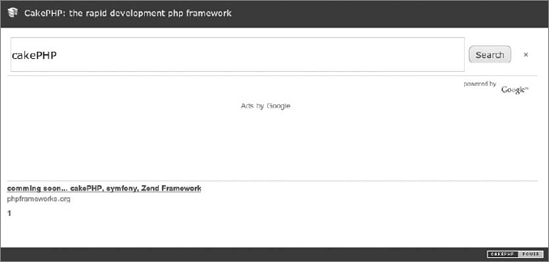
The result is shown in Figure 7-13.